Free SharePoint Migration Tool: Full Fidelity Site Copy, Broken Link Scan and Permission Comparison
Last updated: 2026-10-16
Free SharePoint migration tool for full fidelity site copy. SharePoint Essentials Toolkit also scans for broken links and runs permission comparison reports after the migration.
SharePoint Essentials Toolkit is a free SharePoint migration product. Community Edition includes Copy Sites, broken-link scans and permission reports on up to 20 site collections. Additional full-fidelity options, including version history, item permissions and the high-fidelity bulk engine, require Professional or Enterprise as described below.
Moving a SharePoint site is more than uploading files. Columns, content types, views, folders, version history, authors, dates and permissions are what make the destination usable. SharePoint Essentials Toolkit copies that structure and content, and the same product checks the result: a broken link scan across pages, documents and navigation, and permission reports you can compare between the source and the copy.
Free to start. Community Edition is free and never expires. It includes Copy Sites, broken link scans and permission reports at full depth, on up to 20 site collections per Microsoft 365 tenant. Get a key at cognillo.com.
Edition requirements: Community uses the standard Native API engine. Copying version history or multiple source lists requires Professional; copying item permissions and the high-fidelity Migration API engine require Enterprise. The complete capability list below includes paid options—not every option is included in the free edition.
Full fidelity site migration
Copy Sites copies into a site that already exists. You map a source site to a target site, in the same tenant or another one, on SharePoint Online or SharePoint Server 2013, 2016, 2019 and Subscription Edition.
Two modes:
Full copy brings the site structure and every list, with its items, files and folders.
Structure only stands up an empty twin for a stage or test environment: columns, content types, groups, navigation and lists, with no items or files.
What comes across with the site
These are created on the target before the lists, so the lists can use them. Anything already on the target is left as it is.
Site features that are active on the source, at site and site collection scope. Classic publishing, which Microsoft is retiring, is reported rather than activated.
Site columns, including lookup columns, which are created after the lists they point at exist and are re-pointed at the copied list.
Site content types, with their columns, settings and document templates.
SharePoint groups, with descriptions and owners, and optionally each group's members. People are matched through a user map first, then by account.
Site permissions: custom permission levels are created, inheritance is broken where the source broke it, and the source role assignments are applied.
Quick launch navigation, with links to lists re-pointed at the copy.
Title, description, logo and regional settings, off by default so the target keeps its own name.
What comes across with each list
List columns and their settings, folders, and every item, file and page.
Views are created with the list.
Version history, every version or only major versions, or only the most recent major and minor versions you choose.
Authors and dates: Created by, Modified by, and both dates, plus the list's own last modified date, instead of stamping the copy with the account that ran the job.
Lookup values pointed at the matching item on the target.
Item IDs kept when you ask for them.
Retention labels and sensitivity labels, where the target already has the same label.
List permissions and item permissions on items, files and pages that have unique permissions. Sharing links are not copied; run the sharing links report on the source if you need that inventory before you cut over.
A choice when the target already has the item: skip it, update it, or overwrite it (recycle or delete the existing one).
A user map from source accounts to target accounts, and a fallback account when someone cannot be found.
Two copy engines
Lists, columns, views and settings are created the same way either way. The engine only changes how items and files move.
Engine | What it is for |
|---|---|
Standard | Copies items one at a time. Works on every SharePoint version the toolkit supports, including on-premises, and supports content filters and per-item retries. |
High-fidelity bulk copy | SharePoint Online's Migration API imports the library itself. Original authors, dates and version history are kept, item IDs are kept, and the target does not fire alerts or workflows. Content is staged in encrypted storage that SharePoint provides, or in your own Azure Storage account. Both sides must be SharePoint Online, and the account must be a site collection administrator on both. A job with content filters, an on-premises site, or an account that is not a site collection administrator runs on the standard engine instead, and the log says why. |
A Copy Sites run that is interrupted is started again from the beginning. Lists and items already on the target are updated, not duplicated, when you choose update or overwrite.
You can save the job as a template and run the same copy from the desktop app or from PowerShell. Job history keeps the run log.
Scan for broken links after the migration
A copied page can still point at the old tenant, an old Document ID, or a Copy Link that used the source item's identifier. The broken link scan reads the destination and checks each link.
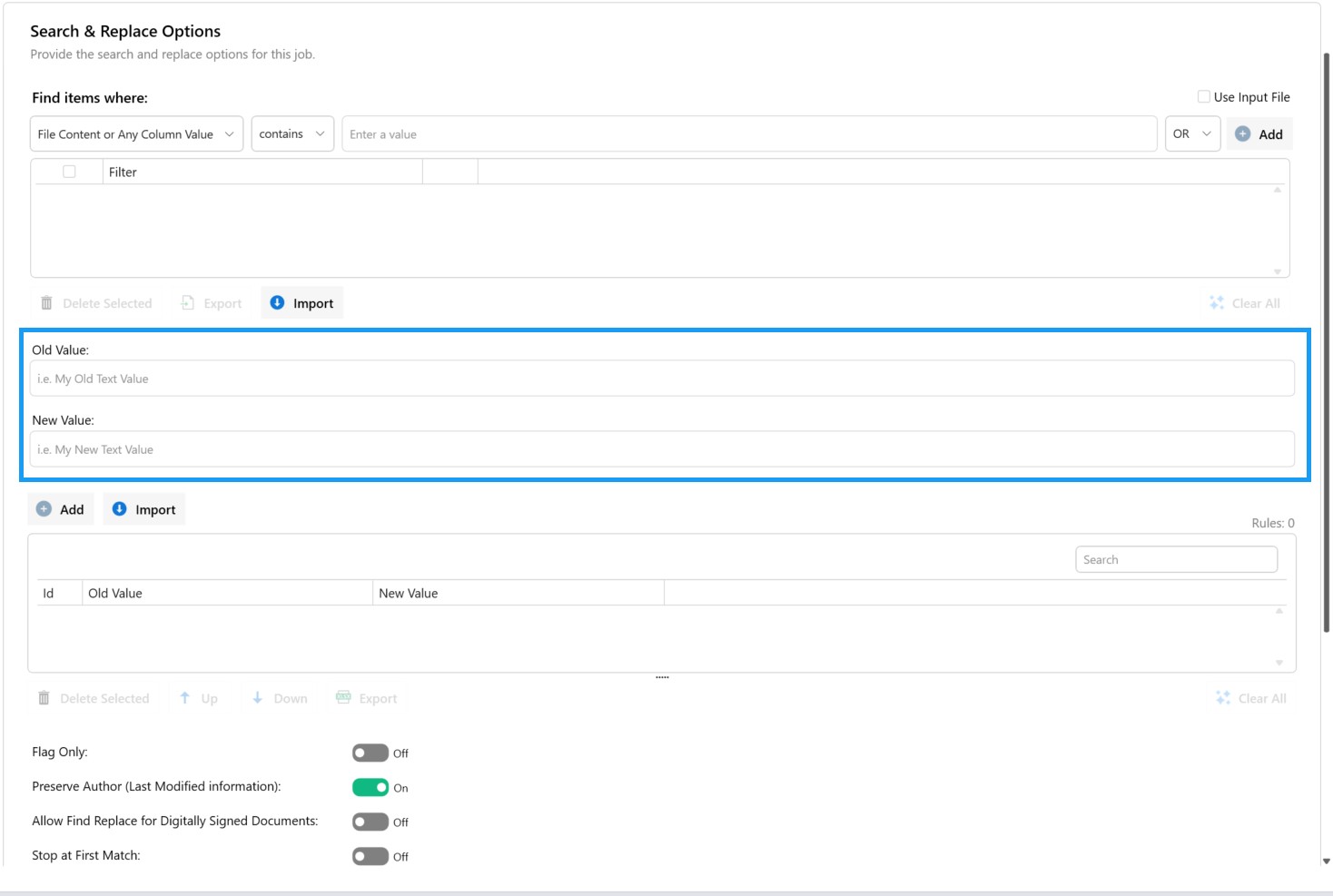
Search and Replace Options: enter the old and new URLs and enable Flag Only before making changes. The screenshot shows Flag Only off; turn it on for the preview run.
It looks in:
Site navigation
Classic and modern pages, including web part properties
Word, Excel and PowerPoint files
List item column values
The report can list every link, or broken links only. You can also search for one or more specific URLs, which is the practical way to find every Document ID redirect and every sourcedoc= Copy Link that still names the old site.
A typical check after cutover:
Run a Links report on the destination with validation on, and turn on "only report broken links" if you want a short list.
Run Item Inventory on the destination and add the Document ID column. That gives you the new physical path for each old identifier.
Use Find and replace links to rewrite the old URLs. Run it with flag-only first so the report shows every replacement before anything is written.
Community Edition runs the link scan and the item inventory at full depth. Find and replace, which writes to SharePoint, can be tried on lists under 100 items; bulk replacement is an Enterprise task.
Permission comparison reports after the migration
Full fidelity includes copying unique permissions, but you still want proof. The permissions report is the comparison: run it on the source and on the destination, export both to Excel, and see who can access what on each side.
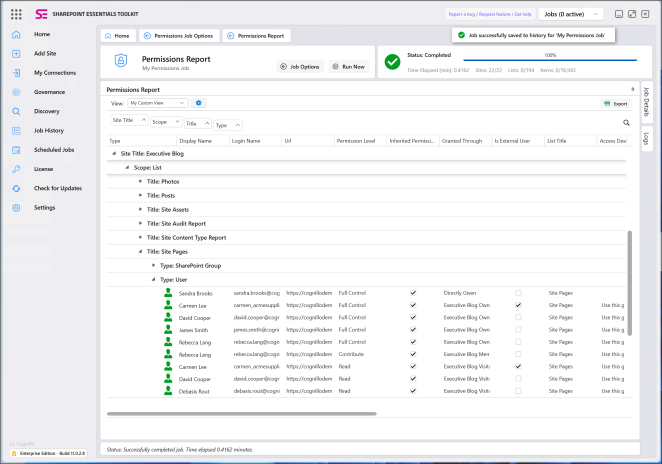
Permissions Report: inspect permission levels, inherited access, granted-through groups and external users, then export the source and destination reports for comparison.
Each report lists every grant on every site, list and item, with user and group views and a permissions tree. Presets narrow it to the questions that matter after a move:
Unique permissions
Sharing links, including Anyone links
External accounts
Site collection administrators
Open to everyone (Everyone, Everyone except external users, all authenticated users, or an Anyone link)
Privileged access: who has Full Control
Everything one person can access, across the sites you select
SharePoint group members and Teams owners and members are included. Entra ID group members, including nested groups, can be expanded in the same report.
For an ongoing comparison, schedule a permissions report and turn it into a monitor. Each run is compared with the previous one and reports who was added, removed or changed. That is the check you want the week after go-live, when people are still being added to the new site by hand.
Sharing links are not part of the copy. Run the sharing links report on the source before you decommission it, and again on the destination if users recreate links there. The same report is the place to see Anyone links, expired links, links with no expiry, and links shared with people outside the organization.
The rest of the toolkit, in the same free product
Migration is one task. The same license runs the reports you use to plan the move and to confirm it.
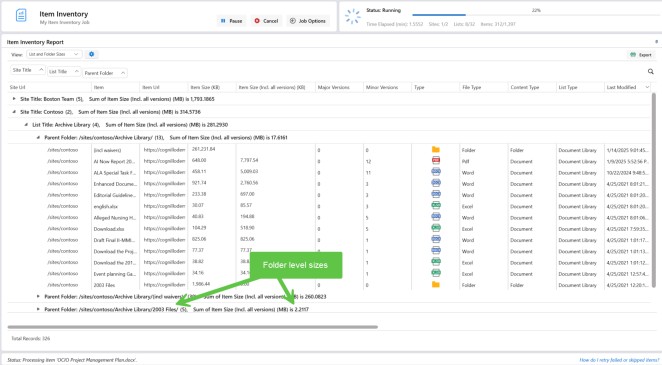
Item Inventory: review files, folders, item sizes and version counts while planning and validating the move.
Area | What you can run |
|---|---|
Inventory | Sites, lists, items, files, folders, pages, content types, alerts, site features, users and groups |
Oversharing | Sharing links, content open to everyone, privileged access, unlabeled files that are widely shared, stale content that is still open |
Search | Inside Word, Excel, PowerPoint, PDF and text files; page and web part text; column values; checked-out files |
Storage | Site storage and recycle bin size, list and folder sizes, largest files and version counts |
Analytics | Site visits and unique users; document and page analytics |
Activity | File deletions, edits, downloads, sharing and permission events; sign-in activity (Beta) |
Where you work | Explorer (browse a site and launch a task on what you are looking at), job templates, job history, export to Excel or CSV, export to a SharePoint library, email delivery |
Read-only reports run at full depth on Community Edition. There is no row cap, item cap or user cap inside a report. The limit is how many site collections you work on: 20 per tenant, shared by every Community license in that tenant, and no more than 20 sites in one job. Subsites count with their site collection. Discovering sites and testing a connection do not count. After a site is counted, you can run anything on it as often as you like.
Tasks that write to SharePoint in bulk — version history on a copy, copying several lists in one job, item permissions, the high-fidelity Migration API engine, find and replace across large libraries, and bulk permission changes — are on Professional or Enterprise. Community Edition lets you try the editing tasks on a small scale so you can see how they work.
A practical migration order
Add the source and target sites. The target site collection must already exist.
Run a permissions report and a sharing links report on the source. Export them. This is the "before" side of the comparison, and the only record of sharing links, which are not copied.
Run Copy Sites in structure-only mode against a test site if you want to confirm columns, content types and navigation before any files move.
Run a full copy with the options your edition supports. Preserve authors and dates; enable version history with Professional, and item permissions or the high-fidelity bulk engine with Enterprise. The bulk engine requires SharePoint Online on both sides.
Run the permissions report on the destination and compare it with the source export.
Run the broken link scan on the destination. Fix Document ID links and Copy Links with find and replace, flag-only first.
Leave a scheduled permissions monitor on the destination for the first weeks after go-live.
Get the free migration tool
SharePoint Essentials Toolkit Community Edition is the free SharePoint migration product: full site copy, a broken link scan, and permission comparison reports after the migration, with no expiry. Download it and request a free license at cognillo.com. The product page, including the edition comparison, is at cognillo.com/sharepoint-essentials-toolkit.
If 20 site collections is not enough for a pilot, ask procurement@cognillo.com for a Full Temp license. It runs as the full product, with no limits, for a set period.