How to Remove "Limited Access" Users in SharePoint Safely, and Audit Permissions Across Your Tenant
Published:
Last updated: 2026-10-29
Limited Access is added by SharePoint, not granted by anyone: when someone gets access to a file or folder with its own permissions, they get Limited Access on the library and site above it so they can reach it. It is safe to remove only when they no longer have access to anything below. Check that first with a PowerShell scan or the free SharePoint Essentials Toolkit, which checks before every removal and stops if access is still in use.
What Limited Access is, and why it piles up
Share one file with someone, and SharePoint adds them to the file with the level you chose, and to every scope above it with Limited Access (or Web-Only Limited Access at the site). Limited Access lets them pass through the site and library to reach the file; on its own it gives no access to anything. When many people are involved, SharePoint uses "Limited Access System Group" entries instead of individuals.
It piles up because removing someone's access to the file doesn't always remove the Limited Access above it. After a few years of sharing, the site's Advanced permissions page says "There are limited access users on this site", and the list behind Show users can run to hundreds of names, most of whom no longer have access to anything.
Removing Limited Access is only safe if the person has nothing left below. If they still have access to a file, removing their Limited Access on the library or site above stops them reaching it.
Option 1: Find and remove Limited Access with built-in tools
On the site, go to Settings > Site permissions > Advanced permissions settings.
In the banner "There are limited access users on this site", select Show users.
For each person, check what they still have: Check Permissions shows site-level access only, so open each library with unique permissions and use Show these items to look for files shared with them.
If they have nothing left, select them and choose Remove User Permissions. Do the same on each library's permissions page.
This works for a handful of people on one site. Checking every file for every person is what makes it impractical at scale.
Option 2: Find leftover Limited Access with PowerShell
This PnP PowerShell script scans a site's libraries and lists for items with unique permissions, records who has real access on them, and reports Limited Access entries at the list and site level for people with nothing real below. It removes them only when you set $WhatIf = $false. It needs PnP PowerShell 2.x and your own Entra ID app registration, signed in as a site owner.
# Find (and optionally remove) Limited Access entries with nothing left below them
$ClientId = "<your-app-id>"
$SiteUrl  = "https://contoso.sharepoint.com/sites/Projects"
$WhatIf   = $true    # set to $false to remove
Connect-PnPOnline -Url $SiteUrl -Interactive -ClientId $ClientId

function Get-Assignments($securable) {
    Get-PnPProperty -ClientObject $securable -Property RoleAssignments | Out-Null
    foreach ($ra in $securable.RoleAssignments) {
        Get-PnPProperty -ClientObject $ra -Property Member, RoleDefinitionBindings | Out-Null
        [pscustomobject]@{ Id = $ra.PrincipalId; Name = $ra.Member.Title; Levels = @($ra.RoleDefinitionBindings.Name) }
    }
}
function Test-LimitedOnly($a) { -not ($a.Levels | Where-Object { $_ -notlike "*Limited Access*" }) }

$web = Get-PnPWeb
$realInSite = @{}
$leftover = @()
foreach ($list in Get-PnPList | Where-Object { -not $_.Hidden }) {
    $realInList = @{}
    $url = "$SiteUrl/_api/web/lists(guid'$($list.Id)')/items?`$select=Id,HasUniqueRoleAssignments&`$top=5000"
    do {
        $page = Invoke-PnPSPRestMethod -Url $url
        foreach ($row in $page.value | Where-Object HasUniqueRoleAssignments) {
            $item = Get-PnPListItem -List $list -Id $row.Id
            Get-Assignments $item | Where-Object { -not (Test-LimitedOnly $_) } | ForEach-Object { $realInList[$_.Id] = $true }
        }
        $url = $page.'odata.nextLink'
    } while ($url)

    if (Get-PnPProperty -ClientObject $list -Property HasUniqueRoleAssignments) {
        foreach ($a in Get-Assignments $list) {
            if (-not (Test-LimitedOnly $a)) { $realInList[$a.Id] = $true }
            elseif (-not $realInList[$a.Id] -and $a.Name -notlike "Limited Access System Group*") {
                $leftover += [pscustomobject]@{ Scope = $list.Title; Name = $a.Name; Id = $a.Id; Securable = $list }
            }
        }
    }
    $realInList.Keys | ForEach-Object { $realInSite[$_] = $true }
}
foreach ($a in Get-Assignments $web) {
    if ((Test-LimitedOnly $a) -and -not $realInSite[$a.Id] -and $a.Name -notlike "Limited Access System Group*") {
        $leftover += [pscustomobject]@{ Scope = "(site)"; Name = $a.Name; Id = $a.Id; Securable = $web }
    }
}

$leftover | Format-Table Scope, Name, Id -AutoSize
if (-not $WhatIf) {
    foreach ($l in $leftover) {
        $l.Securable.RoleAssignments.GetByPrincipalId($l.Id).DeleteObject()
        Invoke-PnPQuery
    }
}
What to know:
Removing Limited Access at the site can also clear matching entries on the lists below it, so later removals in the same run may find nothing to remove. That's expected.
The script doesn't look into subsites, or follow access through Microsoft 365 groups and security groups nested in SharePoint groups. Treat its list as candidates, not certainties, on complex sites.
Limited Access System Group entries are managed by SharePoint and left alone.
Option 3: Remove leftover Limited Access with SharePoint Essentials Toolkit
1. Include Limited Access in the permissions report
Limited Access rows are left out of the Permissions report by default. In the task's Settings, turn on Include Limited Access (Site Level) and Include Limited Access (List Level).
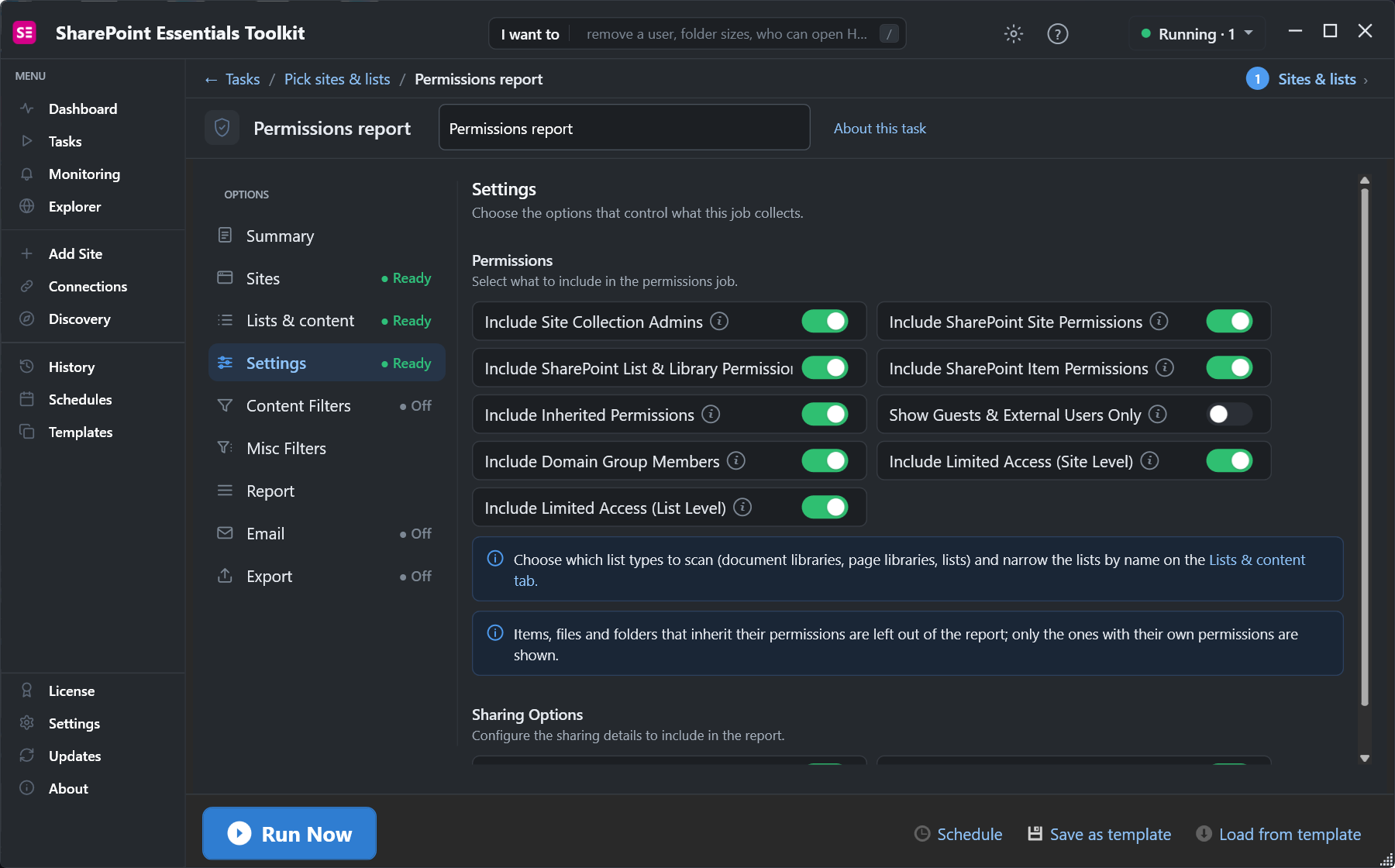
Turn on both Limited Access options before running the report.
Search the results for "Limited". On our test site three people had Limited Access at the site and on the Archive library: two with Web-Only Limited Access through SharePoint's Limited Access System Group, and one, David Cooper, with Limited Access given directly.
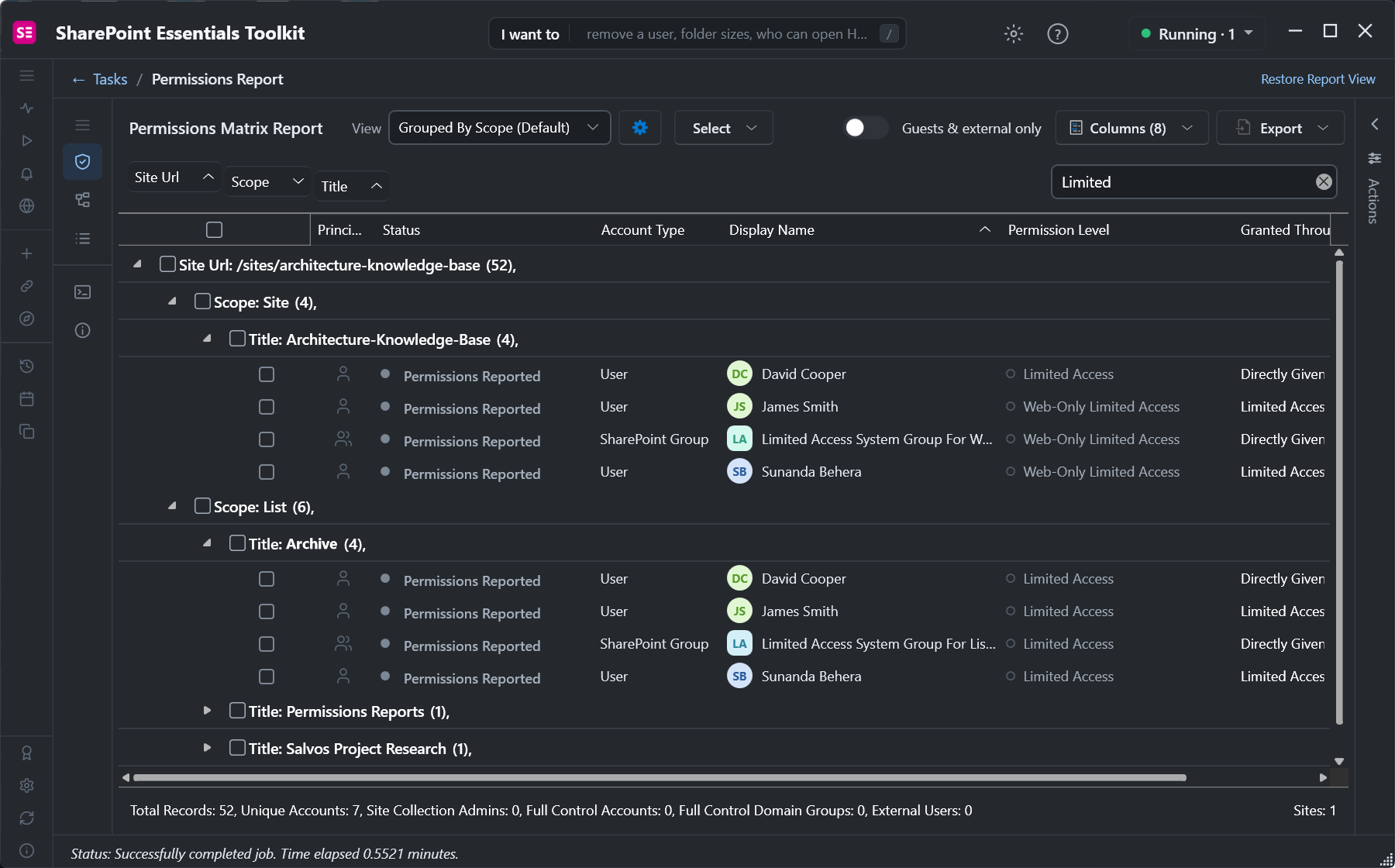
Limited Access at the site and on one library.
2. Select and review
Tick the rows and open Actions. Each entry is labelled "limited access left behind by SharePoint" where that's what it is.
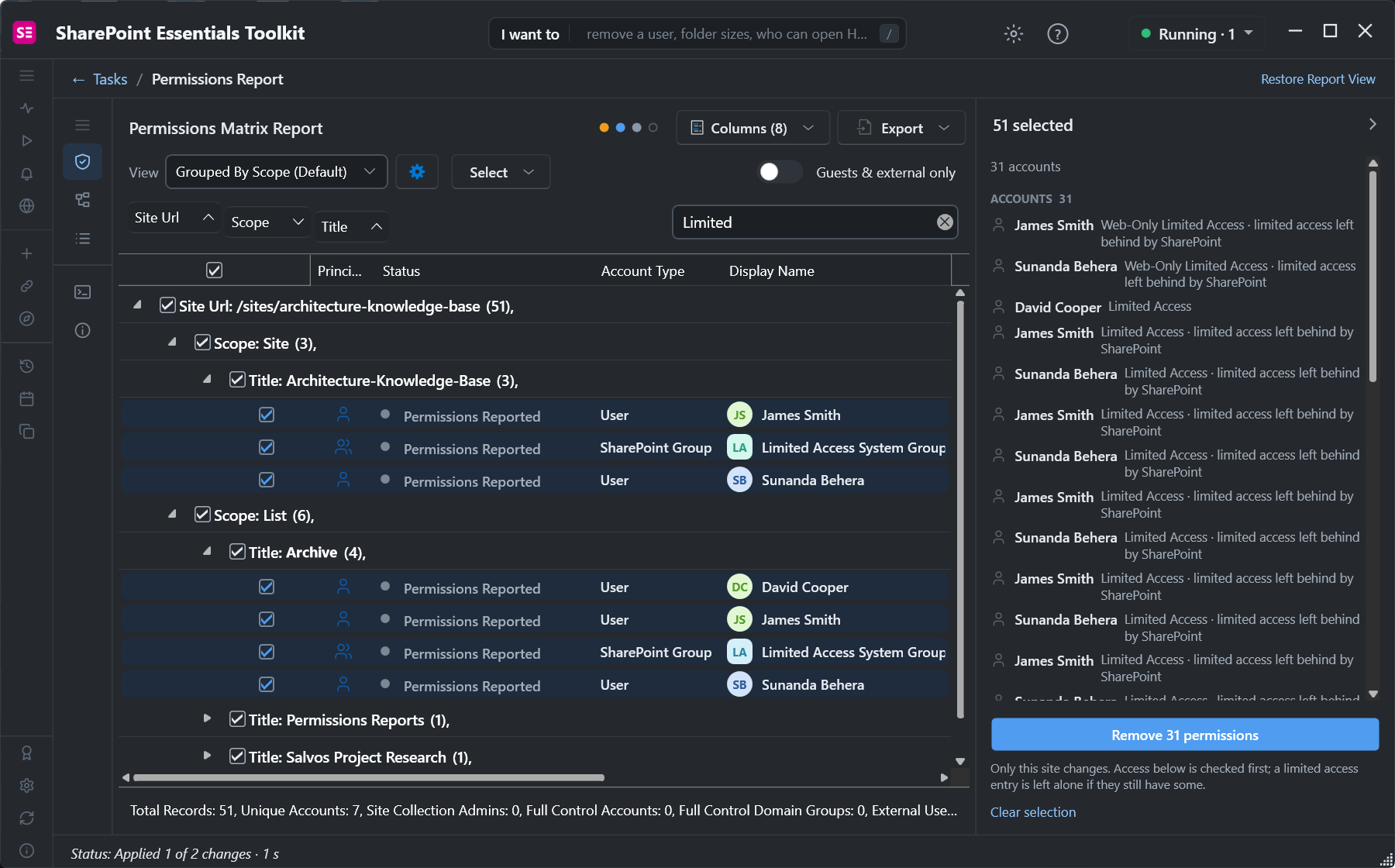
Every Limited Access row on the site selected. Only this site changes.
The review explains each removal. If the person still has access to a list, folder or file below, removing it would stop them reaching it, so that is checked first, and the removal stops if anything is found. Entries with nothing behind them are just cleared.
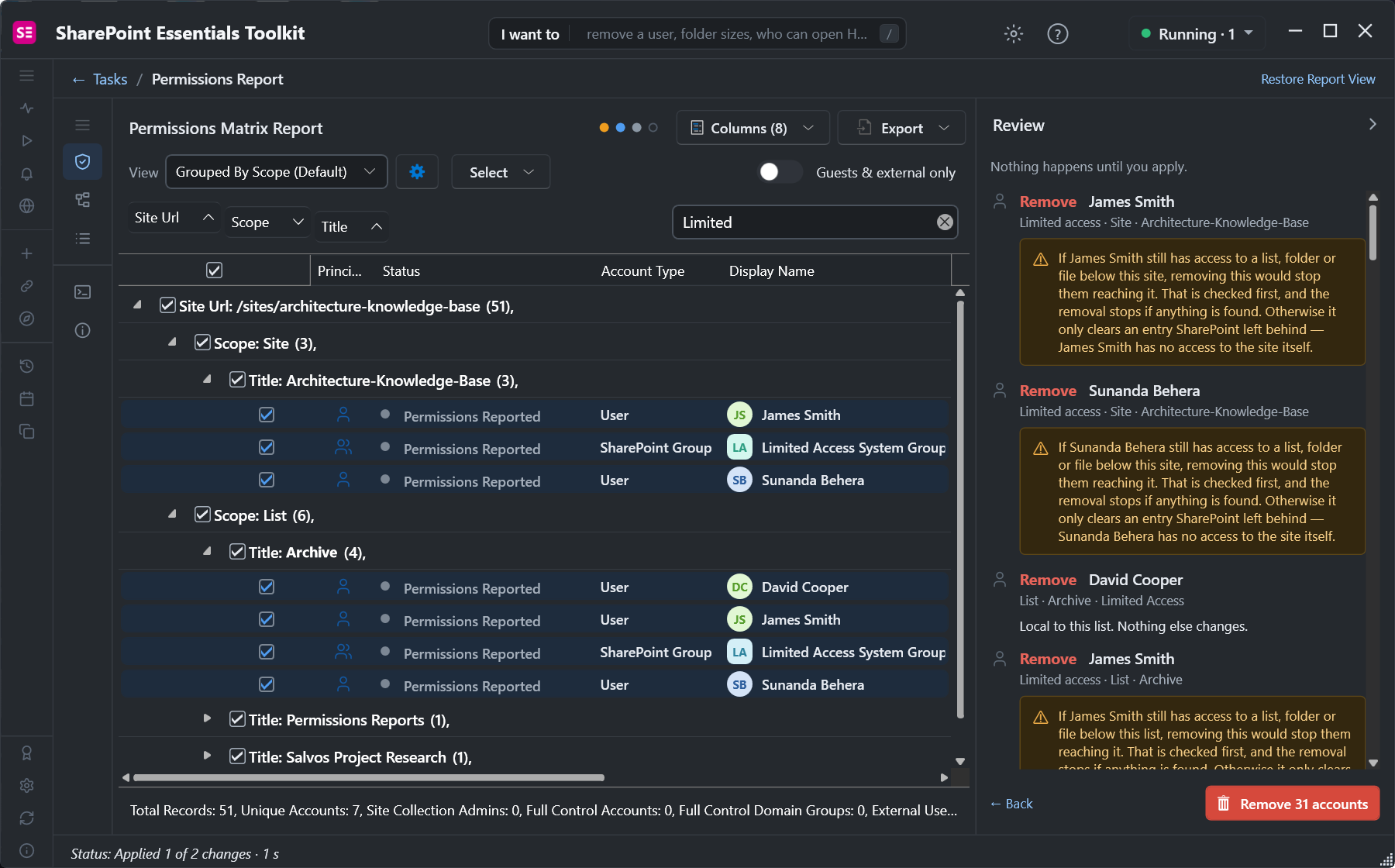
Access below is checked before anything is removed.
We removed David Cooper's site-level entry. SharePoint cleared his matching entry on the library at the same time, and he no longer appears in the site's permissions. Every removal is logged and can be undone from History.
3. Audit permissions across the tenant
The same report runs across many sites at once. Pick sites or a Discovery saved search, then use the footer totals (unique accounts, site collection admins, Full Control accounts and external users) to see which sites need attention. Review access on a schedule runs the audit regularly and keeps each run in History to compare.
The Permissions report is free in Community Edition on up to 20 sites. Removals apply up to 10 at a time on Community.
Frequently asked questions
What does Limited Access mean in SharePoint?
It is a permission SharePoint adds automatically on the site and library above a file or folder that someone was given access to. It lets them pass through to reach that item and gives no access to anything else on its own.
Is it safe to remove Limited Access users?
Only if they no longer have access to anything below. If they still have access to a file or folder, removing their Limited Access above it stops them reaching it. Check first, or use a tool that checks before each removal.
Why are there so many Limited Access users on my site?
Every time a file or folder is shared with someone, they get Limited Access above it. Removing their access to the file later doesn't always remove that Limited Access, so entries build up over years of sharing.
What is the Limited Access System Group?
A SharePoint-managed group that holds Limited Access for many people at once, used instead of adding each person individually. Leave it alone; SharePoint maintains it.
How do I audit SharePoint permissions across my whole tenant?
Loop over every site with PnP PowerShell and export role assignments, use SharePoint Advanced Management's data access governance reports, or run the Permissions report in SharePoint Essentials Toolkit across all your sites and schedule it to repeat.
Clean up Limited Access safely, free
SharePoint Essentials Toolkit Community Edition is free. Find leftover Limited Access and audit permissions on up to 20 sites per Microsoft 365 tenant, with access checked before every removal. Get your free Community Edition license key.
About the author. The Cognillo SharePoint Team builds and supports SharePoint Essentials Toolkit and has worked with SharePoint administrators on permissions audits, migrations and cleanup projects since 2012.