How to Search, Find and Replace Text in SharePoint
Last updated: 2026-10-15
Learn how to search, find and replace text across SharePoint documents, metadata, and web pages using the SharePoint Essentials Toolkit — no PowerShell required.
Why Finding and Replacing Text in SharePoint Is So Challenging
SharePoint is a powerful content management system, but as your environment grows, data ends up scattered across documents, web pages, metadata fields, and list items. When you need to find and replace text across all of these locations — whether it's updating a product name, fixing a URL, or correcting company branding — doing it manually is impractical.
Traditional SharePoint search only indexes certain content types and doesn't support direct text replacement. Scripts and PowerShell approaches require technical expertise and carry risk of unintended changes. That's where the SharePoint Essentials Toolkit comes in.
What Makes This Different from SharePoint Search?
The SharePoint Essentials Toolkit performs a literal search — meaning it searches the actual content of files and metadata fields character by character. This allows you to find content inside:
SharePoint column and field values
Microsoft Word, Excel, and PowerPoint documents
Adobe PDF files
HTML pages and web part content
JavaScript, XML, JSON, and plain text files
Web Part headers and titles
Standard SharePoint search does not index many of these content types, making the Toolkit's literal search approach essential for thorough content audits and replacements.
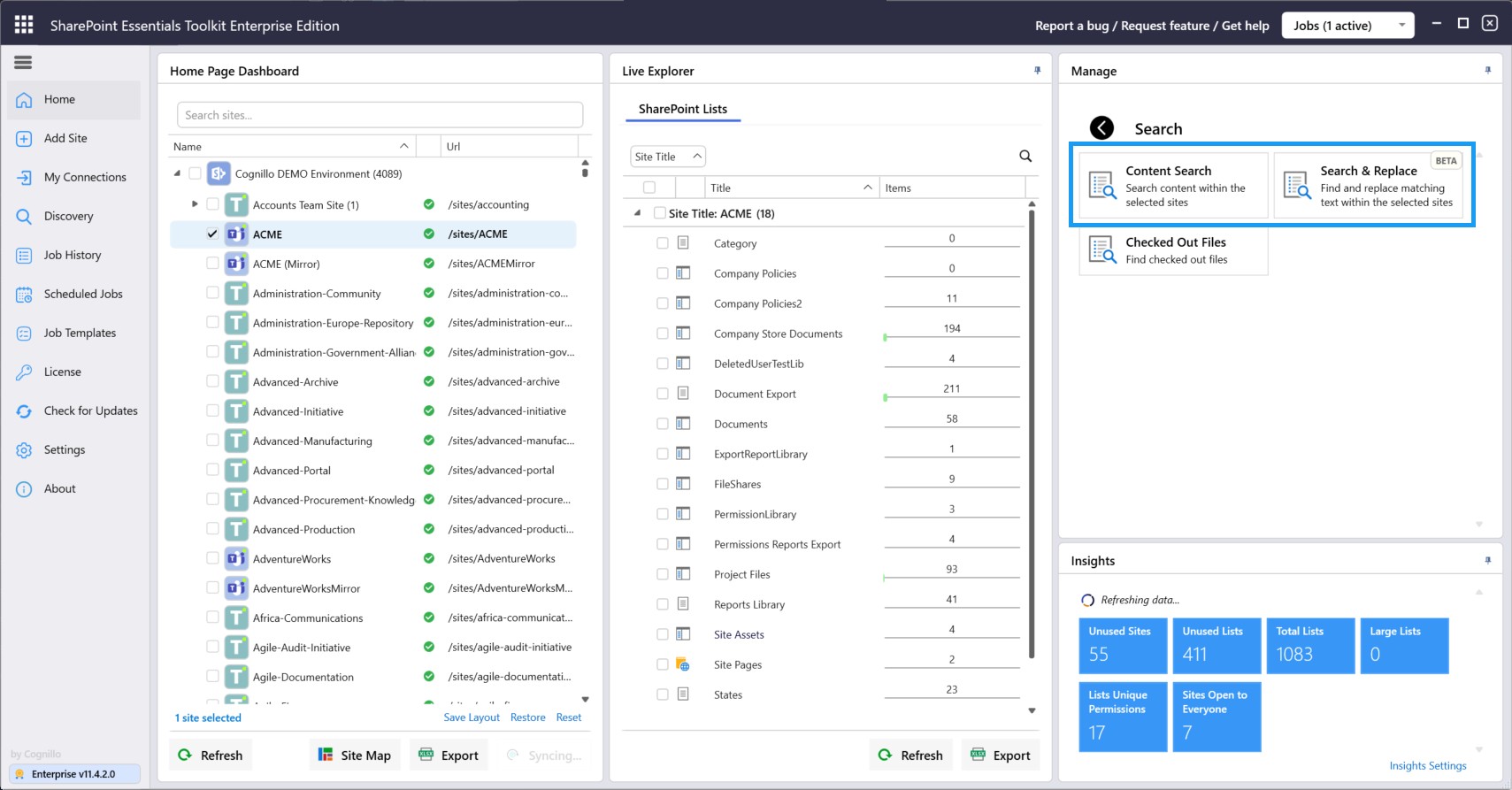
Step 1: Search for Content Across SharePoint
Searching for content using the SharePoint Essentials Toolkit is straightforward:
Select your target sites — Choose one or more SharePoint sites to search across
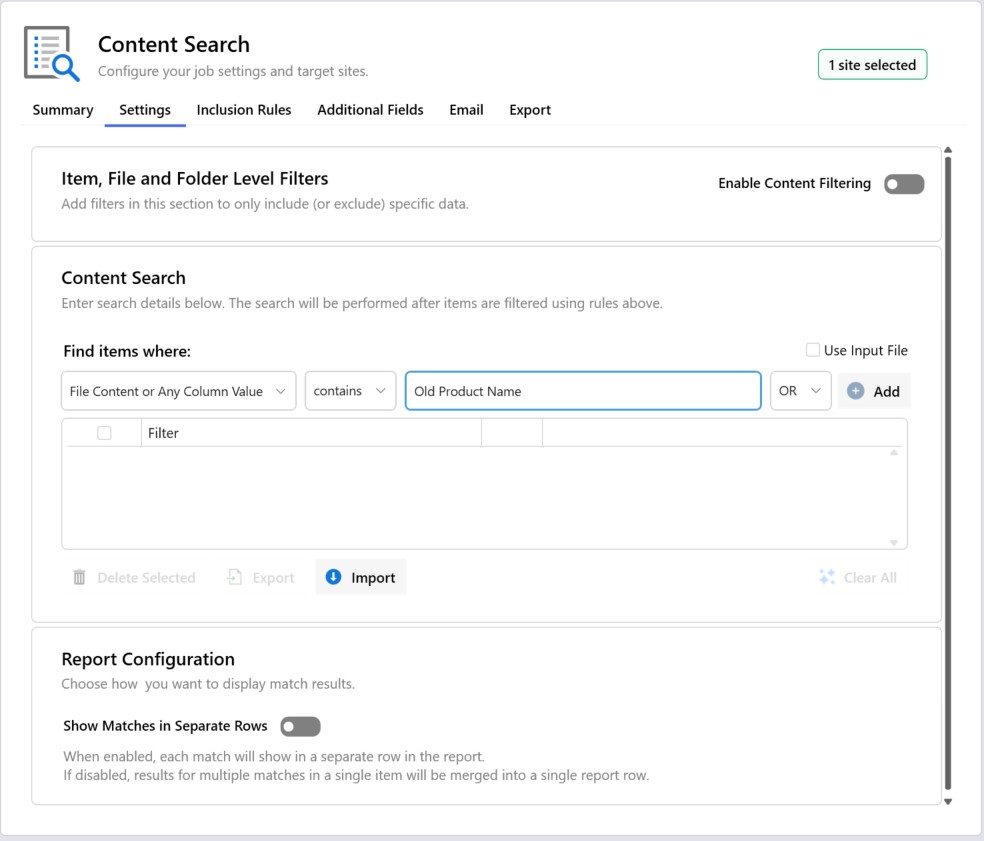
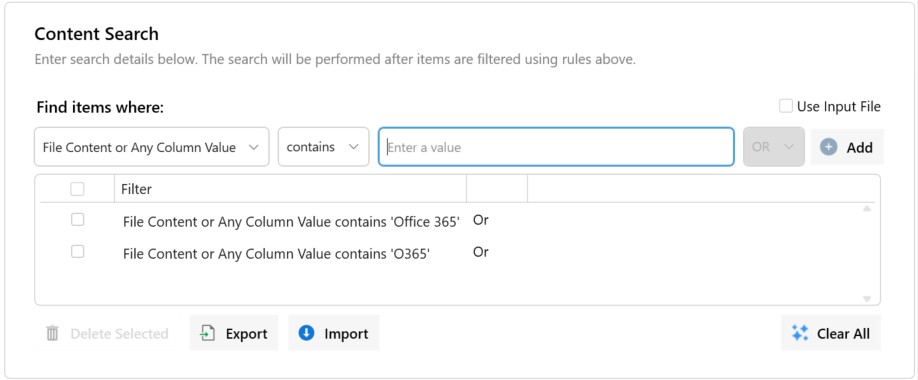
Configure search criteria — Enter the text you want to find. You can add multiple search terms using OR logic to catch variations (e.g., "Office 365" OR "O365")
Choose where to search — Search within file content, any column value, or specific fields
Click Run Now — The Toolkit scans all selected content and returns results
Step 2: Review Search Results
The search results are displayed in a detailed report showing:
Site URL — Where the match was found
List/Library title — The specific list or document library
Item type — Whether the match is in a document, list item, or page
Match details — The exact text that was matched and its context
Source location — Whether the match was in document content, a column value, or a hyperlink
You can easily export the results to Excel for further analysis or record-keeping before making any changes.
Step 3: Find and Replace Text
When you're ready to replace content, the Toolkit makes it simple and safe:
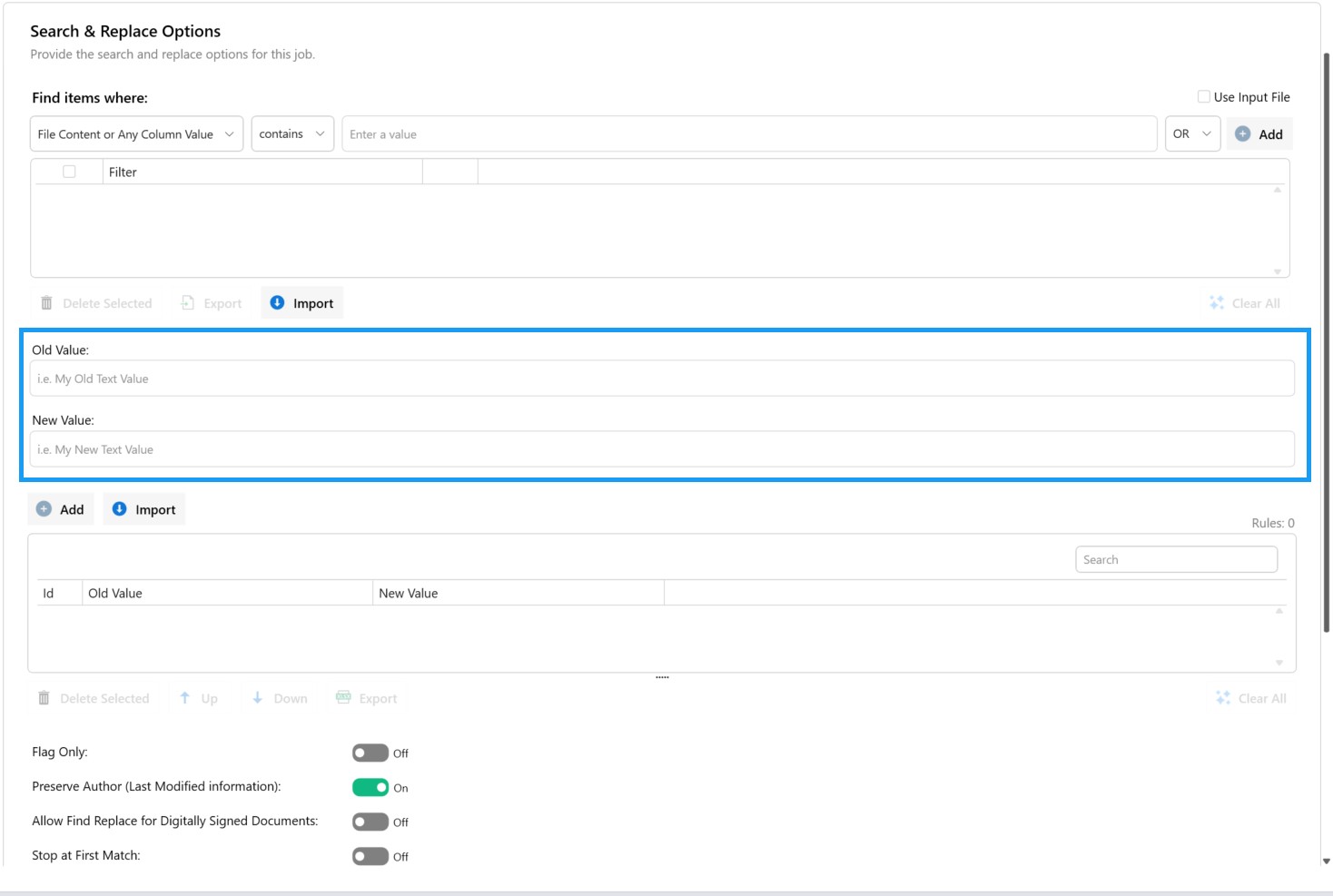
Specify the old value — Enter the text you want to replace (e.g., "Old Product Name")
Provide the new value — Enter the replacement text (e.g., "Our New Product Name")
Apply filters — Use inclusion rules and content filters to ensure only the right content is modified
Execute the replacement — The Toolkit handles the rest across all matched content
Advanced Options for Safe Replacements
The Toolkit includes several safeguards and advanced options to ensure replacements are performed correctly:
Flag Only mode — Preview what would be changed without actually making modifications
Preserve Author information — Keep the original "Last Modified" metadata intact after replacement
Digital signature handling — Control whether digitally signed documents are included
Stop at First Match — Useful for testing replacement logic on a single item before running at scale
Column filtering — Filter results from the report view to refine your replacement scope
Filtering Content Before Search and Replace
You can filter results in two ways:
Before execution — Set inclusion rules and item/folder-level filters to target specific content. This is essential when performing replacements to prevent modifying content that should not be changed.
From the report — Use column header filtering to narrow down results after the search completes.
You can also add additional SharePoint field values to the report for extra context, making it easier to identify which items should be updated.
Get Started with Free SharePoint Content Search
The SharePoint Essentials Toolkit is available in a free Community Edition that includes content search capabilities. For find-and-replace functionality across documents and metadata, the Enterprise Edition provides the full suite of tools.
Visit cognillo.com to download the Toolkit and start searching your SharePoint content today.