SharePoint Owners, Members and Visitors Explained, and How to Find Who Has Access to a Site or File
Every SharePoint site has three default groups: Owners with Full Control, Members with Edit, and Visitors with Read. Site collection admins, and the owners of a Microsoft 365 group behind a team site, also have full control. To see who has access, use Site permissions or Check Permissions for a site, Manage access for a file, or a permissions report across every site, list and file in PnP PowerShell or the free SharePoint Essentials Toolkit.
Published:
Last updated: 2026-10-29
The default groups and what they can do
| Group | Permission level | Can |
|---|---|---|
| [Site] Owners | Full Control | Everything, including permissions, site settings and deleting the site's content |
| [Site] Members | Edit | Add, edit and delete files and items, and create or delete lists and libraries |
| [Site] Visitors | Read | View and download |
| Site collection admins | Full control of the whole site collection | Everything owners can, plus content that has stopped inheriting and the second-stage recycle bin |
On a team site connected to a Microsoft 365 group, the group's owners are site collection admins and are added to the Owners group, and the group's members are added to Members. Add people to the Microsoft 365 group, not directly to the SharePoint groups, or Teams and SharePoint drift apart. Microsoft covers the levels in Understanding permission levels in SharePoint.
Two other levels are common. Contribute is Edit without managing lists, and Limited Access isn't real access at all: SharePoint adds it automatically when someone has access to something further down.
Option 1: See who has access with built-in tools
For a site
- Select Settings > Site permissions to see the three groups and their members.
- Select Advanced permissions settings for every group and person with permissions on the site, including anyone added directly.
- To check one person, select Check Permissions on that page and enter their name. It lists their permission levels and the groups they come from.
For a file or folder
Select it, then ... > Manage access. The panel lists people, groups and sharing links with access. If the file inherits, you see the site's groups; if it has unique permissions, you see its own.
What to know:
- Site permissions don't show files and folders with their own permissions. The Advanced page links to them under Show these items, one list at a time.
- Check Permissions on a site shows site-level access only. Files shared with the person directly or by link aren't included.
- Members of security groups and Microsoft 365 groups inside SharePoint groups are shown as the group, not as people.
Option 2: List who has access with PowerShell
This PnP PowerShell script lists a site's admins, the members of its Owners, Members and Visitors groups, and every permission on one file. It is read-only. It needs PnP PowerShell 2.x and your own Entra ID app registration.
# Who has access to a site and to one file (read-only)
$ClientId = "<your-app-id>"
$SiteUrl  = "https://contoso.sharepoint.com/sites/Projects"
$FileUrl  = "/sites/Projects/Shared Documents/Budget 2026.xlsx"
Connect-PnPOnline -Url $SiteUrl -Interactive -ClientId $ClientId

"--- Site collection admins"
Get-PnPSiteCollectionAdmin | Select-Object Title, Email, LoginName

$groups = @{
    Owners   = Get-PnPGroup -AssociatedOwnerGroup
    Members  = Get-PnPGroup -AssociatedMemberGroup
    Visitors = Get-PnPGroup -AssociatedVisitorGroup
}
foreach ($name in "Owners", "Members", "Visitors") {
    "--- $name ($($groups[$name].Title))"
    Get-PnPGroupMember -Group $groups[$name] | Select-Object Title, Email, PrincipalType
}

"--- $FileUrl"
$item = Get-PnPFile -Url $FileUrl -AsListItem
Get-PnPProperty -ClientObject $item -Property HasUniqueRoleAssignments, RoleAssignments | Out-Null
"Unique permissions: $($item.HasUniqueRoleAssignments)"
foreach ($ra in $item.RoleAssignments) {
    Get-PnPProperty -ClientObject $ra -Property Member, RoleDefinitionBindings | Out-Null
    [pscustomobject]@{
        Principal = $ra.Member.Title
        Type      = $ra.Member.PrincipalType
        Levels    = ($ra.RoleDefinitionBindings | ForEach-Object Name) -join ", "
    }
}
What to know:
- Security groups and Microsoft 365 groups show as one member. Expand them with
Get-PnPMicrosoft365GroupMemberorGet-PnPEntraIDGroupMember, which need Graph permissions. - Sharing links appear as "SharingLinks..." groups on the file. Use
Get-PnPFileSharingLinkto see who they were shared with. - To cover every file, you'd loop over every item with unique permissions. That's where a report is faster.
Option 3: Report who has access with SharePoint Essentials Toolkit
Everyone with access to a site, list or file
In Permissions, run the Permissions report on the sites you want. Group it by scope to see the site collection admins, the site's groups, then lists and items with their own permissions. The Granted Through column shows whether each person got access directly or through a group.
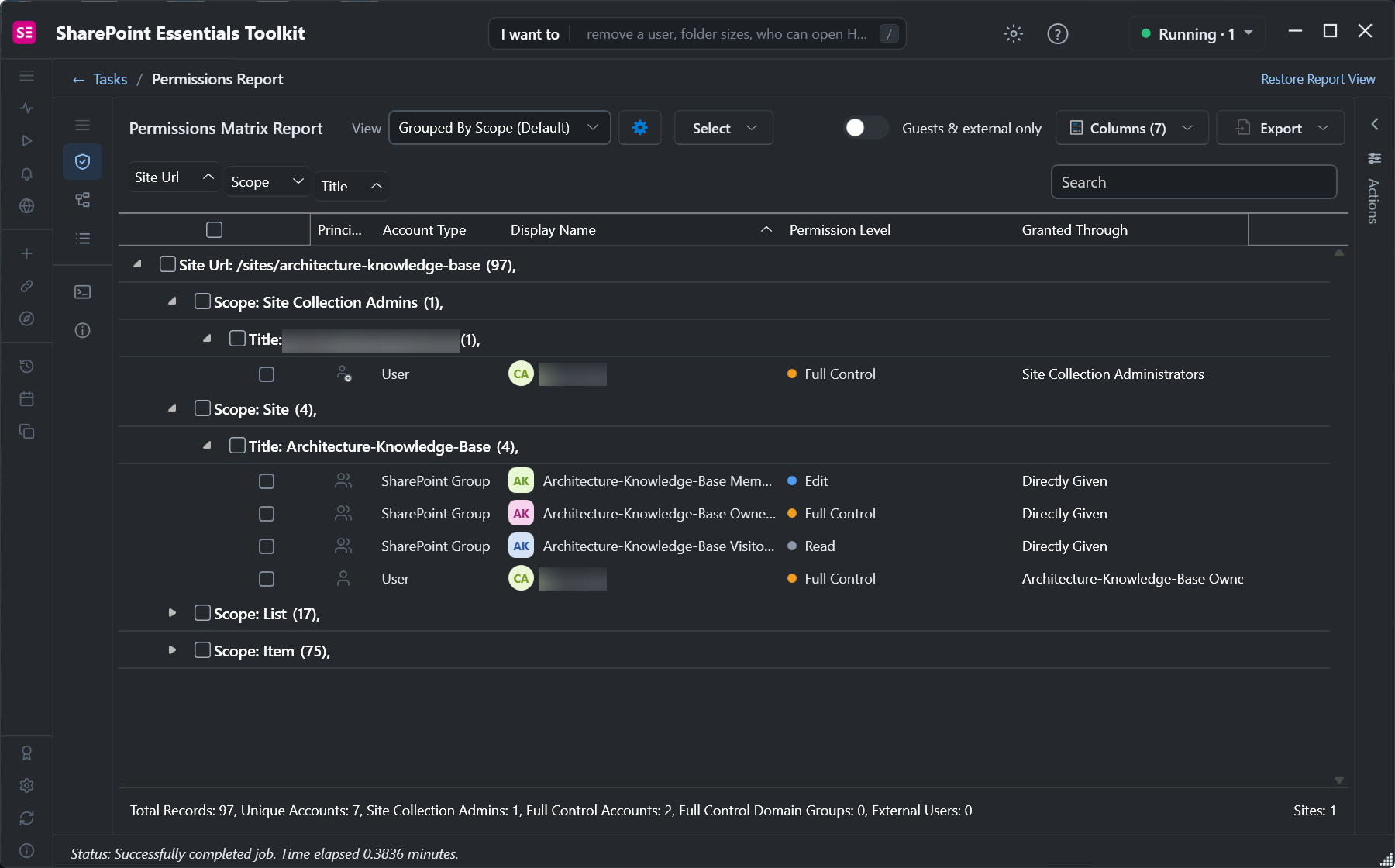
On our test site it found 97 permission entries for 7 people in 23 seconds. Most of them were on individual files: 75 at item scope against 4 on the site itself, which is the part Site permissions doesn't show.
Everything one person can access
Everything one person can access takes a name or email and lists every site, list and file they can reach, with the level and how they got it: direct grants, group memberships, admin roles, site ownership and links.
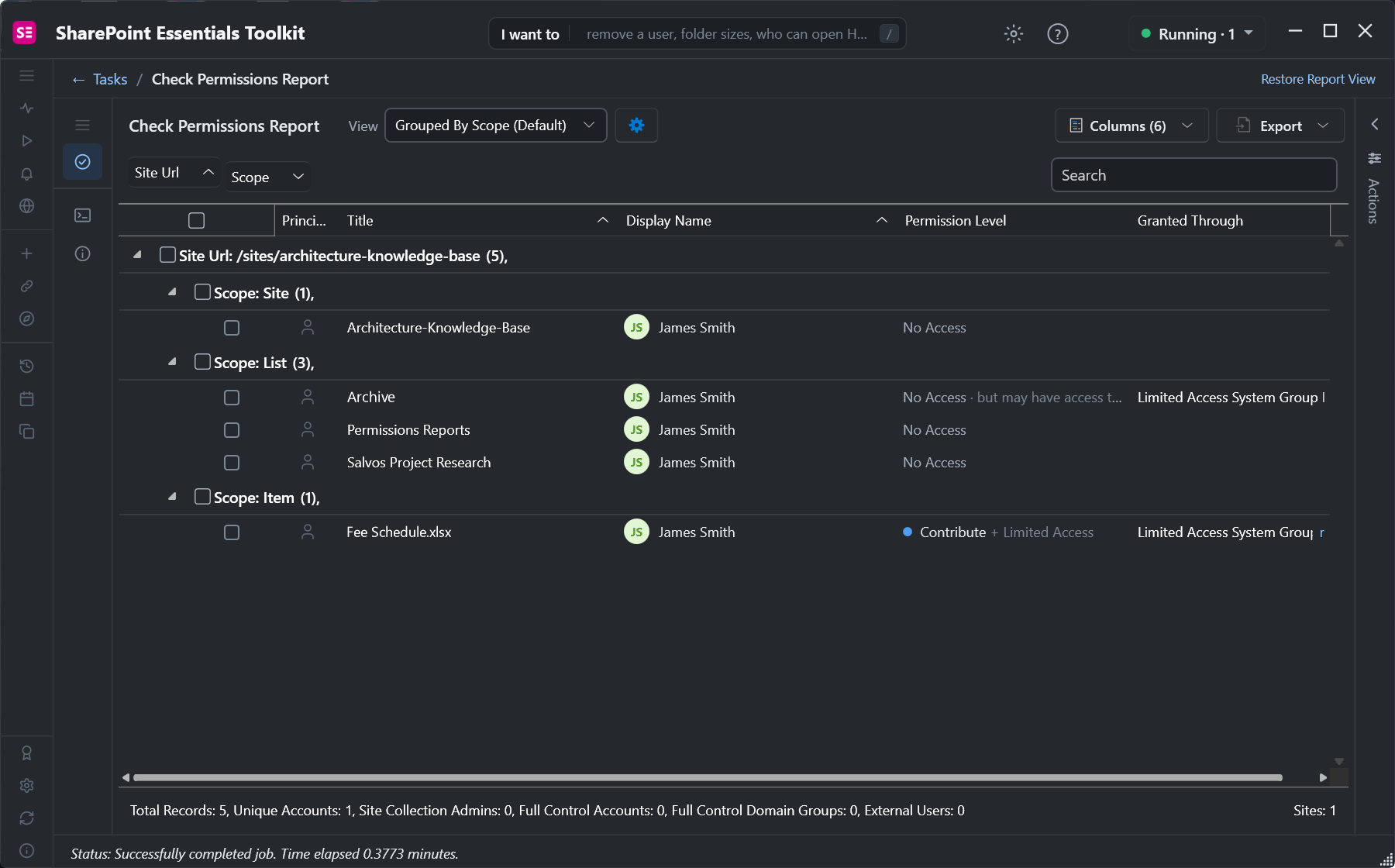
Other tasks in the Permissions area answer the next questions: Who has Full Control for admins, owners and groups with Full Control; Users and groups on each site to expand group members; and Direct permission sprawl by user for people granted access one item at a time.
Frequently asked questions
What is the difference between Owners, Members and Visitors in SharePoint?
Owners have Full Control, including permissions and site settings. Members have Edit: they can add, change and delete content and create lists and libraries. Visitors have Read: they can view and download.
How do I see who has access to a SharePoint site?
Select Settings, Site permissions, then Advanced permissions settings for every group and person on the site. That page doesn't include files and folders with their own permissions; for those, use Show these items, PnP PowerShell, or a permissions report in SharePoint Essentials Toolkit.
How do I check who has access to a specific SharePoint file?
Select the file, open the ... menu and choose Manage access. It lists the people, groups and sharing links with access. PowerShell can read the file's RoleAssignments for the same list.
Are Microsoft 365 group owners SharePoint site admins?
Yes. On a group-connected team site, the Microsoft 365 group's owners are site collection admins. The group's members are added to the site's Members group.
How do I find everything one user can access in SharePoint?
Check Permissions answers it for one site at a time. To cover every site, list and file, run Everything one person can access in SharePoint Essentials Toolkit, which also includes group memberships, admin roles and sharing links.
See who has access to every site, list and file, free
SharePoint Essentials Toolkit Community Edition is free. Run permissions reports, check what one person can access and find Full Control holders on up to 20 sites per Microsoft 365 tenant. Get your free Community Edition license key.