How to Make Jobs Finish Faster
Last updated: 2026-10-11
Tips and best practices to speed up Broken Link Manager jobs.
Introduction
The Broken Link Manager checks links by sending GET requests and waiting for HTTP status code responses. It uses caching to avoid retesting unreachable domains within the same job. However, environments with many broken links can still result in long job times because each broken link may require a 5-second (or longer) timeout.
Recommendations
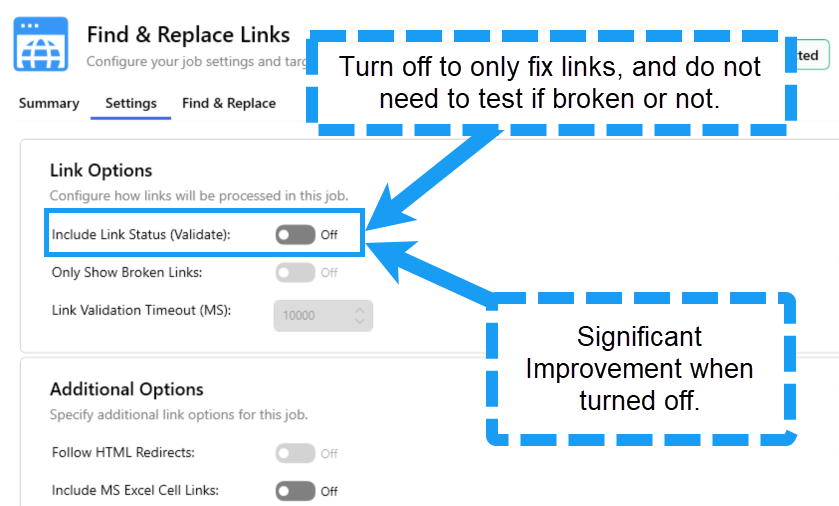
1. Turn Off Link Validation
If you only need to fix links or get an inventory of all links (e.g., finding references to an old server), you can disable link validation. This prevents the tool from testing whether links are broken and can improve job completion time by 30–60%.
2. Group Sites Strategically
Start by completing all smaller sites first. Group them into a single job from the Home Page Dashboard by right-clicking to create a group.

For very large lists (e.g., over 1 million files), split them into smaller jobs using Filters — filter by folder path, file extension, or last modified date.
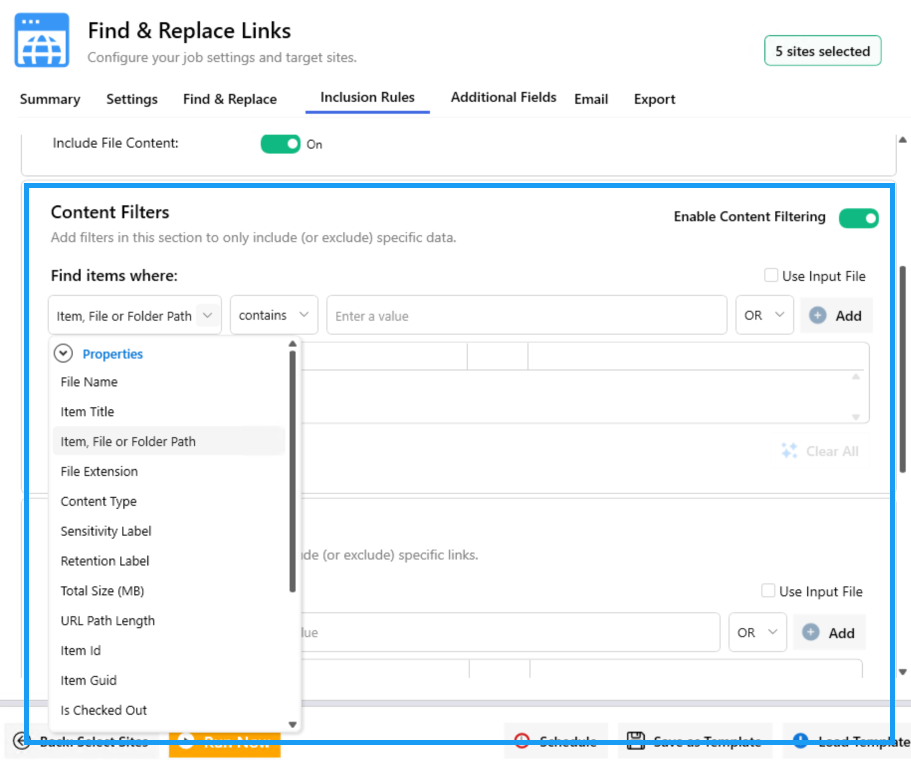
Use the Live Explorer or List Inventory report to identify large lists, export the results, then use URL or List inclusion rules to separate them into their own jobs.
3. Exclude Unnecessary Content
Filter out lists and content you don't need in the report to reduce processing time.
4. Disable Detailed Logging
Detailed logging is disabled by default. Make sure it stays off when you're not actively troubleshooting.
5. Limit Large File Scanning
Large files impact performance. Review the file size limit in the job options and adjust as needed.
The default file size set is 20MB so you may not need to change anything here.

6. SharePoint Online — Follow Microsoft Best Practices
For SharePoint Online environments, refer to the Microsoft best practices for migration speed. These recommendations also apply to the Broken Link Manager since it transfers file content between your computer and SharePoint Online.