How can I run a job for multiple sites?
Last updated: 2026-09-23
Learn how to add multiple SharePoint sites to a single job and run reports or operations across your entire environment at once.
This article shows you how to execute a job (such as build reports) on multiple SharePoint sites at one time.
Introduction
You may have a requirement to execute jobs, such as build reports, or remove user accounts, for multiple sites and site collections. This can be done in several ways using the SharePoint Essentials Toolkit.
Step-by-Step Guide
There are several ways to select multiple sites from the Home Page Dashboard:
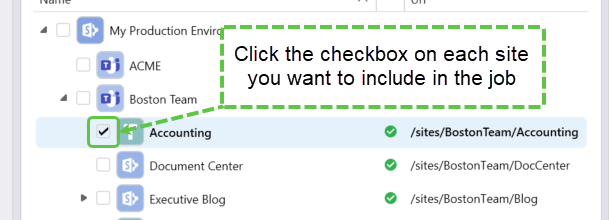
Click Site Checkboxes
The simplest way, is to just click the checkboxes to enable multi-site selection:
Right Click Group
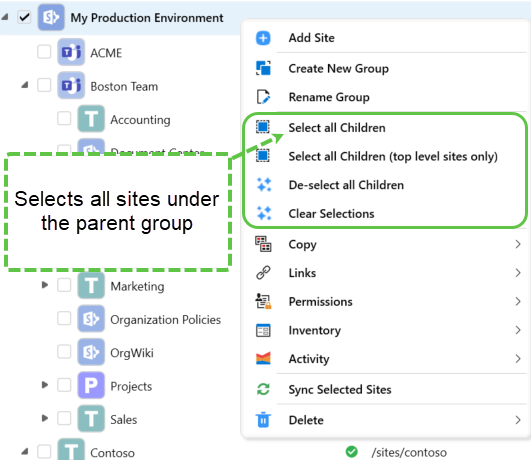
Right click the group node and choose “Select all Children”:
Hold SHIFT Click
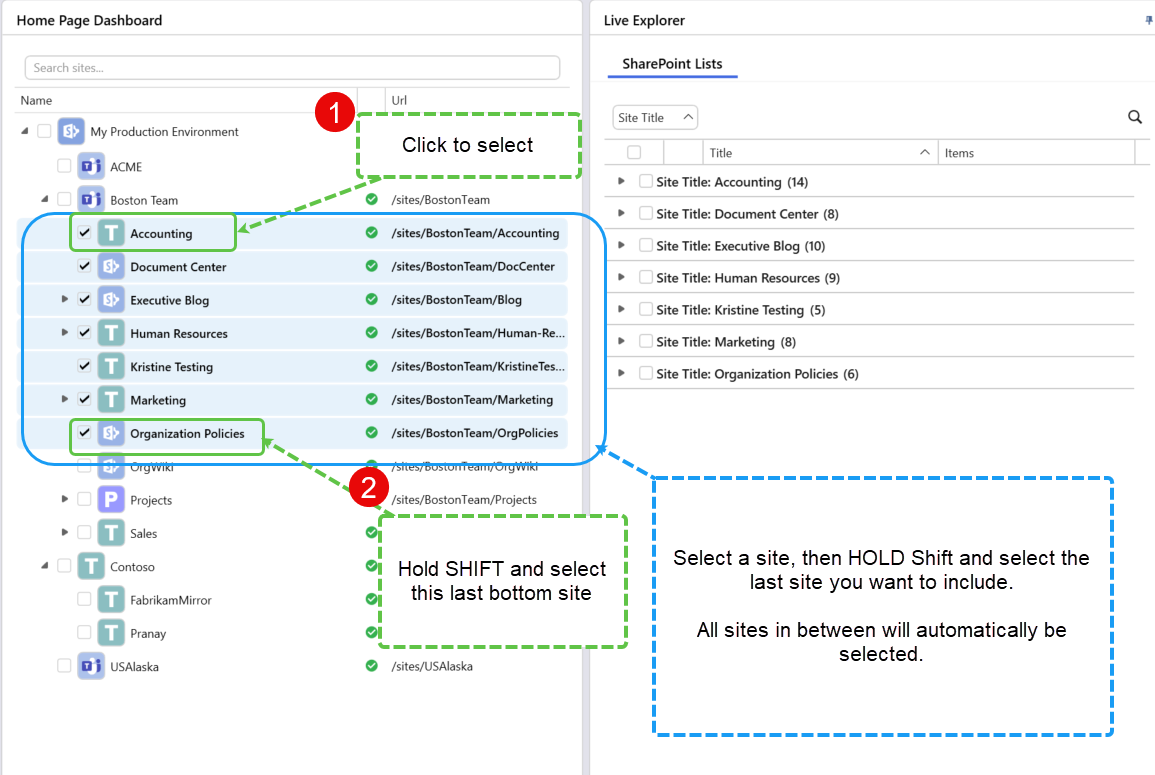
Select a site, then hold SHIFT and click the last site you want to include.
CTRL + Click
You can simply hold the CTRL key, then click to select multiple sites.
Auto Discovery
A more advanced way of automatically including sites in your jobs, is to use ‘Auto-discovery’.
To do this, go to the Discovery section and click “Create New”
Enter the Discovery “Profile Name”, and the SharePoint site URL to match, or tenant URL to match site discovery. For example, if you enter https://cognillodemo.sharepoint.com/, then all sites that match this will be included.
Under optional filters, you can add criteria to filter results, for example, if you entered “/sites/external-”, then all sites that match this will be included.
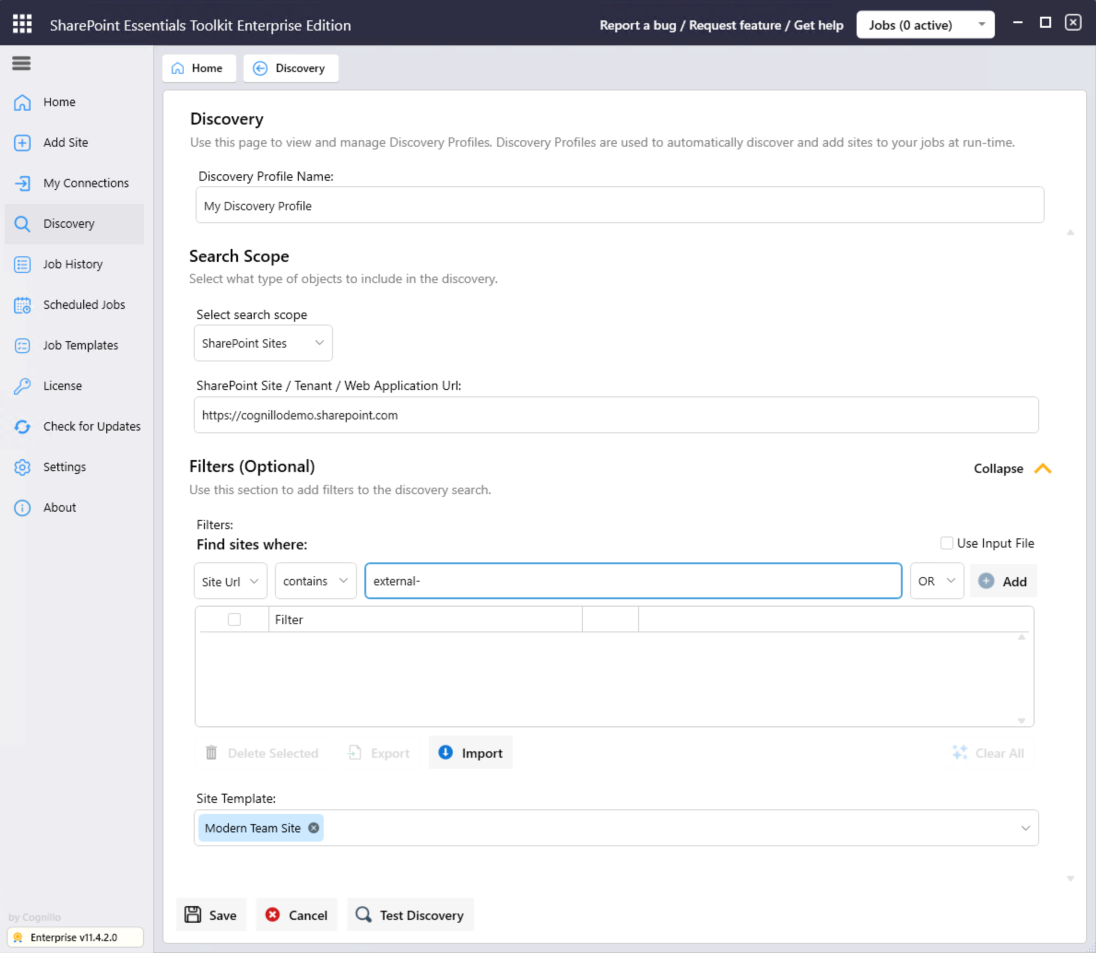
Sites matching the discovery criteria will automatically be added to the job at run-time.
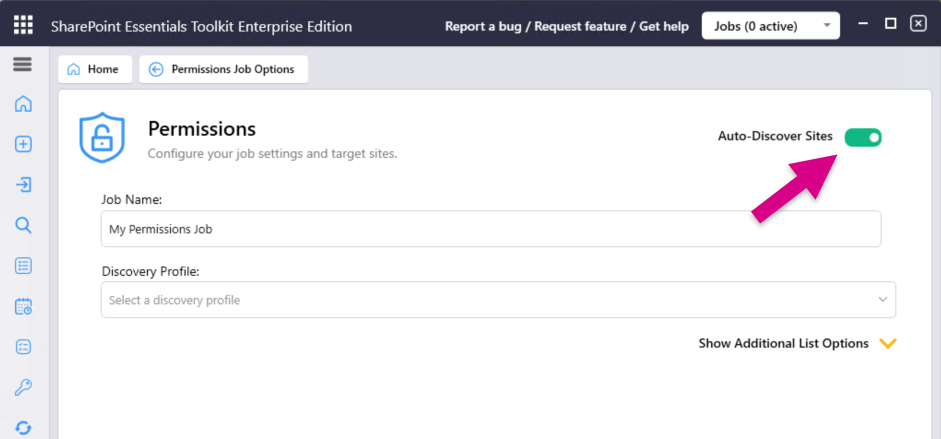
Once you have saved the Discovery Profile, you can then select it from a job: