How do I activate the license OFFLINE?
Last updated: 2026-10-12
Step-by-step guide to activate your SharePoint Essentials Toolkit license offline when your machine cannot connect to the internet.
This article will show you how to activate the SharePoint Essentials Toolkit offline (no internet or firewall blocks online activation).
Scenario
I cannot activate the license online as the machine does not have internet / it is blocking your license server.
Step-by-Step
In SharePoint Essentials Toolkit, click License in the left navigation.
For Email, enter your email address. This email address will be associated with your license in our records.
The Email does not have to be your actual email, but it must be unique for each activation. Using your actual email is convenient if we need to look up your license (such as for support).
License Activation Key
Enter the License Key.
The License Activation Key would have been emailed to:
the ‘deliver to’ email address provided at time of purchase.
the email address used when registering for Community Edition download purchase.
Contact Cognillo support if you cannot locate your license key.
For License Activation Type, choose Offline. Two additional fields appear.
Click Generate Offline Certificate
A long random value should now appear in the Client Offline Request Cert text box. Copy the value in the Client Offline Request Cert text box.
Click Report a bug / Request feature / Get help or contact Cognillo at support@cognillo.com. In the support ticket or email, paste the Client Offline Request Cert value. Cognillo support will respond with the corresponding Offline License Activation Key.
Copy and paste the key provided by Cognillo into the Offline License Activation Key field.
Click Activate. A confirmation popup should appear.
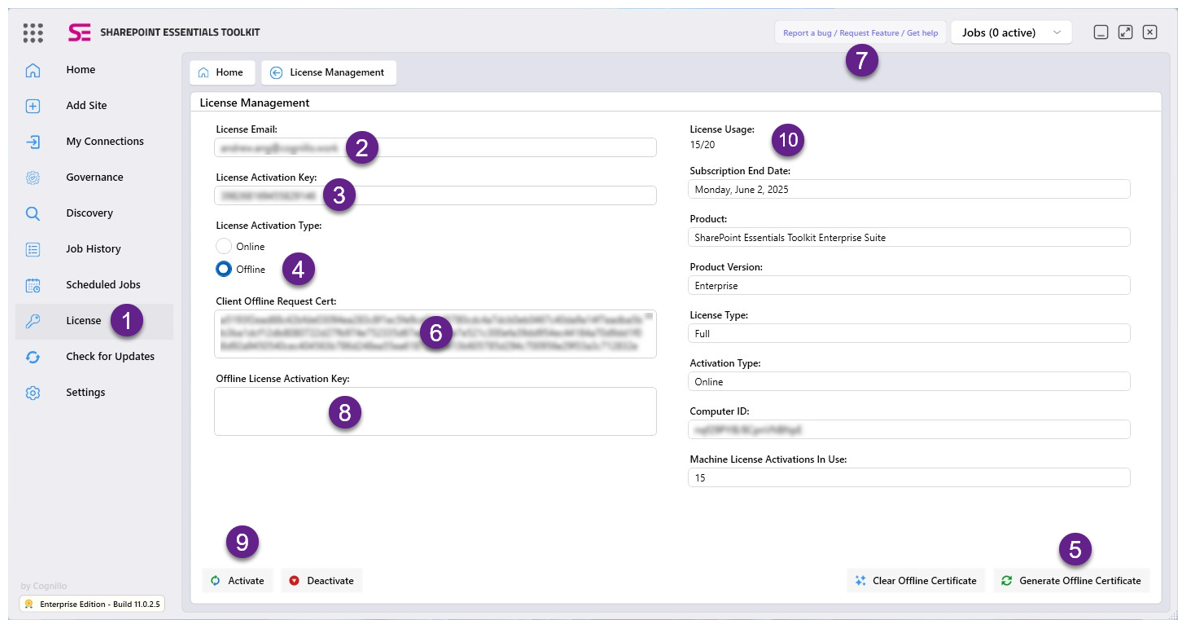
Verify the license information on the right side of the License page is correct. If anything is not correct, please contact Cognillo for support.