How do I activate the license OFFLINE?
Last updated: 2026-10-15
Offline License Activation for SharePoint Essentials Toolkit 2027 - using a request code and an activation key from Cognillo support.
Use offline activation when the computer running SharePoint Essentials Toolkit cannot reach the licensing service. You will generate a request code on that computer, send it to Cognillo, and enter the activation key you receive in reply.
Activate your license offline
In SharePoint Essentials Toolkit, click License in the left navigation.
Enter your product License Activation Key in the License key field.
Note: The email address used for the initial download should have received an email from Cognillo with the License Activation Key.
For Registered email, enter your email address. This email address will be associated with your license in our records. It does not have to match our records for activation to work; it helps us look up your license if, for example, you need us to manually deactivate it.
Under Activate, choose Offline.
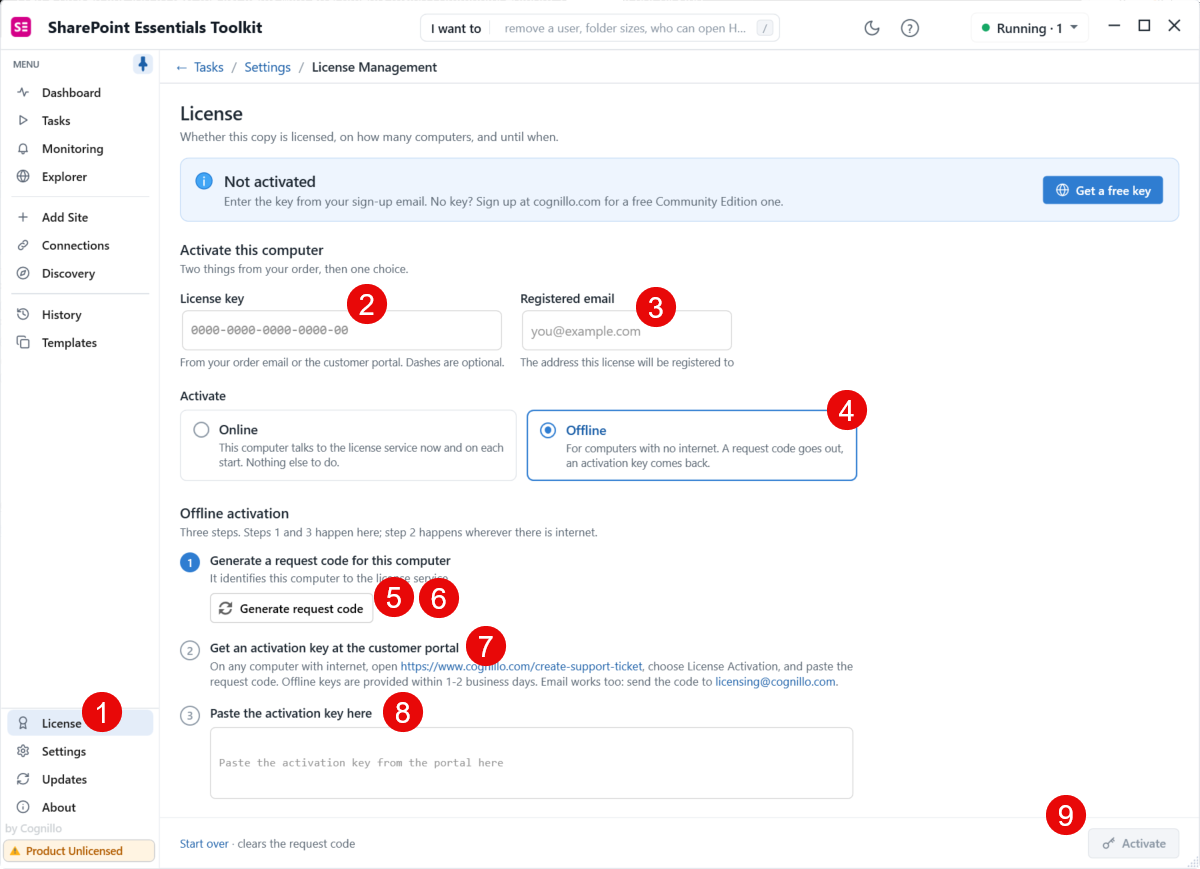
Click Generate request code.
A long value appears in the request code text box. Click Copy to copy it.
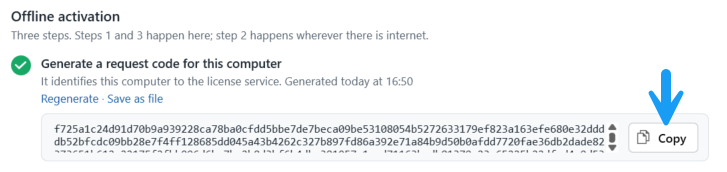
Visit Create a Support Ticket, or email support@cognillo.com or licensing@cognillo.com. Paste the request code into the ticket or email. Cognillo support will respond with the corresponding offline activation key. At this point, your license has been activated with Cognillo, but not yet on your device.
Copy the key provided by Cognillo and paste it into the Activation Key field.
Click Activate. A confirmation popup should appear.
Verify that the license information on the License page is correct. If anything is incorrect, please contact Cognillo support.