How do I save my job options, and share with other users/machines?
Last updated: 2026-10-15
Learn how to save job configurations as templates and share them across users and machines for consistent SharePoint operations.
This article shows how you can copy 'Saved Jobs' (Job Definitions) that you create in the reports using the SharePoint Essentials Toolkit.
Scenarios
I want to save my job options, so that I can re-use it later.
or
I want to share the job options I have configured with other team members.
Save Job Options
To save job options:
On source machine (that has the saved jobs you want to copy), navigate to the job that you would like to share job templates
Click ‘Save as Template’
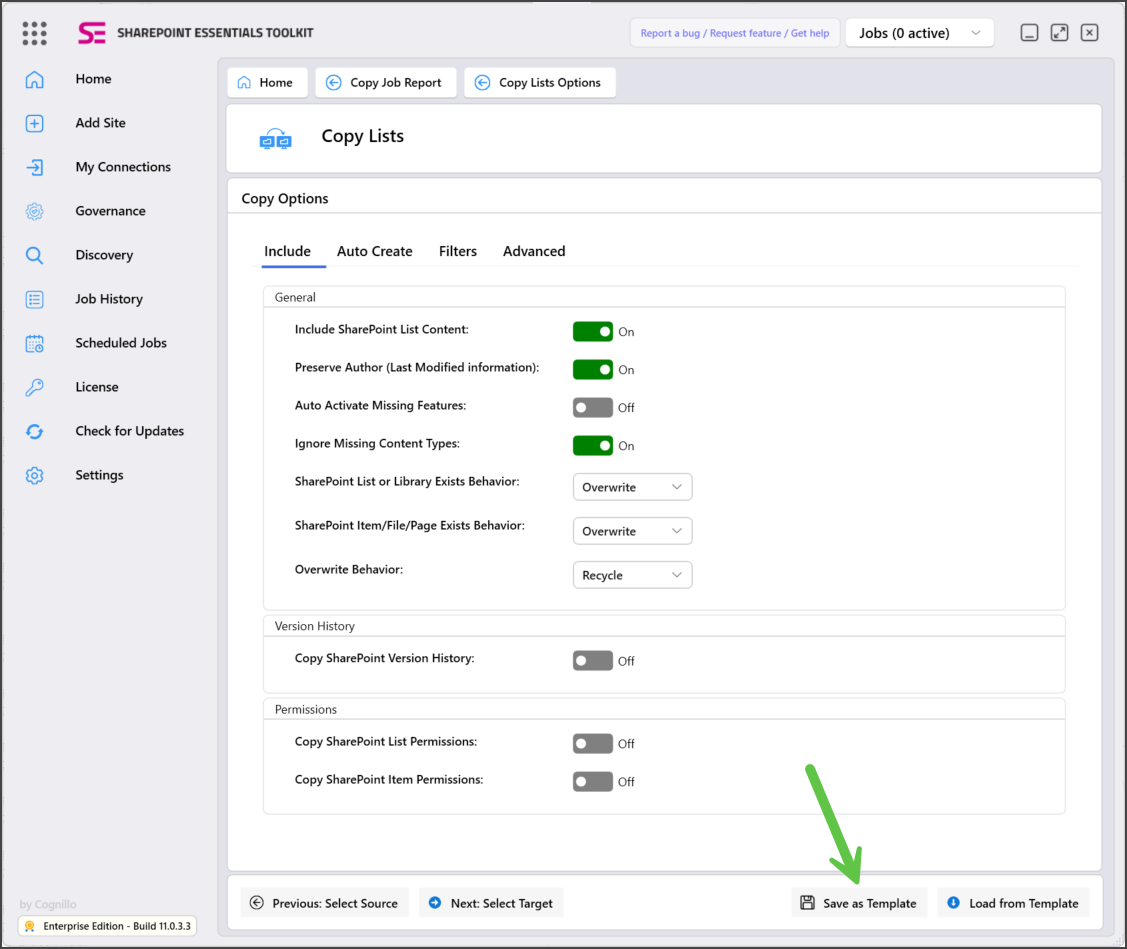
Enter a name for the template and click OK.
Load Job Options (from saved file)
Users can modify job options after being loaded from a template.
Go to the machine you want to load job options to.
Click ‘Load from Template’ and select the saved job template.
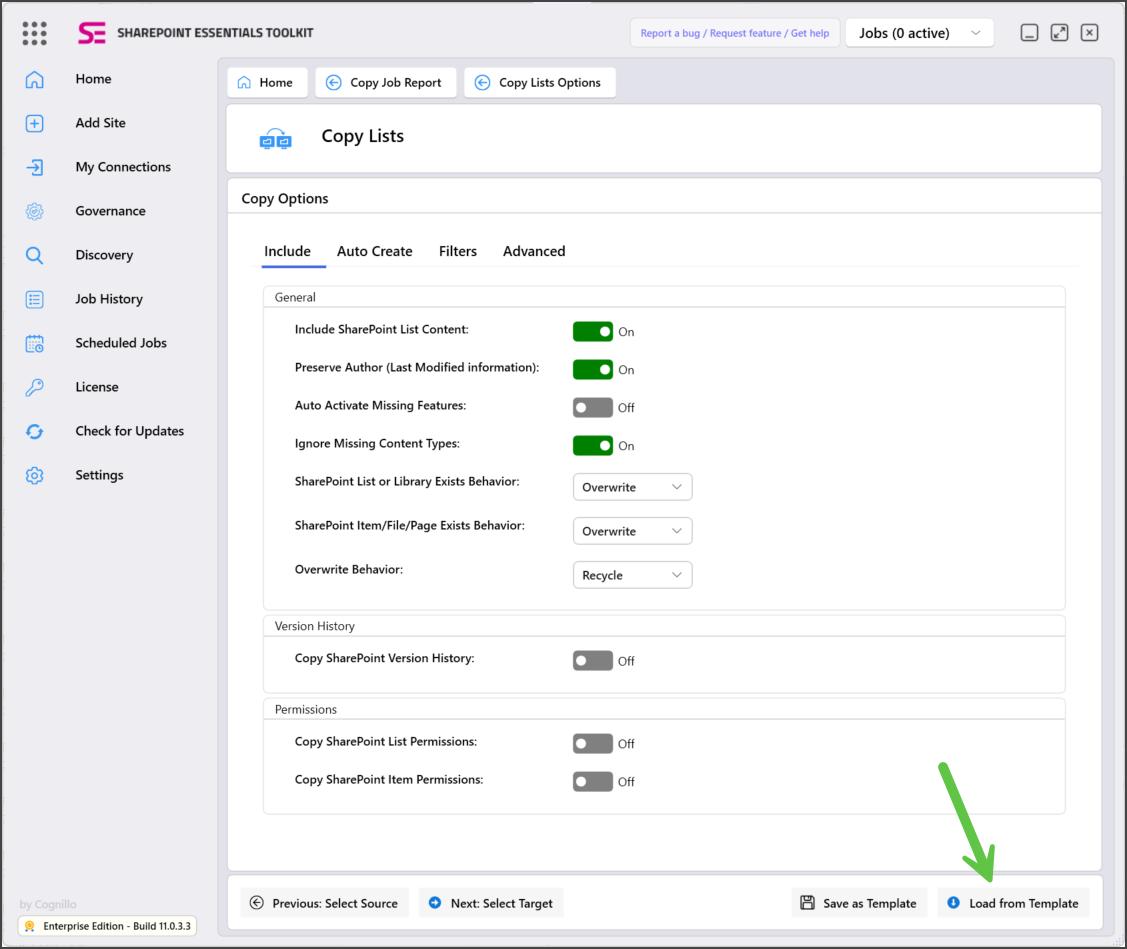
Copy MANY or ALL templates at once from one machine to another
To copy all saved jobs from a machine to another machine, follow the steps below:
From source machine, navigate to the SharePoint Essentials Toolkit working directory. By default, this is in your My Documents folder.
Open the following folder:
C:\Users\<USERNAME>\Documents\SharePoint Essentials Toolkit\Job TemplatesCopy the folders that you would like to copy to the other machine(s).
Navigate to the same folder on target machine, move all existing folders to a temp folder (as backup), or delete them.
Paste the folders we copied from the source machine.
Done!