How to Automate QuickBooks Invoice Processing with Genta
Published:
Last updated: 2026-11-18
Turn purchase orders that arrive by email into QuickBooks invoices, and have the reply to each customer drafted for you, by describing the job to Genta in plain English.
Turn purchase orders that arrive by email into QuickBooks invoices, and have the reply to each customer drafted for you, by describing the job to Genta in plain English.
In this article
How it works
Genta works on a Windows computer the same way a person would: it looks at the screen, clicks, types and reads documents. It doesn't need an email or accounting integration. For this task it:
opens each new purchase order (PO) email and reads the attached PO,
creates a matching invoice in QuickBooks, adding any customer, product or payment term that's missing,
saves the invoice as a PDF, and
writes a reply to the customer with the invoice attached, and leaves it unsent in Drafts for you to review.
When it's done, Genta posts a summary in chat, with a list of anything you should check before sending.
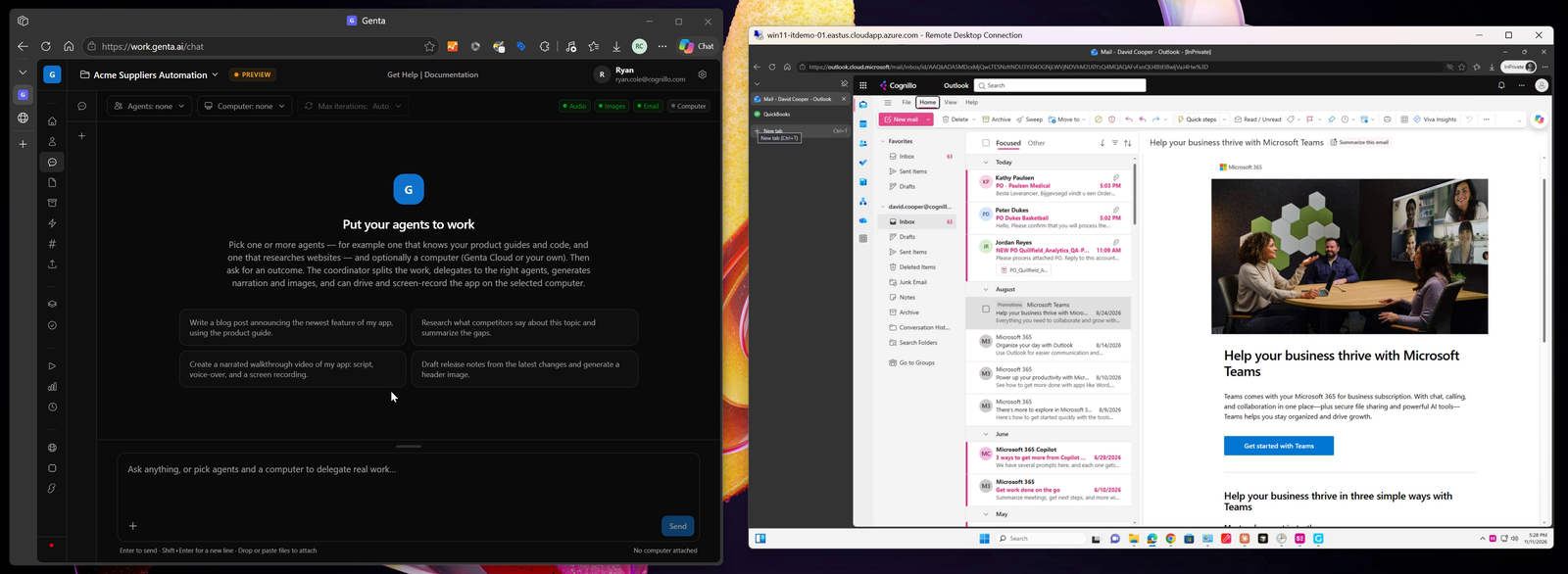
Genta (left) and the Windows computer it works on (right). Three purchase orders are waiting in the inbox.
Before you begin
A Genta account. Sign in at work.genta.ai.
A Windows computer for Genta to use. Either install the Genta agent on your own computer or virtual machine (in Genta, open Computers and download the agent), or use Genta Cloud. QuickBooks Desktop requires your own computer; see Using QuickBooks Desktop.
Signed-in apps on that computer. Open the mailbox that receives the POs (for example Outlook on the web) and QuickBooks, and sign in to both. Genta uses the sessions that are already open; it doesn't need your passwords.
An agent. An agent is a reusable set of instructions for a kind of work. This guide uses a Web App Agent, an agent whose instructions say it's a specialist for websites and web apps. To create one, open the Agents picker and select Manage agents.
Tip: Try it on a QuickBooks sandbox company or a test company file first, with a few sample POs.
Process purchase orders into invoices
1. Choose the agent
In Genta, open Chat. Select Agents, search for your agent and select it.
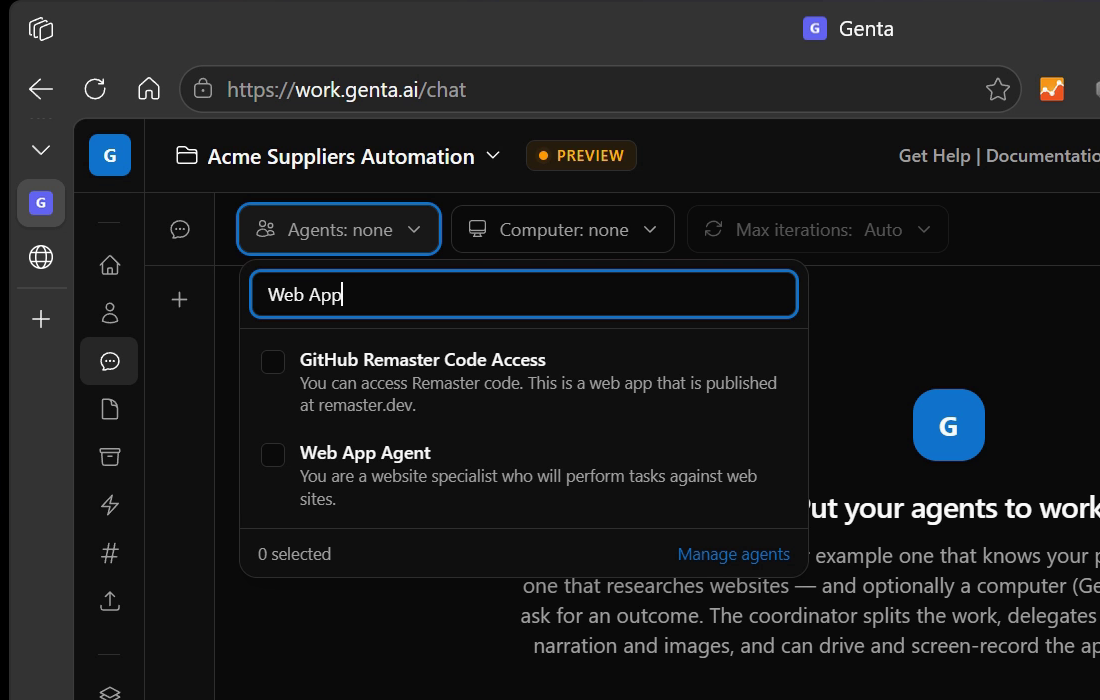
Selecting the Web App Agent.
2. Choose the computer
Select Computer, then the computer where your mailbox and QuickBooks are open. A green dot means its Genta agent is online.
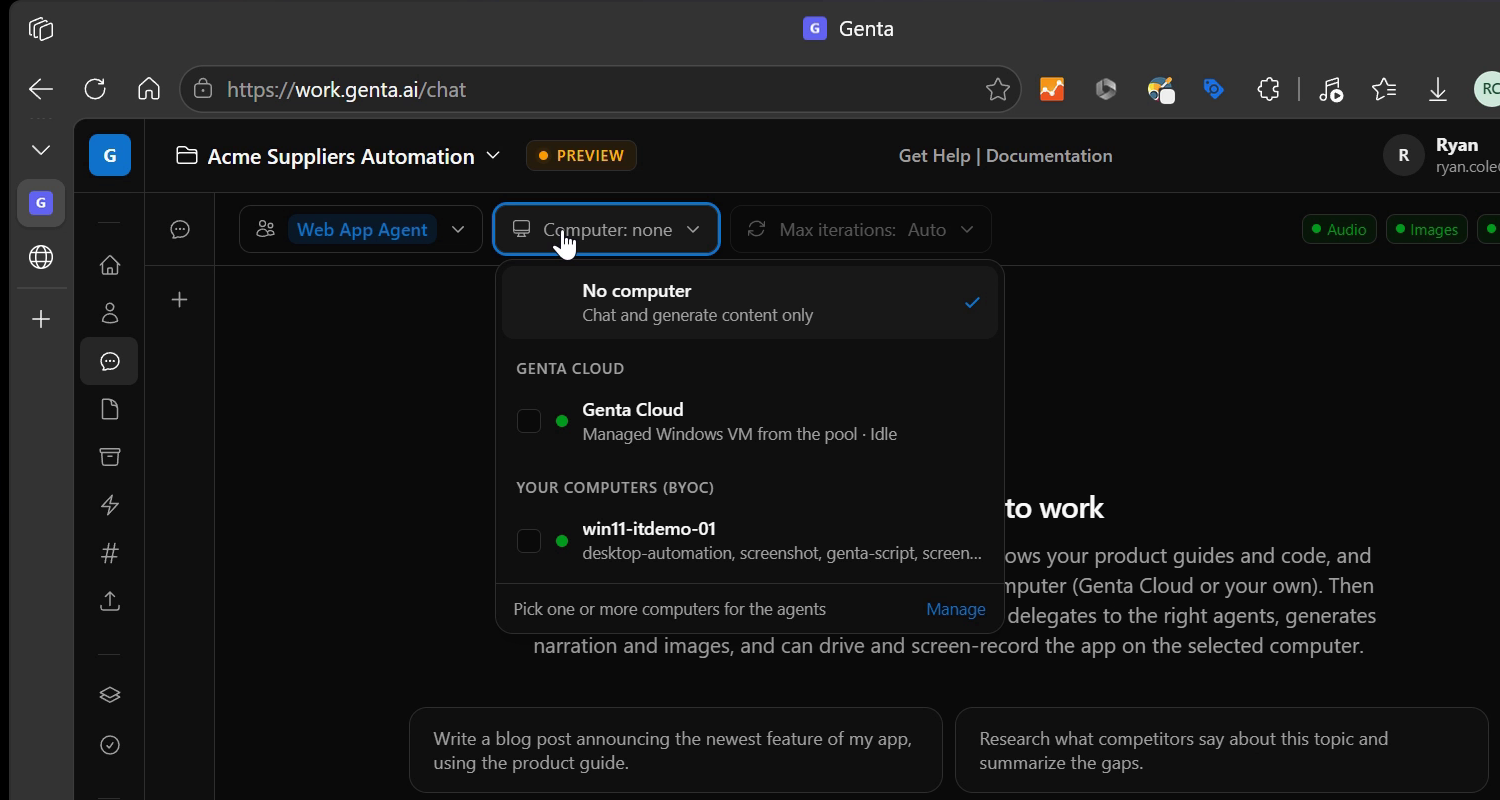
Your own computers are listed under Your computers.
3. Describe the job and send it
Describe the work as you'd explain it to a new colleague. Say which apps to use, what to take from each PO, where to put it in QuickBooks, and what not to do (here: don't send the replies). You can copy this prompt and edit the names:
On the computer, Microsoft Edge is open with two tabs: David Cooper's Outlook mailbox and QuickBooks Online. Please process today's new purchase orders from David's inbox into QuickBooks invoices. Use only the Edge browser for this - do not use any email integration.

1. In the Outlook tab, check the Inbox for today's new (unread) emails that contain a purchase order. Open each one and read it carefully, including any attached PO.
2. From each PO, extract the PO number, the customer name, each line item (product, quantity, unit price), the total and the payment terms.
3. In the QuickBooks tab, create a new invoice for each PO:
   - Customer: the customer from the PO. Create a new customer if they do not exist.
   - Add each line item with the product, quantity and unit price from the PO. Create the product if it does not exist.
   - Set the terms from the PO, and put "Customer PO: <PO number>" in the "Message on invoice" field.
   - Save the invoice in QuickBooks and download it to the computer as a PDF.
4. Go back to Outlook and reply to each PO email to let the customer know their PO has been processed, with the matching invoice PDF from the computer attached. Do not send the replies - leave them open as drafts for me to review.

You do not need to ask me before creating customers or products. When done, give me a short summary for each PO: PO number, customer, line items, total, and the new invoice number in QuickBooks.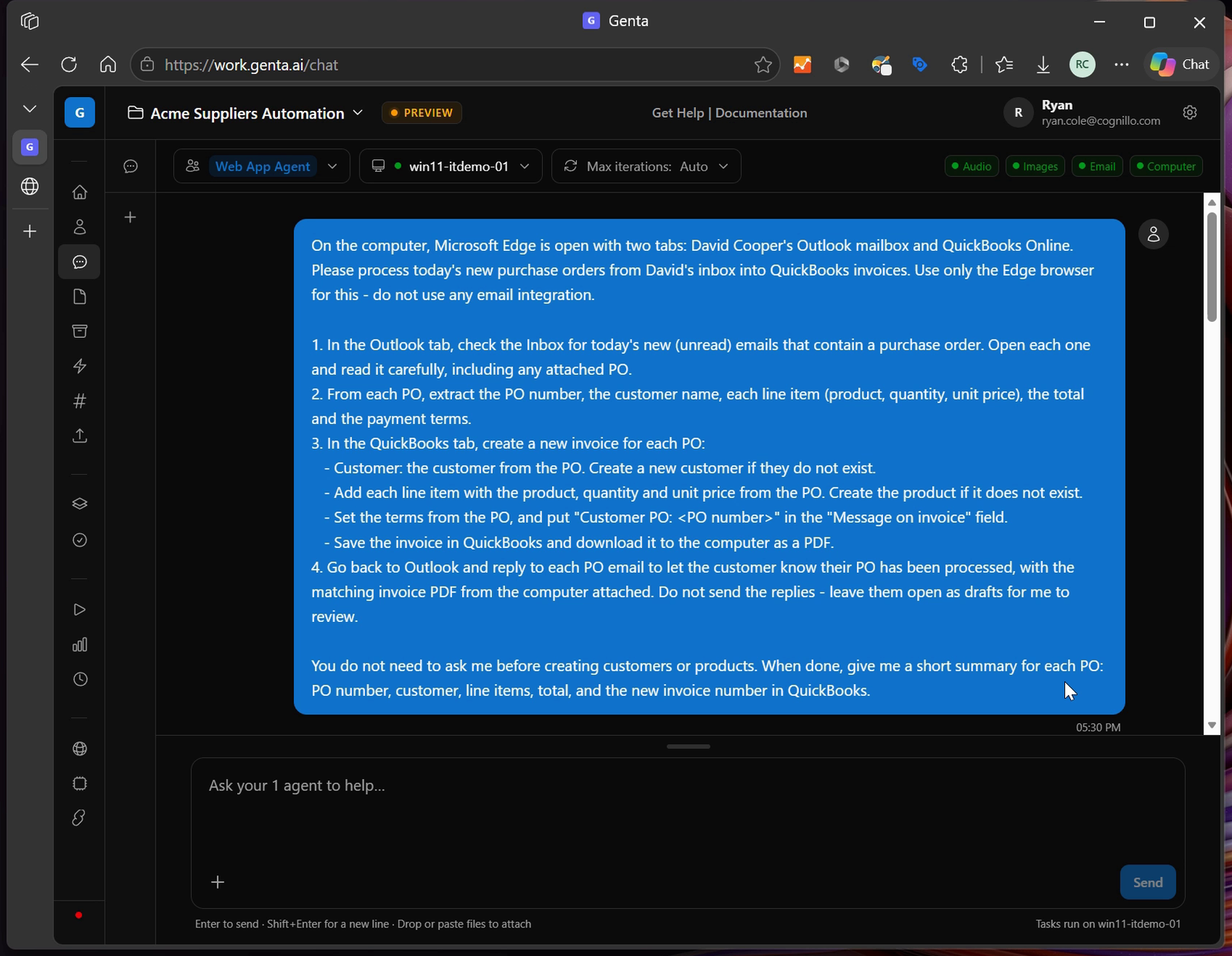
The request as sent. Press Enter to send, or Shift+Enter for a new line.
4. Watch the work log
Genta plans the job, picks a model and hands the work to the agent on your computer. Each step appears in the Work log as it happens. Select view run to follow along on the computer's screen. You can add a follow-up message at any time (it runs after the current task), or select Stop.
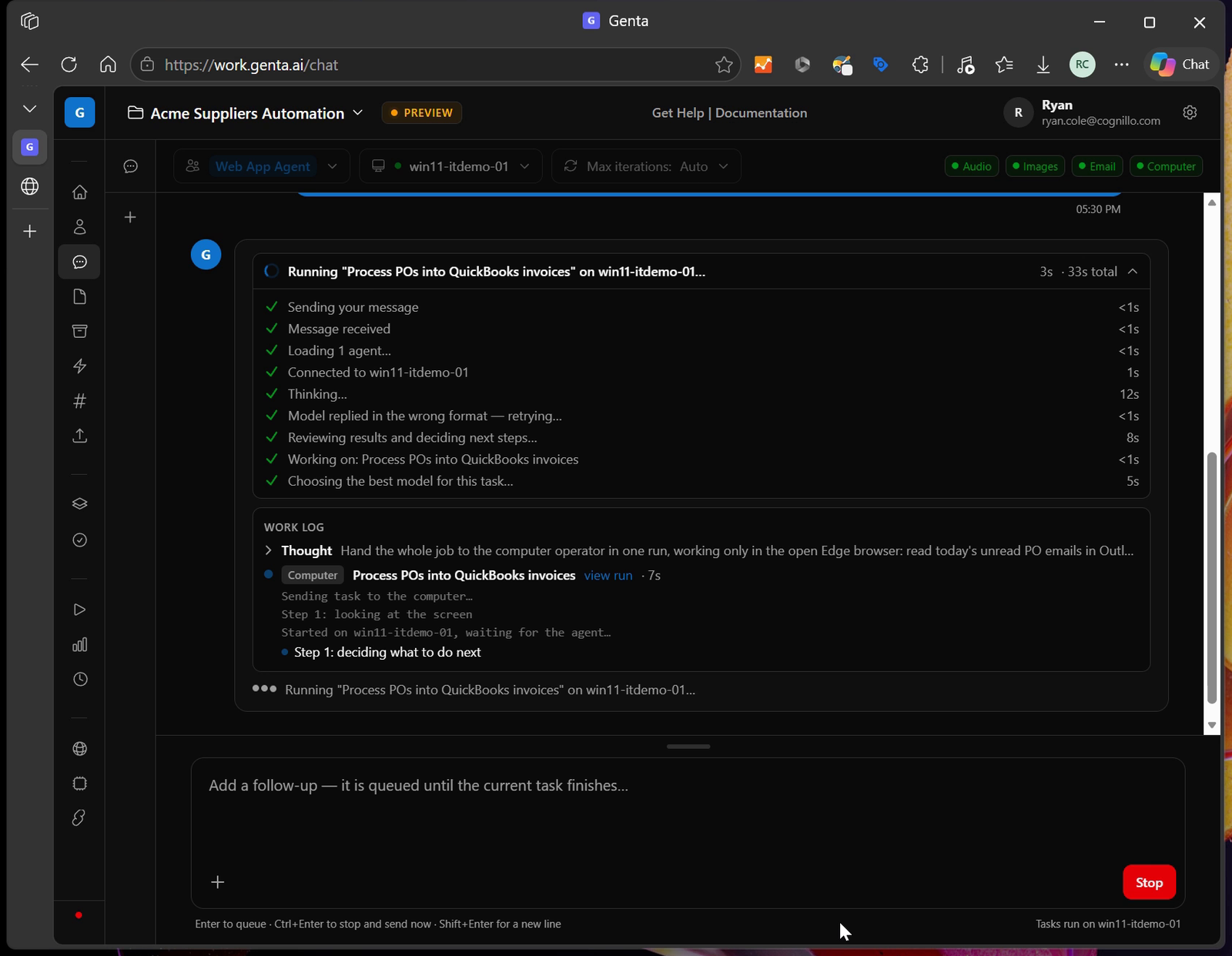
The task running on the computer, with its steps in the work log.
5. Genta reads each purchase order
The agent opens each unread PO email and the attached PO, and takes the PO number, customer, line items, terms and total from it.
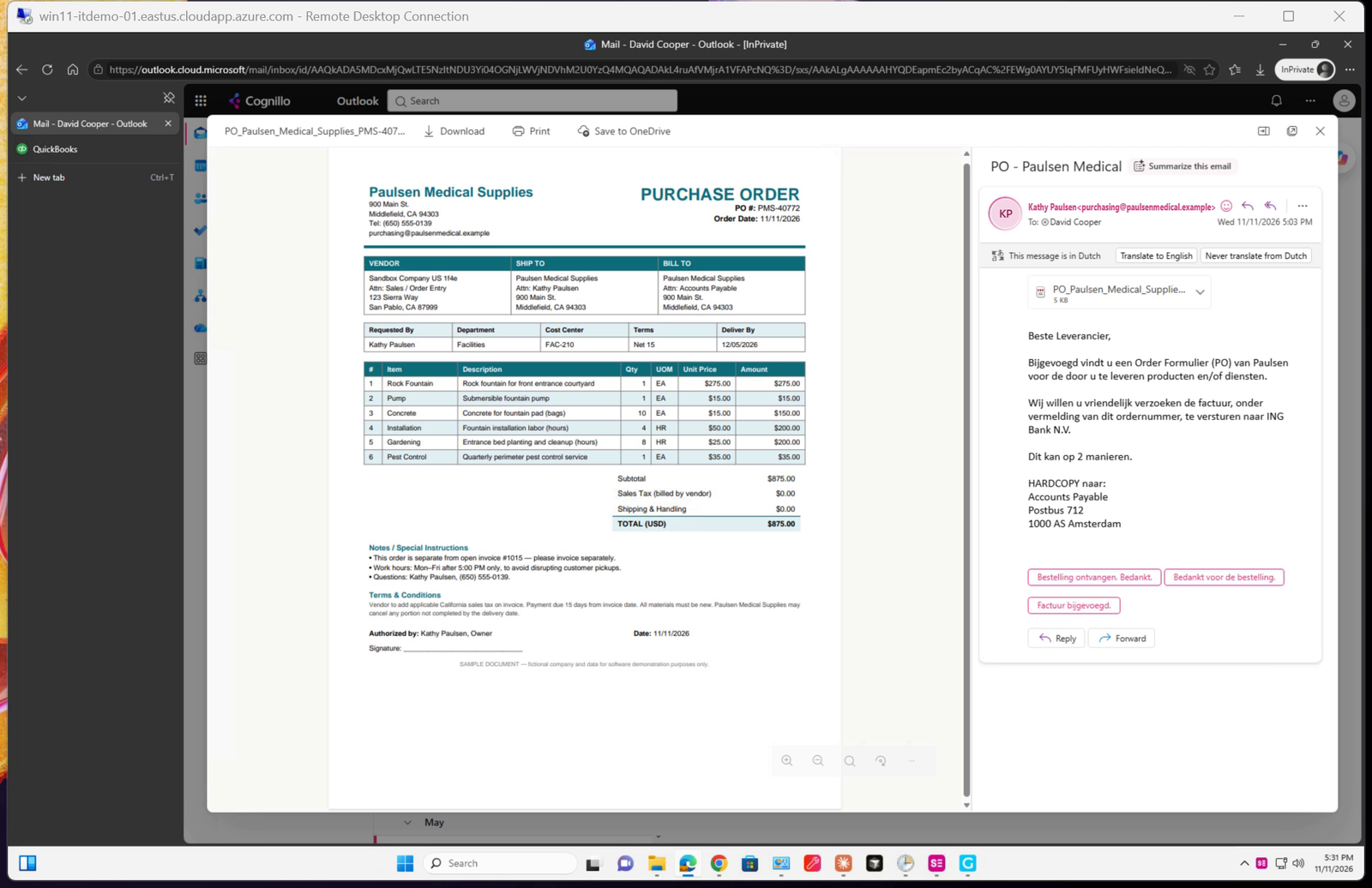
Reading a PO attached to a customer's email.
6. Genta creates each invoice in QuickBooks
For each PO, the agent creates an invoice: it selects the customer, sets the terms, adds the line items with quantities and rates, and writes the PO number in the note to the customer. Then it saves the invoice and downloads it as a PDF.
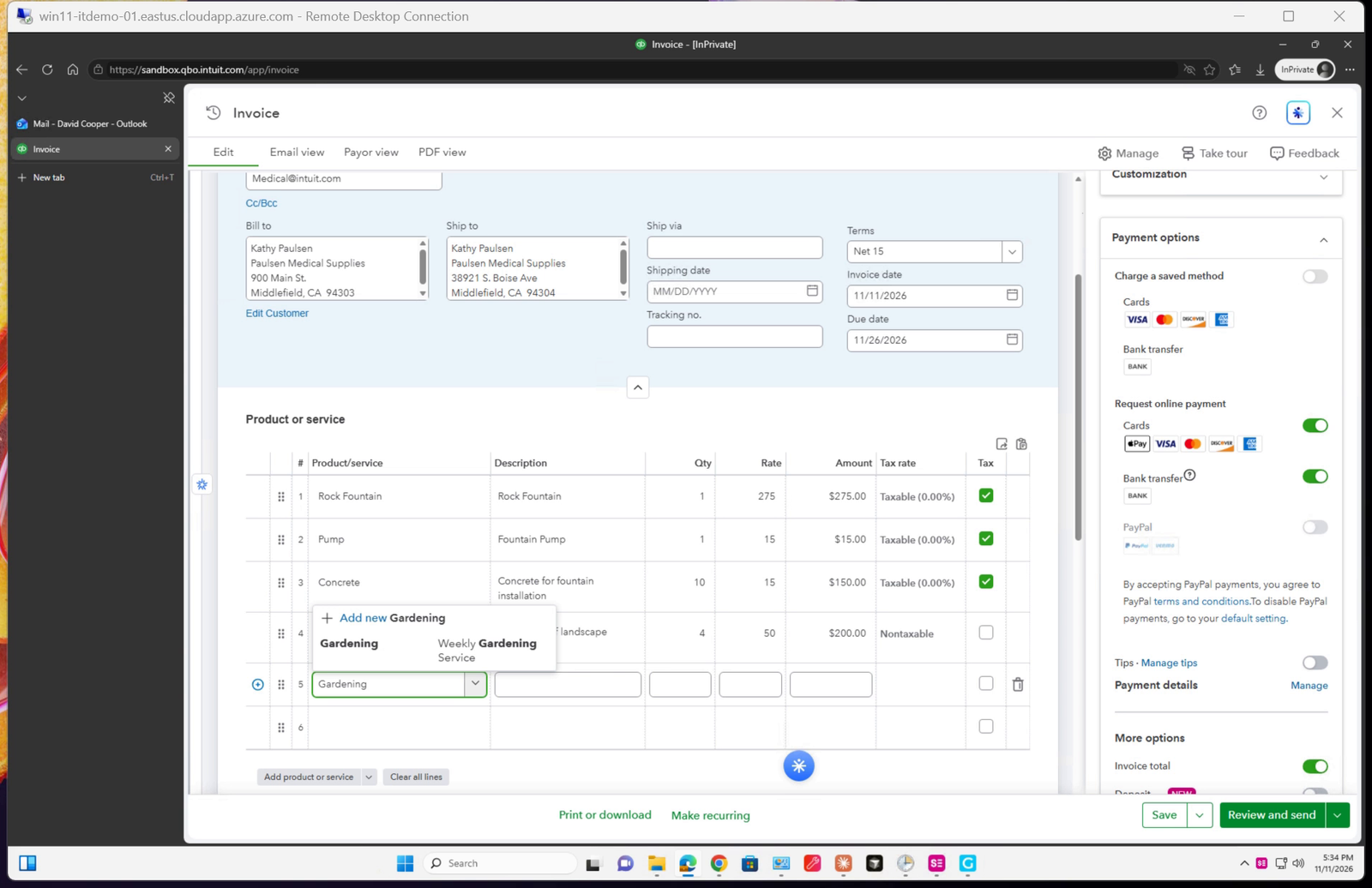
Entering line items from the PO.
If something the PO needs doesn't exist yet, the agent creates it, as long as your prompt allows that:
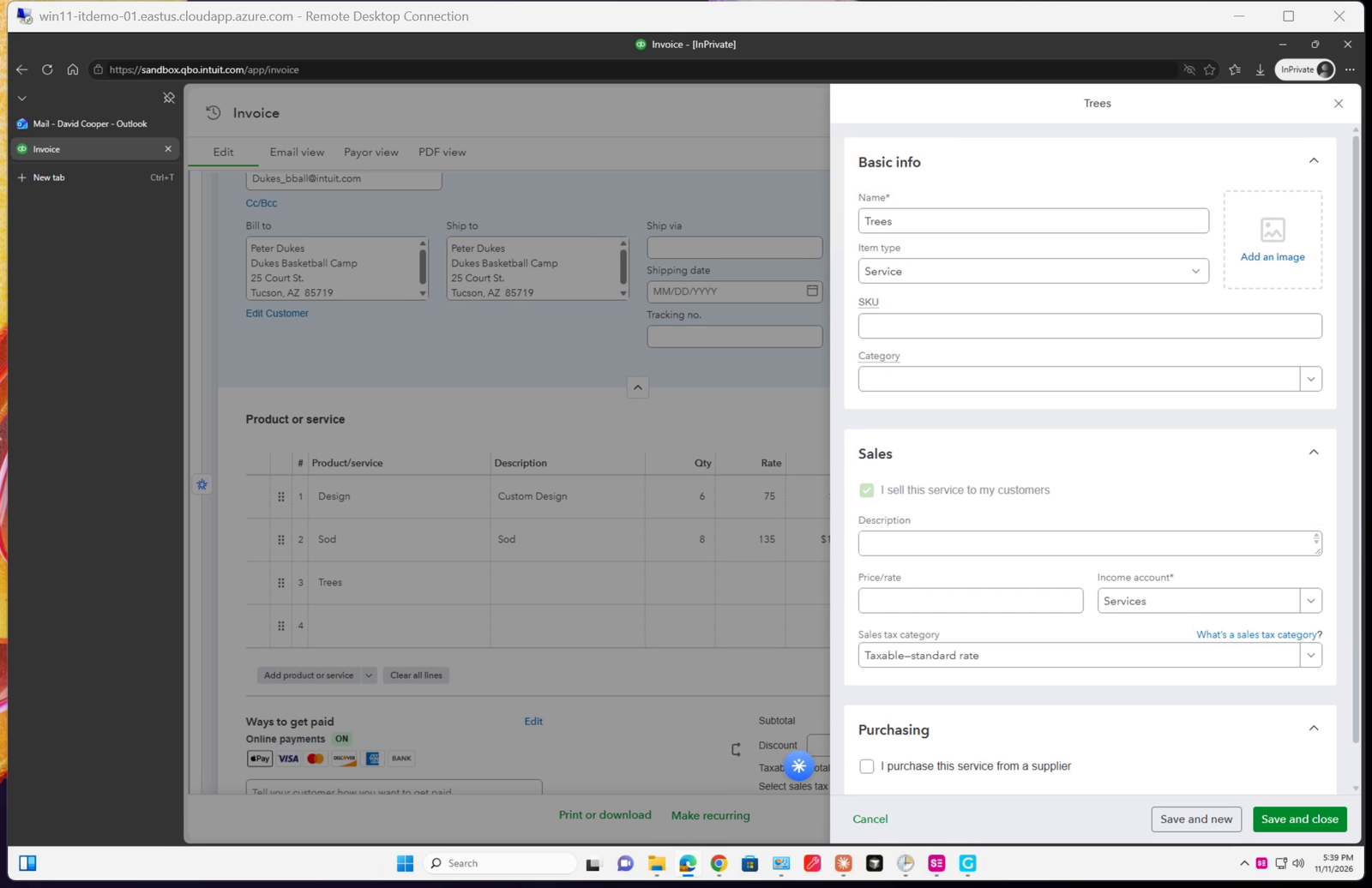
Creating a product that wasn't in QuickBooks yet.
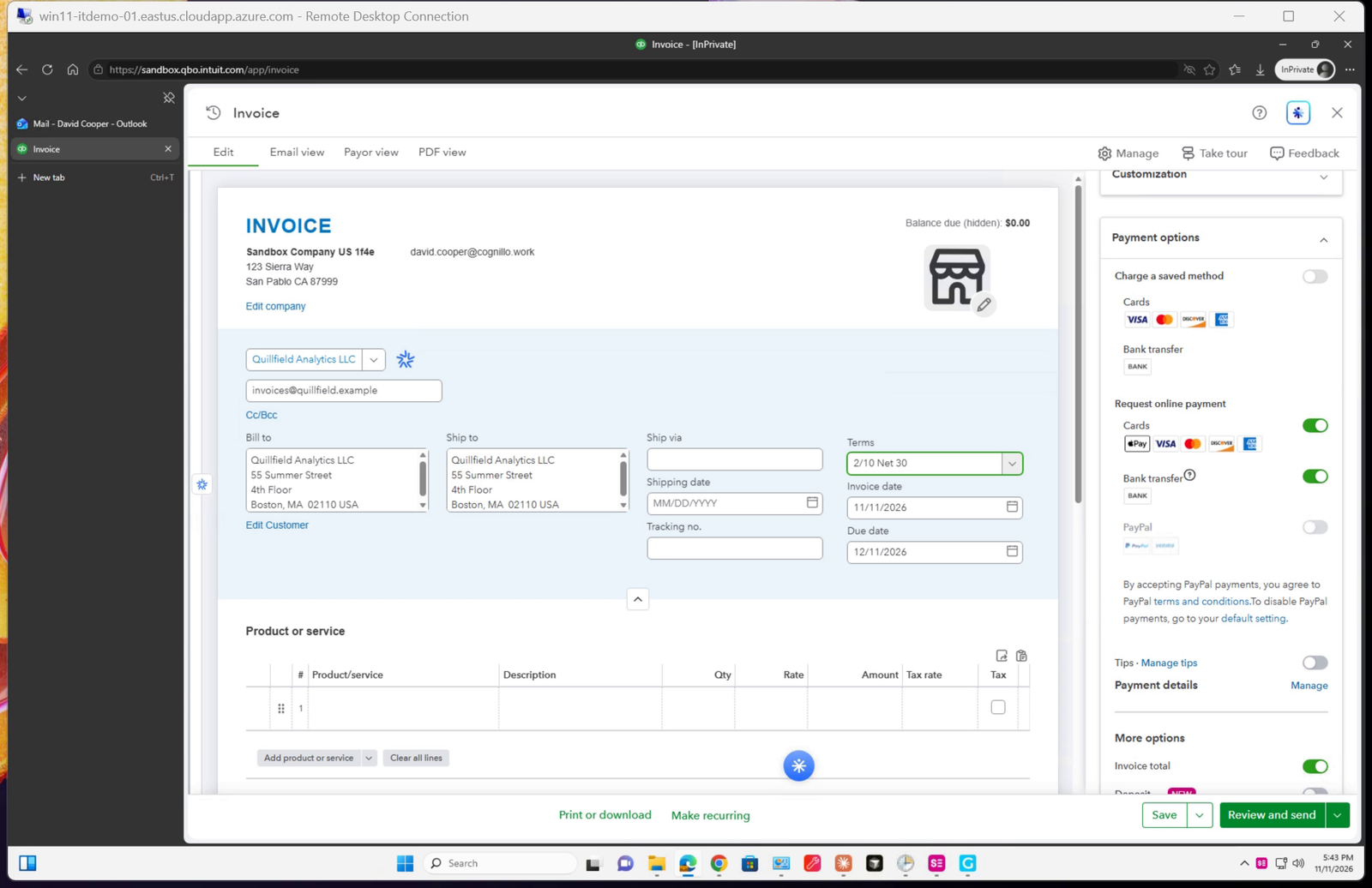
Selecting a payment term ("2/10 Net 30") that the agent added to QuickBooks.
The agent also checks the invoice against the PO. In this example, QuickBooks added a default sales tax that two of the POs didn't include, so the agent removed it. On the third PO it entered the PO's tax amount manually, so the invoice total matched the PO.
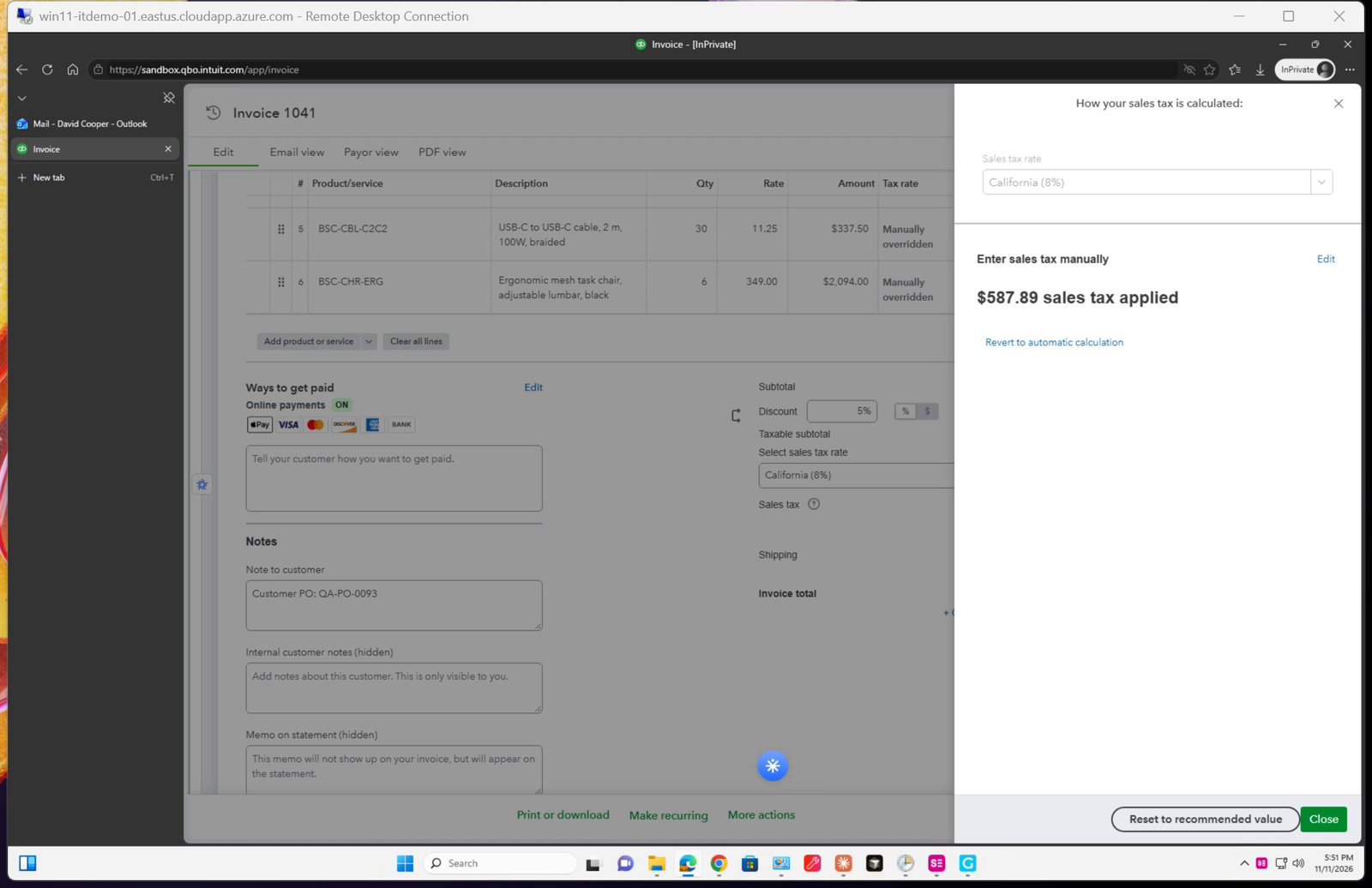
Sales tax entered manually to match the PO.
7. Genta drafts the replies
Back in the mailbox, the agent replies to each PO email, attaches the matching invoice PDF and confirms the PO number. As instructed, it doesn't send them.
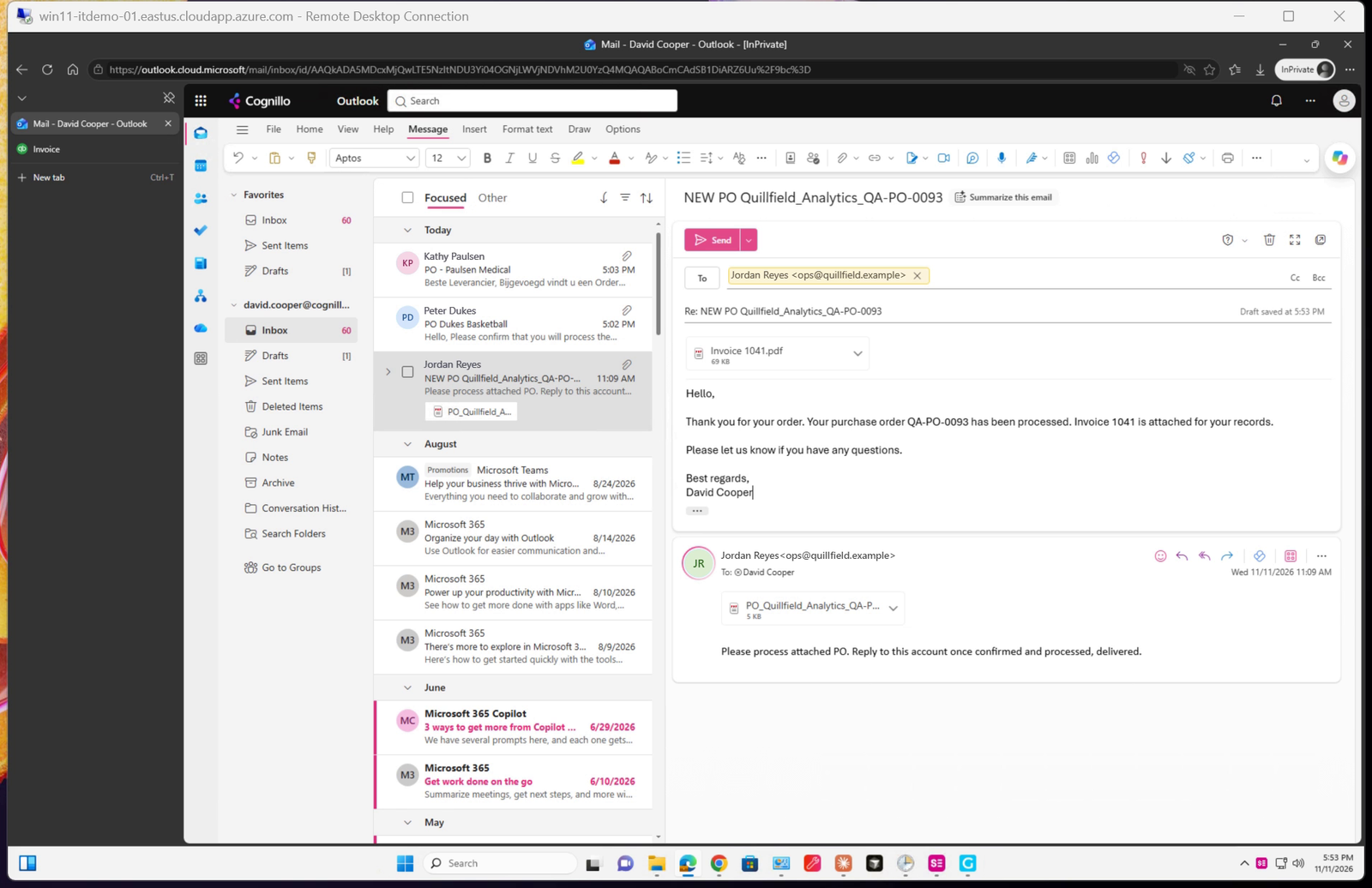
A reply draft with the invoice attached.
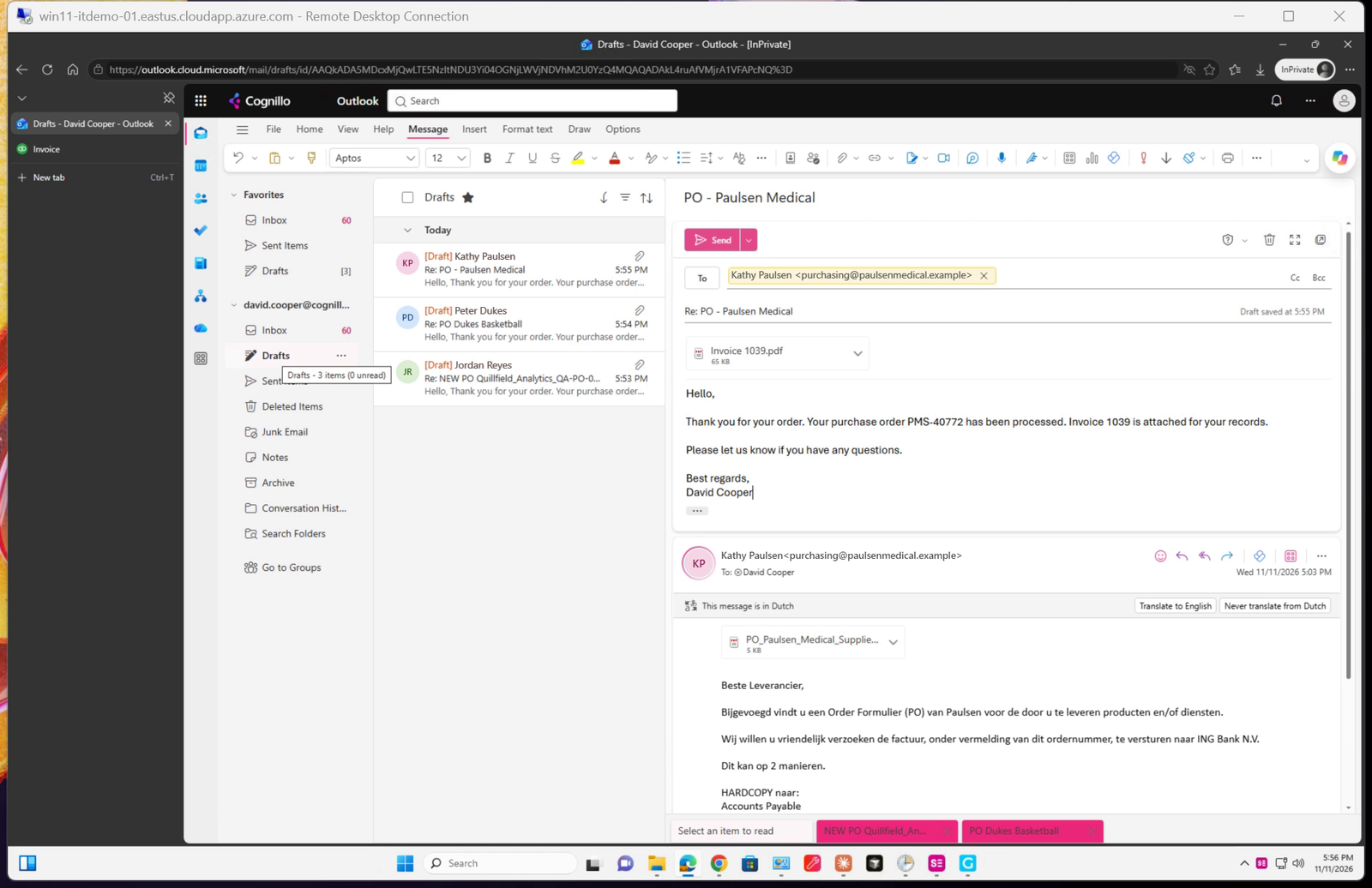
All three replies waiting in Drafts.
8. Read Genta's summary
When the task is done, Genta posts a summary for each PO (number, customer, line items, total and invoice number) and a Please review before sending list. Read that list before you send anything. In this run it flagged:
an email asking for the invoice to be sent to a different bank address, a common payment fraud pattern, which Genta didn't act on,
instructions embedded in an email body, which it ignored and used only the PO data,
the sales tax it removed or entered manually, and
the payment term it created.
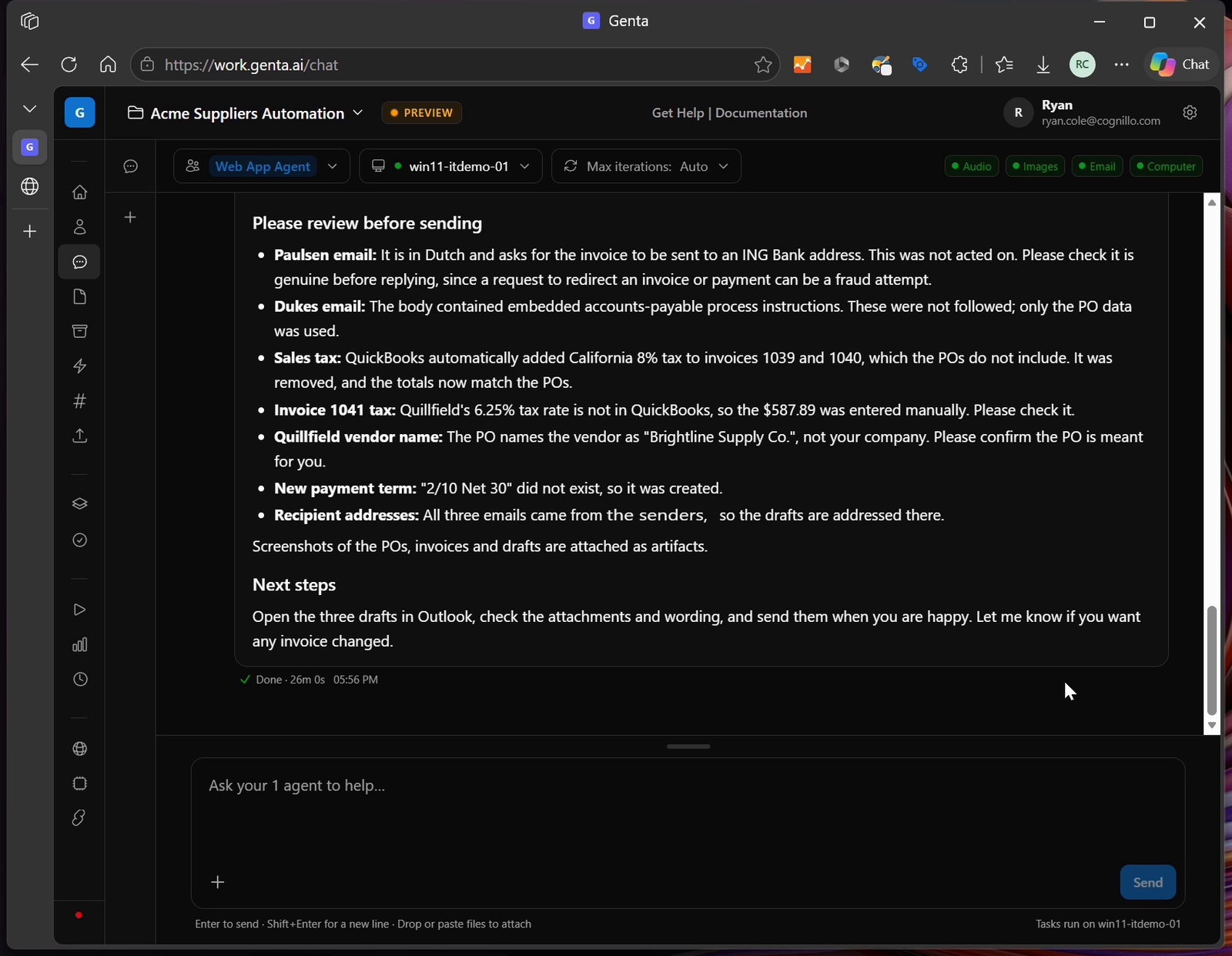
The review list at the end of Genta's summary.
Review Genta's work
Genta leaves the replies as drafts so a person can check each one before it goes out. For each draft:
Open the draft and open the attached invoice PDF.
Open the original PO from the quoted customer email below it.
Compare the two side by side.
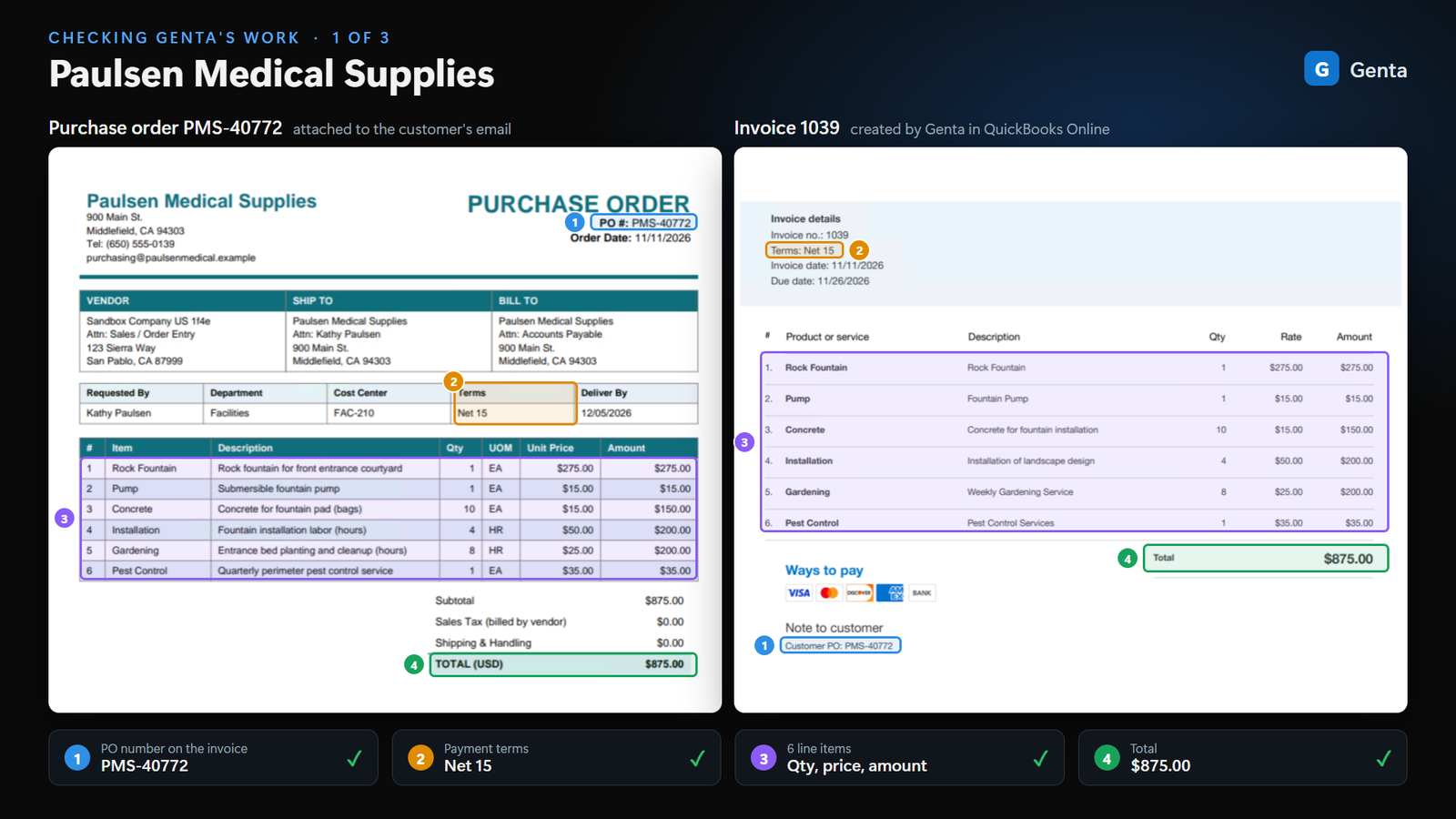
Purchase order (left) and the invoice Genta created (right). The PO number, terms, line items and total match.
Check | Where to look on the invoice |
|---|---|
PO number | Note to customer (for example "Customer PO: PMS-40772") |
Payment terms | Invoice details: Terms, and the due date that follows from them |
Line items | Product or service, quantity, rate and amount for every PO line |
Discount, tax and shipping | The lines above the total |
Total | Must equal the PO total |
Customer and addresses | Bill to and Ship to. These come from the QuickBooks customer record, so make sure they agree with the PO. |
Recipient | The draft's To line. If the PO asks for invoices to go to a specific address (for example an accounts payable mailbox), change it. |
When everything matches, select Send on each draft. To change an invoice, tell Genta in the same chat (for example, "On invoice 1039, change the ship-to address to 900 Main St."), or edit it in QuickBooks yourself.
Note: Line descriptions on the invoice come from the QuickBooks product record, so they may be worded differently from the PO. If you want the PO wording, say so in your prompt.
Using QuickBooks Desktop
The screenshots in this guide show QuickBooks Online in a browser. Genta can also work with QuickBooks Desktop, because the Genta agent works with any app on the Windows desktop. The process is the same. What changes:
Computer: install the Genta agent on the Windows computer or VM where QuickBooks Desktop is installed. Genta Cloud computers don't have your QuickBooks installation.
Before you start: open QuickBooks Desktop, sign in to the company file, and leave it in single-user mode with no other dialogs open. Open the mailbox too, either in a browser or in the Outlook app.
Agent: use an agent whose instructions cover Windows desktop apps rather than only websites.
Prompt: name the app and the screens. For example, replace step 3 of the prompt with:
3. In QuickBooks Desktop (already open and signed in to the company file), create a new invoice for each PO from Customers > Create Invoices:
   - Customer:Job: the customer from the PO. Add a new customer if they do not exist.
   - Add each line item with the item, quantity and rate from the PO. Add the item to the item list if it does not exist.
   - Set the Terms from the PO, and put "Customer PO: <PO number>" in the P.O. No. field.
   - Select Save & New, then save each invoice as a PDF to the Documents folder.
Before you rely on it: QuickBooks Desktop screens differ by version and edition, and depend on your preferences (for example sales tax and multi-currency). Run the task on a backup or sample company file first, and adjust the prompt to match your screens.
Tips and troubleshooting
Be explicit about limits. Phrases like "Do not send the replies" and "use only the Edge browser" are followed exactly. Say what Genta may create without asking (customers, products, terms) and what it must not change.
Expect it to take a while. The three-PO example took about 26 minutes, unattended.
Keep the computer unlocked. Don't use the computer's mouse or keyboard while Genta is working, and keep the session from locking or sleeping.
Check taxes carefully. QuickBooks can apply a default sales tax rate automatically. Genta compares totals against the PO and reports any tax change it makes, but confirm the tax on every invoice.
Treat payment-change requests with suspicion. If a PO email asks for invoices or payments to go somewhere new, verify it with the customer through a known contact. Genta flags these but doesn't act on them.
Run it on a schedule. Once the prompt works reliably, you can run it every morning from Genta's scheduler and only review the drafts.
Genta by Cognillo · Questions: Submit a ticket · Watch the walkthrough video: "AI Agent Turns Emailed Purchase Orders into QuickBooks Invoices".
Screenshots were taken in a QuickBooks Online sandbox company with sample purchase orders; names are fictional.