How to Create and Modify Scheduled Jobs
Last updated: 2026-10-01
Guide to creating, modifying, and managing scheduled jobs in SharePoint Essentials Toolkit for automated reports and maintenance tasks.
This article will go over how to set up a scheduled job using the SharePoint Essentials Toolkit.
Introduction
The SharePoint Essentials Toolkit can schedule jobs to run automatically, such as daily, weekly, monthly or on a custom schedule.
How do the Scheduled Jobs work?
Scheduled Jobs will run on a timer in the background; the SharePoint Essentials Toolkit does not need to be running. The job will execute as the current logged in user (to the machine) but will connect to SharePoint using the credentials specified in the job.
Scheduling jobs can be disabled in the Settings section.
Schedule a Job
Certificate based authentication may be required for SharePoint online scheduled jobs.
Cognillo is working on the use of Web Browser Authentication with scheduled jobs - to keep tokens alive longer and prevent the need for Certificate authentication.
A Job is a task that runs in the SharePoint Essentials Toolkit, such as building a report.
Create a job to work with.
Note that for SharePoint Online, scheduled jobs may require using Certificate based authentication or an error will occur.
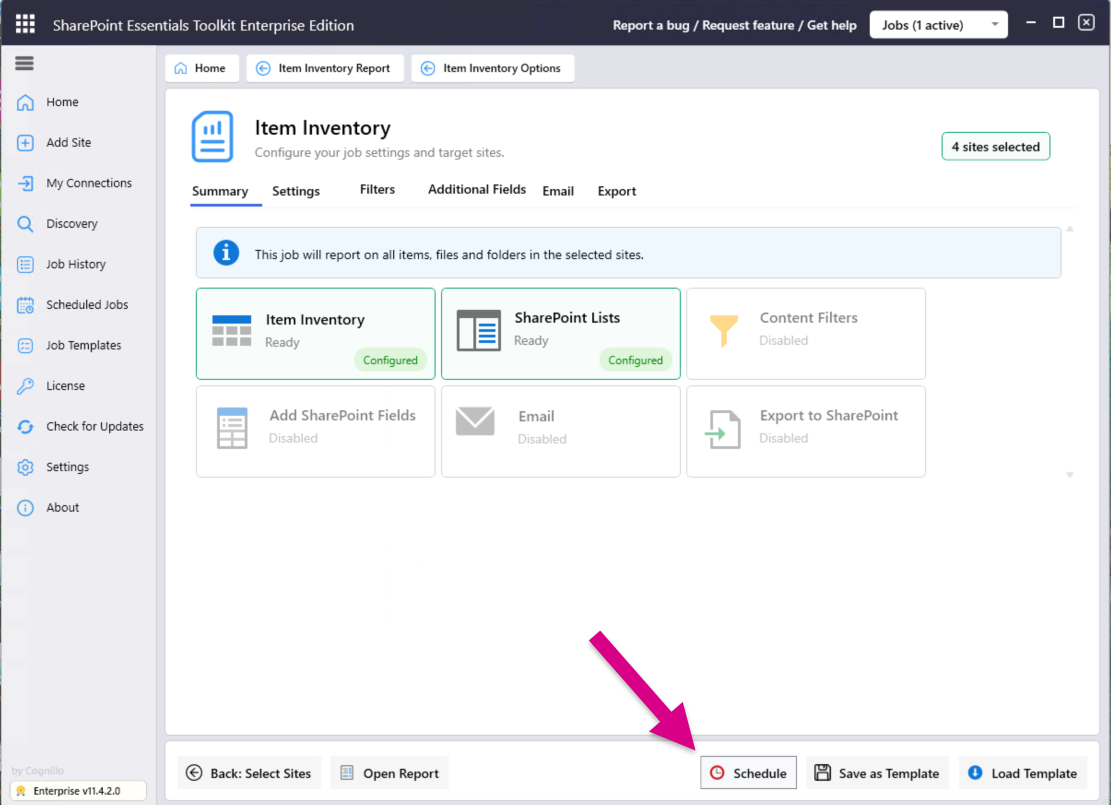
This is because SharePoint Online requires multi-factor authentication which cannot be automated in a background task and auth tokens can expire. Certificate based authentication requires Azure App registration, see this article for information on setting this up: SharePoint Essentials Toolkit - Installation & DeploymentIn the job options page, click the "Schedule Job" button.
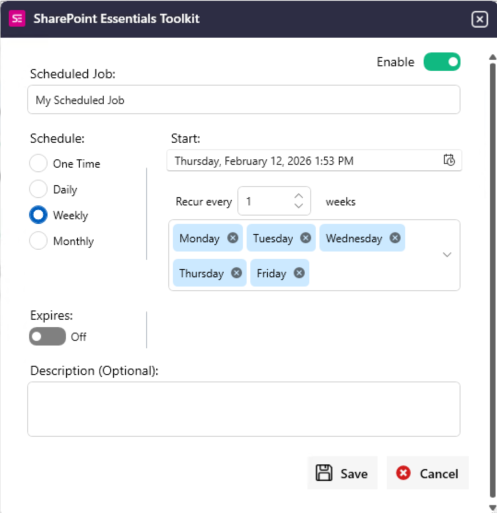
Enable the schedule for this job and select the schedule you would like to use.
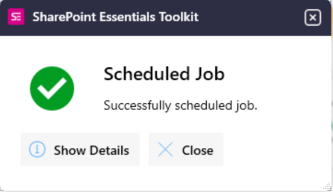
You should s pop message indicating the scheduled job was saved successfully.
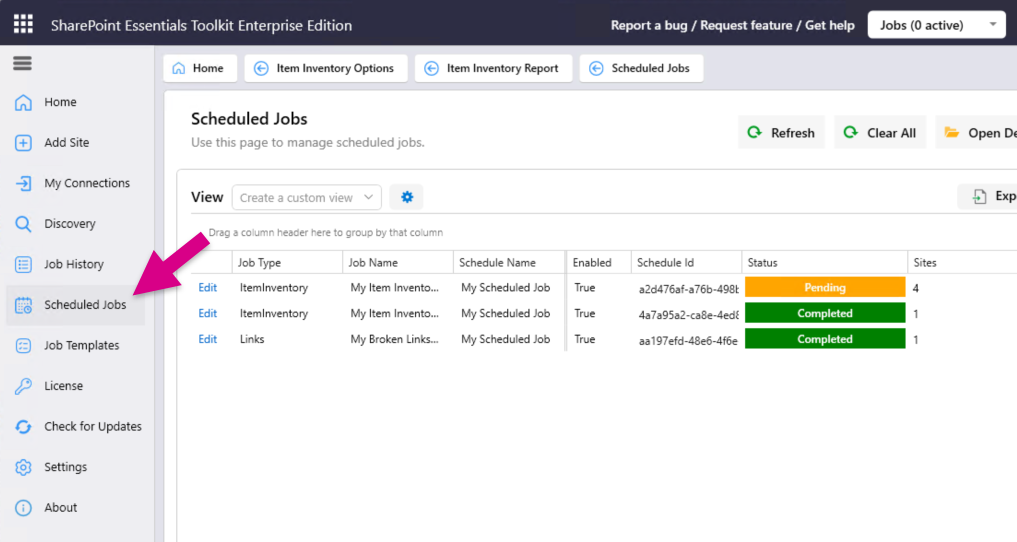
Click Scheduled Jobs in left navigation, this will be where you can view and edit existing scheduled jobs.
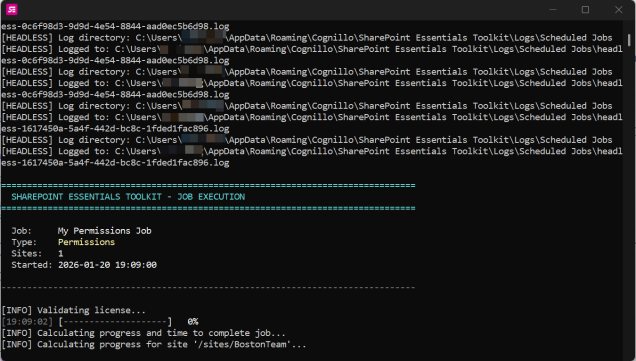
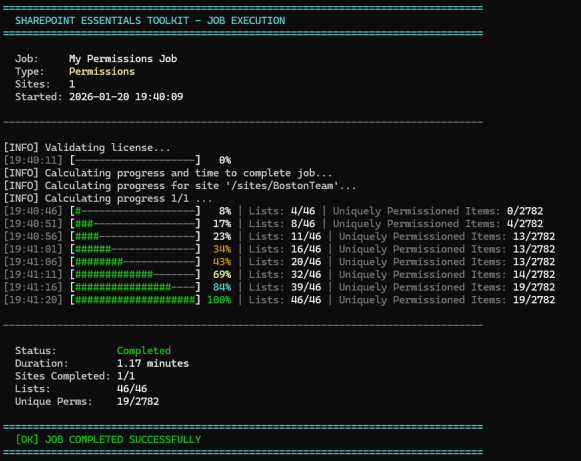
When a scheduled job starts, there will be a window that appears to show the user the progress and that a scheduled job is running. They may minimize this window but do not close it or the job will stop running.
How do I modify an existing Scheduled Job?
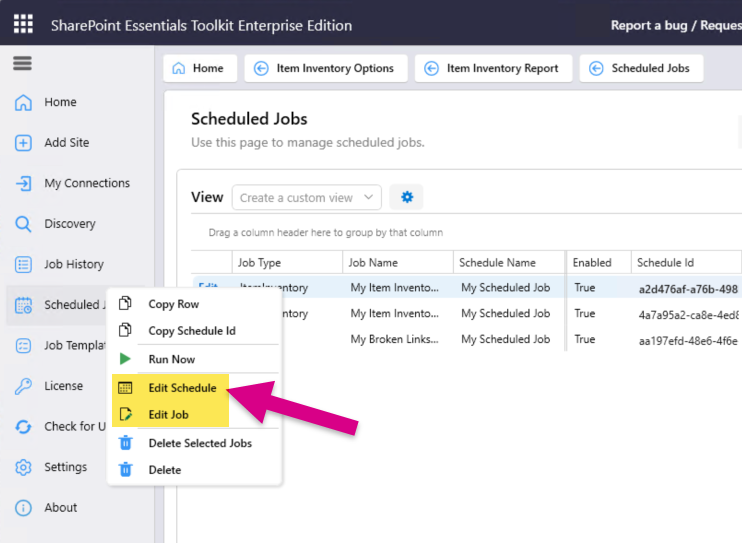
In the left navigation, click “Scheduled Jobs”
Right click on the job to modify, then click Edit Schedule to change the actual schedule, or Edit Job to update the job settings.
See the SharePoint Essentials Toolkit - User Guide - Getting Started guide for more details on Scheduled Jobs.