How to Do a Computer Task with Genta
Published:
Last updated: 2026-11-18
Connect a Windows computer for everyday computer tasks or QA test automation, optionally add product knowledge, then ask Genta in chat and get the result.
Connect a Windows computer, optionally give Genta your own product knowledge, then ask for the work in chat. Genta runs the app for you and sends you the result. These steps work for both everyday computer tasks and QA test automation.
In this article
How it works
Genta does a computer task the way a person would: it looks at the screen, moves the mouse, types, and reads what the app shows. It works with the apps that are installed on the computer, so the app doesn't need an integration or an API. A task has three parts:
A computer. A Windows PC or virtual machine that Genta can use, either a Genta Cloud computer or your own machine with the Genta agent for Windows installed.
An agent (optional). A role, plus knowledge such as files, notes or web pages, that Genta consults when the work needs specialized context.
A request in chat. The outcome you want, in plain English.
The example in this guide asks Genta to create a broken link report for a SharePoint site with SharePoint Essentials Toolkit, a Windows desktop app, and to email the report as an Excel file.
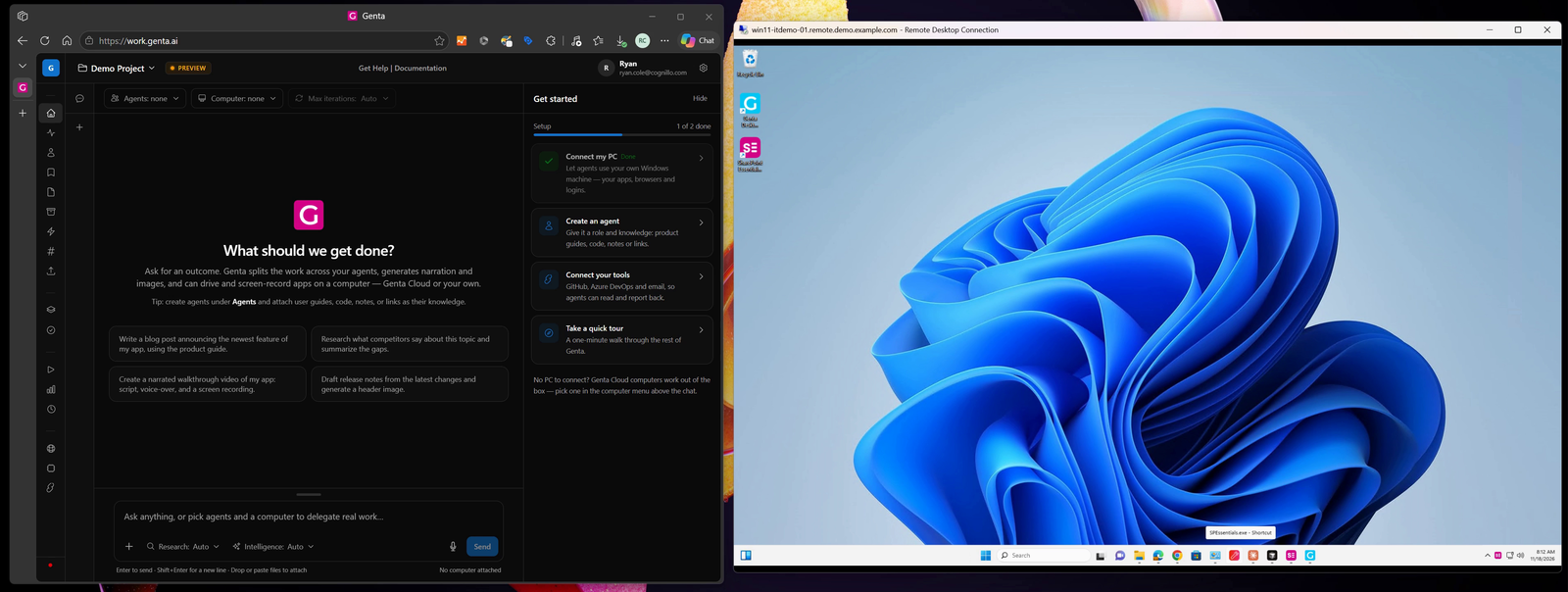
Genta (left) and the Windows computer it works on (right), shown here over Remote Desktop.
Before you begin
A Genta account. Sign in at work.genta.ai.
A Windows computer for Genta to use. Your own PC or virtual machine (see Connect a computer), or a Genta Cloud computer, which needs no installation. Use your own computer when the task needs an app, files or sign-ins that only exist there.
The app, installed and signed in. Open the app on that computer and sign in to whatever it connects to. Genta uses the session that's already open; it doesn't need your passwords.
Connect a computer
Skip this section if you'll use a Genta Cloud computer.
1. Download the Genta agent
In Genta, open Computers. Under Bring Your Own Computer (BYOC), select Download Agent (.msi). To download it directly on another machine, select Copy URL and open the address there.
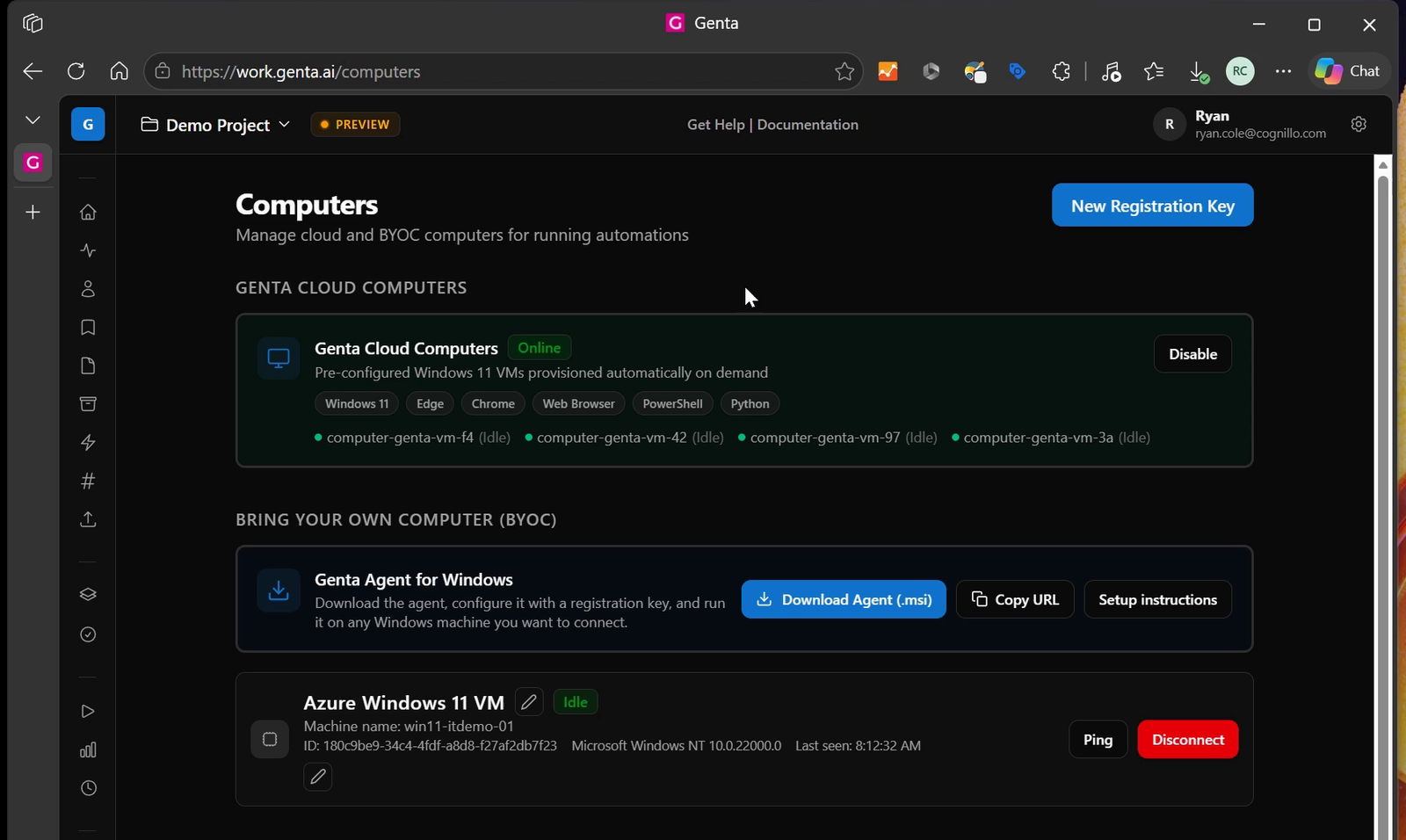
The Computers page. Genta Cloud computers are at the top; the agent download is under Bring Your Own Computer.
2. Install and register it
Select Setup instructions for the full steps:
Create a registration key. On the Computers page, select New Registration Key, name it, and copy the key. The full key is shown only once.
Install the agent. Run
GentaVmAgent.msion the computer Genta should use and complete the installer.Configure the agent. Open Genta Agent Configuration from the installed shortcut, paste your registration key, and set
ServerUrltohttps://api.genta.ai.ComputerNameis optional; leave it blank to use the machine's name.Run the agent. Start
GentaAgent.exe. Within a few seconds the computer appears under Bring Your Own Computer with the status Idle, which means it's ready.
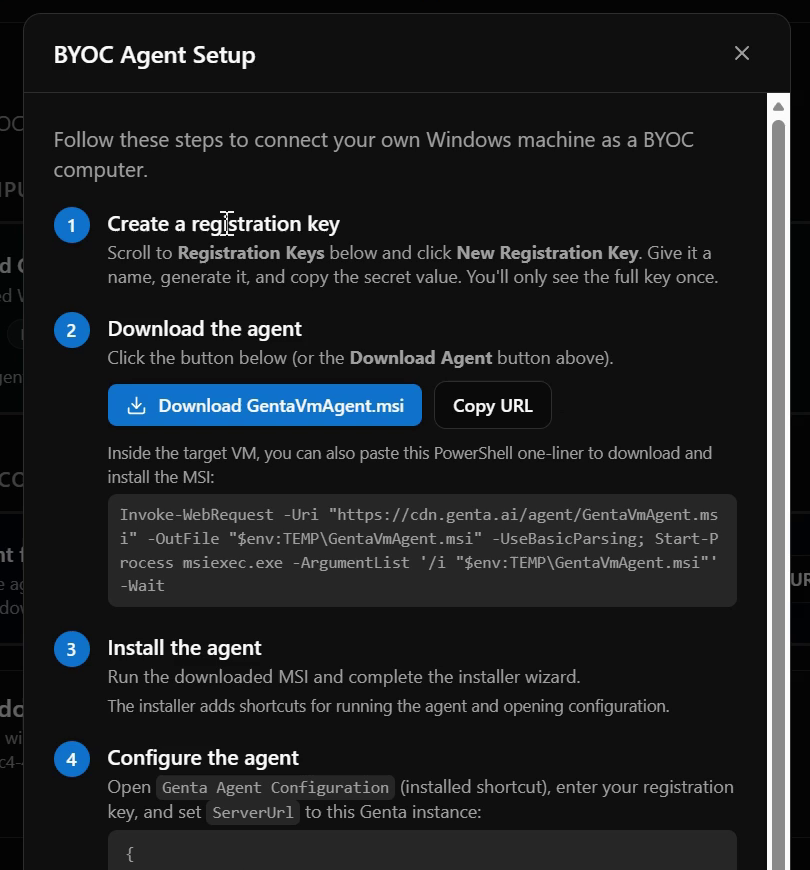
The setup steps in Genta. Print to PDF at the bottom saves a copy for whoever installs the agent.
Keep the registration key private. Anyone who has it can connect a computer to your Genta account. If a key is exposed, select Deactivate next to it and create a new one.
Tip: To start the agent automatically, create a Windows Task Scheduler task that runs
GentaAgent.exewith the At log on trigger.
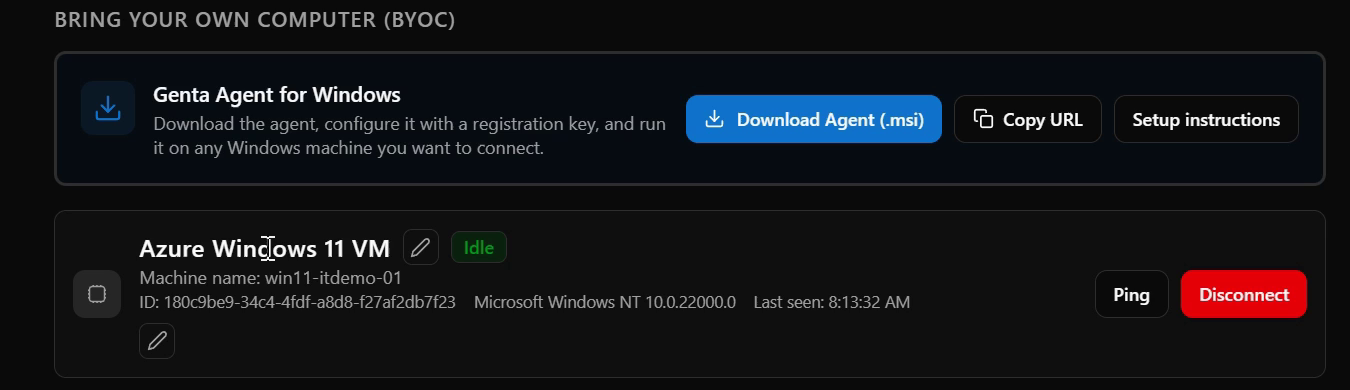
A connected computer. Ping checks that it responds.
Add an agent (optional)
An agent is a specialist you define: a role, and the knowledge it should work from. When an agent is selected for a task, Genta searches that knowledge first and uses what it finds to decide what to do on the computer.
Agents are optional. Genta can do a computer task without one. Add an agent when the work or research needs specialized context that Genta wouldn't otherwise have, such as how your product works, your team's procedures, or a customer's requirements.
3. Create the agent
Open Agents and select Create an Agent. Enter an Agent Name, and in Role & Objective describe what the agent is for in a sentence or two. The example uses:
You are an expert in the SharePoint Essentials Toolkit by Cognillo. Use the help articles in your knowledge to pick the right report or tool in the app, and to follow its steps correctly.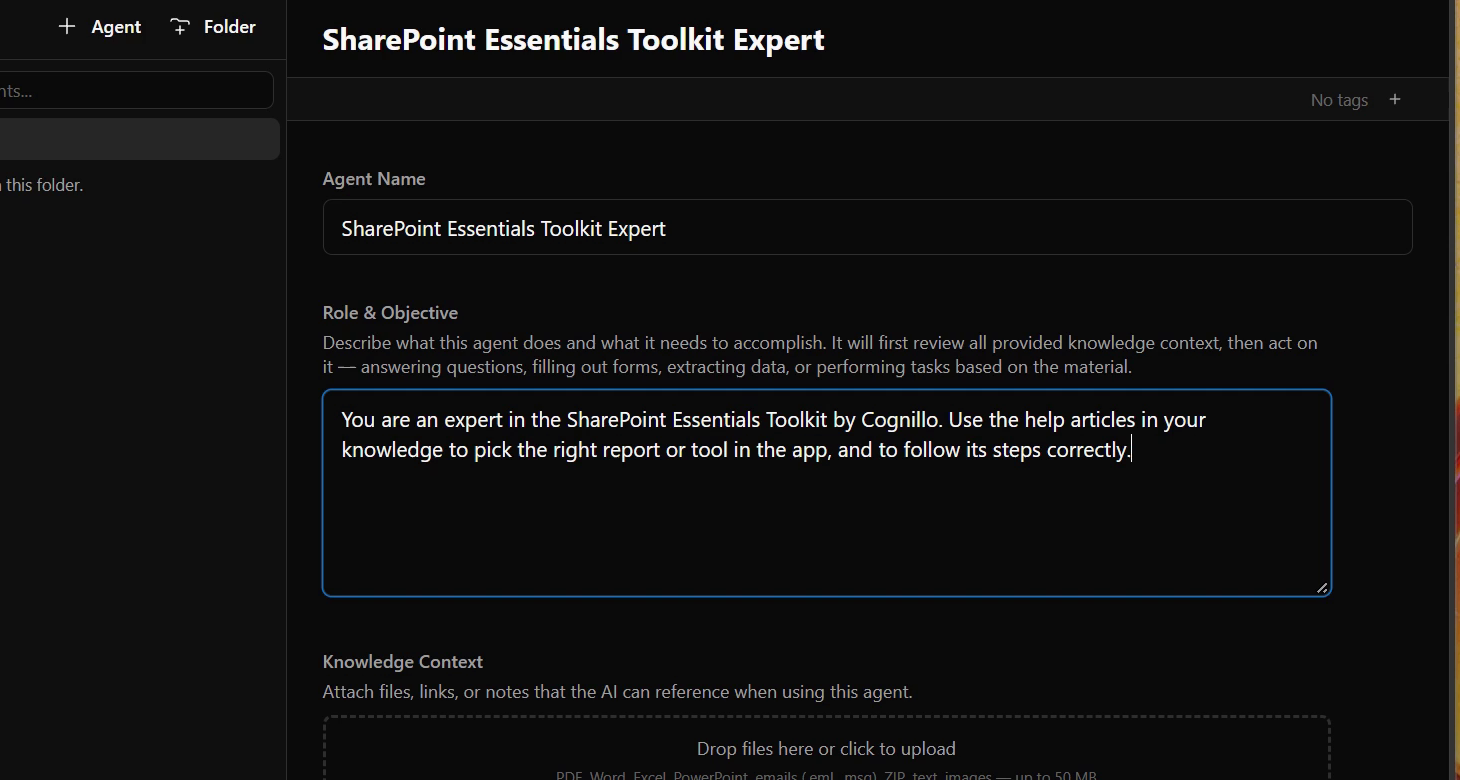
Name and role of the new agent.
4. Give it knowledge
Under Knowledge Context you can upload files (PDF, Word, Excel, PowerPoint, emails, ZIP, text and images, up to 50 MB), or select Add Link, Add Note or Add Integration. To use a set of help articles as the source:
Select Add Link and enter the address of the page that lists the articles. The example uses
https://www.cognillo.com/help/, the help articles for SharePoint Essentials Toolkit.Select Crawl linked pages, so Genta reads the articles behind that page and not only the page itself.
Set Follow links to 1 level (the pages the starting page links to) and Max pages to 50.
Leave Only pages under the starting path and Use the site's sitemap selected. The first keeps the crawl inside the help section; the second finds articles that aren't linked from the starting page.
Select Add, then Add agent.
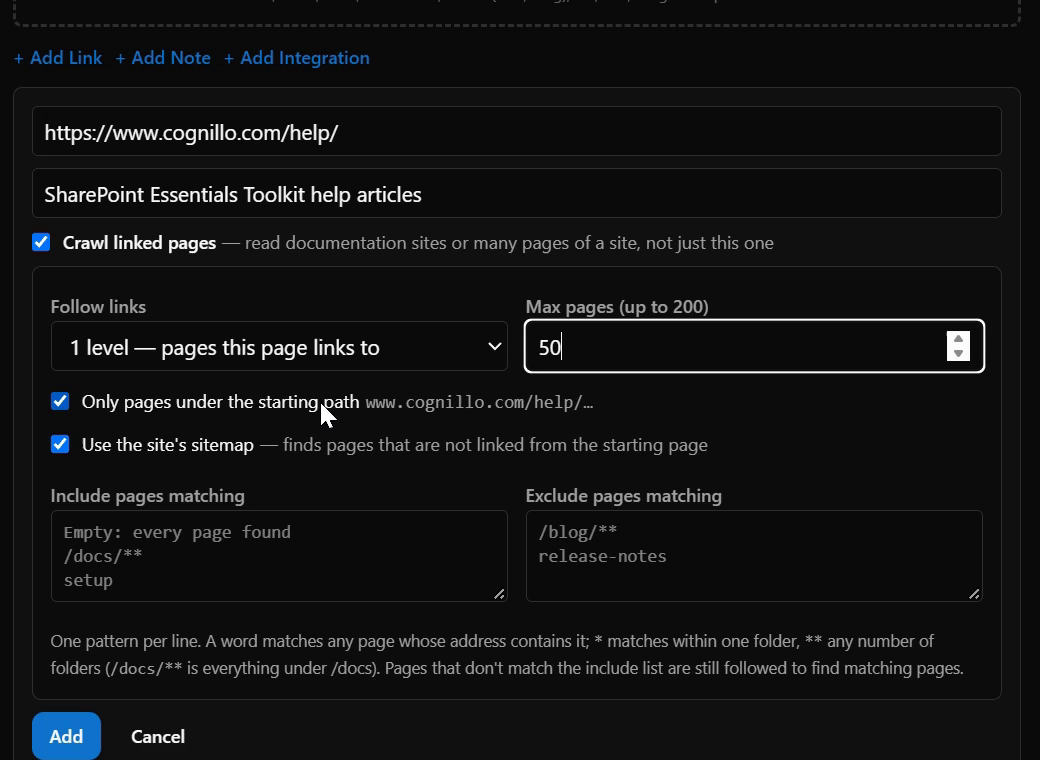
Crawl settings for the help articles.
Setting | What it does |
|---|---|
Follow links | How far from the starting page Genta reads: only that page, or 1 to 5 levels of linked pages. |
Max pages | The most pages Genta reads, up to 200. |
Only pages under the starting path | Skips pages outside the starting folder (here, anything outside |
Use the site's sitemap | Also reads pages listed in the site's sitemap. |
Include / Exclude pages matching | Optional patterns, one per line, to keep or skip pages by address (for example |
Genta reads the pages in the background. The link shows Crawling… with a running count, then the number of pages indexed. If it found more pages than the limit allows, it says how many it didn't read; raise Max pages and select Recrawl to include them.
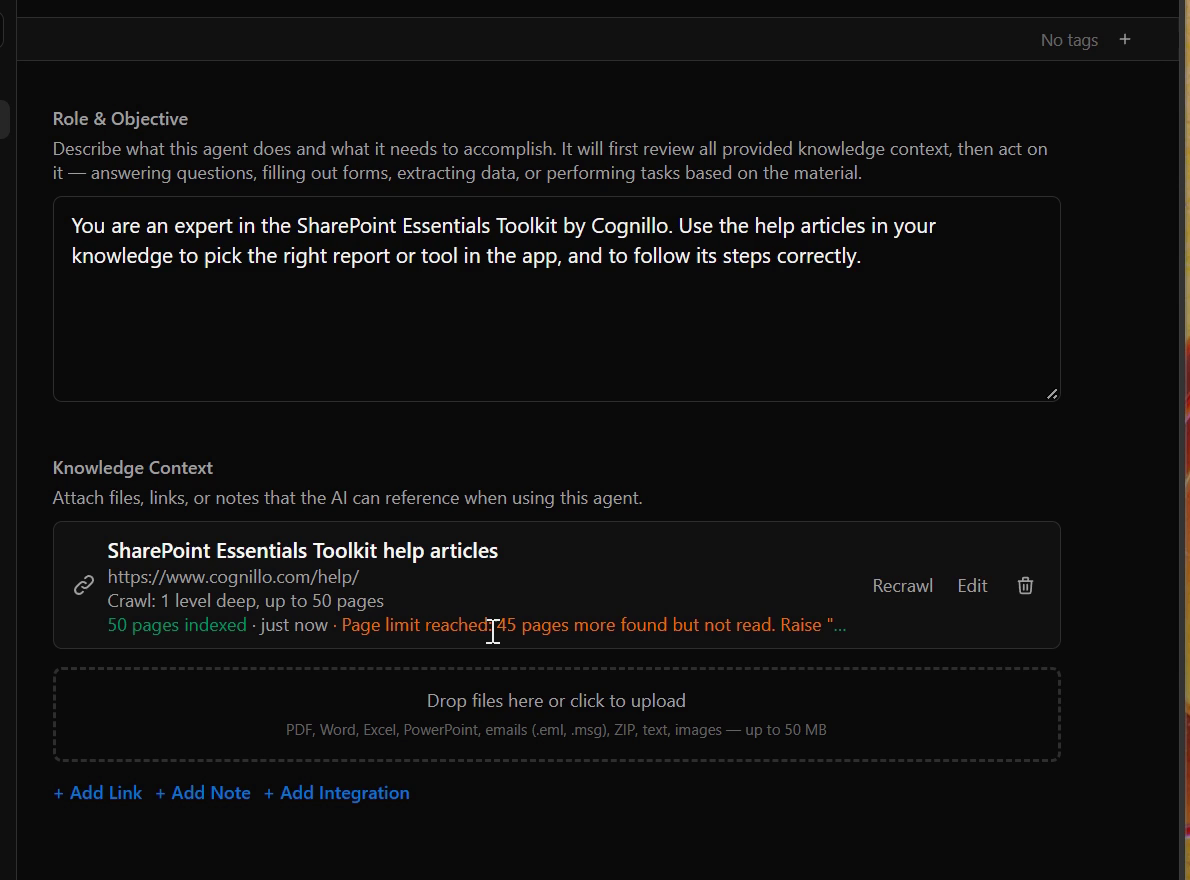
The help articles, indexed and ready to use.
How Genta uses this source. Whenever this agent is selected, Genta asks it how to do the work before it touches the computer. In this example, the agent searches the indexed SharePoint Essentials Toolkit articles and answers with the tool to use and the steps to follow, and Genta then carries those steps out in the app.
Ask for the task in chat
5. Check the computer
Make sure the app is installed, open and signed in on the computer. Here, SharePoint Essentials Toolkit is open on the virtual machine and connected to the SharePoint site.
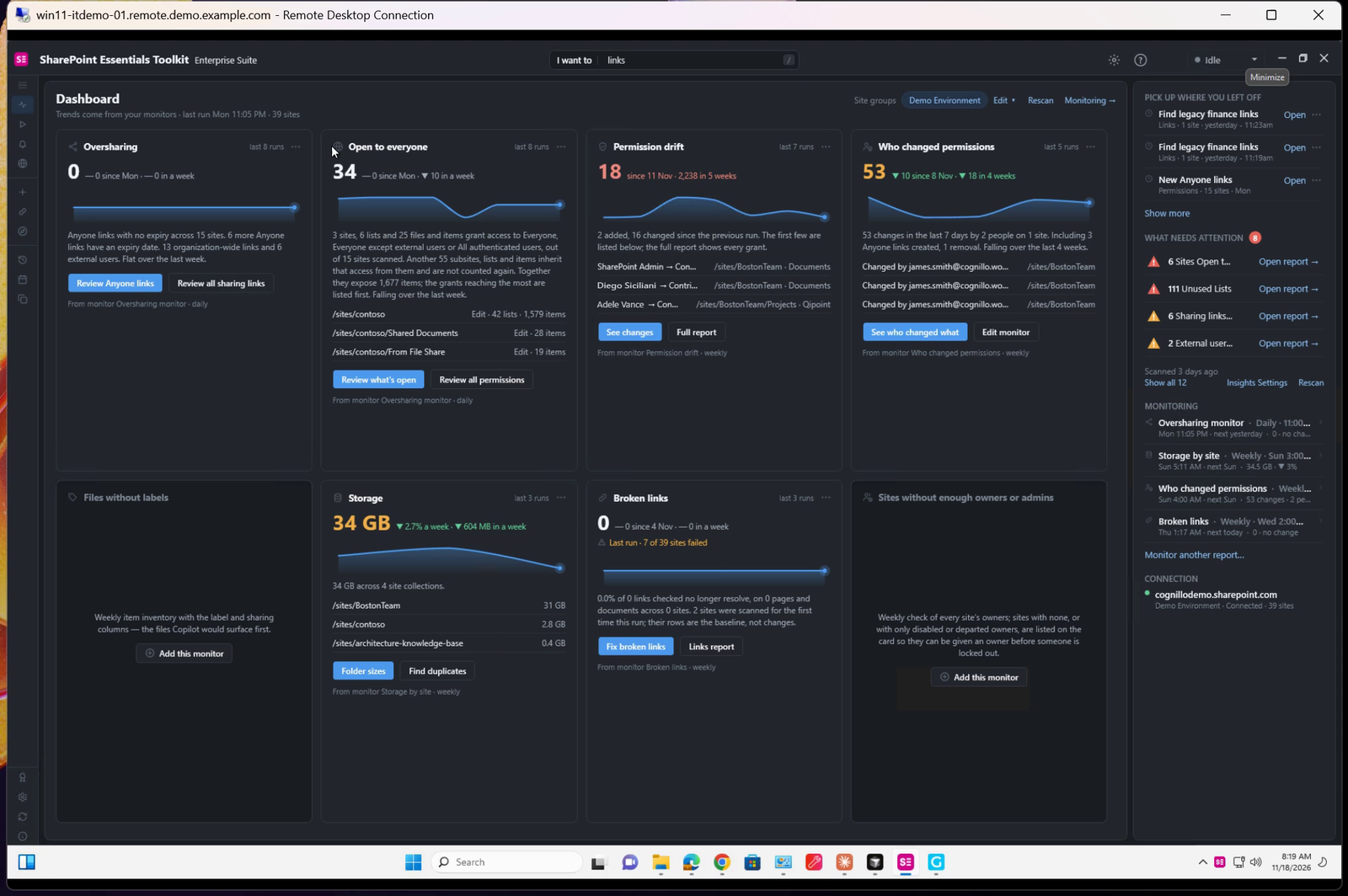
SharePoint Essentials Toolkit, open on the computer Genta will use.
6. Choose the agent and the computer
Open Chat. At the top, select Agents and choose your agent (or leave it empty). Then select Computer and choose the computer. A green dot means it's online.
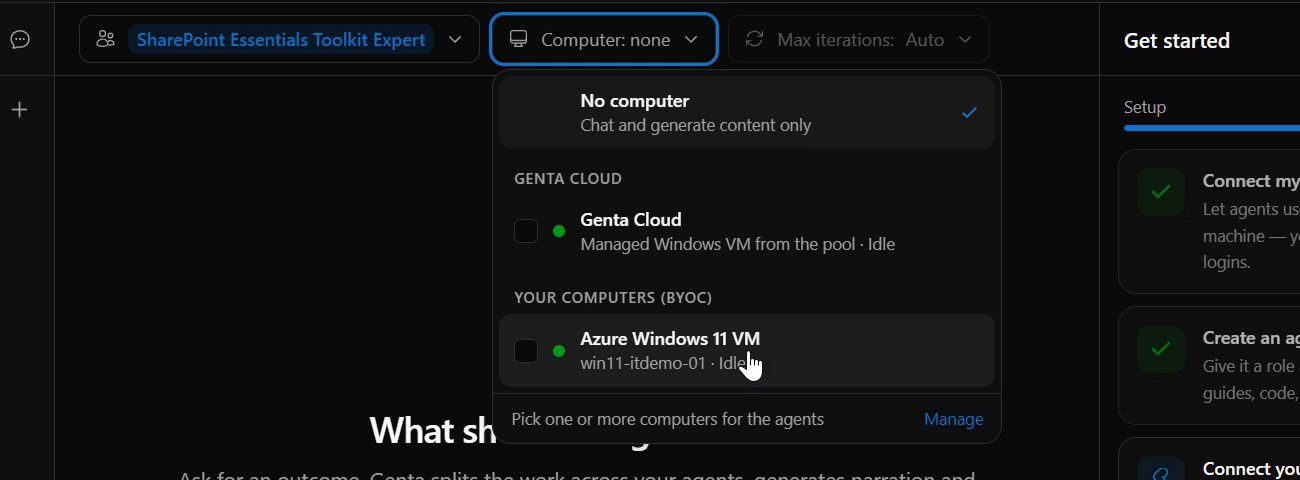
The agent is selected, and the computer is chosen under Your computers.
7. Describe the outcome and send it
Say what you want, which app to use, and how you want the result delivered. You don't need to list the steps. The example request:
Create a broken link report for /sites/acme with SharePoint Essentials Toolkit, which is already open on the computer. Once it's done, email me the report as an Excel file, with a summary of the results.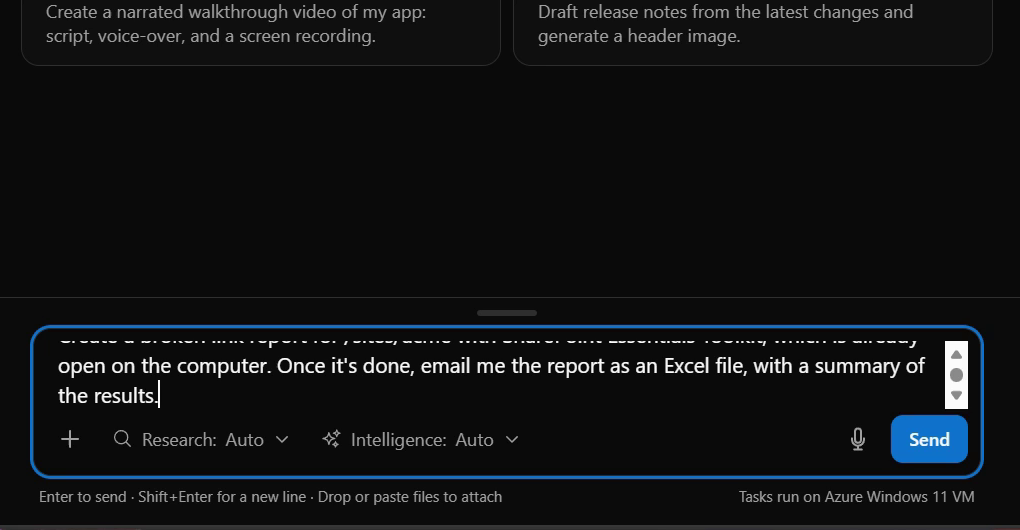
The request in the message box, which shows its last two lines. Press Enter to send, or Shift+Enter for a new line.
8. Watch the work log
Genta plans the work and shows each step in the Work log. In the example it first asks the agent which tool to use, and the agent answers from the help articles. Then it starts the task on the computer. Select view run to follow along on the computer's screen. You can send a follow-up at any time, or select Stop.
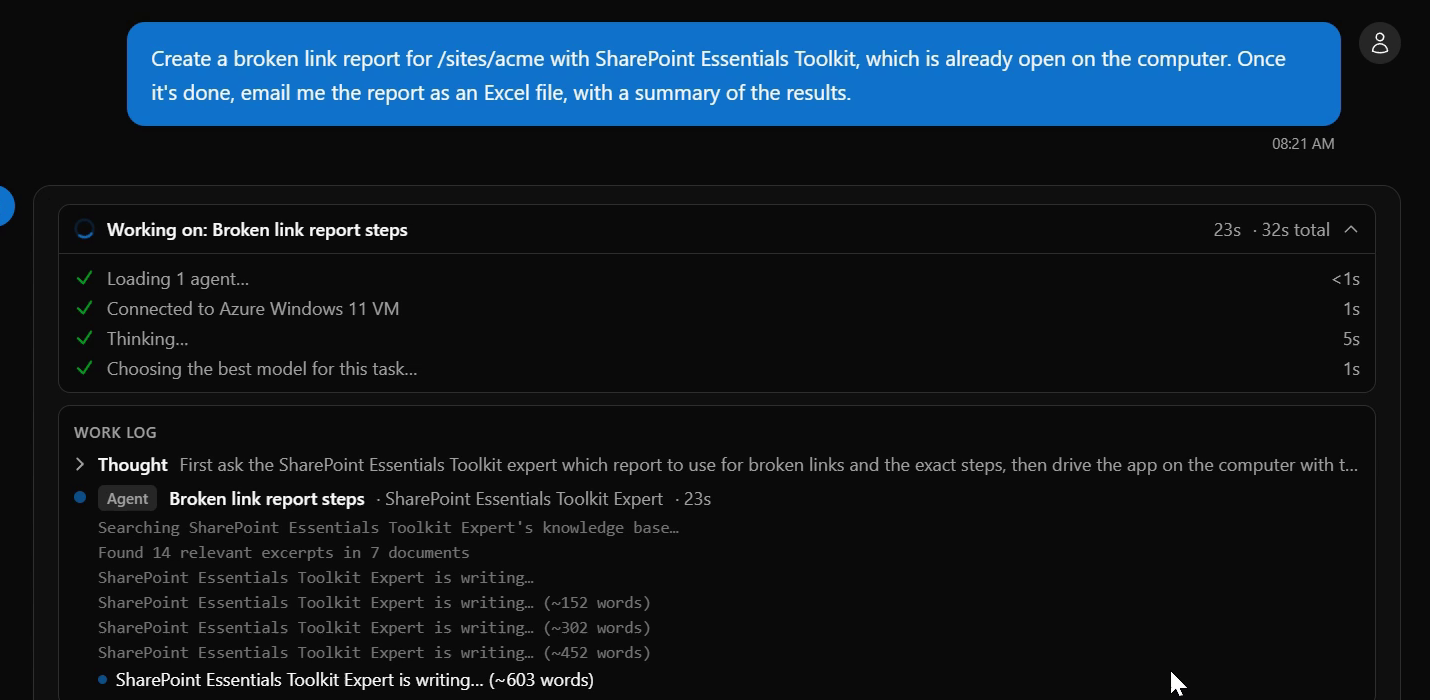
The agent's answer from its knowledge, followed by the task on the computer.
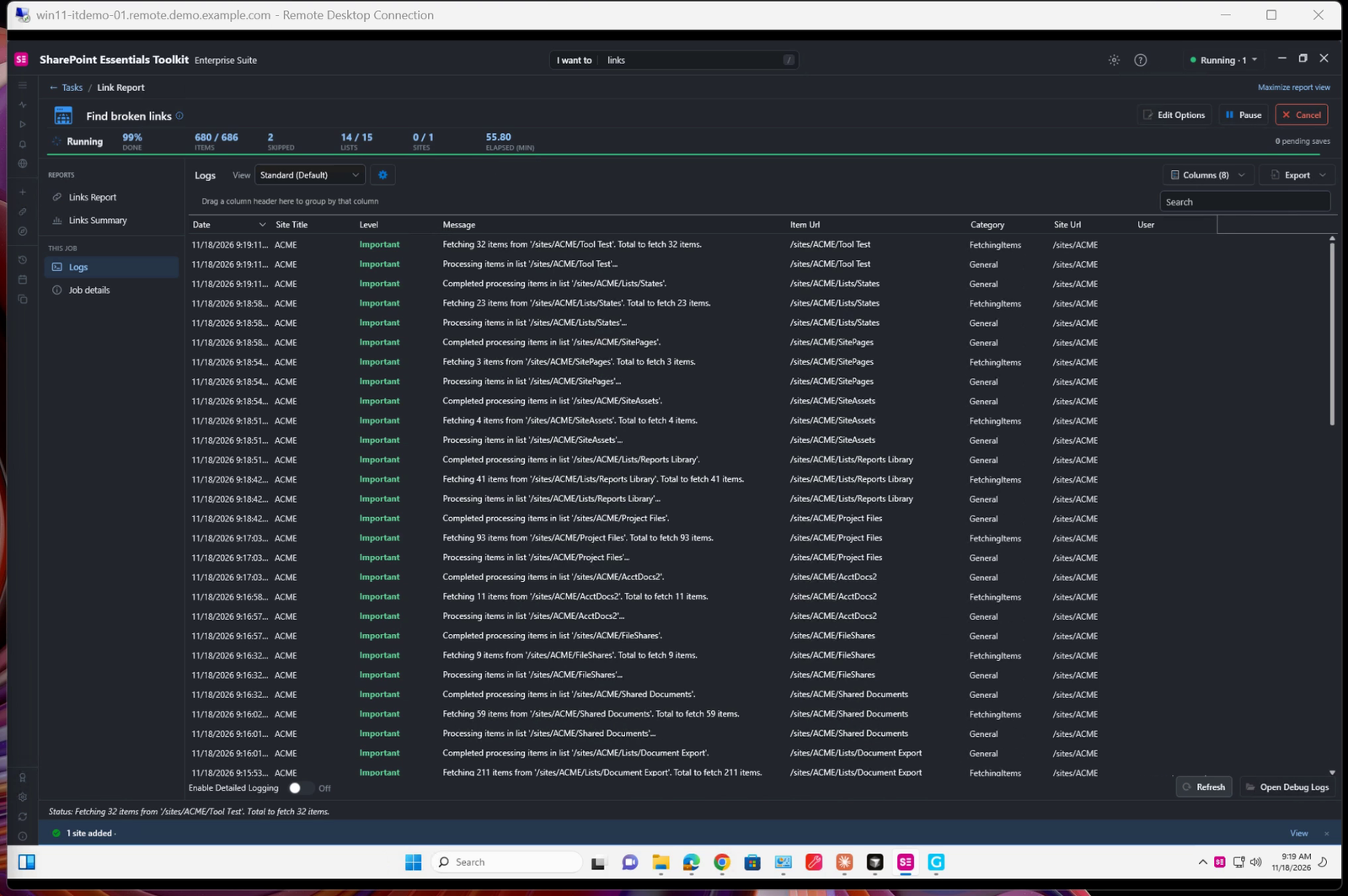
Genta running the Find broken links task in SharePoint Essentials Toolkit.
Get the result
How long a task takes depends on the app, not on Genta. In the example, SharePoint Essentials Toolkit needed about an hour to check every link in the site. You don't have to keep the chat open or watch the run: Genta checks on the job every few minutes, waits for it to finish, and then carries on with the next step.
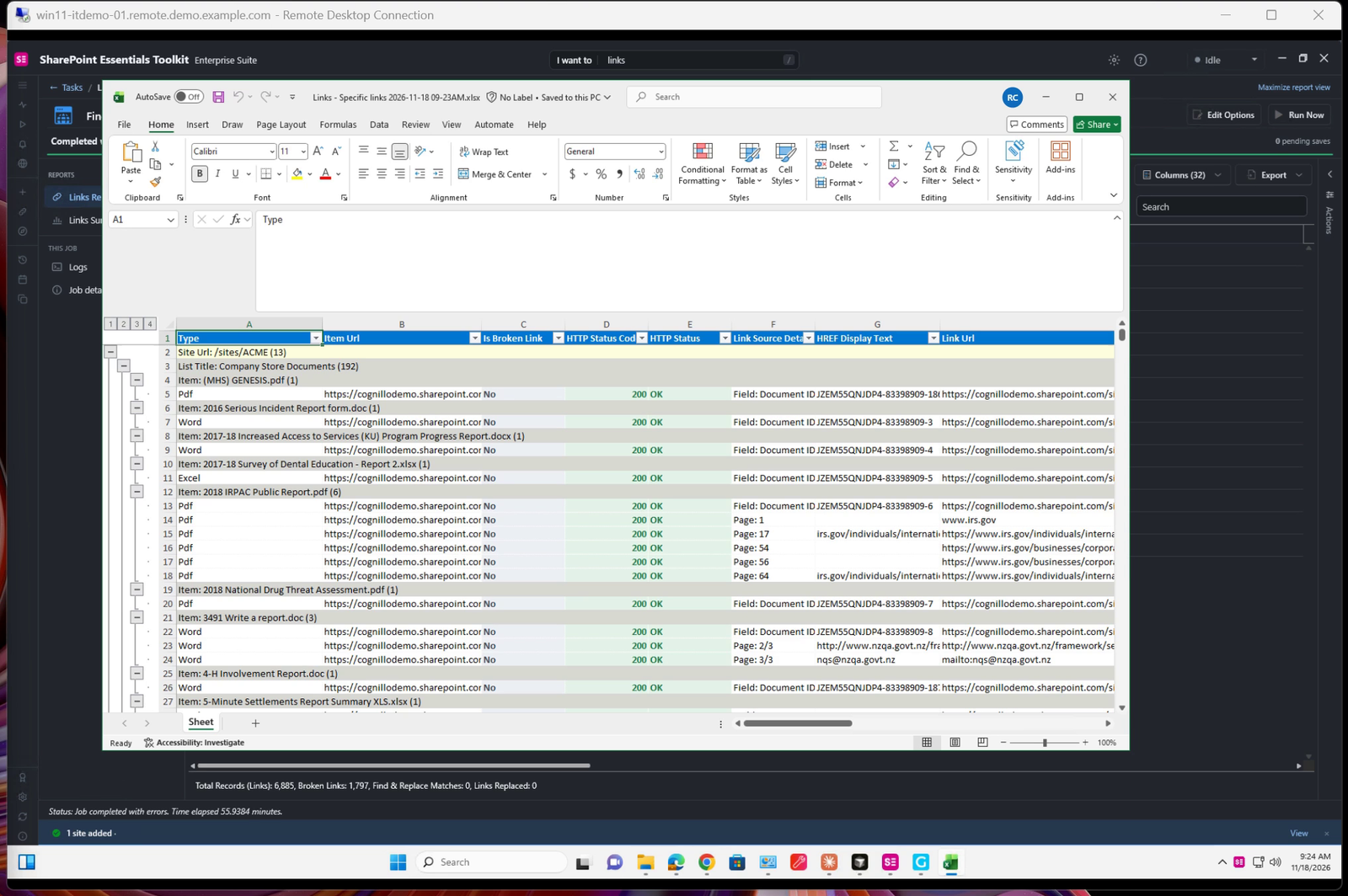
When the job finished, Genta opened the Links Report in the toolkit and exported it to Excel.
9. Read Genta's answer
When the work is done, Genta answers in chat. The answer says what was done, gives the results, and lists anything you should know before you rely on them. Files that Genta produced are attached to the answer, and Download saves them to your computer. The line under the answer shows how long the task took.
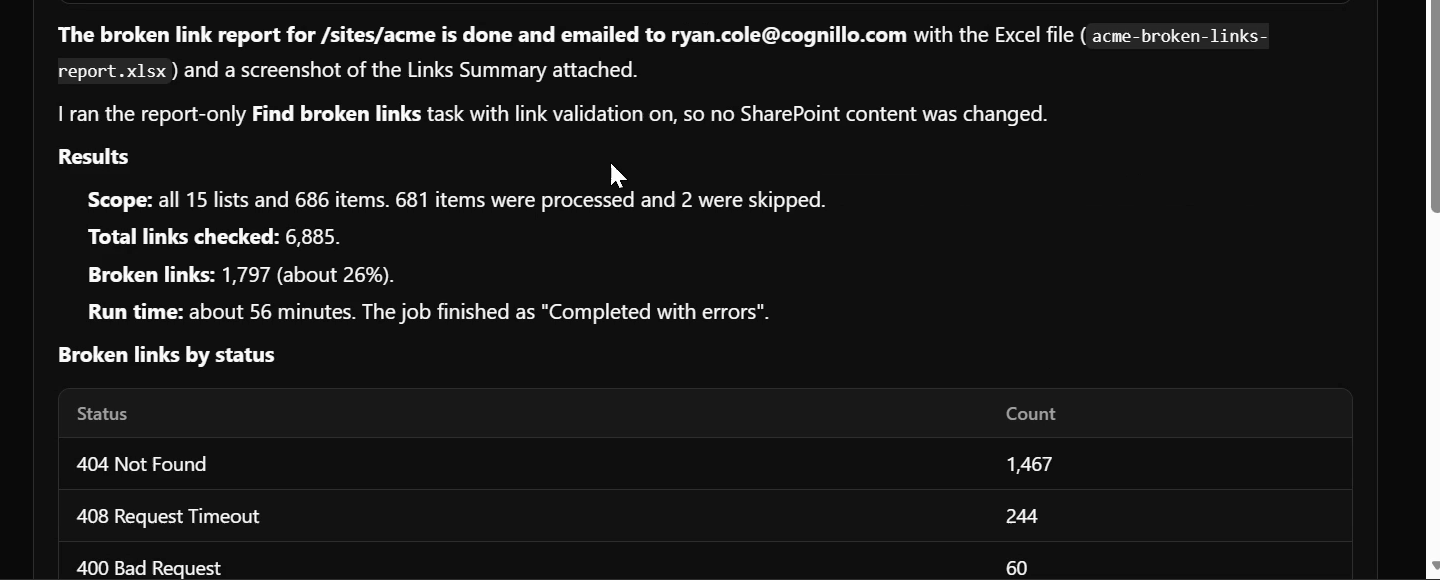
Genta's answer: the report is done and emailed, followed by the results.
The example run returned:
Result | Value |
|---|---|
Scope | All 15 lists and 686 items in the site; 681 processed, 2 skipped |
Links checked | 6,885 |
Broken links | 1,797 (about 26%) |
Most common status | 404 Not Found (1,467), then 408 Request Timeout (244) |
Time | About 64 minutes in total, of which the toolkit's job ran for about 56 |
Read "Things to know". Genta reports what didn't go to plan as well as what did. Here it said that two PDFs over the toolkit's 20 MB limit were skipped, that some large files timed out and may be worth rechecking, and that the toolkit's summary view showed a different broken-link count than the exported report, along with which figure it used and why.
10. Open the email
Because the request asked for it, Genta also sends the result by email. "Email me" means the address of your Genta account; to send it to someone else, put their address in the request. The message comes from hello@genta.ai. It contains the same summary as the chat answer, with the broken links by status, by file type and by list, and the report is attached as an Excel file.
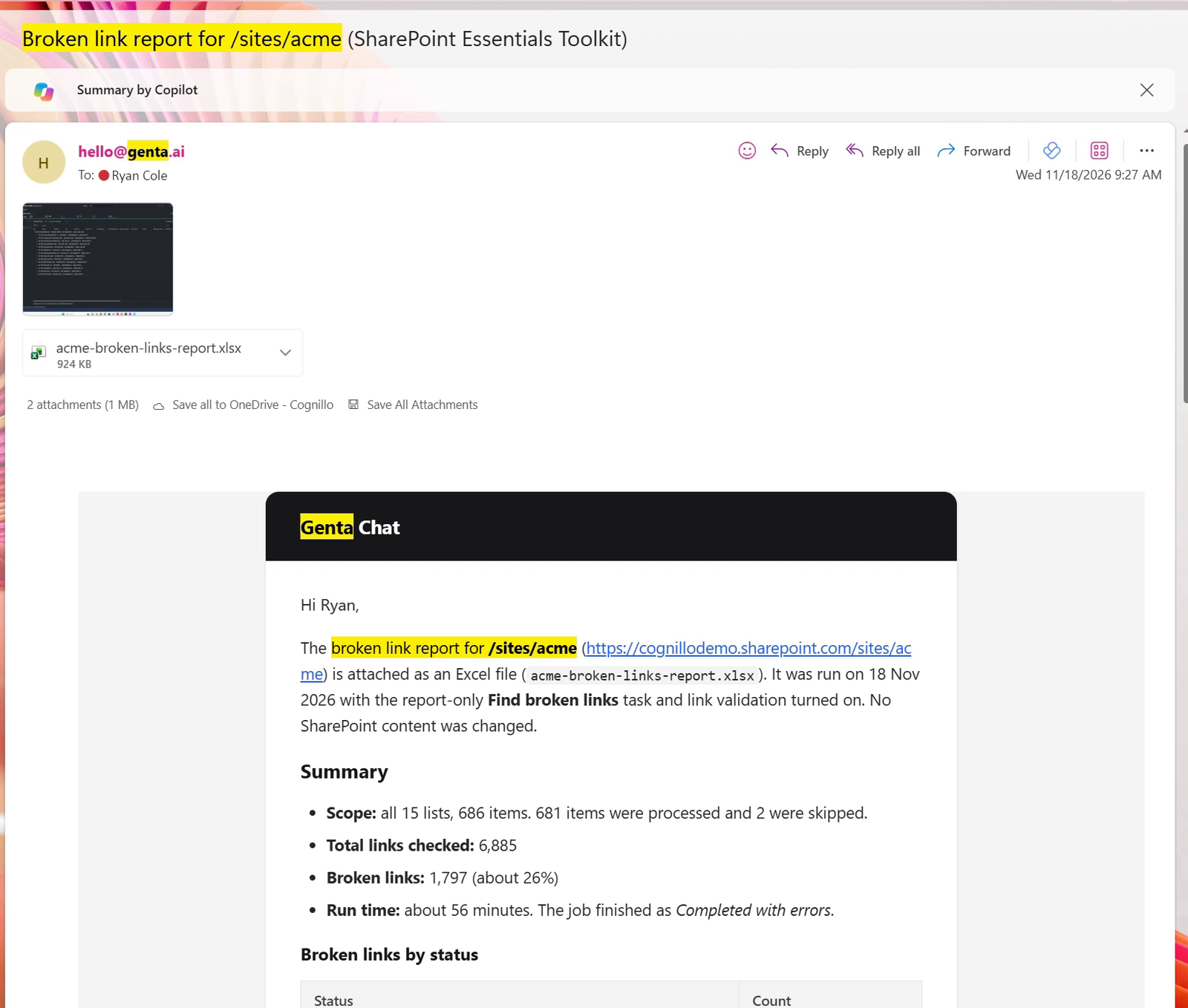
The email in Outlook. The Excel report and a screenshot of the toolkit's summary are attached; the summary is in the message. (The yellow highlights come from the Outlook search used to find the message.)
Tip: If the email doesn't arrive within a few minutes, check your junk folder. You can also select Email under the answer in chat to email that answer.
Tips and troubleshooting
Say how you want the result delivered. "Email me the report as an Excel file" tells Genta both the format and where to send it. Without it, Genta answers in chat.
Name the app. If more than one app on the computer could do the job, say which one to use.
Keep the computer unlocked. Don't use its mouse or keyboard while Genta is working, and keep the session from locking or sleeping. Over Remote Desktop, leave the session connected.
The computer isn't listed, or shows Offline. Make sure
GentaAgent.exeis running on it and that the registration key in Genta Agent Configuration is still active. Then select Ping on the Computers page.The agent's answers miss something. Open the agent and check how many pages were indexed. Raise Max pages or Follow links, select Recrawl, or upload the missing document as a file.
Make it repeatable. Once a request works the way you want, you can run it on a schedule from Genta's scheduler.
Genta by Cognillo · Questions: Submit a ticket · Watch the walkthrough video: "How to Do a Computer Task with Genta".
Screenshots were taken in a demo SharePoint site; names are fictional.