How to Find Duplicate Documents
Last updated: 2026-09-21
Use the Item Inventory feature to find duplicate documents across SharePoint sites by comparing file names, sizes, and content hashes.
This article will help show you how to find duplicate documents.
Step-by-Step Guide
Within the SharePoint Essentials Toolkit, you can utilize the “Item Inventory” feature to find duplicate documents.
Open the SharePoint Essentials Toolkit.
Select the sites that you want to find duplicate documents.
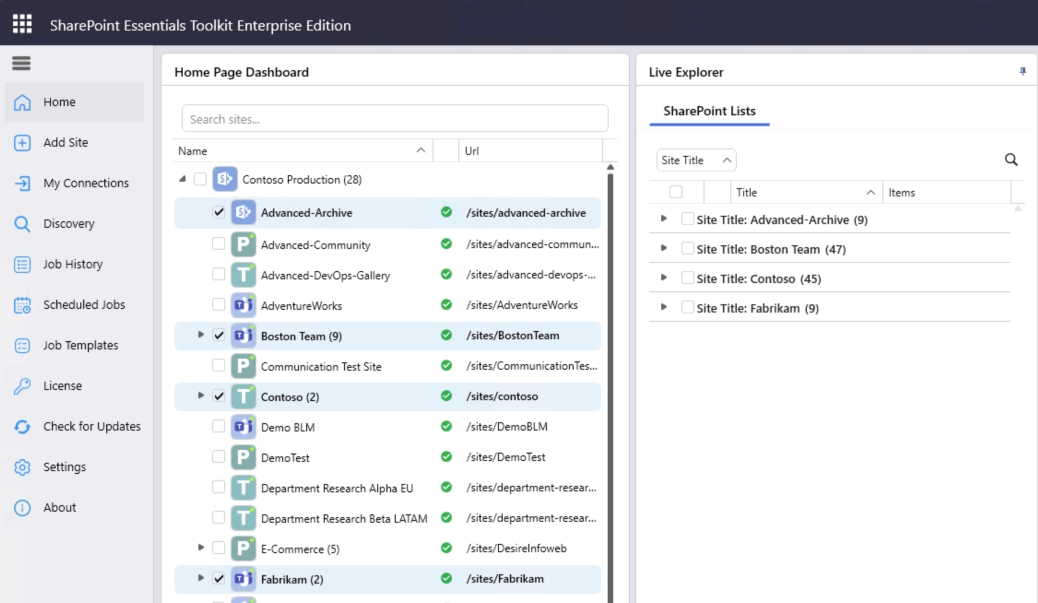
Optionally select lists and libraries to include.
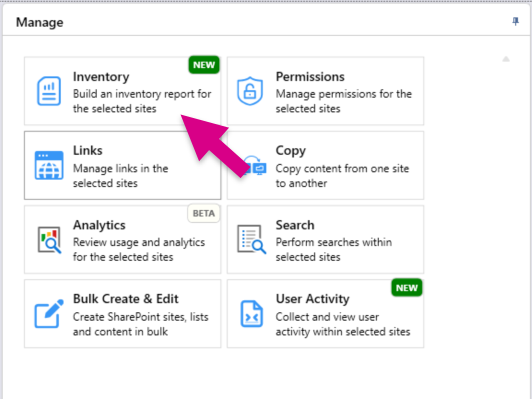
Click "Inventory" and then "Item Inventory"
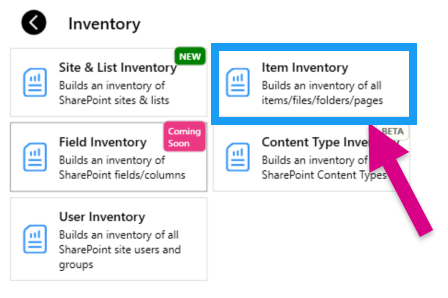
The Item Inventory job options page will appear, click "Next".
You can provide any filters in the options page by clicking "Filters" tab. For example, you can specify a folder, file types or specific files.
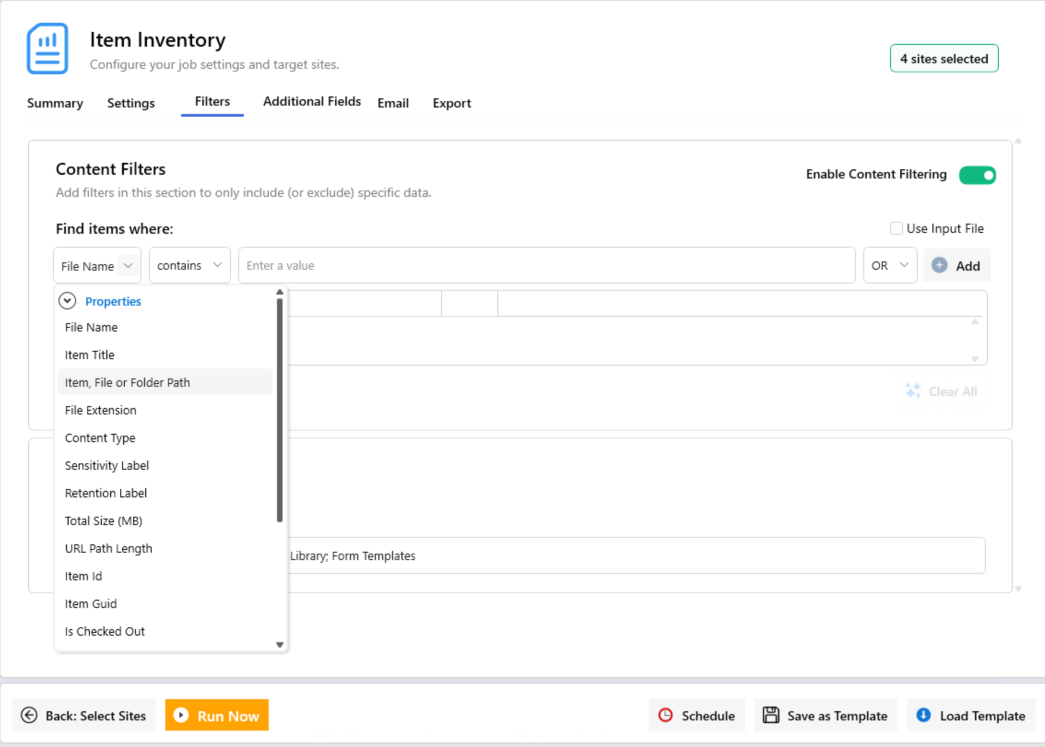
Click "Run Now"
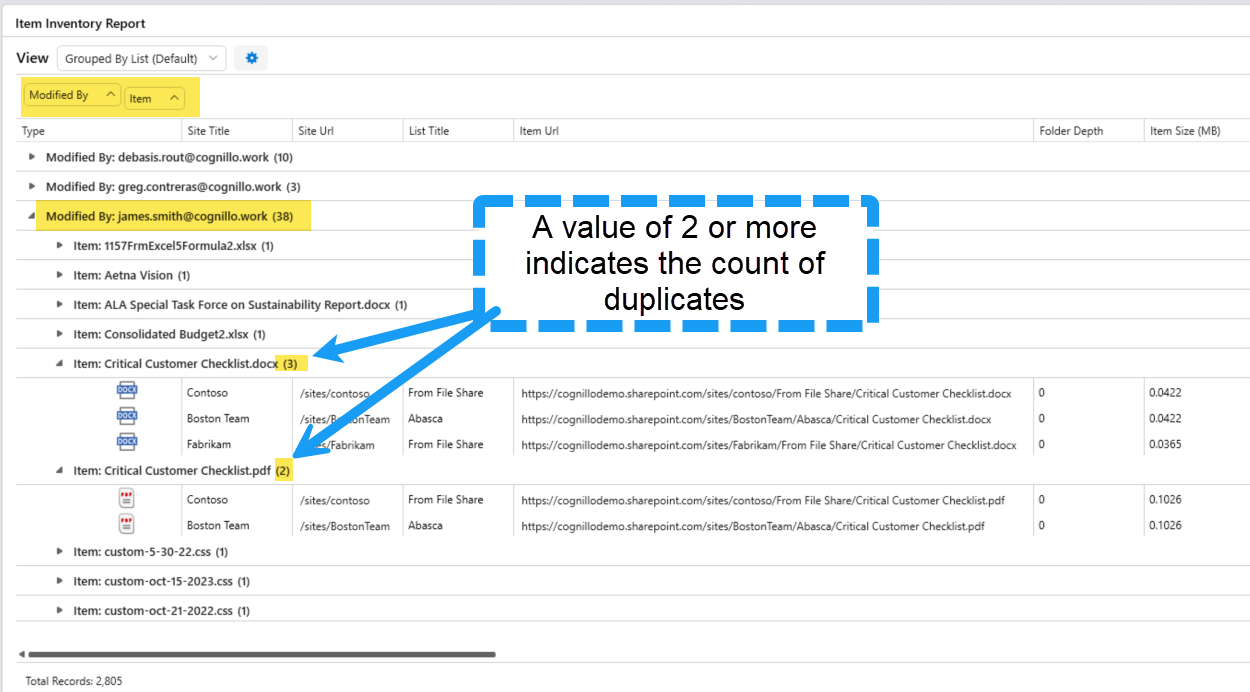
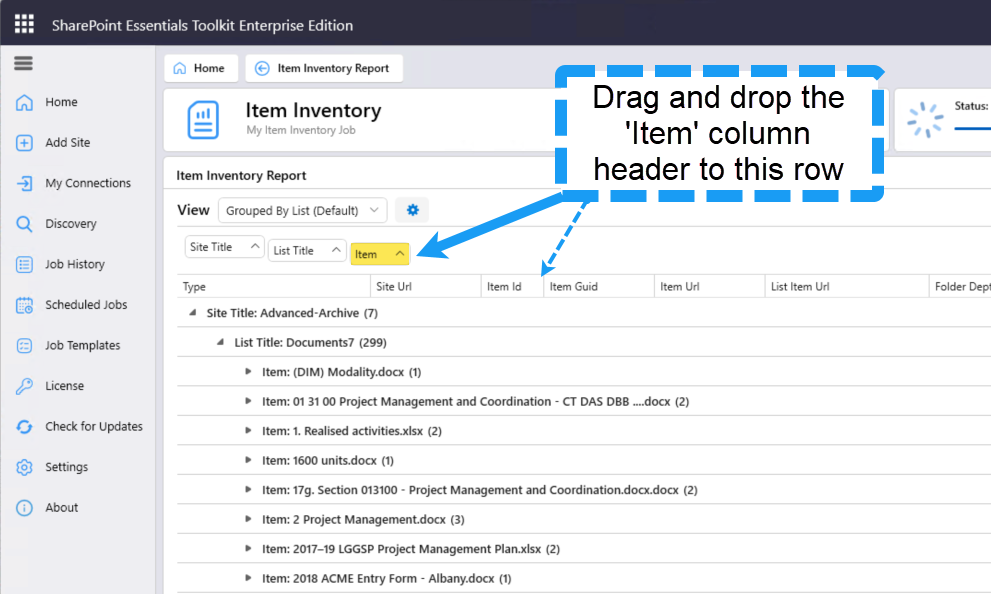
Once data is populated (or once the job is complete), drag and drop the "Item" column header to the grouping row like below:
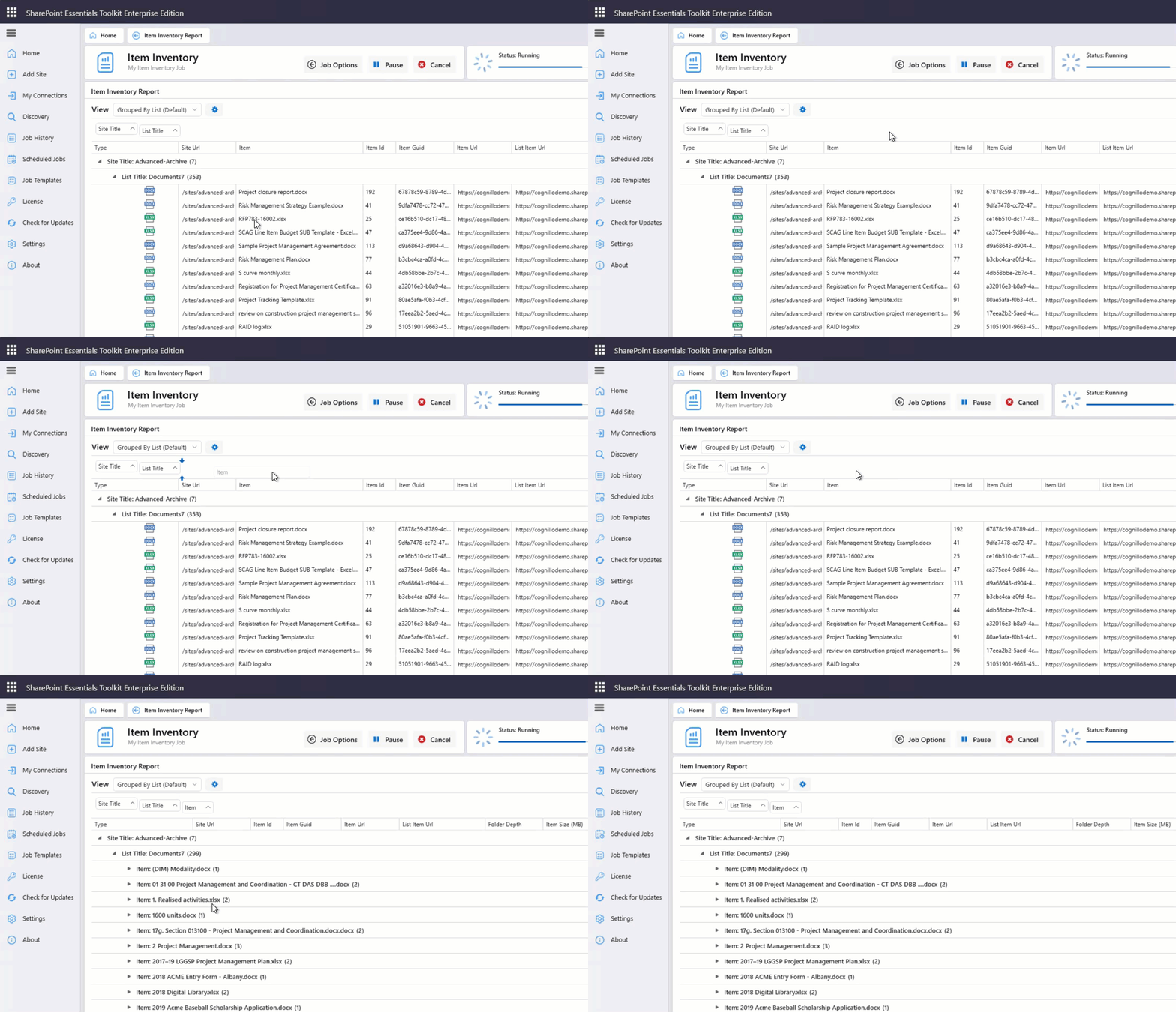
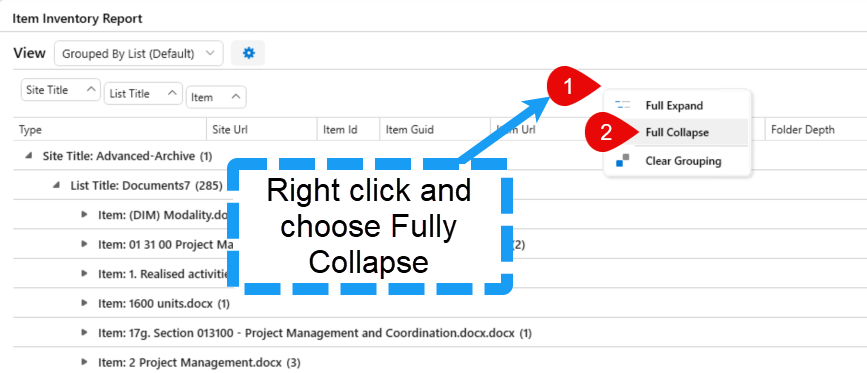
If needed, you can click to Collapse all.
The duplicate files will have a value of 2 or more indicating the number of matches of files with the same file name.
Review the file size to help determine if these are the same files. Note that metadata can also impact the size shown.
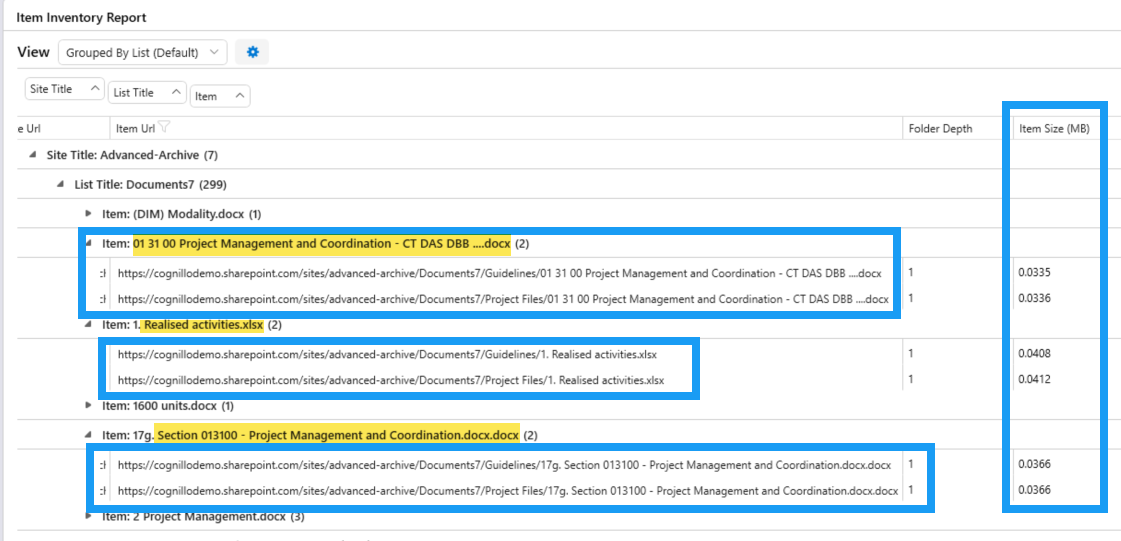
You can use the column "Last Modified By" to contact the document owner to determine if they are indeed duplicates or you can also build a report by dragging and dropping to send out to users for review: