How to find specific links in SharePoint
Published:
Last updated: 2026-11-17
Scan SharePoint sites and report only the links that match an address, using job link rules, report filters or Flag only in SharePoint Essentials Toolkit 2027.
Applies to SharePoint Essentials Toolkit version 12.4.1.0 (2027 release).
Need to know where a particular address is used across your SharePoint sites? The Links tools in SharePoint Essentials Toolkit can scan sites and report only the links that match what you are looking for, so you can review them, export them or fix them later.
Overview
A typical reason to search for specific links is cleaning up after a change: an old server was retired, a department moved to a new domain, or you simply want to audit every link that points to one external service. Instead of reading through every page and document, you tell the toolkit what part of the address to look for and it lists each place that address appears.
There are three ways to get to the links you want:
- Filter while the job runs by adding a link rule, or by typing the addresses on the site-selection screen.
- Filter the finished report using the Filter Editor on the Link Url column, and keep the result as a saved view.
- Flag matches with the Find & replace options so they are marked without anything being changed.
Method 1: Filter the links as the job runs
Step 1: Open the task
Click Tasks in the left menu and choose the Links area. Select Find one or more specific links. As a shortcut, press / to jump to the I want to box and type a short keyword such as links; short words match better than whole sentences.
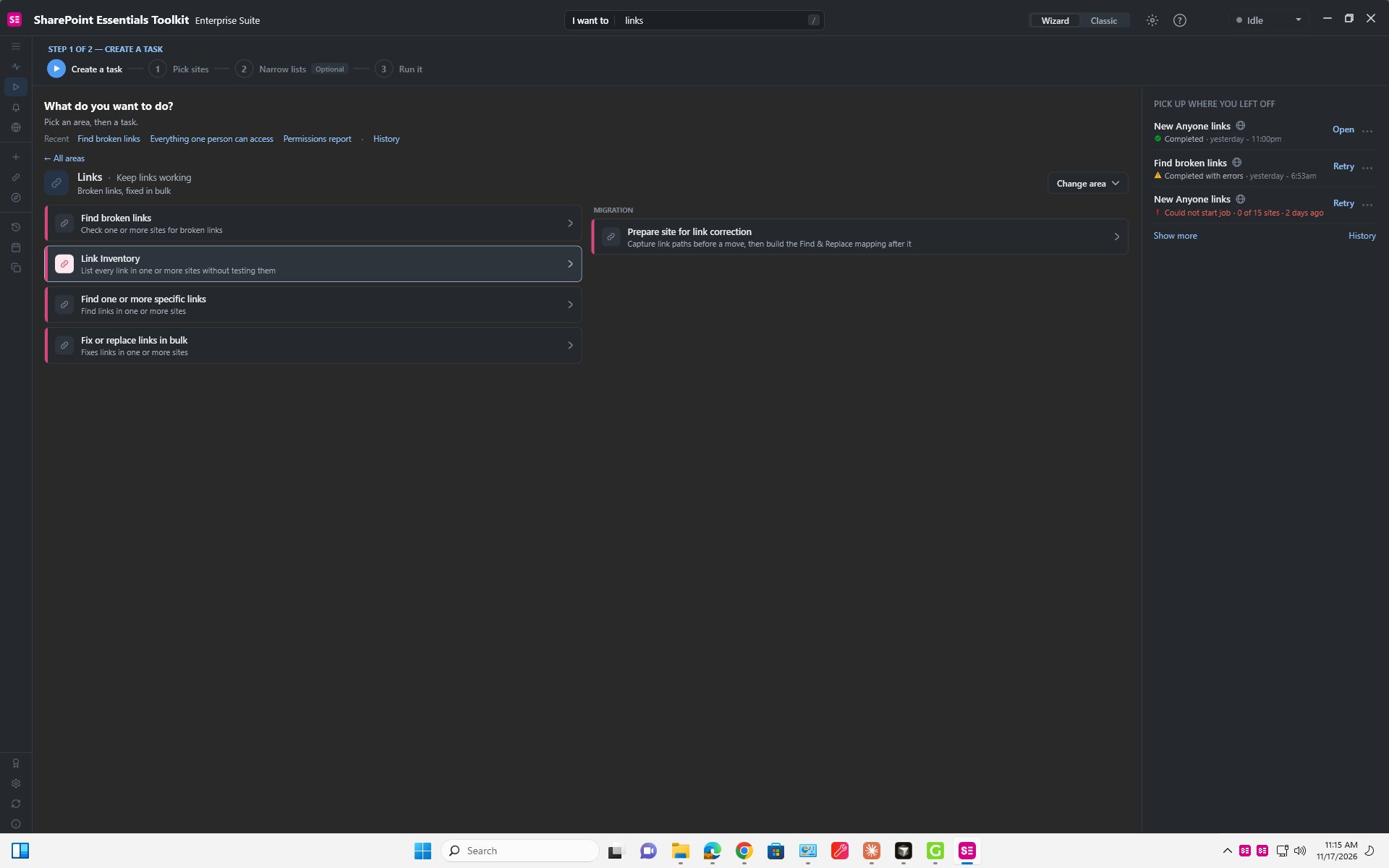
The Links area lists the task Find one or more specific links.
Step 2: Choose the sites and lists
Pick the sites to scan. The Search sites... box narrows the list as you type. To save time you can scan only part of a site: under the site, tick just the lists or libraries you care about. If you leave every list unticked, the whole site is searched. In this example we used the site Architecture-Network and the lists Site Assets and Site Pages.
On this same screen, the box Links or parts of links to look for (one per line) lets you type the addresses straight away. Each line automatically becomes a Link Url rule that uses the contains operator, so a partial address such as cognillo is enough, and you do not need to add * wildcards.
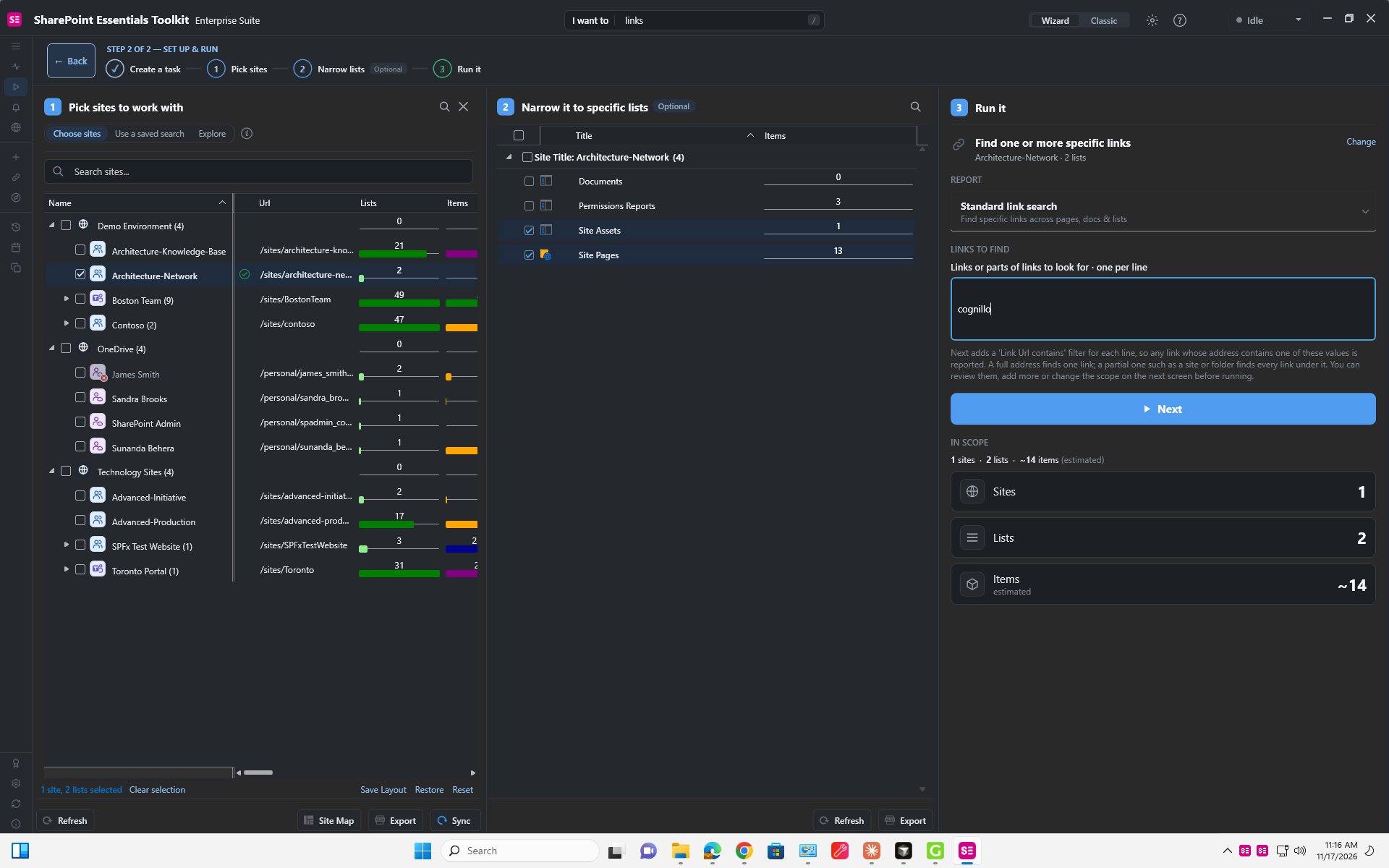
Select the site, narrow to specific lists, and type the link text to find.
Click Next to continue.
Step 3: Name the job
The text box beside the task title at the top of the page is the job name. Give it something you will recognise later in the job history, for example Find legacy finance links.
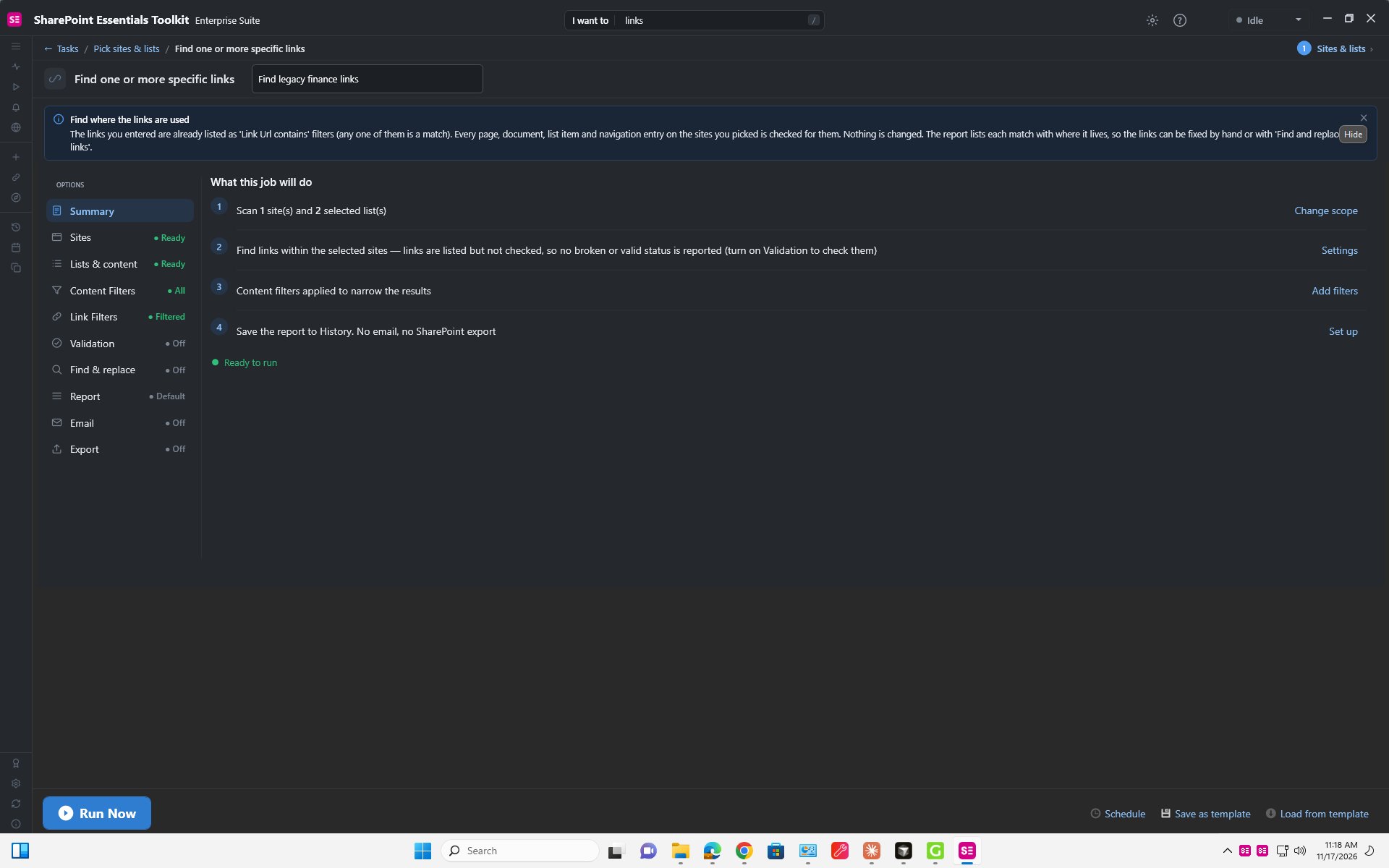
Rename the job at the top of the options page.
At the bottom of the page the toolkit also offers Schedule, Save as template and Load from template. Saving a template lets you rerun the same search later without setting it up again. If the toolkit asks whether to delete old job history, you can answer Keep them.
Step 4: Review the job options
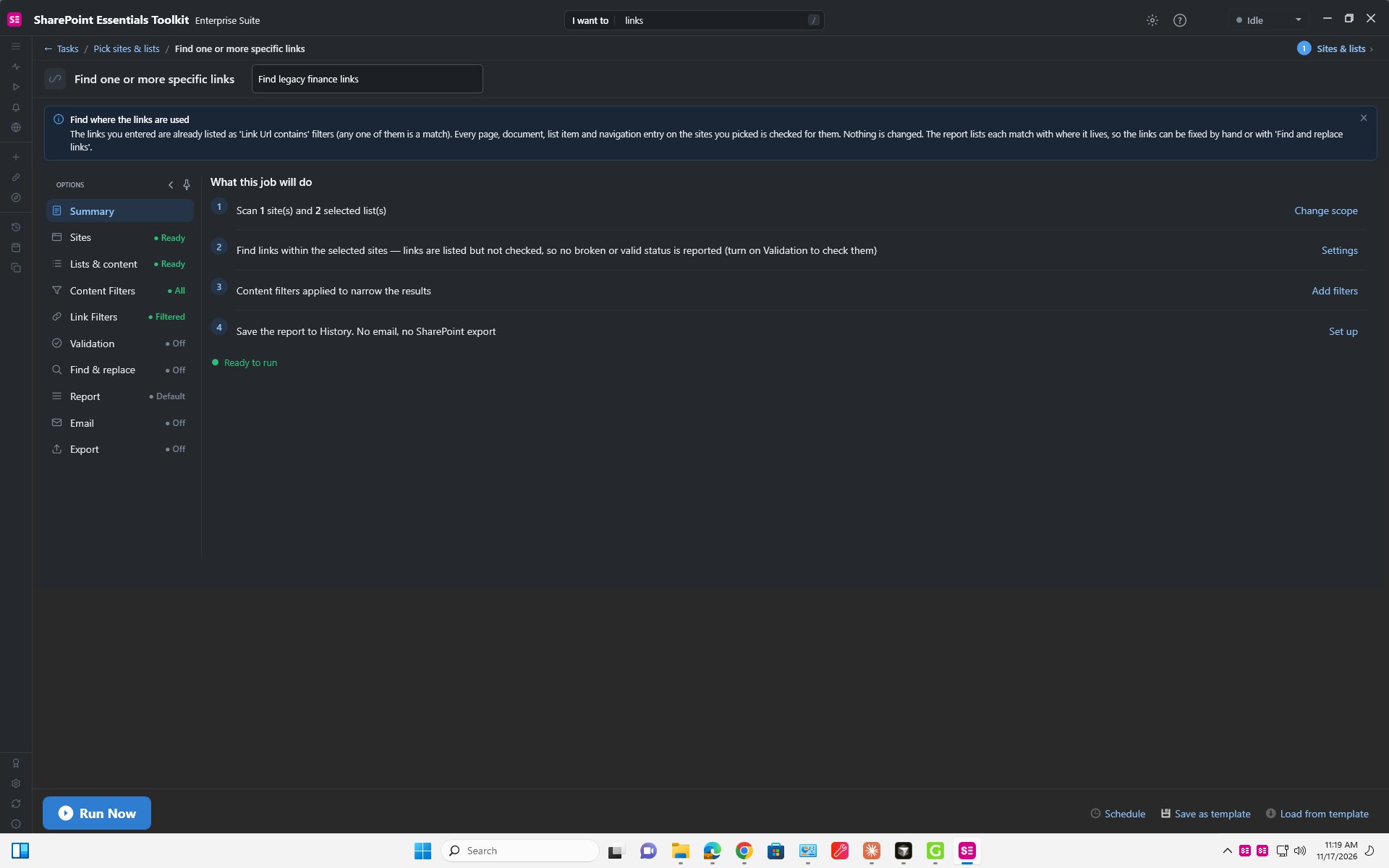
The options page is organised in tabs along the top: Summary, Sites, Lists & content, Content Filters, Link Filters, Validation, Find & replace, Report, Email and Export. The Summary tab gives a quick recap of what the job will do; Validation controls whether links are checked to see if they work; Report, Email and Export decide what happens with the results.
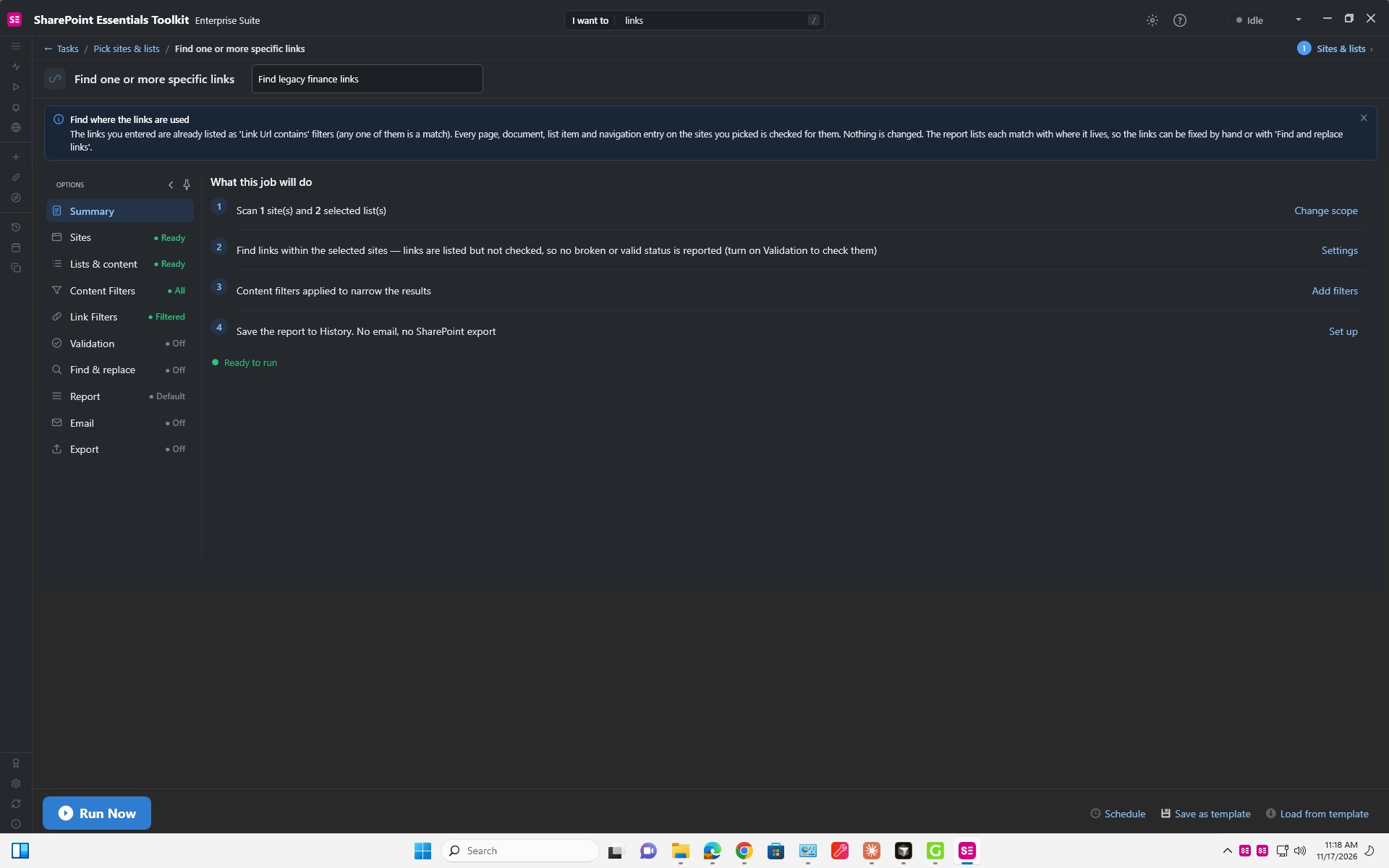
The Summary tab recaps the job before it runs.
Step 5: Set the link rule
Open the Link Filters tab. Here you build the rule that says which links count as a match. Choose the field Link Url, pick an operator from the drop-down and type the value. The operators are: contains, does not contain, is equal to, is not equal to, starts with, ends with, does not start with and does not end with. For most searches use contains. Use Add condition or Add group for more complex rules, and Use input file if you have a long list of addresses.
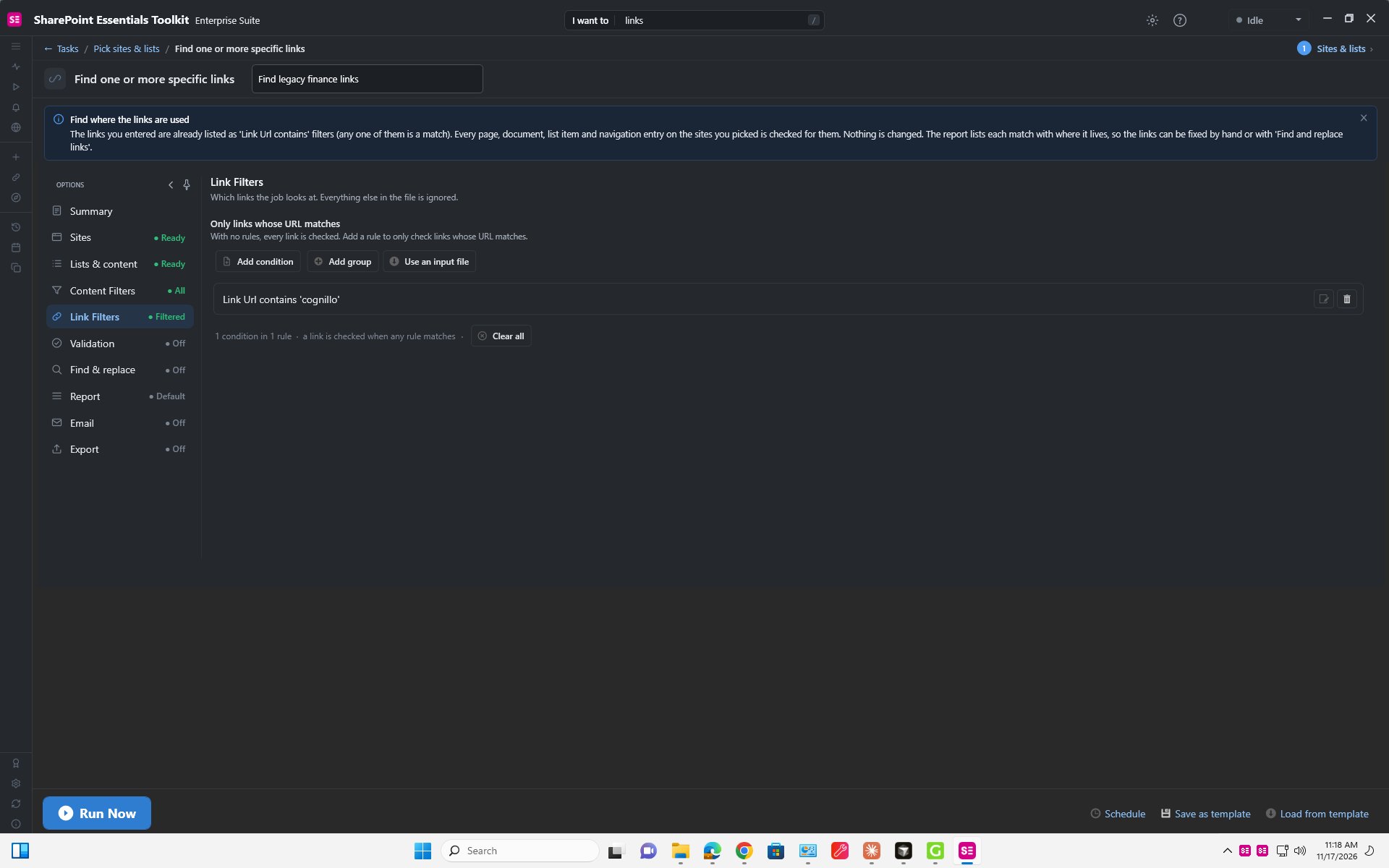
The Link Filters tab.
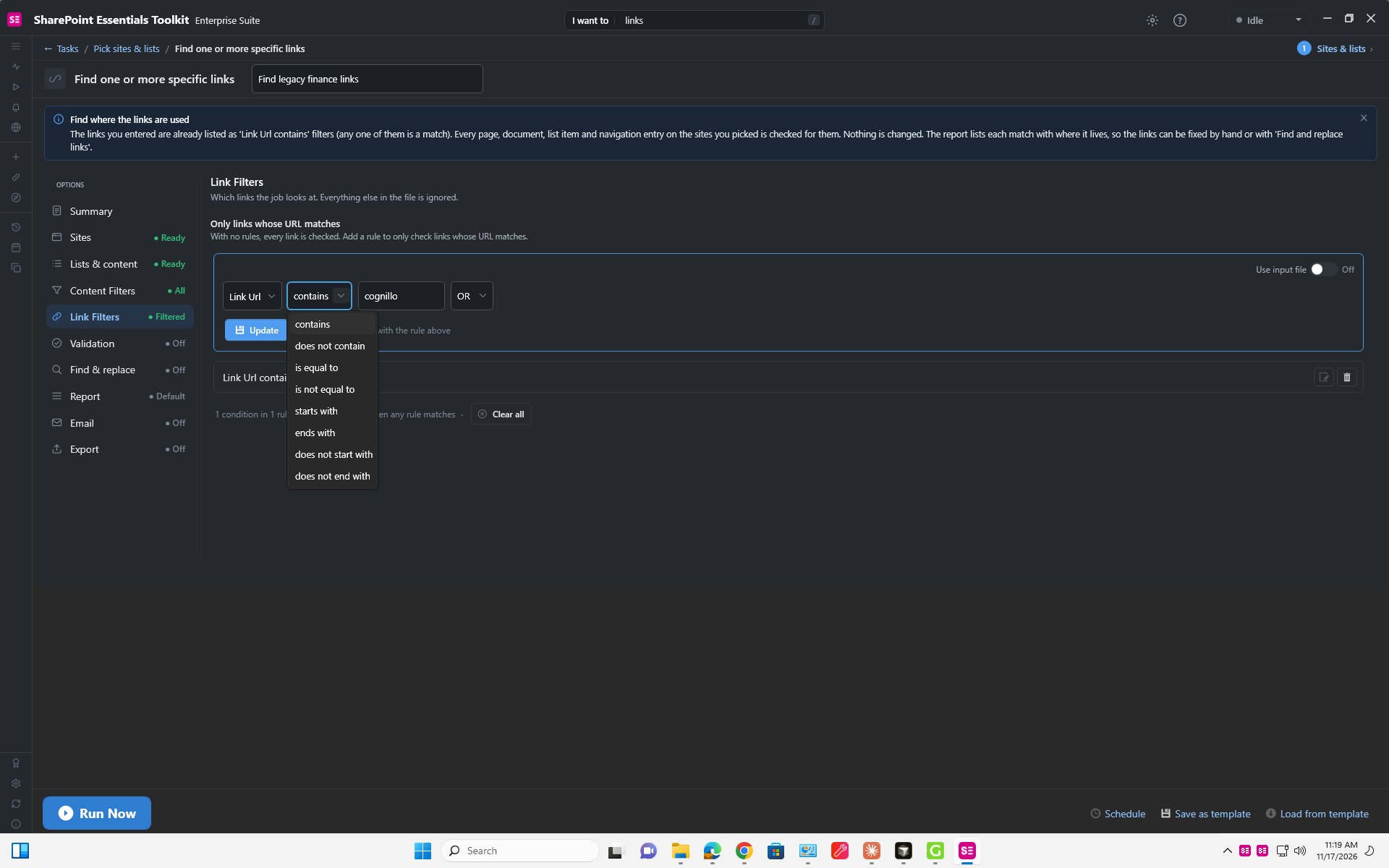
Choose how the link text should be compared.
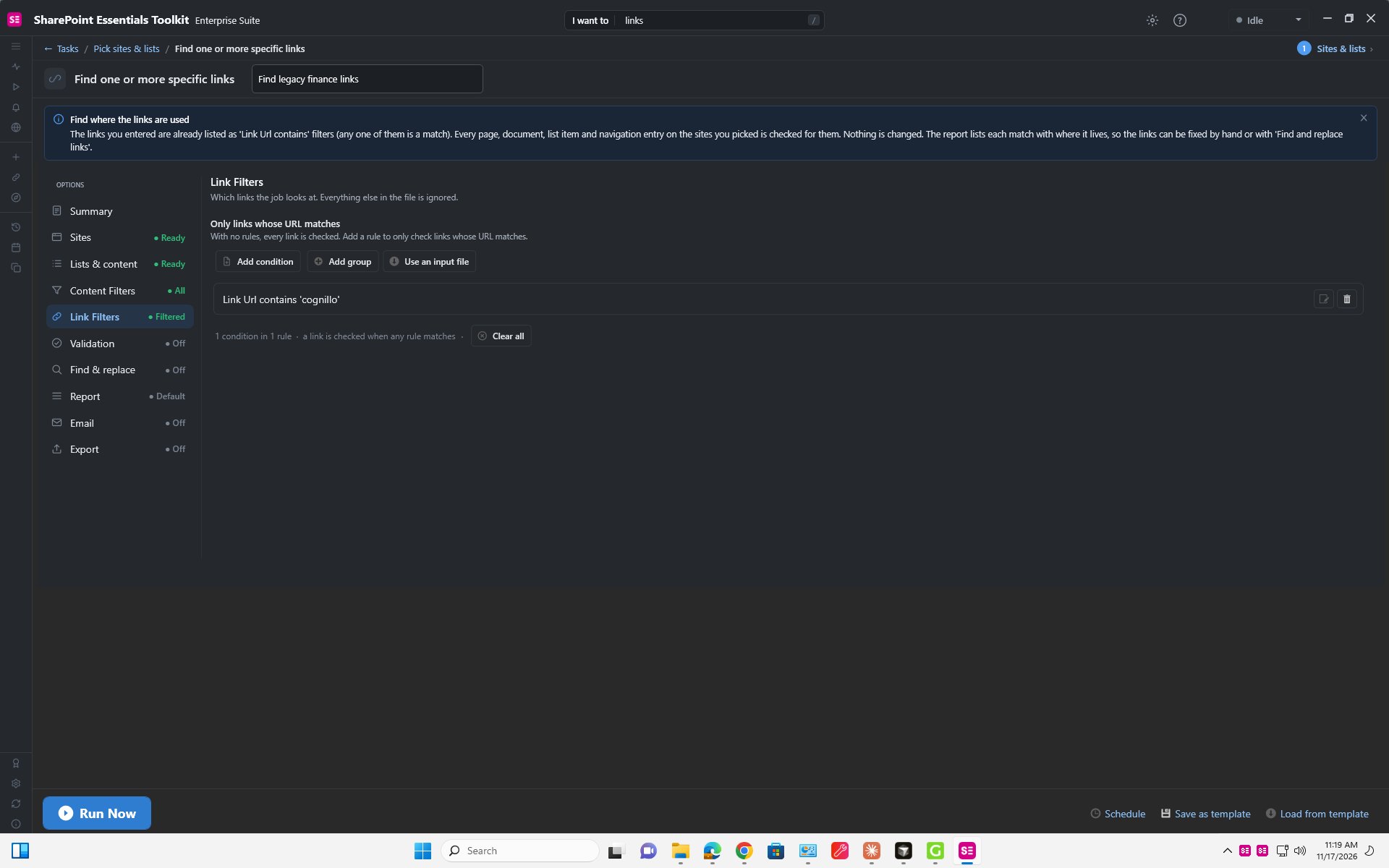
A finished rule: Link Url contains cognillo.
Step 6: Run the job
Click Run Now at the bottom of the page. On our small test site the job took under a minute and found 19 links. Large sites take much longer, so start with a few lists when you are testing.
Run Now starts the scan.
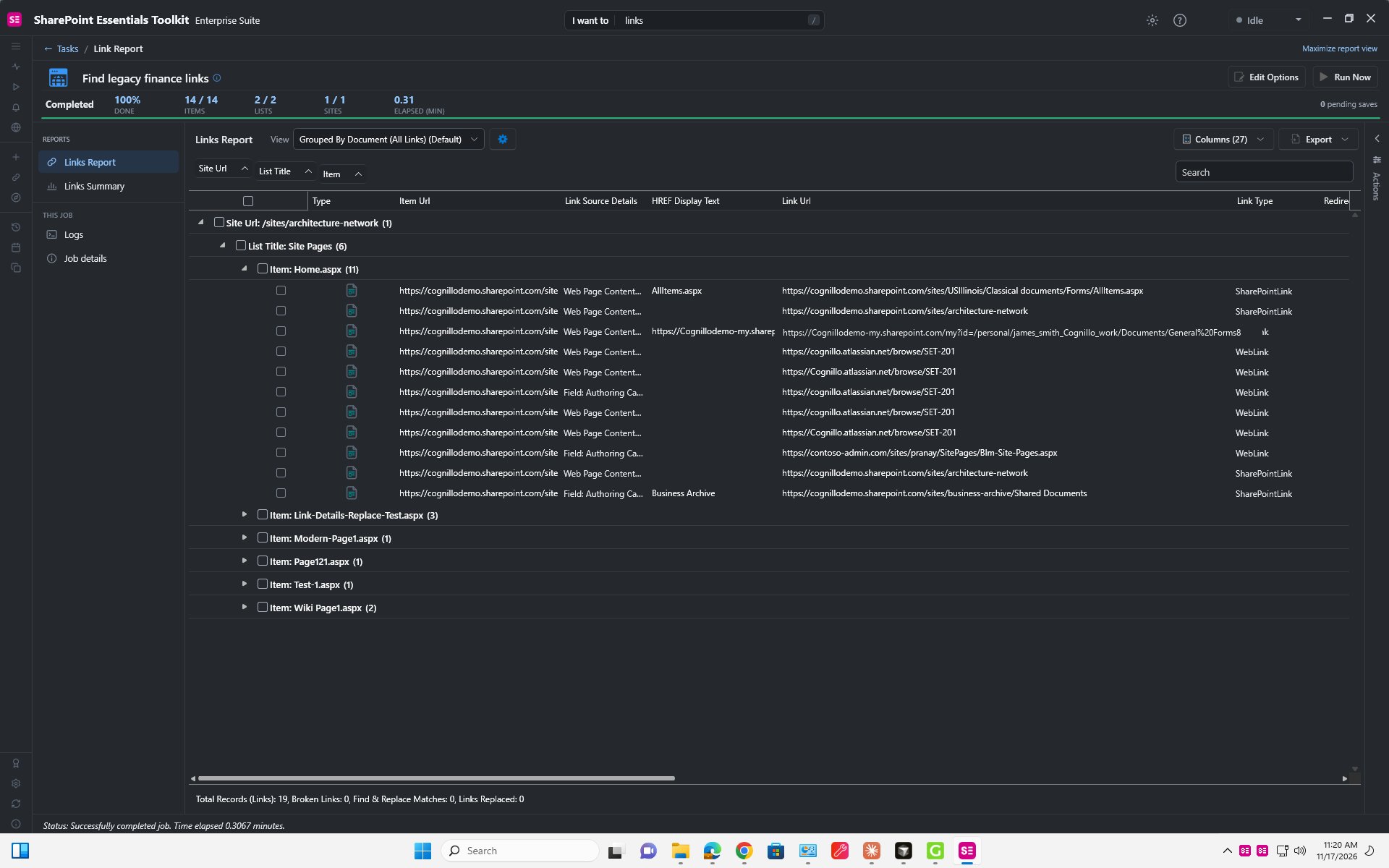
The report lists every matching link with its location.
Method 2: Filter the finished report
If you would rather scan everything and narrow it down afterwards, use the grid filter instead of a link rule.
- In the report, right-click the Link Url column header and choose Filter Editor...
- Set the condition, for example Link Url Contains atlassian.
- Click OK (or Apply). Only the matching rows remain; in our example the 19 links dropped to 7.
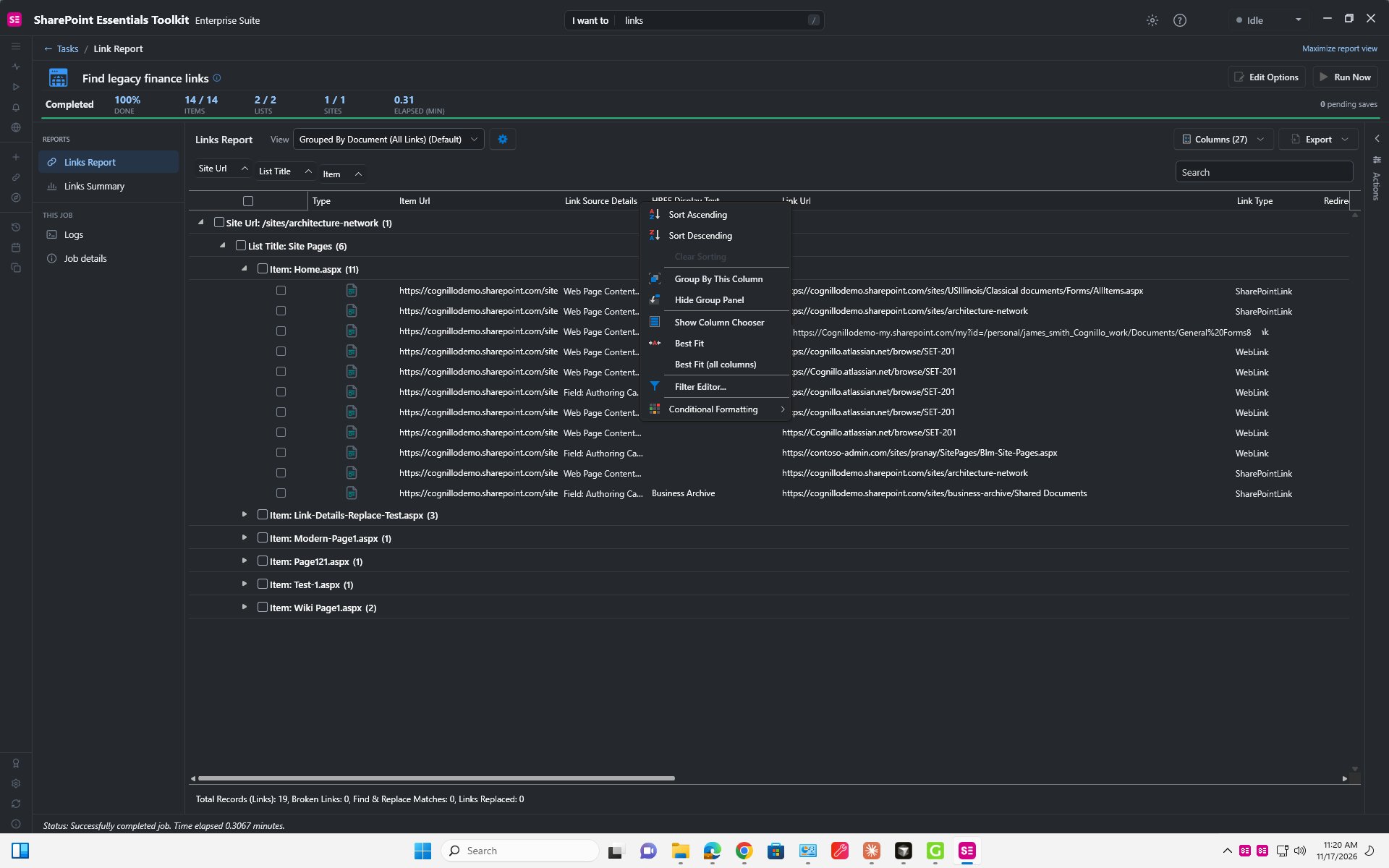
Right-click the Link Url header and choose Filter Editor.
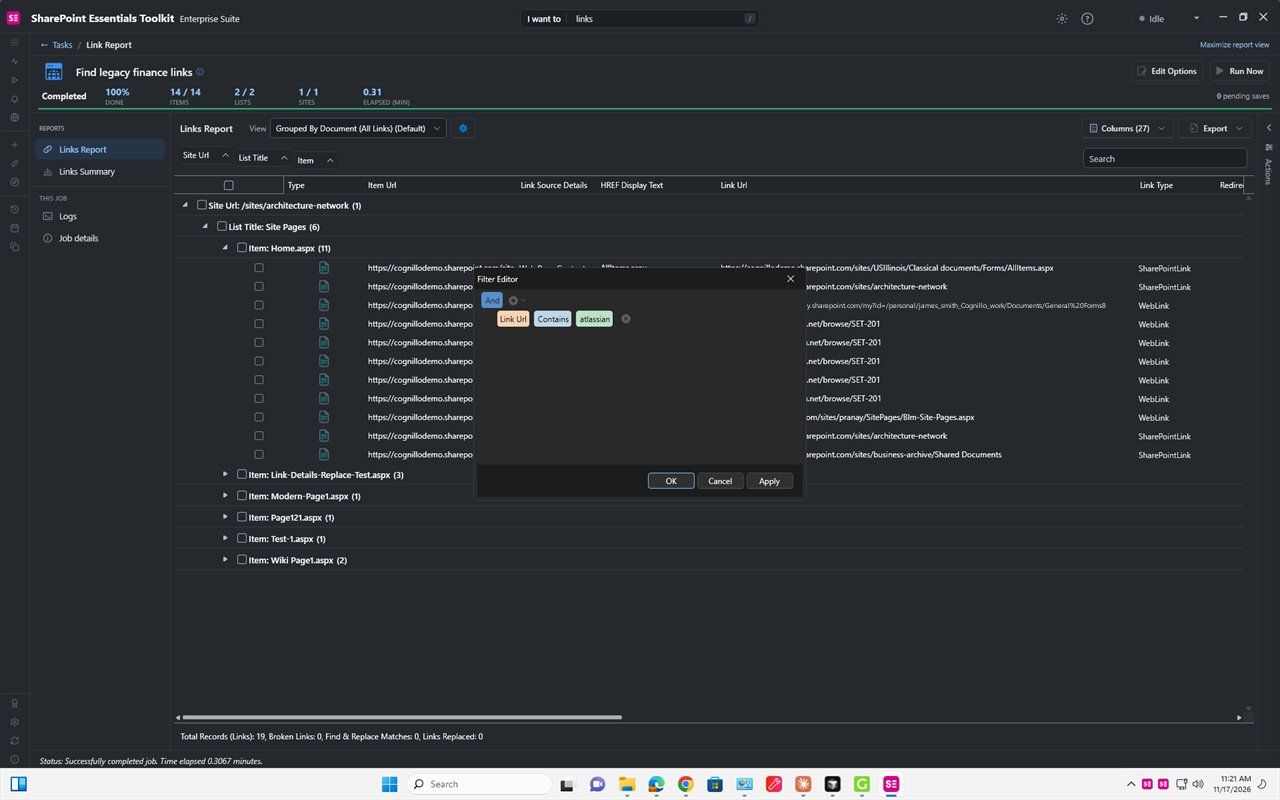
Enter the text to look for.
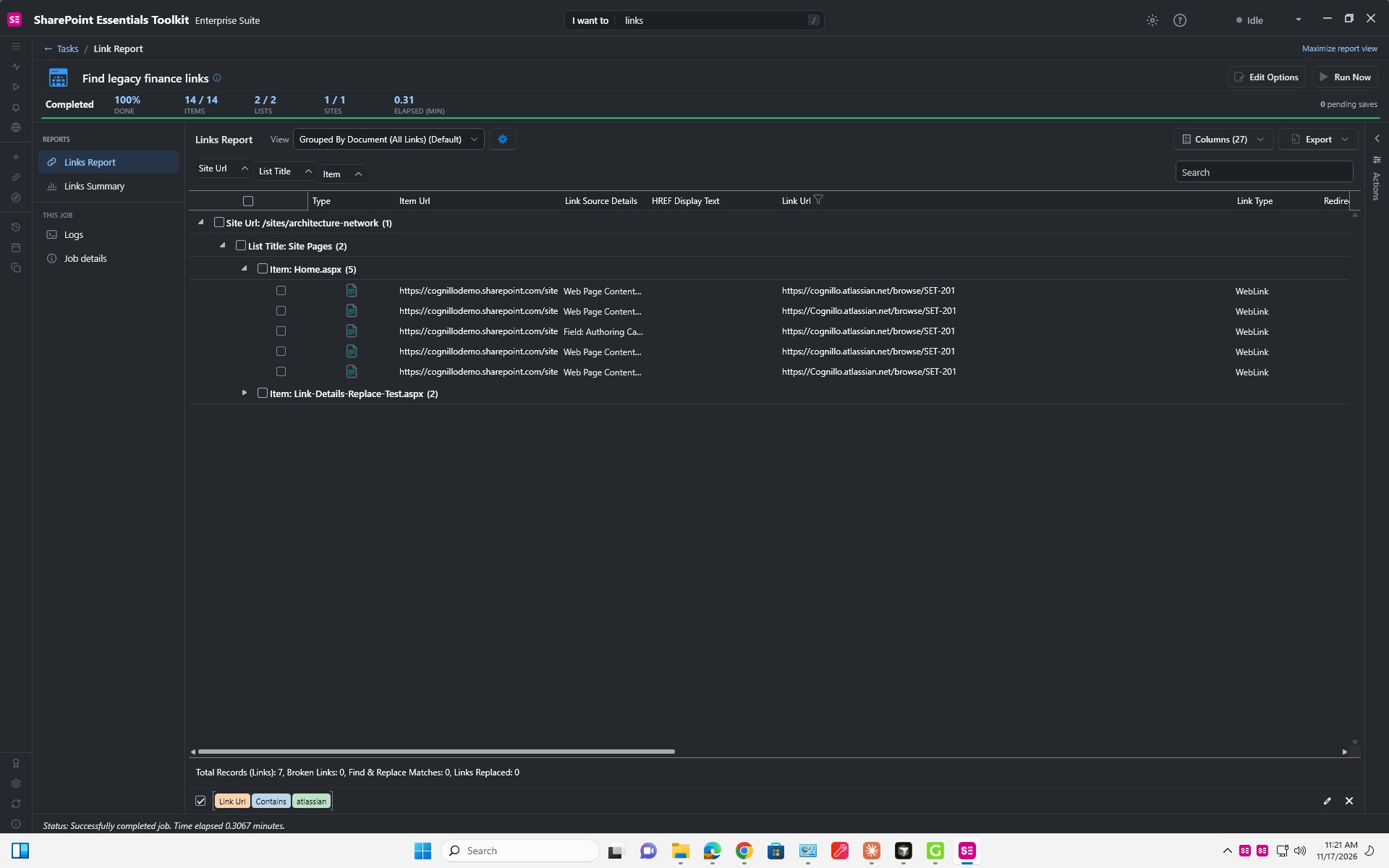
Only the matching links are shown.
Save the filter as a view
Click the gear wheel beside View and choose New view. Type a name in the box Please enter the name of the view and confirm. The view stores your filter, grouping and sorting, so you can open it again after another scan. The same menu also has Save view, Rename view, Default view and Delete view.
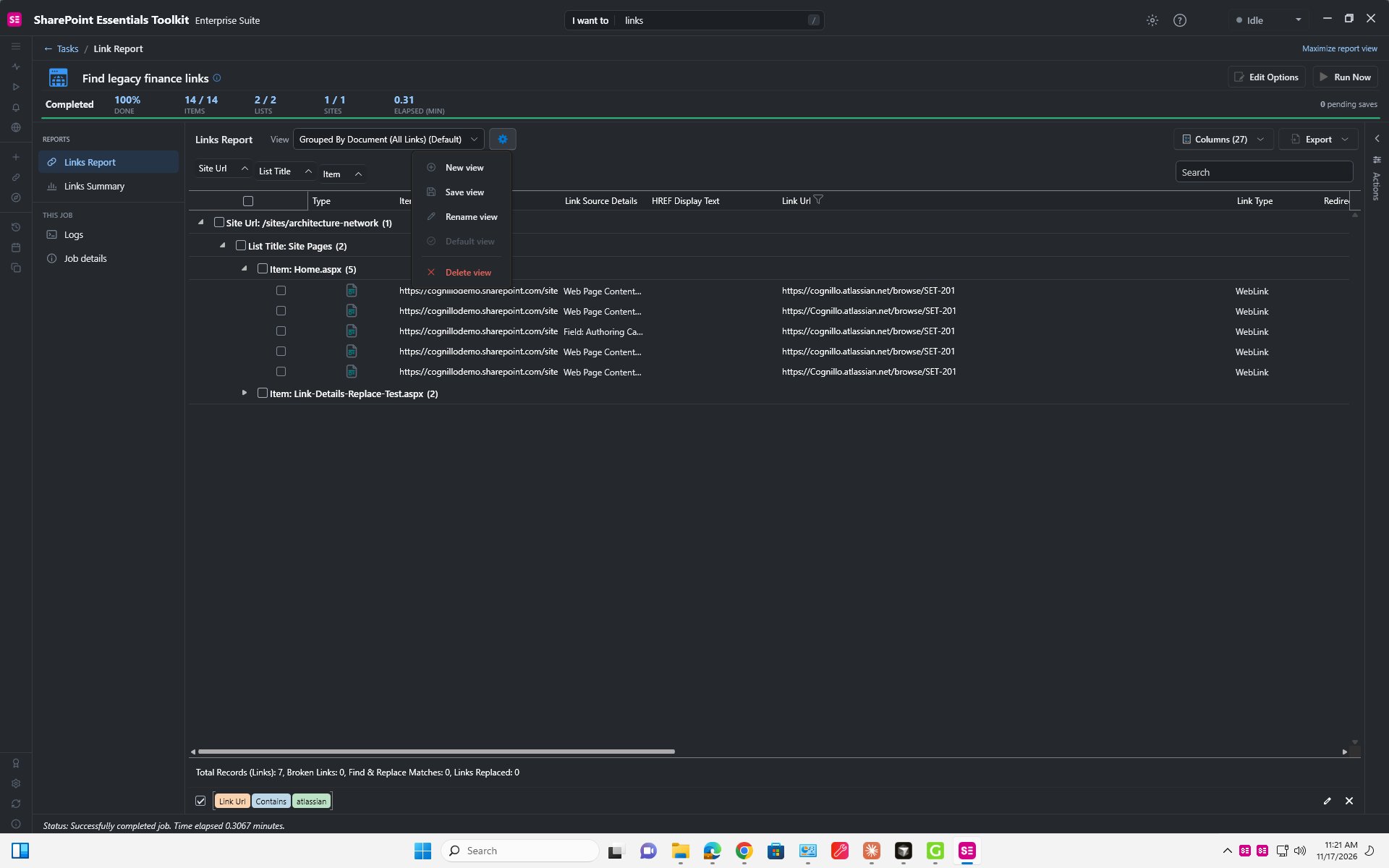
The View gear menu.
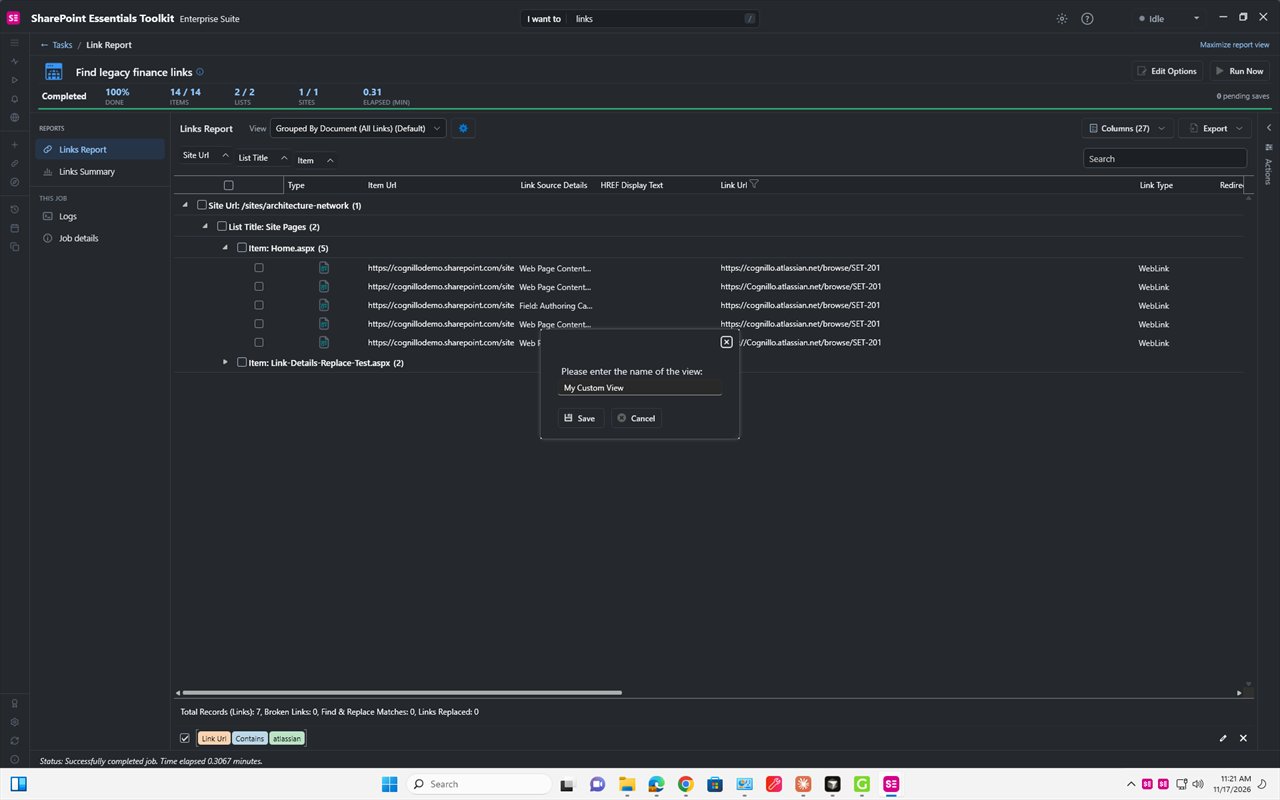
Name the view, for example Specific links.
Method 3: Flag links with Find & replace
Flagging marks the links you are interested in during the scan itself, without changing any content.
- Start a new Find one or more specific links job in the same way.
- On the options page open the Find & replace tab and switch Enabled on.
- Under Find links that: enter the text to match, for example cognillo.atlassian.net.
- Turn on Flag only. This tells the toolkit to report what would change and to change nothing.
- Click Run Now.
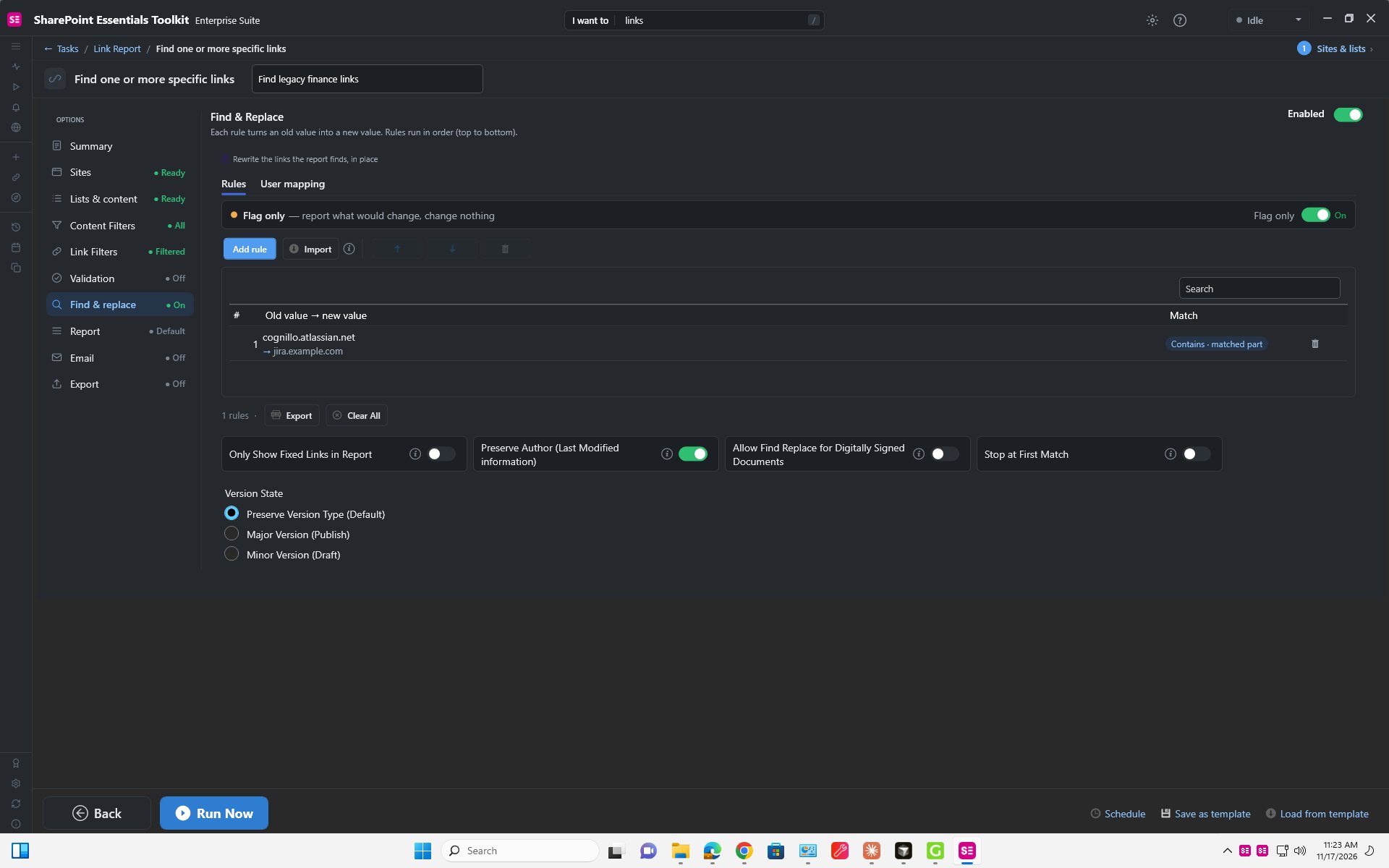
Flag only keeps the scan read-only.
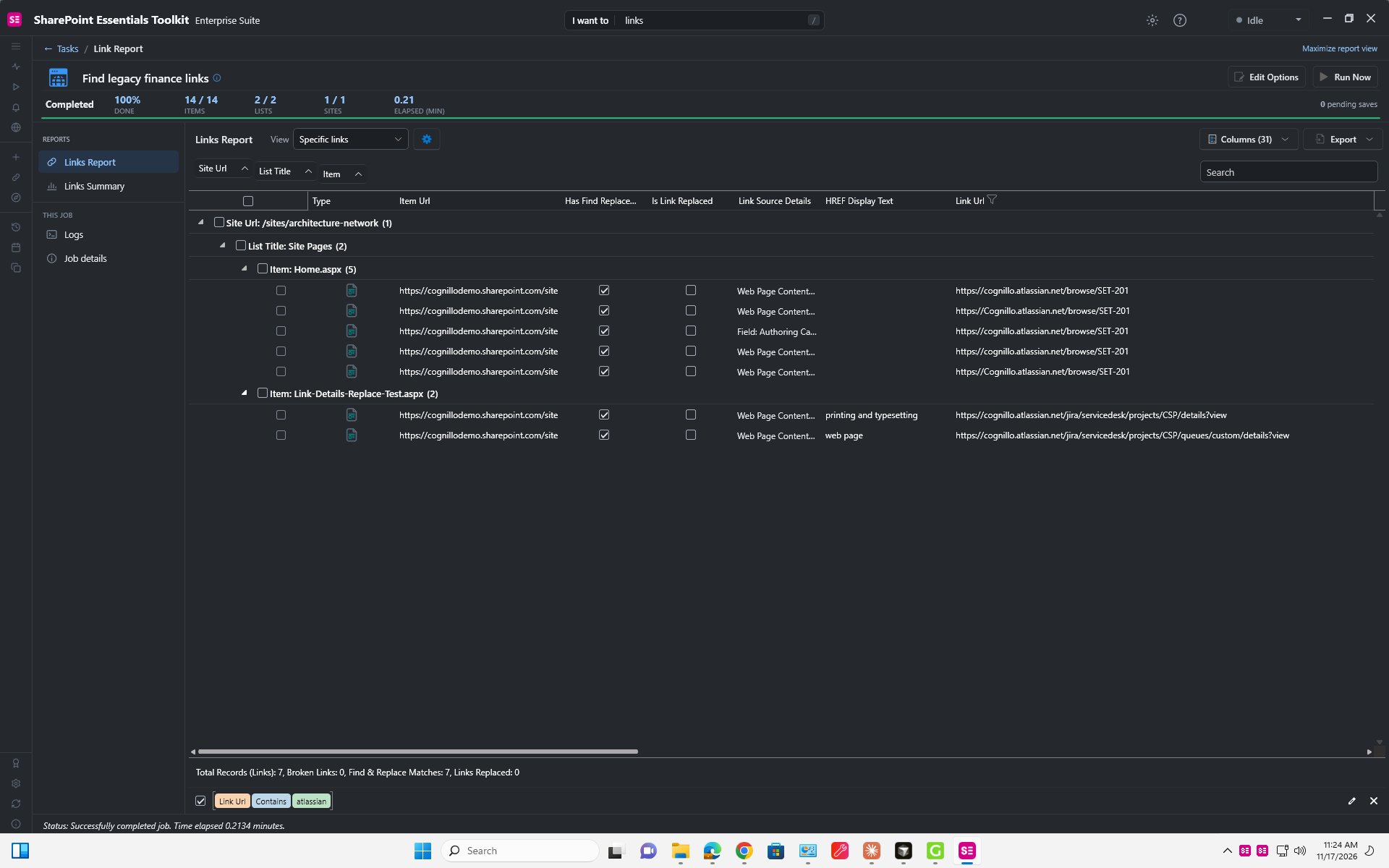
The report shows the flagged matches (7 found, 0 replaced).
Exporting the results
Use the Export menu in the report to save the list as an Excel file (Standard, Simple or Black and white), as plain-text CSV, or to a SharePoint list. Exports are saved under Documents\SharePoint Essentials Toolkit\Exports\Links.
Tips
- Use contains with a short piece of the address rather than wildcards.
- Test on one or two lists first, then widen the scope.
- Save a template for searches you will repeat.