How to Find SPFx Web Parts Using Content Search
Last updated: 2026-09-21
Learn how to locate every instance of a SharePoint Framework (SPFx) web part across your sites using Content Search in the SharePoint Essentials Toolkit.
This article explains how to locate SharePoint Framework (SPFx) web parts across your SharePoint sites using the Content Search feature in the SharePoint Essentials Toolkit.
Overview
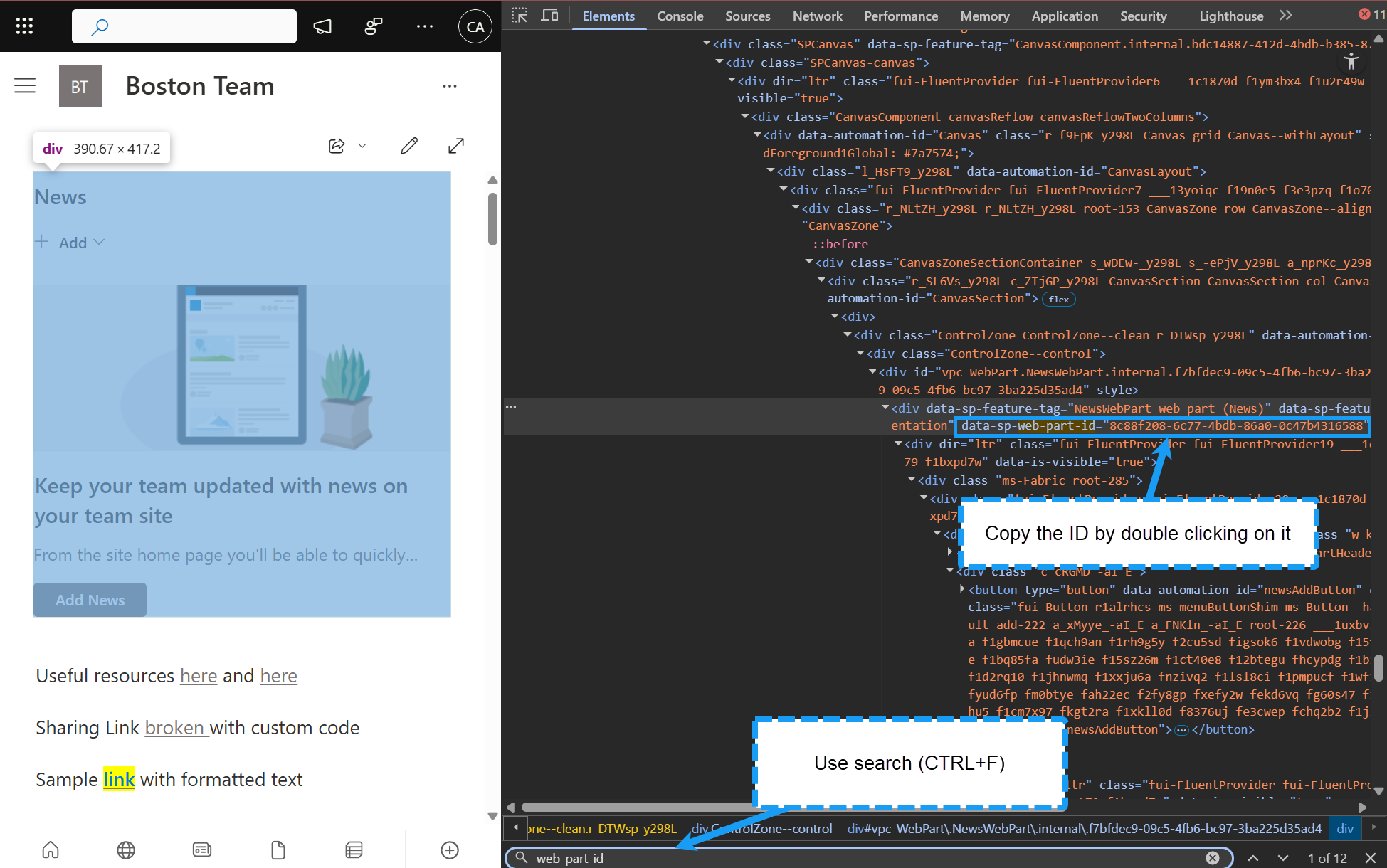
SPFx web parts are embedded into modern SharePoint pages and can be identified by their unique GUID, found in a 'web-part-id' field, which could look like data-sp-componentid or data-sp-webPartId. This ID is an attribute that appears like below (also referred to as the web part ID or Component ID). Every instance of the same SPFx web part shares the same ID, which makes it the most reliable value to search for.
The recommended approach depends on which authentication method you are using to connect to SharePoint.
Option 1: Web Browser Authentication w/ Azure App Registration or Certificate-Based Authentication
When using Web Browser Authentication with Azure App Registration or Certificate-based authentication, the toolkit cannot search by raw HTML source. In this case, you must search by the Component ID.
Step 1: Locate the Component ID from an existing web part instance
Open a SharePoint modern page that contains the SPFx web part you want to find.
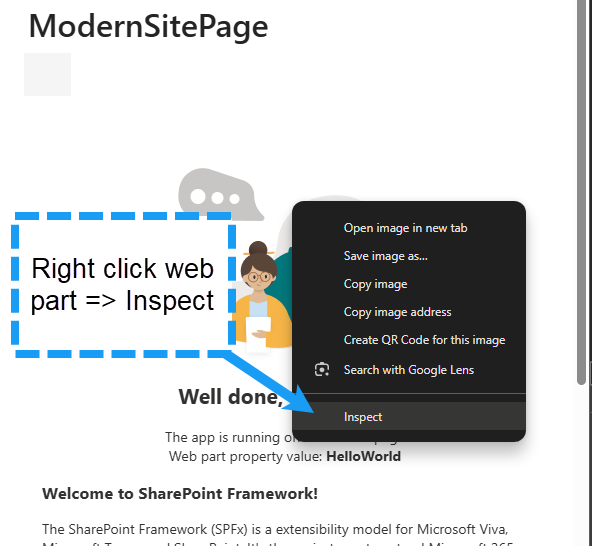
Press F12 to open the browser developer tools or right click web part => Inspect.
Use the element inspector to click on the SPFx web part on the page.
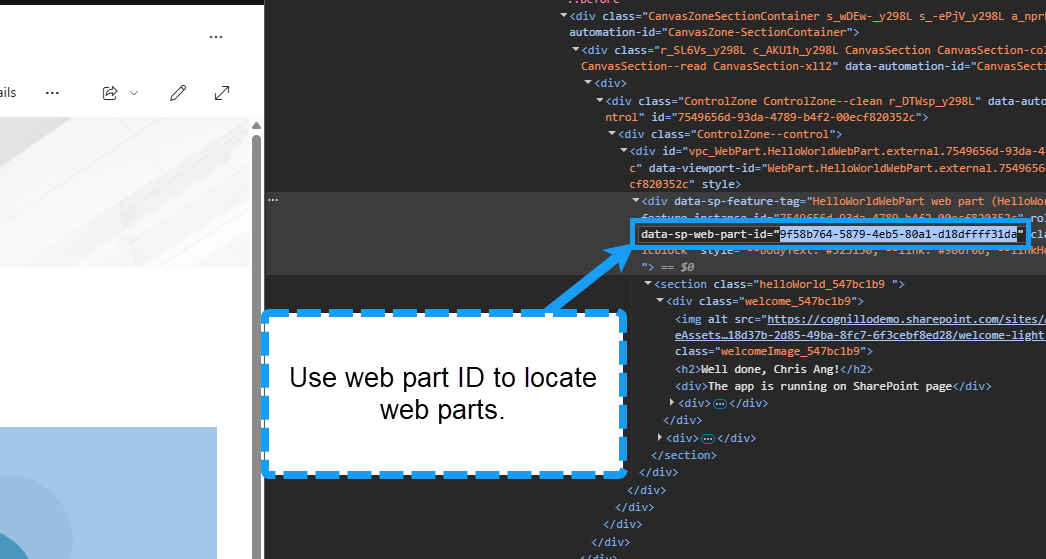
In the HTML markup, locate the 'web-part-id', or 'component-id' attribute. The value is a GUID, for example:
data-sp-componentid="12345678-1234-1234-1234-1234567890ab"data-sp-web-part-id="12345678-1234-1234-1234-1234567890ab"Copy this GUID — this is your web part ID and will be the same across every instance of that web part.
Step 2: Search for other instances using Content Search
Open the SharePoint Essentials Toolkit.
Select the sites you want to scan, then choose Search =>Content Search.
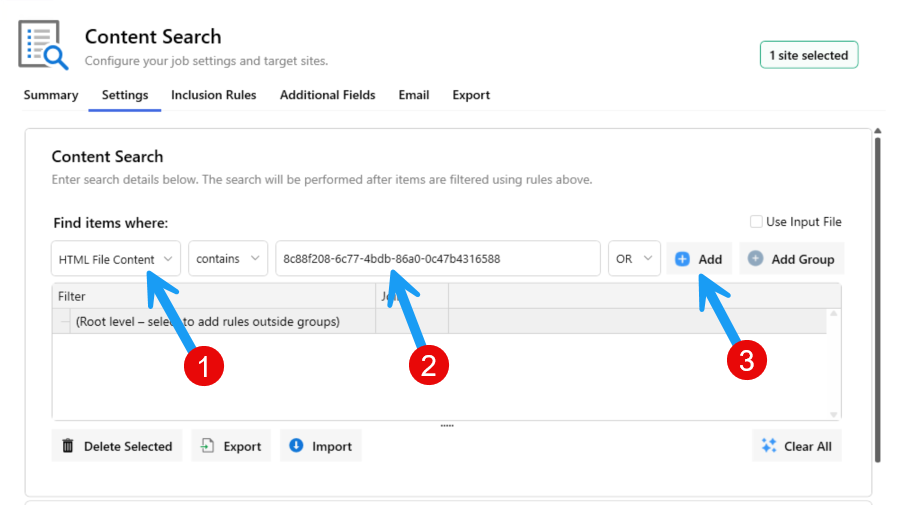
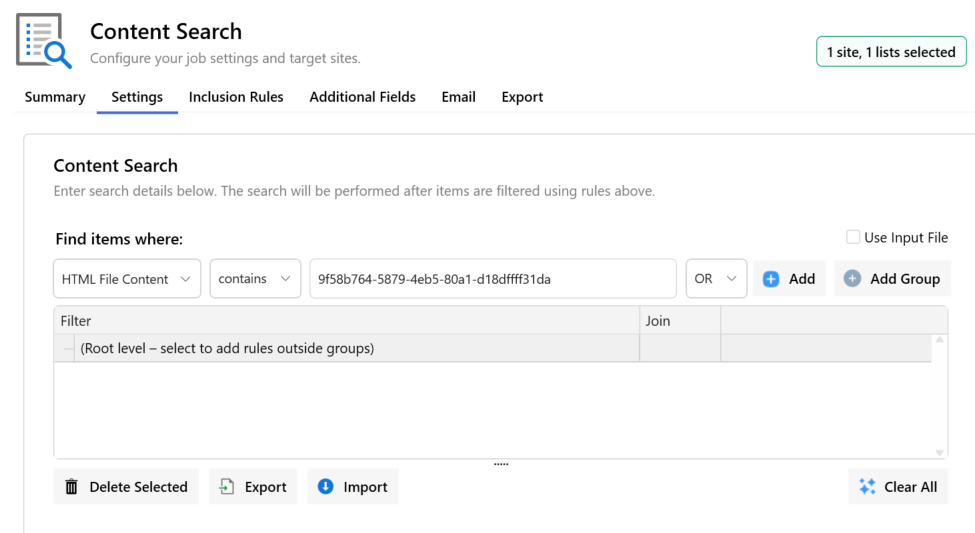
In the options, select 'HTML File Content'
In the search criteria, paste the Web Part Id / GUID you copied.
Set the Inclusion Rules to include only Page Libraries.
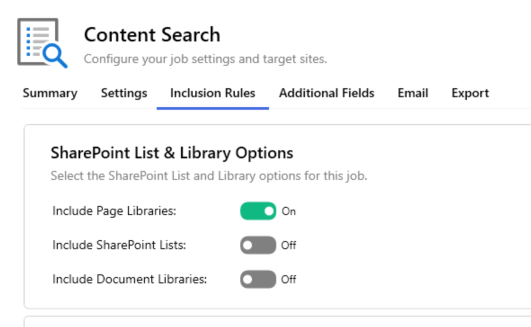
Click Run Now to start the search.
Once complete, click Open Report to view all pages containing instances of that SPFx web part.
Option 2: Other Authentication Methods
If you are not using Web Browser Authentication w/ Azure App Registration or Certificate-based authentication (for example, you are using username/password authentication), you have two options for locating SPFx web parts:
Search by HTML source — search the raw HTML of pages for any markup pattern that identifies the web part (for example,
data-sp-componentid,data-sp-webPartId, or 'web-part-id' the web part class name, or any unique HTML rendered by the web part).Search by Component ID — same approach as Option 1 above. This remains the most reliable method since every instance of an SPFx web part shares the same Component ID.
How to run the search
Open the SharePoint Essentials Toolkit.
Select the sites to scan, right-click and choose Create Reports → Content Search.
Enter either:
The Component ID (GUID), or
A distinctive HTML snippet rendered by the web part.
Set the scope to include Pages.
Click Run Now, then Open Report when complete.
Tips
The Component ID is the same as the web part ID defined in the SPFx solution's manifest — both refer to the same GUID.
Searching by Web Part ID/Component ID is preferred over HTML source because the markup of an SPFx web part may change between versions, but its Web Part/Component ID stays constant.
Make sure the search scope includes Site Pages libraries so modern pages are included in the results.