How to Remove Licensed Site Collections?
Last updated: 2026-10-01
Learn how to remove site collections from your license allocation to free up licensed sites for other SharePoint environments.
This article will show you how to manage the SharePoint Essentials Toolkit site licenses.
Scenario
I have used some test site collections in our trial of the SharePoint Essentials Toolkit and need to remove them to add Production site collections, how can I do this?
License Compliance
In order to remain compliant with Cognillo’s License Agreement, if a site collection is used for production purposes, the license will be considered used and cannot be reclaimed unless it is a retired site collection, i.e. no longer present in your environment or has been archived.
Example scenarios where site licenses can be reclaimed:
Site collection was deleted
Site collection was used only for testing the product
Example scenarios where site licenses CANNOT be reclaimed:
Ran reports (or performed management tasks with the SharePoint Essentials Toolkit) on the site collection but we no longer need to manage this site with the tool.
Step-by-Step
Contact Cognillo support to obtain a passcode to remove licensed sites. Provide reason for needing to remove the licensed sites.
Once a passcode is received, open the SharePoint Essentials Toolkit, click License in the left navigation.
Under the section “Licensed Sites”, select the site collections no longer in use.
Enter the passcode
Click “Delete Selected”
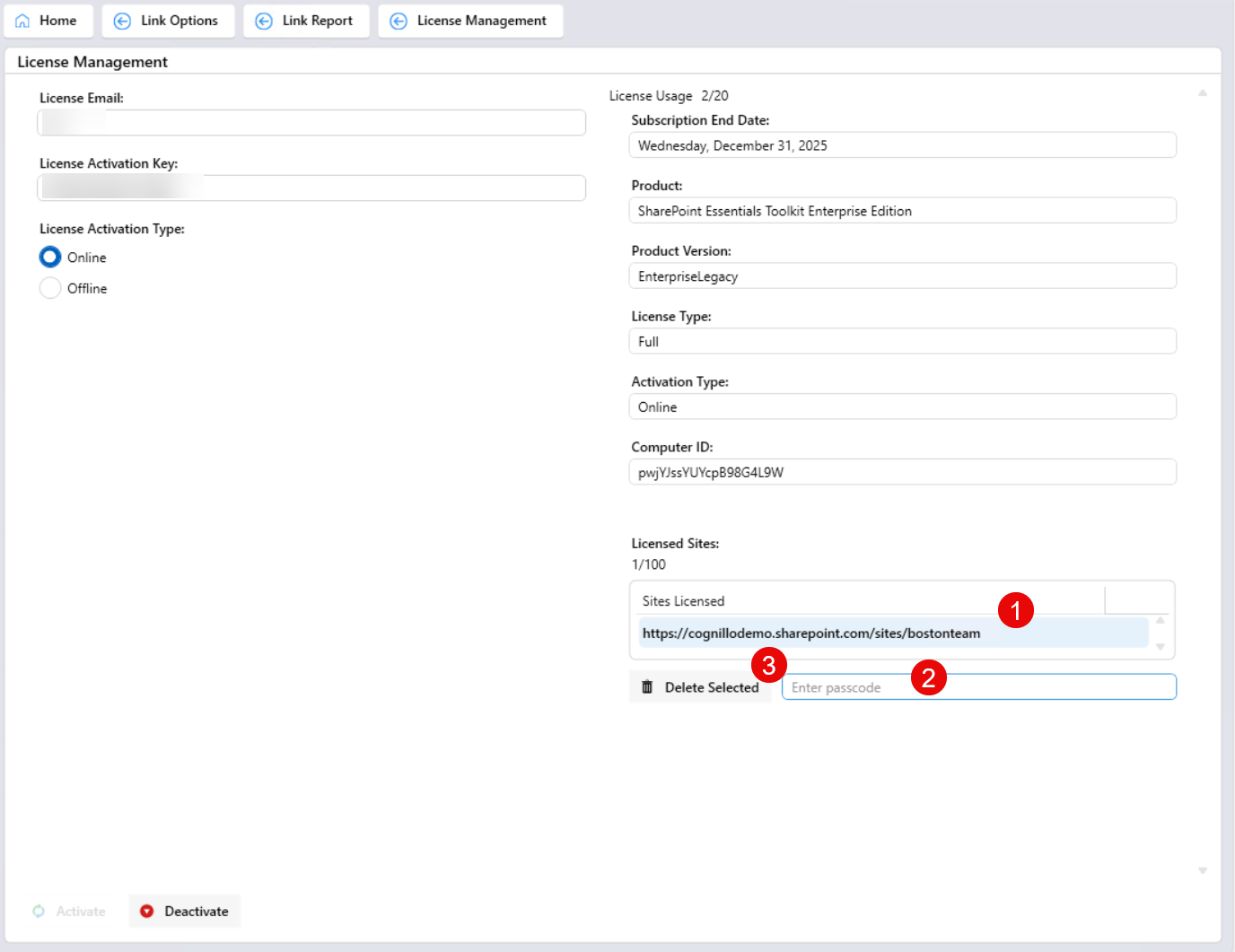
Verify the license information on the right side of the License page is correct.