How to share debug log files?
Last updated: 2026-10-15
Enable debug mode, reproduce an issue, collect debug log files, and share them privately with the Cognillo Support Team.
Debug log files help the Cognillo Support Team investigate errors and diagnose issues in SharePoint Essentials Toolkit. If support asks for debug logs, enable debug mode, reproduce the problem, and share the relevant files using these steps.
Applies to: SharePoint Essentials Toolkit 2027. The screenshots show Community Edition.
1. Enable debug mode
- Open Settings.
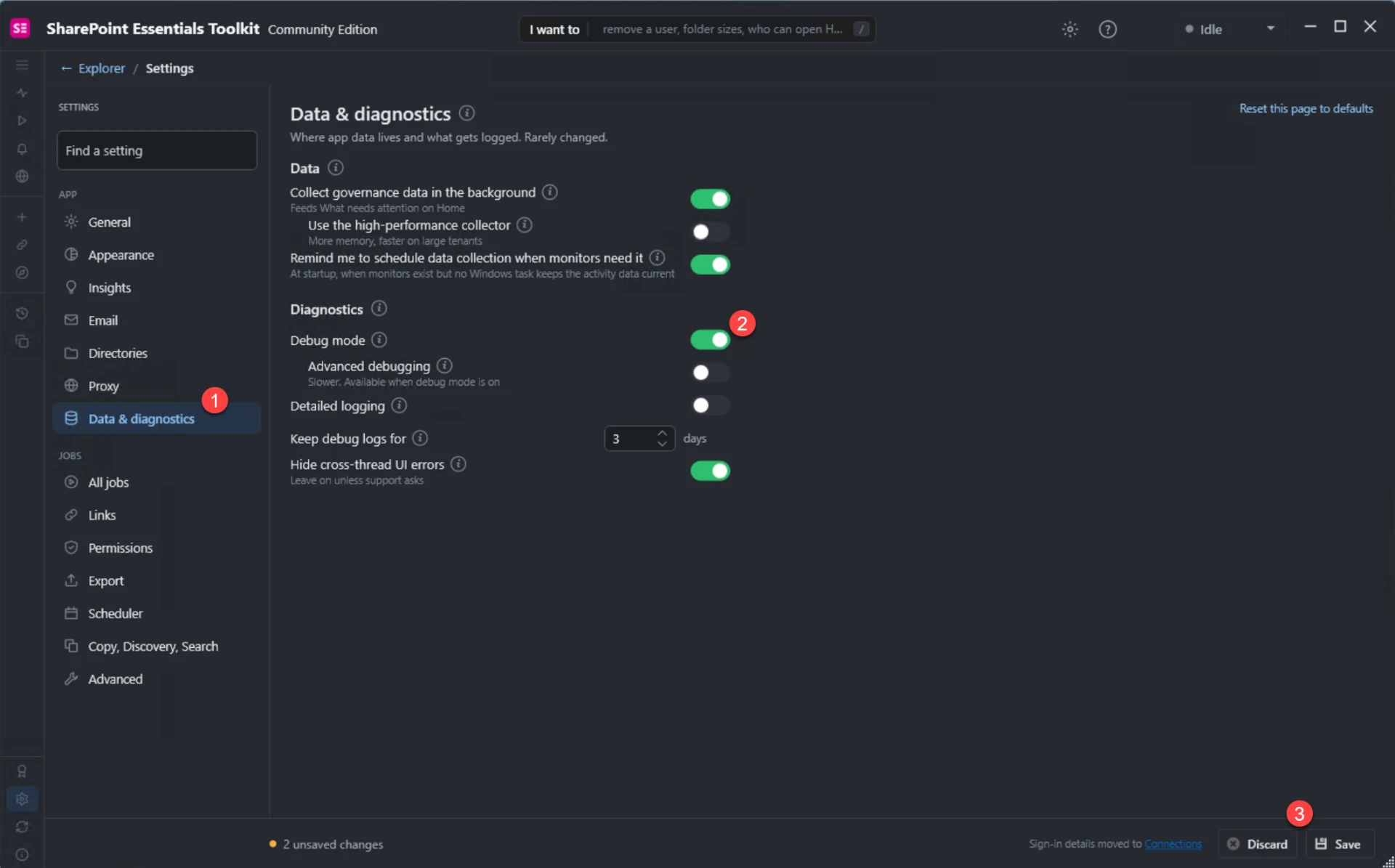
- Select Data & diagnostics (marker 1).
- Turn on Debug mode (marker 2).
- Click Save at the bottom-right (marker 3).
Leave Advanced debugging and Detailed logging unchanged unless the Support Team asks you to enable them. Advanced debugging can slow down processing.
2. Reproduce the issue
After enabling and saving debug mode, repeat the report, task, or action that caused the problem. Note the approximate time and any error message so support can locate the relevant entries.
Collect the logs promptly. Keep debug logs for controls the retention period; the screenshot shows three days.
3. Open the debug log files
- Open the affected job or report. If needed, find it in History.
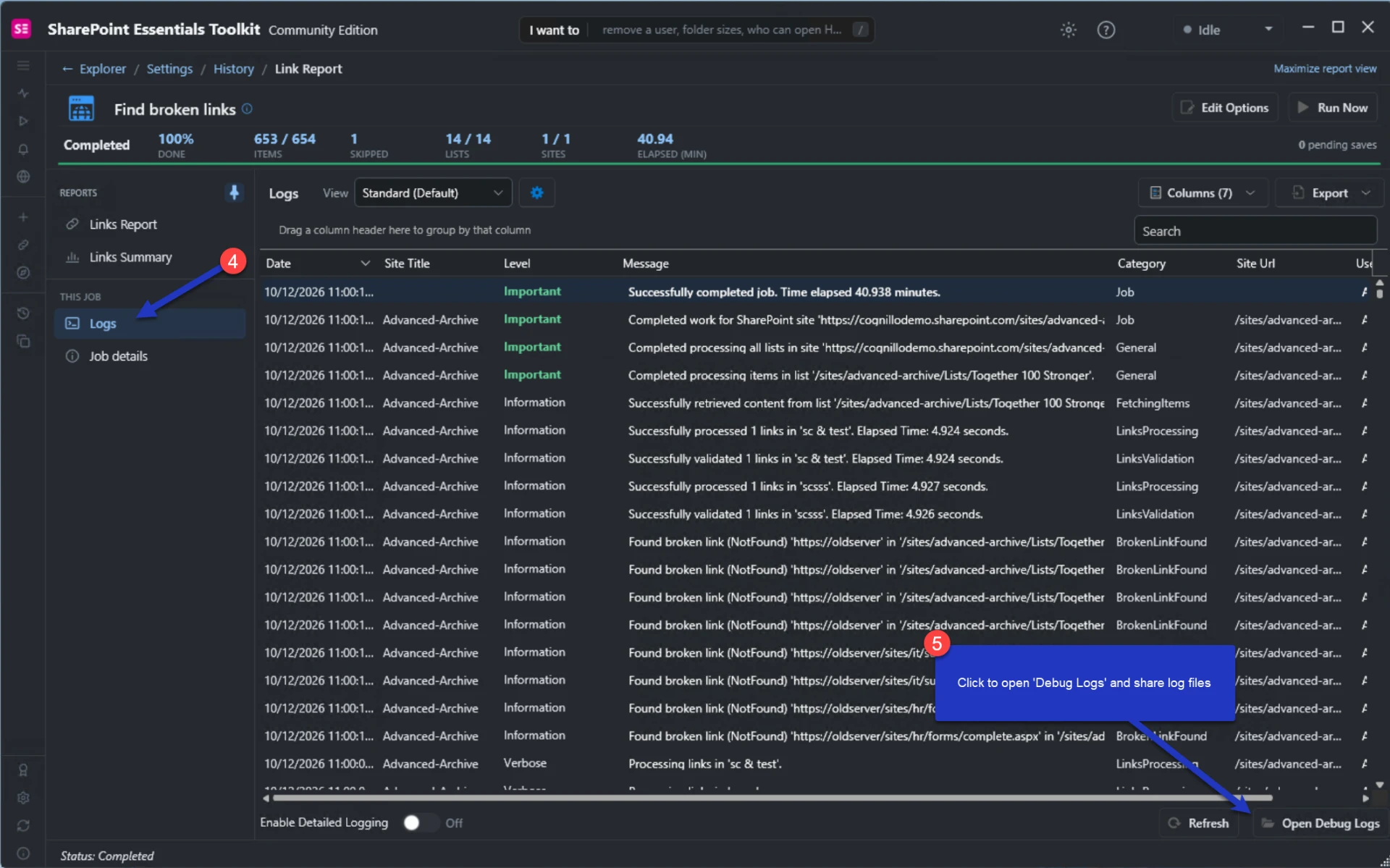
- Select Logs under This job (marker 4).
- Click Open Debug Logs at the bottom-right (marker 5) to open the debug log location.
- Collect the files covering the time when you reproduced the issue. If you are unsure which files to include, ask support.
The example uses a Find broken links job. Use the affected job for your issue. Exporting the visible Logs table is not the same as collecting debug log files: use Open Debug Logs when support requests debug files.
4. Share the files with support
Attach the relevant files to your existing support ticket or reply to the Support Team’s email. You can compress multiple files into a ZIP file first. If attachments are too large or restricted by your organization, ask support for an approved way to share them.
If you do not have a ticket, create a support ticket. Include:
- Your SharePoint Essentials Toolkit version and edition.
- A description of the issue and steps to reproduce it.
- The report or task name and the approximate date and time, including your time zone.
- The error message or a screenshot, if available.
Treat debug logs as potentially sensitive. Logs may contain site URLs, item paths, user information, and error details. Review them and follow your organization’s data-sharing policies before sending. Share files privately with support, not publicly. Never include passwords, access tokens, or private certificate keys. Tell support if you redact information.
5. Turn debug mode off when finished
After collecting the files, return to Settings → Data & diagnostics, turn off Debug mode, and click Save, unless support asks you to keep it enabled. Restore any additional diagnostic settings as agreed with support.