How to Use Wildcard & Regex in Content Search & Replace
Last updated: 2026-10-08
Learn how to use Wildcard and Regular Expression match types in Content Search & Replace to redact sensitive data such as credit card numbers, SSNs, passport numbers, emails, and phone numbers across SharePoint content.
Overview
The Content Search & Replace feature (Item Query jobs with Find & Replace enabled) allows you to search inside file content and metadata values to find and replace text. Combined with Wildcard and Regular Expression match types, this becomes a powerful tool for finding and redacting sensitive data, correcting patterns, or bulk-updating content across your SharePoint environment.
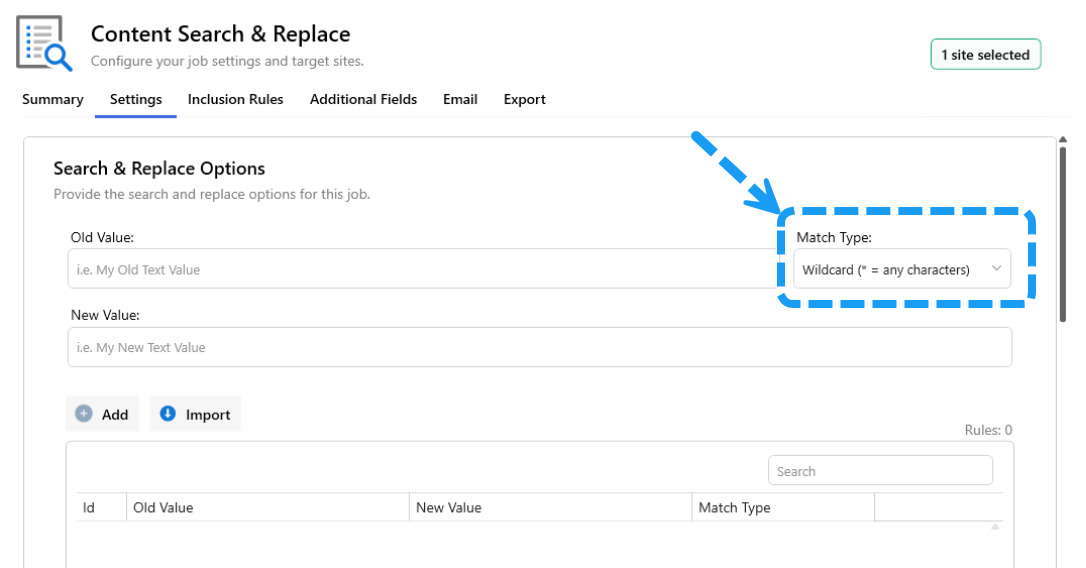
Match Type | Best For | Difficulty |
|---|---|---|
Contains | Exact text — you know the precise string to find | Easy |
Wildcard | Simple pattern matching using | Easy |
Regular Expression | Complex patterns — credit cards, IDs, dates, emails | Advanced |
Tip: Always run your job with Flag Only turned on first. This shows a preview of all matches and replacements in the report without making any actual changes to your content.
Common Use Cases
1. Redacting Credit Card Numbers
Credit card numbers follow well-known patterns. Use Regular Expression to find and redact them.
Visa Cards (starts with 4, 16 digits)
Field | Value |
|---|---|
Old Value |
|
New Value |
|
Match Type | Regular Expression |
Matches:
4111 1111 1111 11114111-1111-1111-11114111111111111111
Mastercard (starts with 51-55, 16 digits)
Field | Value |
|---|---|
Old Value |
|
New Value |
|
Match Type | Regular Expression |
American Express (starts with 34 or 37, 15 digits)
Field | Value |
|---|---|
Old Value |
|
New Value |
|
Match Type | Regular Expression |
Any Major Credit Card (broad match)
Field | Value | ||||
|---|---|---|---|---|---|
Old Value | `\b(?:4\d{3}\ | 5[1-5]\d{2}\ | 3[47]\d{2}\ | 6(?:011\ | 5\d{2}))\d{12}\b` |
New Value |
| ||||
Match Type | Regular Expression |
2. Redacting Passport Numbers
US Passport Numbers (9 digits)
Field | Value |
|---|---|
Old Value |
|
New Value |
|
Match Type | Regular Expression |
Caution: This pattern is broad and may match other 8-9 digit numbers. Use with Flag Only first to verify matches.
UK Passport Numbers (9 digits, numeric)
Field | Value |
|---|---|
Old Value |
|
New Value |
|
Match Type | Regular Expression |
Canadian Passport Numbers (2 letters + 6 digits)
Field | Value |
|---|---|
Old Value |
|
New Value |
|
Match Type | Regular Expression |
3. Redacting National ID / Social Security Numbers
US Social Security Numbers (SSN: 123-45-6789)
Field | Value |
|---|---|
Old Value |
|
New Value |
|
Match Type | Regular Expression |
UK National Insurance Numbers (AB 12 34 56 C)
Field | Value |
|---|---|
Old Value |
|
New Value |
|
Match Type | Regular Expression |
Australian Tax File Numbers (TFN: 123 456 789)
Field | Value |
|---|---|
Old Value |
|
New Value |
|
Match Type | Regular Expression |
Caution: This also matches 9-digit phone numbers. Review matches in Flag Only mode first.
4. Redacting Email Addresses
Field | Value |
|---|---|
Old Value |
|
New Value |
|
Match Type | Regular Expression |
Matches:
john.doe@contoso.comuser+tag@mail.co.ukfirstname.lastname@company.org
5. Redacting Phone Numbers
US/Canada Phone Numbers
Field | Value |
|---|---|
Old Value |
|
New Value |
|
Match Type | Regular Expression |
Matches:
(555) 123-4567555-123-4567+1 555 123 45675551234567
UK Phone Numbers
Field | Value | |
|---|---|---|
Old Value | `\b(?:\+44[\s\-]? | 0)\d{4}[\s\-]?\d{6}\b` |
New Value |
| |
Match Type | Regular Expression |
6. Replacing Old URLs in Content
Documents often contain embedded hyperlinks or plain-text URLs pointing to old servers or sites.
Replace Any URL to an Old Server (Wildcard)
Field | Value |
|---|---|
Old Value |
|
New Value |
|
Match Type | Wildcard |
Replace File Share Paths in Content
Field | Value |
|---|---|
Old Value |
|
New Value |
|
Match Type | Wildcard |
7. Redacting Dates of Birth
Dates in DD/MM/YYYY or MM/DD/YYYY Format
Field | Value |
|---|---|
Old Value |
|
New Value |
|
Match Type | Regular Expression |
Matches:
15/03/19903-15-199001/01/2000
8. Replacing Specific Text Patterns with Wildcard
Replace All References to a Project Code
If documents reference project codes like PRJ-001, PRJ-042, PRJ-999:
Field | Value |
|---|---|
Old Value |
|
New Value |
|
Match Type | Wildcard |
Replace Internal Jargon or Code Names
Field | Value |
|---|---|
Old Value |
|
New Value |
|
Match Type | Wildcard |
Note: For exact phrase replacement like this, Contains match type also works perfectly.
Importing Rules from Excel
You can import rules from an Excel file (.xlsx) with the following columns:
Column A | Column B | Column C (optional) |
|---|---|---|
Old Value | New Value | Match Type |
|
| Regular Expression |
|
| Wildcard |
|
| Contains |
If the 3rd column is omitted, all rules default to Contains.
Tips & Best Practices
Always use Flag Only first. Sensitive data redaction is irreversible — preview all matches before committing.
Be specific with patterns. Broad patterns like
\b\d{9}\b(any 9 digits) may match unintended content such as phone numbers or ZIP codes. Narrow your patterns whenever possible.Combine multiple rules. Add one rule per sensitive data type (SSN, credit card, email, etc.) to run a comprehensive redaction job in a single pass.
Use Case Sensitive option. For content search, you can enable "Case Sensitive Find & Replace" when the pattern must match exact casing.
Test with a small scope. Run against a single library or folder first before expanding to an entire site or site collection.
Export your rules. After configuring your rules, export them to Excel. This lets you reuse the same rule set across multiple jobs or environments.
Regex capture groups. In Regular Expression mode, use parentheses
()in the Old Value and$1,$2in the New Value to preserve parts of the matched text. For example, replace(\d{3})-(\d{2})-(\d{4})withXXX-XX-$3to redact only the first two parts of an SSN while keeping the last four digits.Wildcard is simpler. If your pattern can be expressed with just
*(any characters), prefer Wildcard over Regular Expression — it is easier to read and less error-prone.