How to Use Wildcard & Regex in Link Find & Replace
Last updated: 2026-10-08
Learn how to use Wildcard and Regular Expression match types in Link Find & Replace to redirect SharePoint Document IDs, share links, WopiFrame URLs, and bulk-migrate links between tenants and sites.
Overview
The Find & Replace feature in Link Jobs has the option to select a 'Match Type'. Each rule will use the specified Match Type selected; each rule's Match Type is independent from each other.
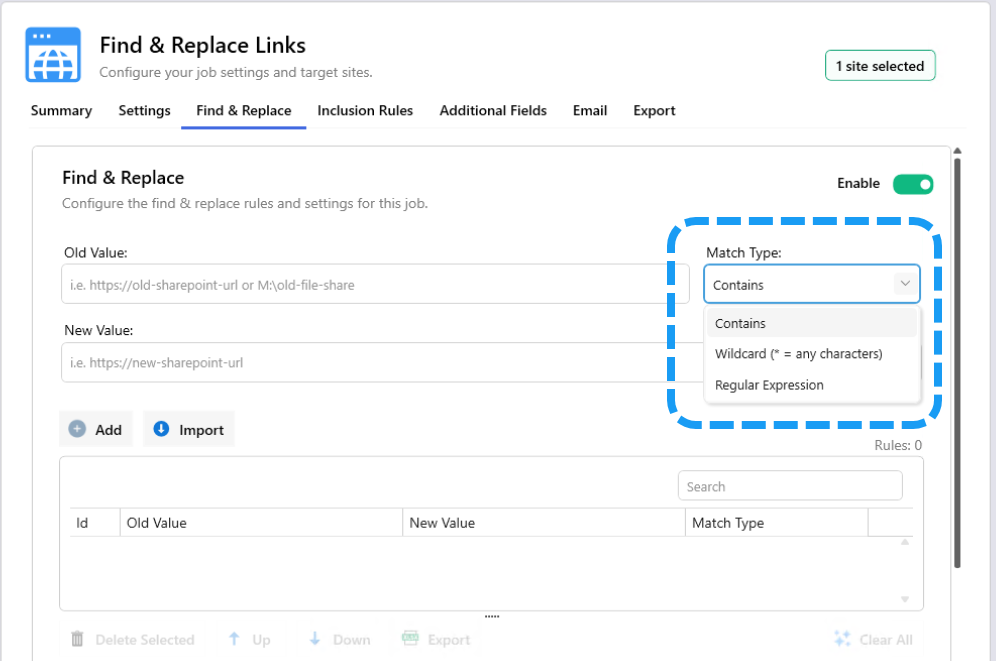
The Find & Replace feature in Link Jobs supports three match types for the Old Value field:
Match Type | Best For | Difficulty |
|---|---|---|
Contains | Exact text replacement — you know the exact URL or substring | Easy |
Wildcard | Pattern-based matching using | Easy |
Regular Expression | Complex pattern matching with full .NET regex support | Advanced |
Tip: Always run your job with Flag Only turned on first. This shows a preview of all replacements in the report without making any actual changes.
Wildcard Match Type
Use * to represent "any sequence of characters". All other characters are matched literally (case-insensitive). This is ideal when part of the URL varies but follows a predictable structure.
Example 1: Replace SharePoint Document ID Links
SharePoint Document IDs generate URLs like:
https://contoso.sharepoint.com/sites/hr/_layouts/15/DocIdRedir.aspx?ID=HRDOC-1234-5678
https://contoso.sharepoint.com/sites/hr/_layouts/15/DocIdRedir.aspx?ID=HRDOC-9012-3456
You want to redirect all Document ID links from the old HR site to the new HR site.
Field | Value |
|---|---|
Old Value |
|
New Value |
|
Match Type | Wildcard |
Replacement Behavior | Completely Replace |
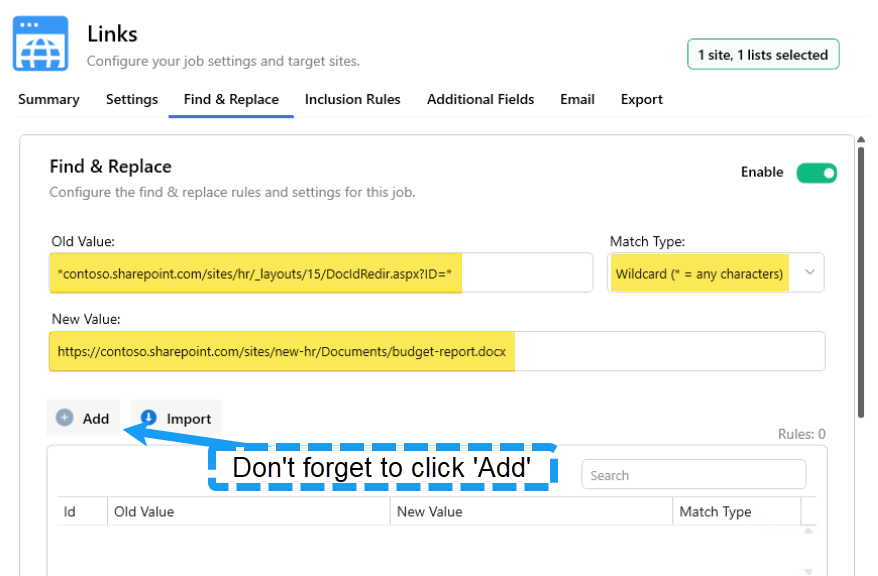
This matches any URL containing the old HR site's Document ID redirector, regardless of which Document ID is in the query string.
Example 2: Replace Copy/Share Links with GUIDs
SharePoint "Copy Link" URLs contain document GUIDs:
https://contoso.sharepoint.com/sites/finance/Shared%20Documents/Forms/AllItems.aspx?id=%2Fsites%2Ffinance%2FShared%20Documents%2FBudget%2Epdf&parent=%2Fsites%2Ffinance%2FShared%20Documents
https://contoso.sharepoint.com/sites/finance/Shared%20Documents/Forms/AllItems.aspx?id=%2Fsites%2Ffinance%2FShared%20Documents%2FReport%2Exlsx&parent=%2Fsites%2Ffinance%2FShared%20Documents
You want to redirect all "copy links" from the old Finance site to the new Finance site:
Field | Value |
|---|---|
Old Value |
|
New Value |
|
Match Type | Wildcard |
Replacement Behavior | Completely Replace |
Example 3: Replace All Links to a Specific Site (Any Path)
After a site migration, you want to replace all links pointing to the old site, regardless of the path:
Field | Value |
|---|---|
Old Value |
|
New Value |
|
Match Type | Wildcard |
Replacement Behavior | Completely Replace |
Example 4: Replace WopiFrame / Office Online Viewer Links
SharePoint stores Office Online viewer links with GUIDs:
https://contoso.sharepoint.com/sites/team/_layouts/15/WopiFrame.aspx?sourcedoc={A1B2C3D4-E5F6-7890-ABCD-EF1234567890}&action=defaultTo redirect all WopiFrame links for a specific site:
Field | Value |
|---|---|
Old Value |
|
New Value |
|
Match Type | Wildcard |
Replacement Behavior | Completely Replace |
Example 5: Partial Replacement — Change the Tenant Name Only
If only the tenant name (i.e. https://tenant.sharepoint.com) changed (e.g., company rebranding) but the rest of the URL structure is identical:
Field | Value | |
|---|---|---|
Old Value |
| |
New Value |
| |
Match Type | Contains | |
Replacement Behavior | Partial Match (Default) |
Note: For simple substring replacements like this, Contains match type works just as well. Use Wildcard when you need the
*placeholder to match varying parts of the URL.
Regular Expression Match Type
For advanced users who need precise control over what is matched and how it is replaced. Uses .NET regular expression syntax. The New Value supports capture group references ($1, $2, etc.).
Example 6: Match Any Document ID with a Specific Pattern
Match Document ID links where the ID follows the pattern HRDOC- followed by digits and dashes:
Field | Value |
|---|---|
Old Value |
|
New Value |
|
Match Type | Regular Expression |
Replacement Behavior | Partial Match |
Example 7: Replace Links with GUID-Based Query Parameters
Match any URL with an id query parameter containing a GUID:
Field | Value |
|---|---|
Old Value |
|
New Value | (empty — removes the query parameter) |
Match Type | Regular Expression |
Replacement Behavior | Partial Match |
Importing Rules from Excel
You can import find & replace rules from an Excel file (.xlsx). The Excel file supports:
Column A (required): Old Value
Column B (required): New Value
Column C (optional): Match Type —
Contains,Wildcard, orRegular Expression
If the 3rd column is not provided, all rules default to Contains.
This is useful when you have dozens or hundreds of URL mappings to configure — for example, after a large migration with many site-to-site redirects.
Tips & Best Practices
Start with Flag Only. Always preview replacements before committing changes.
Use Contains when possible. It is the simplest and most predictable match type.
Use Wildcard for variable URL segments. When part of the URL changes between documents (GUIDs, IDs, file names) but the URL structure is consistent.
Use Regex only when Wildcard is not enough. For example, when you need capture groups to preserve parts of the original URL.
URL-encoded characters. You can use either the encoded form (
%40for@,%20for spaces) or the decoded form in your Wildcard/Regex patterns — both work.Order matters. Rules are processed top-to-bottom. Use "Stop at First Match" if a link should only be matched by one rule.
Combine match types. You can mix Contains, Wildcard, and Regex rules in the same job — each rule has its own match type.