How to Use Your Own Machine or VM for Testing (BYOC)
Last updated: 2026-09-21
Connect your own Windows machine or VM as a BYOC computer in Genta using a registration key and the Genta agent.
How to Use Your Own Machine or VM for Testing (BYOC)
This guide shows how to connect your own Windows machine or VM as a BYOC computer in Genta.
Where to configure BYOC
Go to Computers from the sidebar.
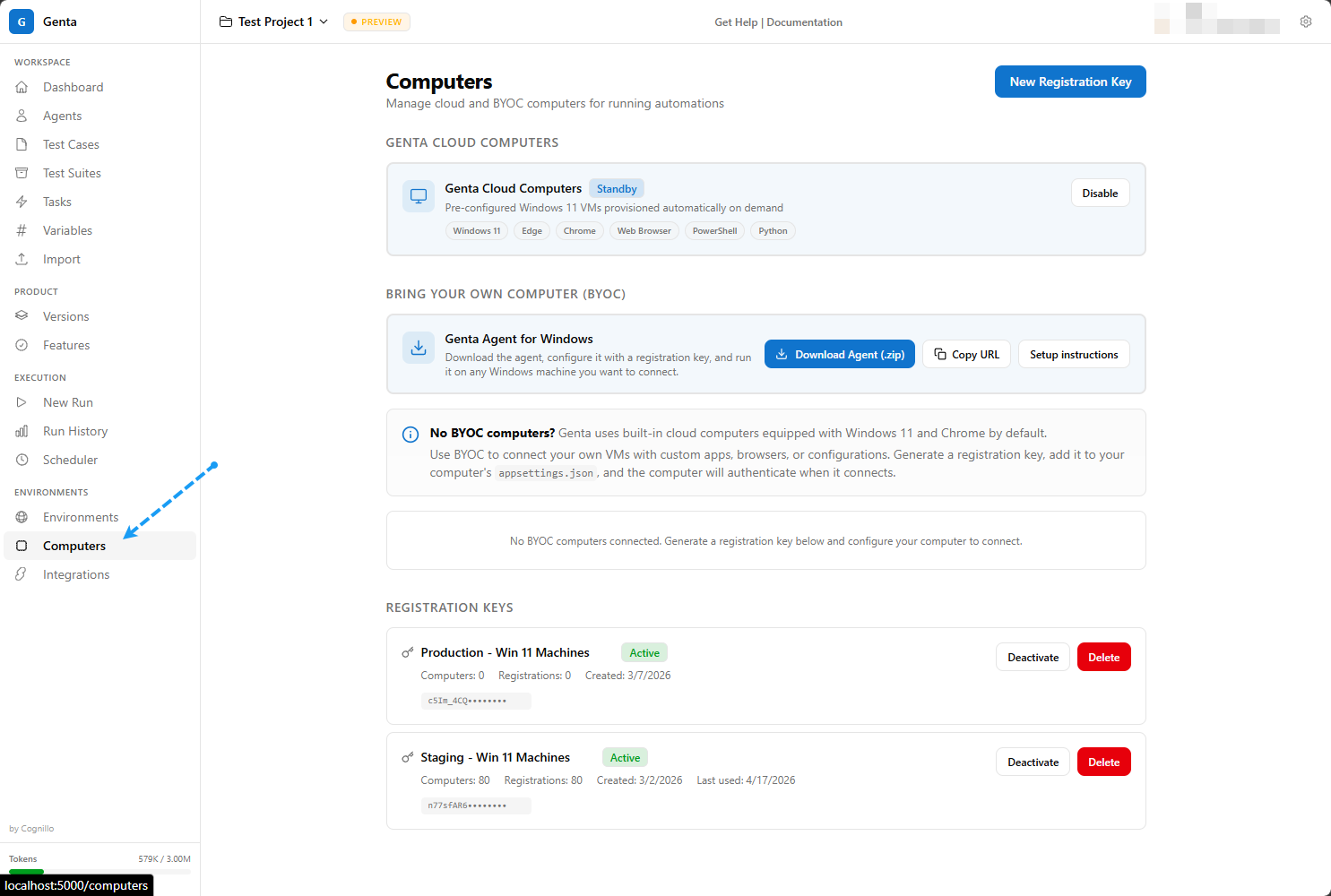
Step 1: Create a registration key
In Computers, click New Registration Key.
Enter a name (and optional description/max computers).
Click Generate Key.
Copy the key immediately.
Step 2: Download and extract the Genta agent
In Computers, click Download Agent (.zip).
Extract to a folder on the target machine (for example
C:\Program Files\Cognillo\Genta Agent).
Step 3: Configure appsettings.json
In the agent folder, set:
{
  "ServerUrl": "https://your-genta-instance",
  "ComputerName": "my-vm-or-machine",
  "RegistrationKey": "paste-your-key-here"
}
Notes:
ComputerNameis optional.ServerUrlshould match the Genta instance URL you use in the browser.
Step 4: Start the agent
Run
GentaAgent.exe.Return to Computers and confirm your machine appears as BYOC.
Wait for status to become Idle.
Step 5: Use BYOC during runs
When launching a case or suite run:
Open the Run modal.
Select your BYOC machine from the computer list.
Start execution.
Optional hardening
Use dedicated test VMs for stable browser/app state.
Keep agent host patched and monitored.
If needed, run agent via Windows Task Scheduler at user logon.