How to run a job for only failed or specific items
Last updated: 2026-10-15
Learn how to rerun a job for only previously failed items or specific selected items instead of processing the entire site again.
Overview
After running a large job, some items may fail due to errors, or you may only need to process specific files or folders. Rather than re-running the entire job against your full SharePoint library, you can use Content Filters to target only the items you need.
You can re-run jobs for specific items by exporting failed results to Excel, then using Content Filters to target only those items.
Part 1: Prepare your list of items
Option A: Filter from a previous job report
Use this option if you want to retry items that failed in a previous job.
Open the report for the completed job.
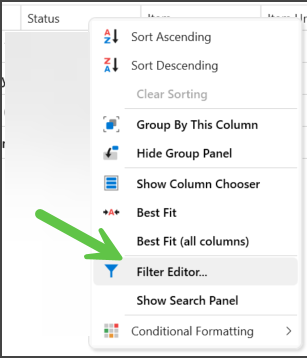
Filter the report to show only the items you need (e.g. failed items). Right-click any column header and select Filter Editor to apply a filter.
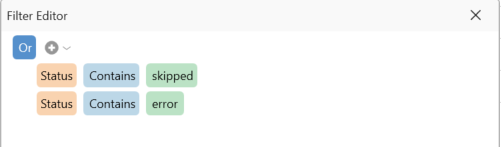
For example, you can filter the Status column to show only errors:
Click Export to save the filtered results to Excel.
In the exported file, delete all columns except the one you want to filter by (e.g. the URL or Item ID column). Also delete the header row — only the values should remain.
Save the file as .xlsx.
Option B: Create a list manually
If you already know which items to target, create an Excel file (.xlsx) with one value per row. For example, to process items with IDs 1 through 100, enter each ID on a separate row — no header row is needed.
Part 2: Run the job with Content Filters
Open the Job Options page and enable Content Filters.
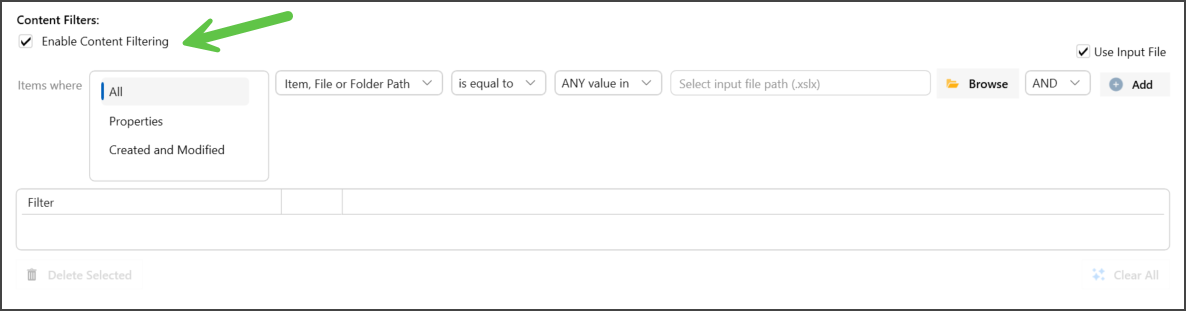
Select the filter category. Click All to see every available option.
Choose the filter type — for example, Item, File or Folder Path.
Tick the Use Input File checkbox.
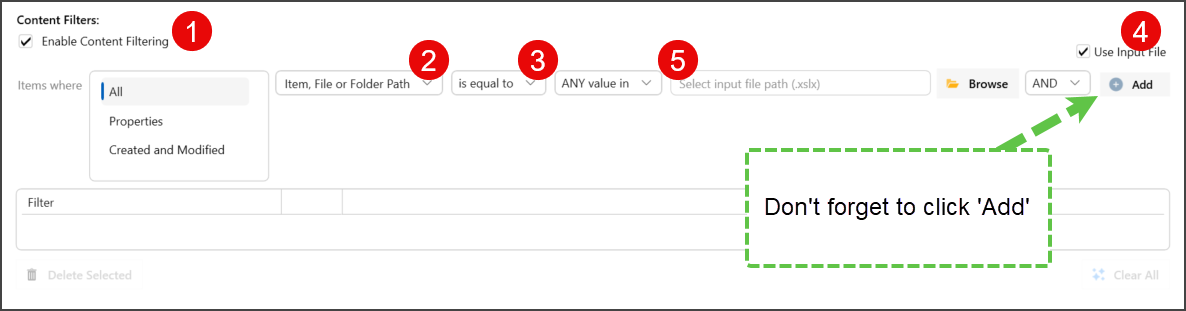
Set the comparison type (e.g. contains or is equal to). This operator is applied to every value in your input file.
Click Browse to select your Excel file, then click the Add button to apply the condition.
The Excel file should have the first column matching the filter. For example: The filter is for 'Item, File or Folder Path', then the first column should have the full file or folder path such as:
https://cognillodemo.sharepoint.com/sites/contoso/Test Project Files/(DIM) Modality.docx
It should not have quotes around the paths.
Make sure you click the Add button after selecting your file — the filter is not applied until you click Add.
If you update the Excel file after creating the job, the new values are picked up automatically the next time the job runs. You do not need to re-import the file.
Handling incomplete jobs
If a job did not finish — for example, because the application crashed, the machine restarted, or the process hung — you can resume processing only the remaining items:
Open the Job History report and export the items that did complete successfully. Keep only the ID or file path column.
In the Content Filters setup (Part 2 above), set the comparison to is not equal to. This tells the job to skip everything in your Excel file and process only the items that were not yet completed.