How to re-run a job for only failed or specific items (2027)
Last updated: 2026-10-15
Resume interrupted jobs, retry failed items automatically, or target specific items with an Excel Content Filters input file in SharePoint Essentials Toolkit 2027.
SharePoint Essentials Toolkit 2027 · Version 12.1.2.0
Resume a run that stopped, retry only what failed, or target a list of items yourself. Updated October 7, 2026.
A large job can stop before it finishes (the app was closed, the machine restarted, or you canceled it), or it can finish with some items in error. You do not need to run it again against every site. The toolkit keeps track of which sites, lists and items finished, and can build a copy of the task that covers only the rest.
This guide covers both ways to do it: the automatic Resume and Retry buttons, and the manual method with a Content Filters input file, which still works when you want to choose the items yourself.
If you used the previous version
The 2026 article had you export the report to Excel, keep one column, and add it as a Content Filters input file. To finish an incomplete job, you exported the completed items and used is not equal to.
In 2027, Resume and Retry in History do those steps for you. They work out what is left, write the input file, add the content filter, and open the task for you to review.
Nothing starts on its own. An interrupted job is not resumed when the app opens again; you choose Resume, check the options, then select Resume Job.
The manual method is still available and is described in Part 3.
Before you start
Edition — Resume and Retry are available in Professional and Enterprise. In Community Edition, use Run again to repeat the whole job.
Same computer — Resume and Retry read the job's history and report on this computer. If the History entry was deleted, the job cannot be resumed.
Changes are not undone — Items that were already changed in SharePoint by the first run stay changed. Resume and Retry skip them; they do not reverse them.
Part 1 — Find the job in History
1. Select History in the left menu.
2. Select the Needs attention chip to list only jobs that can be resumed or retried.
3. Look at the Status column and the link at the end of each row:
| Status | Link on the row | What it does |
|---|---|---|
| Incomplete, Canceled | Resume | Opens a copy of the task that picks up where the run stopped. |
| Completed with errors | Retry | Opens a copy of the task that covers only what failed. |
| Completed | Run again | Runs the whole task again with the same settings, right away. |
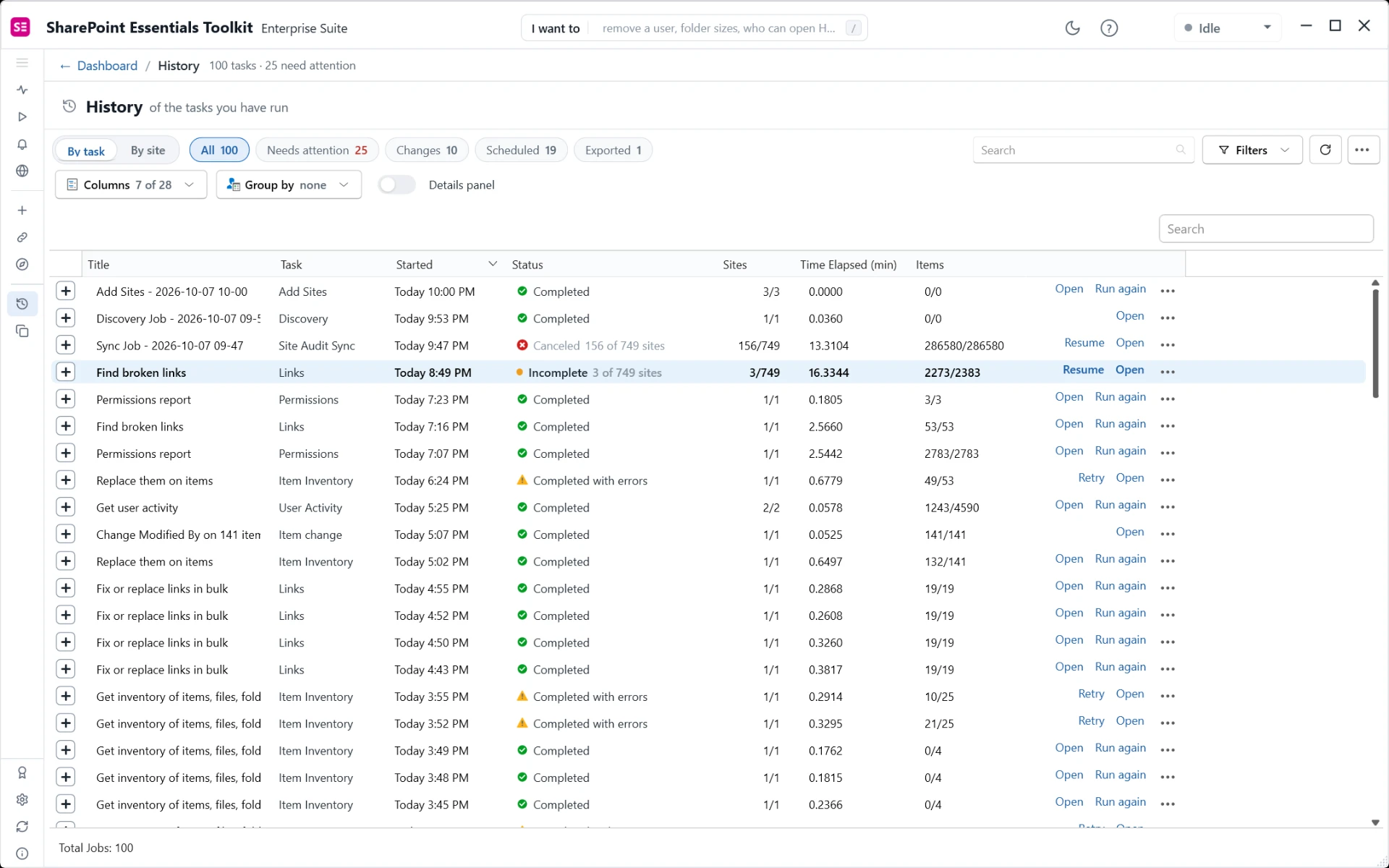
Figure 1. History. The incomplete and canceled runs show Resume, runs that completed with errors show Retry, and completed runs show Run again. Needs attention lists only the first two kinds.
Select a row to see its details on the right (turn on Details panel if it is hidden). The panel shows the same Resume or Retry button, how many items and lists were processed, and every site in the run. Use the Failed and Done tabs to see which sites did not finish.
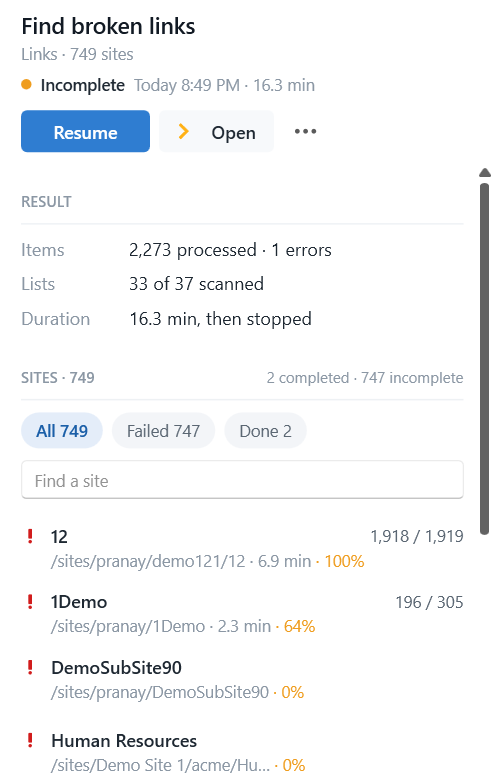
Figure 2. The details panel for a Find broken links run that stopped after 3 of 749 sites: 2 completed and 747 incomplete. The Failed tab includes sites that were never reached.
Part 2 — Resume or retry automatically
What Resume and Retry do
Resume and Retry are the same command. The label changes with the job's status. Both:
Remove finished sites — Sites that finished without errors are taken out of the copy. Failed sites and sites that were never reached stay in.
Skip finished lists — Lists that completed are skipped; lists that did not complete are run again.
Target items — For jobs that work on items, the toolkit writes an Excel file of item IDs to the ResumeFilters folder under your Reports folder, and adds a content filter that uses it. After an interrupted run, the filter skips the items that already finished (Item Guid is not equal to any value in the file). After a run that completed with errors, it targets only the failed items (Item Guid is equal to any value in the file).
Open the copy for review — The copy is a new History entry named after the original with (Resumed) or (Retry) added. The original run and its report are kept. The copy opens on the job options page and does not start until you select Resume Job or Retry Job.
Resume a job that stopped
1. In History, select Resume on the row, or the Resume button in the details panel. The toolkit shows Working out what is left to do while it reads the last run.
2. The job options page opens with a message that lists what was kept and skipped, for example: retrying 1 failed site, picking up 746 unfinished sites, removed 2 finished sites, skipping 15 finished lists, re-running 5 unfinished lists, skipping the 2,185 items the last run finished.
3. Check the pages in the Options list. Sites shows only the sites still to do. Content Filters shows Filtered, with the rule the toolkit added.
4. Select Resume Job.
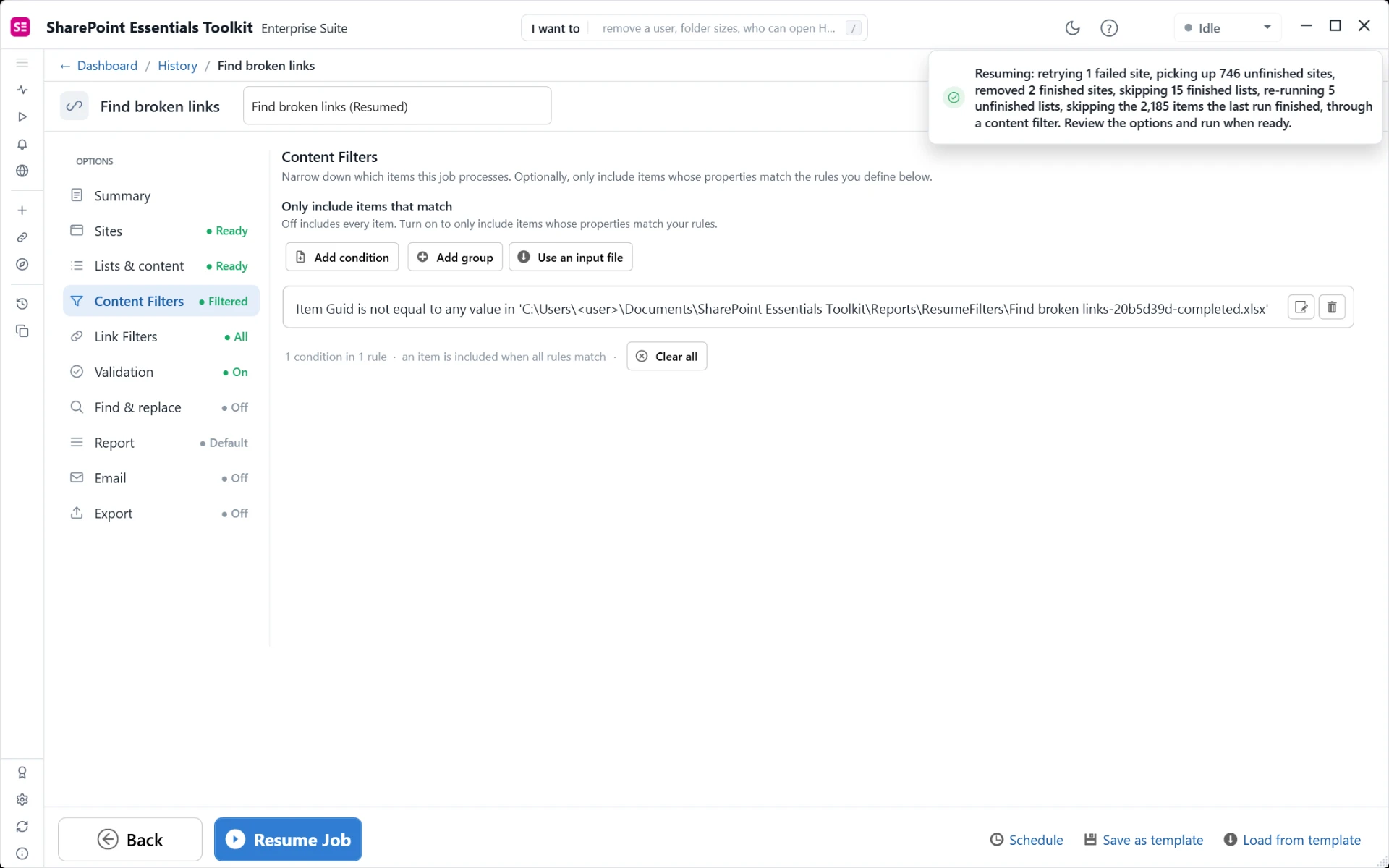
Figure 3. A resumed copy of Find broken links. The message at the top summarizes what is left. Content Filters holds the rule the toolkit added: skip every item listed in the completed-items file.
Retry only what failed
1. In History, select Retry on a row with the status Completed with errors.
2. The copy opens, named (Retry), with a message such as retrying 1 failed site, targeting 1 failed item through a content filter.
3. Review the options, then select Retry Job.

Figure 4. A Retry copy of an inventory job. Only the failed site is in scope, and a content filter targets the one failed item.
An item counts as failed when its status in the report is an error, a time-out, access denied, a corrupted item, or a password-protected file. Items that only have warnings are not retried, and a job that completed with warnings only does not show Retry.
Change the copy before you run it
The resumed or retried copy is an ordinary job, so you can change anything before you run it.
Add or remove sites — Open Sites and select Edit.
Change what is targeted — Open Content Filters. Select the pencil on the toolkit's rule to change it, or the bin to remove it and process every item in the remaining lists. You can add your own conditions as well; they are combined with AND.
Fix the cause first — If items failed because of throttling or time-outs, you can raise Wait for throttling to clear up to (default 90 seconds) in Settings, under Jobs, All jobs, Timeouts, before you retry.
Schedule it — The copy is not scheduled, even if the original was. Use Schedule in the footer if you want it to run later.
Other options on the History row
Select ··· at the end of a row (or right-click it) for the full menu.
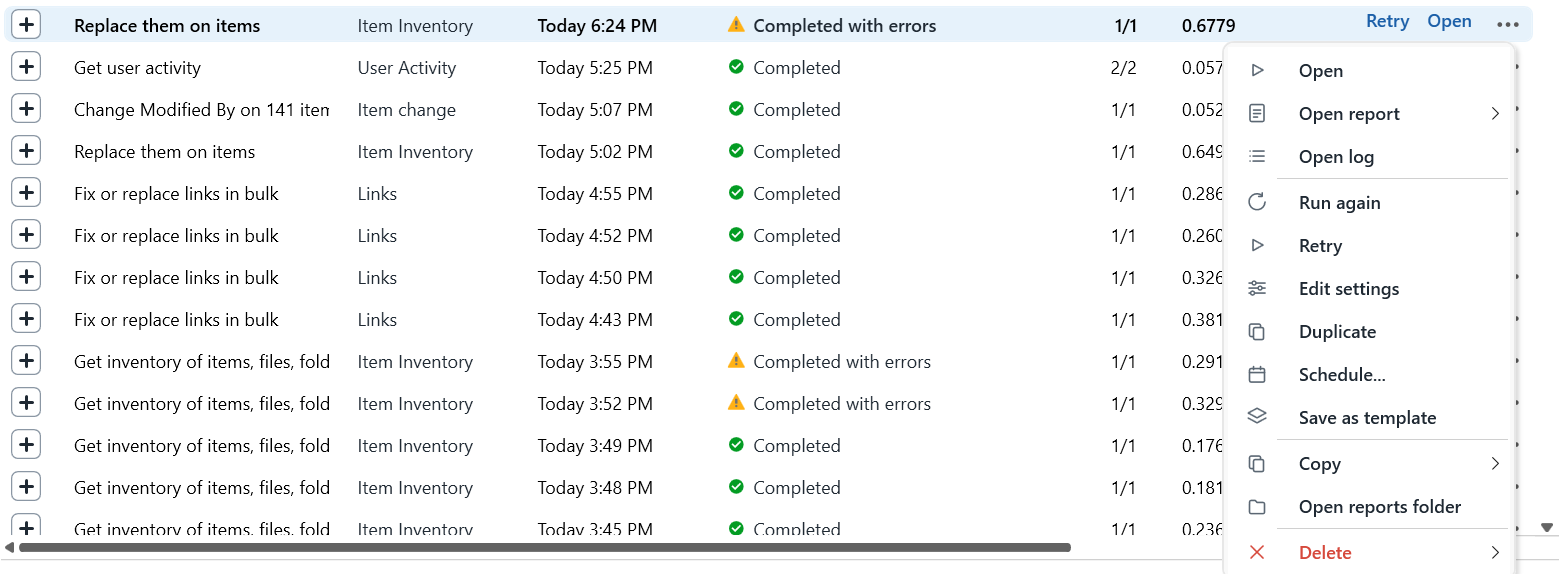
Figure 5. The menu for a History row.
Run again — Starts the same task again, with the same settings and every site, straight away. Nothing is skipped.
Retry, Resume — The narrowed copy described above.
Edit settings — Opens the task's options so you can change them and run it as a new entry.
Duplicate — Opens a copy named (Copy) with the same settings. It is not narrowed.
Save as template — Keeps the settings for reuse from the Templates page.
In the details panel, Retry (or Retry these N) under the sites list is a quicker, coarser option: it starts a new run straight away on only the sites that did not complete. It does not open the options and does not narrow lists or items.
Part 3 — Choose the items yourself (manual method)
Use this when you want a specific set of items: a list someone gave you, items from one part of a report, or items from a run older than the History you keep.
Step A — Make the input file
From a report:
1. In History, select Open on the row to open its report.
2. Filter the grid to the rows you want. Right-click any column header and select Filter Editor, or use the filter on a column such as Status.
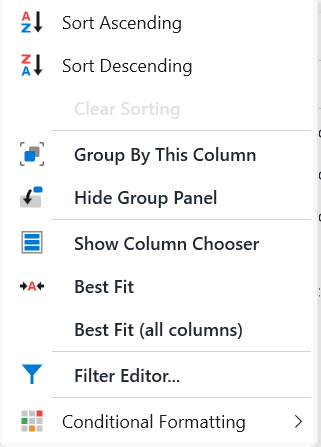
Figure 6. Right-click a column header for Filter Editor.
3. Select Export, then Simple · values only. The export has the same rows as the grid, with its current filters.
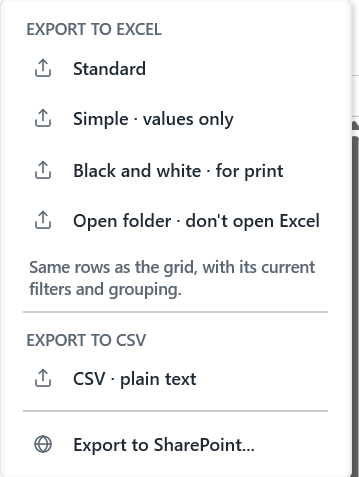
Figure 7. Export uses the grid's current filters. Simple · values only gives plain values that are easy to trim.
4. In Excel, keep only the column you will filter on (for example Item Url or Item Guid), move it to column A of the first sheet, and delete the header row. Save as .xlsx.
Or build the file by hand: one value per row in column A of the first sheet, no header row, saved as .xlsx. Paths must be full URLs, without quotes, for example https://contoso.sharepoint.com/sites/projects/Shared Documents/Plan.docx.
Step B — Add it as a content filter
1. Open the job's options (Edit settings in History, or start a new task) and select Content Filters in the Options list.
2. Select Use an input file. The condition editor opens with Use input file turned on.
3. Pick the field that matches your column, for example Item, File or Folder Path, Item Id, or Item Guid.
4. Pick the operator. is equal to processes only the items in the file. is not equal to skips them and processes everything else. contains, starts with and the other operators also work with a file.
5. Leave ANY value in selected, so an item matches when it matches any row of the file.
6. Select Browse, choose the .xlsx file, then select Add. The condition is not saved until you select Add.

Figure 8. A condition that uses an input file: process only the items whose path is in the file.
The file is read each time the job runs, including scheduled runs. If you update the file later, the next run uses the new values; you do not need to add it again.
Tips
Resume shows nothing left to do — Every site finished. Use Run again for a fresh run.
Very large runs — Item filtering covers up to 1,000,000 items. Beyond that, the unfinished lists are scanned again in full.
Change jobs — Jobs that apply changes from a report (permission changes, item changes) are not retried from History. Open the change log and use Retry failed there.
Paused, not stopped — If a job is paused in this session, Resume on the running job continues the same run instead of making a copy.
Questions? Contact support@cognillo.com. We reply within one business day.