How to Recover Deleted Files, Libraries and Sites in SharePoint Online (Recycle Bin, Restore a Library, PowerShell)
Published:
Last updated: 2026-10-29
Deleted SharePoint files go to the site recycle bin, and then to the second-stage (site collection) recycle bin, for 93 days in total by default. Restore them from Recycle bin in the site navigation. To undo many changes at once, use Restore this library to roll a library back to any time in the last 30 days. Deleted sites stay in the SharePoint admin center under Deleted sites for 93 days. PnP PowerShell restores recycle bin items in bulk.
What you can recover, and for how long
What was lost | Where to get it back | How long |
|---|---|---|
File, folder, list item, list or library | Site recycle bin, then second-stage recycle bin | 93 days from the original delete, across both stages |
Many files changed, deleted or encrypted | Restore this library (or Restore your OneDrive) | Any time in the last 30 days |
A file's earlier content, overwritten | Version history on the file | As long as the version is kept |
Whole site | SharePoint admin center > Deleted sites | 93 days |
Microsoft 365 group behind a team site | Microsoft 365 admin center > Deleted groups | 30 days |
The 93 days count from when the item was first deleted, not from when it moved to the second stage. Microsoft explains the stages in Restore items in the Recycle Bin of a SharePoint site.
Option 1: Recover with built-in tools
Files, folders and libraries
On the site, select Recycle bin in the left navigation, or go to Site contents > Recycle bin.
Select the items and choose Restore. With edit permission you can restore what other people deleted, not just your own. They go back to their original location, and a deleted folder is recreated if needed.
If the item isn't there, scroll to the bottom and select Second-stage recycle bin. Items land there when someone empties or deletes from the site recycle bin. You need to be a site collection admin to see it.
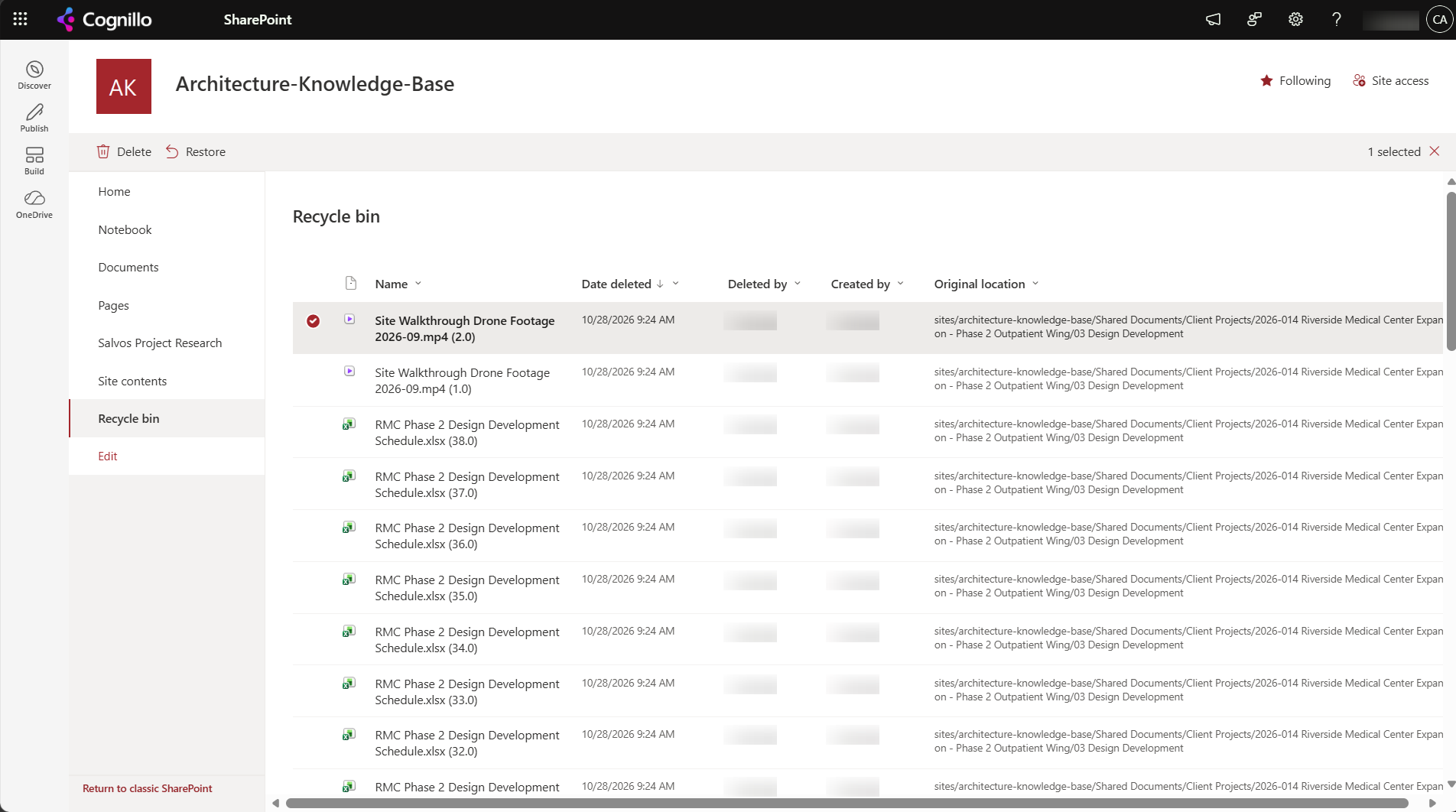
The site recycle bin. Deleted file versions appear here too, labelled with their version number.
What to know:
A file can't be restored if its library was deleted. Restore the library first; its files come back with it.
Recycle bin items count against the site's storage quota until they are emptied or expire.
The 93 days is the default. Admins can change it for the tenant, so check yours if you're relying on it.
Roll back a whole library
For mass deletes, a bad sync, or ransomware, open the library, select the settings gear > Restore this library, and pick a date or a point in the activity chart. Everything changed after that point is undone. Microsoft covers it in Restore a shared library. Only site owners and admins can start it, it needs version history turned on, and a restore can itself be undone by running Restore this library again.
Deleted sites
In the SharePoint admin center, go to Sites > Deleted sites.
Select the site and choose Restore. The page restores one site at a time.
A site connected to a Microsoft 365 group is restored with its group within the group's 30 days. After that the group, its mailbox and its Teams team are gone, even though the site can still come back. See Restore deleted sites.
After 93 days, Microsoft keeps backups for another 14 days and support can restore a whole site from them, overwriting its current content. Anything older needs a backup product such as Microsoft 365 Backup.
Option 2: Restore in bulk with PowerShell
The recycle bin page gets slow with thousands of items, and it can't filter by who deleted them. This PnP PowerShell script lists what one person deleted on a site in the last few days, across both stages, and restores it when you set $WhatIf = $false. It needs PnP PowerShell 2.x, your own Entra ID app registration, and site collection admin rights.
# Restore everything one person deleted on a site in the last N days
$ClientId  = "<your-app-id>"
$SiteUrl   = "https://contoso.sharepoint.com/sites/Projects"
$DeletedBy = "alex.wilber@contoso.com"
$Days      = 7
$WhatIf    = $true    # set to $false to restore
Connect-PnPOnline -Url $SiteUrl -Interactive -ClientId $ClientId

$since = (Get-Date).AddDays(-$Days)
$items = Get-PnPRecycleBinItem -RowLimit 50000 |
    Where-Object { $_.DeletedByEmail -eq $DeletedBy -and $_.DeletedDate -gt $since } |
    # Restore containers before what was in them
    Sort-Object @{ Expression = { switch ($_.ItemType) { 'List' { 0 } 'Folder' { 1 } default { 2 } } } }, DirName

$items | Select-Object ItemType, LeafName, DirName, ItemState, DeletedDate | Format-Table -AutoSize
"{0} items, {1:N1} MB" -f $items.Count, (($items | Measure-Object Size -Sum).Sum / 1MB)

if (-not $WhatIf) {
    foreach ($item in $items) {
        try { Restore-PnPRecycleBinItem -Identity $item -Force }
        catch { Write-Warning "$($item.DirName)/$($item.LeafName): $($_.Exception.Message)" }
    }
}
For deleted sites, use the SharePoint Online Management Shell:
Connect-SPOService -Url "https://contoso-admin.sharepoint.com"
Get-SPODeletedSite | Select-Object Url, DeletionTime, DaysRemaining
Restore-SPODeletedSite -Identity "https://contoso.sharepoint.com/sites/Projects"
What to know:
ItemStateshows which stage each item is in. Both restore the same way.If a file with the same name has since been created in the original location, the restored one comes back with a number added to its name.
Add
-IncludePersonalSitetoGet-SPODeletedSiteto include deleted OneDrive accounts.
Where SharePoint Essentials Toolkit fits
The toolkit doesn't report on or restore from the recycle bin. Two things are worth knowing if you use it to clean up:
Trimmed versions go to the recycle bin. When the toolkit deletes old file versions, it recycles them, so they can be restored from here for the usual 93 days. The versions in the screenshot above were trimmed that way. Microsoft's own version limits and trim jobs delete versions permanently instead.
Permission and sharing changes can be undone from History, without the recycle bin.
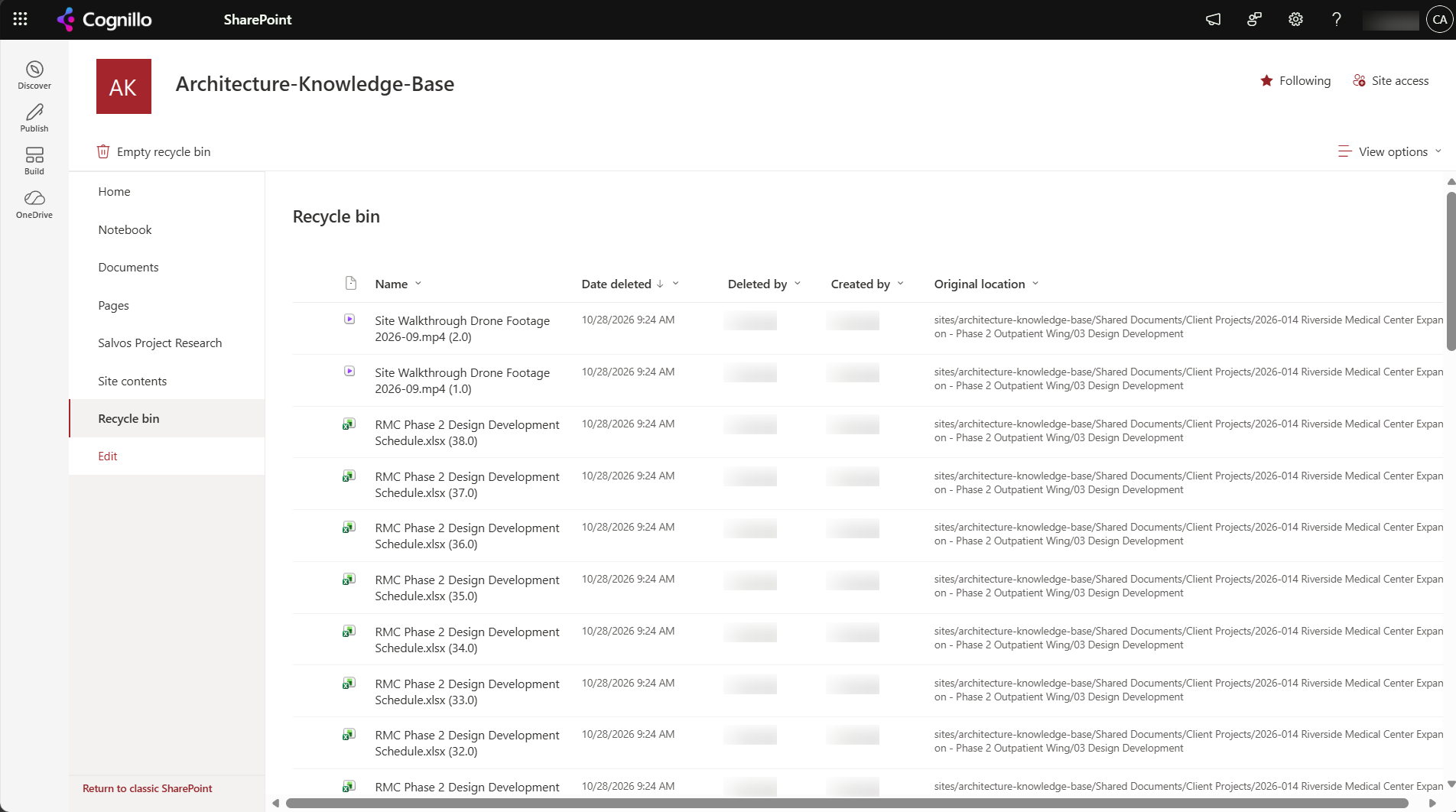
Old versions trimmed with the toolkit, still recoverable from the recycle bin.
See Version history taking up storage for how to trim them.
Frequently asked questions
How long do deleted files stay in the SharePoint recycle bin?
93 days by default, counted from when the item was first deleted. That time covers both the site recycle bin and the second-stage recycle bin; moving an item to the second stage does not reset it.
Where is the second-stage recycle bin in SharePoint?
Open the site's recycle bin and scroll to the bottom, then select Second-stage recycle bin. You need to be a site collection admin to see it. Items land there when someone deletes them from, or empties, the site recycle bin.
Can I restore a deleted SharePoint site?
Yes, for 93 days. In the SharePoint admin center go to Sites, Deleted sites, select it and choose Restore, or run Restore-SPODeletedSite. A group-connected site's Microsoft 365 group is only kept for 30 days.
How do I undo a mass delete in a SharePoint library?
Use Restore this library from the library's settings gear and pick a point before the delete. It rolls back every change after that point, up to 30 days ago. For a selective restore, filter the recycle bin by who deleted the items with Get-PnPRecycleBinItem and restore them with Restore-PnPRecycleBinItem.
Can I get back file versions deleted by a version limit?
No. Versions removed by SharePoint's version history limits or by Microsoft's trim jobs skip the recycle bin and are gone. Versions deleted by hand from Version history, or trimmed with SharePoint Essentials Toolkit, go to the recycle bin and can be restored.
Clean up SharePoint without losing what you might need back
SharePoint Essentials Toolkit Community Edition is free. Trim old versions into the recycle bin, and undo permission and sharing changes from History, on up to 20 sites per Microsoft 365 tenant. Get your free Community Edition license key.
About the author. The Cognillo SharePoint Team builds and supports SharePoint Essentials Toolkit and has worked with SharePoint administrators on permissions audits, migrations and cleanup projects since 2012.