SharePoint Version History Taking Up Storage? How to Find and Trim Old Versions (Limits, PowerShell, Free Tool)
Every version of every SharePoint file counts against storage, and libraries keep 500 major versions by default with no expiration. Set version history limits at the tenant, site or library level for new versions, then trim existing versions with a trim job in the SharePoint Online Management Shell. To find which files hold the most versions and trim them selectively, use the free SharePoint Essentials Toolkit.
Published:
Last updated: 2026-10-29
Why versions use so much storage
SharePoint stores every version as a full copy of the file. A 48 MB video saved four times uses 192 MB; a spreadsheet saved 40 times keeps 40 copies. Most libraries are created with versioning on, 500 major versions and no expiration, so storage grows with every save and AutoSave adds versions quickly.
The limits that matter, from Microsoft's Version history limits for document library and OneDrive:
- A library can keep up to 50,000 major versions and 511 minor versions per file.
- Limits are Automatic (SharePoint decides based on age and how often a version is opened) or Manual (a version count, optionally with an expiration in days). The settings pages won't go below 100 versions or 30 days.
- New limits apply to versions created from then on. Existing versions stay until a trim job removes them.
- Versions removed by limits or by trim jobs skip the recycle bin and can't be restored.
Option 1: Set limits with built-in tools
| Level | Where | Applies to |
|---|---|---|
| Tenant | SharePoint admin center > Settings > Version history limits | New libraries and OneDrive accounts |
| Site | Site settings > Version history limits (site collection admin) | New libraries, and optionally existing ones |
| Library | Library settings > Versioning settings | That library |
To trim a single file, open its Version history and delete old versions, or select Delete all versions. Versions deleted this way go to the recycle bin. There's no built-in page that shows which libraries or files hold the most version history; Storage Metrics in Site settings shows sizes including versions, folder by folder.
Option 2: Trim existing versions with PowerShell
The SharePoint Online Management Shell queues trim jobs that run in the background. Start with a what-if report, which writes a CSV of every version and what a policy would remove, without deleting anything:
Connect-SPOService -Url "https://contoso-admin.sharepoint.com"
$Site   = "https://contoso.sharepoint.com/sites/Projects"
$Report = "$Site/Shared Documents/version-report.csv"

# 1. What-if: list every version and its size (nothing deleted)
New-SPOSiteFileVersionExpirationReportJob -Identity $Site -ReportUrl $Report
Get-SPOSiteFileVersionExpirationReportJobProgress -Identity $Site -ReportUrl $Report

# 2. Trim, once you've checked the report. Pick one:
New-SPOSiteFileVersionBatchDeleteJob -Identity $Site -DeleteBeforeDays 365
# New-SPOSiteFileVersionBatchDeleteJob -Identity $Site -MajorVersionLimit 100 -MajorWithMinorVersionsLimit 0
# New-SPOSiteFileVersionBatchDeleteJob -Identity $Site -Automatic

Get-SPOSiteFileVersionBatchDeleteJobProgress -Identity $Site
# Remove-SPOSiteFileVersionBatchDeleteJob -Identity $Site    # cancel a job that hasn't finished

# 3. Stop it growing back: set limits for the site's new and existing libraries
Set-SPOSite -Identity $Site -EnableAutoExpirationVersionTrim $true -ApplyToExistingDocumentLibraries
For one library, use New-SPOListFileVersionBatchDeleteJob -Site $Site -List "Documents" with the same options.
What to know:
- Trim jobs delete permanently. There's no recycle bin and no undo, so run the what-if report first.
- Jobs can take hours or days on large sites. Check progress with the
Progresscmdlets. - The current version of a file is never deleted, and files under retention policies or holds keep their versions.
- Tenant-wide trim jobs are in preview and need SharePoint Advanced Management. Without them, loop over sites with
Get-SPOSite.
Option 3: Find and trim old versions with SharePoint Essentials Toolkit
The toolkit shows where the version history is, then trims the files you pick, sending the removed versions to the recycle bin so they can still be restored.
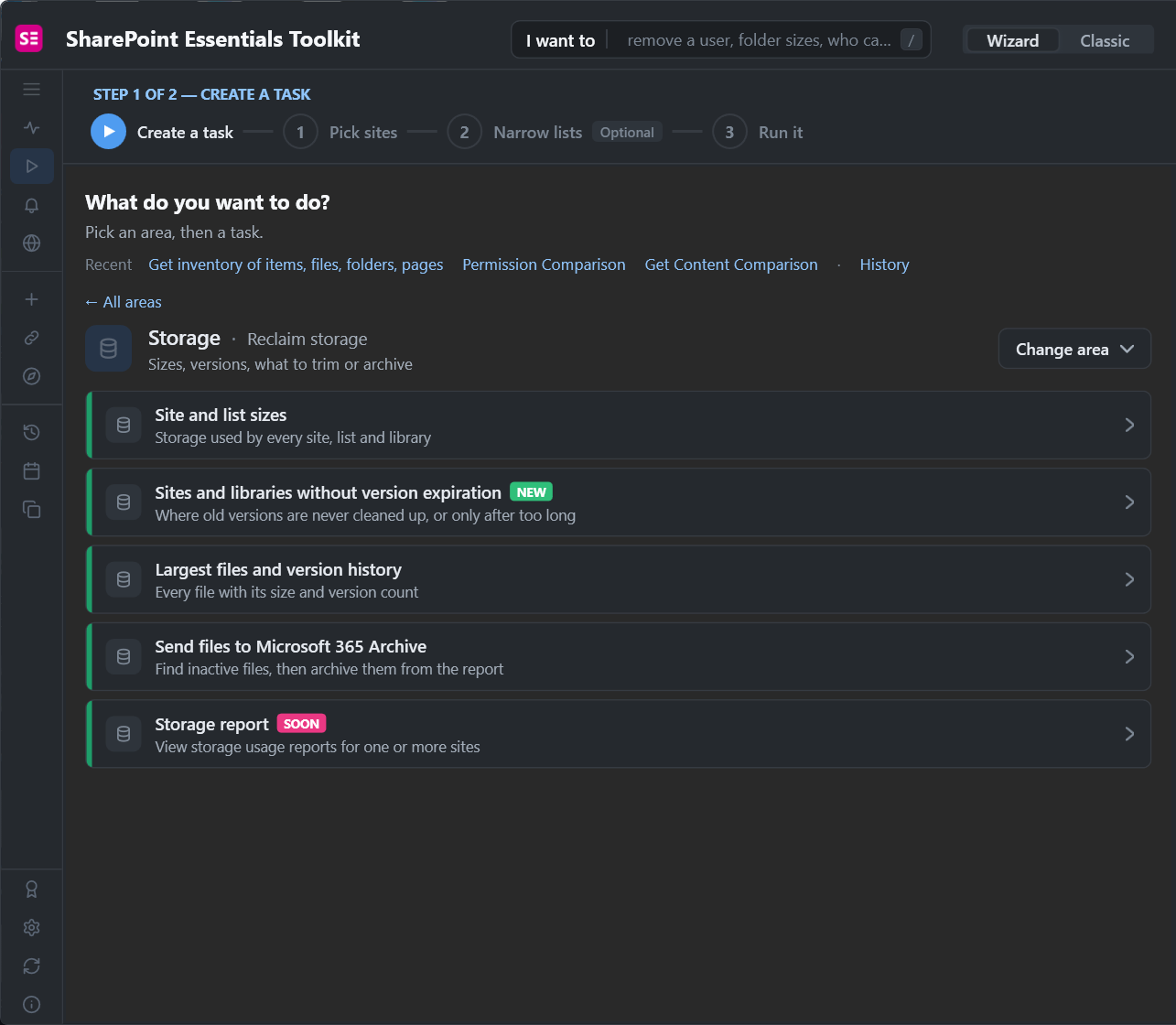
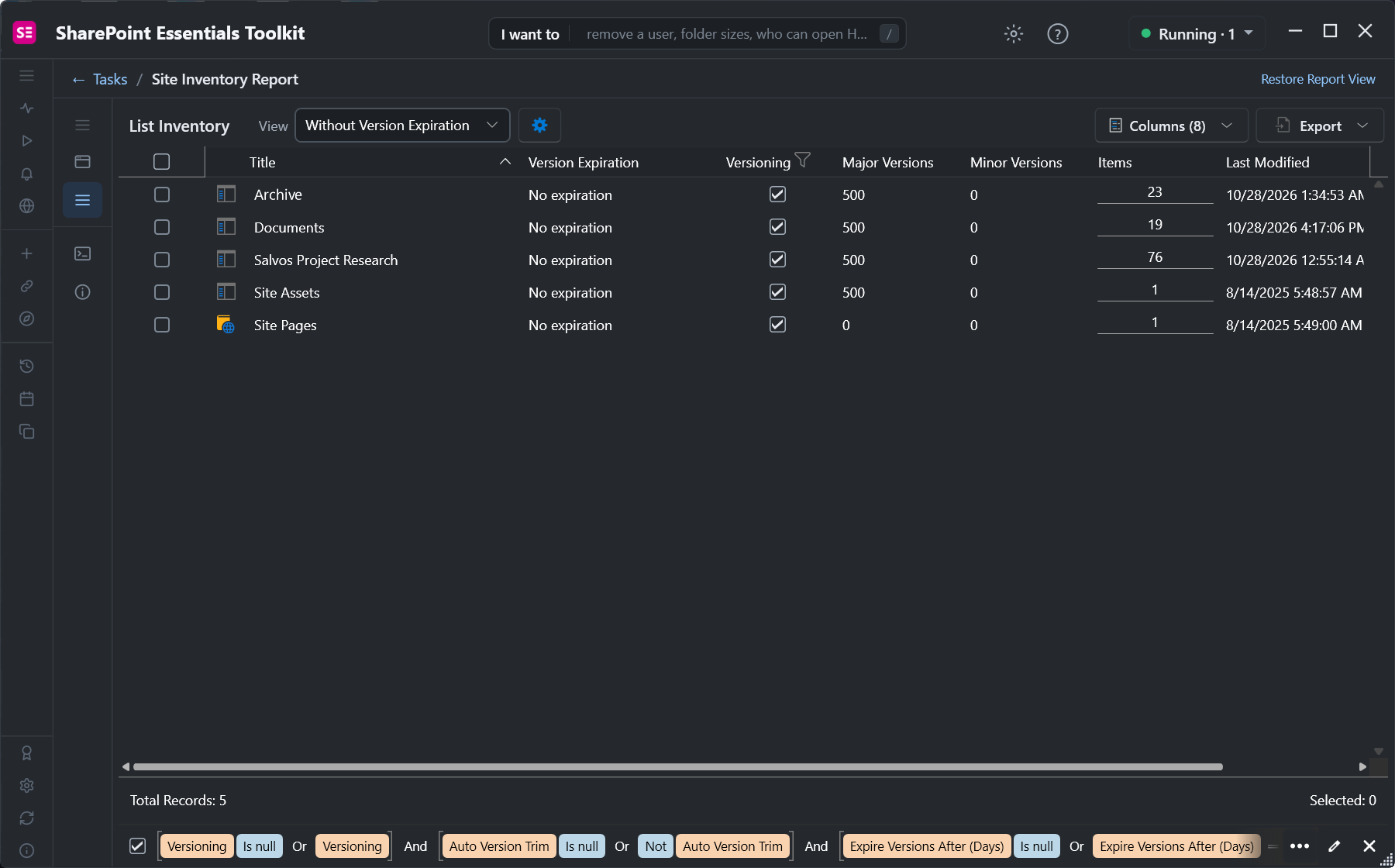
1. Find libraries that never expire versions
Sites and libraries without version expiration lists every library with no expiration set. On our test site, all five libraries kept 500 major versions with no expiration.
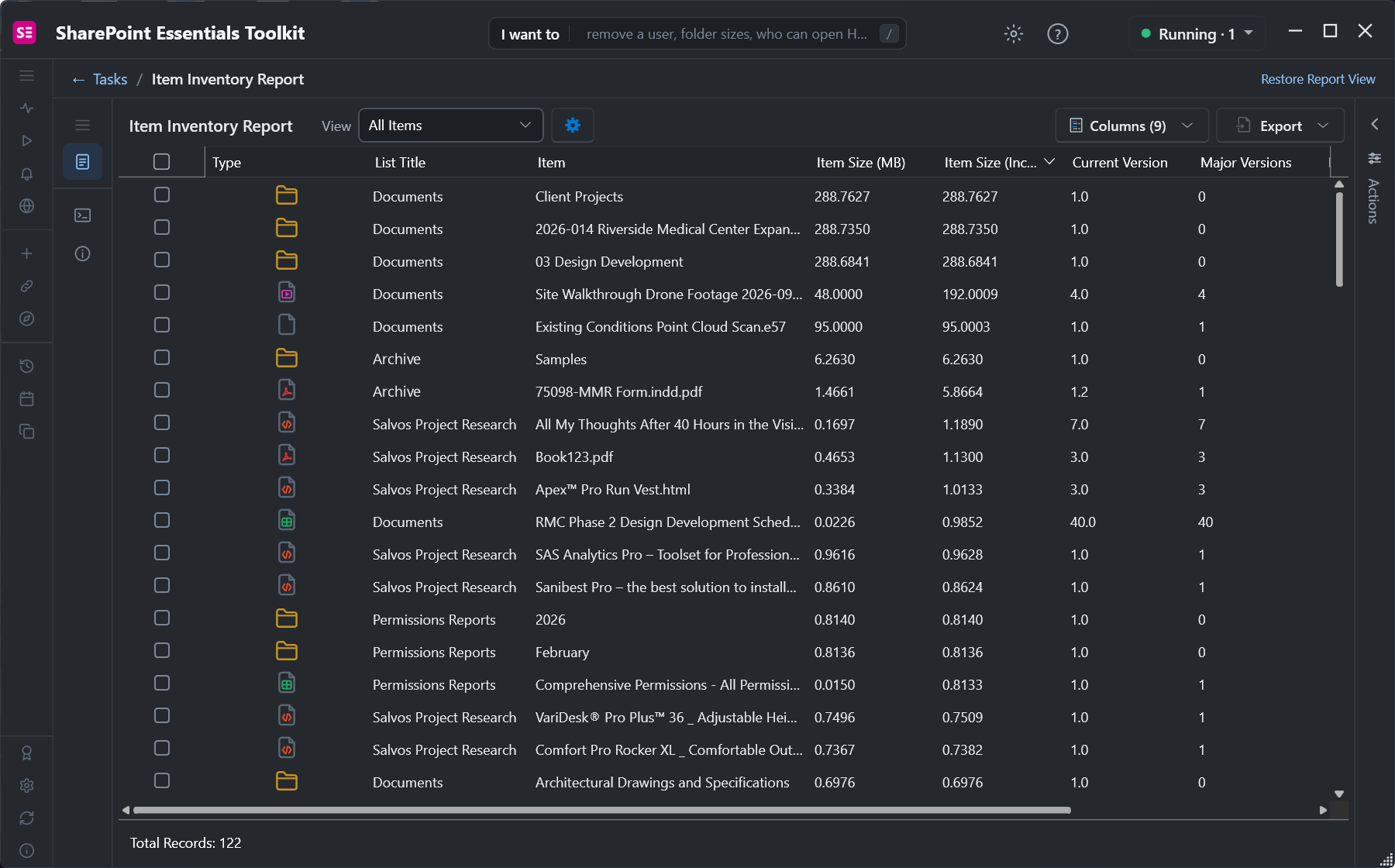
2. Find the files holding the most versions
Largest files and version history lists every file with its size, its size including all versions, and its version count. Sort by Item Size (Incl. all versions) or Major Versions.
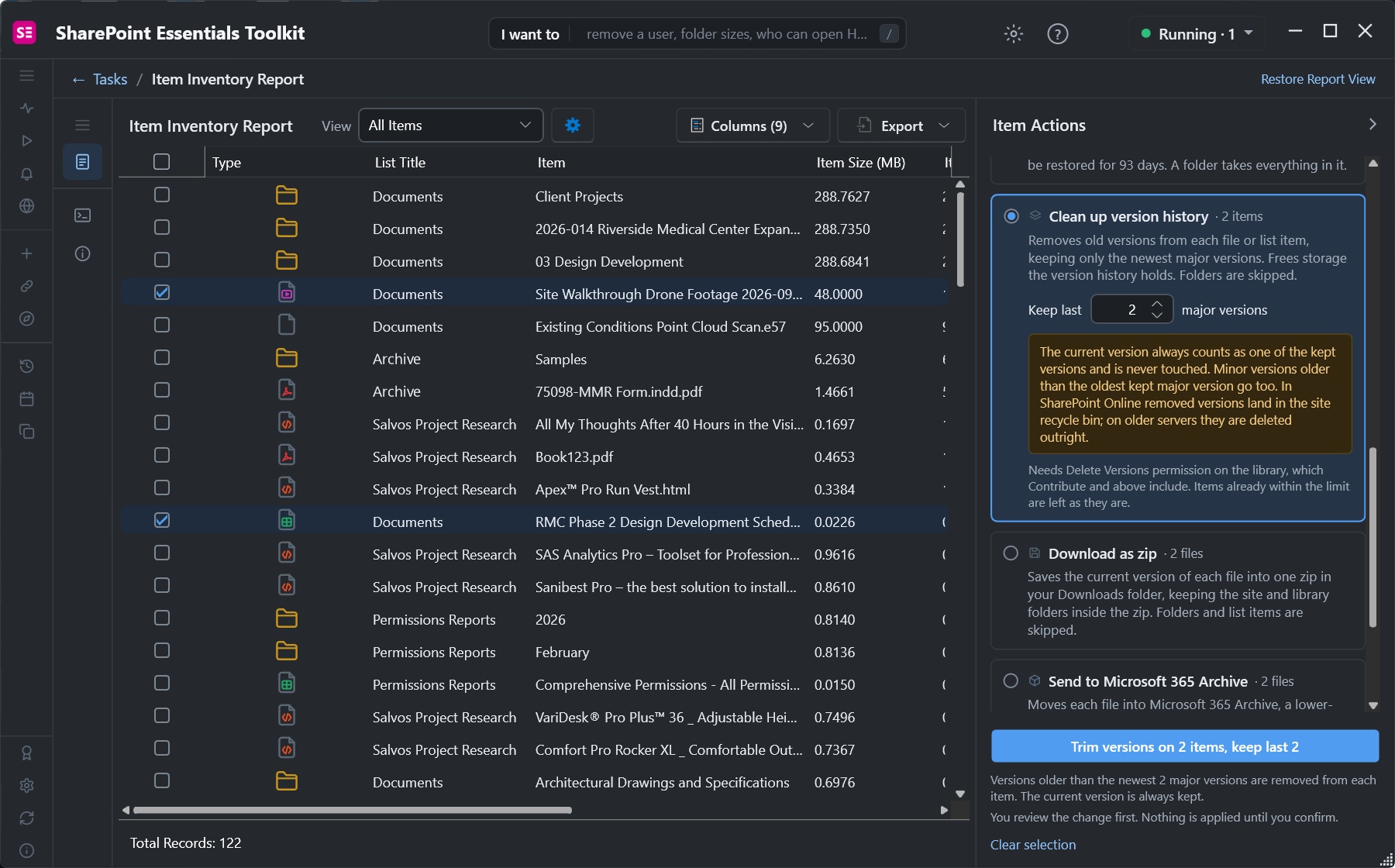
3. Trim the versions you don't need
Tick the files, open Actions and choose Clean up version history. Set how many major versions to keep. The current version always counts as one of them and is never touched.
The review lists each file and what will be removed before anything happens.
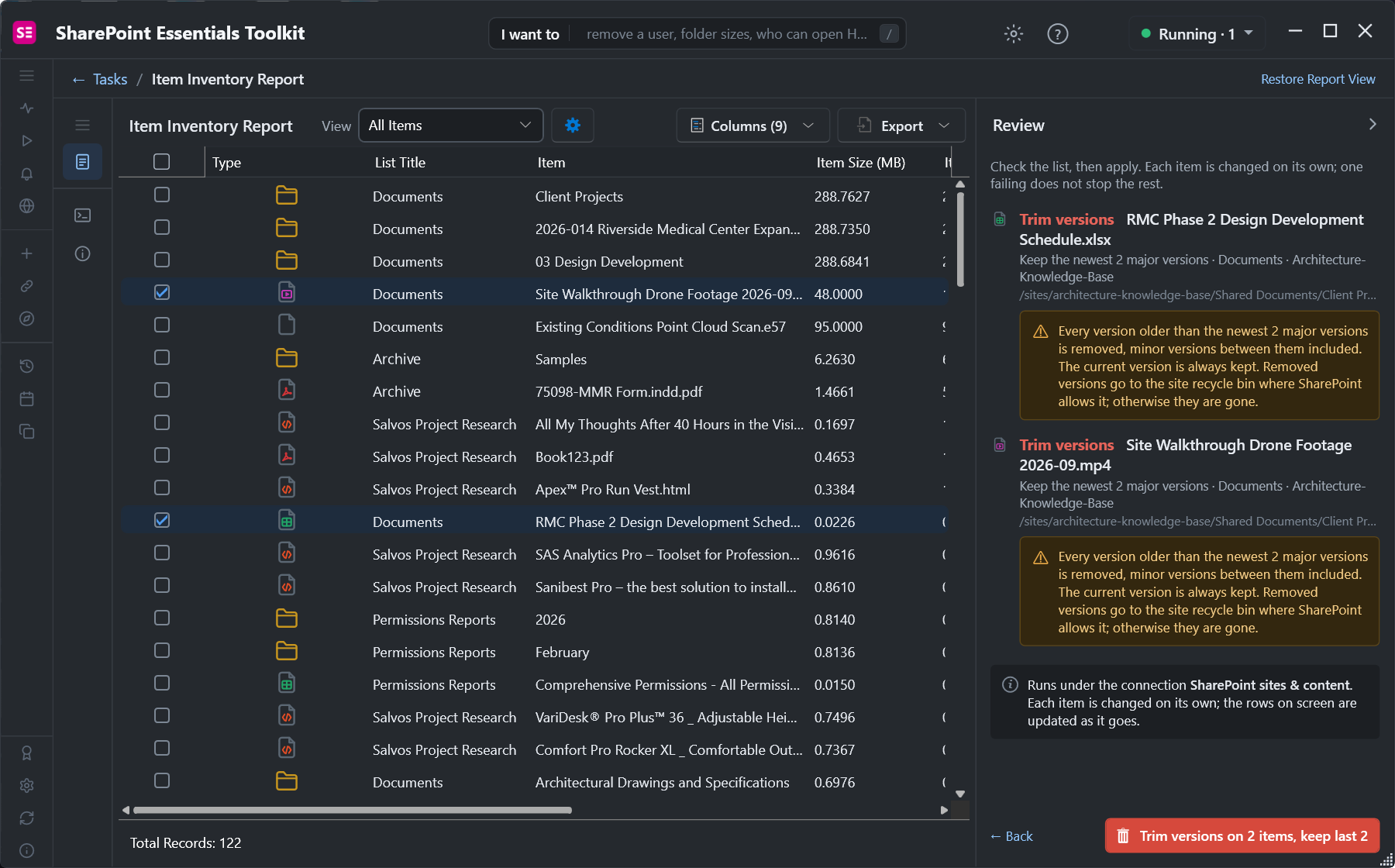
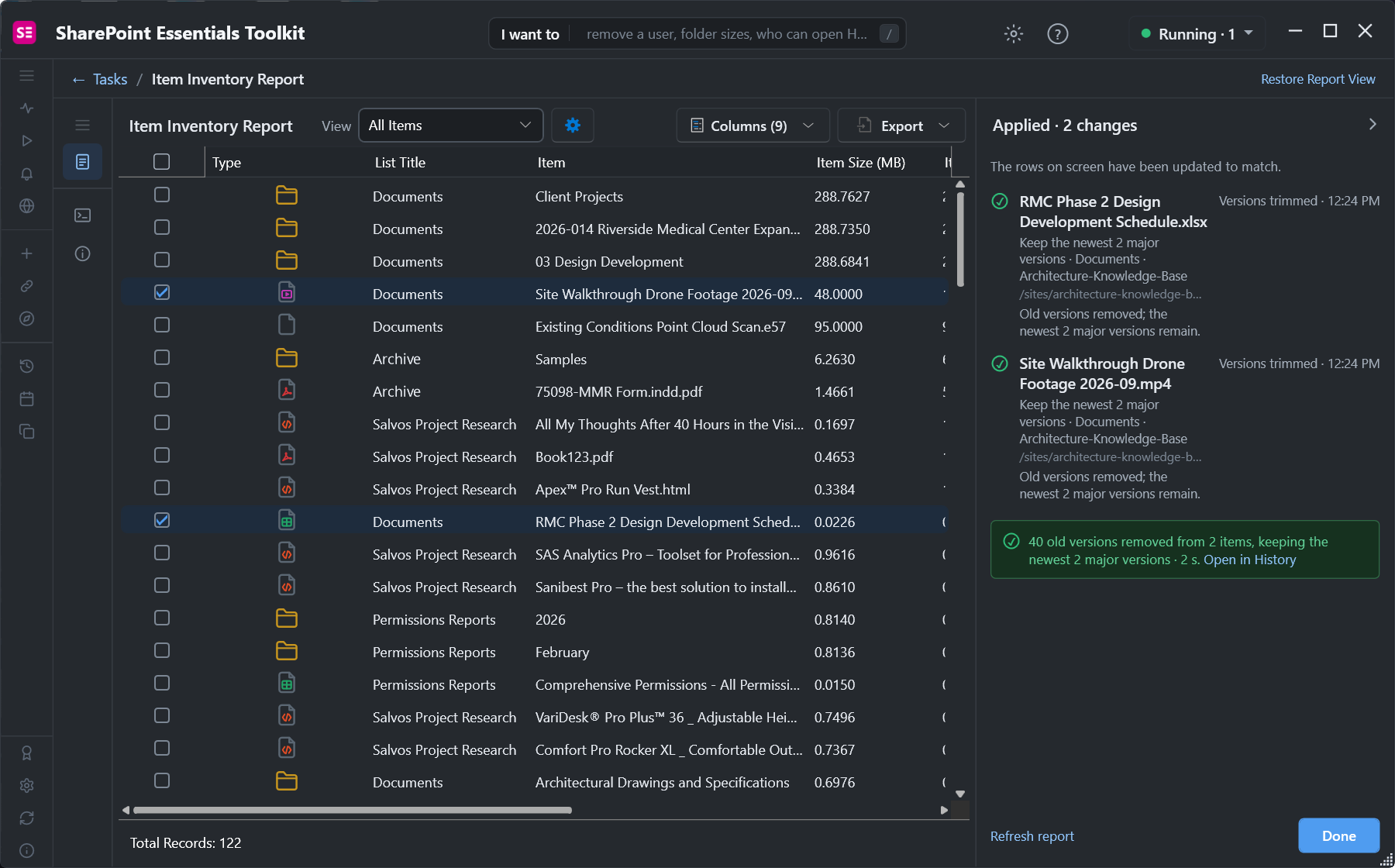
The trimmed versions showed up in the site recycle bin straight away; see How to recover deleted files and sites. Recycled versions still count against storage until the recycle bin is emptied or they expire, so empty it once you're sure.
Frequently asked questions
Do SharePoint file versions count against storage?
Yes. Every version is stored as a full copy and counts against the site's storage quota. A file saved often can use many times its own size.
How many versions does SharePoint keep by default?
New libraries usually keep 500 major versions with no expiration, unless your organization has set different version history limits for the tenant or site.
Does changing the version limit delete existing versions?
No. New limits apply to versions created afterwards. To remove existing versions, run a trim job with New-SPOSiteFileVersionBatchDeleteJob or New-SPOListFileVersionBatchDeleteJob, or trim selected files with SharePoint Essentials Toolkit.
Can I restore versions removed by a trim job?
No. Versions removed by version history limits or Microsoft's trim jobs are permanently deleted. Versions deleted from a file's version history, or trimmed with SharePoint Essentials Toolkit, go to the recycle bin and can be restored for 93 days by default.
How do I find which SharePoint files have the most versions?
Run a what-if report with New-SPOSiteFileVersionExpirationReportJob, or run Largest files and version history in SharePoint Essentials Toolkit and sort by size including all versions or by major versions.
Find and trim old SharePoint versions free
SharePoint Essentials Toolkit Community Edition is free. Find libraries without version expiration and the files holding the most versions, then trim them into the recycle bin, on up to 20 sites per Microsoft 365 tenant. Get your free Community Edition license key.