SharePoint Says "Access Denied" or "You Need Permission" After You Granted Access? Seven Causes and Fixes
Published:
Last updated: 2026-10-29
If SharePoint still says access denied after you granted access, the person usually has access to a file but is opening the site, is signed in with a different account, or is waiting for a group membership change to reach SharePoint. Less often, their account was deleted and re-created with the same name, which causes a site user ID mismatch. Check what they can actually reach with Check Permissions or a permissions report, then work through the causes below.
Seven reasons access is still denied
Cause | How to tell | Fix |
|---|---|---|
Access to a file, not the site | They were sent a file but open the site or library home | Send them the file link, or grant site access (add them to Members or Visitors) |
Different account | Several work or personal accounts signed in to the browser | Sign out of all accounts, or use an InPrivate window and sign in with the account you granted |
Group change not applied yet | Access was given through a security group or Microsoft 365 group | Wait, then sign out and back in. Membership changes can take a while to reach SharePoint. |
Granted to the wrong person | Two people with similar names in the people picker | Check the email address on the permission, not just the name |
Site user ID mismatch | The account was deleted and re-created with the same user name. The error may mention a "legacy user account". | Run Microsoft's Site User Mismatch diagnostic, or remove the user from the site and grant access again |
List settings hide items | The list uses "Read items that were created by the user" or draft item security | Change the list's Advanced settings or Versioning settings |
A policy blocks the site | Restricted site access, a locked site, conditional access, or a sensitivity label | Check the site in the SharePoint admin center and the user's Entra ID sign-in logs |
Microsoft's checklist is Access Denied or You need permission errors in SharePoint Online and OneDrive. For guests, see Guest user can't access a site.
Option 1: Check with built-in tools
On the site, go to Settings > Site permissions > Advanced permissions settings and select Check Permissions. Enter the person and select Check Now. "None" means they have no access to the site itself, even if a file was shared with them.
For a file, open Manage access and confirm they are listed, by email address.
In the Microsoft 365 admin center, run the Check User Access diagnostic for the user and site. It checks for ID mismatch, blocked sign-in and other account problems.
If you suspect an ID mismatch, run the Site User Mismatch diagnostic. It removes the old entry from the site's user list; then grant access again.
Option 2: Check effective permissions with PowerShell
This PnP PowerShell script asks SharePoint what one person can do on the site, a library and a file, which is what SharePoint uses when it decides to deny access. It also shows the site's stored user record so you can spot a stale one. It is read-only. It needs PnP PowerShell 2.x and your own Entra ID app registration.
# What can one person actually do here? (read-only)
$ClientId = "<your-app-id>"
$SiteUrl  = "https://contoso.sharepoint.com/sites/Projects"
$Library  = "Documents"
$FileUrl  = "/sites/Projects/Shared Documents/Budget 2026.xlsx"
$Login    = "i:0#.f|membership|james.smith@contoso.com"
Connect-PnPOnline -Url $SiteUrl -Interactive -ClientId $ClientId
$ctx = Get-PnPContext

$web  = Get-PnPWeb
$list = Get-PnPList -Identity $Library
$item = Get-PnPFile -Url $FileUrl -AsListItem
$checks = [ordered]@{
    "Site"    = $web.GetUserEffectivePermissions($Login)
    "Library" = $list.GetUserEffectivePermissions($Login)
    "File"    = $item.GetUserEffectivePermissions($Login)
}
$ctx.ExecuteQuery()

$kinds = "ViewPages", "Open", "ViewListItems", "OpenItems", "EditListItems", "ManagePermissions"
foreach ($scope in $checks.Keys) {
    $perm = $checks[$scope].Value
    $has  = $kinds | Where-Object { $perm.Has([Microsoft.SharePoint.Client.PermissionKind]::$_) }
    "{0,-8} {1}" -f $scope, ($(if ($has) { $has -join ", " } else { "NO ACCESS" }))
}

# The site's stored record for the user: compare with their current account
$user = Get-PnPUser -Identity $Login
Get-PnPProperty -ClientObject $user -Property UserId | Out-Null
$user | Select-Object Id, Title, Email, LoginName, @{ n = "NameId"; e = { $_.UserId.NameId } }
What to know:
ViewPagesandOpenat the site are what the site home page needs. A person with access to one file has neither, which is why they get "You need permission" on the site.NameIdis the account's ID as SharePoint stored it. If the account was re-created, it differs from the new account's, and only the diagnostic or removing the user from the site fixes it.Effective permissions include group membership SharePoint already knows about, so they can show access before a recent group change has reached the person's sign-in.
Option 3: See everything one person can reach with SharePoint Essentials Toolkit
Run Everything one person can access in the Permissions area with the person's name or email. It checks every site, list and item on the sites you pick, and groups the results by scope.
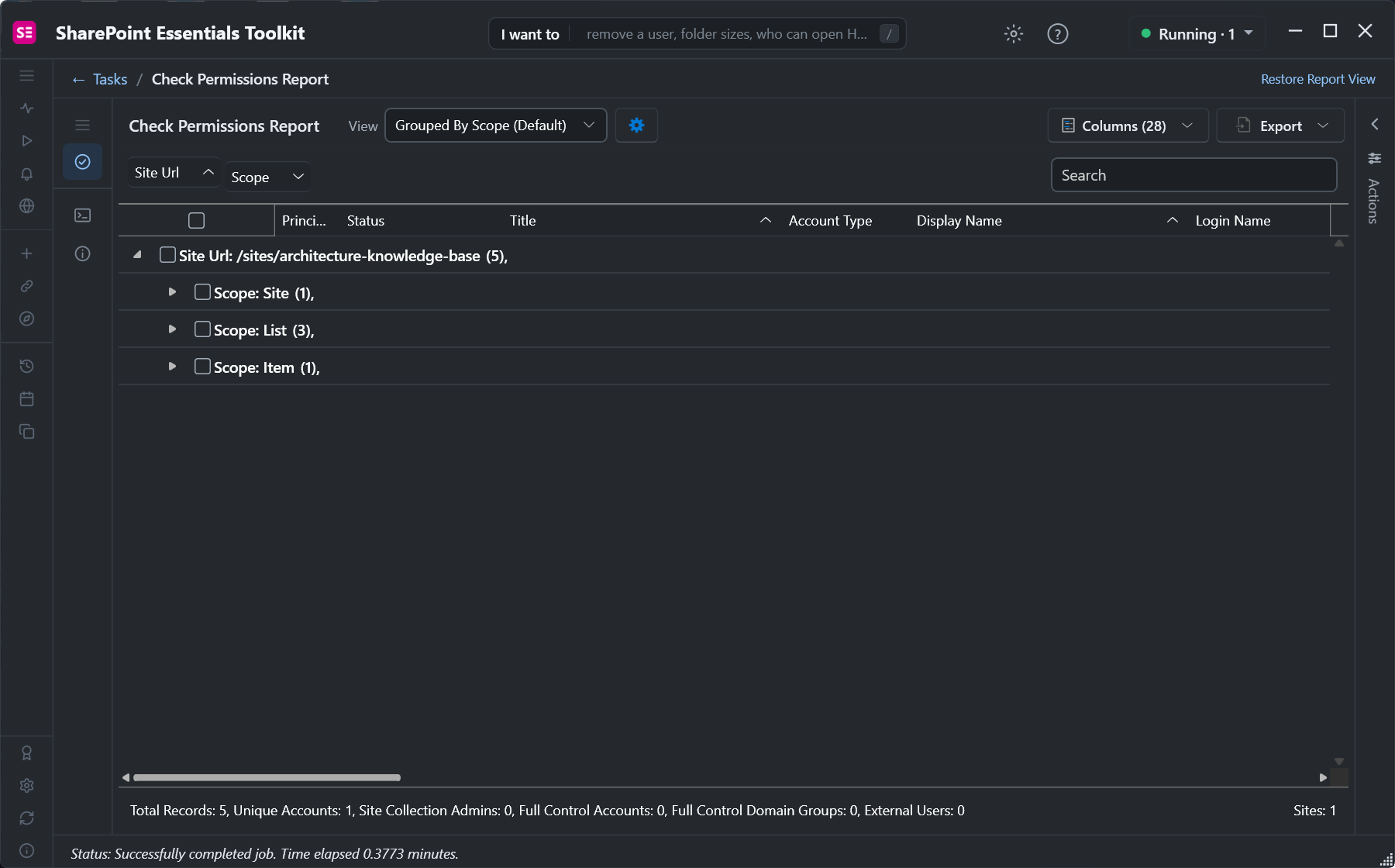
Results for one person, grouped by site, list and item.
This person was told they'd been given access, but got "You need permission" on the site. The report shows why: No Access to the site and its libraries, and Contribute on one file shared with them. They can open the file from its link, but not browse to it.
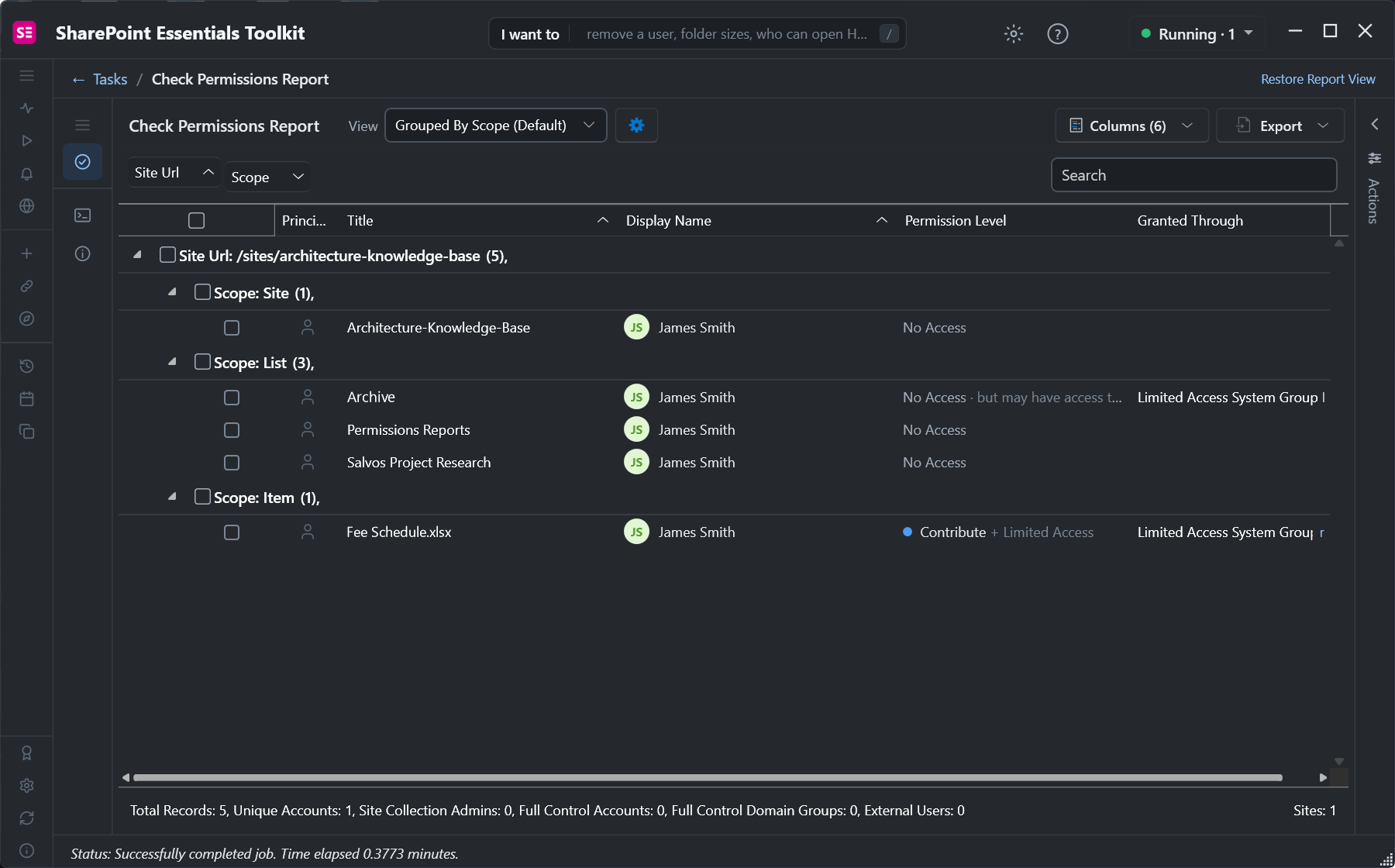
No access to the site, Contribute on one file. "But may have access" marks a library where they can only reach items below it.
It took 23 seconds for one site. The same report run across many sites shows whether the access you granted actually landed where you meant it to, and the Granted Through column shows whether it came from a group or a direct grant.
Every permissions report is free in Community Edition on up to 20 sites.
Frequently asked questions
Why does SharePoint say "You need permission" when I shared a file with them?
Sharing a file gives access to that file only. If the person opens the site or library instead of the file link, SharePoint denies access. Send them the file link, or add them to the site's Members or Visitors group.
How long do SharePoint permission changes take?
Direct grants and SharePoint group changes apply straight away. Changes to security groups or Microsoft 365 groups can take longer to reach SharePoint; have the person sign out and back in after a while.
What is a site user ID mismatch in SharePoint?
It happens when an account is deleted and re-created with the same user name. The site still holds the old account's ID, so the new account is denied. Microsoft's Site User Mismatch diagnostic removes the old entry; then grant access again.
How do I check what permissions a user has in SharePoint?
Use Check Permissions on the site's Advanced permissions settings page, read GetUserEffectivePermissions with PnP PowerShell, or run Everything one person can access in SharePoint Essentials Toolkit for every site, list and file at once.
Why can someone open a file from a link but not find it in the library?
They have access to the file but not to the library or site. SharePoint gives them Limited Access to the path so the link works, but that isn't enough to browse the library.
Check what anyone can access, free
SharePoint Essentials Toolkit Community Edition is free. See every site, list and file one person can reach, and how they got access, on up to 20 sites per Microsoft 365 tenant. Get your free Community Edition license key.
About the author. The Cognillo SharePoint Team builds and supports SharePoint Essentials Toolkit and has worked with SharePoint administrators on permissions audits, migrations and cleanup projects since 2012.