Guest User Can't Access a SharePoint Site or Redeem the Invitation? Causes, Checks and Fixes
Guests usually can't get in because the guest signed in with a different account from the one invited, the site or tenant doesn't allow guest sharing, the guest's domain is blocked, or the guest account is disabled, expired or still pending. Check the guest in Entra ID (Invitation state, Account enabled), then the site's and tenant's sharing settings. If the guest redeemed with the wrong account, reset their redemption status and invite them again.
Published:
Last updated: 2026-10-29
Common causes
| What the guest sees | Likely cause | Fix |
|---|---|---|
| AADSTS50020 "User account from identity provider does not exist in tenant", or "we couldn't find [email] in [organization]" | Signed in with a different account: a personal Microsoft account, another work account, or an alias | Sign out everywhere, open an InPrivate window and sign in with the invited email. Or reset redemption (below). |
| Access denied after signing in | The guest has two identities and permissions went to the other one | Grant access to the account they sign in with; remove the other |
| "Sharing is turned off" or the invite never arrives | The site or tenant doesn't allow guests | Raise the site's external sharing level (within the tenant's) |
| "Your organization doesn't allow sharing with this domain" | Domain allow or block list in SharePoint or in Entra ID collaboration settings | Add the domain to the allow list or remove it from the block list |
| Access worked, then stopped | Guest access expiration, an access review, or the account was disabled or deleted | Re-share, or extend the guest's access |
| Blocked at sign-in, MFA or terms of use | Conditional access policies for guests | Check the Entra ID sign-in logs for the policy that blocked them |
| Can open the team in Teams, but not Files | Guest added to the Microsoft 365 group, but the site doesn't allow guest sharing | Set the site's sharing to allow existing guests or more |
See Anyone links disabled and external sharing settings for how tenant and site sharing levels combine.
Option 1: Check the guest with built-in tools
- In the Microsoft Entra admin center, go to Users, search for the guest, and open their profile. Check Account enabled, the Invitation state (Pending acceptance or Accepted), and the identities they signed in with.
- If they redeemed with the wrong account, or never could, select Reset redemption status (on the profile's B2B collaboration card). They keep their permissions and get a new invitation to redeem with the right account.
- In the SharePoint admin center, open Active sites, select the site and check External file sharing on the Settings tab.
- Under Policies > Sharing, check Limit external sharing by domain and Guests must sign in using the same account to which sharing invitations are sent.
- For sign-in failures, open the guest's Sign-in logs in Entra ID. The failure reason names the conditional access policy or error code.
Microsoft's guide is Reset redemption status for a guest user.
Option 2: Check and fix guest access with PowerShell
This script checks the guest's Entra ID account, the tenant and site sharing settings that affect them, and whether the site has the guest under more than one login. It is read-only until the commented-out reset at the end. It needs the Microsoft Graph PowerShell SDK and the SharePoint Online Management Shell.
# Diagnose a guest who can't reach a site (read-only)
$GuestEmail = "carmen@acmesuppliers.com"
$SiteUrl    = "https://contoso.sharepoint.com/sites/Projects"

Connect-MgGraph -Scopes "User.Read.All"
$guest = Get-MgUser -Filter "mail eq '$GuestEmail'" -Property Id, DisplayName, UserPrincipalName, UserType,
    AccountEnabled, ExternalUserState, ExternalUserStateChangeDateTime, CreationType, Identities
$guest | Select-Object DisplayName, UserPrincipalName, UserType, AccountEnabled,
    ExternalUserState, ExternalUserStateChangeDateTime, CreationType
$guest.Identities | Select-Object SignInType, Issuer, IssuerAssignedId

Connect-SPOService -Url "https://contoso-admin.sharepoint.com"
Get-SPOTenant | Select-Object SharingCapability, SharingDomainRestrictionMode, SharingAllowedDomainList,
    SharingBlockedDomainList, RequireAcceptingAccountMatchInvitedAccount,
    ExternalUserExpirationRequired, ExternalUserExpireInDays
Get-SPOSite -Identity $SiteUrl | Select-Object SharingCapability, SharingDomainRestrictionMode,
    SharingAllowedDomainList, SharingBlockedDomainList

# Every login on the site for this guest: more than one means two identities
$domain = $GuestEmail.Split("@")[1]
Get-SPOUser -Site $SiteUrl -Limit All |
    Where-Object { $_.LoginName -like "*$($domain.Replace('.', '_'))*" -or $_.LoginName -like "*$domain*" } |
    Select-Object DisplayName, LoginName, IsSiteAdmin, @{ n = "Groups"; e = { $_.Groups -join ", " } }

# Reset redemption so the guest can redeem again with the right account (keeps their access)
# Connect-MgGraph -Scopes "User.Invite.All"
# New-MgInvitation -InvitedUserEmailAddress $GuestEmail -InviteRedirectUrl $SiteUrl `
#     -InvitedUser @{ Id = $guest.Id } -ResetRedemption -SendInvitationMessage
What to know:
ExternalUserStateofPendingAcceptancemeans the guest never redeemed. An old date withAcceptedand then failures usually means a second account.- A login containing
#ext#is an Entra ID B2B guest. A login likeurn:spo:guest#is a SharePoint-only external user from before B2B integration. Permissions on one don't apply to the other. - If
ExternalUserExpirationRequiredis on, guests lose access afterExternalUserExpireInDaysunless an owner extends it.
Option 3: See what each guest can reach with SharePoint Essentials Toolkit
The toolkit doesn't change Entra ID or redeem invitations. It shows what each guest can actually reach in SharePoint, which is what you need to confirm a fix, and it is where duplicate identities show up. Run Everything guests can reach in the Permissions area, or the Permissions report with Guests & external only turned on.
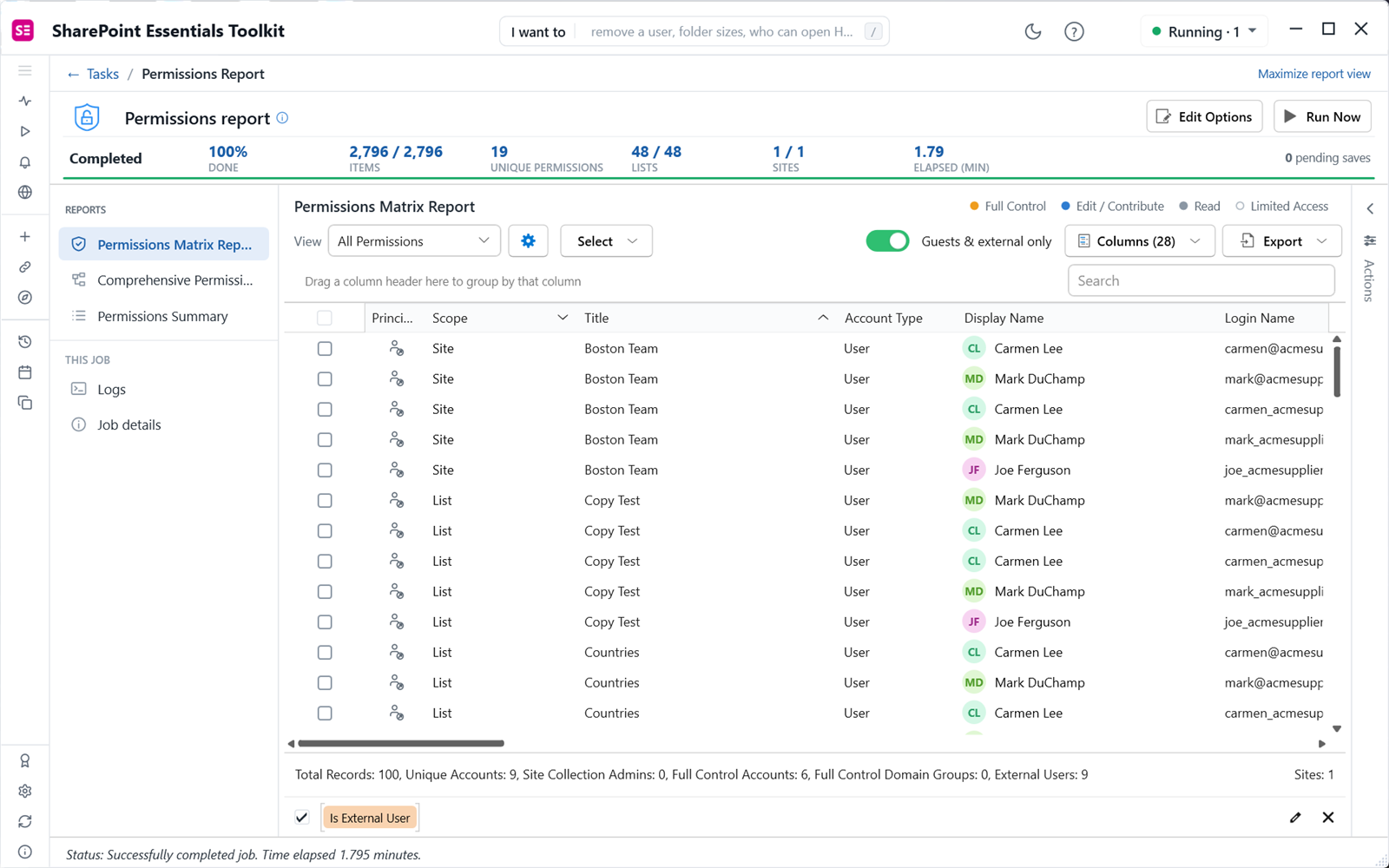
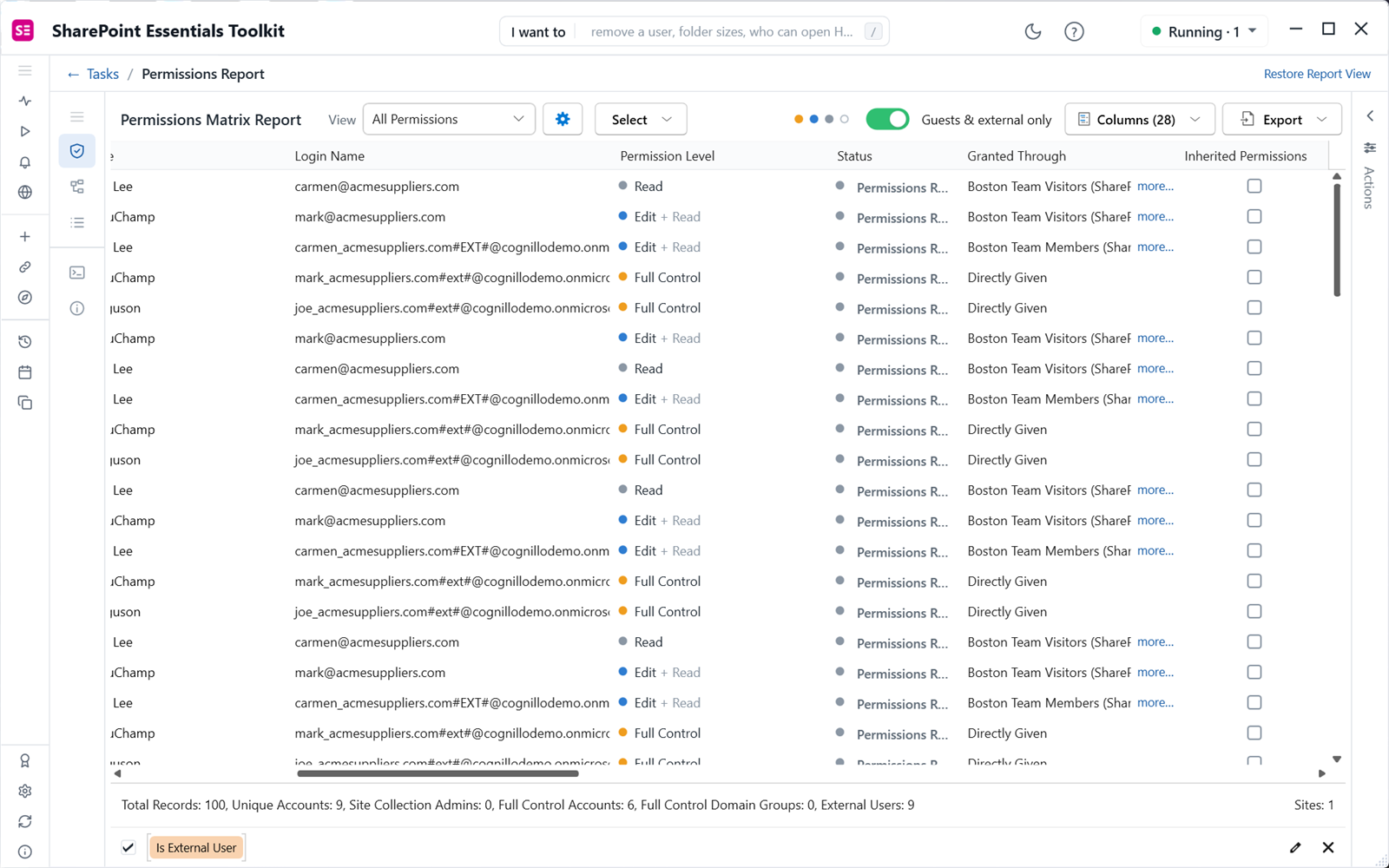
Add the Login Name and Granted Through columns. On our test site the same guest appears under two logins: carmen@acmesuppliers.com with Read through the Visitors group, and carmen_acmesuppliers.com#EXT#@... with Edit through the Members group. Whichever account she signs in with, she only gets that account's access.
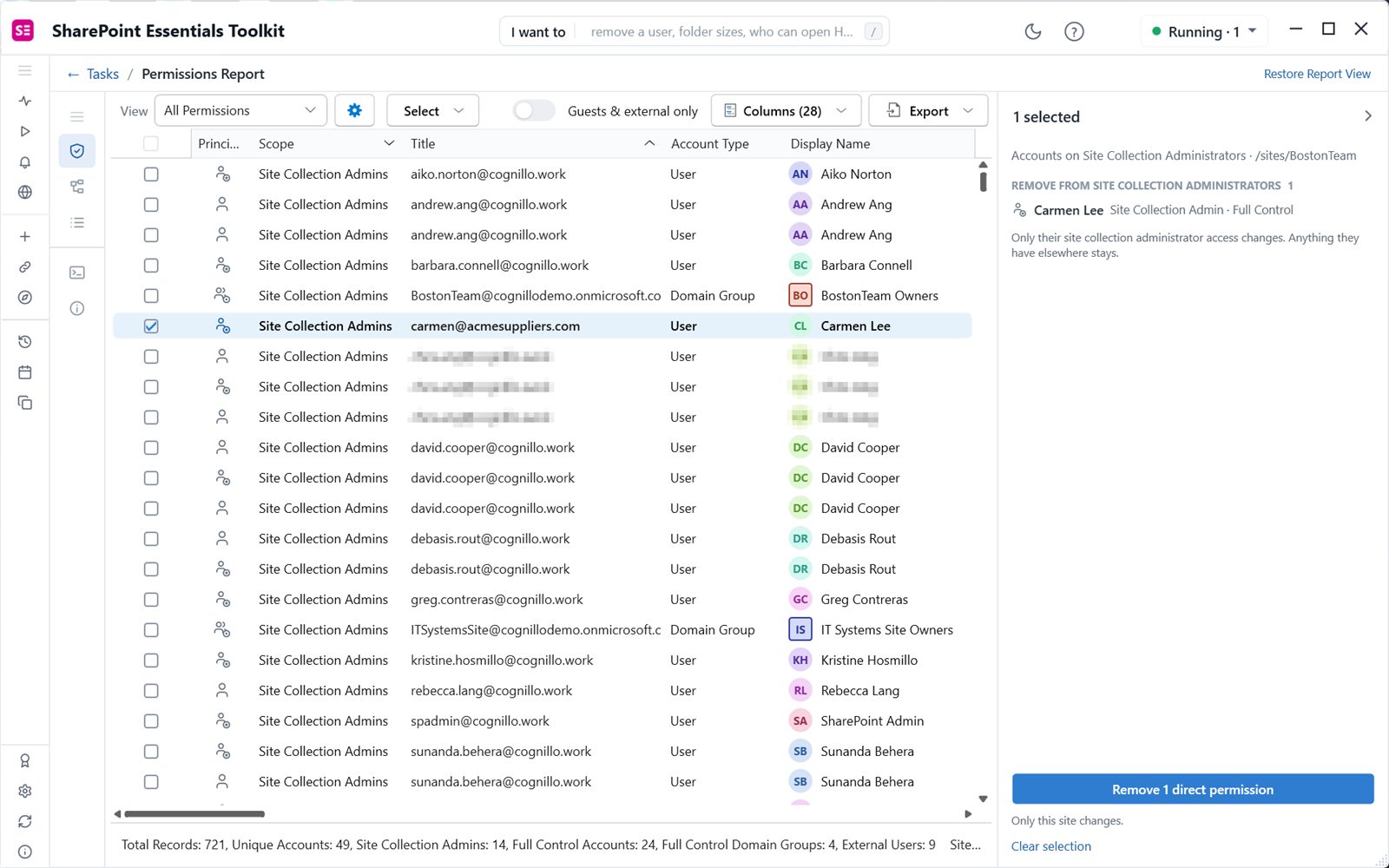
To clean up the identity they no longer use, select its rows and use Actions to remove the permissions. The panel shows exactly what changes, and only that site is affected.
Frequently asked questions
Why can't a guest redeem a SharePoint invitation?
Most often they are signed in with a different account from the one invited, such as a personal Microsoft account. Have them open an InPrivate window and sign in with the invited email. If they already redeemed with the wrong account, reset their redemption status in Entra ID and invite them again.
What does AADSTS50020 mean for a SharePoint guest?
The account the guest signed in with doesn't exist in your directory. They were invited under one email and signed in with another. Signing in with the invited account, or resetting redemption, fixes it.
Why does a guest have access in Teams but not to the SharePoint files?
Being in the Microsoft 365 group isn't enough if the team's SharePoint site doesn't allow guest sharing. Set the site's external sharing to at least existing guests, within the tenant setting.
Does resetting a guest's redemption status remove their permissions?
No. The guest keeps the same account and permissions. They receive a new invitation and can redeem it with the correct sign-in.
How do I see everything a guest can access in SharePoint?
Check each site's permissions and files shared with them, or run Everything guests can reach in SharePoint Essentials Toolkit, which lists every site, list and item each guest can reach, directly or through groups.
See what every guest can reach, free
SharePoint Essentials Toolkit Community Edition is free. Report every guest and external user, find duplicate identities, and remove access in batches of up to 10, on up to 20 sites per Microsoft 365 tenant. Get your free Community Edition license key.