SharePoint "Anyone" Links Greyed Out or Disabled? How External Sharing Settings Work at Tenant and Site Level
Published:
Last updated: 2026-10-29
The Anyone option is greyed out when either the tenant or the site doesn't allow Anyone sharing. A site can never be more permissive than the tenant. Check Policies > Sharing in the SharePoint admin center for the tenant, then the site's External file sharing setting under Active sites. In PowerShell, Get-SPOTenant and Get-SPOSite show SharingCapability, and Set-SPOSite changes it for one site.
How sharing settings combine
Four settings decide what a person can share, and the most restrictive wins:
Tenant: the SharePoint and OneDrive sliders under Policies > Sharing in the SharePoint admin center. OneDrive can't be more permissive than SharePoint.
Site: each site's External file sharing setting. It can match the tenant or be more restrictive, never more permissive.
Who can share on the site: in Site permissions > Change how members can share, owners can stop members sharing files or the site.
Other policies: sensitivity labels on the site, the tenant option to allow only specific security groups to share externally, and Entra ID guest settings (allowed or blocked domains) can all limit external sharing further.
Setting | Admin center label | PowerShell value | Link types allowed |
|---|---|---|---|
Most permissive | Anyone |
| Anyone, specific people (including new guests), organization |
New and existing guests |
| Specific people (including new guests), organization | |
Existing guests |
| Guests already in your directory, organization | |
Least permissive | Only people in your organization |
| Organization and internal specific people |
Microsoft's reference is Manage sharing settings for SharePoint and OneDrive.
Lowering a setting has an immediate effect on what's already shared: existing Anyone links stop working when Anyone is turned off for the site or tenant, and guests lose access when guest sharing is turned off. That's why it pays to find what's shared before tightening anything (Option 3).
Option 1: Change sharing settings with built-in tools
Tenant
In the SharePoint admin center, go to Policies > Sharing.
Set the SharePoint and OneDrive sliders.
Under File and folder links, choose the default link type and permission, and set These links must expire within this many days for Anyone links.
Site
Go to Sites > Active sites and select the site.
On the Settings tab, select External file sharing (or More sharing settings) and choose a level.
Site owners can't change the site's external sharing level themselves. They can only restrict who shares, under Site permissions.
For a site connected to a Microsoft 365 group or team, guests also need to be allowed in the group. That's controlled by the Microsoft 365 group settings in the Microsoft 365 admin center and Entra ID, not by SharePoint.
Option 2: Check and change settings with PowerShell
This SharePoint Online Management Shell script shows the tenant settings, then lists sites whose sharing differs from the tenant, which explains most "why can't I share externally here" questions. It is read-only until the last line.
# Compare site sharing settings with the tenant (read-only)
Connect-SPOService -Url "https://contoso-admin.sharepoint.com"

Get-SPOTenant | Select-Object SharingCapability, OneDriveSharingCapability,
    DefaultSharingLinkType, DefaultLinkPermission,
    RequireAnonymousLinksExpireInDays, FileAnonymousLinkType, FolderAnonymousLinkType

$tenant = (Get-SPOTenant).SharingCapability
Get-SPOSite -Limit All |
    Where-Object { $_.SharingCapability -ne $tenant } |
    Select-Object Url, SharingCapability, DisableSharingForNonOwnersStatus |
    Sort-Object SharingCapability, Url | Format-Table -AutoSize

# Change one site (cannot exceed the tenant setting)
# Set-SPOSite -Identity "https://contoso.sharepoint.com/sites/Projects" -SharingCapability ExternalUserSharingOnly
Other useful settings:
Set-SPOTenant -RequireAnonymousLinksExpireInDays 30makes new Anyone links expire. A site can set a shorter limit withSet-SPOSite -OverrideTenantAnonymousLinkExpirationPolicy $true -AnonymousLinkExpirationInDays 7.Set-SPOTenant -FileAnonymousLinkType View -FolderAnonymousLinkType Viewkeeps Anyone links read-only.Set-SPOSite -DefaultSharingLinkType Internalchanges the default link in the Share dialog for one site, without blocking other types.
Option 3: Find existing Anyone links before you tighten sharing, with SharePoint Essentials Toolkit
The toolkit doesn't change tenant or site sharing settings. What it does is show what turning Anyone links off would break. The Sharing links report lists every link across the sites you pick; the Anyone links only preset narrows it to links that work without signing in, and the Anyone Link and Link Scope columns mark each one.
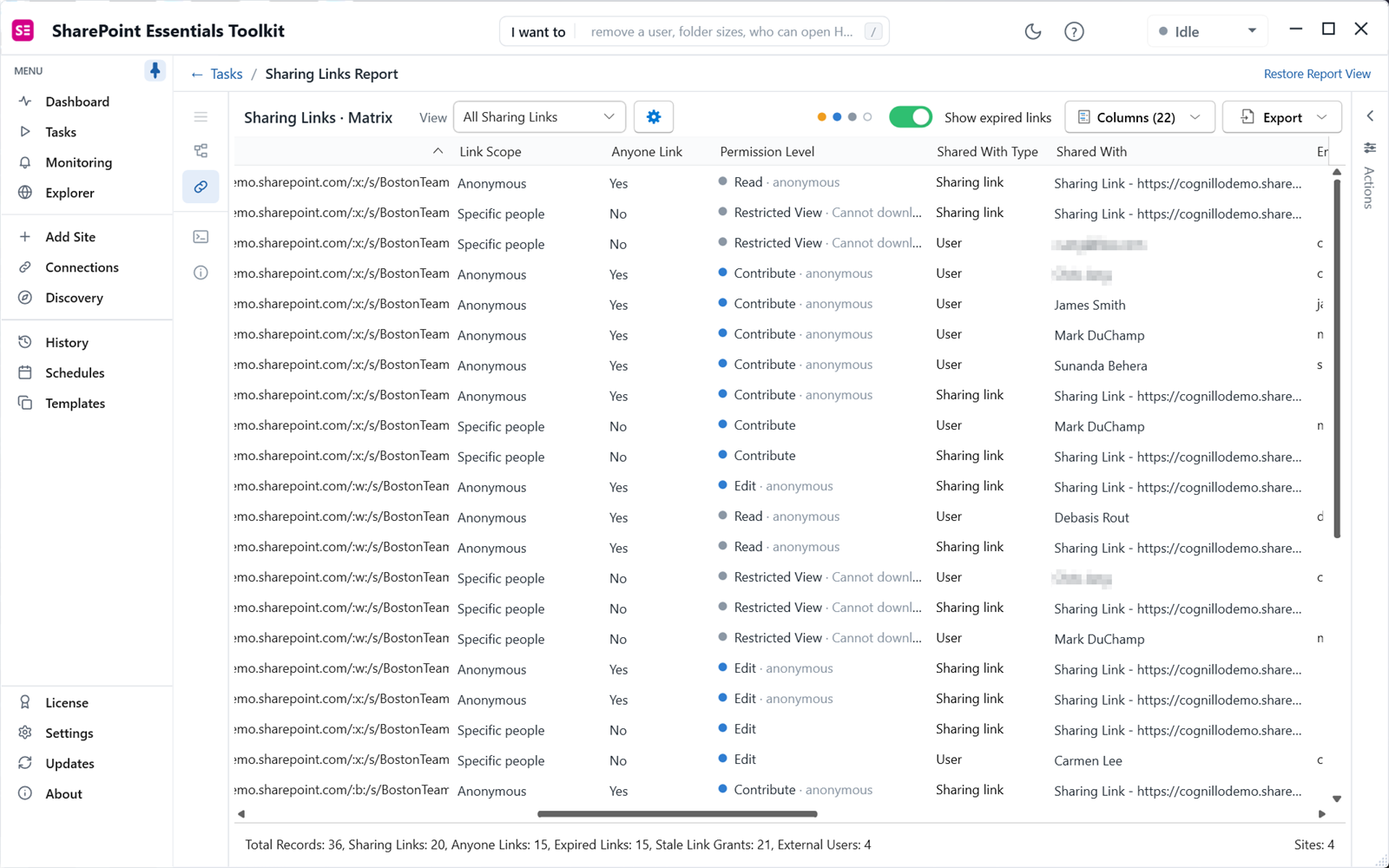
15 Anyone links on four sites, with their permission level. Several give Contribute or Edit without sign-in.
From there you can:
Narrow who they work for: replace each Anyone link with one that only works for people who already have access, at the same permission level. Share separately with anyone outside that group who still needs the file.
Change when they expire: give Anyone links an expiry that matches the policy you're about to set.
Remove the links nobody needs.
Each change is reviewed before it's applied and can be undone from History. See How to clean up sharing links in SharePoint for the full walkthrough.
The sharing links report is free in Community Edition on up to 20 sites. Link changes apply up to 10 at a time on Community.
Frequently asked questions
Why is "Anyone with the link" greyed out in SharePoint?
Either the tenant or the site doesn't allow Anyone sharing. The site setting can't be more permissive than the tenant, so both have to be set to Anyone. A sensitivity label on the site, or a policy limiting external sharing to certain security groups, can also remove the option.
Can a SharePoint site allow more sharing than the tenant?
No. A site's external sharing setting can match the tenant setting or be more restrictive. To allow Anyone links on one site, the tenant must allow them first; you can then restrict every other site.
What happens to existing links when I turn off Anyone sharing?
Existing Anyone links stop working for the sites the change covers. Find them first with a sharing links report and replace the ones people still need with specific people or organization links.
How do I check a site's sharing setting with PowerShell?
Run Get-SPOSite -Identity <site URL> | Select-Object SharingCapability in the SharePoint Online Management Shell. Compare it with Get-SPOTenant, and change it with Set-SPOSite -SharingCapability.
How do I make SharePoint Anyone links expire?
Set "These links must expire within this many days" under Policies, Sharing in the SharePoint admin center, or run Set-SPOTenant -RequireAnonymousLinksExpireInDays. It applies to new links; change existing ones in Manage access or in bulk with SharePoint Essentials Toolkit.
See every Anyone link before you turn them off
SharePoint Essentials Toolkit Community Edition is free. Report Anyone, organization and specific people links across up to 20 sites per Microsoft 365 tenant, and narrow, expire or remove them in batches of up to 10. Get your free Community Edition license key.
About the author. The Cognillo SharePoint Team builds and supports SharePoint Essentials Toolkit and has worked with SharePoint administrators on permissions audits, migrations and cleanup projects since 2012.