How to Clean Up Sharing Links in SharePoint
Published:
Last updated: 2026-10-28
The easiest way to clean up sharing links in SharePoint is the free SharePoint Essentials Toolkit - it is a free product and can be used to clean up sharing links (advanced paid features). Run its sharing links report, tick the links you want to fix, and use the Actions panel to bulk remove sharing links, extend or shorten their expiry, narrow who they work for, or restore permission inheritance. Every change is listed for review before anything is applied.
What does cleaning up sharing links involve?
Sharing links let people open SharePoint and OneDrive files, but their effect depends on the link type. Anyone and organization-wide links can grant access beyond a file’s existing audience; People with existing access links grant no additional access. After a few years a site can hold hundreds of links that nobody remembers, many with edit rights and no expiry. Cleaning up is not only deleting. There are four fixes, and each suits a different kind of link:
Fix | Use it when | What changes |
|---|---|---|
Extend or shorten the expiry | The link is still needed, but only for a while | The link keeps its URL and stops working on the new date |
Narrow who it works for | An organization-wide or Anyone link is wider than it needs to be | A new link for a smaller audience replaces it; the URL changes |
Remove the link | The link is no longer needed | The link stops working; people with their own permission keep it |
Restore permission inheritance | The item should simply have its library's or folder's permissions | Every link and every direct permission on the item is dropped |
First you need to know which links exist. If you haven't listed them yet, start with How to find all sharing links in SharePoint Online, then come back here to fix what you found.
Option 1: Clean up sharing links with built-in tools
SharePoint can do each fix, one item at a time.
Remove a link or change its expiry: Manage access
In the library, select the file or folder and open Manage access from the details pane or the ... menu.
On the Links tab, select the link to open its settings.
To remove it, select the trash can (or Remove link). To change its expiry, edit the expiration date where your tenant's sharing policy allows it, then apply.
If Stop sharing is available, read its confirmation carefully and verify the remaining inherited and direct access afterward. Do not assume it is equivalent to restoring inheritance.
Microsoft describes these steps in Stop sharing or change permissions. It is the right tool for one file. There is no bulk version in the browser.
Narrow a link: create a new one, then remove the old
SharePoint can't change a link's audience in place. To turn an organization-wide link into one for specific people, share the file again with Specific people, send the new link to those people, then remove the old link in Manage access.
Restore permission inheritance: Advanced permissions
Open Manage access on the item and select Advanced settings (or Advanced permissions).
On the ribbon, select Delete unique permissions and confirm.
The item takes its parent’s permissions again. Its unique permissions are removed, which can revoke access previously granted directly or through sharing links. Verify the result in Manage access and test the affected links after the reset.
What to know:
Each fix is per item. A cleanup of 200 links means 200 visits to Manage access.
The browser shows links item by item. It never gives you one list of every link to work from.
Tenant and site sharing policies control allowed sharing, while default-link settings control defaults. Changing a default is not a cleanup of existing links; policy changes can also affect access, so review them separately.
Option 2: Clean up sharing links with PowerShell
PnP PowerShell can remove links and reset inheritance in bulk. Remove-PnPFileSharingLink removes a selected file link, and Set-PnPListItemPermission with -InheritPermissions restores parent permissions. Install a supported PnP PowerShell version and configure authentication for your environment. This interactive example needs the client ID of an appropriately configured Microsoft Entra ID app.
The script below targets organization-wide links on files in one library. It defaults to a preview-only run using the $WhatIf flag; this is a script variable, not a cmdlet parameter. Review the paths and link IDs, test on a small library, and export a record before setting the flag to $false.
# Remove "People in your organization" links from files in one library
$ClientId = "<your-app-id>"
$SiteUrl  = "https://contoso.sharepoint.com/sites/Projects"
$WhatIf   = $true   # set to $false to remove
Connect-PnPOnline -Url $SiteUrl -Interactive -ClientId $ClientId

$files = Get-PnPListItem -List "Documents" -PageSize 500 -Fields "FileRef", "FSObjType" |
    Where-Object { $_.FieldValues.FSObjType -eq 0 }

foreach ($item in $files) {
    $path = $item.FieldValues.FileRef
    foreach ($link in Get-PnPFileSharingLink -Identity $path) {
        if ($link.Link.Scope -ne "organization") { continue }
        if ($WhatIf) { "Would remove: $path ($($link.Link.Type))"; continue }
        Remove-PnPFileSharingLink -FileUrl $path -Identity $link.Id -Force
        "Removed: $path"
    }
}
To restore inheritance on one item: Set-PnPListItemPermission -List "Documents" -Identity 42 -InheritPermissions.
What to know:
It makes at least one request per file, so large libraries are slow and SharePoint will throttle long runs.
Folders need
Get-PnPFolderSharingLinkandRemove-PnPFolderSharingLink, and list items need separate code.This example only removes links. Expiry changes and audience replacement require a separate implementation; check the documentation for your installed PnP version rather than assuming these actions are covered here.
Test on a small site first. A removed link can't be brought back.
Option 3: Clean up sharing links in bulk with SharePoint Essentials Toolkit
The toolkit reports every sharing link on the sites you pick, then fixes the ones you tick from the same screen. We ran a full cleanup on a test site, Architecture-Knowledge-Base, with 115 items in 8 lists. We first created 20 sharing links on it: organization-wide view and edit links, links for specific people, some with an expiry and most without. Anyone links are turned off on that site, so the test has none, but the steps are the same for them.
These timings are from our test, not a performance guarantee. Start with a small selection and export your report before applying changes.
1. Run the sharing links report
Open Tasks, choose the Oversharing area, and pick Sharing links report. The Fix column has matching tasks (Remove or downgrade links, Set or shorten link expiry, Reset unique permissions in bulk) that start from this report.
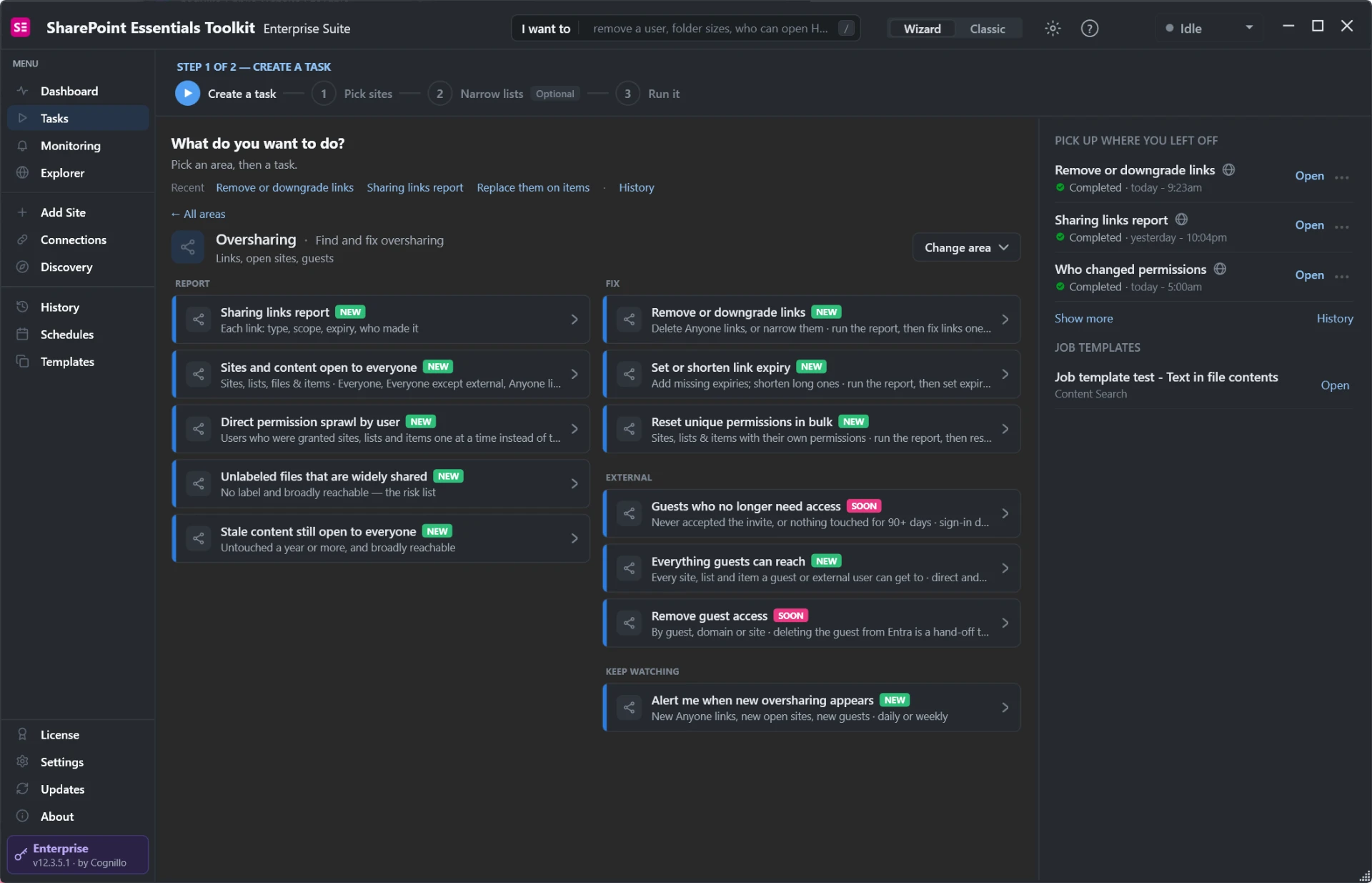
The Oversharing area: the report on the left, the fixes on the right.
Pick your sites, check the summary, and select Run Now. The report reads only; nothing is changed until you apply a fix.
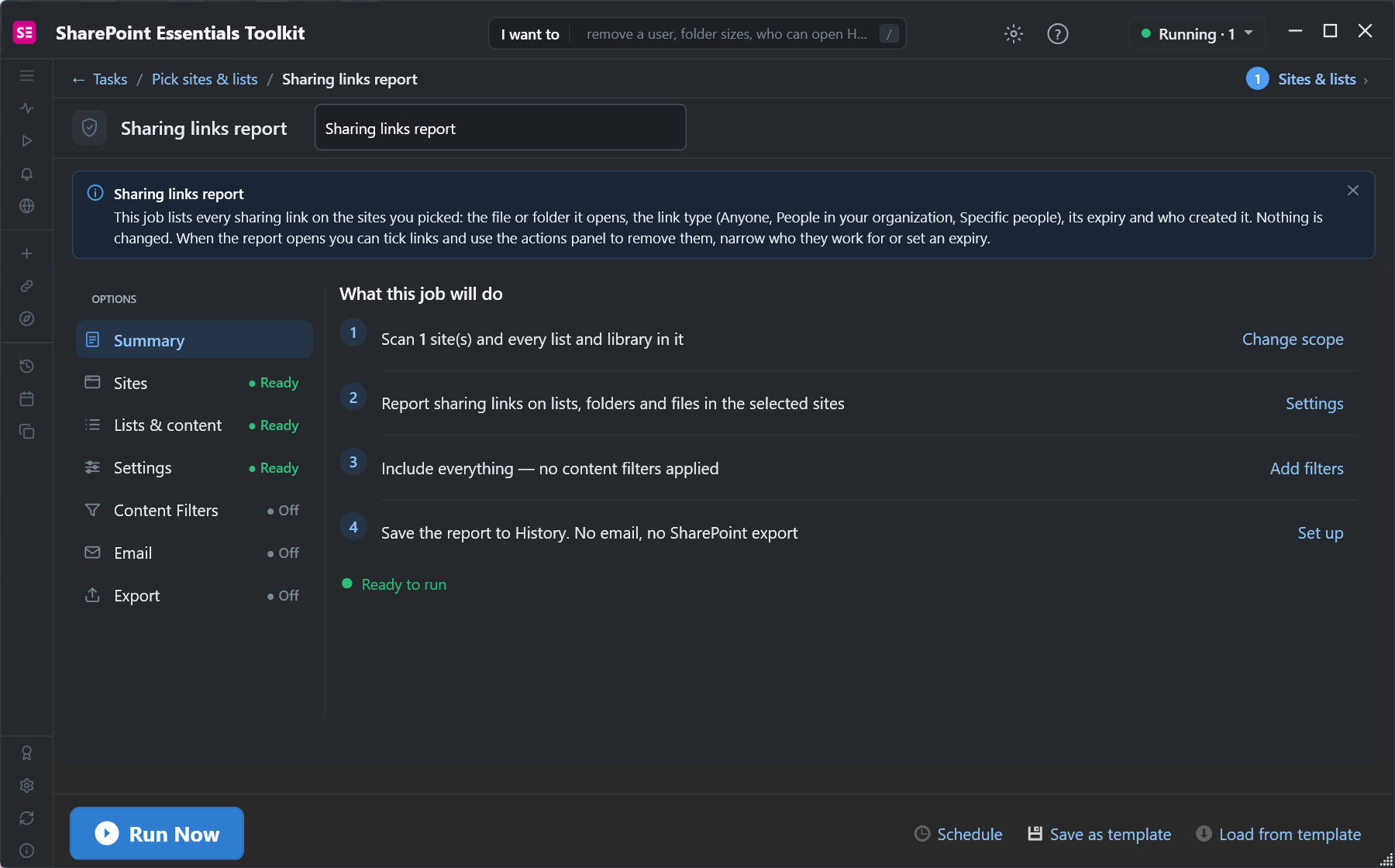
The summary confirms the scope before the report runs.
On our site the report took under a minute and found all 20 links. In the Sharing Links · Matrix view with All Sharing Links, each row shows the file, the link scope, the permission level, who it's shared with and the expiry. Use Columns to choose what to show.
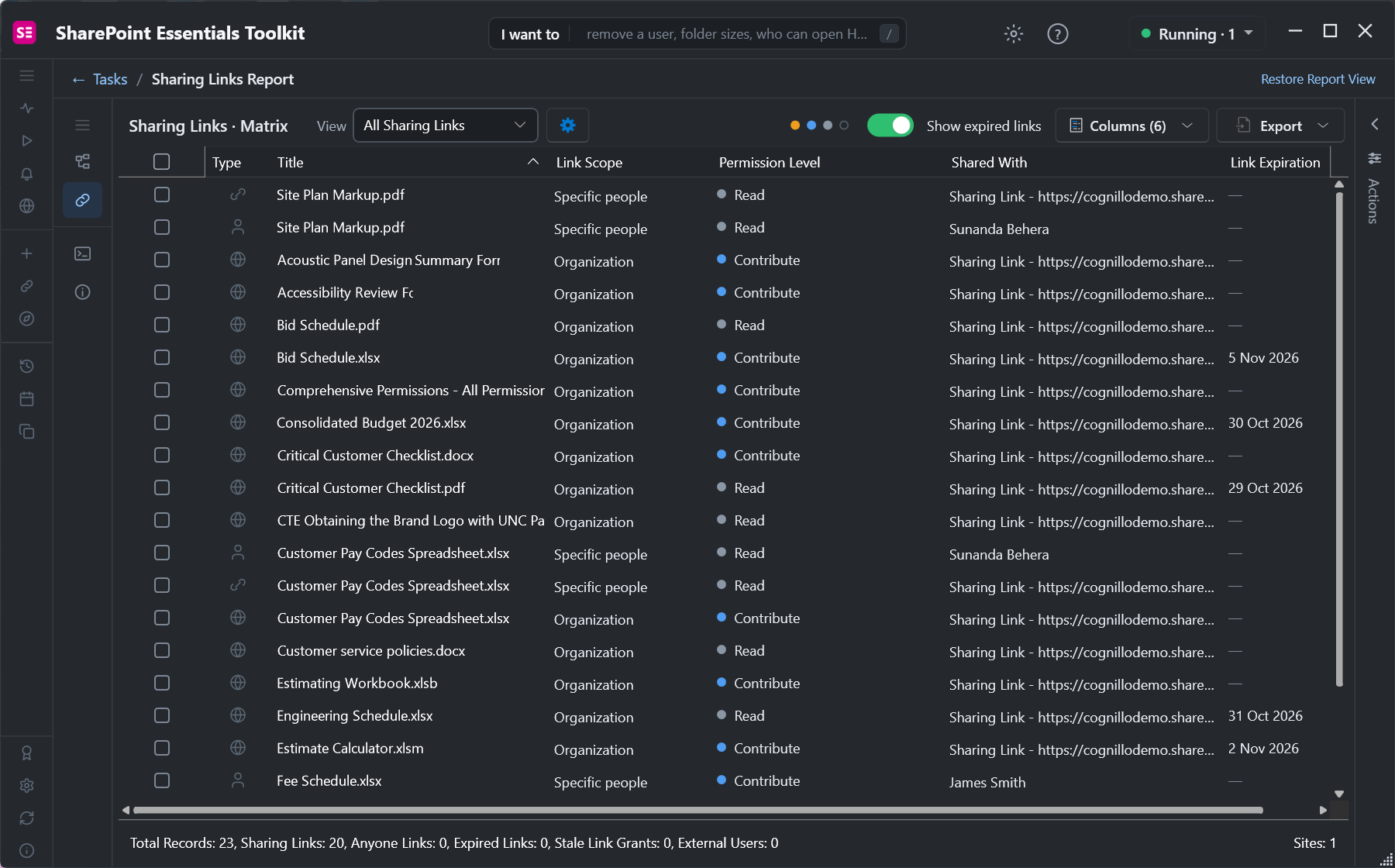
Twenty links: organization-wide Contribute links stand out, and most links have no expiry.
2. Open the Actions panel
Select Actions on the right edge of the report. Tick links in the grid, or start with a ready-made set: organization links, links expiring in the next 30 days, links with no expiry, or all links. In the Grouped By Item view, ticking a file takes every link on it.
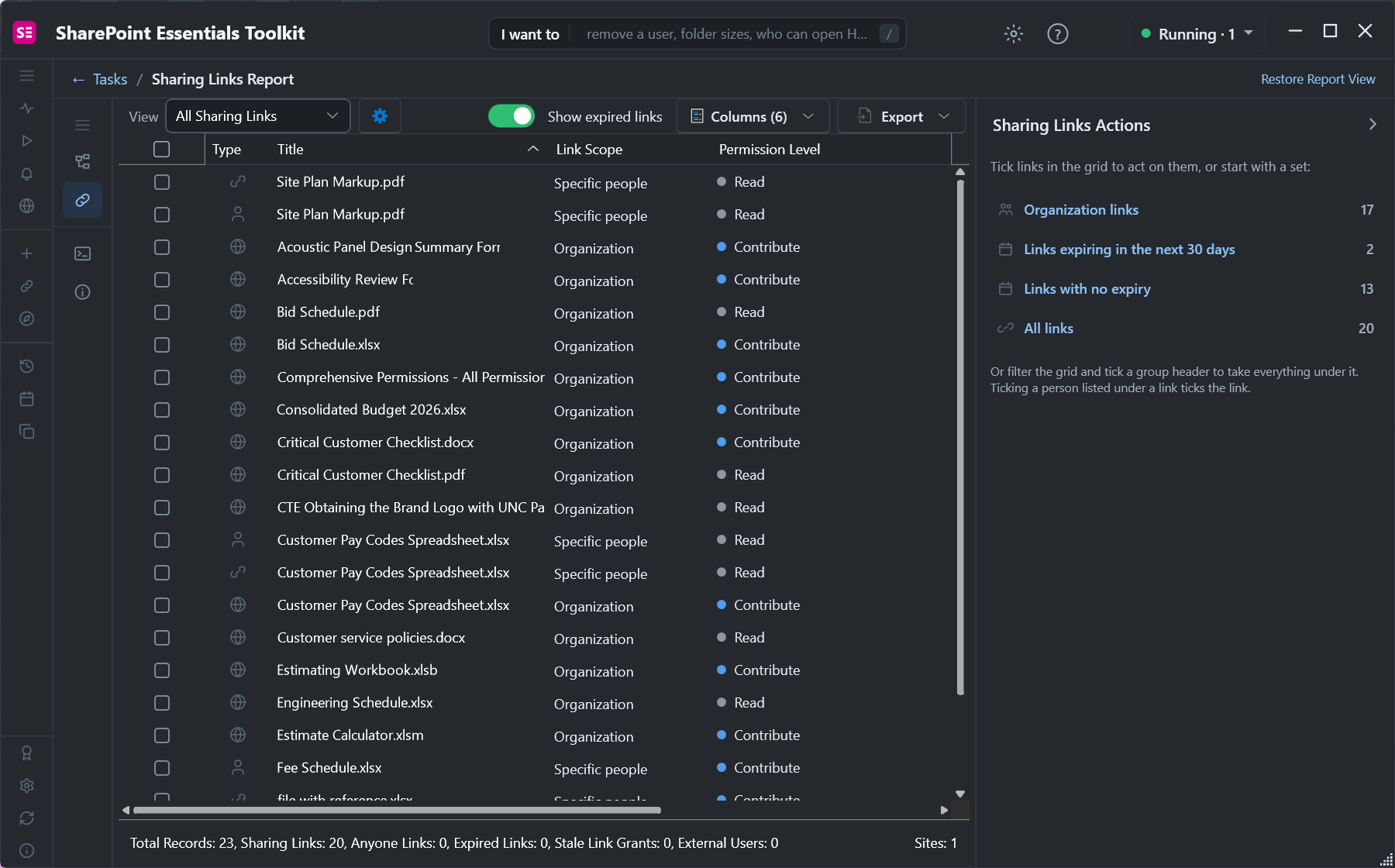
Quick selections in the Actions panel.
3. Bulk extend sharing link expiration
Five links were due to expire within nine days, but the projects behind them were still running. We ticked them, chose Change when they expire, and kept Extend by 30 days. You can also shorten by a number of days, set every link to one date, or remove the expiry.
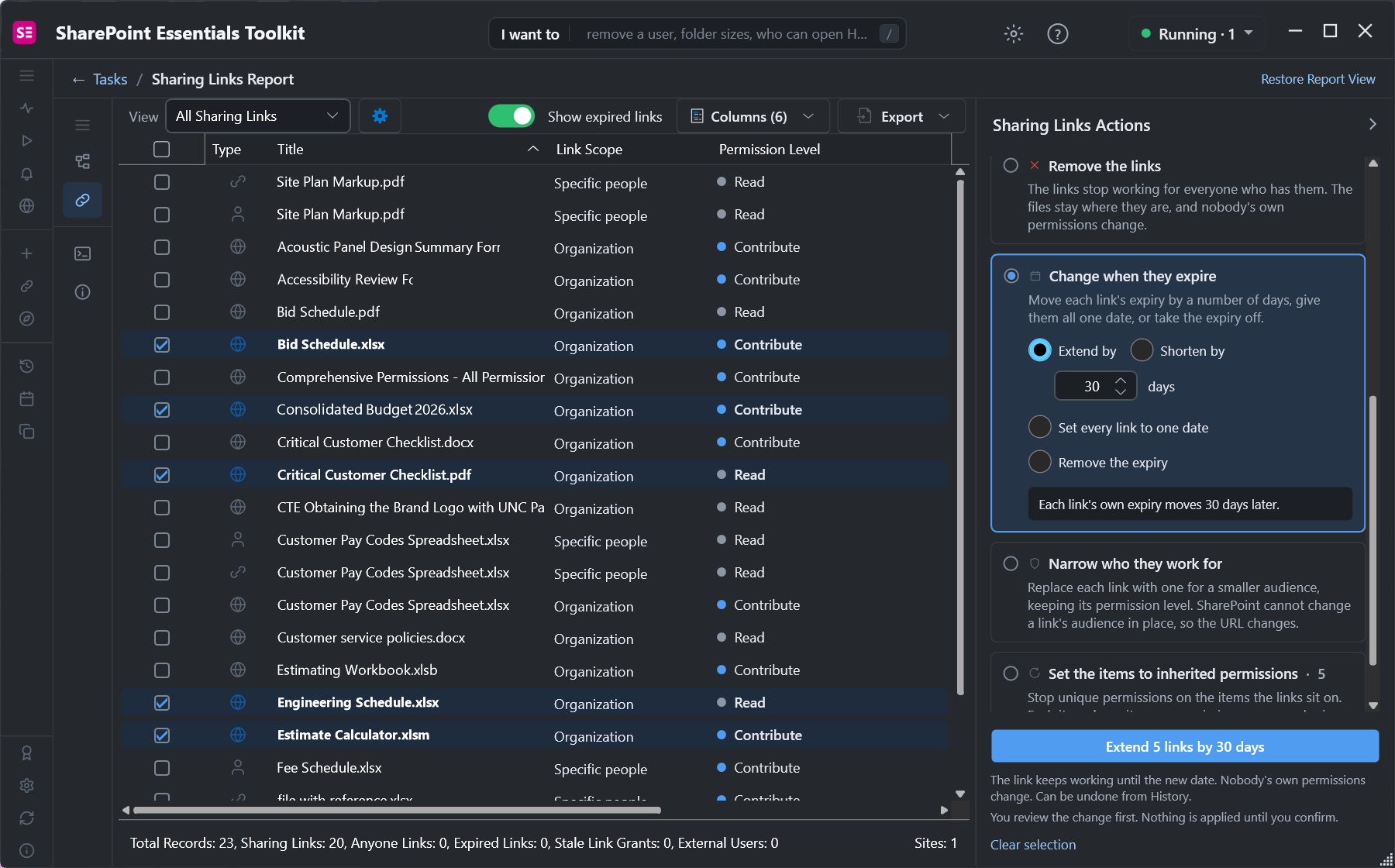
Each link's own expiry moves 30 days later.
The review lists each link with its old and new date. Nothing happens until you apply.
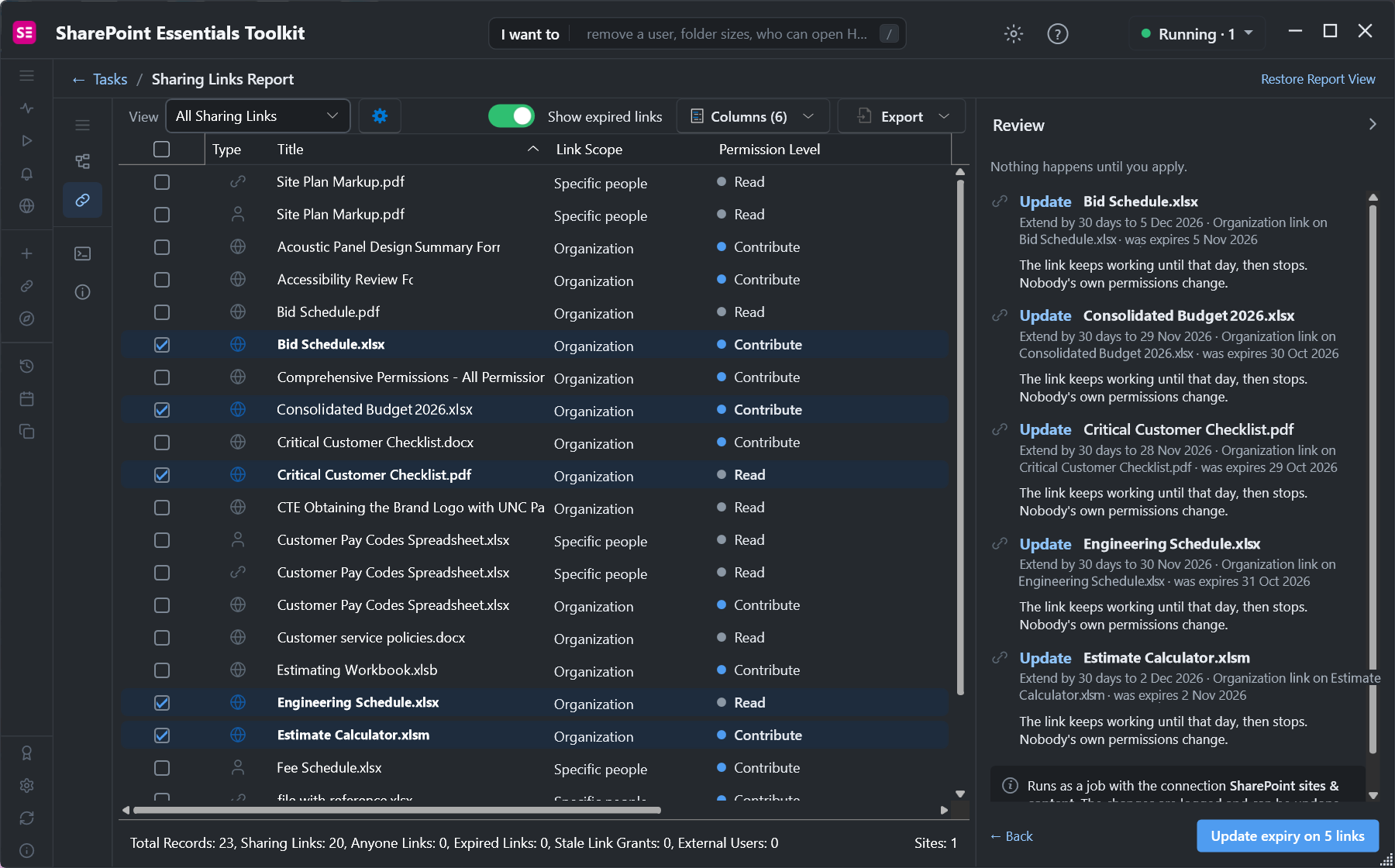
The review shows "was expires 5 Nov 2026" next to the new date for every link.
We selected Update expiry on 5 links. It finished in 4 seconds. The URLs didn't change, so nobody needs a new link, and the change is logged in History, where it can be undone for 30 days.
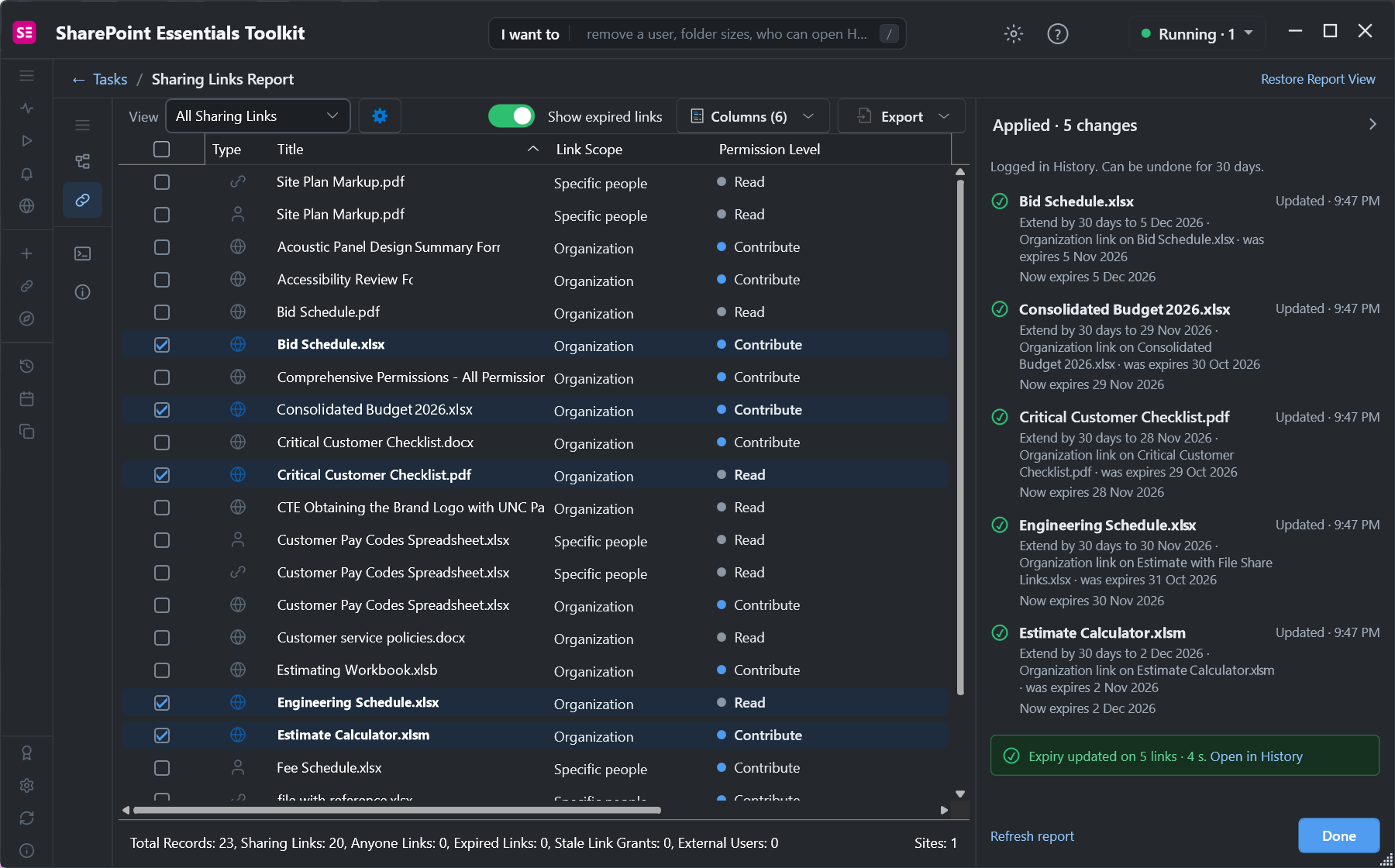
Five expiries updated in 4 seconds.
4. Bulk narrow excessive access
Four files had organization-wide Contribute links: anyone in the company with the URL could edit them. We ticked them and chose Narrow who they work for. There are two audiences to narrow to:
Only the people already listed on the link: a specific-people link, granted to the people the report shows on each link.
People who already have access: the link grants nothing new, so only people who could already open the file can use it.
We used People who already have access, because nobody outside the site needed these files.
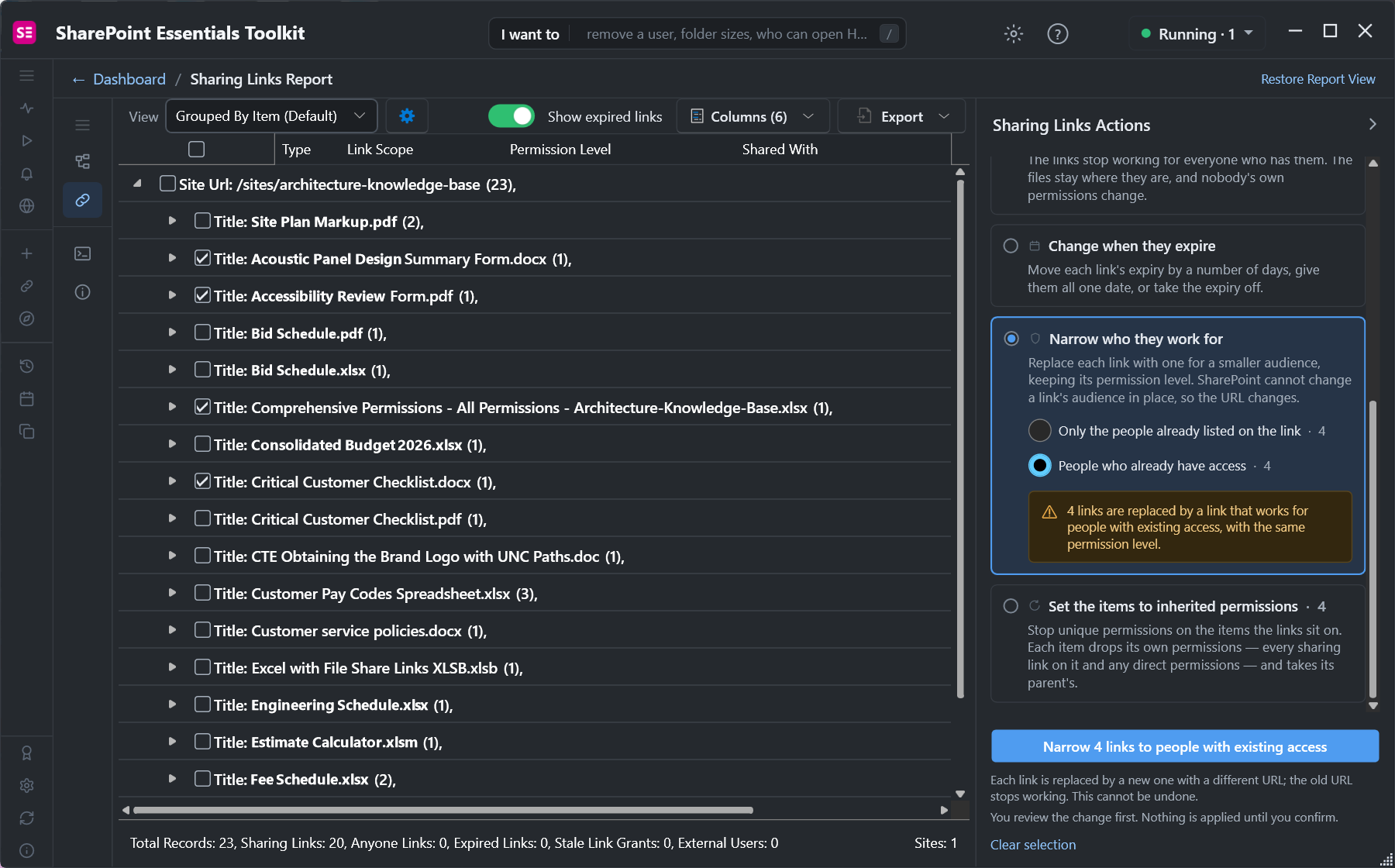
Narrowing keeps the permission level and replaces the audience.
Because SharePoint can't change a link's audience in place, each link is replaced, and the review warns that the URL changes.
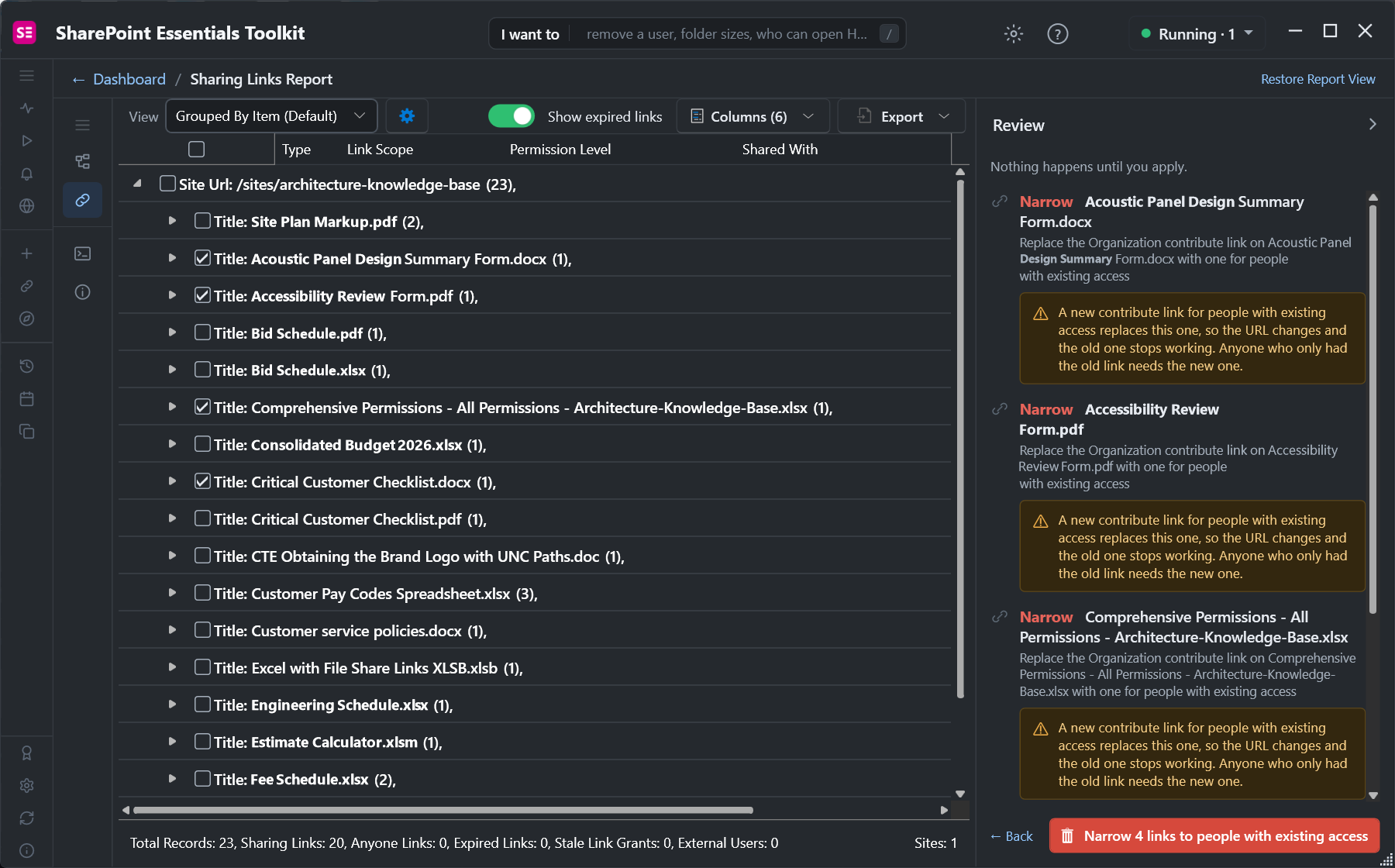
The review warns that anyone who only had the old URL will need the new one.
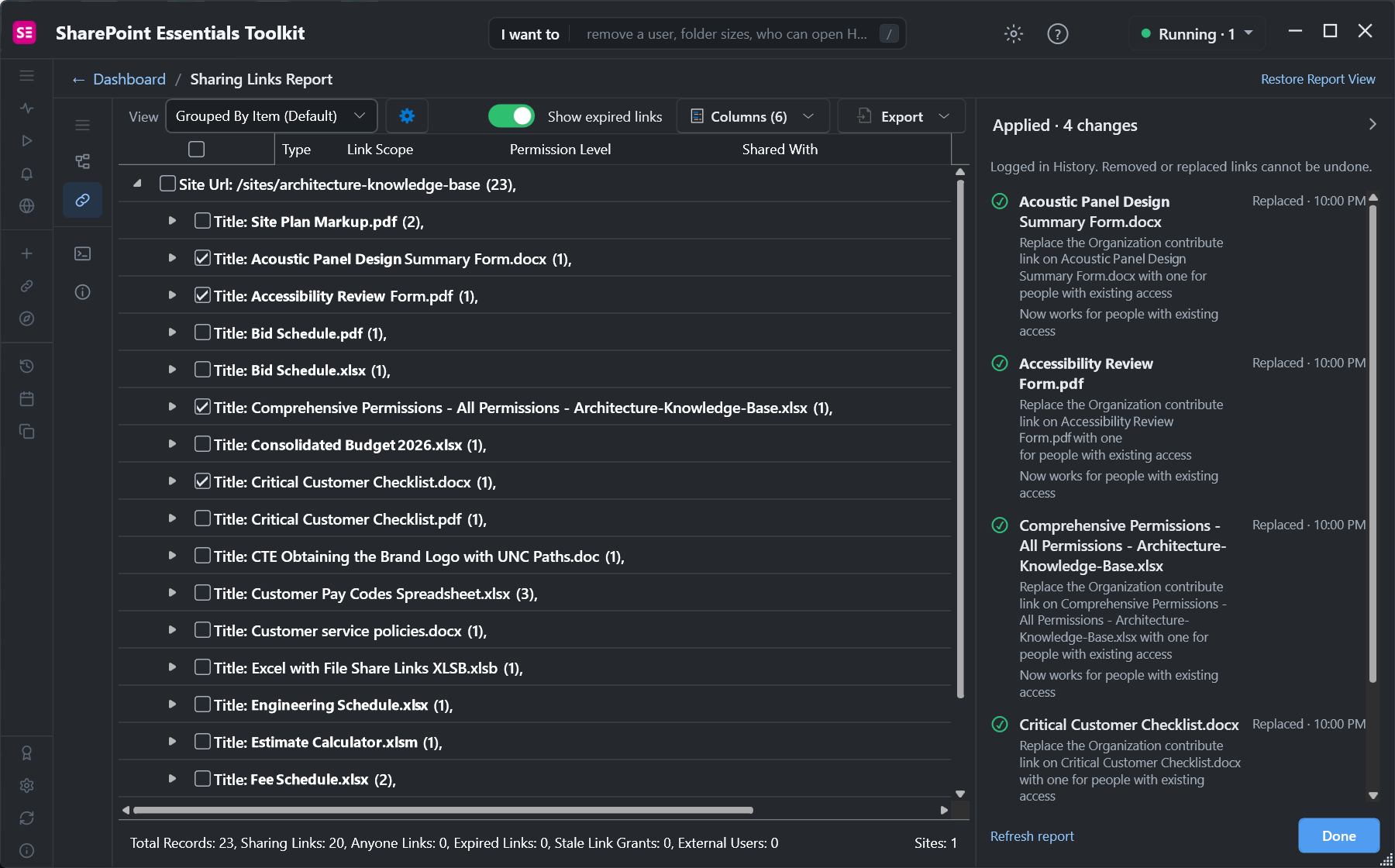
All four replaced: "Now works for people with existing access".
5. Bulk remove sharing links
Five more organization-wide links were on files that no longer needed sharing at all. We ticked them and kept the default, Remove the links.
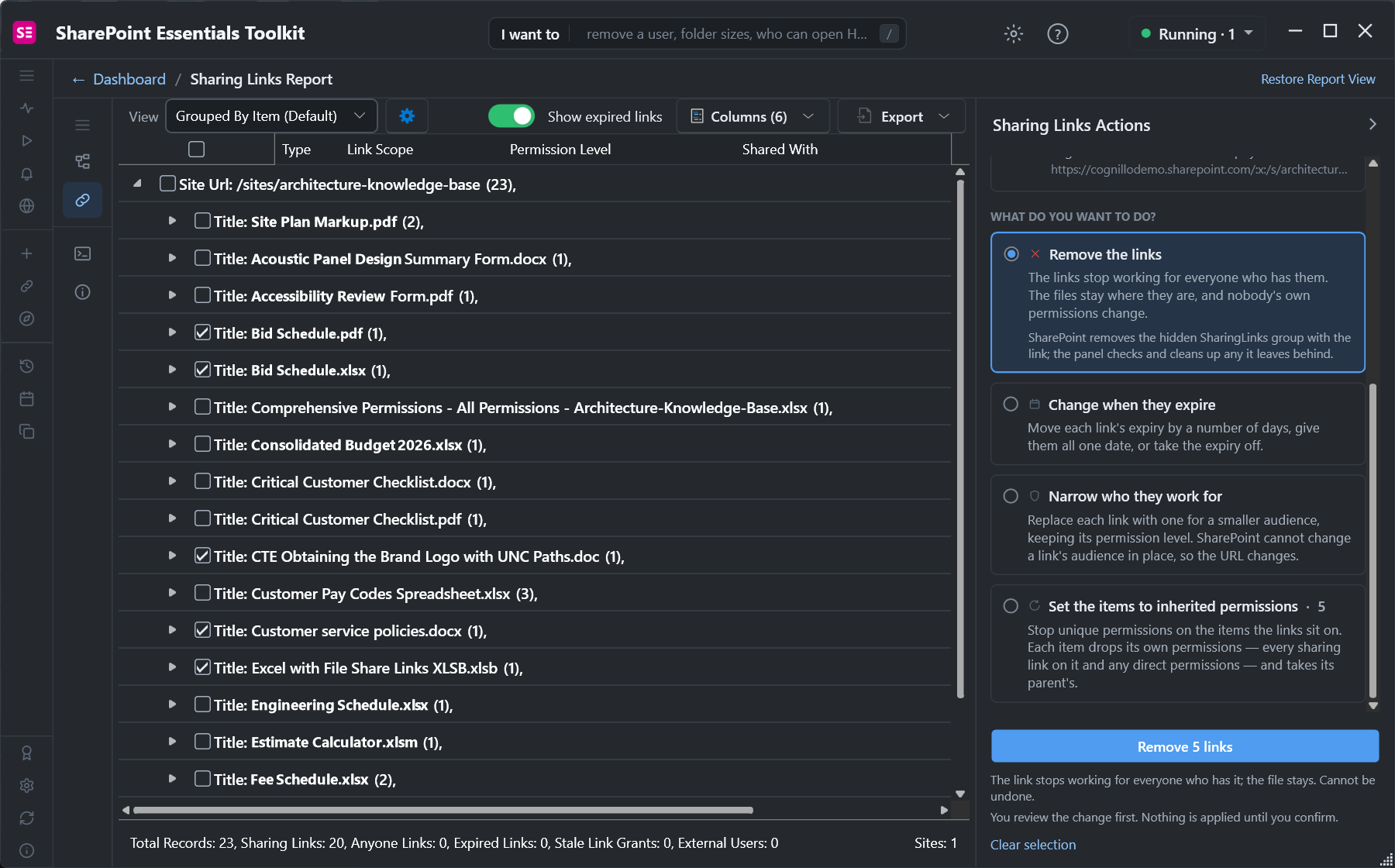
Removing a sharing link revokes the access it grants; the file stays where it is.
The review lists each link's full URL so you can be sure which one goes.
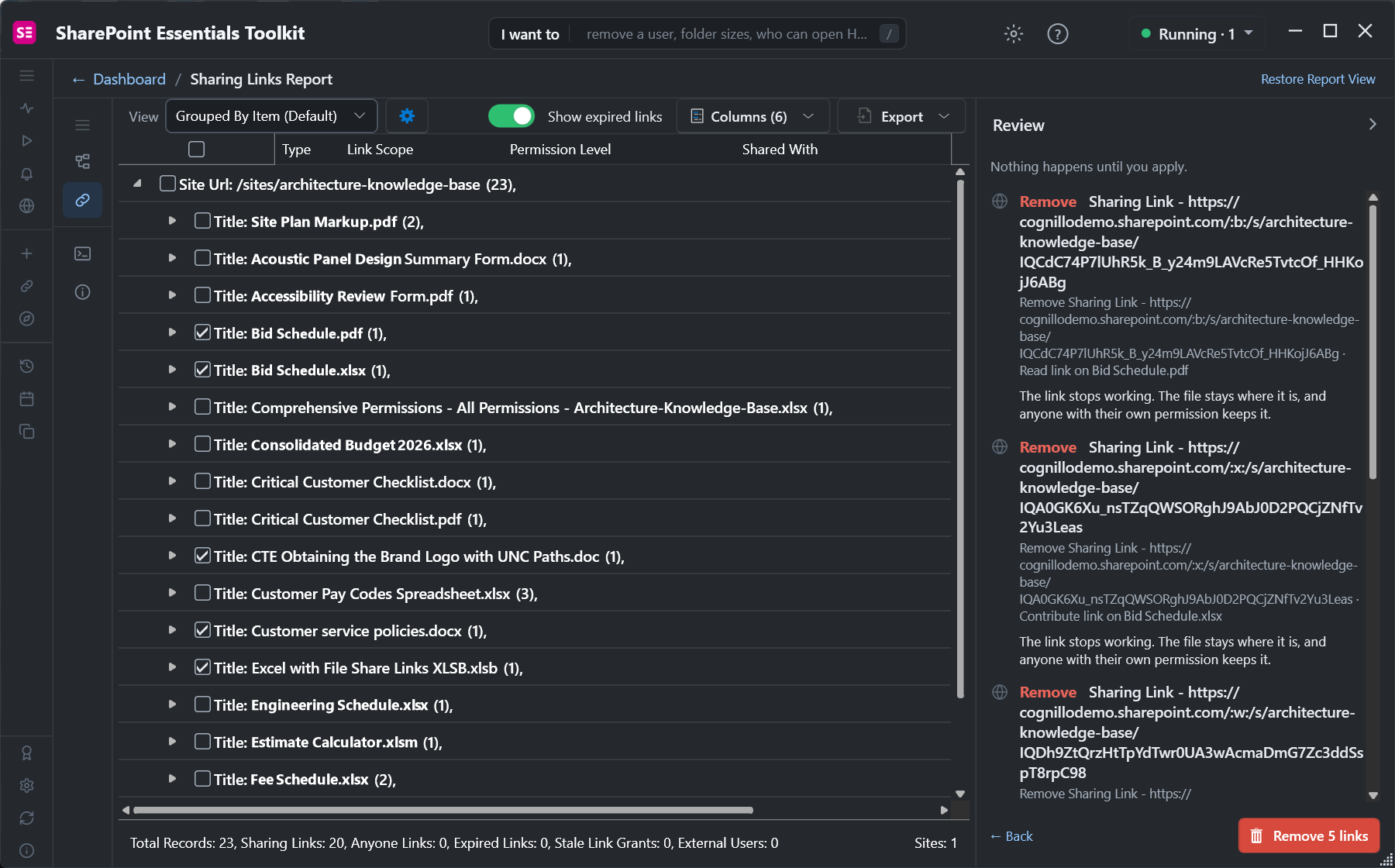
Each link to be removed, with its URL.
After Remove 5 links, the report updated at once: 20 sharing links became 15.
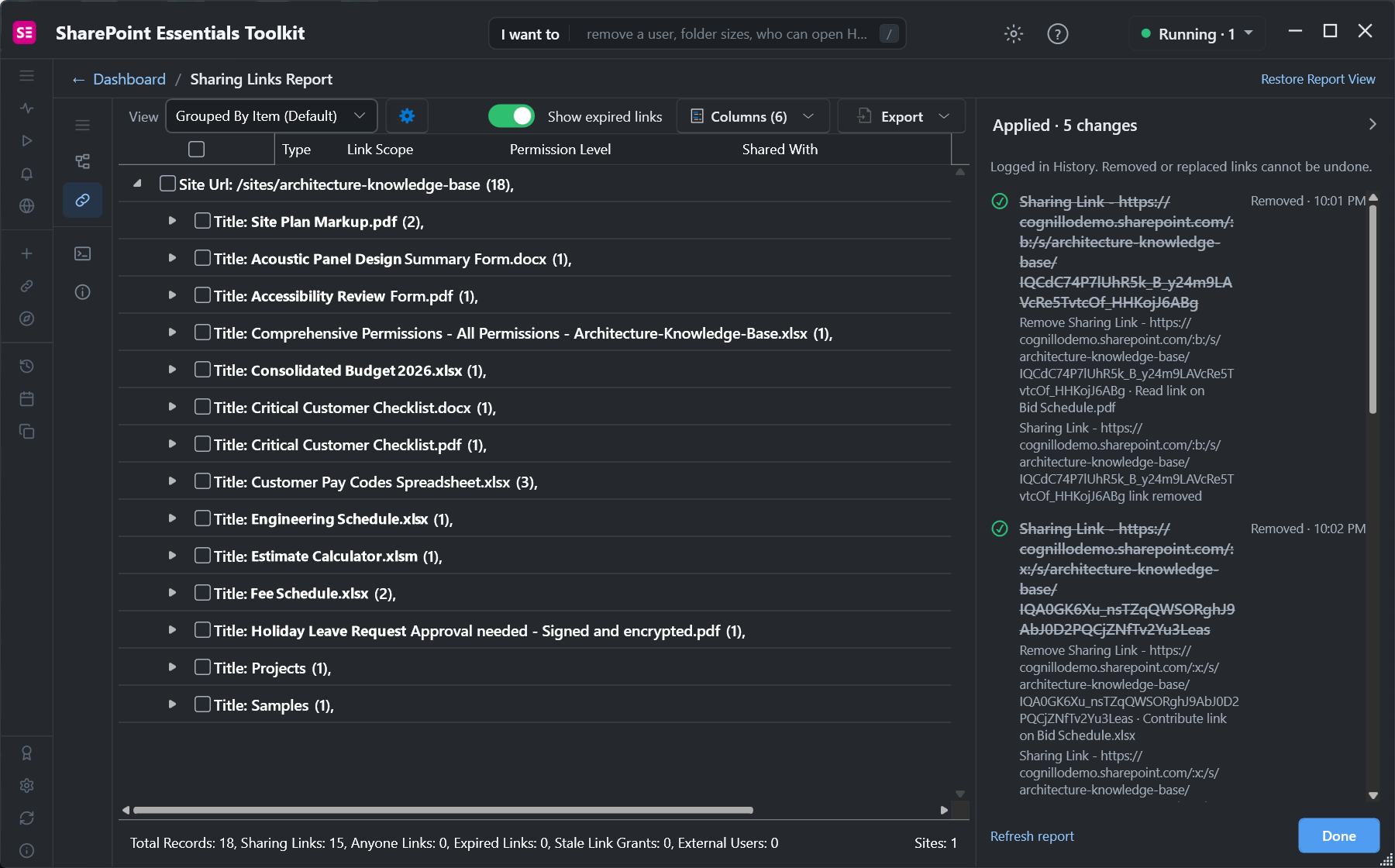
The removed links are struck through, and the footer shows 15 sharing links.
6. Restore permission inheritance
Two folders and a PDF had been shared once and never needed their own permissions again. For items like these, removing the link still leaves the item with broken inheritance. Restoring inheritance cleans up both. We ticked them and chose Set the items to inherited permissions.
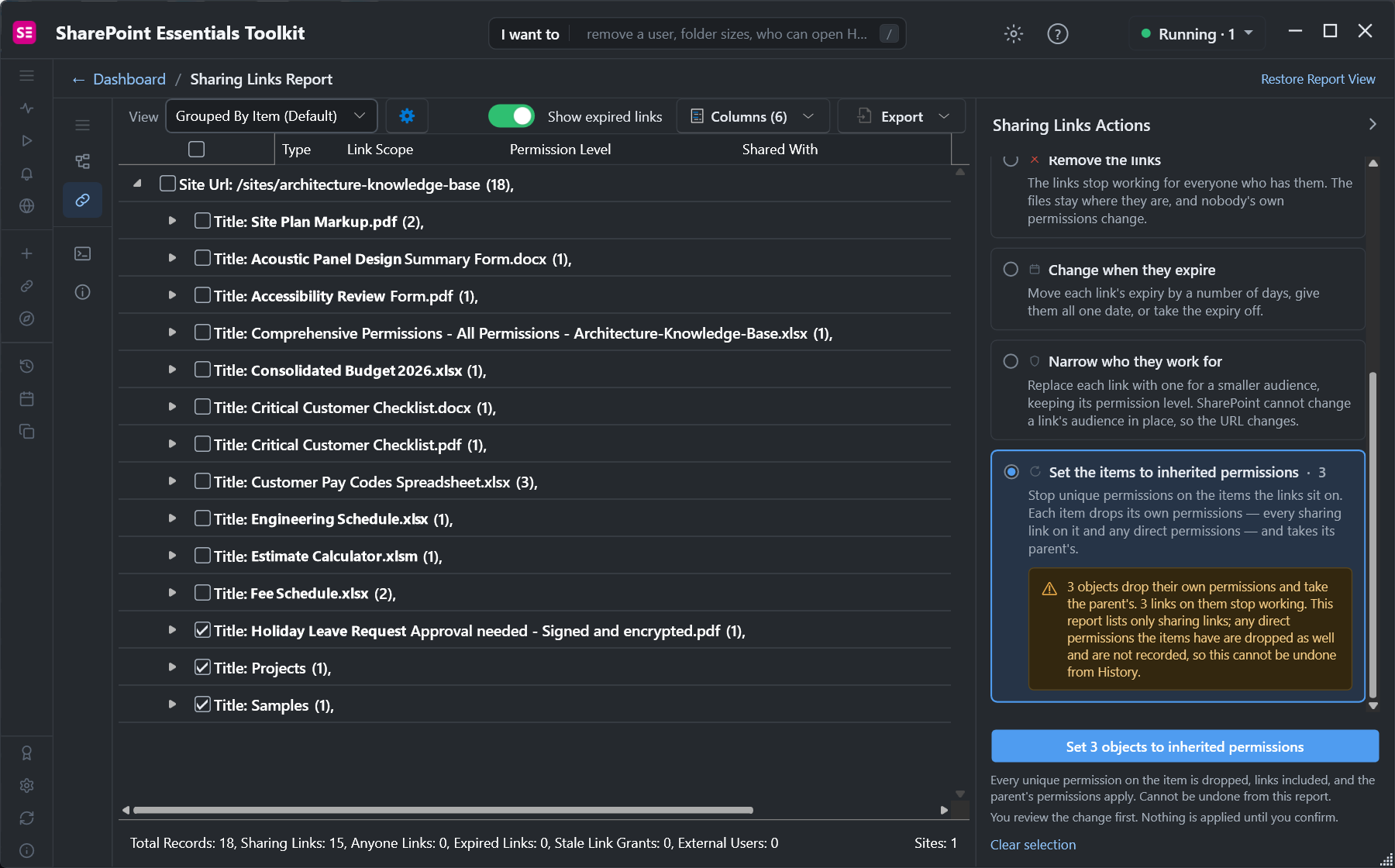
The warning spells out that direct permissions on the items are dropped too.
The review names the parent each item will inherit from.
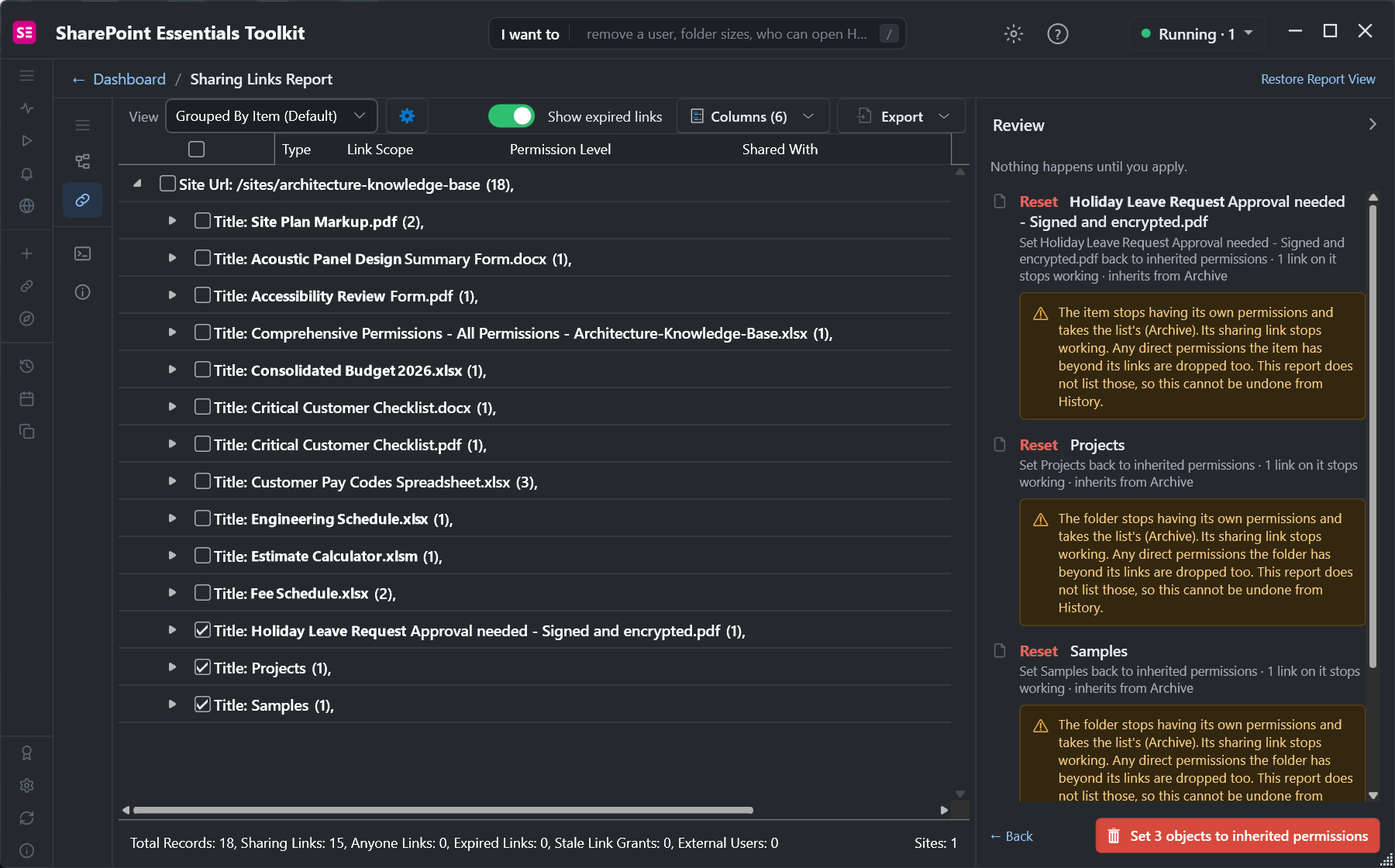
Each item and the library it will inherit from.
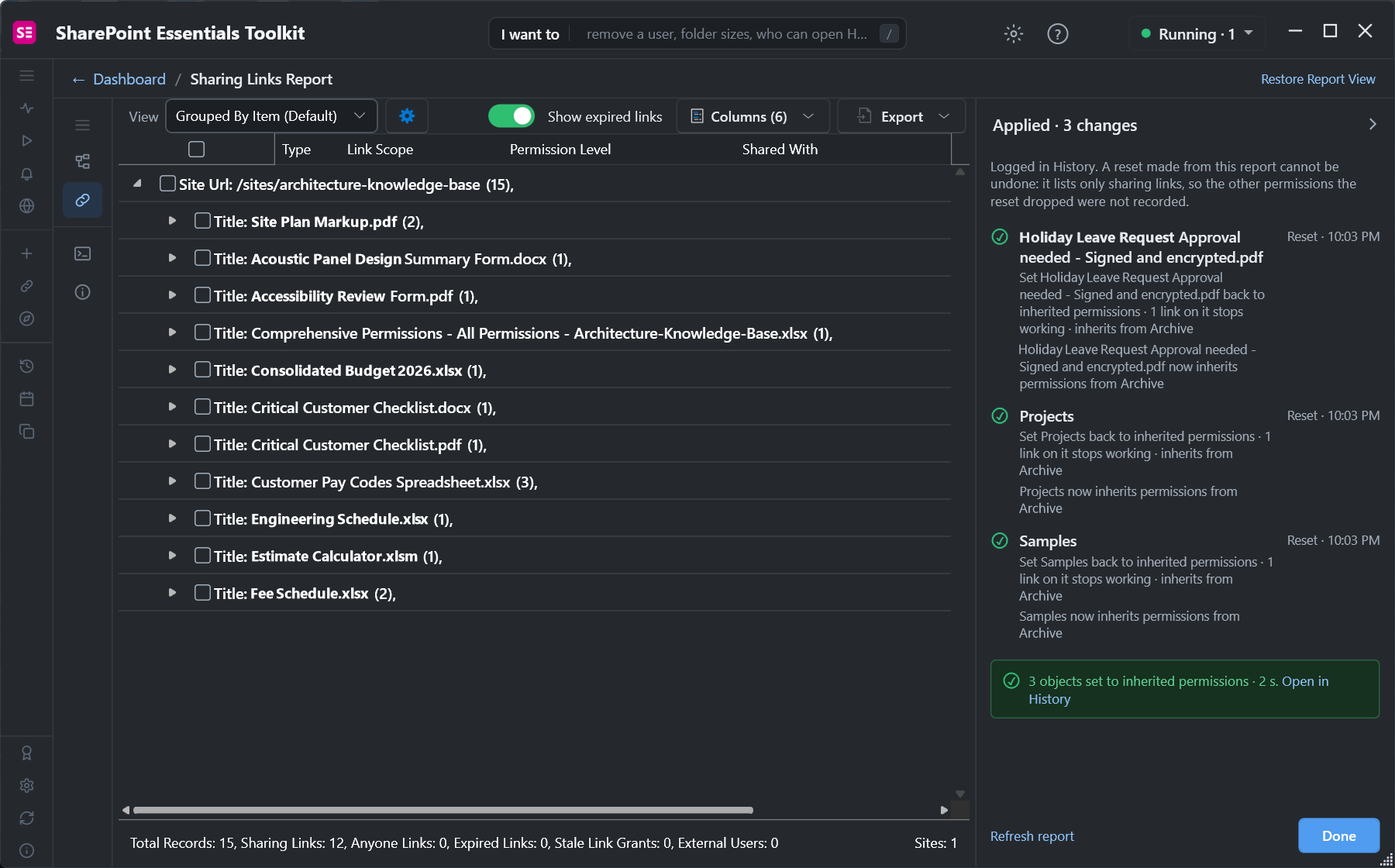
Three objects set to inherited permissions in 2 seconds.
7. Re-run the report to confirm
We refreshed the report against the live site. Of the 20 links, 8 remain: 4 of the links whose expiry we extended (the fifth was removed in step 5), one organization-wide link we left for later, and 3 links for specific people. The 4 narrowed links no longer appear, because a link for people who already have access grants nothing, so it isn't counted as a sharing link.
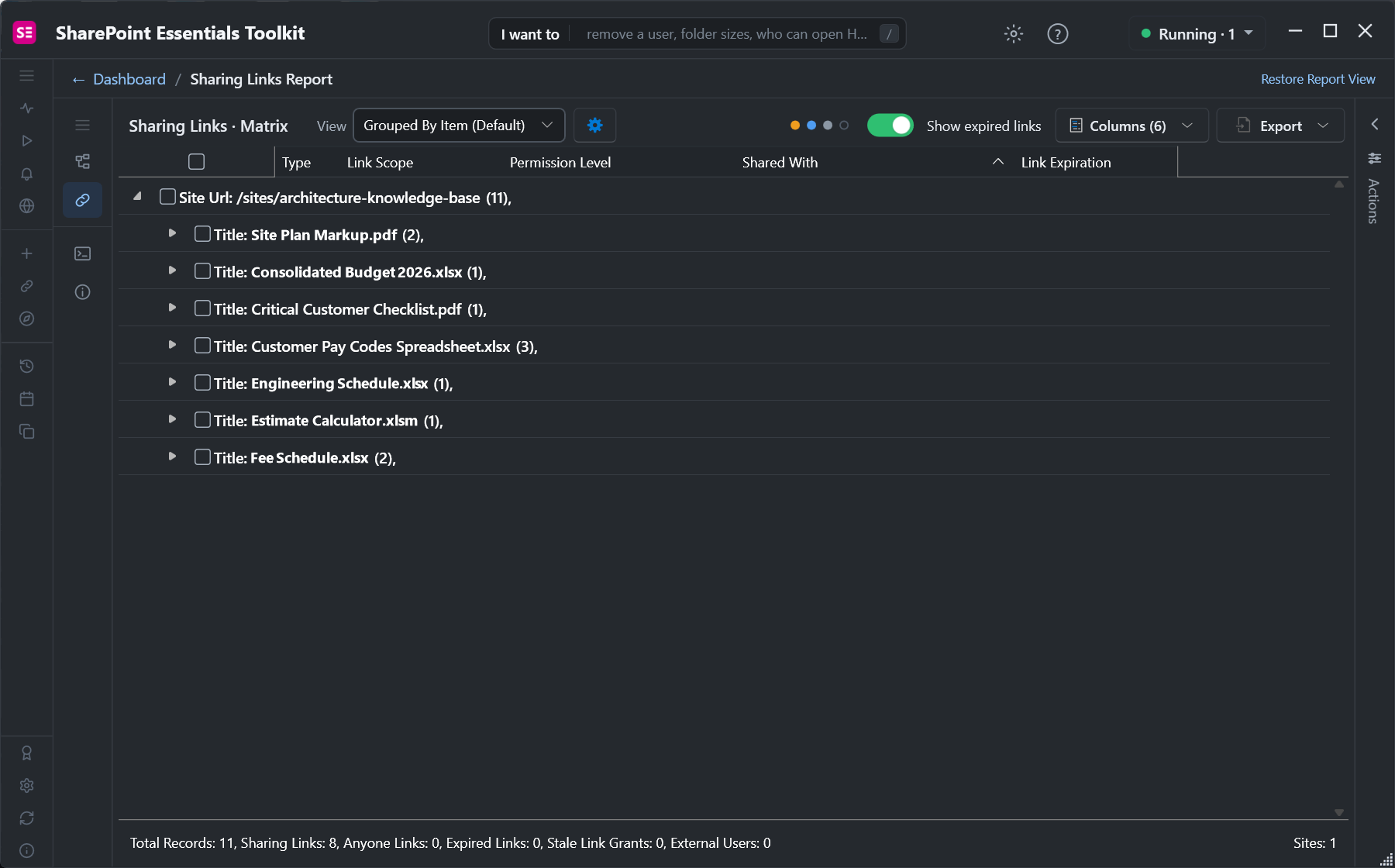
After the cleanup: 8 sharing links on 7 files.
Switch to Sharing Links · By Location to see the same links grouped by site, library, folder and file. It's the quickest way to spot a folder where links pile up. The footer totals cover the whole report even when branches are collapsed.
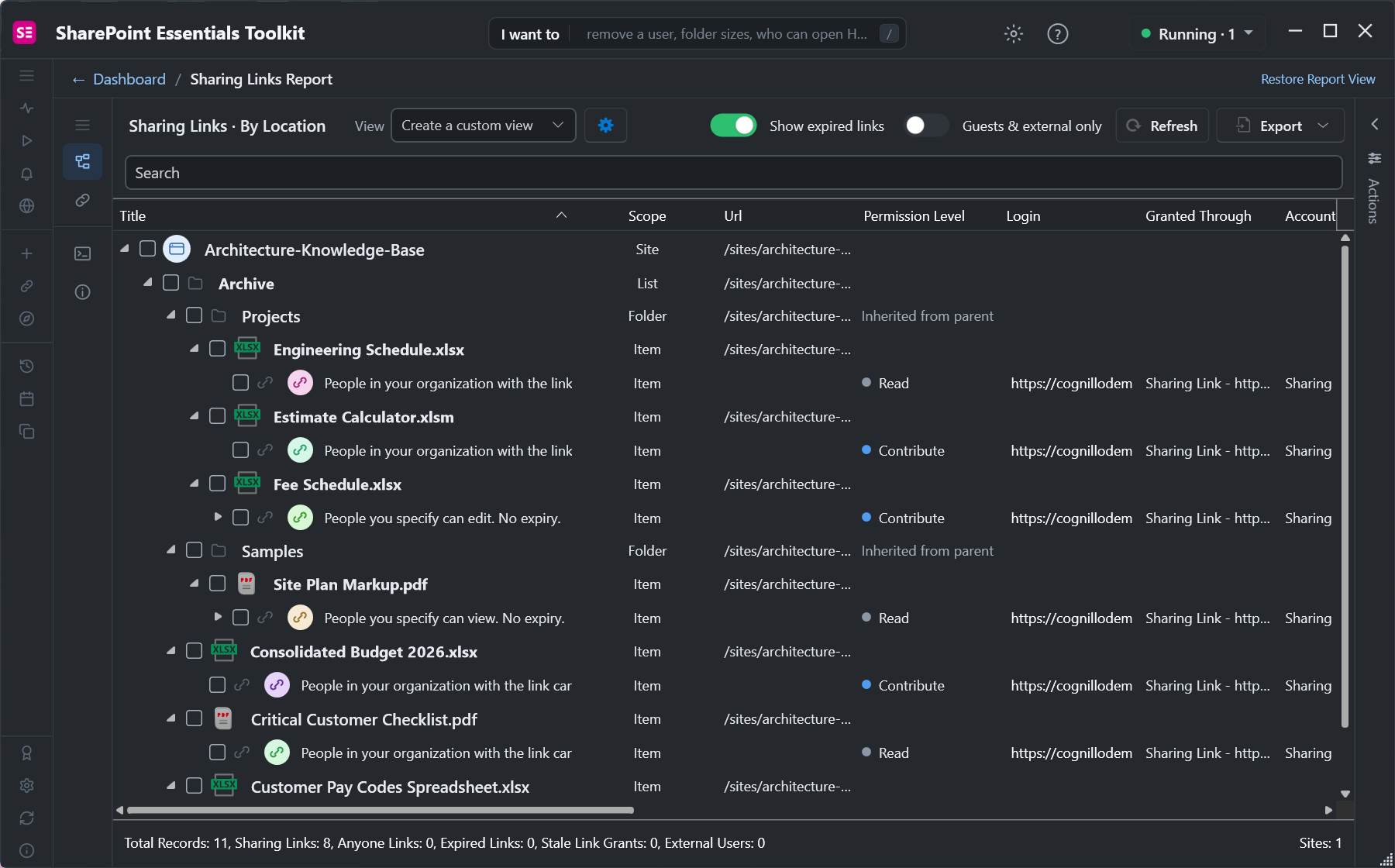
The By Location view groups each sharing link under the file it opens.
Community Edition allows full-depth available reports and up to 10 report-action changes per Apply. Its 20-site-collection allowance is shared across Community keys in each tenant, limited to 20 per key and per job; first use permanently counts a collection, while subsites share that collection count. Export the report before a cleanup.
Which sharing links should you clean up first?
Anyone links with edit rights. Remove them, or narrow them to specific people.
Organization-wide edit links. Narrow them; most only ever needed a few people.
Links with no expiry that are still needed. Give them an expiry so they end on their own.
Links for finished projects or people who have left. Remove them.
Items that were shared once and should follow their library. Restore permission inheritance.
Sharing links are one part of who has access. Check the rest with the SharePoint permissions report, and if you're preparing for Microsoft 365 Copilot, follow Copilot readiness: find overshared SharePoint files.
Frequently asked questions
Does removing a sharing link remove everyone's access?
It removes the access the link gave, so anyone who relied on the link can no longer open the file. People with their own permission, such as site members or someone granted access directly, keep it. To take away all unique access on an item, restore permission inheritance instead. Check the parent permissions before doing so.
Can I change the expiration date of an existing SharePoint sharing link?
Yes. In Manage access you can open a link's settings and change or remove its expiry, one link at a time, where your tenant allows it. SharePoint Essentials Toolkit changes the expiry of many links in one step: extend or shorten each by a number of days, set one date for all, or remove the expiry. The link URL stays the same.
What happens when I restore permission inheritance on a file?
The file stops having unique permissions and inherits its parent folder’s or library’s permissions. Direct grants and link-based grants in those unique permissions may be removed; people with inherited access can still open the file. SharePoint calls this Delete unique permissions. Export the current permissions before resetting them, then verify access afterward; the sharing-links report cannot automatically undo this reset.
Can I change a sharing link from organization-wide to specific people?
Not in place. SharePoint can't change a link's audience, so narrowing means creating a new link for the smaller audience and removing the old one. The URL changes, and anyone who only had the old URL needs the new one. SharePoint Essentials Toolkit does both steps for each selected link and keeps the permission level the same.
Is it free to clean up sharing links with SharePoint Essentials Toolkit?
Yes. Community Edition provides full-depth available read-only reports and up to 10 report-action changes per Apply. The allowance is 20 site collections per tenant shared across Community keys, with limits of 20 per key and per job; subsites share their collection’s count. First report, task or Explorer change permanently counts a collection. Paid editions remove the per-Apply report-action cap.
Can I undo a sharing link cleanup?
Partly. Expiry changes are logged in History and can be undone for 30 days. Removed or replaced links can't be restored, because SharePoint gives a new link a new URL. A permission reset can't be undone from the sharing links report, which lists links only. Export the report before a large cleanup so you have a record.
Clean up sharing links free on up to 20 sites
SharePoint Essentials Toolkit Community Edition is free. Report every sharing link, then remove, expire, narrow or reset them from the same screen, on up to 20 sites per Microsoft 365 tenant, with no trial period. Get your free Community Edition license key.