How to Find All Sharing Links in SharePoint Online (Anyone, Company and Specific-People Links)
Last updated: 2026-10-21
To find all sharing links in SharePoint Online, you need a sharing links report that reads every file and folder on every site and lists each link's type, permission, expiry, creator and target. The admin center gives summaries, and PowerShell needs a per-file loop. SharePoint Essentials Toolkit lists every link across sites with no per-site cap, free on up to 20 sites with Community Edition.
To find all sharing links in SharePoint Online, you need a sharing links report that reads every file and folder on every site and lists each link's type, permission, expiry, creator and target. The admin center gives summaries, and PowerShell needs a per-file loop. SharePoint Essentials Toolkit lists every link across sites with no per-site cap, free on up to 20 sites with Community Edition.
Why do sharing links matter?
Sharing links are the easiest way for content to leave your control. One click creates an Anyone link that works without signing in, can be forwarded, and may never expire. Specific-people links to outside addresses give guests access that never appears in a site's member list.
Links also outlive their purpose. The project ends, the employee leaves, the vendor contract finishes, and the link keeps working. Before a Microsoft 365 Copilot rollout, organization-wide links matter too, because Copilot answers from content people already have access to.
What are the three kinds of SharePoint sharing link?
| Link type | Who can use it | Main risk |
|---|---|---|
| Anyone | Anyone with the URL, no sign-in | Forwarded or posted outside; no record of who opened it |
| People in your organization | Any signed-in internal user with the URL | Wide internal exposure; often forgotten after the project ends |
| Specific people | Named people, internal or external | Guests keep access after the project ends |
Each link also carries a permission (view, edit, or view without download) and, optionally, an expiry date. Microsoft describes the types in Manage sharing links.
Do tenant sharing settings remove old links?
Not by themselves. Settings in the SharePoint admin center sharing page control what people can create from now on. A new expiry policy for Anyone links applies to new links. Turning Anyone links off makes existing ones stop working while the setting is off, but the links still exist and can work again if the setting changes back. The only way to know what is out there is to list the links themselves.
Option 1: Built-in tools
Microsoft 365 has four built-in places that show sharing links, each at a different scale.
One file or folder: Manage access
- In the library, select the file or folder.
- Open the Details pane and select Manage access.
- The Links tab lists each link on the item. The People and Groups tabs show who else has access. From here you can remove a link or stop sharing.
Microsoft walks through it in See who a file is shared with. This is the right tool for one item. It does not list links across a library.
One site: the sharing report
- Open the site and select Settings (the gear) > Site usage.
- In Shared with external users, select Run report.
- Choose a library to save it in and select Save. You get an email when the CSV is ready.
Per Microsoft Learn, the CSV has a row for each signed-in person who used or received a link, with the link ID and type. It does not include Anyone links, or links that were emailed but never opened. You must be a site admin, and you run it site by site.
Across the tenant: the Sharing links activity report
In the SharePoint admin center, go to Reports > Data access governance > Sharing links. Per Microsoft Learn, it shows the sites where people created the most Anyone, organization and specific-people links in the last 28 days. That tells you where to look, not which files the links open. Microsoft states that organizations without SharePoint Advanced Management must turn on data collection first, and that reports then cover only the 28 days after it was turned on.
Who created a link and when: the audit log
In the Microsoft Purview portal, open Audit and search for sharing activities such as AnonymousLinkCreated, CompanyLinkCreated and SecureLinkCreated. Microsoft explains the sharing events in Use sharing auditing in the audit log. Each result shows who created the link, on which file, and when. The audit log only covers the period your audit retention keeps, so links older than that don't appear.
Option 2: PowerShell
PnP PowerShell's Get-PnPFileSharingLink returns every link on a file, with its scope, permission and expiry. The quickest version, from the PnP documentation, covers one library:
Get-PnPFileInFolder -Recurse -ExcludeSystemFolders -FolderSiteRelativeUrl "Shared Documents" |
    Get-PnPFileSharingLink
The script below covers every document library on a site, both files and folders, and writes a CSV. Install PnP PowerShell 2.x or later and register your own Entra ID app first.
# Every sharing link on files and folders in one site's document libraries
$ClientId = "<your-app-id>"
$SiteUrl  = "https://contoso.sharepoint.com/sites/Projects"
Connect-PnPOnline -Url $SiteUrl -Interactive -ClientId $ClientId

$libraries = Get-PnPList | Where-Object { $_.BaseTemplate -eq 101 -and -not $_.Hidden }

$rows = foreach ($lib in $libraries) {
    $items = Get-PnPListItem -List $lib -PageSize 500 -Fields "FileRef", "FSObjType"
    foreach ($item in $items) {
        $path = $item.FieldValues.FileRef
        $links = if ($item.FieldValues.FSObjType -eq 1) {
            Get-PnPFolderSharingLink -Folder $path
        } else {
            Get-PnPFileSharingLink -Identity $path
        }
        foreach ($l in $links) {
            [pscustomobject]@{
                Path       = $path
                Scope      = $l.Link.Scope      # anonymous, organization or users
                Permission = $l.Link.Type       # view, edit, ...
                Expires    = $l.ExpirationDateTime
                Url        = $l.Link.WebUrl
            }
        }
    }
}

$rows | Export-Csv "C:\Reports\sharing-links.csv" -NoTypeInformation -Encoding UTF8
Test it on a small site first. What to know:
- It makes one request per file and folder. A library with 50,000 files means 50,000 requests, and SharePoint will throttle a run that size.
- It covers document libraries only. Links on pages and list items need extra code.
- To cover the tenant, wrap it in a loop over
Get-PnPTenantSiteand connect to each site. - Many published scripts look for hidden "SharingLinks" groups instead. That is faster, but you lose details such as expiry and who the link was shared with.
Option 3: SharePoint Essentials Toolkit sharing links report
The sharing links report reads every list, folder and file on the sites you pick and lists each link: the file or folder it opens, the link type, its permission, its expiry, who created it, and who it was shared with. It reads only. There is no per-site cap on links.
1. Choose the task and a preset
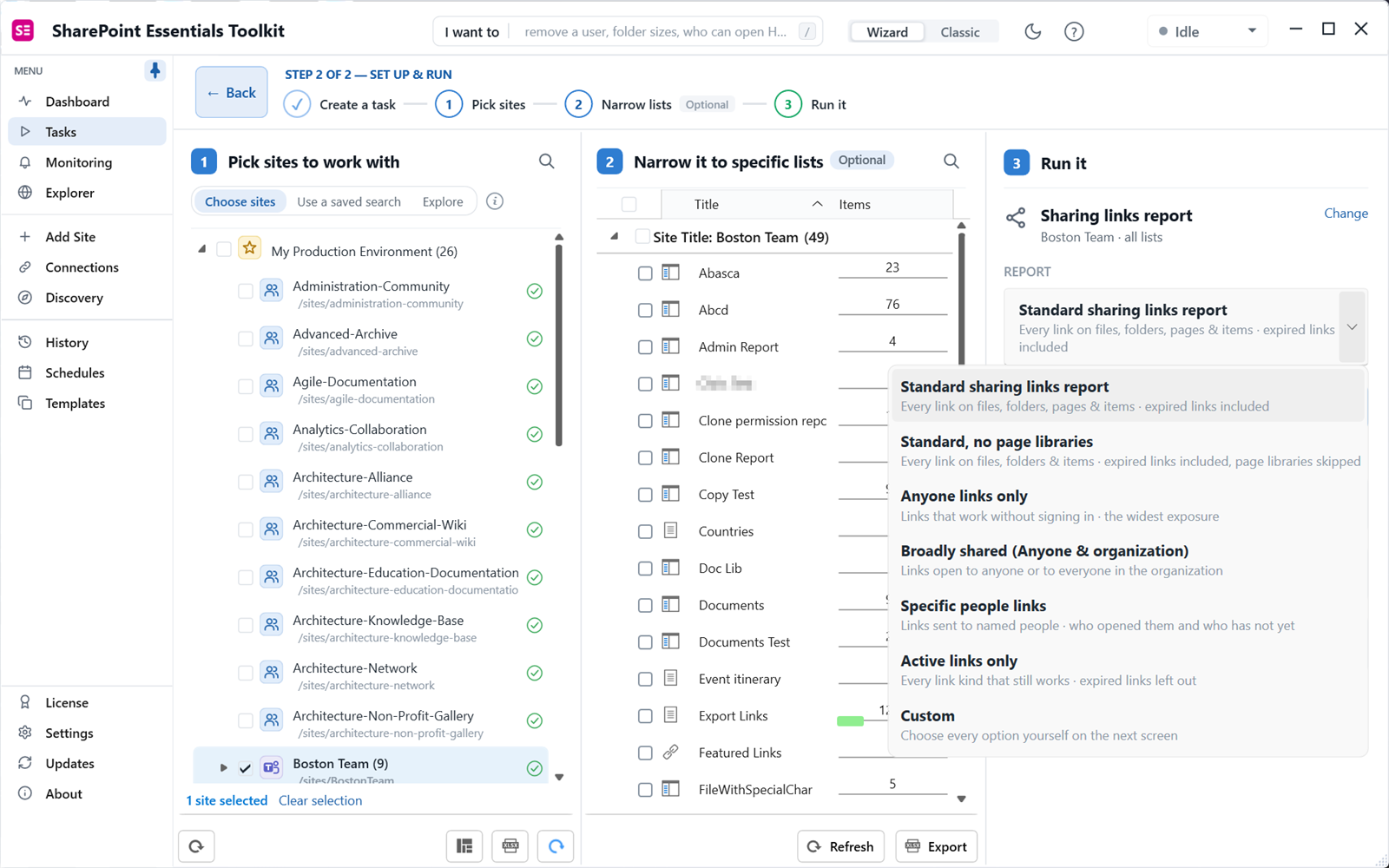
Open Tasks > Oversharing (or Permissions) and pick Sharing links report. Select your sites. The report dropdown offers presets: the standard report (every link, expired links included), Anyone links only, broadly shared (Anyone and organization), specific people links, active links only, or a custom set.
2. Check the summary and run
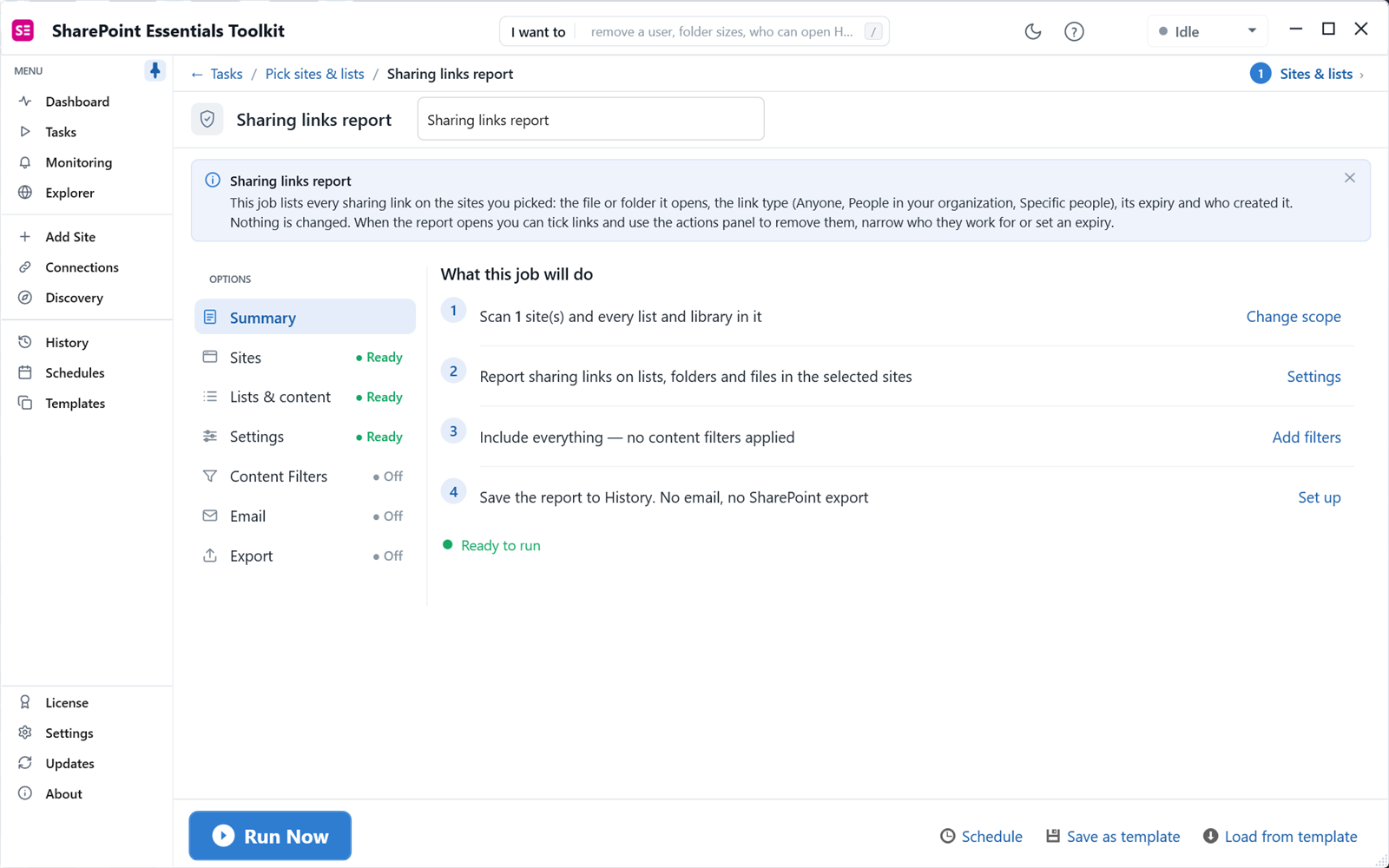
Click Next. The summary confirms the sites and that nothing will be changed. Click Run Now.
3. Read the totals
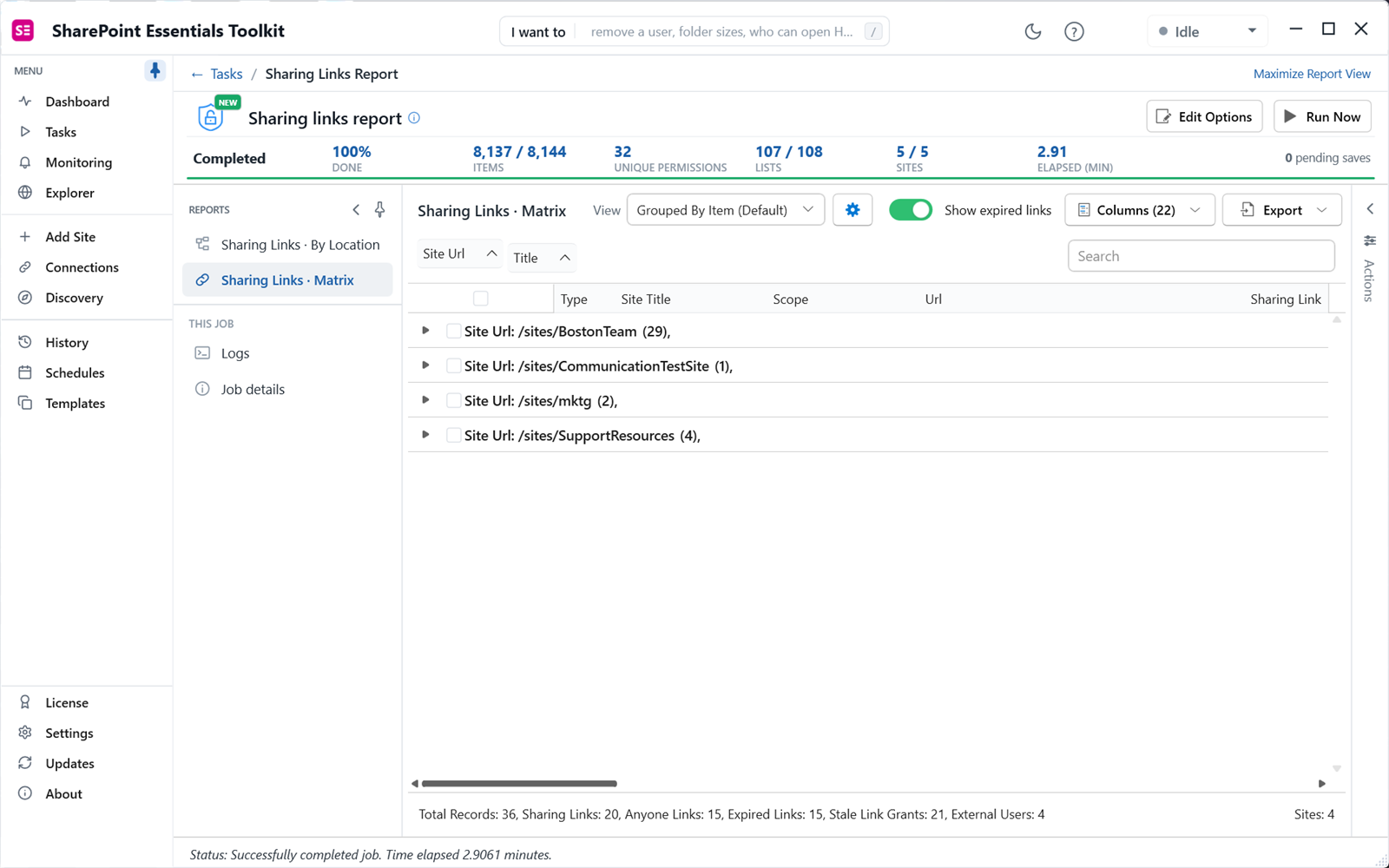
We ran it on five sites holding 107 lists and 8,137 items. It finished in 2.9 minutes and found 20 sharing links: 15 Anyone links, 15 links already past their expiry, and 4 external users. It also found 21 stale link grants: access left behind by a link that no longer exists. Those people can still open the file even though the link is gone.
4. Switch views
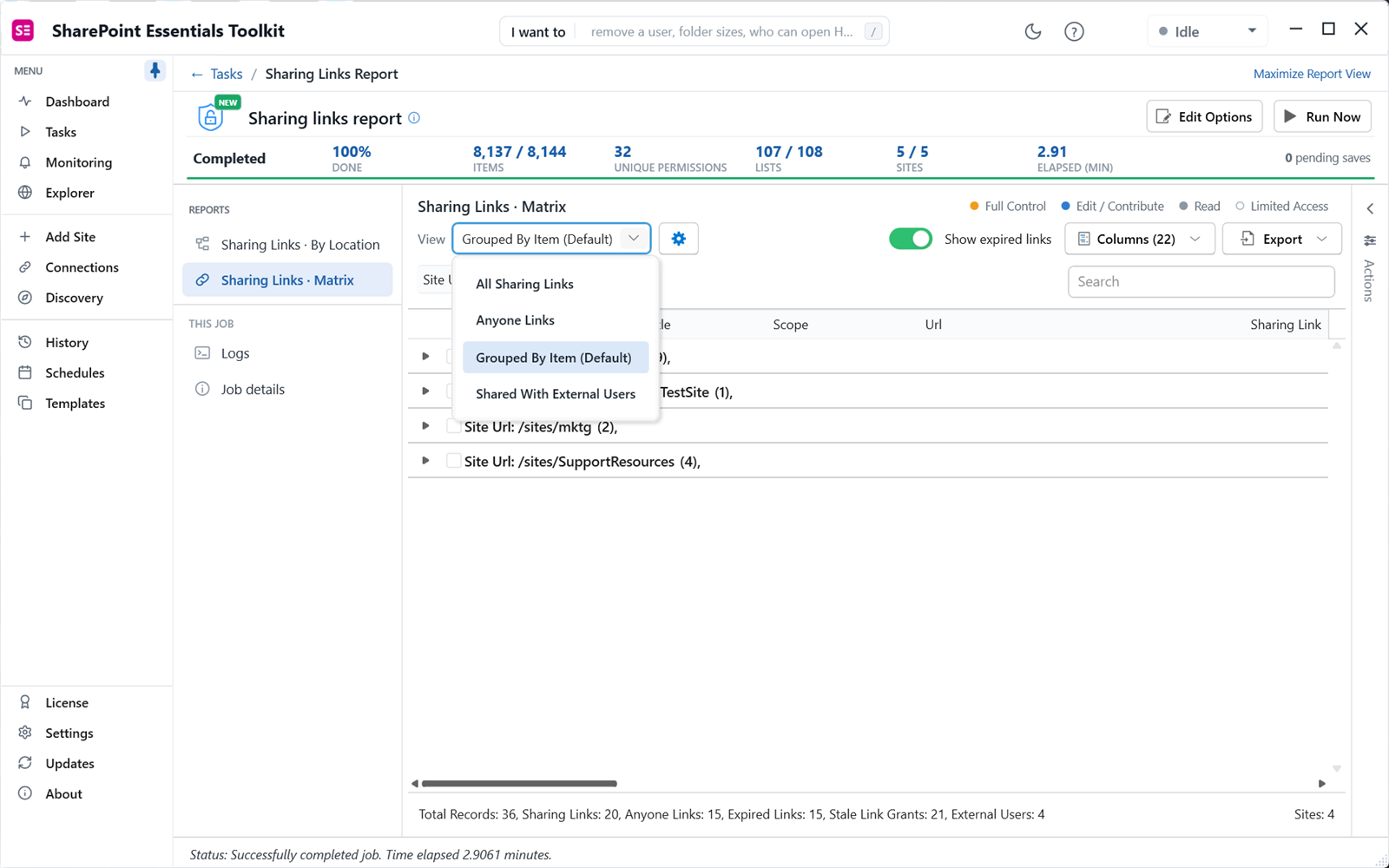
Use the View dropdown to change the question: All Sharing Links, Anyone Links, Grouped By Item, or Shared With External Users. The Show expired links toggle hides links that no longer work.
5. Read the link details
Scroll right for Link Scope, Anyone Link, Permission Level, Shared With Type, Shared With and the expiry and creator columns. In our test, several Anyone links granted Contribute or Edit, meaning anyone with the URL could change the file.
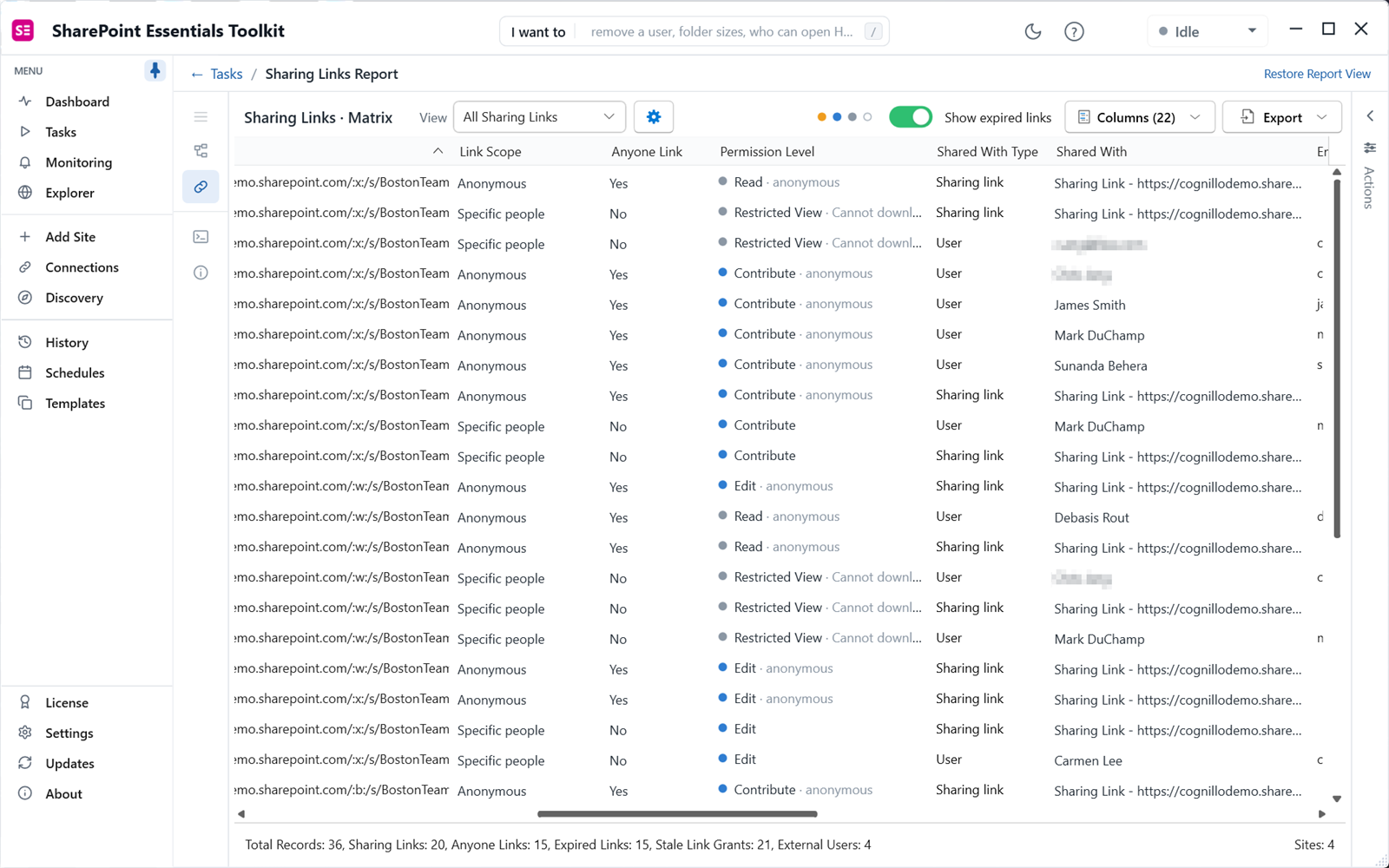
Export to Excel or CSV from the Export button. The export keeps your view and filters.
Which sharing links should you remove first?
- Anyone links with edit or contribute. Anyone can change or replace the file.
- Anyone links with no expiry. They work until someone removes them.
- Stale link grants. The link is gone but the access stayed. Remove the leftover access.
- Links to external people on sites that should be internal, or for projects that have ended.
- Links on labeled or sensitive content. Cross-check with the unlabeled widely shared files report.
- Links created by people who have left. Group by creator.
How do you remove or fix sharing links?
Tick the links in the report and open the Actions panel. You can remove a link, narrow who it works for, or set an expiry. The panel lists every change before it is applied. The Copilot area also has a Remove or downgrade links task that starts from this report.
Community Edition can apply small fixes so you can see how it works. Removing sharing links in bulk needs a paid edition. The report itself is never limited.
Sharing links are one part of who has access. For the full picture, combine this with the SharePoint permissions report. If you are preparing for Copilot, follow the four-report pass in Copilot readiness: find overshared SharePoint files.
Frequently asked questions
Do Anyone links expire in SharePoint?
Only if an expiry is set. Admins can require Anyone links to expire after a set number of days in the SharePoint admin center, but that setting applies to new links. Links created before the policy keep their old expiry, or none. A sharing links report shows the expiry of each existing link so you can find the ones that never expire.
Can I find sharing links created by a specific user?
Yes. The SharePoint Essentials Toolkit sharing links report records who created each link. Filter or group by that column to see every link one person made, which is a useful step when someone leaves. Their links keep working after the account is disabled, so review and remove the ones that are no longer needed.
Does the sharing links report cover OneDrive?
Each OneDrive is a personal site collection. Add the OneDrive URL as a site in scope and the report reads its links like any other site. Because Community Edition counts sites, pick the OneDrives that matter most, such as those of leavers or people who share often with outside partners.
Does turning off Anyone links remove existing links?
Changing the tenant or site sharing setting stops people from creating new Anyone links, and Microsoft documents that existing Anyone links stop working while the setting is off. They can work again if the setting is turned back on. Removing the links themselves is the only way to be sure they are gone. Check Microsoft Learn for the current behavior.
Can I remove sharing links in bulk?
Yes, from the report. Tick the links and use the Actions panel to remove them, narrow who they work for, or set an expiry. Every change is listed for review first. Community Edition can apply small fixes so you can try it. Removing sharing links in bulk across many sites needs a paid edition.
List every sharing link free on up to 20 sites
SharePoint Essentials Toolkit Community Edition is free. Run the sharing links report on up to 20 sites per Microsoft 365 tenant, with no item caps and no trial period. Get your free Community Edition license key.