Microsoft 365 Copilot Readiness: Find Overshared SharePoint Files Before You Roll Out Copilot
Last updated: 2026-10-21
Copilot oversharing in SharePoint happens when files are open to more people than intended, and Copilot makes them easy to find. Copilot does not change permissions; it uses the ones you already have. A practical readiness pass is four reports: a permissions baseline, a sharing links report, widely shared files with no sensitivity label, and stale content still open to everyone. All four run free in SharePoint Essentials Toolkit Community Edition on up to 20 sites.
Copilot oversharing in SharePoint happens when files are open to more people than intended, and Copilot makes them easy to find. Copilot does not change permissions; it uses the ones you already have. A practical readiness pass is four reports: a permissions baseline, a sharing links report, widely shared files with no sensitivity label, and stale content still open to everyone. All four run free in SharePoint Essentials Toolkit Community Edition on up to 20 sites.
Why does oversharing matter for Copilot?
Microsoft's documentation says Copilot only surfaces organizational data that the individual user has at least view permission to (see Data, privacy and security for Microsoft 365 Copilot). That sounds reassuring until you remember how SharePoint permissions grow. A salary spreadsheet shared with "Everyone except external users" in 2019 was safe in practice because nobody went looking for it. With Copilot, someone asks "what are the pay bands for my role?" and the answer comes from that file.
The risk is not new access. It is that old, forgotten access becomes discoverable. That is why IT leads are asked to prove the tenant is clean before Copilot licenses go out.
What can Copilot see in SharePoint, and what can it not?
- It can use files, pages and list items the signed-in user can open, including access through groups, Everyone claims and sharing links.
- It cannot use content the user has no permission to, or content protected by a sensitivity label with encryption that the user is not allowed to open.
- Admins can limit discovery with Microsoft controls such as Restricted SharePoint Search and Restricted Content Discovery. These reduce what search and Copilot surface; they do not change who can open a file.
Microsoft also publishes a blueprint for addressing oversharing. Read it alongside this article; the reports below are a practical way to do the "identify" step on your own sites.
Option 1: Microsoft's built-in oversharing reports
If you have SharePoint Advanced Management, the SharePoint admin center supports a full built-in pass. Microsoft documents each report in Data access governance reports:
- Baseline. Go to Reports > Data access governance and run Site permissions across your organization. It flags sites with the broadest access, such as thousands of users, guests or Everyone except external users. The other snapshot reports need this one to have run first.
- Item-level Everyone grants. Run Sites and files shared via special SharePoint groups for Everyone and for Everyone except external users. Each row is a site, folder or file that the group can open, with its permission level.
- Before licensing a user. Run Site permissions for users for pilot Copilot users to see every site they can reach.
- Recent activity. Check the Sharing links and Shared with 'Everyone except external users' activity reports for the last 28 days.
- Remediate. From a report, start a Site access review so site owners confirm or remove access, or apply Restricted access control to limit a site to one group.
What to know: snapshot data can be up to 48 hours old, and most reports can be rerun every 30 days. Microsoft notes that Microsoft 365 E5 admins without SharePoint Advanced Management get the activity reports but not the snapshot reports. The reports cover Everyone groups at item level, but not every Anyone or organization link file by file, and nothing combines open access with missing sensitivity labels.
Option 2: PowerShell
The same reports can be started from the SharePoint Online Management Shell with Start-SPODataAccessGovernanceInsight. Microsoft's PowerShell guide covers tracking and downloading them:
# Baseline: sites and how many people can reach them
Start-SPODataAccessGovernanceInsight -ReportEntity PermissionedUsers -Workload SharePoint `
    -ReportType Snapshot -Name "Copilot baseline" -CountOfUsersMoreThan 0

# Every item open to Everyone except external users, and to Everyone
Start-SPODataAccessGovernanceInsight -ReportEntity EveryoneExceptExternalUsers -ReportType Snapshot
Start-SPODataAccessGovernanceInsight -ReportEntity Everyone -ReportType Snapshot

# Every site a pilot user can reach
Start-SPODataAccessGovernanceInsight -ReportEntity PermissionsReport -Workload SharePoint `
    -ReportType Snapshot -Name "Copilot pilot" -UserPrincipalNames "megan@contoso.com"
Without SharePoint Advanced Management, PnP PowerShell can find the same exposure from role assignments. The files shared with everyone article has a script that finds Everyone grants, and the sharing links article has one that lists every link on a site. Expect one request per file at item level, and plan for throttling.
How the options compare
| Microsoft built-in | PowerShell | SharePoint Essentials Toolkit | |
|---|---|---|---|
| What it finds | Broadly shared sites; items open to Everyone groups; per-user site access; 28-day sharing activity | Whatever you script | Files, folders, lists and sites open to everyone; every sharing link; unlabeled widely shared files; stale open content |
| Depth | Site level, plus item level for Everyone groups | Item level with loops | Item level |
| Freshness | Up to 48 hours; rerun every 30 days | Live | Live |
| Licensing | Snapshot reports need SharePoint Advanced Management | Free | Free on up to 20 sites |
| Effort | Low | High: app registration, throttling, decoding links and claims | Low: pick sites, run |
If you have SharePoint Advanced Management, start with the baseline report to choose which sites to examine. The reports below then give file-level detail on those sites, including links and labels.
The four-report Copilot readiness pass
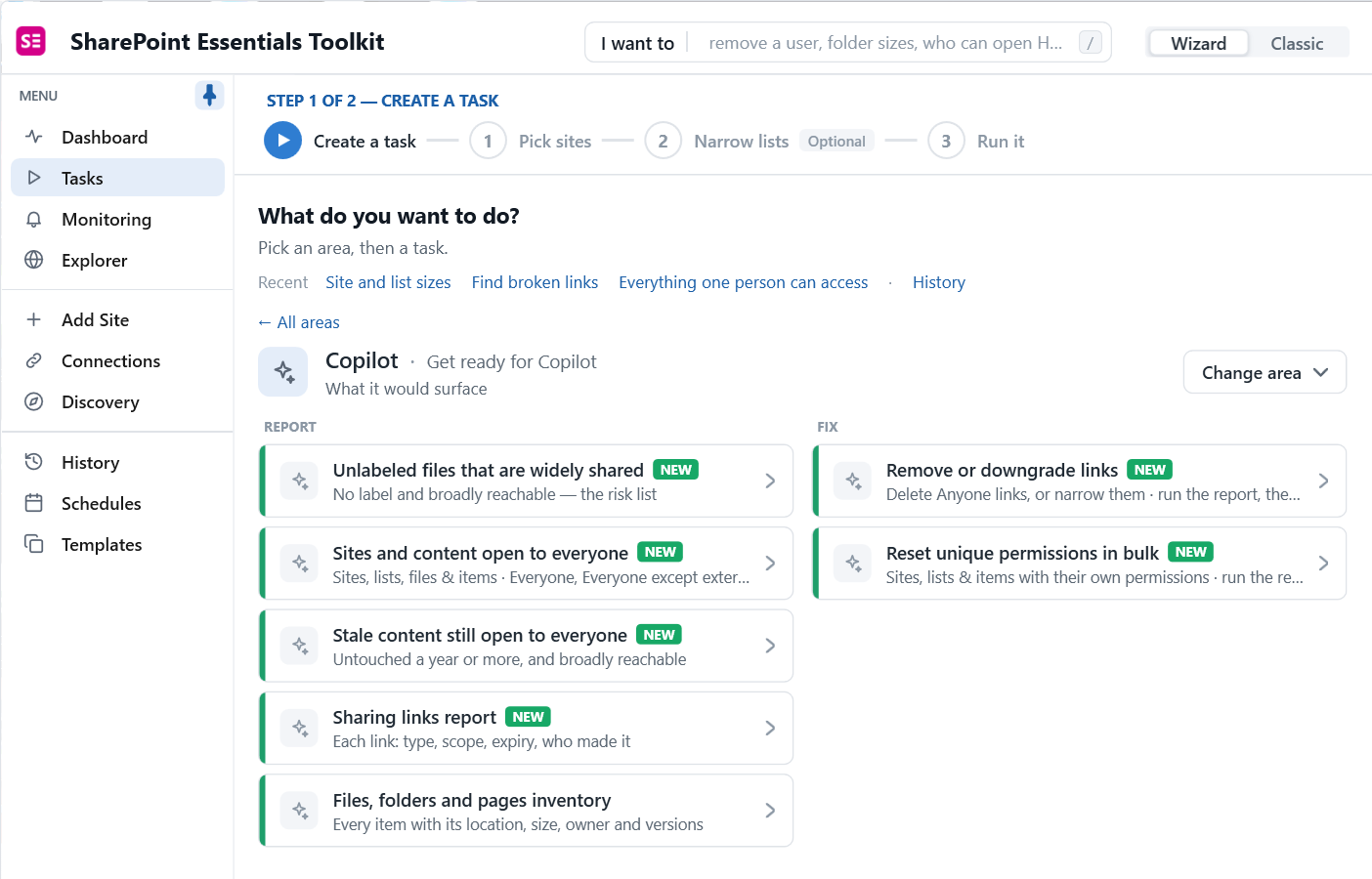
Open Tasks > Copilot in SharePoint Essentials Toolkit. The area groups the reports for this job under Report and the matching fixes under Fix.
Report 1: Permissions baseline
What it catches: every grant on every site, list, folder and file, including site collection admins, external users and grants through sharing links. This is your "before" picture and your evidence for auditors.
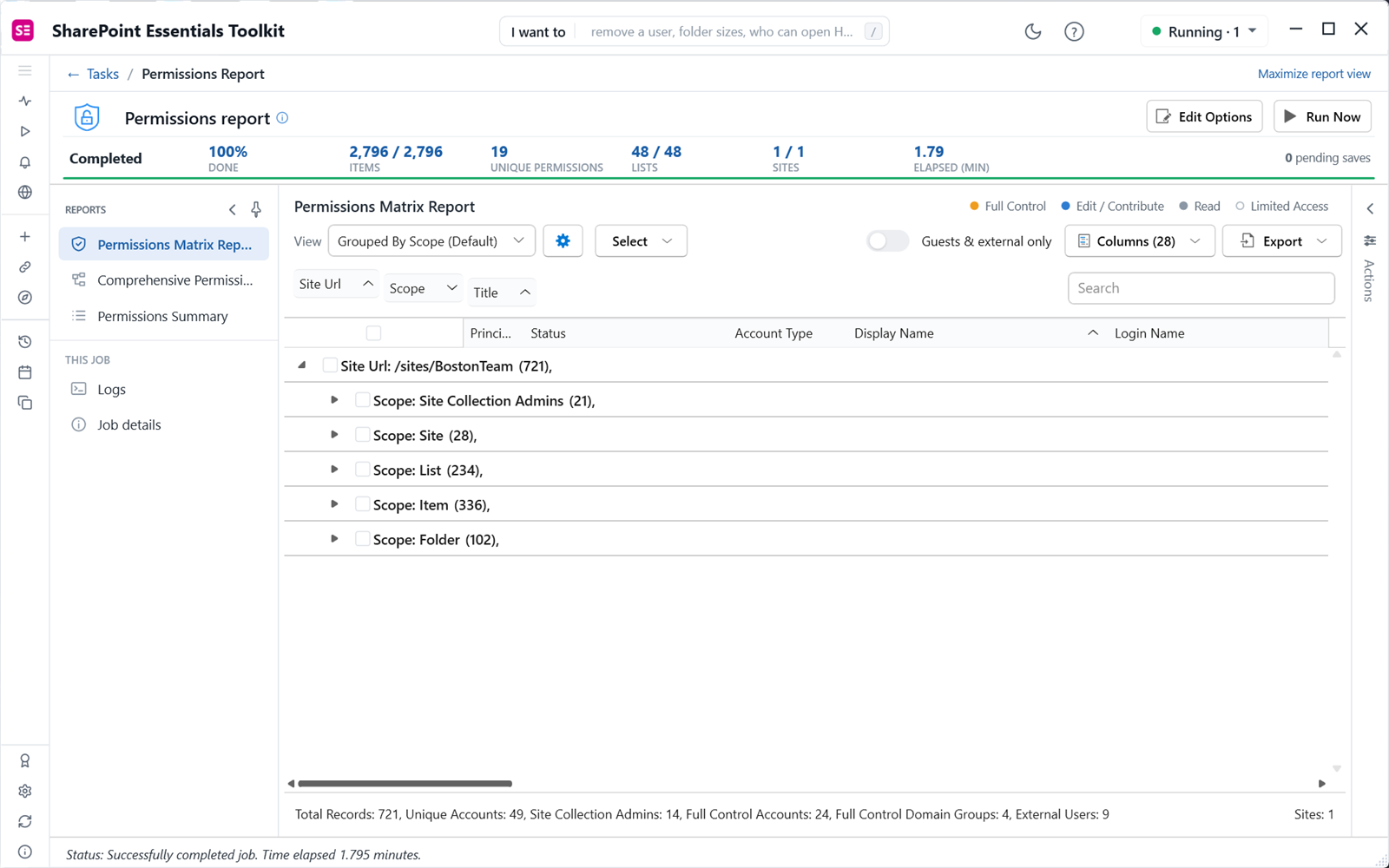
How: Tasks > Permissions > Permissions report, pick sites, run. On one test site the report found 721 grants, 24 accounts with Full Control and 9 external users in 1.8 minutes. The full walkthrough is in our SharePoint permissions report guide.
Report 2: Sharing links
What it catches: every Anyone, organization and specific-people link, with permission, expiry and creator. Organization links matter because they open a file to a broad internal audience.
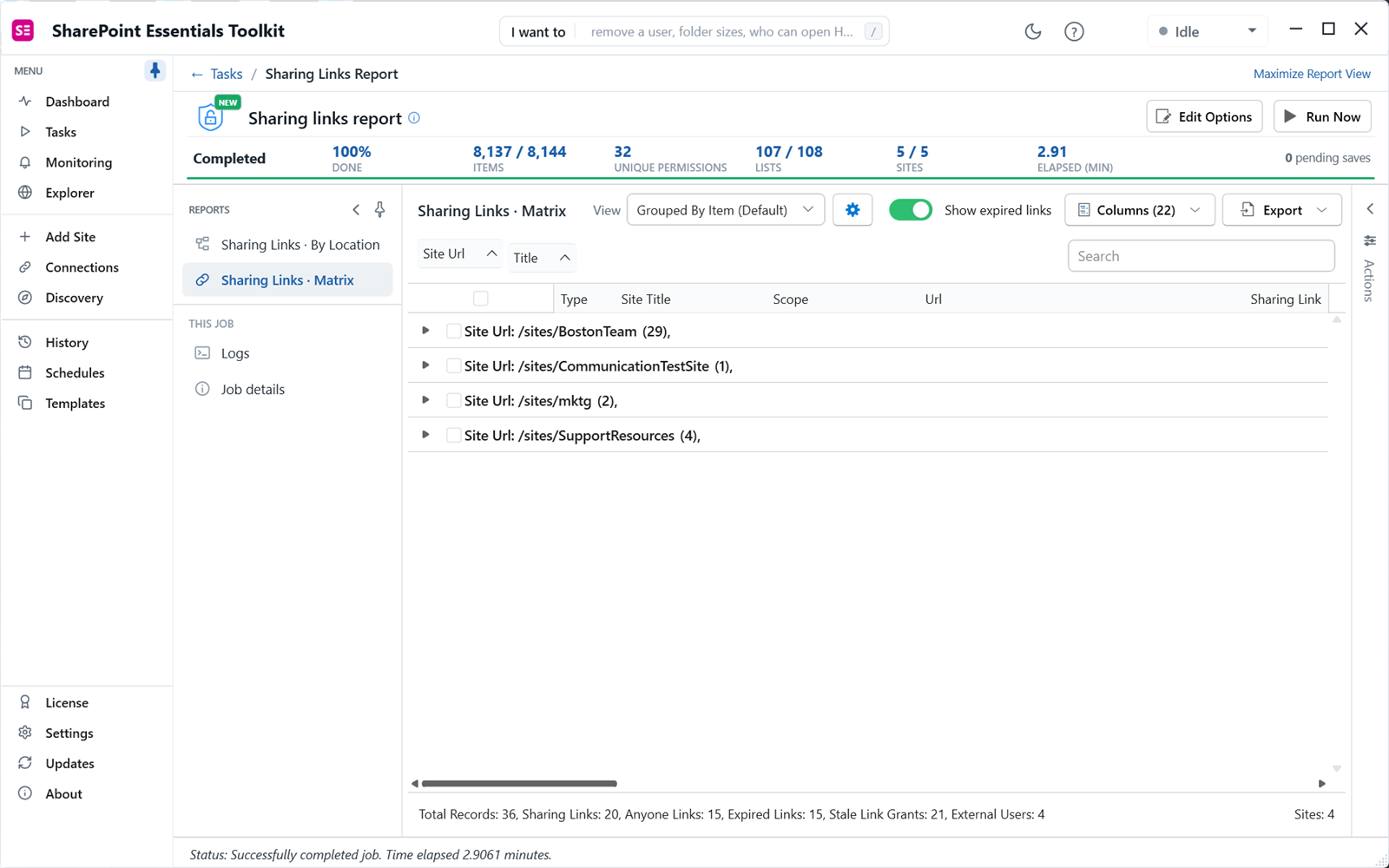
How: Sharing links report in the Copilot area. Our five-site run found 15 Anyone links, 15 expired links and 21 grants left behind by links that no longer exist. See how to find all sharing links.
Report 3: Unlabeled files that are widely shared
What it catches: files with no sensitivity label that are reachable by Everyone, Everyone except external users, All authenticated users, or an Anyone or organization link. These are the files most likely to surface in Copilot answers, and nothing protects them.
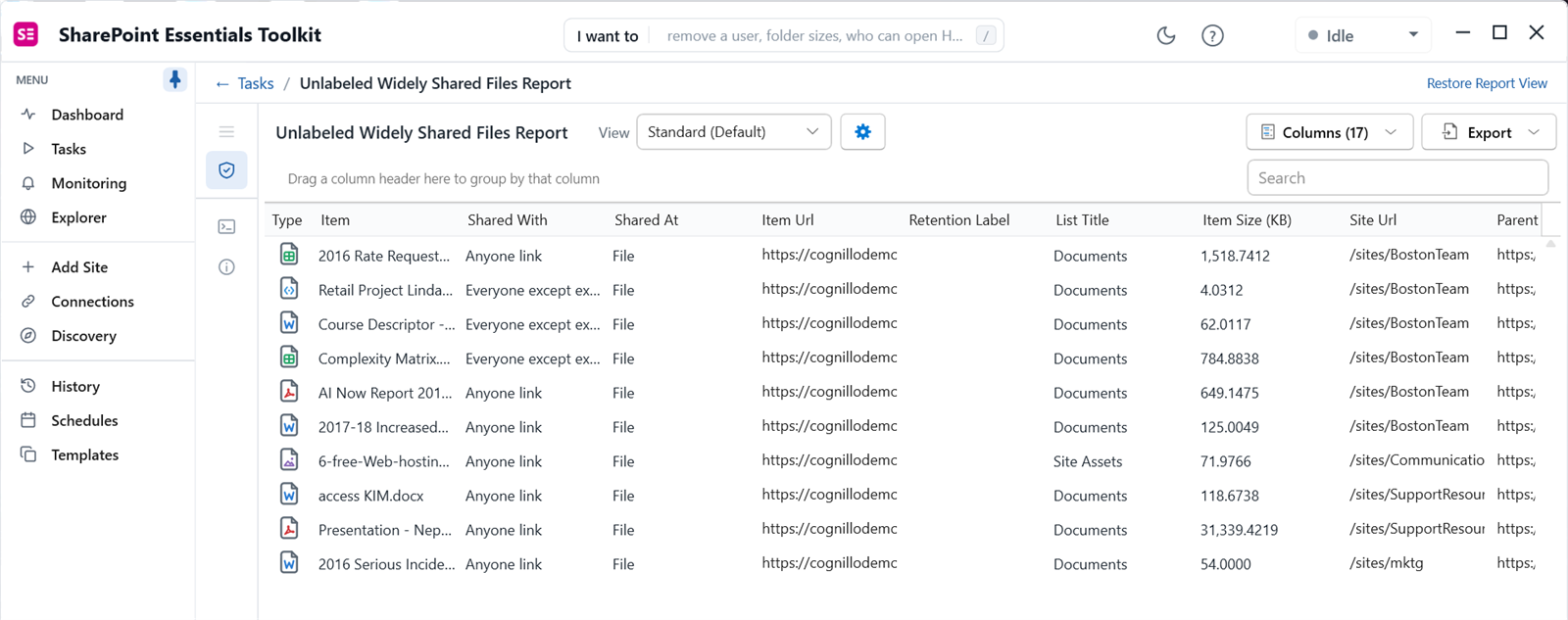
How: Unlabeled files that are widely shared. On four sites it returned a short list of ten files, including a rate request spreadsheet open through an Anyone link and project files open to Everyone except external users.
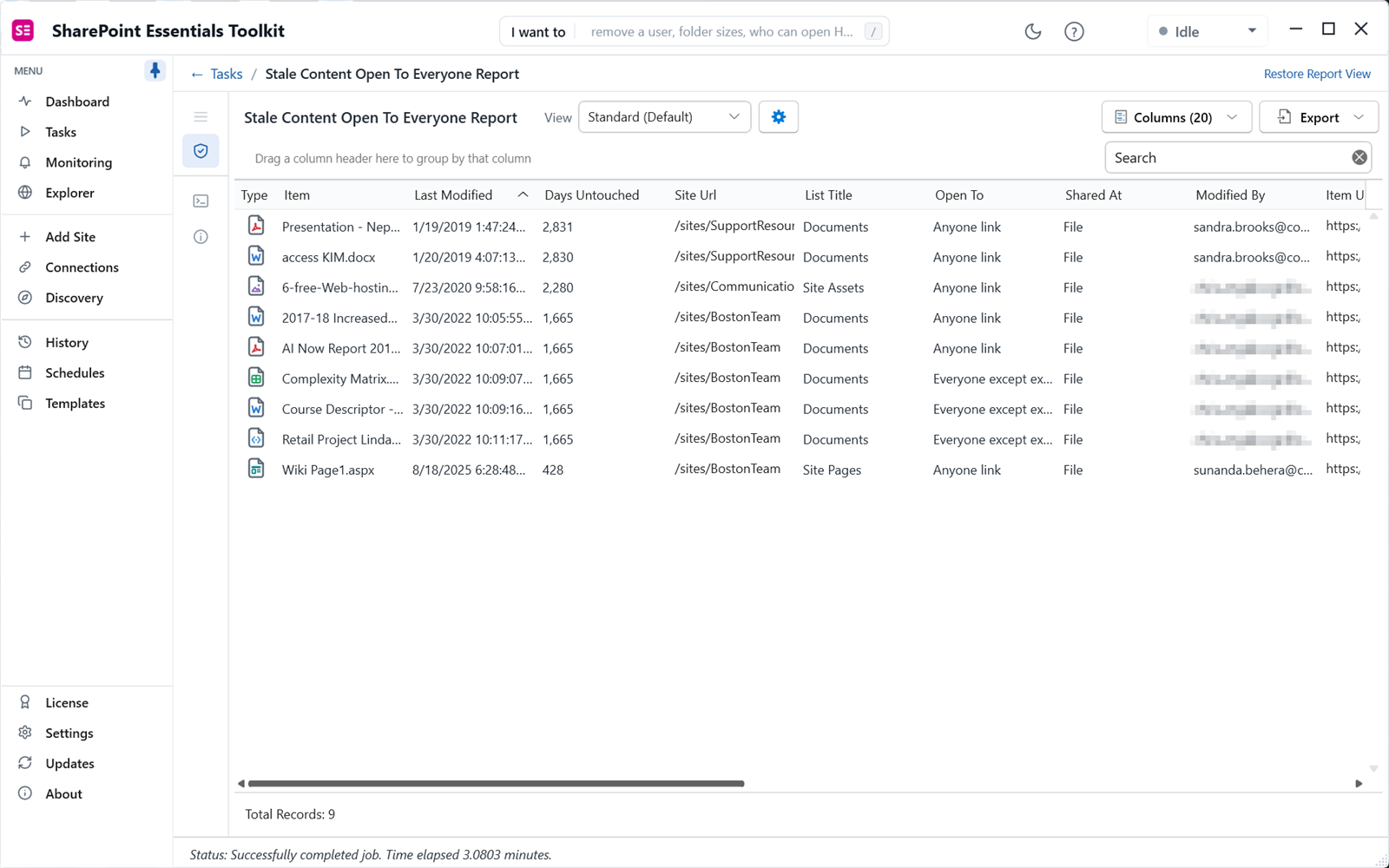
Report 4: Stale content still open to everyone
What it catches: files, pages and list items nobody has touched for a year or more that are still broadly reachable. Old content is the easiest to lock down or archive, because few people need it.
How: Stale content still open to everyone. On three sites it found nine items. The oldest had been untouched for 2,831 days, more than seven years, and was still open through an Anyone link.
Reports 3 and 4 check direct grants to Everyone claims and open links. They do not look inside nested groups, and the app says so before they run. For that, run Sites and content open to everyone with group expansion on, as described in how to find files shared with everyone.
What should you fix first?
- Unlabeled files open to everyone that contain sensitive data. HR, finance, legal, customer data. Narrow access and apply a label.
- Anyone links with edit permission. Remove them or change them to specific people.
- Stale content open to everyone. Archive, delete, or reset to inherit from a private site.
- Grants to Everyone except external users on whole sites or libraries. Replace with a named group.
- Leftover link grants and external users on internal sites.
How do you fix overshared files?
The Copilot area has two fix tasks that start from these reports:
- Remove or downgrade links: delete Anyone links, or narrow them to organization or specific people.
- Reset unique permissions in bulk: return sites, lists and items with their own permissions to inheritance.
You can also tick rows in any report and use the Actions panel. Every change is listed for review before it is applied. Community Edition can apply small fixes so you can see how it works; bulk edits need a paid edition. Labeling is done in Microsoft Purview; Microsoft explains labels in Learn about sensitivity labels.
When should you use Microsoft's own controls?
- Restricted SharePoint Search: when you need Copilot now and cleanup will take months. It limits organization-wide search and Copilot to an allowed list of sites. Microsoft positions it as temporary.
- Restricted Content Discovery: when a specific site (for example, HR) should not appear in search or Copilot for people who are not regular users of it.
- Sensitivity labels with encryption: for content that must stay protected wherever it goes.
- Site access reviews and Data Access Governance in SharePoint Advanced Management: for ongoing governance once the first cleanup is done.
None of these replace knowing what is open. Reports tell you where to apply each control.
A one-page Copilot readiness checklist
- List your sensitive sites: HR, finance, legal, executive, M&A, customer data.
- Run the permissions report on those sites and export it as your baseline.
- Run the sharing links report. Remove Anyone links with edit, and links with no expiry.
- Run unlabeled files that are widely shared. Narrow access or label each file.
- Run stale content still open to everyone. Archive, delete or lock down.
- Run sites and content open to everyone with group expansion for nested access.
- Check site collection admins and Full Control with the who has Full Control report.
- Check what guests can reach with the external users report.
- Decide whether you need Restricted SharePoint Search during cleanup.
- Use the site content report to find old and unused libraries to archive.
- Run the permissions report again and compare it with the baseline.
- Repeat for the next group of sites.
Frequently asked questions
Does Microsoft 365 Copilot change SharePoint permissions?
No. Microsoft states that Copilot only shows content a user already has at least view access to. It does not grant new access. What changes is how easy it is to find. A file shared with Everyone except external users years ago was hard to stumble on; with Copilot, anyone can ask a question and get an answer drawn from it.
What is the fastest way to find overshared files in SharePoint?
Start with content open to everyone: grants to Everyone, Everyone except external users, All authenticated users, and Anyone or organization links. Then narrow to files with no sensitivity label, and to files nobody has touched in a year. Those three filters turn thousands of permissions into a short list you can fix in days, not months.
Should I use Restricted SharePoint Search?
Restricted SharePoint Search limits organization-wide search and Copilot to an allowed list of sites while you clean up. Microsoft describes it as a temporary measure. It does not fix permissions: users can still open the files directly. Use it to buy time, and use reports like the ones in this article to do the actual cleanup.
Do I need SharePoint Advanced Management for a Copilot readiness check?
Not for the checks in this article. SharePoint Advanced Management adds Microsoft's own oversharing reports and controls, and its licensing changes over time, so check Microsoft Learn. SharePoint Essentials Toolkit Community Edition runs the four readiness reports described here free on up to 20 sites, without extra Microsoft licensing.
How long does a Copilot readiness pass take?
Running the reports takes minutes per site. On our test tenant, each report finished in under four minutes for three to five sites. The time goes into deciding what to change: who owns each file, whether it should still be open, and whether it needs a label. Start with your most sensitive sites and work outward.
Will labeling files stop Copilot from using them?
A sensitivity label with encryption limits who can open a file, and Copilot respects that. A label without encryption marks the file but does not change access on its own. Microsoft documents how Copilot works with sensitivity labels on Microsoft Learn. Labels work best combined with narrower permissions, not instead of them.
Run the four readiness reports free
SharePoint Essentials Toolkit Community Edition is free. Run the permissions, sharing links, unlabeled widely shared and stale content reports on up to 20 sites per Microsoft 365 tenant, with no item caps and no trial period. Get your free Community Edition license key.