SharePoint Site Content Report: Find Old, Large and Unused Content Before It Costs You Storage or an Audit
Last updated: 2026-10-21
A SharePoint site content report shows what is inside each site: storage used, number of lists and items, subsites, version settings, and which lists nobody has changed in months. The admin center shows storage per site, not what fills it. SharePoint Essentials Toolkit's site and list sizes, list inventory and largest files reports show the detail, free on up to 20 sites with Community Edition.
A SharePoint site content report shows what is inside each site: storage used, number of lists and items, subsites, version settings, and which lists nobody has changed in months. The admin center shows storage per site, not what fills it. SharePoint Essentials Toolkit's site and list sizes, list inventory and largest files reports show the detail, free on up to 20 sites with Community Edition.
Why does site content matter?
Three projects start with the same question, "what is in there?":
Storage. The tenant is near its quota and buying more storage is expensive. You need to know which sites, libraries and files are the biggest, and why.
Retention and audit. Records managers need to know where old content lives, how many versions are kept, and which libraries have no retention label.
Migration. A migration plan needs a scope: how much to move, and what to leave behind.
Old and unused content also carries risk. It is often still open to people who no longer need it, and Microsoft 365 Copilot can draw on it.
Option 1: Built-in Microsoft 365 tools
Storage per site: SharePoint admin center
In the SharePoint admin center, go to Sites > Active sites.
Sort by Storage used to find the largest site collections. The list also shows each site's last activity date.
Select Export to download the list as a CSV.
Microsoft explains quotas in Manage site storage limits.
Activity per site: Microsoft 365 usage reports
In the Microsoft 365 admin center, Reports > Usage > SharePoint > Site usage shows files, active files, storage and the last activity date per site over 7 to 180 days, and exports to CSV. It is useful for finding inactive sites. Microsoft describes it in SharePoint site usage report.
What fills a site: Storage Metrics and Site contents
On the site, open Settings > Site contents. Each list and library shows its item count and when it was last modified, which is a quick check for unused lists.
For sizes, open Site settings > Storage Metrics (under Site Collection Administration). It shows the size of each library and folder, and you can click down to individual files.
For version settings, open each library's Library settings > Versioning settings.
These tools are accurate and included, but they cover one site at a time and don't export together.
Version storage: the version usage report
Microsoft can generate a CSV of every file version on a site or library, with the size of each, using New-SPOSiteFileVersionExpirationReportJob. Per Microsoft Learn, the job runs in the background and takes from over 24 hours to a few days, depending on size. It's the most detailed built-in view of version storage, but it isn't something you can check quickly.
Option 2: PowerShell
This PnP PowerShell script lists every visible list and library on every site, with item count, library size, last modified date, versioning settings and an "unused" flag. Install PnP PowerShell 2.x or later and register your own Entra ID app first.
# Lists and libraries on every site: size, items, last change, versioning
$ClientId = "<your-app-id>"
$Tenant   = "contoso"
$Days     = 180    # not changed in this many days = unused

Connect-PnPOnline -Url "https://$Tenant-admin.sharepoint.com" -Interactive -ClientId $ClientId
$sites = Get-PnPTenantSite | Where-Object Template -notlike "REDIRECTSITE*"

$rows = foreach ($site in $sites) {
    try {
        Connect-PnPOnline -Url $site.Url -Interactive -ClientId $ClientId
        $lists = Get-PnPList -Includes LastItemUserModifiedDate, EnableVersioning, MajorVersionLimit |
                 Where-Object { -not $_.Hidden }
        foreach ($list in $lists) {
            $metric = if ($list.BaseType -eq "DocumentLibrary") { Get-PnPFolderStorageMetric -List $list }
            [pscustomobject]@{
                Site              = $site.Url
                SiteStorageMB     = $site.StorageUsageCurrent
                List              = $list.Title
                Items             = $list.ItemCount
                SizeMB            = $(if ($metric) { [math]::Round($metric.TotalSize / 1MB, 1) })
                LastModified      = $list.LastItemUserModifiedDate
                Unused            = $list.LastItemUserModifiedDate -lt (Get-Date).AddDays(-$Days)
                Versioning        = $list.EnableVersioning
                MajorVersionLimit = $list.MajorVersionLimit
            }
        }
    }
    catch { Write-Warning "$($site.Url): $($_.Exception.Message)" }
}

$rows | Export-Csv "C:\Reports\site-content.csv" -NoTypeInformation -Encoding UTF8
Test it on one site first. What to know:
Subsites need
Get-PnPSubWeb -Recurseand a connection to each one.Finding the largest files and their version counts means loading every item with
Get-PnPListItem, which is slow on large libraries.On-premises SharePoint needs the SharePoint Server PowerShell module and different code.
How the options compare
Built-in tools | PowerShell | SharePoint Essentials Toolkit | |
|---|---|---|---|
Storage per site collection | Yes (Active sites) | Yes | Yes |
Per subsite, list and library | Storage Metrics, one site at a time | Yes, with the script above | Yes, across sites |
Item counts, versions, unused lists | Site contents, one site at a time | Yes, with the script above | Yes |
Largest files and version counts | Version usage report, takes a day or more | Slow item loops | Yes, with size and version thresholds |
Export | CSV | CSV | Excel or CSV |
How to run a SharePoint site content report, step by step
1. Run Site and list sizes
Open Tasks > Storage and pick Site and list sizes. Choose your sites. The summary says what it does: report the storage used by every site, list and library so the biggest can be found quickly. A folder sizes preset adds every folder with its size and item count. Click Run Now.
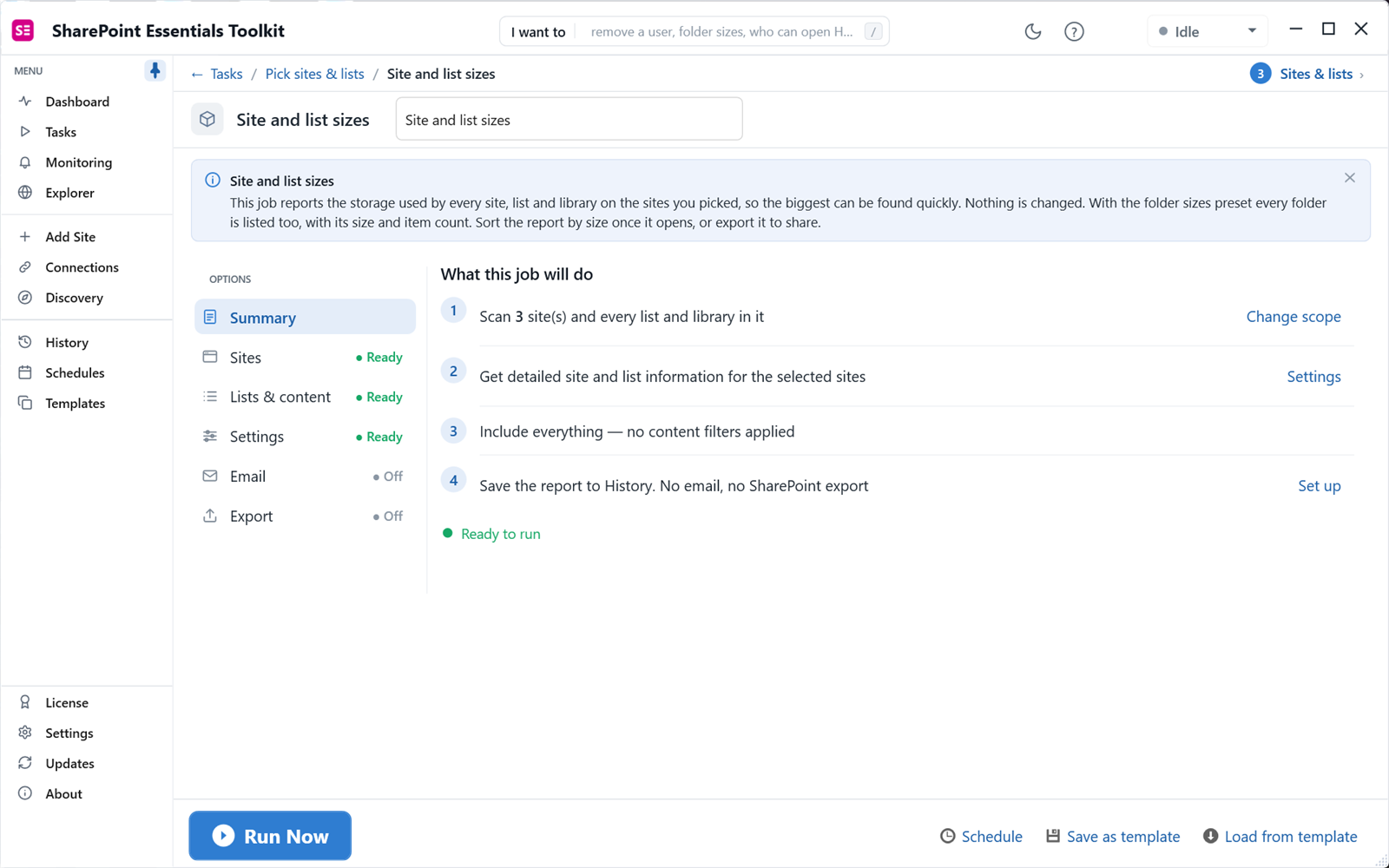
Site and list sizes: storage for every site, list and library.
2. Read the site view
The site view shows each site with lists, items, size in GB, direct and total subsites, created date and author. On our three test sites, one site stood out: 50 lists, 2,796 items, 31.3 GB and 32 subsites. The other two used 1.7 GB and 0.7 GB. One report run answered "where is our storage going?" in about 30 seconds.
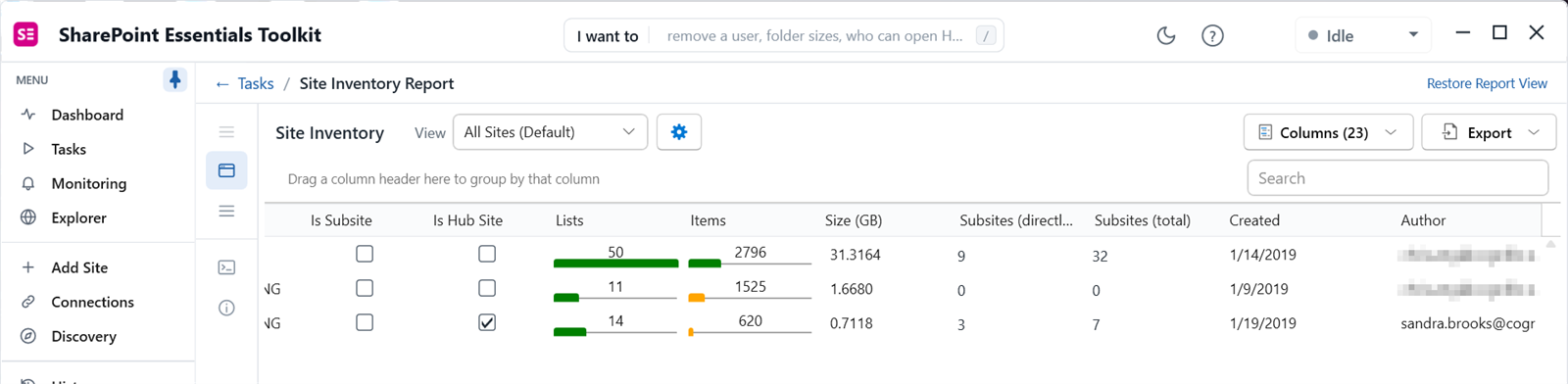
Site inventory: one site uses 31.3 GB across 32 subsites.
3. Switch to the list inventory
Click the list icon on the left to see every list and library with item count, URL, Is Unused, unique permissions, versioning, major and minor version limits, checkout settings, created and last modified dates, last deletion, default sensitivity label and retention settings.
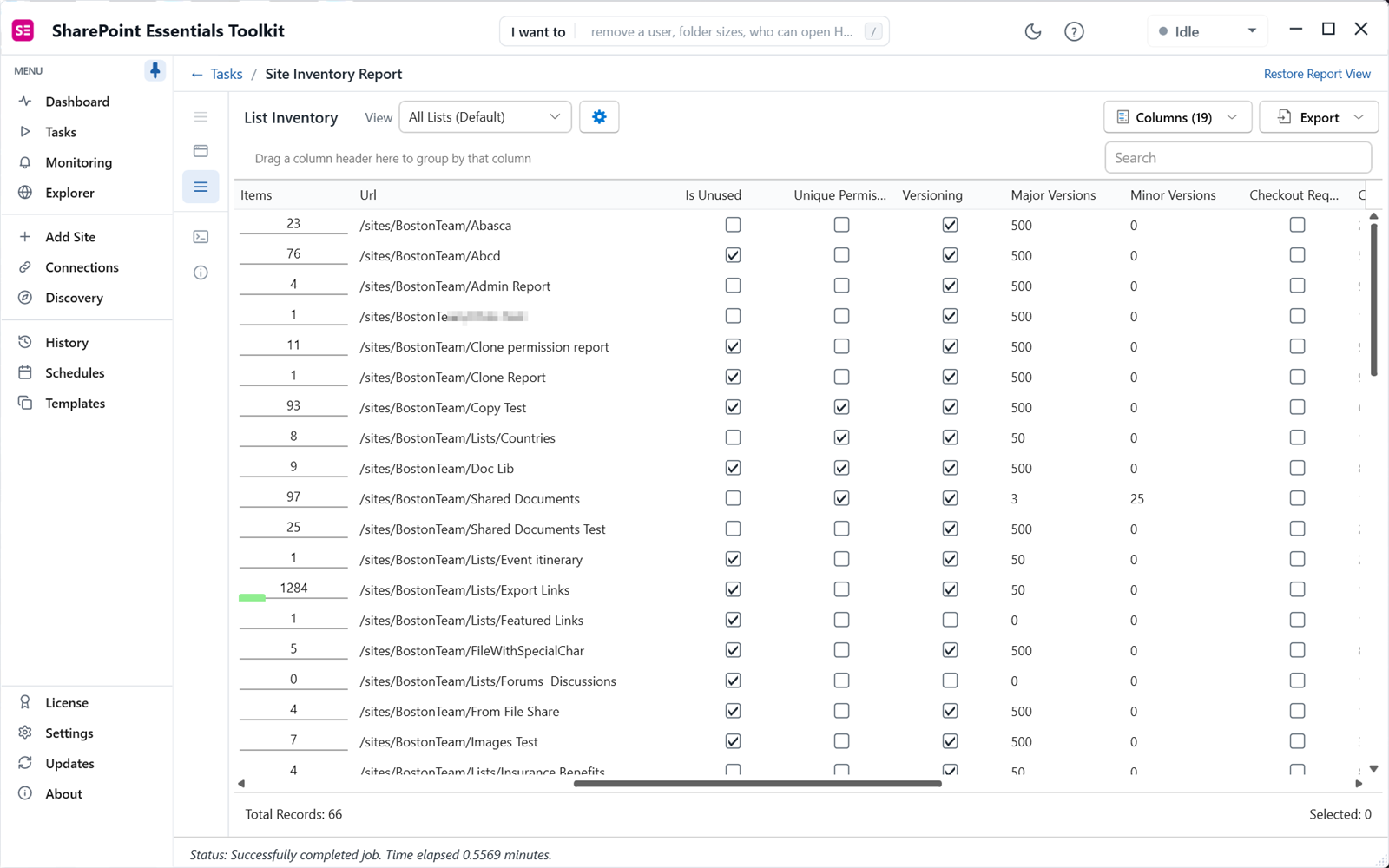
List inventory: many libraries are flagged unused, and most keep 500 major versions.
Is Unused flags lists with no content changes in a set number of days. In our test site, 12 of the first 19 lists were flagged, including one with 1,284 items. Most libraries kept 500 major versions, which is the main reason storage grows faster than file counts.
4. Find the largest files and version history
Back in Tasks > Storage, run Largest files and version history. It lists files by size and version count. You can set thresholds, such as files larger than a given number of MB or with more than a given number of versions, so the report shows only what is worth acting on.
Three ways to use the results
Reclaim storage
Sort sites by size, then libraries by size within the biggest site.
Find libraries with high version limits and large files. Lower the version limit, or use version history limits in SharePoint Online.
Archive unused libraries and sites. The Storage area includes a task to send files to Microsoft 365 Archive; Microsoft explains the service in Microsoft 365 Archive overview.
Retention and audit
Filter the list inventory for libraries with no default sensitivity label or retention setting.
Use Is Unused and last modified dates to find content that may be past its retention period.
Cross-check old content that is still open to everyone with the stale content and widely shared files reports.
Migration scope
Export the site and list views to Excel and mark each library migrate, archive or delete.
Count subsites: they often need restructuring into separate sites in SharePoint Online.
Follow the SharePoint migration checklist for the rest of the pre-migration audit.
For a full list of every site, list, item and user, see SharePoint inventory: export everything to Excel.
What about site visits and usage analytics?
The reports above read content: sizes, counts, dates and settings. SharePoint Essentials Toolkit also has site and content analytics for visits and unique users. Those read usage data from Microsoft 365 and need an Azure app registration on the connection. The storage and inventory reports work without it.
How do you act on what you find?
Changing version limits and deleting libraries is done in SharePoint. Archiving and bulk deletion through the toolkit write to SharePoint, so plan them carefully and confirm the edition you need. The reports themselves run at full depth on Community Edition, with no item caps.
Frequently asked questions
How do I see storage used by each SharePoint site?
The SharePoint admin center Active sites page shows storage used per site collection. Inside a site, Site settings, Storage Metrics shows folder sizes for that one site. For storage per site, subsite, list and library across many sites in one export, run the Site and list sizes report in SharePoint Essentials Toolkit and sort by size.
How do I find old files in SharePoint?
Run an item inventory and sort by Modified date, or use the Largest files and version history report with a size threshold. The list inventory's Is Unused column flags lists and libraries with no changes in a set number of days. For old files that are also widely shared, the stale content still open to everyone report gives the short list.
Why is my SharePoint storage so high when the files are small?
Version history is the usual reason. Every saved version of a file counts against storage, and libraries often keep 500 major versions. A 10 MB workbook saved 200 times can use far more than 10 MB. Check the Versioning and Major Versions columns in the list inventory, and the version counts in the Largest files and version history report.
Does the site content report include visits and usage?
The storage and inventory reports in this article read content: sizes, counts, dates and settings. SharePoint Essentials Toolkit also has site and content analytics for visits and unique users, which reads usage data from Microsoft 365 and needs an Azure app registration on the connection. The storage reports work without it.
Can I use this report to scope a migration?
Yes. Size, item counts, subsite counts and unused lists tell you how much you need to move and what you can leave behind. Export the site and list reports to Excel, mark each library as migrate, archive or delete, and use that sheet as the migration scope. The reports run on SharePoint on-premises (2016/2019) as well as SharePoint Online.
Run a site content report free on up to 20 sites
SharePoint Essentials Toolkit Community Edition is free. Run site and list sizes, list inventory and largest files on up to 20 sites per Microsoft 365 tenant, with no item caps and no trial period. Get your free Community Edition license key.