SharePoint Inventory: Export Every Site, List, Library and User to Excel
Last updated: 2026-10-21
A SharePoint inventory report lists every site, subsite, list, library, item and user, with the settings and counts you need for documentation, audits and migration planning. The admin center exports site collections only, and PowerShell scripts usually stop at sites and lists. SharePoint Essentials Toolkit exports sites, lists, items and users to Excel with no row caps, free on up to 20 sites.
A SharePoint inventory report lists every site, subsite, list, library, item and user, with the settings and counts you need for documentation, audits and migration planning. The admin center exports site collections only, and PowerShell scripts usually stop at sites and lists. SharePoint Essentials Toolkit exports sites, lists, items and users to Excel with no row caps, free on up to 20 sites.
Why build a SharePoint inventory?
Every SharePoint environment drifts from what anyone remembers. Subsites get created for one project, libraries get versioning turned off, guests get added, and nobody writes it down. Then an auditor asks for documentation, a migration needs a scope, or a new admin inherits the tenant.
An inventory is the starting point for each of these. It tells you what exists, how big it is, how it is configured and who is in it.
What does a SharePoint inventory contain?
| Level | What to capture |
|---|---|
| Sites | URL, title, template, size, lists, items, subsites, created, owner, hub, last activity |
| Lists and libraries | Item count, size, versioning and limits, unique permissions, checkout, created, last modified, unused flag, labels |
| Items, files, folders, pages | Path, size, versions, author, modified date, content type, label |
| Columns and metadata | Column values you care about, sensitivity and retention labels |
| Users and groups | Login, account type, email, guest status, SharePoint and domain groups |
Option 1: Built-in Microsoft 365 tools
Site collections: SharePoint admin center
- In the SharePoint admin center, go to Sites > Active sites.
- Use Edit columns to show the fields you need, such as template, storage, primary admin, hub, sensitivity label, external sharing and last activity.
- Select Export to download a CSV of every site collection.
This is the fastest way to list site collections. It does not include subsites, lists, items or the people on each site.
Activity: Microsoft 365 usage reports
In the Microsoft 365 admin center, Reports > Usage > SharePoint shows files, active files, storage and last activity per site, and exports to CSV. Microsoft describes the columns in SharePoint site usage report.
Inside one site: Site contents and site settings
On each site, Settings > Site contents lists every list and library with its item count and last modified date, plus any subsites. Site permissions lists the groups and people. These pages are accurate, but you visit each site and copy the details yourself.
Guests and users: Microsoft Entra admin center
Users > All users in the Entra admin center lists every account, with a filter for guests and a Download users option. It shows accounts in the directory, not which sites each one is on.
Option 2: PowerShell
Inventory scripts are among the most requested SharePoint scripts. This PnP PowerShell script writes two CSVs: one row per site and subsite, and one row per list or library. Install PnP PowerShell 2.x or later and register your own Entra ID app first.
# Inventory of sites, subsites, lists and libraries
$ClientId = "<your-app-id>"
$Tenant   = "contoso"

Connect-PnPOnline -Url "https://$Tenant-admin.sharepoint.com" -Interactive -ClientId $ClientId
$sites = Get-PnPTenantSite | Where-Object Template -notlike "REDIRECTSITE*"

$webRows = @(); $listRows = @()
foreach ($site in $sites) {
    try {
        Connect-PnPOnline -Url $site.Url -Interactive -ClientId $ClientId
        $webUrls = @($site.Url) + @(Get-PnPSubWeb -Recurse | ForEach-Object Url)
        foreach ($url in $webUrls) {
            Connect-PnPOnline -Url $url -Interactive -ClientId $ClientId
            $web = Get-PnPWeb -Includes Created, LastItemUserModifiedDate
            $webRows += [pscustomobject]@{
                SiteCollection = $site.Url; Web = $web.Url; Title = $web.Title
                Template = $site.Template; StorageMB = $site.StorageUsageCurrent
                Created = $web.Created; LastModified = $web.LastItemUserModifiedDate
            }
            Get-PnPList -Includes HasUniqueRoleAssignments, EnableVersioning, LastItemUserModifiedDate |
                Where-Object { -not $_.Hidden } | ForEach-Object {
                    $listRows += [pscustomobject]@{
                        Web = $web.Url; List = $_.Title; Type = $_.BaseType; Items = $_.ItemCount
                        Versioning = $_.EnableVersioning; UniquePermissions = $_.HasUniqueRoleAssignments
                        Created = $_.Created; LastModified = $_.LastItemUserModifiedDate
                    }
                }
        }
    }
    catch { Write-Warning "$($site.Url): $($_.Exception.Message)" }
}

$webRows  | Export-Csv "C:\Reports\inventory-sites.csv" -NoTypeInformation -Encoding UTF8
$listRows | Export-Csv "C:\Reports\inventory-lists.csv" -NoTypeInformation -Encoding UTF8
Test it on one site first. What to know:
- Item-level inventory means
Get-PnPListItem -PageSize 500on every list. Run time grows with item count, and large tenants get throttled. - Site users need
Get-PnPUserper site, and columns needGet-PnPFieldper list, each with its own CSV to join. - On-premises SharePoint needs the SharePoint Server PowerShell module and different code.
Option 3: SharePoint Essentials Toolkit inventory reports
Open Tasks > Inventory. Each task builds one part of the inventory, and every report exports to Excel or CSV. They read only and run on SharePoint Online and SharePoint on-premises (2016/2019).
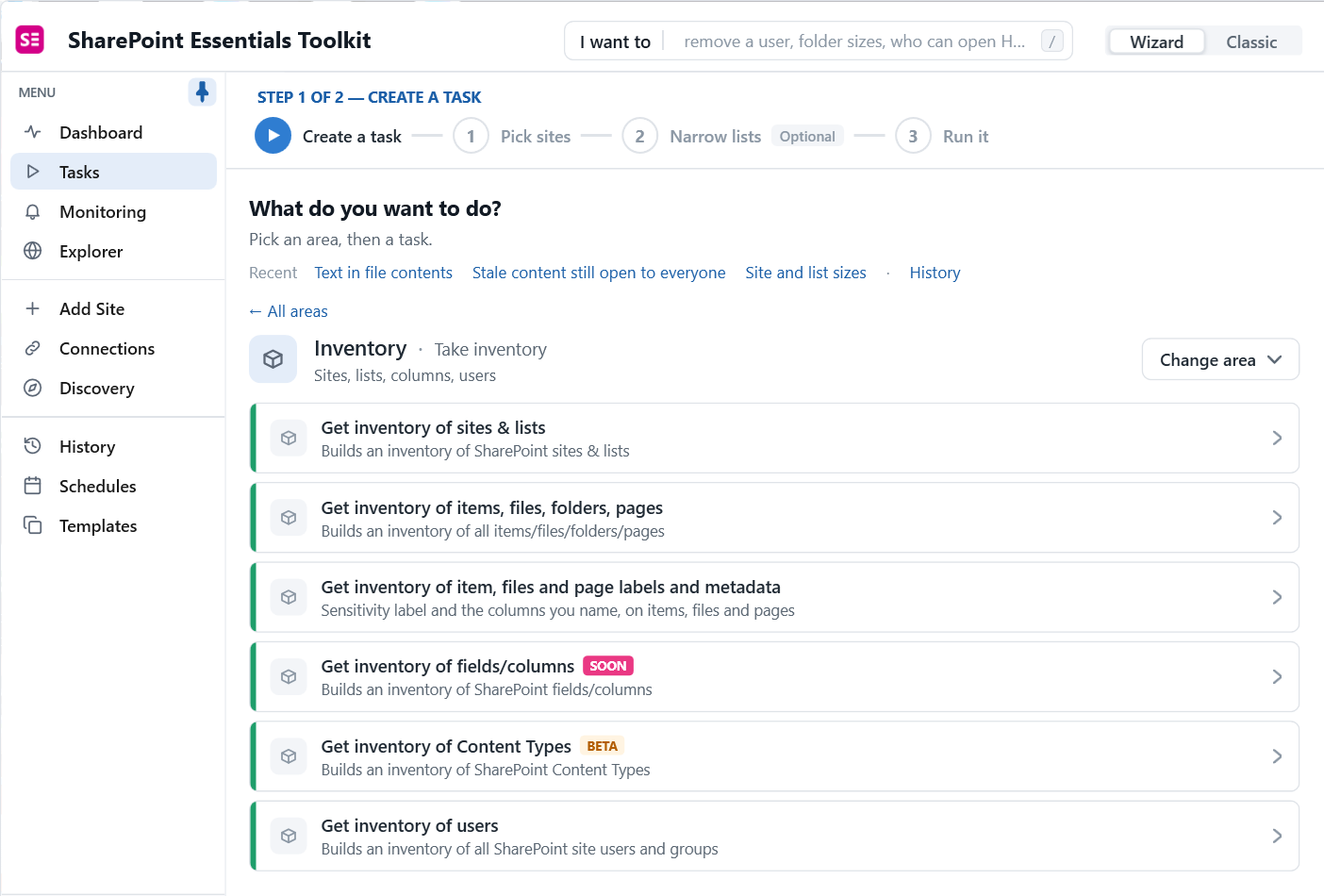
- Get inventory of sites & lists: every site, subsite, list and library with sizes and settings.
- Get inventory of items, files, folders, pages: every item with path, size, versions and dates.
- Get inventory of item, files and page labels and metadata: sensitivity labels and the columns you name.
- Get inventory of Content Types (beta).
- Get inventory of users: every site user and group.
1. Inventory sites and lists
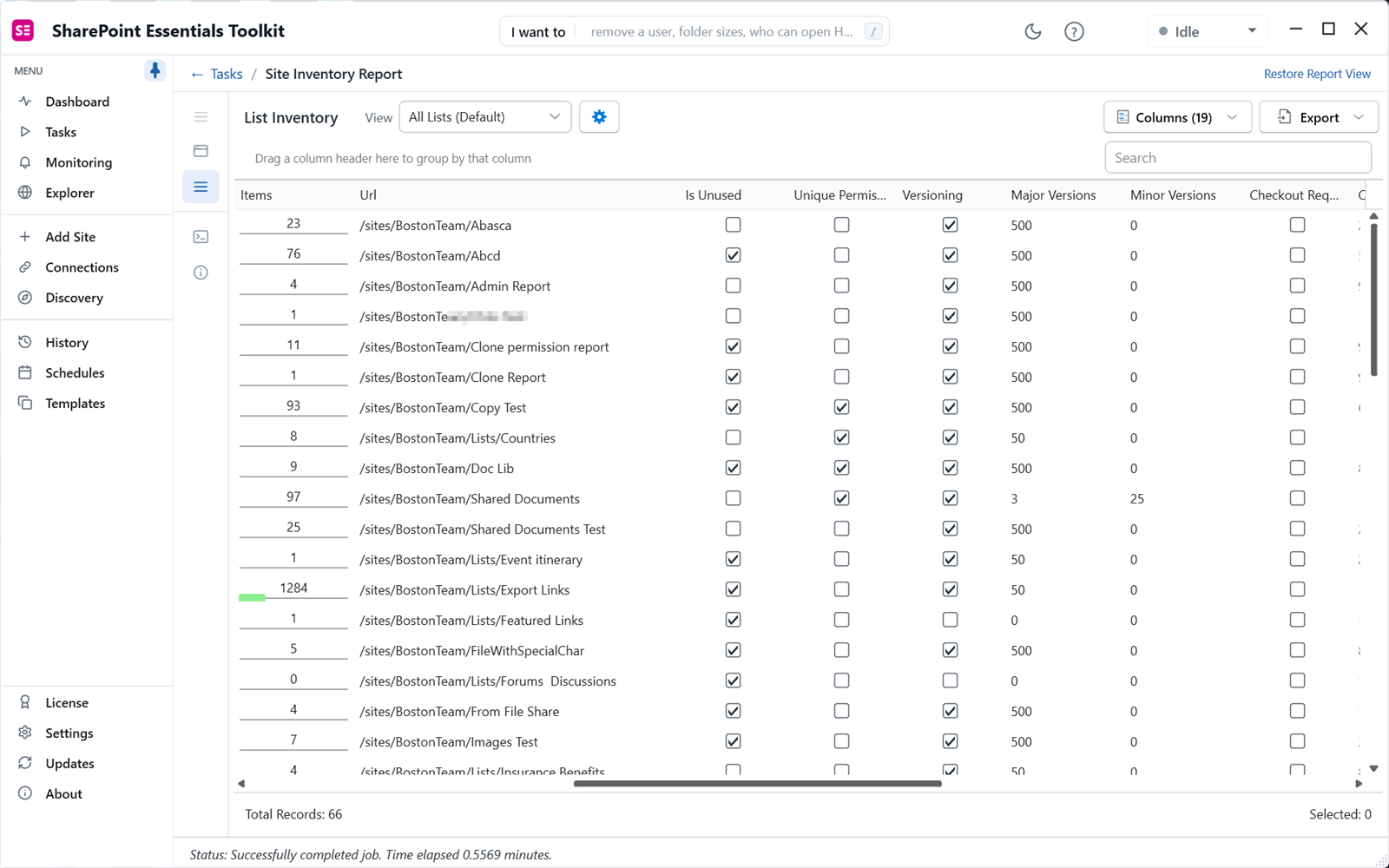
Pick Get inventory of sites & lists, choose your sites and run. The report has a site view and a list view. The list view shows item count, URL, whether the list is unused, unique permissions, versioning, major and minor version limits, checkout, created, last modified, last deletion, default sensitivity label and retention settings. On our test site the report covered 66 lists in about 30 seconds.
2. Inventory items and files
Pick Get inventory of items, files, folders, pages for a row per item. Use it to find large files, files with many versions, old content and content types in use. There is no item cap in Community Edition.
3. Inventory users
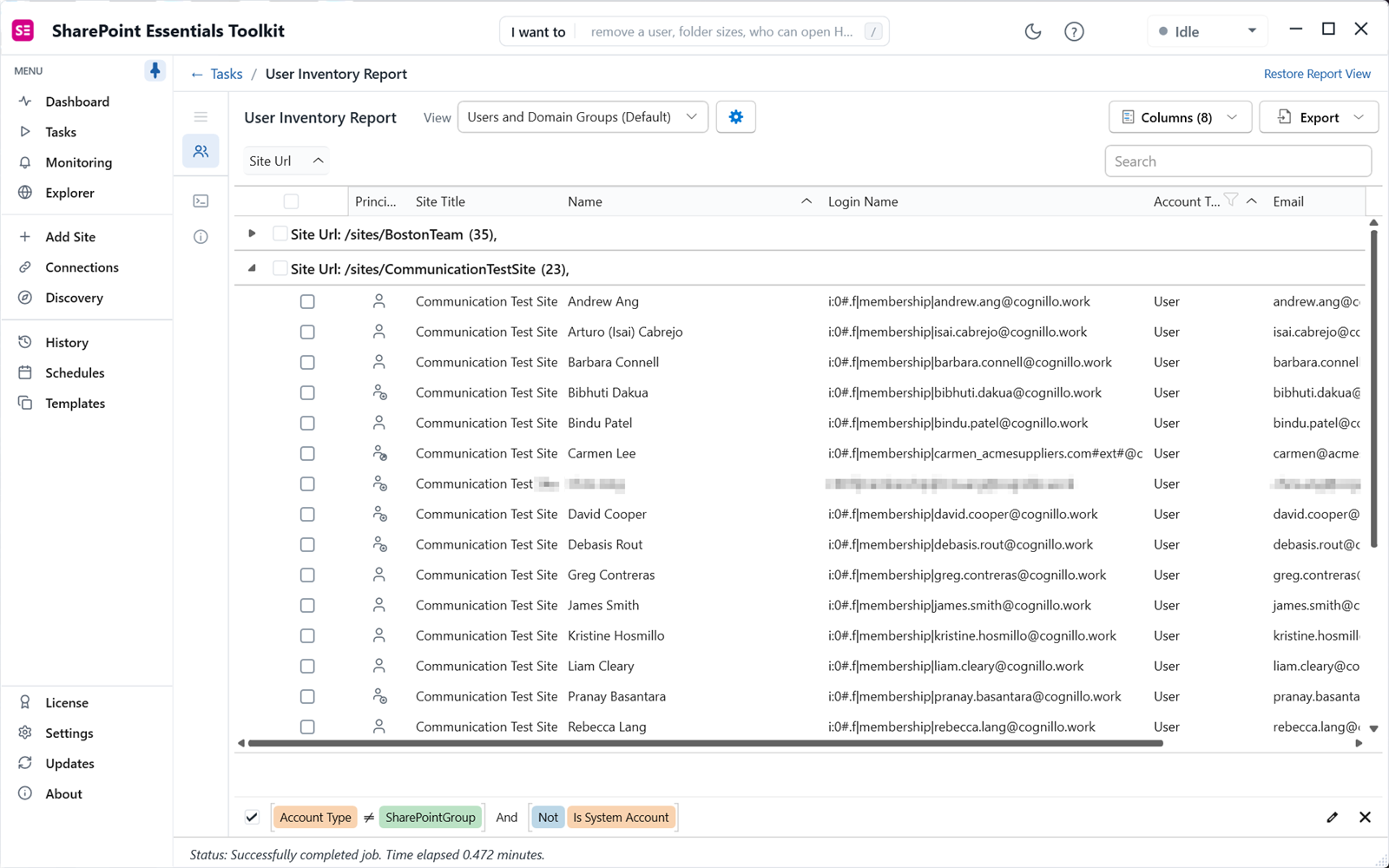
Pick Get inventory of users. The default view, Users and Domain Groups, groups by site and shows name, login name, account type and email. Guests appear with the #ext# login form, so they are easy to filter.
4. Export
Click Export on any report for Excel (standard, values only, or print layout) or CSV, or export to a SharePoint library to share with the team.
How do you use the inventory?
Migration scope
Sizes, item counts and the unused flag tell you what to move, what to archive and what to delete. Subsite counts tell you where to restructure. See the SharePoint migration checklist and the on-premises to SharePoint Online migration guide.
Finding custom settings
Filter the list inventory for versioning off, checkout required, unique permissions or no default label. These are the libraries that behave differently from the rest and need a decision.
User cleanup
Filter the user inventory for guests and for accounts that no longer exist. The Permissions area has a Clean up orphaned users task (Enterprise edition) that finds and removes deleted or disabled accounts still listed in sites.
Storage
Combine the inventory with the site content report to see what fills your storage and what nobody uses.
Frequently asked questions
How do I export a list of all SharePoint sites to Excel?
The SharePoint admin center Active sites page can export site collections to CSV. PowerShell's Get-PnPTenantSite or Get-SPOSite does the same with more columns. For subsites, lists and libraries as well, run Get inventory of sites and lists in SharePoint Essentials Toolkit and export to Excel. It includes size, item counts, subsites and list settings.
Is there a row limit on the inventory?
No. Community Edition runs every inventory report at full depth with no row, item or user caps. The only limit is the number of sites: up to 20 site collections per Microsoft 365 tenant. A library with 100,000 items is reported in full, and the export to Excel contains every row.
Can I list every user who has access to a site?
The user inventory lists every user and domain group known to each site, with login name, account type and email, including guests. That tells you who is in the site's user list. To see what each person can actually open, run the permissions report, which lists grants at site, list, folder and file level.
Does the inventory work on SharePoint on-premises?
Yes. The same inventory reports run on SharePoint on-premises (2016/2019) and SharePoint Online. That is useful for migration planning, because you can inventory the on-premises farm, decide what to move, then inventory the SharePoint Online destination after the move and compare the two exports.
Can I find every list that uses a particular column?
The labels and metadata inventory reports the values of columns you name on every item, file and page, along with the sensitivity label. Lists that return values for that column are the ones using it. A content type inventory, in beta, lists content types across sites. PowerShell's Get-PnPField per list is another option for one-off checks.
Export a full inventory free on up to 20 sites
SharePoint Essentials Toolkit Community Edition is free. Inventory sites, lists, items and users on up to 20 sites per Microsoft 365 tenant, with no row caps and no trial period. Get your free Community Edition license key.