SharePoint Migration Checklist: The Pre-Migration Audit That Saves Weeks
Last updated: 2026-10-21
A SharePoint migration checklist covers five phases: inventory, clean up, permissions and users, content risks, and cutover and verification. The pre-migration audit matters most, because everything you archive, fix or decide before the move is work you do not repeat after it. Every check below maps to a report you can run free in SharePoint Essentials Toolkit Community Edition on up to 20 sites, whichever migration tool you use.
A SharePoint migration checklist covers five phases: inventory, clean up, permissions and users, content risks, and cutover and verification. The pre-migration audit matters most, because everything you archive, fix or decide before the move is work you do not repeat after it. Every check below maps to a report you can run free in SharePoint Essentials Toolkit Community Edition on up to 20 sites, whichever migration tool you use.
Why audit before you migrate?
Migrations go wrong in predictable ways. Teams move ten years of content nobody uses. Broken permissions are copied faithfully into the new tenant. Sharing links disappear and users complain. Links inside documents still point at the old server. Nobody can prove that everything arrived.
Each of these is cheap to catch with a report before cutover and expensive to fix afterward. This checklist is tool-neutral: use it with Microsoft's SharePoint Migration Tool, Migration Manager, SharePoint Essentials Toolkit or another product.
How the reports map to the checklist
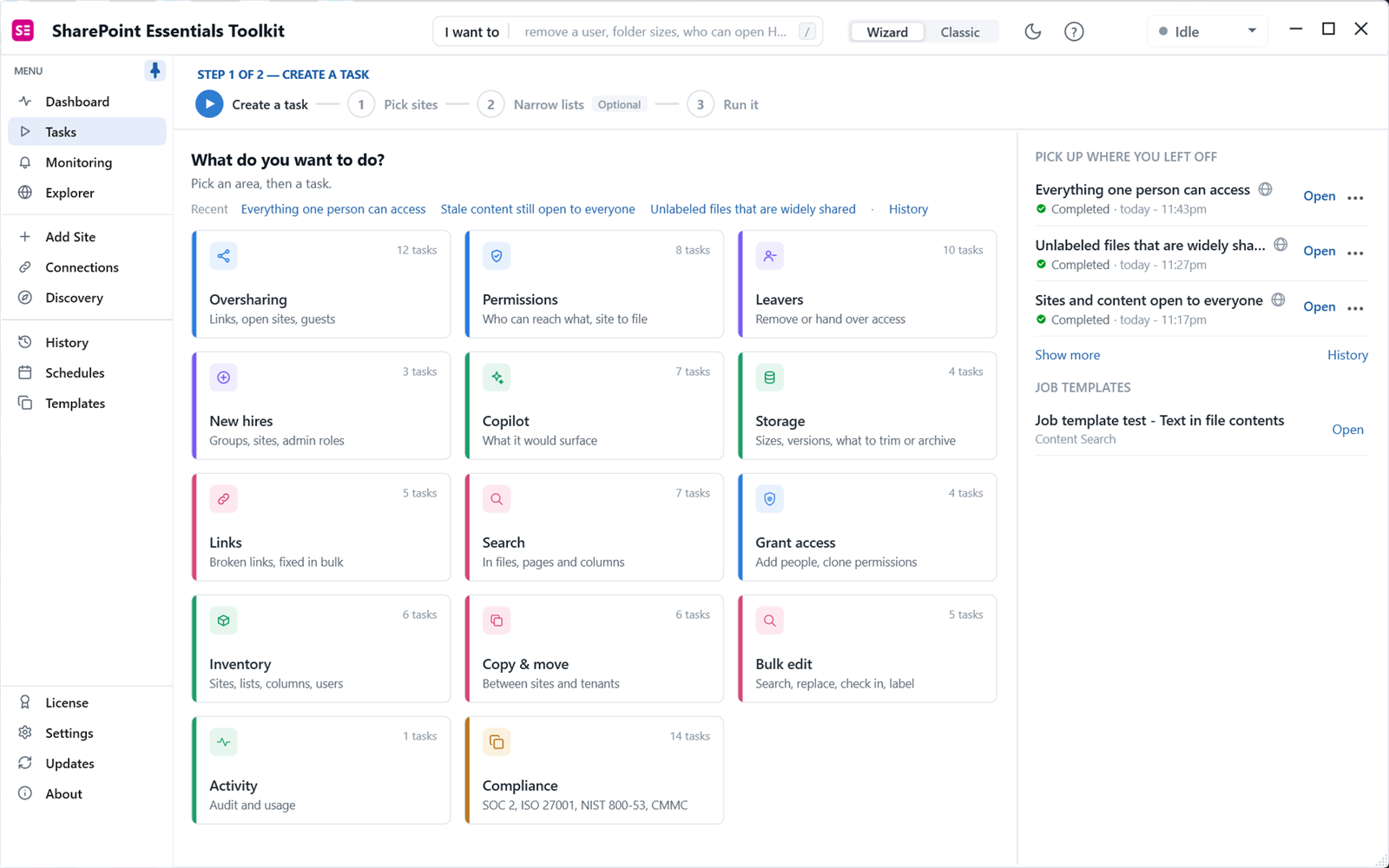
Each check below lists two ways to answer it. The SharePoint Essentials Toolkit column names the report under Tasks; the areas you will use are Inventory, Storage, Permissions, Oversharing, Links, Search, and Copy & move. The Built-in alternative column names the closest Microsoft tool. Most of those work one site at a time, and a few need SharePoint Advanced Management. Some checks have no built-in equivalent.
Phase 1: Inventory (know what you have)
| # | Check | SharePoint Essentials Toolkit | Built-in alternative |
|---|---|---|---|
| 1 | List every site and subsite with owner, template and size | Inventory > Get inventory of sites & lists | Active sites export in the SharePoint admin center (Online); Get-SPSite and Get-SPWeb (Server) |
| 2 | List every list and library with item count and size | Same report, list view | Site contents on each site; Get-PnPList in a script |
| 3 | Find large lists and libraries that may need splitting | Storage > Site and list sizes | Storage Metrics on each site |
| 4 | Record versioning settings and version limits per library | List inventory: Versioning, Major Versions | Library settings > Versioning settings, library by library |
| 5 | Find customizations: content types, checkout, custom settings | Content type inventory (beta), list inventory | Site settings > Site content types; SMAT scan (Server) |
| 6 | Identify a business owner for each site | Site inventory owner and author columns, then confirm with people | Primary admin in Active sites; each site's Owners group |
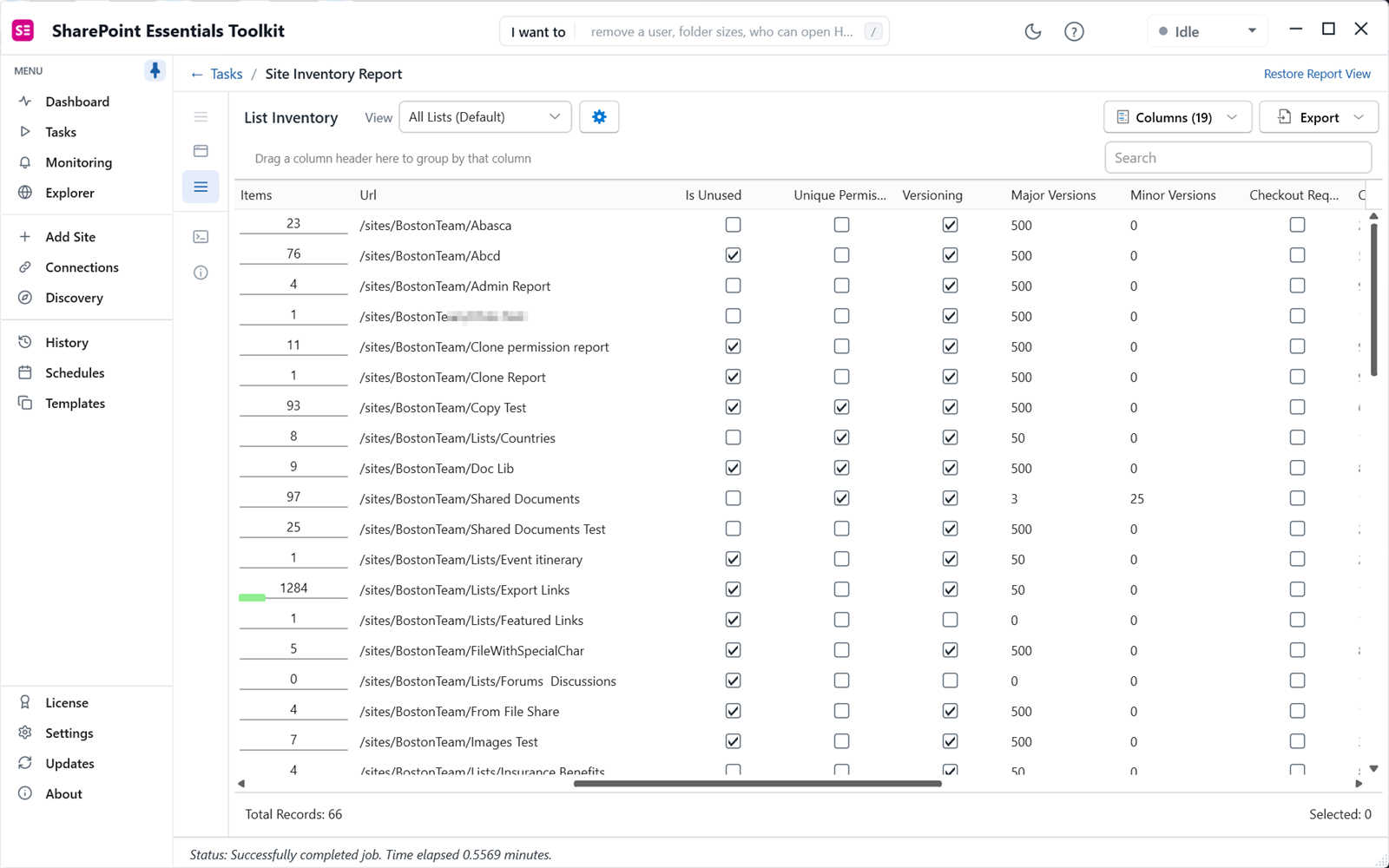
The list inventory shows each library's item count, whether it is unused, whether it has unique permissions, and its version settings.
More detail: SharePoint inventory report and site content report.
Phase 2: Clean up (migrate less)
| # | Check | SharePoint Essentials Toolkit | Built-in alternative |
|---|---|---|---|
| 7 | Mark unused libraries and sites for archive or delete | List inventory: Is Unused, Last Modified | Modified dates in Site contents; Microsoft 365 usage reports |
| 8 | Find the largest files and files with many versions | Storage > Largest files and version history | Storage Metrics; version usage report (Online, takes a day or more) |
| 9 | Decide how much version history to carry over | Same report, plus list inventory version limits | Versioning settings; version usage report |
| 10 | Find checked-out files and get them checked in | Search > Get checked out files | Add the Checked Out To column to a library view; "Manage files which have no checked in version" in library settings |
| 11 | Find broken links and fix or remove them at the source | Links > Find broken links | No built-in report; search for old server names to find candidates |
| 12 | Retire empty or abandoned subsites | Site inventory: lists, items, last modified | Site contents and usage reports (last activity) |
Checked-out files are easy to forget: a file checked out for years may never have its latest version published, and migrations handle them differently. Get them checked in or discarded before the move.
Phase 3: Permissions and users (decide who gets access)
| # | Check | SharePoint Essentials Toolkit | Built-in alternative |
|---|---|---|---|
| 13 | Export a full permissions baseline for every site in scope | Permissions > Permissions report | Advanced permissions settings on each site; Data access governance site permissions report (needs SharePoint Advanced Management) |
| 14 | Find unique permissions on folders and files | Permissions report, Scope = Item or Folder | "Show these items" on the site permissions page; Manage access per item |
| 15 | List external users and what they can reach | Permissions > Everything guests can reach | Entra admin center guest list; site sharing report under Site usage |
| 16 | List site collection admins and Full Control holders | Permissions > Who has Full Control | Membership tab in Active sites; Site Collection Administrators page |
| 17 | Export every sharing link (they will not be migrated) | Sharing links report | Manage access per item; site sharing report (excludes Anyone links) |
| 18 | Find orphaned users: deleted or disabled accounts in site permissions | User inventory and permissions report (the Clean up orphaned users task needs Enterprise) | Compare site permissions with deleted and disabled users in Entra ID, by hand |
| 19 | Build a user map for accounts whose names change | User inventory export | Entra admin center Download users; SPMT user mapping file |
Decide now whether to copy permissions as they are or rebuild them simply on the target. The permissions report guide shows what to look for.
Phase 4: Content risks (do not move problems into the cloud)
| # | Check | SharePoint Essentials Toolkit | Built-in alternative |
|---|---|---|---|
| 20 | Find content open to everyone or through Anyone links | Copilot > Sites and content open to everyone | Sites and files shared via special SharePoint groups report (needs SharePoint Advanced Management; Everyone groups only) |
| 21 | Find old content that is still broadly open | Copilot > Stale content still open to everyone | No built-in report combines age and open access |
| 22 | Search for sensitive words in files before they move | Search > Text in file contents | Microsoft Search with KQL; Microsoft Purview Content search |
| 23 | Capture link paths so they can be corrected after the move | Links > Prepare site for link correction | No built-in equivalent |
In SharePoint Online, overshared content becomes easier to find through search and Microsoft 365 Copilot. Fixing it during the migration costs less than fixing it later. See Copilot readiness.
Phase 5: Cutover and verification (prove it worked)
| # | Check | SharePoint Essentials Toolkit | Built-in alternative |
|---|---|---|---|
| 24 | Run a pre-check against the target before copying | Copy & move > Check before you copy | SPMT scan; SMAT (Server 2010 to 2016) |
| 25 | Compare source and target item by item after the copy | Copy & move > Copy verification | SPMT and Migration Manager task reports (migrated and failed counts) |
| 26 | Re-run permissions and broken links on the target and compare | Permissions report; Find broken links | As items 11 and 13, on the target |
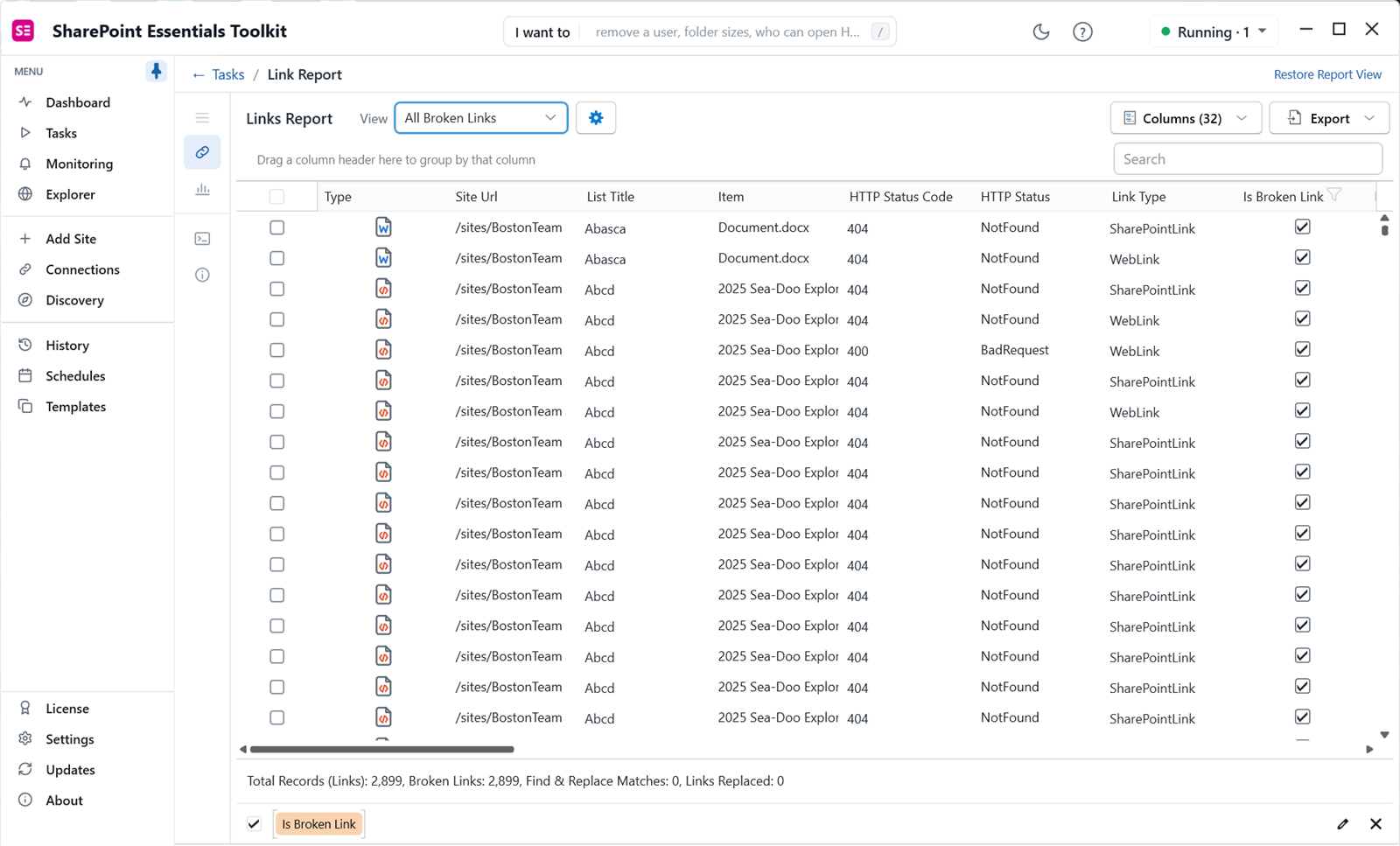
The broken links scan on the target is the fastest way to find links that still point at the old site. In our test, two libraries on one site produced 2,899 broken links, most of them 404s inside documents.
Full steps: how to find broken links in SharePoint.
What are the most common migration mistakes?
- No inventory. Scope is guessed, and the project grows mid-way.
- Copying broken permissions as-is. Years of one-off grants move to the cloud, where Copilot and search make them visible.
- Forgetting sharing links. Users lose access they relied on, and nobody has a record.
- Ignoring links inside documents. Pages get fixed; Word and Excel files still point at the old server.
- Carrying every version. Storage fills up in the first month.
- Skipping verification. Missing items are found by users, weeks later.
Which tool should do the copy?
| Option | Good fit | Notes |
|---|---|---|
| Microsoft SharePoint Migration Tool | File shares and SharePoint Server 2010 to 2019 sites to SharePoint Online | Free; uses the Migration API. Carries permissions, version history, managed metadata and out-of-the-box navigation, and supports incremental reruns. See Microsoft Learn. |
| Microsoft Migration Manager | Many sources managed centrally from the admin center | Free; agent-based. See Microsoft Learn. |
| SharePoint Essentials Toolkit Copy sites | Site structure, lists and permissions, with pre-check and verification in the same tool | Included in Community Edition within 20 sites; version history and item permissions need paid editions. |
Whichever you choose, the checklist reports above run the same way. The on-premises to SharePoint Online migration guide walks through the copy step in detail.
Frequently asked questions
What should I clean up before a SharePoint migration?
Remove or archive libraries nobody has changed in a year or more, reduce excessive version history, fix or delete broken links, retire unused subsites, and remove orphaned users and unnecessary unique permissions. Each item you clean up is one you do not have to move, map or verify. Inventory and storage reports show where to start.
How long should a pre-migration assessment take?
Running the reports takes minutes per site. The time goes into decisions: which libraries to move, which to archive, and how permissions should look on the target. For a few dozen sites, plan one to two weeks of assessment with site owners involved. It is shorter than fixing a migration that moved the wrong content.
Do I need to record sharing links before migrating?
Yes. Sharing links are tied to the source item and are not carried over by migration tools. Export a sharing links report from the source before cutover. It is your record of who had access through links, and it tells site owners which links they may need to recreate on the target.
Is this checklist only for on-premises to SharePoint Online?
No. The same phases apply to on-premises to SharePoint Online, SharePoint Online to SharePoint Online restructuring, and tenant-to-tenant moves. The reports in the checklist run on SharePoint Online and SharePoint on-premises (2016/2019), so you can audit the source and verify the target with the same tool.
What are the most common SharePoint migration mistakes?
Migrating everything without an inventory, copying broken permissions as-is, forgetting sharing links, ignoring links inside documents, carrying hundreds of versions per file, and skipping verification. Each one is cheap to avoid with a report before the move and expensive to fix after users start working in the new sites.
Run the pre-migration reports free
SharePoint Essentials Toolkit Community Edition is free. Run every report in this checklist on up to 20 sites per Microsoft 365 tenant, with no item caps and no trial period. Get your free Community Edition license key.