How to Find Broken Links in SharePoint Online and On-Premises (Pages, Documents and Navigation)
Last updated: 2026-10-21
To find broken links in SharePoint, you need a scan that reads every page, web part, document, list column and navigation link on a site, requests each address, and reports the ones that fail. SharePoint has no built-in broken link report. SharePoint Essentials Toolkit scans SharePoint Online and SharePoint on-premises (2016/2019), including links inside Office and PDF files, free on up to 20 sites.
To find broken links in SharePoint, you need a scan that reads every page, web part, document, list column and navigation link on a site, requests each address, and reports the ones that fail. SharePoint has no built-in broken link report. SharePoint Essentials Toolkit scans SharePoint Online and SharePoint on-premises (2016/2019), including links inside Office and PDF files, free on up to 20 sites.
Why do broken links matter?
Broken links are the first thing users notice after a change. The intranet home page points to a retired policy. A procedure in Word links to a form that moved. The navigation still points to the old site. Each one generates a help desk ticket or, worse, people stop trusting the intranet and keep their own copies.
They pile up quietly. Nobody tests every link in every document, so a site can carry thousands of dead links for years.
Where do broken links live in SharePoint?
- Pages: modern page text and web parts such as Quick Links, and classic pages with Content Editor, Summary Links, Page Viewer and Script Editor web parts.
- Documents: hyperlinks inside Word, Excel, PowerPoint, Visio, OneNote and PDF files, plus HTML and text files.
- List columns: hyperlink columns, and text or note columns that contain URLs.
- Attachments on list items.
- Navigation: quick launch and top links.
Why do migrations create broken links?
Most broken links come from addresses that changed:
- A site moved from an on-premises server name to
tenant.sharepoint.com. - A site or library was renamed, or content was split across new sites.
- Document ID links or "copy link" URLs carried the old site's identifiers.
- An old site was retired without updating the pages that pointed to it.
SharePoint Online adds redirects when you rename a site, which hides the problem until the redirect is removed. A scan shows redirected links as well as broken ones, so you can update both.
Option 1: Built-in SharePoint tools
SharePoint has no broken link report, but four built-in tools help with parts of the job.
Check a page by hand
- Open the page and select Edit.
- Select each Quick Links, Hero, Button or Text web part and review its link targets in the property pane.
- Open each link in a new tab. Note any that return "404 file not found", "Sorry, something went wrong" or an access denied page.
- Check the site navigation with Edit on the navigation bar.
This works for the home page and key landing pages. It does not reach links inside documents.
Find old addresses with search
If links broke because a server name or site address changed, search for the old address, for example intranet.contoso.local or /sites/OldHR. Microsoft Search finds pages and documents whose text contains it. Search results are ranked and trimmed to what you can open, and links stored only in a hyperlink's address (not the visible text) may not match, so treat the results as a starting list.
See which sites were renamed
When a site address changes, SharePoint Online leaves a redirect at the old address, as Microsoft explains in Change a site address. Links to the old address keep working until someone deletes the redirect, although Microsoft notes that URLs embedded in web parts are not updated and may break. To list every redirect in the tenant, run Get-PnPTenantSite -Template "REDIRECTSITE#0" or Get-SPOSite -Template "REDIRECTSITE#0". Each redirect is an address whose links will break if it is removed.
Review recent changes with the audit log
In Microsoft Purview Audit, searching for file and folder moves, renames and deletions on a site shows what changed and when. That tells you which links are likely to have broken, though not where those links are.
Option 2: PowerShell
This PnP PowerShell script reads every modern page on a site, pulls out the links in the page text, and tests them. It checks files and folders on the same site with PnP, and tests outside web addresses with a web request. Install PnP PowerShell 2.x or later and register your own Entra ID app first.
# Test links in the text of every modern page on one site
$ClientId = "<your-app-id>"
$SiteUrl  = "https://contoso.sharepoint.com/sites/Intranet"
Connect-PnPOnline -Url $SiteUrl -Interactive -ClientId $ClientId
$siteUri  = [uri]$SiteUrl

function Test-Link($url) {
    if ($url -match '^(mailto|tel|#|javascript):') { return "Skipped" }
    $uri = if ($url.StartsWith("/")) { [uri]::new($siteUri, $url) } else { [uri]$url }
    try {
        if ($uri.Host -eq $siteUri.Host) {
            if (-not $uri.AbsolutePath.StartsWith($siteUri.AbsolutePath)) { return "Not checked: other site" }
            $path = [uri]::UnescapeDataString($uri.AbsolutePath)
            try   { $null = Get-PnPFile -Url $path -AsListItem -ErrorAction Stop }
            catch { $null = Get-PnPFolder -Url $path -ErrorAction Stop }
            return "OK"
        }
        return (Invoke-WebRequest -Uri $uri -Method Head -UseBasicParsing -ErrorAction Stop).StatusCode
    }
    catch { return "Broken: $($_.Exception.Message)" }
}

$pages = Get-PnPListItem -List "Site Pages" -PageSize 500 -Fields "FileRef", "CanvasContent1"
$rows = foreach ($page in $pages) {
    $html  = [string]$page.FieldValues.CanvasContent1
    $links = [regex]::Matches($html, 'href="([^"]+)"') |
             ForEach-Object { [System.Net.WebUtility]::HtmlDecode($_.Groups[1].Value) } |
             Sort-Object -Unique
    foreach ($link in $links) {
        [pscustomobject]@{ Page = $page.FieldValues.FileRef; Link = $link; Status = Test-Link $link }
    }
}

$rows | Export-Csv "C:\Reports\page-links.csv" -NoTypeInformation -Encoding UTF8
Test it on a small site first. What to know:
- It reads links in page text only. Quick Links and other web parts store their links in web part data, which needs separate parsing.
- Links inside Word, Excel, PowerPoint and PDF files need each file downloaded and opened with an Office or PDF library. That is most of the work, and the reason most published scripts skip it.
- Links to other SharePoint sites need a connection to each target site.
- Some web servers reject
HEADrequests, which shows up as a false "broken" result. - Classic pages, list columns, navigation and attachments each need their own code.
How the options compare
| Built-in tools | PowerShell | SharePoint Essentials Toolkit | |
|---|---|---|---|
| Pages and web parts | Click each link | Page text with the script above; web parts need more parsing | Yes, modern and classic |
| Links inside documents | Open each file; search finds some old addresses | Office and PDF parsing libraries | Word, Excel, PowerPoint, Visio, OneNote, PDF and more |
| Redirects | List redirect sites with PowerShell | If you record status codes | Reported with HTTP status |
| Fix in bulk | No | Custom code | Find and replace (paid for large lists) |
| Cost | Time | Free, plus build and maintenance | Scan free on up to 20 sites |
Clicking through by hand works for a few key pages. Search narrows the list after an address change, but it can't tell you whether a link still works. A page script covers page text; the effort is in reading hyperlinks inside Office and PDF files.
How to find broken links in SharePoint, step by step
1. Open the Links area
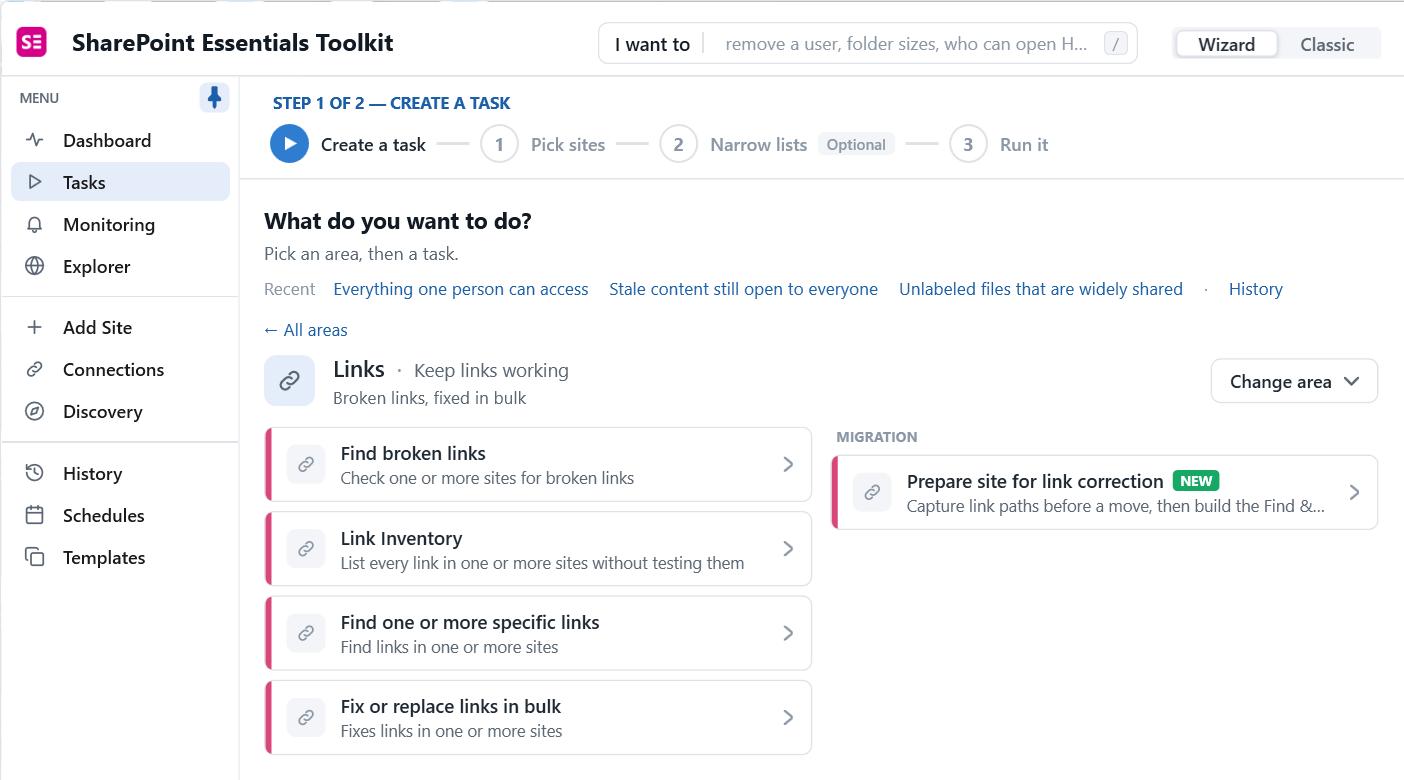
Go to Tasks > Links. You will see Find broken links, Link Inventory (every link without testing), Find one or more specific links (search for an old URL), and Fix or replace links in bulk. Under Migration, Prepare site for link correction captures link paths before a move.
2. Pick sites and a preset
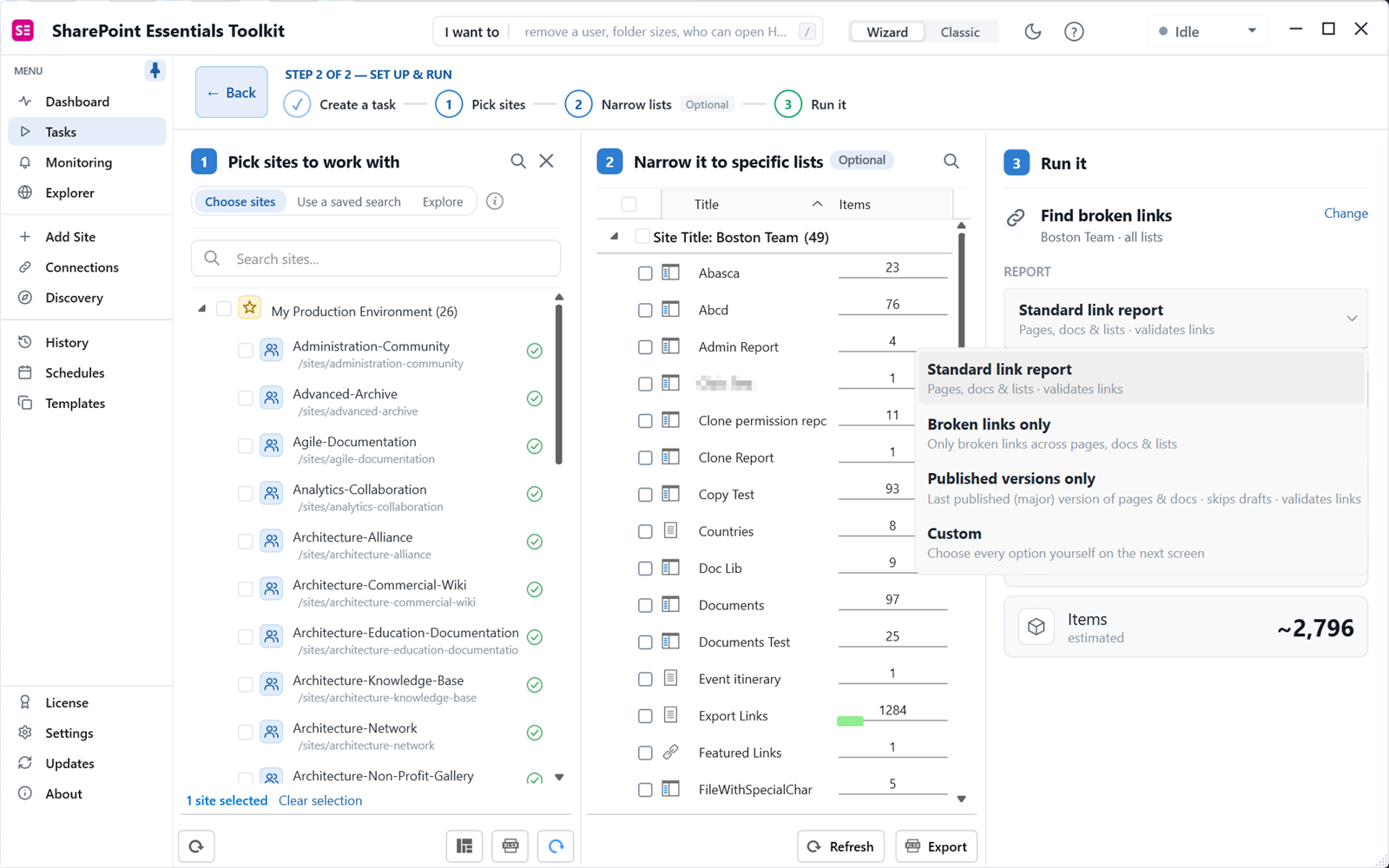
Choose Find broken links and tick your sites. The report dropdown offers presets: a standard link report, broken links only, published versions only, or custom.
3. Check the summary and run
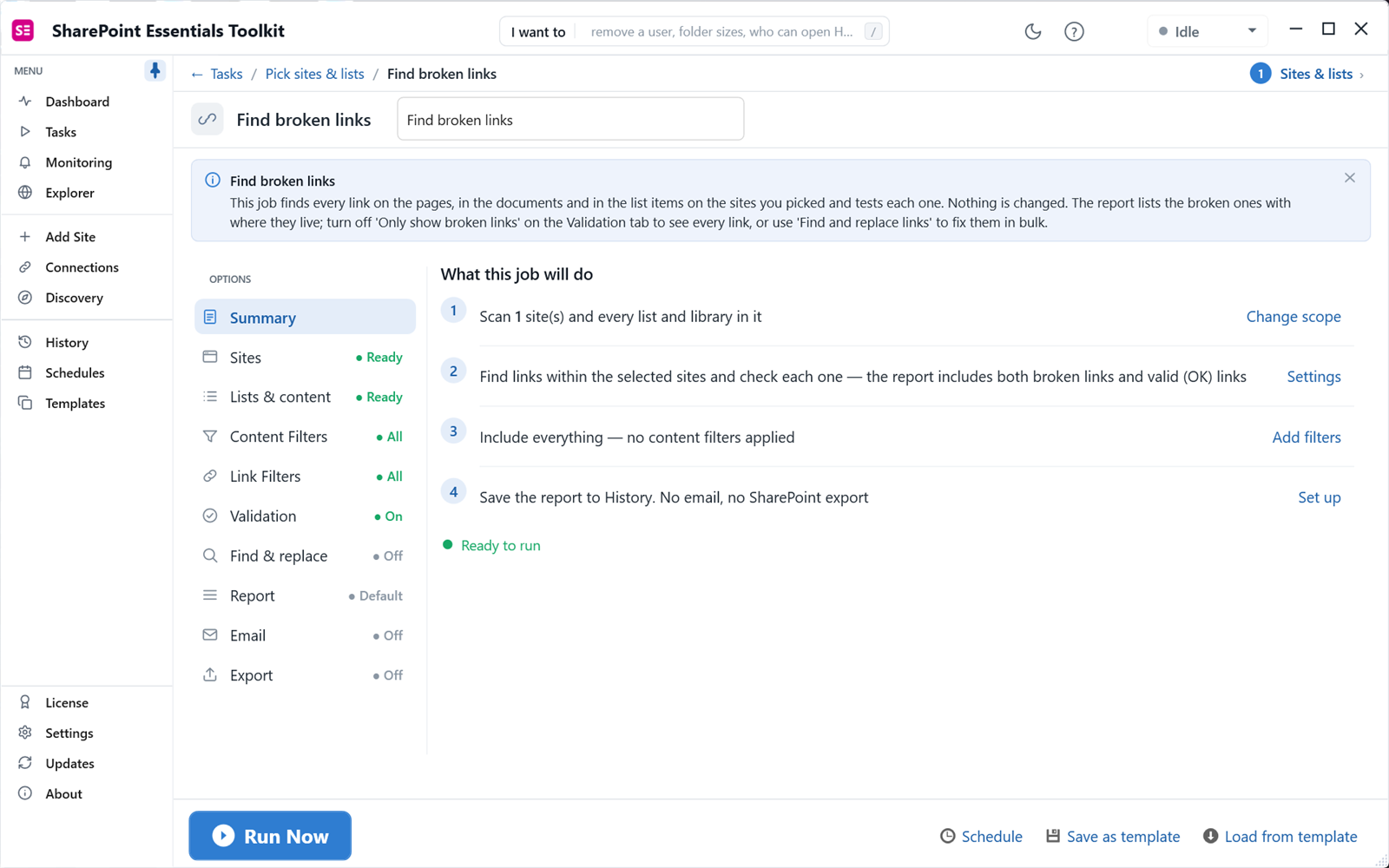
The summary explains the job: find every link on the pages, in the documents and in list items, and test each one. Nothing is changed. The Validation tab has "Only show broken links"; turn it off to list every link with its status. Click Run Now.
4. Read the broken links report
Results show the site, list, item, HTTP status code, status, link type and whether the link is broken. On our test site, the first two libraries alone produced 2,899 broken links, mostly 404 Not Found, with some 400 Bad Request, inside Word documents and HTML files. Both SharePoint links and external web links were affected.
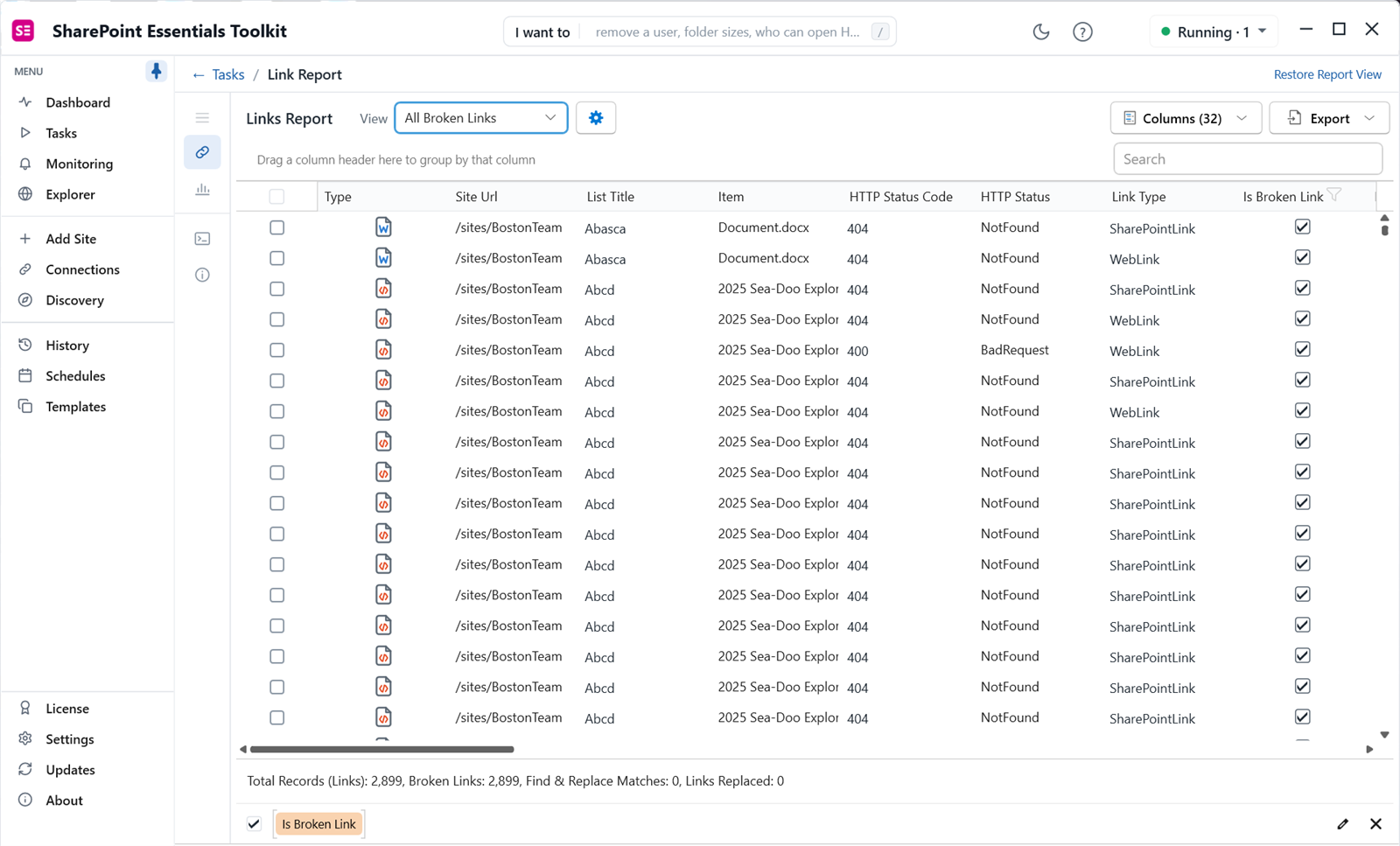
Other views group links by document, show every link, or validate a planned find and replace. Export to Excel to share the list with site owners.
What should you fix first?
- Home page and navigation. Every visitor sees them.
- Top-level hub and department pages. High traffic, high trust.
- Policies, procedures and forms. People act on these documents.
- Links to the old site or server name. One find and replace can fix hundreds at once.
- Redirected links. Update them before the redirect goes away.
- Old documents nobody opens. Consider archiving rather than fixing. The site content report helps you decide.
How do you fix broken links in bulk?
Use Fix or replace links in bulk. You give it pairs of old and new addresses, and it rewrites them in pages, documents and list columns. Run it in report-only mode first: the report's validation view shows every replacement before anything is written.
Community Edition runs every scan at full depth. Find and replace writes to SharePoint, so Community Edition lets you try it on lists under 100 items; bulk replacement across larger libraries needs a paid edition.
Planning a move? Run Prepare site for link correction before you migrate, then scan the destination after. The SharePoint migration checklist and the on-premises to SharePoint Online migration guide show where the link scan fits.
Frequently asked questions
Does the broken link checker look inside Office documents?
Yes. SharePoint Essentials Toolkit reads hyperlinks inside Word, Excel, PowerPoint, Visio, OneNote and PDF files, as well as HTML and text files and list item attachments. Each result names the file, the link and its HTTP status. Links in documents are the ones most often missed, because nobody opens every file to test them.
Does it detect redirects?
Yes. Each link is requested and its HTTP status is recorded, so redirects are reported separately from broken links. A redirect works today but depends on the old address staying in place, for example a site rename redirect. After a migration, update redirected links to the new address so they do not break when the redirect is removed.
Can it run on SharePoint on-premises?
Yes. The broken link scan works on SharePoint on-premises (2016/2019) and SharePoint Online with the same steps and report. That means you can scan the source before a migration to clean up first, then scan the destination afterward to catch links that still point at the old farm.
How do I find links that point to an old site?
Use the Find one or more specific links task and enter the old site URL or server name. It lists every page, document, list column and navigation entry that still contains that address, whether or not the link works. This is the quickest way to find leftover links after a site rename, a tenant change or a migration.
Can I fix broken links in bulk?
Yes, with Fix or replace links in bulk. You map old addresses to new ones and the toolkit rewrites them in pages, documents and columns. Run it in report-only mode first to preview every replacement. Community Edition lets you try it on lists under 100 items. Bulk replacement across larger libraries needs a paid edition.
Find every broken link free on up to 20 sites
SharePoint Essentials Toolkit Community Edition is free. Scan pages, documents, list columns and navigation on up to 20 sites per Microsoft 365 tenant, with no item caps and no trial period. Get your free Community Edition license key.