How to Migrate SharePoint 2016/2019 On-Premises to SharePoint Online, Step by Step
Last updated: 2026-10-21
To migrate SharePoint on-premises to SharePoint Online, work in five phases: inventory what you have, clean up what you do not need, map permissions and users, copy the sites, and verify the result. Microsoft's free SharePoint Migration Tool handles basic file moves. SharePoint Essentials Toolkit adds the audit and verification reports, free, and copies sites with structure and permissions.
To migrate SharePoint on-premises to SharePoint Online, work in five phases: inventory what you have, clean up what you do not need, map permissions and users, copy the sites, and verify the result. Microsoft's free SharePoint Migration Tool handles basic file moves. SharePoint Essentials Toolkit adds the audit and verification reports, free, and copies sites with structure and permissions.
Why does an on-premises migration need a plan?
SharePoint 2016 and 2019 farms usually hold a decade of content. Some of it is critical, much of it is old, and its permissions have drifted far from anyone's design. Copy all of it as-is and you pay to move content nobody needs, carry broken permissions into the cloud, and find broken links on day one.
Microsoft 365 also changes the stakes. In SharePoint Online, overshared content becomes discoverable through Microsoft 365 Copilot and organization-wide search. A migration is the cheapest moment to fix that.
What are the five phases of a SharePoint migration?
| Phase | Question it answers | Free report or task in the toolkit |
|---|---|---|
| 1. Inventory | What do we have, how big is it, who owns it? | Sites and lists inventory, item inventory, site and list sizes |
| 2. Clean up | What can we leave behind? | Unused lists, stale content, largest files, broken links |
| 3. Map permissions and users | Who should have access in the new site? | Permissions report, sharing links report, user inventory |
| 4. Migrate | Move structure, content and permissions | Check before you copy, Copy sites, Copy lists |
| 5. Verify | Did everything arrive, and does it work? | Copy verification, permissions report on the target, broken links scan |
The SharePoint migration checklist turns these phases into a task list you can hand to a project team.
Microsoft's free migration options: when are they enough?
Microsoft offers free tools for every phase. For many projects they are the right place to start.
Assess: SharePoint Migration Assessment Tool (SMAT)
SMAT is a command-line tool that scans a SharePoint Server 2010, 2013 or 2016 farm in the background and reports issues likely to affect a move, with links to fixes. Microsoft introduces it in the SPMT overview. It reports on issues, not on business content, so it won't tell you which libraries are unused or who has access.
Migrate: SharePoint Migration Tool (SPMT)
SPMT is a free desktop tool that moves SharePoint Server 2010 to 2019 sites and file shares to SharePoint Online, OneDrive and Teams. Per What does SPMT support?, it carries files, folders, list items, permissions, version history, managed metadata, out-of-the-box navigation, many web parts and site features, and it can rerun a task to copy only new or changed files.
- Install SPMT on a machine that can reach both the farm and Microsoft 365, and sign in with a SharePoint admin or site admin account for the destination.
- Choose SharePoint Server as the source, enter the on-premises site URL and credentials with Read access, and pick the site, list or library.
- Enter the destination site and library.
- Review the settings, including permissions and how many versions to keep, then start the migration.
- Download the task reports and review any failed items.
SPMT also has PowerShell cmdlets for bulk runs, documented in Migrate using PowerShell cmdlets:
Import-Module Microsoft.SharePoint.MigrationTool.PowerShell
$SPCredential  = Get-Credential   # on-premises account with Read access
$SPOCredential = Get-Credential   # Microsoft 365 account

Register-SPMTMigration -SPOCredential $SPOCredential -Force
Add-SPMTTask -SharePointSourceCredential $SPCredential `
    -SharePointSourceSiteUrl "http://sp2016/sites/HR" `
    -TargetSiteUrl "https://contoso.sharepoint.com/sites/HR" -MigrateAll
Start-SPMTMigration
Migrate at scale: Migration Manager
Migration Manager runs migrations from the SharePoint admin center using agents you install on-premises, which suits large projects with many tasks.
Where they stop
All of these use the SharePoint Migration API and are free. If your sites are mostly out-of-the-box and already cleaned up, they may be all you need. Projects usually need more before and after the move: an inventory that shows what to migrate, a permissions record to compare against, a scan for broken links, and proof that the result matches. Those are reports, and SharePoint Essentials Toolkit provides them whichever copy tool you use.
Phase 1: Inventory the on-premises farm
Add your SharePoint 2016 or 2019 sites as a connection in the toolkit. Then run:
- Get inventory of sites & lists for every site, subsite, list and library with sizes, item counts and settings.
- Site and list sizes to see where the storage is.
- Get inventory of users to list everyone known to each site.
Export each report to Excel. This sheet becomes your migration scope. Details are in SharePoint inventory: export everything to Excel and the site content report guide.
Phase 2: Clean up before you move
- Use the list inventory's Is Unused column and last modified dates to mark libraries for archive or delete.
- Run Largest files and version history. Decide how many versions you really need to carry over.
- Run Find broken links on the source. Fix or remove dead links now, so you do not migrate them. See how to find broken links in SharePoint.
- Run Prepare site for link correction under Links. It captures link paths before the move so you can build the find and replace mapping afterward.
Phase 3: Map permissions and users
Run the permissions report on each source site and export it. This is your record of who had access, and the "before" side of your comparison after the move. Look for broken inheritance, direct grants and "All authenticated users" grants you do not want to recreate.
Run the sharing links report on the source. Sharing links are not copied by any method, so this export is the only record of who had links. Then build a user map for accounts whose names change in Entra ID. Copy sites uses the user map first, then matches by account, with a fallback account for anyone not found.
Phase 4: Migrate with SharePoint Essentials Toolkit
1. Open Copy & move
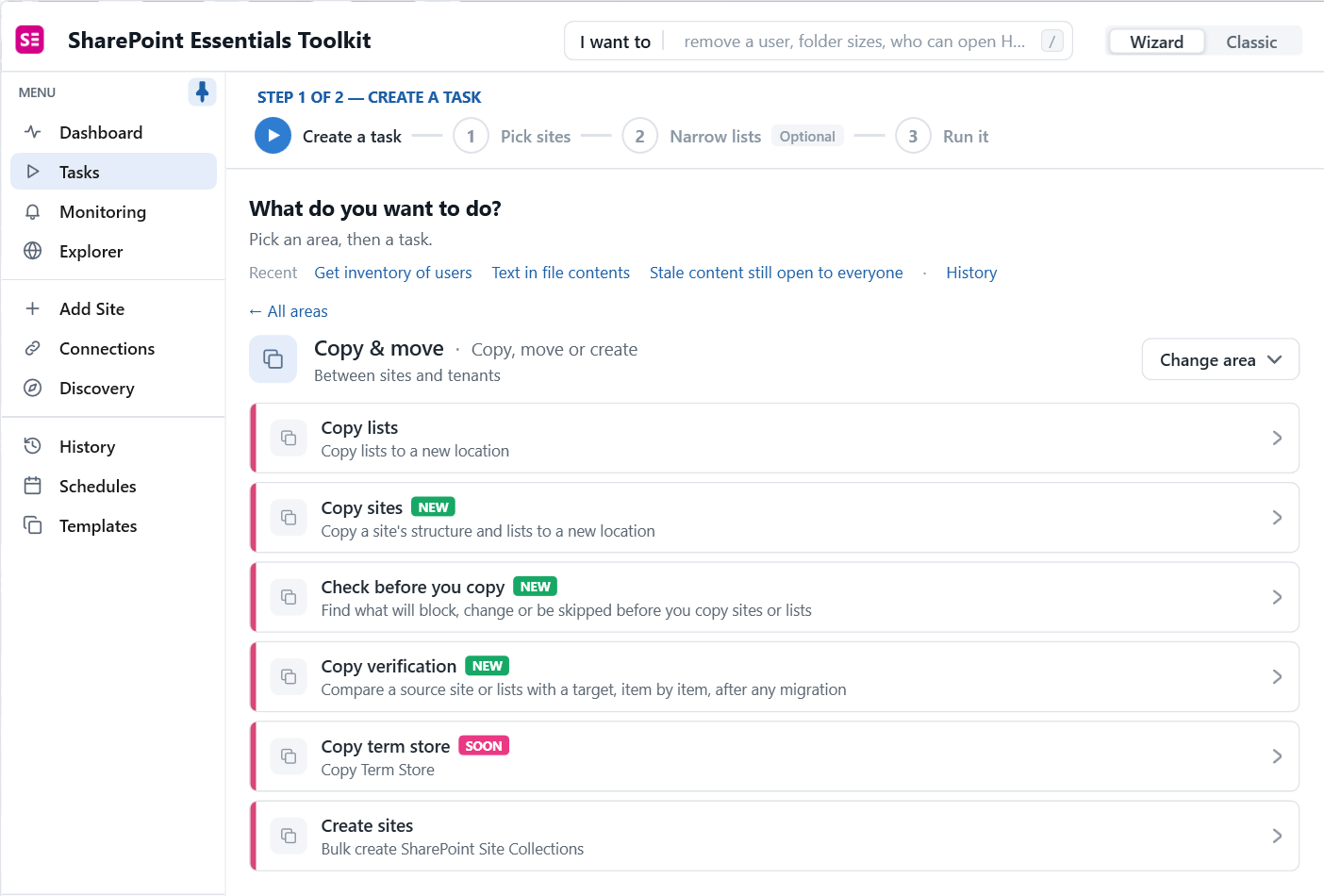
Go to Tasks > Copy & move. Start with Check before you copy: it finds what will block, change or be skipped before you copy sites or lists. Then use Copy sites for whole sites, or Copy lists for single libraries. Copy verification is for phase 5.
2. Pick the source and map the target
Choose the source site from your on-premises connection and a target site from your SharePoint Online connection. The target site collection must already exist. On the Target tab, each source list is mapped to a name on the target, with its internal name and URL. You can rename lists in place and choose a target folder.
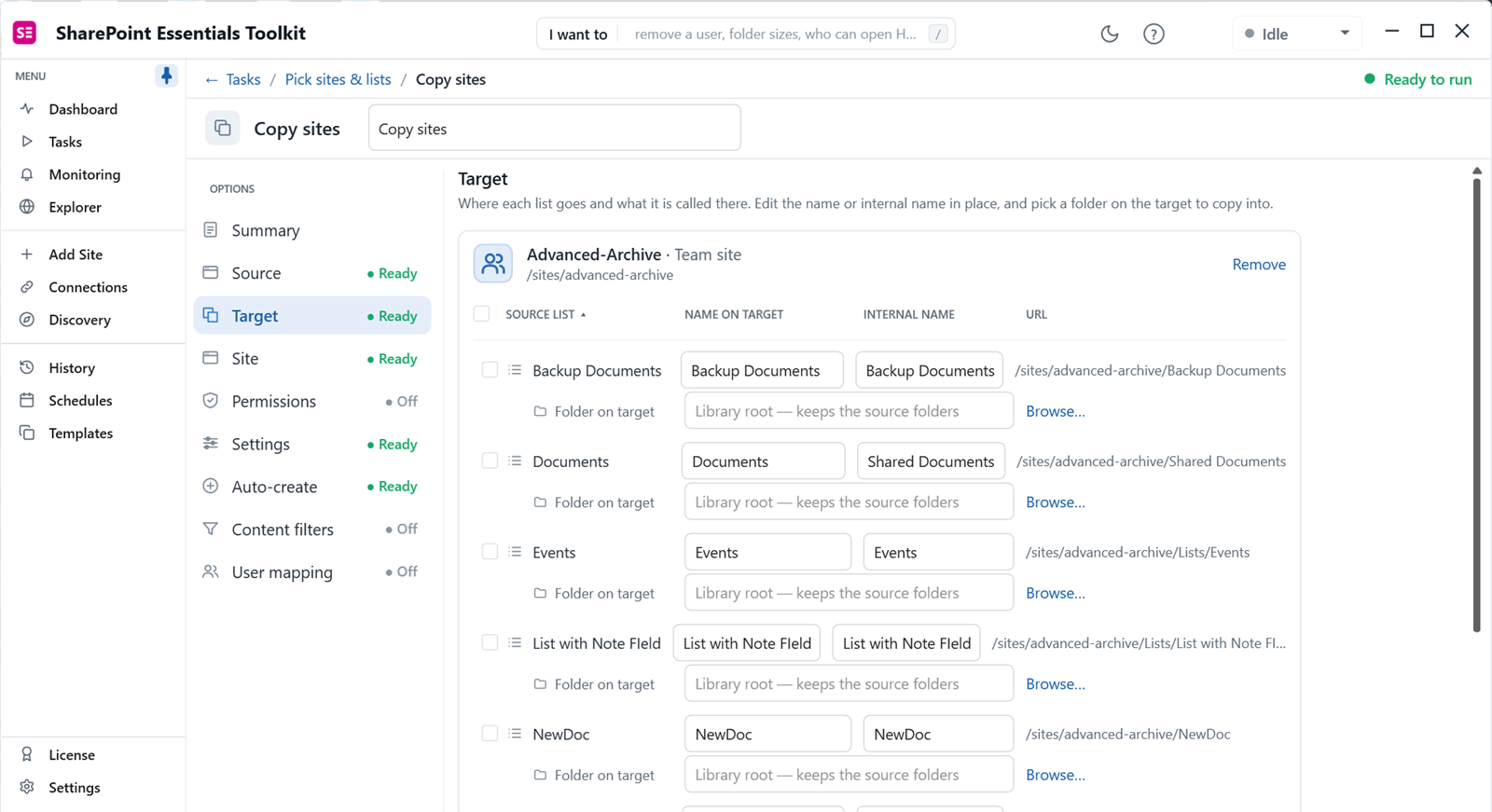
Other tabs set what else comes across: Site (columns, content types, navigation, features), Auto-create (what is created on the target), Content filters and User mapping. If a list already exists on the target, you choose to add items, overwrite, or skip.
3. Choose the copy engine
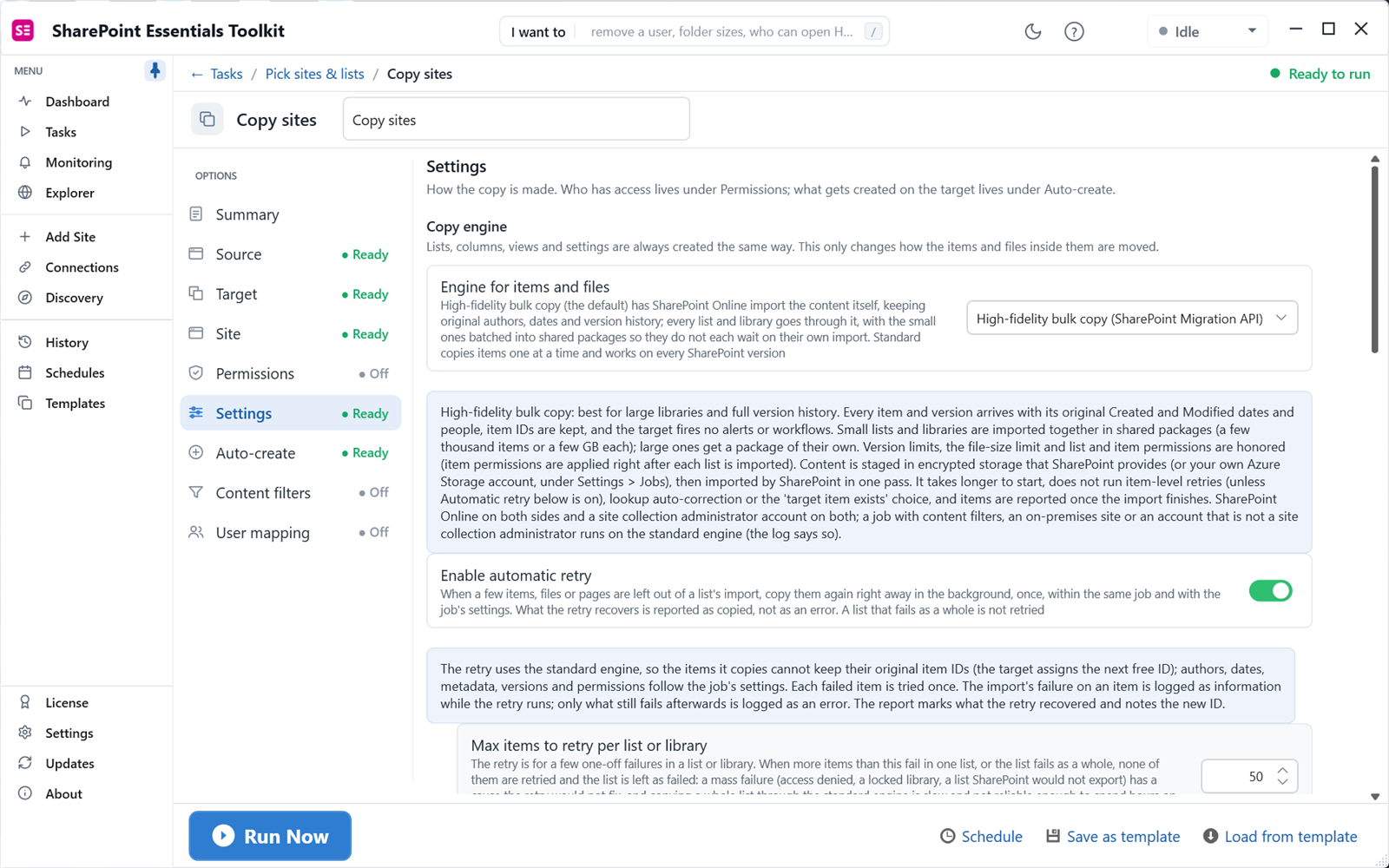
Lists, columns, views and settings are always created the same way. The engine decides how items and files move:
- High-fidelity bulk copy (SharePoint Migration API): SharePoint Online imports each library itself, keeping original authors, dates and version history, keeping item IDs, and firing no alerts or workflows on the target. It needs SharePoint Online on both sides and a site collection administrator account on both.
- Standard: copies items one at a time and works on every SharePoint version the toolkit supports, including on-premises. It supports content filters and per-item retries.
When the source is SharePoint 2016 or 2019, the job runs on the standard engine, and the log says so. The high-fidelity engine applies when you copy between SharePoint Online sites, for example when restructuring after the move or consolidating tenants. Enable automatic retry recopies the few items a bulk import leaves out, within the same job.
4. Decide what permissions to copy
On the Permissions tab, Site permissions is the master switch: it creates the source's custom permission levels and SharePoint groups on the target and applies the source's role assignments. Under it, List permissions and Item permissions copy unique permissions on lists and on items, files and pages. Sharing links are never copied at any level.
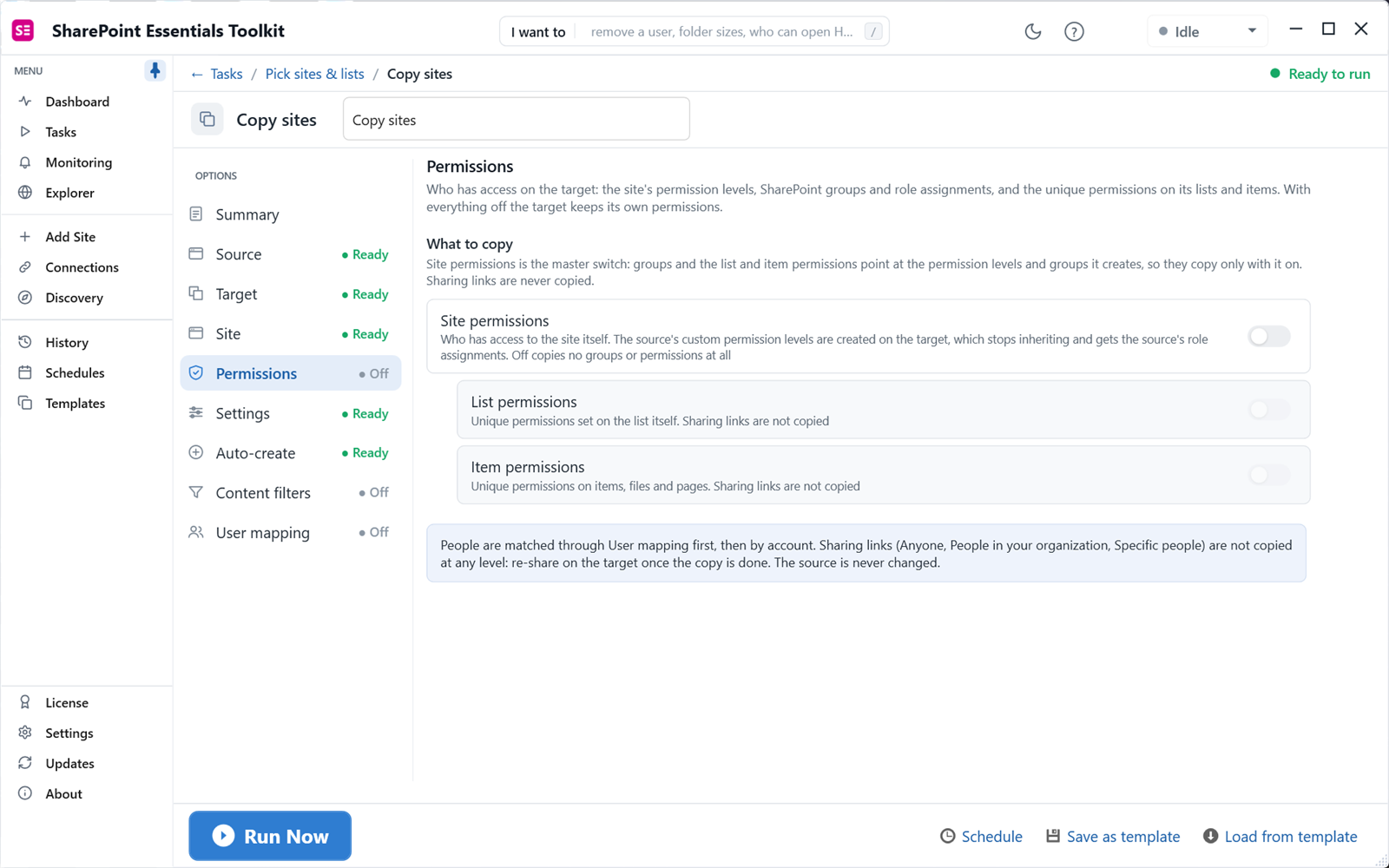
This is the moment to decide whether to copy permissions as they are, or start clean on the target with fewer unique permissions. Your phase 3 export tells you which is safer.
5. Run a test, then the real copy
Run against a test target first. Review the job log and the target site. Then run the full copy. You can save the job as a template and reuse it for the next site. The source is never changed.
Phase 5: Verify the migration
- Run Copy verification to compare the source and target item by item.
- Run the permissions report on the target and compare it with the source export from phase 3.
- Run Find broken links on the target. Fix links that still point to the old server with find and replace, using the mapping from Prepare site for link correction.
- Run the sharing links report on the target after a few weeks to see which links users recreated.
- Check overshared content with the Copilot readiness reports before licensing Copilot on the new sites.
What is included free, and what needs a paid edition?
| Task | Community Edition (free) | Paid editions |
|---|---|---|
| Inventory, permissions, sharing links, broken links, storage reports | Full depth, up to 20 site collections | More sites |
| Check before you copy, Copy verification, Prepare site for link correction | Included | More sites |
| Copy sites and copy lists, including the high-fidelity engine | Included, up to 20 sites per job | More sites |
| Copy version history; several source lists in one job | No | Professional and above |
| Copy item-level permissions | No | Enterprise |
| Link find and replace after the move | Lists under 100 items | Enterprise |
Frequently asked questions
Does the migration keep version history?
It can. Copy sites can bring every version, only major versions, or only the most recent versions you choose. Copying version history needs the Professional edition or higher. Without it, the current version of each file is copied, with its Created and Modified dates and people kept. Plan version history carefully, because it is often most of a library's size.
Does it keep permissions?
Yes, if you turn it on. Site permissions bring custom permission levels, SharePoint groups and role assignments. List permissions copy unique permissions on lists, and item permissions copy unique permissions on items, files and pages. Item permissions need the Enterprise edition. Sharing links are never copied, so record them on the source with the sharing links report before cutover.
Does it use the SharePoint Migration API?
Between SharePoint Online sites, yes: the high-fidelity bulk copy engine has SharePoint Online import each library through the Migration API, keeping authors, dates, versions and item IDs. When the source is on-premises, the standard engine copies items one at a time instead, and the job log says which engine ran. Lists, columns, views and settings are created the same way either way.
How long does a SharePoint migration take?
It depends on volume, version history, network speed and SharePoint Online throttling, so test with a representative site first. The audit phase changes the answer most: content you archive or delete before the move is content you never copy. Teams that inventory and clean up first commonly cut the scope substantially.
Is migration included in the free Community Edition?
Copy sites and copy lists are included in Community Edition within its limit of 20 site collections per tenant and 20 sites per job. Copying version history and several source lists in one job need Professional; copying item-level permissions needs Enterprise. All pre-migration reports, pre-checks and post-migration verification run free at full depth.
Can I migrate from one Microsoft 365 tenant to another?
Copy sites copies within a tenant, or to another tenant when you pick a target site from a different connection. Both sides being SharePoint Online also allows the high-fidelity Migration API engine. Plan user mapping carefully for tenant-to-tenant moves, because account names change between tenants.
Start with the free pre-migration reports
SharePoint Essentials Toolkit Community Edition is free. Inventory, audit permissions, find broken links and copy sites on up to 20 sites per Microsoft 365 tenant, with no item caps and no trial period. Get your free Community Edition license key.