SharePoint Permissions Report: See Who Has Access to Every Site, Library, Folder and File
Last updated: 2026-10-21
A SharePoint permissions report lists every person and group that can open a site, library, folder or file, the permission level they hold, and how they got it: directly, through a group, or through a sharing link. The SharePoint admin center gives a site-level view. For a report down to the file, free, use SharePoint Essentials Toolkit Community Edition on up to 20 sites.
A SharePoint permissions report lists every person and group that can open a site, library, folder or file, the permission level they hold, and how they got it: directly, through a group, or through a sharing link. The SharePoint admin center gives a site-level view. For a report down to the file, free, use SharePoint Essentials Toolkit Community Edition on up to 20 sites.
Why does a SharePoint permissions report matter?
Someone always asks "who can see this?" An auditor wants evidence. HR wants to know what a leaver could open. Security wants to know which files an external guest can reach. And before a Microsoft 365 Copilot rollout, IT has to show that people can only see what they should, because Copilot answers from anything a user already has access to.
SharePoint does not make that question easy. Access is spread across sites, libraries, folders and single files, and it comes from several places at once. Without a report, the honest answer is "we don't know."
Why are SharePoint permissions hard to report on?
Five things make SharePoint permissions difficult to see in one place:
- Inheritance. Libraries, folders and files inherit from the site until someone breaks inheritance. After that, each one has its own list of who has access.
- Unique permissions. A single library can contain hundreds of folders and files with unique permissions. Site-level views do not show them.
- Sharing links. Each "Anyone", "People in your organization" or "Specific people" link grants access without changing the site's member list.
- Nested groups. A report that shows "Finance Team" does not tell you that the group contains 300 people and another group inside it. We cover this in why nested groups make permissions reports wrong.
- Microsoft 365 groups. Team sites connected to a Microsoft 365 group get owners and members from the group, so access is managed in two places.
Option 1: Built-in SharePoint tools
SharePoint has three built-in places to look, each answering a different part of the question.
One site: Advanced permissions settings
- Open the site and select Settings (the gear) > Site permissions > Advanced permissions settings.
- The page lists every SharePoint group, person and domain group with access to the site, and the permission level of each. Select a group name to see its members.
- If a yellow bar says some content has different permissions, select Show these items to list the lists and libraries with unique permissions.
- For a library, open Library settings > Permissions for this document library. For a single file or folder, select it, then ... > Manage access to see the people, groups and links that can open it.
- To test one person, select Check Permissions on the ribbon and enter their name.
This is accurate and needs no setup. It shows one object at a time and has no export, so it suits a quick check rather than an audit.
One site, as a CSV: the sharing report
Site admins can open Settings > Site usage, find Shared with external users and select Run report. SharePoint saves a CSV to a library you choose and emails you a link. Microsoft describes it in Report on file and folder sharing in a SharePoint site: one row per unique file, user, permission and link. Microsoft also notes that it lists SharePoint groups but not the people in them, and it does not include Anyone links. You run it once per site.
Across the tenant: Data access governance reports
In the SharePoint admin center, go to Reports > Data access governance. Microsoft documents these in Data access governance reports:
- Site permissions across your organization: a snapshot of permissions on every site that highlights sites with the broadest access, such as sites with thousands of users, guests or "Everyone except external users".
- Site permissions for users: every site a named user can reach, and whether that is the whole site or specific items, directly or through groups.
- Sharing links and Shared with 'Everyone except external users': activity reports covering the last 28 days.
What to know:
- Snapshot reports need SharePoint Advanced Management. Microsoft notes that admins with Microsoft 365 E5 alone get the activity reports but not the snapshot reports.
- The organization report points you to sites. It does not list every grant on every file.
- Per Microsoft Learn, the user report needs the organization report to have run first, reflects data up to 48 hours old, and can be rerun every 30 days.
Option 2: PowerShell
PnP PowerShell is free and can read every role assignment SharePoint stores. The script below lists site collection admins, site-level grants, and grants on every list or library with unique permissions, across all sites in the tenant, then writes a CSV.
Before you start: install PnP PowerShell 2.x or later (Install-Module PnP.PowerShell), register your own Entra ID app for it, and run as a SharePoint admin who is a site collection admin on each site.
# List site admins, site grants and unique list grants on every site
$ClientId = "<your-app-id>"
$Tenant   = "contoso"
$OutFile  = "C:\Reports\sharepoint-permissions.csv"

function Get-Grants($Object, $SiteUrl, $Scope, $Path) {
    Get-PnPProperty -ClientObject $Object -Property RoleAssignments | Out-Null
    foreach ($ra in $Object.RoleAssignments) {
        Get-PnPProperty -ClientObject $ra -Property RoleDefinitionBindings, Member | Out-Null
        $levels = ($ra.RoleDefinitionBindings | Where-Object Name -ne "Limited Access").Name -join "; "
        if (-not $levels) { continue }
        [pscustomobject]@{
            Site      = $SiteUrl
            Scope     = $Scope
            Path      = $Path
            Principal = $ra.Member.Title
            LoginName = $ra.Member.LoginName
            Type      = $ra.Member.PrincipalType
            Levels    = $levels
        }
    }
}

Connect-PnPOnline -Url "https://$Tenant-admin.sharepoint.com" -Interactive -ClientId $ClientId
$sites = Get-PnPTenantSite | Where-Object Template -notlike "REDIRECTSITE*"

$rows = foreach ($site in $sites) {
    try {
        Connect-PnPOnline -Url $site.Url -Interactive -ClientId $ClientId

        Get-PnPSiteCollectionAdmin | ForEach-Object {
            [pscustomobject]@{
                Site = $site.Url; Scope = "Site collection admin"; Path = $site.Url
                Principal = $_.Title; LoginName = $_.LoginName
                Type = $_.PrincipalType; Levels = "Site collection admin"
            }
        }

        Get-Grants (Get-PnPWeb) $site.Url "Site" $site.Url

        $lists = Get-PnPList -Includes HasUniqueRoleAssignments | Where-Object { -not $_.Hidden }
        foreach ($list in $lists | Where-Object HasUniqueRoleAssignments) {
            Get-Grants $list $site.Url "List" $list.Title
        }
    }
    catch { Write-Warning "$($site.Url): $($_.Exception.Message)" }
}

$rows | Export-Csv $OutFile -NoTypeInformation -Encoding UTF8
To go down to folders and files, add this inside the try block. It makes one extra request per item, so expect it to be slow and throttled on large libraries:
foreach ($list in $lists) {
    foreach ($item in Get-PnPListItem -List $list -PageSize 500) {
        Get-PnPProperty -ClientObject $item -Property HasUniqueRoleAssignments | Out-Null
        if ($item.HasUniqueRoleAssignments) {
            Get-Grants $item $site.Url "Item" $item.FieldValues.FileRef
        }
    }
}
Test it on one site before running it on the tenant. What to know:
- Sharing links appear as SharePoint groups named
SharingLinks.<id>.... The script lists them but not the link type, expiry or file.Get-PnPFileSharingLinkreturns those details, at one call per file. - Domain groups appear as one row. Listing their members needs Microsoft Graph PowerShell (
Get-MgGroupTransitiveMember) and more code. - Unattended runs need certificate authentication instead of
-Interactive. - The result is a flat CSV. Filtering, drill-down and comparing runs are up to you.
Option 3: SharePoint Essentials Toolkit permissions report
SharePoint Essentials Toolkit is a Windows desktop app for SharePoint Online and SharePoint on-premises (2016/2019). Its permissions report reads every site, list, folder and item you select and lists each grant, including access through SharePoint groups and sharing links. It can expand Entra ID and Active Directory groups to the people inside them. Community Edition is free and runs the full report on up to 20 sites per Microsoft 365 tenant, with no item caps.
| Built-in tools | PowerShell (PnP) | SharePoint Essentials Toolkit | |
|---|---|---|---|
| Depth | Any object, one at a time; tenant reports are site level | Down to items, if you add the item loop | Site, list, folder and file |
| Many sites at once | Data access governance reports | Yes | Yes |
| Sharing links | Per-site CSV (no Anyone links); 28-day activity reports | Hidden groups, or one call per file | Shown as a grant, plus a separate links report |
| Nested group members | On screen, one group at a time | Extra Graph code | Optional expansion |
| Setup | None | Module, app registration, script | Install, sign in, pick sites |
| Output | Screen, or CSV per site or report | CSV | Filterable grid, Excel, CSV |
| Cost | Included; snapshot reports need SharePoint Advanced Management | Free, plus your time | Free on up to 20 sites |
How to run a SharePoint permissions report, step by step
1. Open Tasks and pick Permissions report
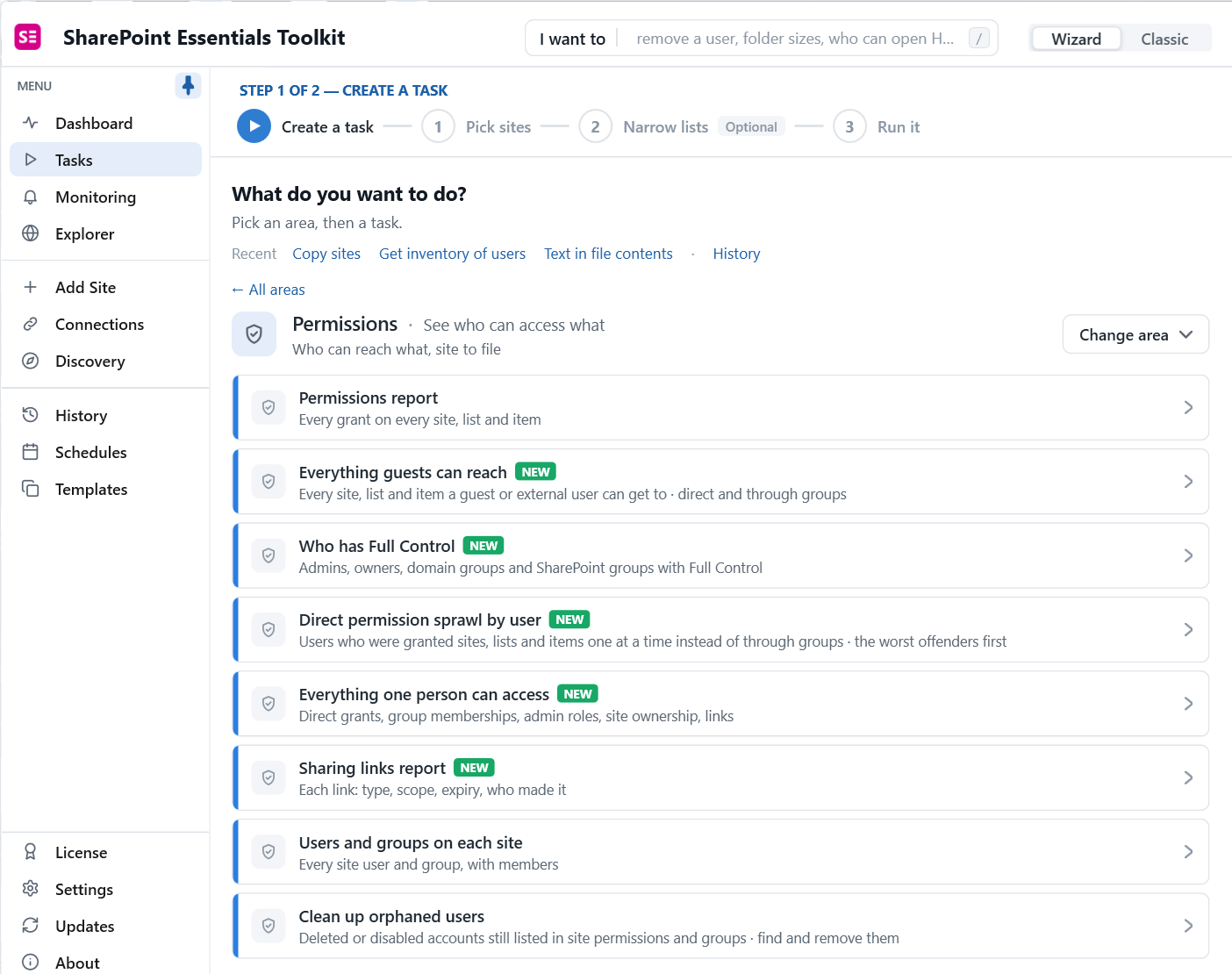
Install the toolkit, sign in with your free Community Edition key, and add a connection to your tenant. Open Tasks, choose the Permissions area and click Permissions report. The same area holds the related reports: everything guests can reach, who has Full Control, and everything one person can access.
2. Pick the sites and, if you want, specific lists
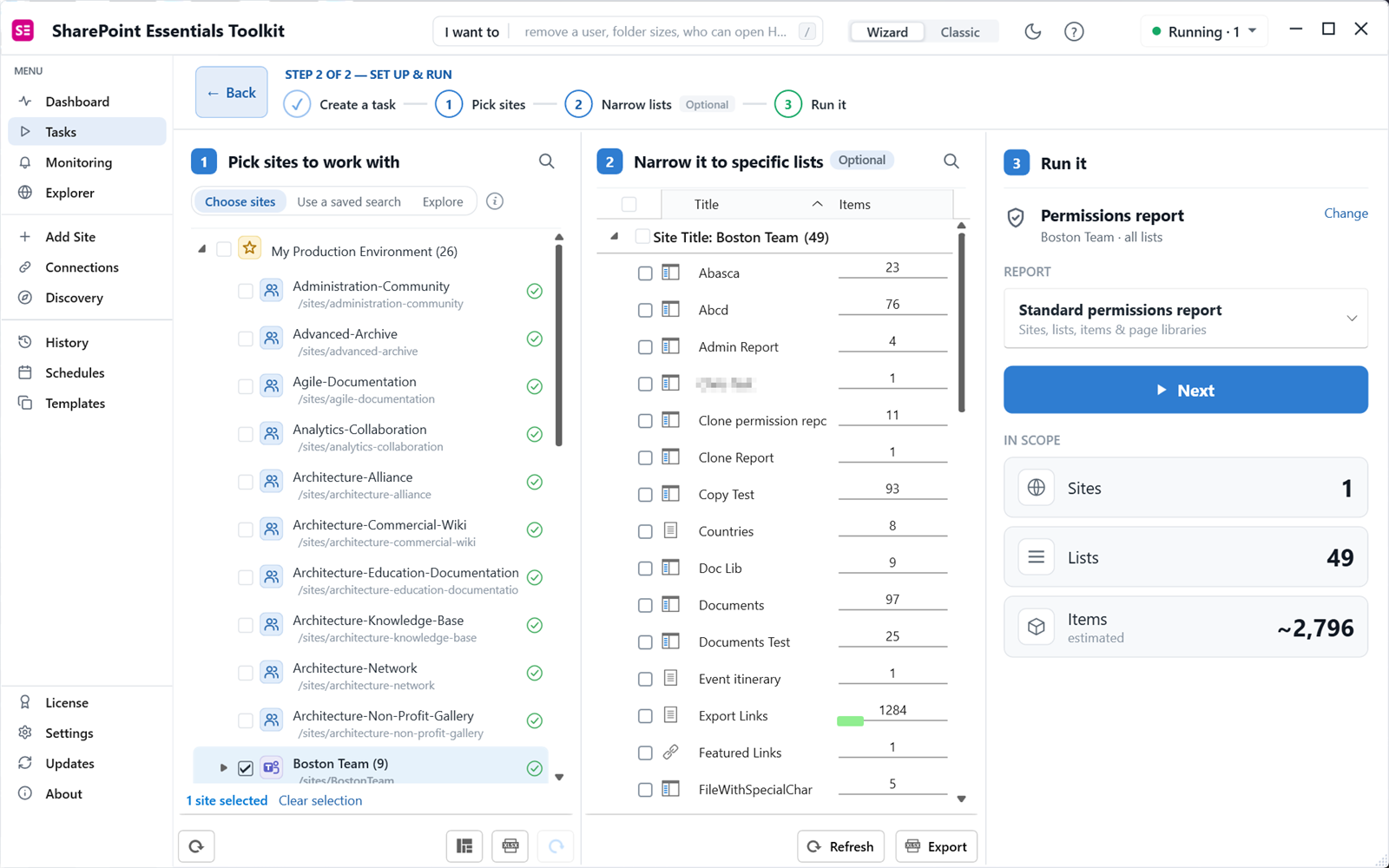
Tick one or more sites on the left. The middle column lets you narrow the scan to certain lists. The right column shows how many sites, lists and items are in scope before you start. Choose Standard permissions report to cover sites, lists, items and page libraries, then click Next.
3. Check the summary and settings
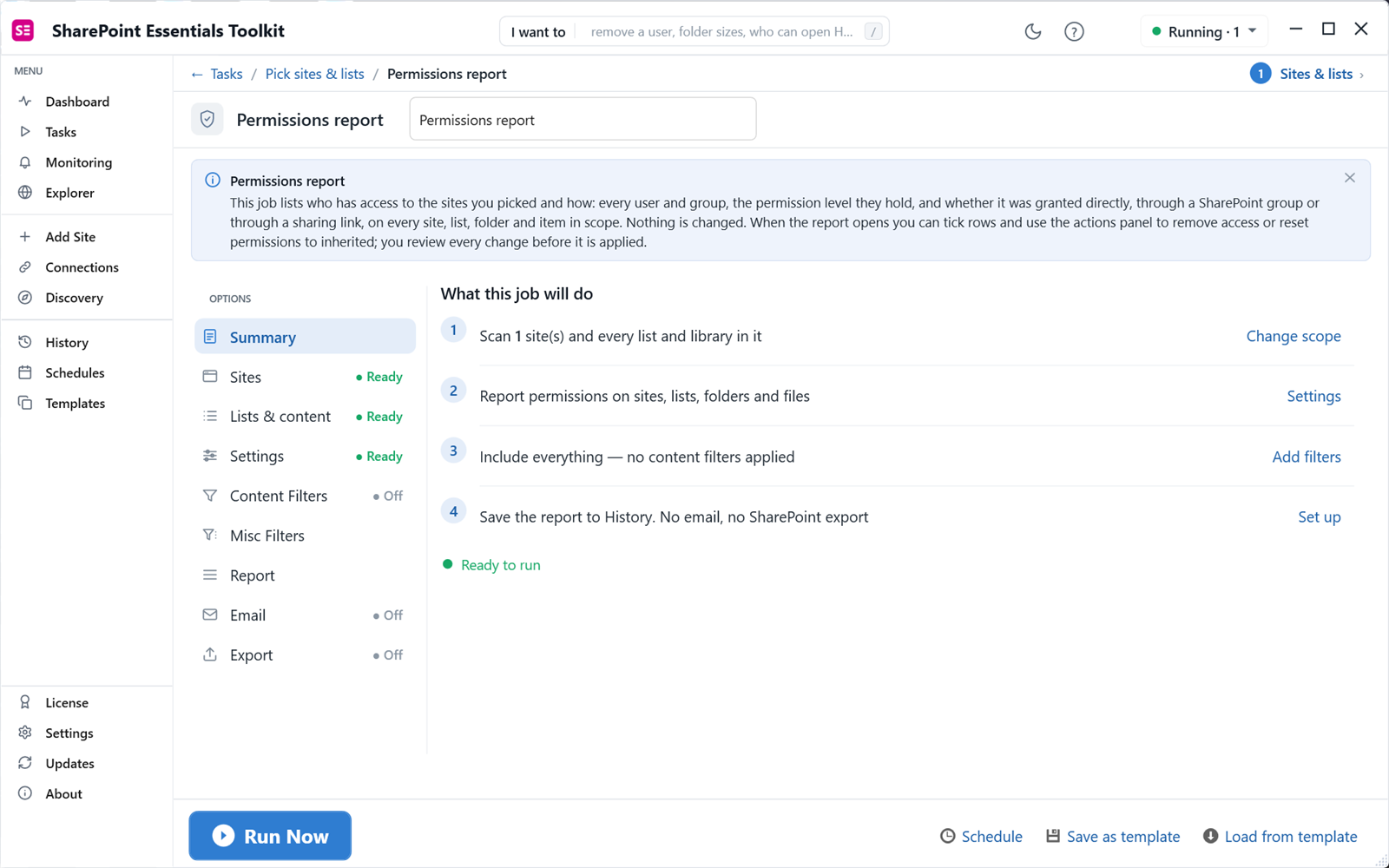
The summary says what the job will do in plain words. Under Settings you choose what to include: site collection admins, site, list and item permissions, inherited permissions, limited access, and domain group members. Show Guests & External Users Only narrows the report to outside accounts. The report reads only. Nothing in SharePoint changes.
4. Run it and read the totals
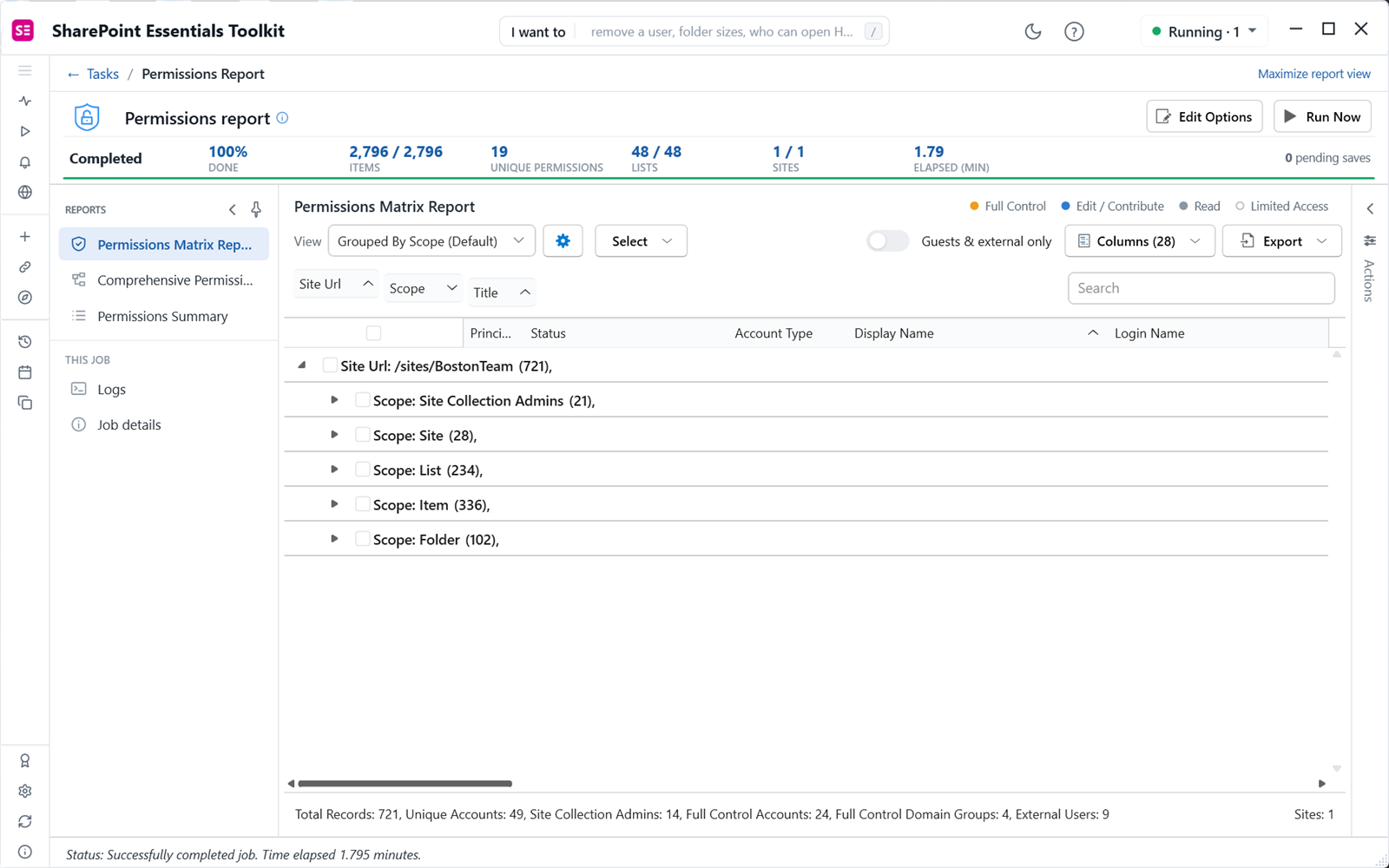
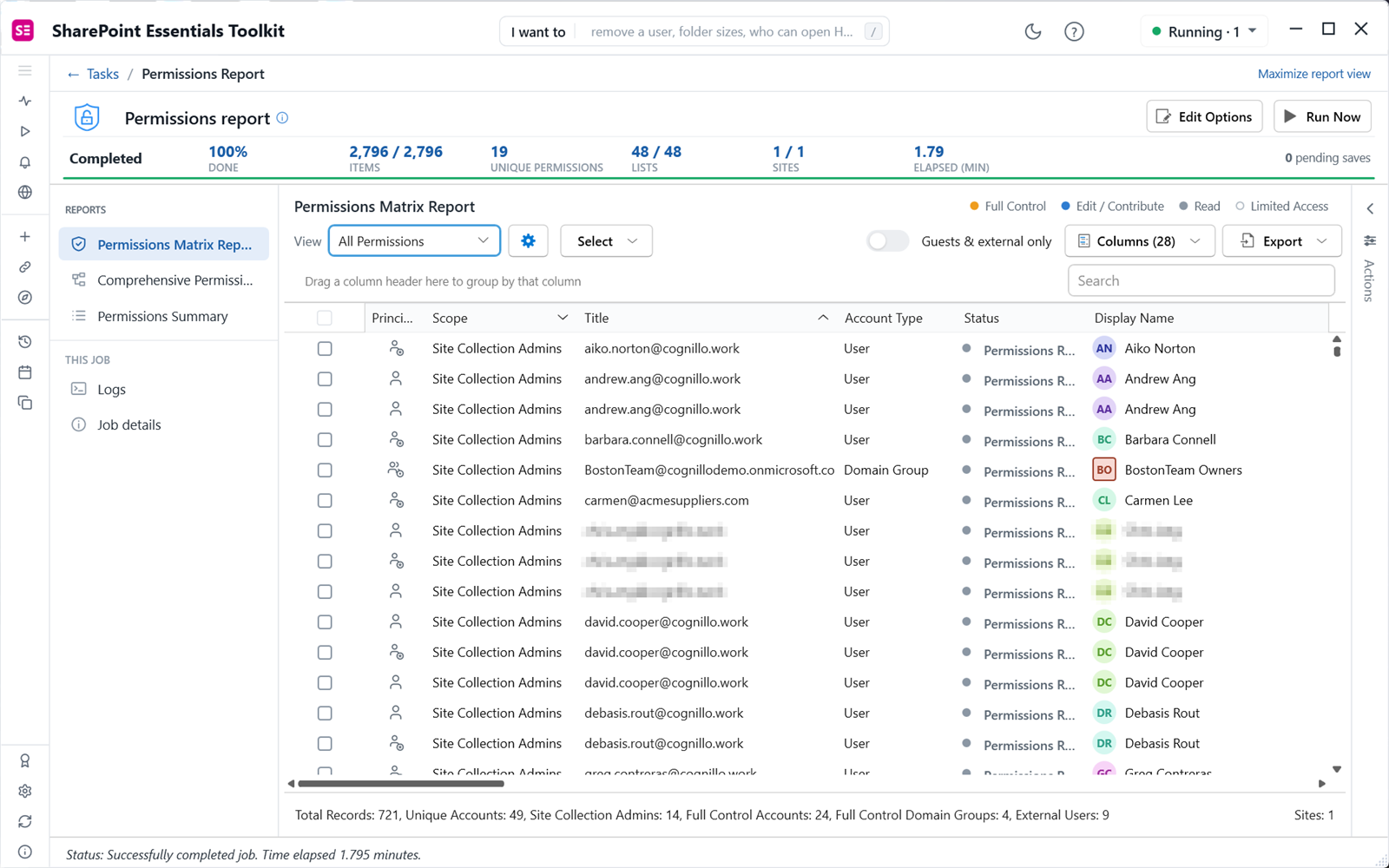
Click Run Now. When the job finishes, the totals line shows the shape of the problem. On our test site the report found 721 permission records, 49 unique accounts, 14 site collection admins, 24 accounts with Full Control and 9 external users, across 2,796 items, in 1.8 minutes.
5. Switch views, filter and drill in
The default view groups grants by scope. Switch to All Permissions for a flat list you can sort and filter. Turn on Guests & external only to see outside accounts, or filter the Scope column to Item and Folder to see unique permissions below the library level. The external users report walks through that filter.
6. Export SharePoint permissions to Excel
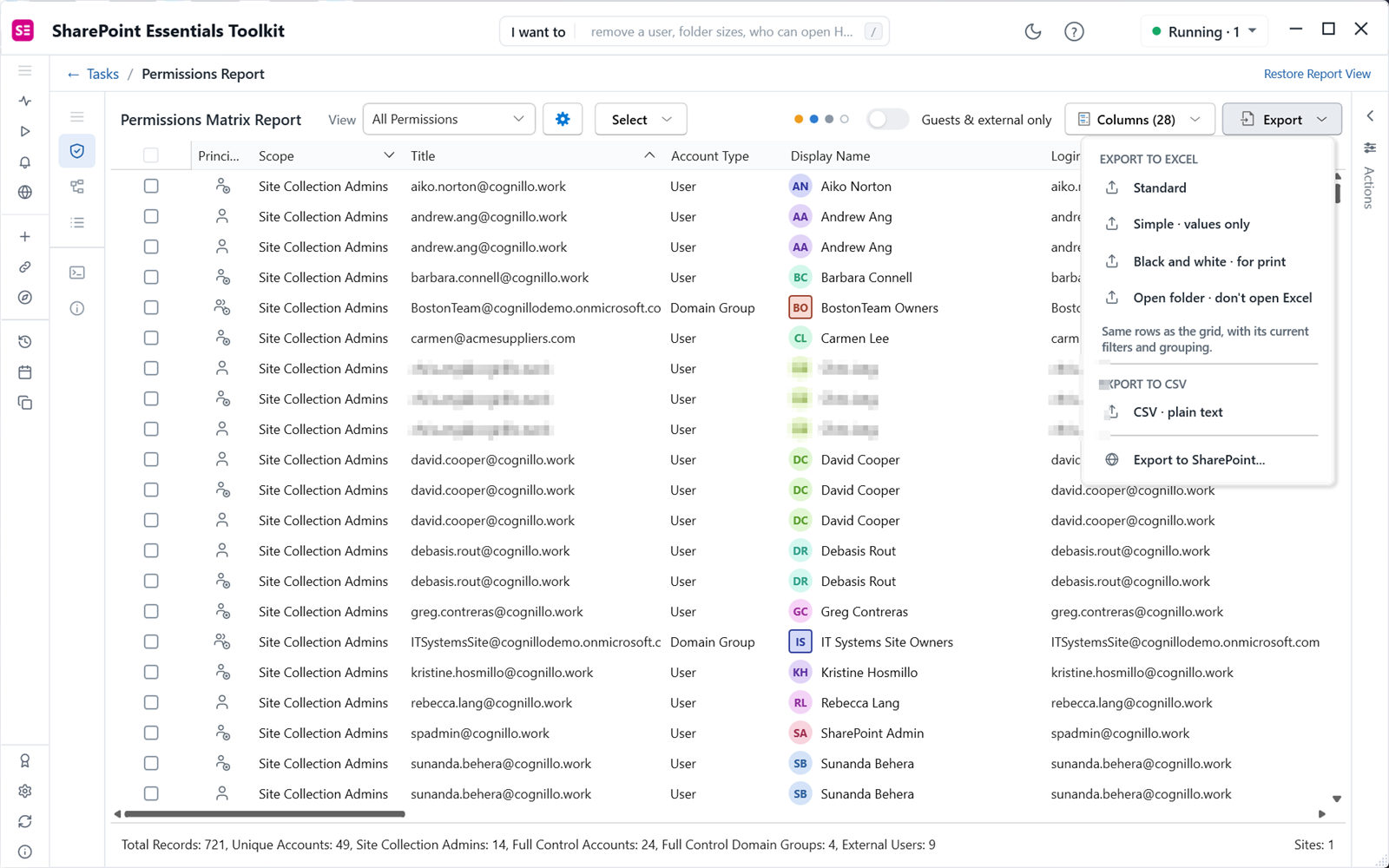
Click Export. You can export to Excel (standard, values only, or black and white for print), to CSV, or to a SharePoint library. The export uses the rows you see, with your current filters and grouping.
What should you look for in the results?
- Broken inheritance in odd places. Filter Scope to Item and Folder. A handful of unique folders is normal. Hundreds of unique files usually means people shared one file at a time.
- External users. Turn on Guests & external only. Look for guests with Edit or Full Control, and guests on sites that should be internal.
- Anyone links. Rows granted through an Anyone link mean no sign-in is needed. Run the sharing links report for expiry dates and creators.
- Everyone except external users. This one group opens content to every employee. It is the main source of Copilot oversharing. See Copilot readiness: find overshared files.
- Orphaned users. Accounts that were deleted or disabled in Entra ID but still appear in site permissions. They add noise and can return if an account name is reused.
For one named person, use the check user permissions report instead. It lists every grant for that account across the sites you pick.
How do you fix what the report finds?
Tick rows in the report and open the Actions panel. It offers the matching fix, for example removing a direct permission, removing someone from site collection admins, or resetting a folder to inherit again. Every change is listed for review before it is applied.
- Remove direct grants to people who should be in a group instead.
- Reset unique permissions on folders and files that no longer need them.
- Remove or shorten Anyone links, starting with links that allow editing.
- Move access from "Everyone except external users" to a named group.
Community Edition can apply small fixes from the panel so you can see how they work. Bulk edits, such as removing hundreds of links or resetting permissions across many libraries at once, need a paid edition. The report itself is never limited.
Frequently asked questions
Can I export SharePoint permissions to Excel?
Yes. The SharePoint admin center reports download as CSV, PowerShell scripts usually write CSV, and SharePoint Essentials Toolkit exports straight to Excel in three layouts (standard, values only, and black and white for print) or to CSV. The export keeps the filters and grouping you set in the report, so you can send a reviewer only the external users or only the unique permissions.
Does a SharePoint permissions report include sharing links?
It depends on the tool. Many scripts read role assignments only and miss sharing links, because links are stored as hidden SharePoint groups. The SharePoint Essentials Toolkit permissions report shows access granted through a sharing link next to direct and group access, and the separate sharing links report lists every link with its type, expiry and creator.
Does the report show nested group members?
SharePoint group members are listed by default. Entra ID and Active Directory security groups can be expanded to the people inside them, including groups nested inside other groups, by turning on Include Domain Group Members. On SharePoint Online that option uses an Azure app registration on the connection so the toolkit can read group membership from Microsoft Graph.
Does the permissions report work on SharePoint on-premises?
Yes. SharePoint Essentials Toolkit runs the same permissions report against SharePoint Online and SharePoint on-premises (2016/2019). The steps, views and Excel export are the same. This is useful before a migration, because you can report on the on-premises source and the SharePoint Online target with one tool and compare the two exports.
How long does a permissions report take on a large site?
Time depends on the number of items with unique permissions more than on total size. On our test tenant, one site with 48 lists and 2,796 items finished in 1.8 minutes. Large libraries take longer, and SharePoint Online throttling sets the pace. The toolkit reads in batches and retries throttled calls, so long runs finish instead of failing halfway.
Run a permissions report free on up to 20 sites
SharePoint Essentials Toolkit Community Edition is free. It runs the full permissions report, down to the file, on up to 20 sites per Microsoft 365 tenant, with no item caps and no trial period. Get your free Community Edition license key and run your first report in about ten minutes.