How to Check Everything One User Can Access in SharePoint
Last updated: 2026-10-21
To check user permissions in SharePoint across sites, you need every grant for that account in one list: direct permissions, SharePoint group memberships, admin roles and sharing links. Built-in Check Permissions covers one site at a time, and the tenant-wide Site permissions for users report needs SharePoint Advanced Management. SharePoint Essentials Toolkit's "Everything one person can access" report checks many sites in one run, free on up to 20 sites with Community Edition.
To check user permissions in SharePoint across sites, you need every grant for that account in one list: direct permissions, SharePoint group memberships, admin roles and sharing links. Built-in Check Permissions covers one site at a time, and the tenant-wide Site permissions for users report needs SharePoint Advanced Management. SharePoint Essentials Toolkit's "Everything one person can access" report checks many sites in one run, free on up to 20 sites with Community Edition.
Why check one user's access?
The question usually comes with a deadline. A person is leaving on Friday. A contractor's engagement has ended. A mailbox was compromised overnight and security needs to know which files the attacker could reach. HR or legal asks for a record of what someone could open.
In each case "they were a member of the Finance site" is not enough. People collect access over years: a folder shared for one project, edit rights on a library from a reorganization, a link someone sent them. If you remove the obvious group and miss the rest, the account still has access.
How does one person get access in SharePoint?
There are three main routes, plus admin roles:
- Direct grants. The person was added by name to a site, library, folder or file.
- Group membership. They are in a SharePoint group (for example "Site Members"), a Microsoft 365 group, or an Entra ID security group that has access.
- Sharing links. Someone shared a file or folder with them through a "Specific people" link, or they hold an organization or Anyone link.
- Admin roles. Site collection administrators and site owners can open everything on the site, whatever the item permissions say.
Checking site membership catches only part of the group route. Direct grants on single files and links are the two that site-by-site checks usually miss.
Option 1: Built-in SharePoint and Microsoft 365 tools
One site: Check Permissions
- Open the site and select Settings (the gear) > Site permissions > Advanced permissions settings.
- On the ribbon, select Check Permissions.
- Enter the person's name or email and select Check Now.
- SharePoint shows each permission level they hold on the site and whether it comes directly or through a named group.
- To check a library, open Library settings > Permissions for this document library and use Check Permissions there.
This is accurate for that site or library. It does not list the folders and files inside where the person has unique access, it has no export, and you repeat it on every site. Microsoft explains the levels it reports in Understanding permission levels in SharePoint.
Group memberships: Microsoft Entra admin center
In the Microsoft Entra admin center, go to Users > All users, open the person and select Groups. This lists the Microsoft 365 and security groups they belong to. Group-connected team sites and any site that grants access to those groups are within their reach. The page doesn't say which sites those are.
Every site, one user: the Site permissions for users report
With SharePoint Advanced Management, the SharePoint admin center has a tenant-wide report for this question:
- Go to Reports > Data access governance.
- Under Site permissions for users, select View reports > Create report.
- Select Add users to report, pick the person, choose SharePoint or OneDrive as the scope, name the report and select Create and run.
- When the status shows it is ready, open it to see each site they can reach, or download a CSV.
Microsoft's documentation for this report says it shows whether the person can open the whole site or only some items. The CSV gives a count of files and folders they can reach directly and through groups on each site, but not which ones. Microsoft also lists conditions: the organization-wide site permissions report must have run at least once, data can be up to 48 hours old, you can keep up to five reports, and each can be rerun every 30 days. For an urgent offboarding or an incident, the 48-hour lag matters.
Option 2: PowerShell
Three short scripts cover most of the question. Each answers a different part.
Which sites list the person, and in which groups
Uses the SharePoint Online Management Shell (Install-Module Microsoft.Online.SharePoint.PowerShell). Microsoft notes that Get-SPOUser needs a SharePoint admin who is also a site collection admin on each site queried.
# Every site where the person is in the user list, their groups, and admin status
$User = "megan@contoso.com"
Connect-SPOService -Url "https://contoso-admin.sharepoint.com"

$rows = foreach ($site in Get-SPOSite -Limit All) {
    try {
        $u = Get-SPOUser -Site $site.Url -LoginName $User -ErrorAction Stop
        [pscustomobject]@{
            Site        = $site.Url
            IsSiteAdmin = $u.IsSiteAdmin
            Groups      = $u.Groups -join "; "
        }
    }
    catch { }   # not on this site, or no admin rights on it
}

$rows | Export-Csv "C:\Reports\user-sites.csv" -NoTypeInformation -Encoding UTF8
A site's user list keeps people who once had access, so a row with no groups and no admin flag may mean nothing is left. This script does not see direct grants on lists, folders or files, or sharing links.
Which Entra ID groups they are in, including nested groups
Connect-MgGraph -Scopes "User.Read.All", "GroupMember.Read.All"
Get-MgUserTransitiveMemberOf -UserId "megan@contoso.com" -All |
    ForEach-Object { $_.AdditionalProperties.displayName }
Start the Site permissions for users report from PowerShell
If you have SharePoint Advanced Management, Start-SPODataAccessGovernanceInsight creates the same report as the admin center:
Start-SPODataAccessGovernanceInsight -ReportEntity PermissionsReport -Workload SharePoint `
    -ReportType Snapshot -Name "Offboarding - Megan" -UserPrincipalNames "megan@contoso.com"
To also catch direct grants on folders and files with PnP PowerShell, you loop through every item with unique permissions and compare each role assignment with the user's login name and groups. That is slow on large libraries, which is why most offboarding scripts stop at site level.
Option 3: SharePoint Essentials Toolkit "Everything one person can access"
The report checks one or more accounts across the sites you pick. Its description in the app sums it up: direct grants, group memberships, admin roles, site ownership and links. It reads only, and it works on SharePoint Online and SharePoint on-premises (2016/2019).
| Check Permissions | Site permissions for users report | PowerShell | SharePoint Essentials Toolkit | |
|---|---|---|---|---|
| Sites per run | One | All | Many | Many |
| Folder and file grants | No | A count per site | If you loop every item | Listed one by one |
| Sharing links | No | Not a separate column | Hidden groups to decode | Yes |
| Freshness | Live | Up to 48 hours old | Live | Live |
| Export | No | CSV | CSV | Excel or CSV |
| Cost | Included | Needs SharePoint Advanced Management | Free, plus setup time | Free on up to 20 sites |
How to check user permissions in SharePoint, step by step
1. Pick the task and the sites
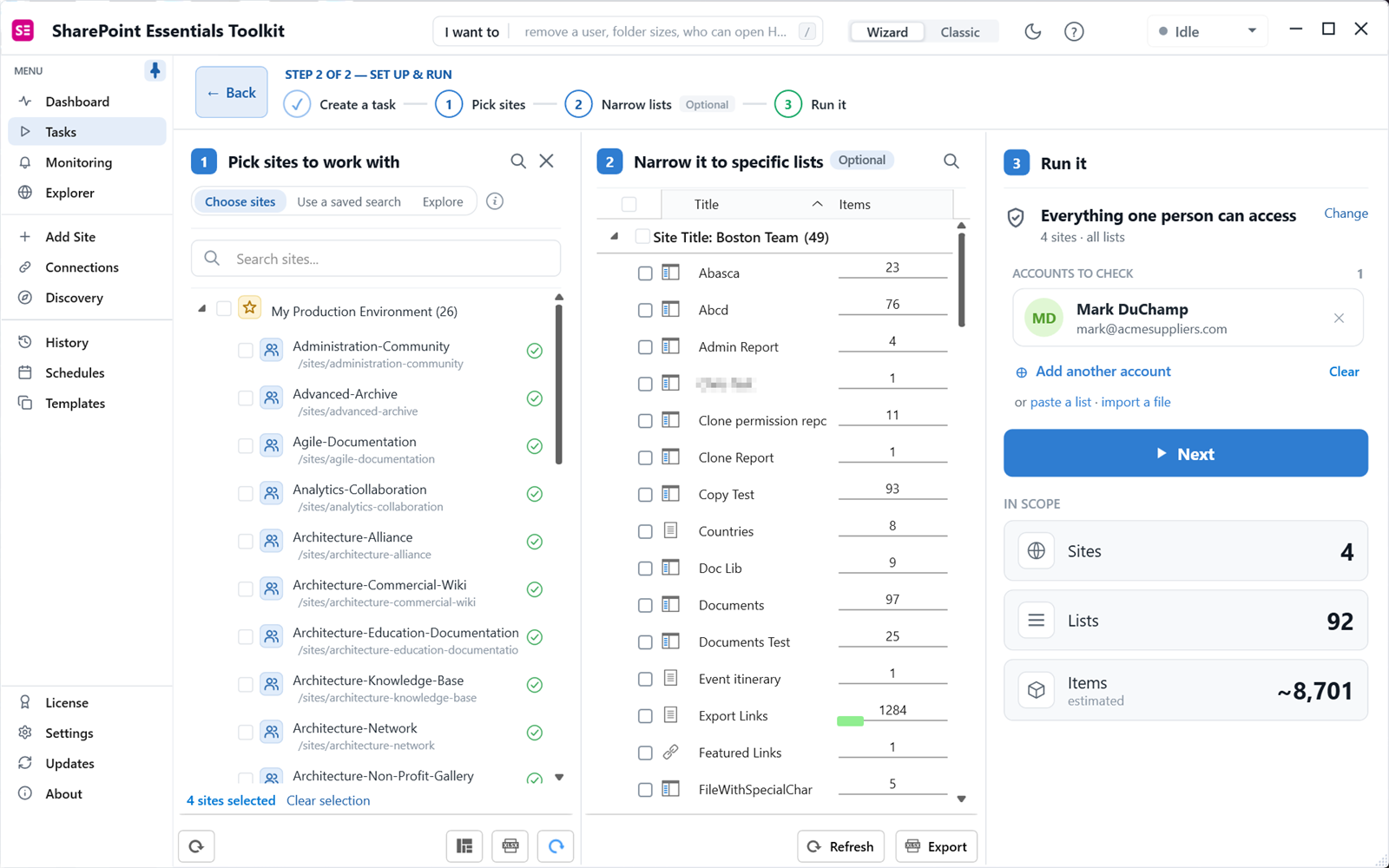
Open Tasks > Permissions > Everything one person can access. Tick the sites to check. In our example we picked four sites, which together hold 92 lists and about 8,700 items.
2. Add the account
Under Accounts to check, search for the person, use paste a list to add several email addresses, or import a file. Guests work the same way. Here we checked Mark DuChamp, an external supplier contact.
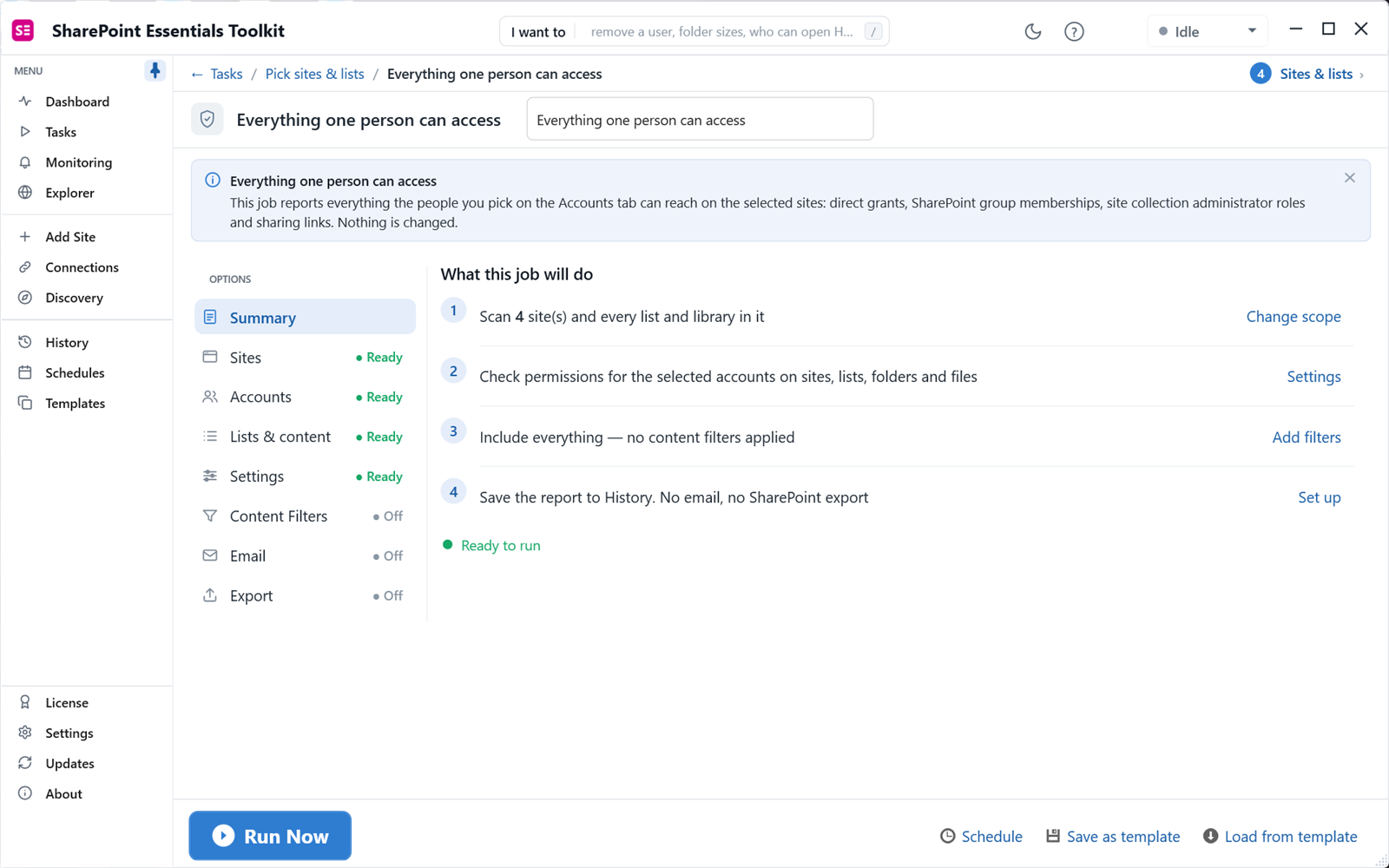
3. Review the summary and run
Click Next. The summary lists the sites, the account and what will be reported. Click Run Now. Our four-site check finished in 1.8 minutes.
4. Read the results
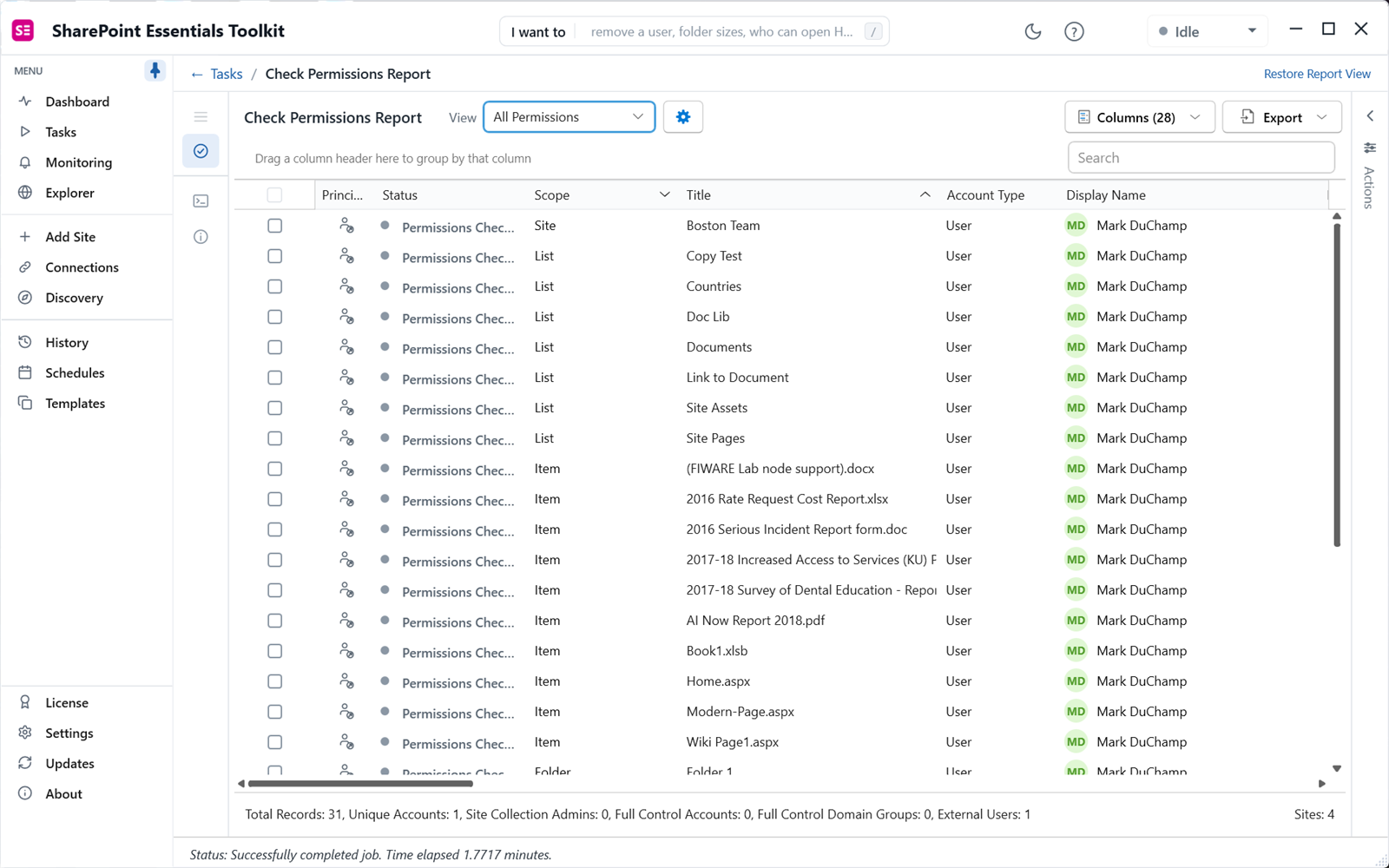
The report found 31 grants for this one guest across 4 sites: the Boston Team site itself, seven lists, and many single files and folders.
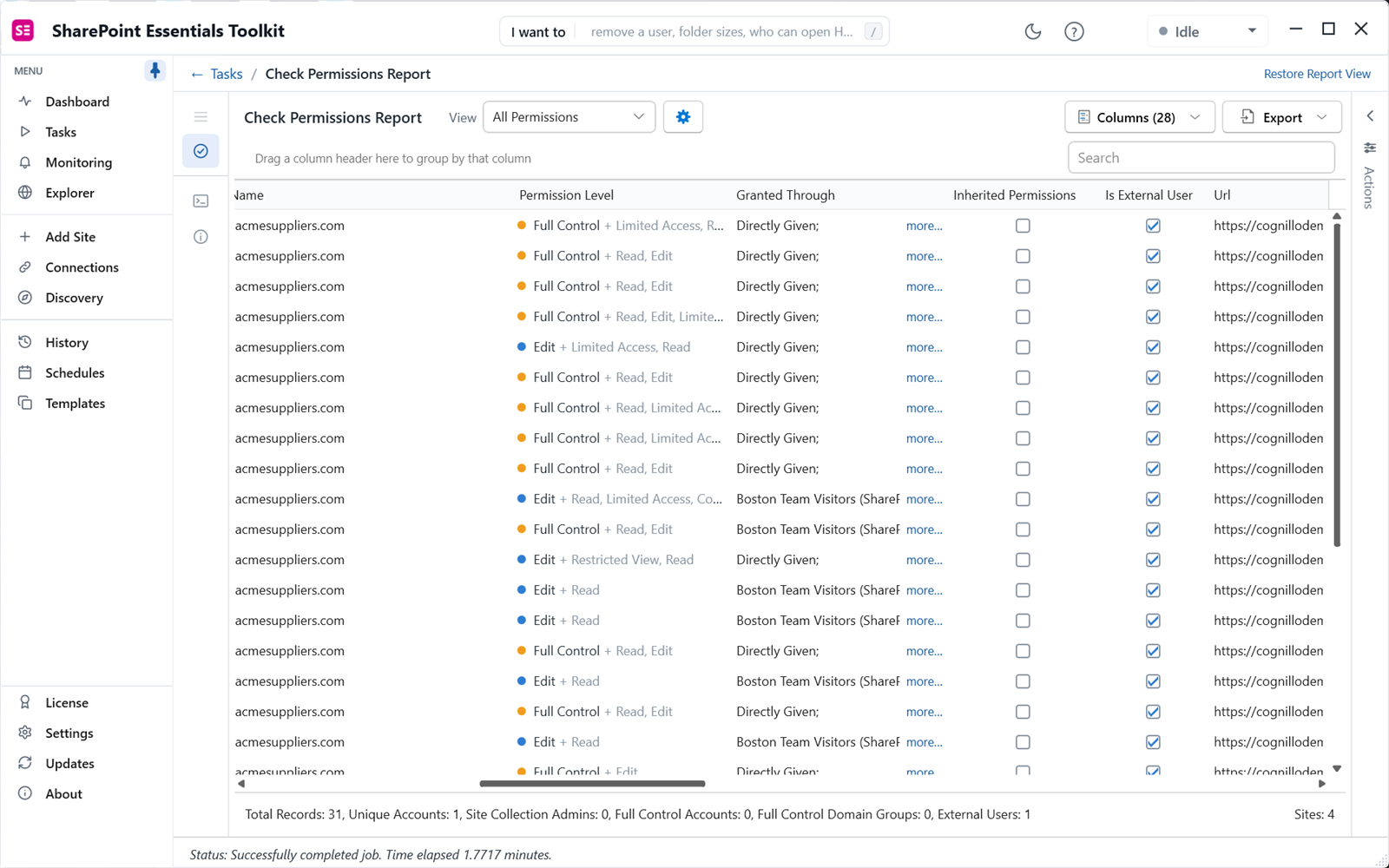
5. Scroll right to see how access was granted
The Permission Level, Granted Through, Inherited Permissions and Is External User columns tell the story. In our test, this outside supplier held Full Control, directly given, on many files. Elsewhere he had Edit through the "Boston Team Visitors" group, which is a second finding: a Visitors group should normally be Read only.
What to look for in the results
- Full Control or Edit, directly given. These grants survive group removal. They are the first to clean up for a leaver.
- Granted through a group with the wrong level. A Visitors group with Edit affects everyone in it, not just this person.
- Sharing links. Links keep working after you remove the person from a group.
- Site collection admin or owner rows. These override item permissions.
- Sites you did not expect. Old project sites are where forgotten access lives.
Offboarding and incident checklist
- Run "Everything one person can access" for the account on every site they might have used. Export to Excel and keep it with the ticket.
- Block sign-in in Entra ID first if it is a security incident. Then clean up SharePoint.
- Remove direct grants and sharing links, starting with Full Control and Edit.
- Remove the account from SharePoint groups and site collection admins. Replace owners where they were the only one.
- Check the leaver's own OneDrive and sites they owned with the sharing links report. Their links to others still work after they leave.
- Run the report again to confirm nothing is left.
Removing access is done from the report: tick rows and open the Actions panel. Each change is shown before it is applied. Community Edition can apply small fixes; removing or cloning access in bulk needs a paid edition.
For a site-wide view rather than one person, use the full SharePoint permissions report. If the person's access comes through Entra ID groups, read how to expand nested groups.
Frequently asked questions
Can I check what an external user can access in SharePoint?
Yes. Add the guest by email address, the same way as an employee. The report finds grants to the guest account, including the #ext# form SharePoint Online uses for guests. To review every guest at once rather than one person, use the Everything guests can reach report or the permissions report with Guests and external only turned on.
Does checking user permissions include OneDrive?
A OneDrive is a personal site collection, so it is included when you add that OneDrive URL as a site in scope. Most offboarding checks look at the leaver's own OneDrive separately, because the question there is what they shared out, not what they can open. Run the sharing links report on their OneDrive for that.
Does it show access through Microsoft 365 groups and Entra ID groups?
Access through SharePoint groups, sharing links, Everyone claims and site collection admin roles is confirmed and named in the Granted Through column. When an Entra ID or Microsoft 365 group holds a grant, the report flags it as a possible path, because confirming membership means reading the directory. Check that group's members in Entra ID, or expand groups in the full permissions report.
Can I check several users at once?
Yes. Use Add another account, paste a list of email addresses, or import a file. Each account gets its own rows, and the Display Name column lets you group or filter by person. This is useful when a whole team leaves, after a contractor engagement ends, or when an incident involves several compromised accounts.
Is the report read-only?
Yes. Running the report changes nothing in SharePoint. If you decide to remove access, you tick rows and use the Actions panel, which lists every change for review before it is applied. Community Edition can apply small fixes so you can see how it works; removing access in bulk needs a paid edition.
Check any account free on up to 20 sites
SharePoint Essentials Toolkit Community Edition is free. Check what any employee or guest can access on up to 20 sites per Microsoft 365 tenant, with no item caps and no trial period. Get your free Community Edition license key.