SharePoint External Users Report: See Everything Guests Can Reach
Last updated: 2026-10-21
A SharePoint external users report lists every guest and external account with access to your sites, what each one can open, at what permission level, and whether access came directly, through a group or through a sharing link. Entra ID lists guests but not their SharePoint access. SharePoint Essentials Toolkit shows both in one report, free on up to 20 sites with Community Edition.
A SharePoint external users report lists every guest and external account with access to your sites, what each one can open, at what permission level, and whether access came directly, through a group or through a sharing link. Entra ID lists guests but not their SharePoint access. SharePoint Essentials Toolkit shows both in one report, free on up to 20 sites with Community Edition.
Why review external users?
Guests are added for good reasons: a supplier, an agency, an auditor, a partner on a joint project. The project ends; the access stays. Over a few years a tenant can collect hundreds of guest accounts, and nobody knows which ones can still open contracts, pricing or customer data.
External access is also one of the first things auditors ask about, and one of the first things to check after a partner reports a breach on their side.
How do external users get access to SharePoint?
- Entra B2B guest accounts, invited to the tenant. Their login contains
#ext#. - Older SharePoint-only guests, whose login contains
urn:spo:guest. - Sharing links sent to an outside email address, or Anyone links that need no account at all.
- Group membership: a guest added to a Microsoft 365 group or Team gets the connected site's access.
Microsoft explains the model in Overview of external sharing in SharePoint and OneDrive.
Option 1: Built-in Microsoft 365 tools
Who the guests are: Microsoft Entra admin center
- Sign in to the Microsoft Entra admin center and go to Users > All users.
- Add a filter: User type equals Guest.
- Select Download users to export the list to a CSV.
- Open a guest and select Groups to see the Microsoft 365 and security groups they belong to.
This is the authoritative list of B2B guest accounts. It does not show which SharePoint sites, lists or files each guest can open.
What guests can open on one site: the sharing report
On the site, select Settings > Site usage, then Run report under Shared with external users. You get a CSV with each file, folder and site shared with a guest, the permission, and the link type. Per Microsoft Learn, it lists SharePoint groups but not their members and leaves out Anyone links, so a guest who gets in through a group appears only as the group. You run it once per site.
Which sites allow guests: SharePoint admin center
In the SharePoint admin center, Sites > Active sites shows each site's external sharing setting. Select a site and open Membership to see its owners, members and site admins, which is where a guest admin would appear. Microsoft explains the settings in Change the sharing settings for a site.
Ongoing reviews: Microsoft Entra access reviews
Microsoft Entra ID Governance can ask group owners, or the guests themselves, to confirm on a schedule that a guest still needs access, and can remove guests who are denied or don't respond. Microsoft describes it in Manage guest access with access reviews. It needs Microsoft Entra ID P2 or ID Governance licensing, and it reviews membership of groups and apps, not permissions granted directly on SharePoint content.
Option 2: PowerShell
List every guest account in the tenant
Connect-MgGraph -Scopes "User.Read.All"
Get-MgUser -Filter "userType eq 'Guest'" -All `
    -Property DisplayName, Mail, CreatedDateTime, ExternalUserState |
    Select-Object DisplayName, Mail, CreatedDateTime, ExternalUserState |
    Export-Csv "C:\Reports\guests.csv" -NoTypeInformation -Encoding UTF8
Find guests on every site, including guest admins
Uses the SharePoint Online Management Shell. Get-SPOUser needs a SharePoint admin who is also a site collection admin on each site.
# Guests in each site's user list, their groups, and whether they are site admins
Connect-SPOService -Url "https://contoso-admin.sharepoint.com"

$rows = foreach ($site in Get-SPOSite -Limit All) {
    try {
        Get-SPOUser -Site $site.Url -Limit All -ErrorAction Stop |
            Where-Object { $_.LoginName -like "*#ext#*" -or $_.LoginName -like "*urn:spo:guest*" } |
            ForEach-Object {
                [pscustomobject]@{
                    Site        = $site.Url
                    DisplayName = $_.DisplayName
                    LoginName   = $_.LoginName
                    IsSiteAdmin = $_.IsSiteAdmin
                    Groups      = $_.Groups -join "; "
                }
            }
    }
    catch { Write-Warning "$($site.Url): $($_.Exception.Message)" }
}

$rows | Export-Csv "C:\Reports\guests-by-site.csv" -NoTypeInformation -Encoding UTF8
Sort the CSV by IsSiteAdmin first. What to know:
- A site's user list keeps people who once had access, so being listed doesn't always mean the guest can still open anything.
- The script shows SharePoint group memberships and admin status. It does not show direct grants on lists, folders or files, sharing links, or access through Microsoft 365 groups.
- Get-SPOExternalUser lists external users by site too, but returns at most 50 per call, so you page through with
-Position. - For item-level detail, adapt the PnP PowerShell script in the SharePoint permissions report article and filter on
#ext#.
How the options compare
| Built-in tools | PowerShell | SharePoint Essentials Toolkit | |
|---|---|---|---|
| List guest accounts | Yes (Entra admin center) | Yes (Get-MgUser) | Yes, per site |
| What each guest can open | Sharing report, one site at a time | Site groups and admins; items need a PnP loop | Site, list, folder and file |
| Access through groups | Group shown, members not expanded | SharePoint groups; Entra groups need Graph | SharePoint groups; Entra groups optional |
| Guests in admin roles | Per site, in Membership | Yes (IsSiteAdmin) | Yes |
| Recurring reviews | Entra access reviews (P2 or ID Governance) | Scheduled script | Run again on demand |
| Cost | Included, except access reviews | Free, plus time | Free on up to 20 sites |
How to run a SharePoint external users report
There are two ways in SharePoint Essentials Toolkit:
- Tasks > Permissions > Everything guests can reach: a report built for this question, covering every site, list and item a guest or external user can get to, directly and through groups.
- Permissions report with Show Guests & External Users Only on, or the Guests & external only toggle in the results. This is useful when you already have a full report open.
1. Filter to guests and external users
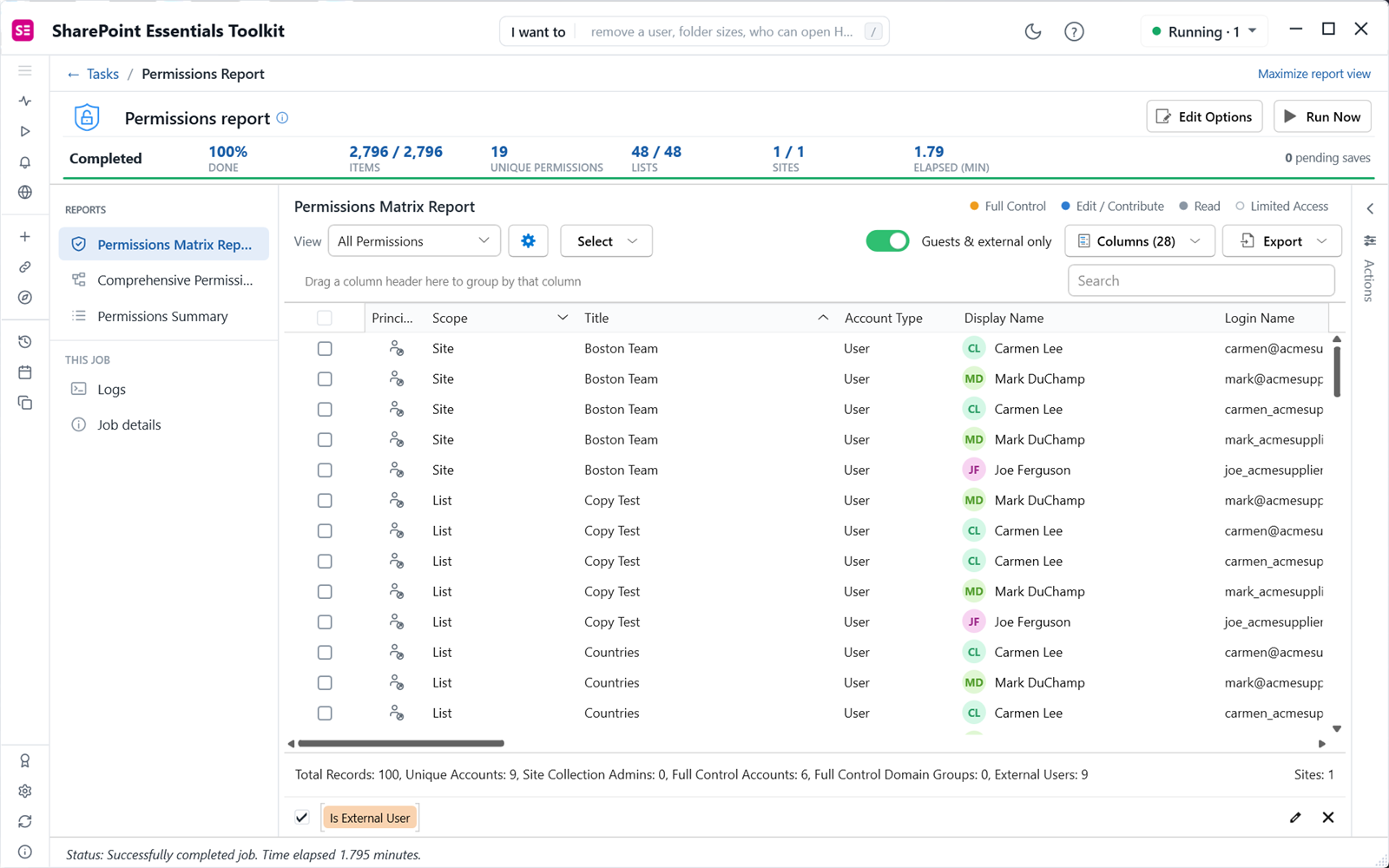
In a permissions report, turn on Guests & external only. On our test site the 721-row report dropped to 100 rows: 9 external accounts, 6 of them with Full Control somewhere on the site.
2. Read how each guest got access
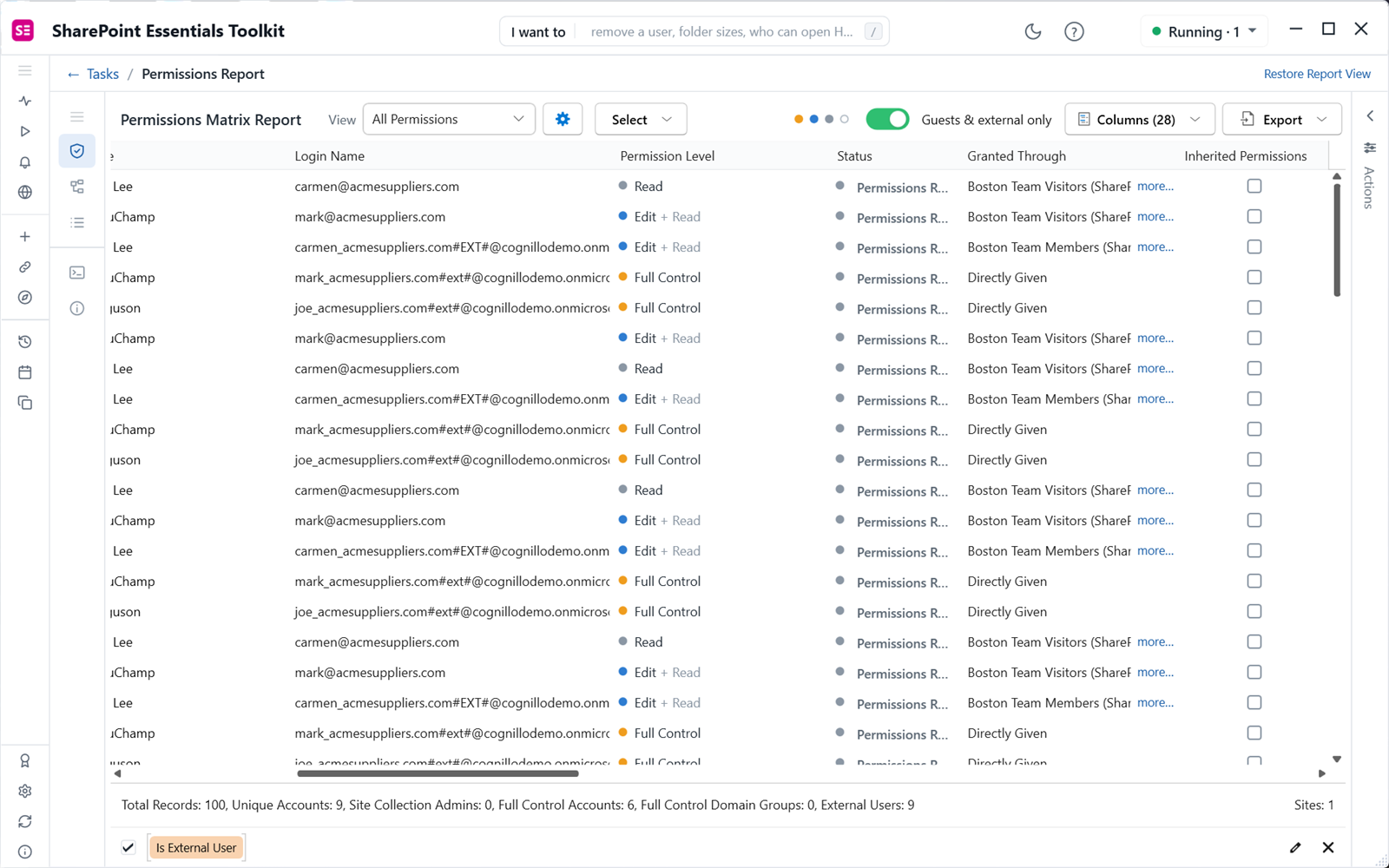
Scroll right to Login Name, Permission Level and Granted Through. Two things stood out in our test. First, the same people appear under two identities: mark@acmesuppliers.com and mark_acmesuppliers.com#EXT#@.... Each identity has its own access, so removing one leaves the other. Second, the access differs by identity: the #EXT# accounts for two suppliers held Full Control, directly given, on many items, while their email identities had Read or Edit through the site's Visitors group.
3. Check for guests in admin roles
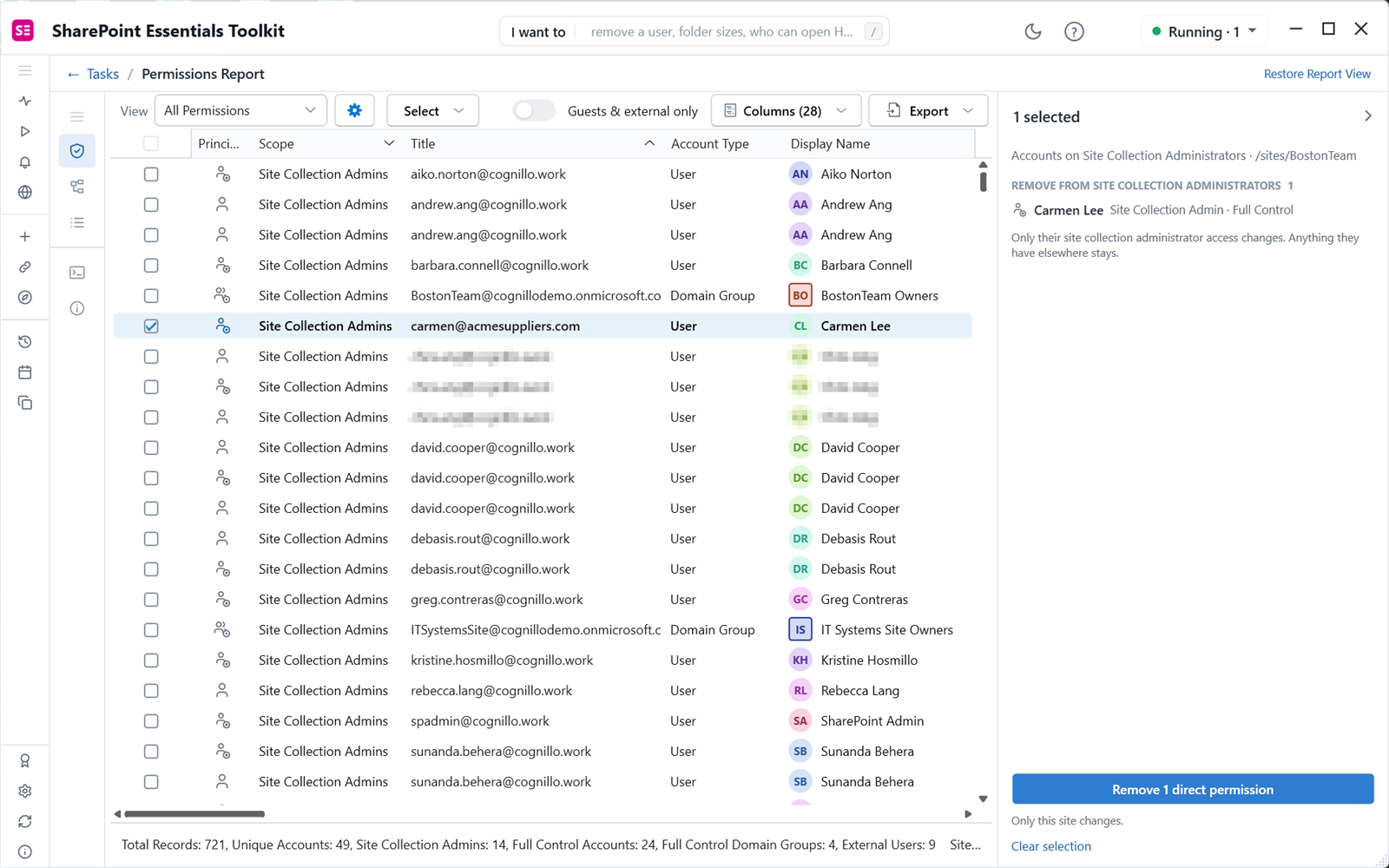
Turn Guests & external only off, sort by Scope and read the Site Collection Admins rows for outside domains. In our test, an external supplier contact was a site collection administrator, which means she could open everything on the site and change its permissions.
For every admin and Full Control holder across sites, run the who has Full Control report.
4. Export the guest list
Export to Excel and send each site owner the rows for their site with one question: does this person still need this access?
What to look for
- Guests with Full Control or site collection admin. Remove unless there is a documented reason.
- Guests with Edit on internal sites. Confirm they still work with you.
- Duplicate identities. Clean up both, or access survives.
- Guests from domains you no longer work with. Group by domain in Excel.
- Sharing links to outside addresses. Use the sharing links report's Shared With External Users view.
Guests who get in through a Microsoft 365 group or Entra security group appear when Include Domain Group Members is on. That needs an Azure app registration on SharePoint Online; see nested groups in permissions reports.
How do you remove external access?
Tick the rows and open the Actions panel. It proposes the matching change, such as "Remove 1 direct permission" or removing the account from site collection admins, and says what will and will not change. Every change is reviewed before it is applied. Community Edition can apply small fixes so you can see how it works; bulk removal needs a paid edition. To end a guest's access everywhere, block or delete the account in Entra ID as well.
For one named guest across many sites, use everything one person can access. For the full picture, start from the SharePoint permissions report.
Frequently asked questions
How do I find all external users in SharePoint Online?
The Entra admin center lists guest accounts in the directory, and the SharePoint admin center shows sharing settings per site. To see what each guest can actually open, run a permissions report filtered to external users. SharePoint Essentials Toolkit identifies guests by the #ext# and urn:spo:guest login forms and lists every site, list, folder and file they can reach.
Why does the same guest appear twice?
A person can hold two identities: an Entra B2B guest account (with #ext# in the login) and an older SharePoint-only guest or a direct email identity. Each has its own permissions. The report lists both, which is useful, because removing one identity leaves the other in place. Clean up both when access should end.
Does the report find guests who get access through groups?
Guests added directly or through SharePoint groups are listed. Guests who are members of a Microsoft 365 group or Entra security group are found when Include Domain Group Members is turned on, which needs an Azure app registration on the connection for SharePoint Online. Keep it on when you review guests.
Can a guest be a site collection administrator?
Yes, if someone added them, and it is a serious finding. A site collection administrator can open everything on the site and change its permissions. In our test the report found an external supplier contact listed as a site collection administrator. The Who has Full Control report lists every admin and Full Control holder, including guests.
How do I remove external users from SharePoint?
Tick the guest's rows in the report and use the Actions panel to remove direct permissions or remove them from site collection admins. Each change is listed for review before it is applied. Remove sharing links separately. To remove the guest from the whole tenant, delete or block the account in Entra ID. Bulk removal needs a paid edition.
Run this report free on up to 20 sites
SharePoint Essentials Toolkit Community Edition is free. See every guest and what they can reach on up to 20 sites per Microsoft 365 tenant, with no item caps and no trial period. Get your free Community Edition license key.