Who Has Full Control in SharePoint? A Privileged Access Audit
Last updated: 2026-10-21
To find who has Full Control in SharePoint, list every site collection administrator, every member of an Owners group, every account or domain group granted Full Control directly, and any custom level that grants the same rights. The admin center shows this one site at a time. SharePoint Essentials Toolkit lists it across sites in one report, free on up to 20 sites.
To find who has Full Control in SharePoint, list every site collection administrator, every member of an Owners group, every account or domain group granted Full Control directly, and any custom level that grants the same rights. The admin center shows this one site at a time. SharePoint Essentials Toolkit lists it across sites in one report, free on up to 20 sites.
Why this matters
Full Control is the permission that grants permissions. Anyone who holds it can share content, add members, break inheritance and delete the site. A site collection administrator goes further and can open content even where permissions say no.
That makes the list of Full Control holders the shortest, highest-value access review you can run. It is usually where audits start, and it is where leftover access does the most damage: a contractor who was made an owner for a migration, a departed IT admin, a partner account added as an admin "just for now".
What counts as Full Control?
- Site collection administrators, including the Microsoft 365 group owners on group-connected sites.
- Members of a SharePoint group with Full Control, usually the site's Owners group.
- Direct Full Control grants to a user or domain group on a site, list or item.
- Custom levels that are copies of Full Control under another name, such as "Site Owner".
Microsoft describes the default levels in Understanding permission levels in SharePoint.
What are the options?
Built-in: the SharePoint admin center
- In the SharePoint admin center, go to Sites > Active sites.
- Select a site and open the Membership tab. It lists the site admins, owners, members and visitors.
- Repeat for each site. The Active sites list itself shows only the primary admin, but you can export it as a CSV.
Built-in: the site's own permissions page
On the site, select Settings > Site permissions > Advanced permissions settings. The list shows each group and person with their permission level, so Full Control grants stand out. Site Collection Administrators on the ribbon lists the admins. Lists and libraries with unique permissions have their own permission pages, which you check one at a time.
Both tools are accurate and free. They show one site at a time, and neither lists Full Control granted on lists or items across sites. The Data access governance site permissions report, which needs SharePoint Advanced Management, flags sites with broad access, but it isn't a list of who holds Full Control.
PowerShell
The PnP PowerShell script below lists site collection admins, plus everyone who holds Full Control or any level that includes Manage Permissions, on each site and on lists or libraries with unique permissions. Checking the Manage Permissions right instead of the level name also catches custom copies of Full Control. Install PnP PowerShell 2.x or later and register your own Entra ID app first.
# Site admins and every principal with a level that grants Manage Permissions
$ClientId = "<your-app-id>"
$Tenant   = "contoso"
$Manage   = [Microsoft.SharePoint.Client.PermissionKind]::ManagePermissions

function Get-Privileged($Object, $SiteUrl, $Scope, $Path) {
    Get-PnPProperty -ClientObject $Object -Property RoleAssignments | Out-Null
    foreach ($ra in $Object.RoleAssignments) {
        Get-PnPProperty -ClientObject $ra -Property RoleDefinitionBindings, Member | Out-Null
        $levels = $ra.RoleDefinitionBindings | Where-Object { $_.BasePermissions.Has($Manage) }
        if ($levels) {
            [pscustomobject]@{ Site = $SiteUrl; Scope = $Scope; Path = $Path
                Principal = $ra.Member.Title; LoginName = $ra.Member.LoginName
                Type = $ra.Member.PrincipalType; Levels = $levels.Name -join "; " }
        }
    }
}

Connect-PnPOnline -Url "https://$Tenant-admin.sharepoint.com" -Interactive -ClientId $ClientId
$sites = Get-PnPTenantSite | Where-Object Template -notlike "REDIRECTSITE*"

$rows = foreach ($site in $sites) {
    try {
        Connect-PnPOnline -Url $site.Url -Interactive -ClientId $ClientId
        Get-PnPSiteCollectionAdmin | ForEach-Object {
            [pscustomobject]@{ Site = $site.Url; Scope = "Site collection admin"; Path = $site.Url
                Principal = $_.Title; LoginName = $_.LoginName
                Type = $_.PrincipalType; Levels = "Site collection admin" }
        }
        Get-Privileged (Get-PnPWeb) $site.Url "Site" $site.Url
        Get-PnPList -Includes HasUniqueRoleAssignments |
            Where-Object { -not $_.Hidden -and $_.HasUniqueRoleAssignments } |
            ForEach-Object { Get-Privileged $_ $site.Url "List" $_.Title }
    }
    catch { Write-Warning "$($site.Url): $($_.Exception.Message)" }
}

$rows | Export-Csv "C:\Reports\full-control.csv" -NoTypeInformation -Encoding UTF8
What to know:
- SharePoint groups such as "Site Owners" appear as one row. List their members with
Get-PnPGroupMember -Group "<group name>". - Domain groups also appear as one row. Expanding them needs Microsoft Graph; see nested groups.
- Full Control on single folders and files needs the per-item loop from the SharePoint permissions report article.
- Your account must be a site collection admin on each site, or the site is skipped with a warning.
SharePoint Essentials Toolkit
The Who has Full Control task lists admins, owners, domain groups and SharePoint groups with Full Control across every selected site, with how each one got it. It is free in Community Edition on up to 20 sites.
How to run a Full Control report
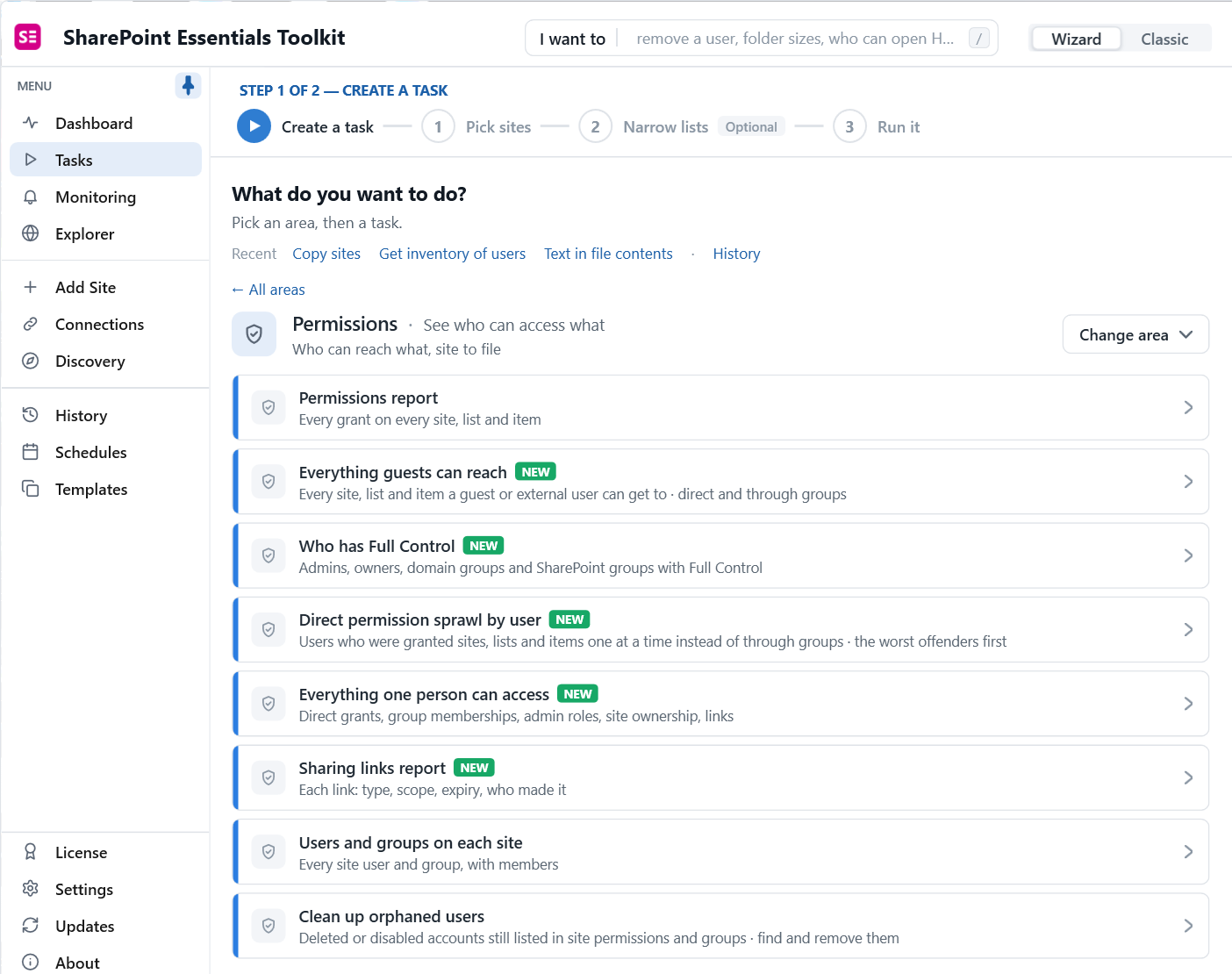
1. Pick the task
Go to Tasks > Permissions > Who has Full Control.
2. Pick sites and options
Select the sites to check. Site and list level, where privileged access is normally granted, are always checked. Turn on Include Items, Files and Folders to also catch Full Control granted on single items; it takes longer on large sites. Under Custom permission levels, add the names of any trimmed-down owner levels you want counted.
3. Read the results
Our test run on 3 sites took under half a minute and returned 90 rows: 31 unique accounts, 16 site collection admins, 15 Full Control accounts, 3 Full Control domain groups and 3 external users.
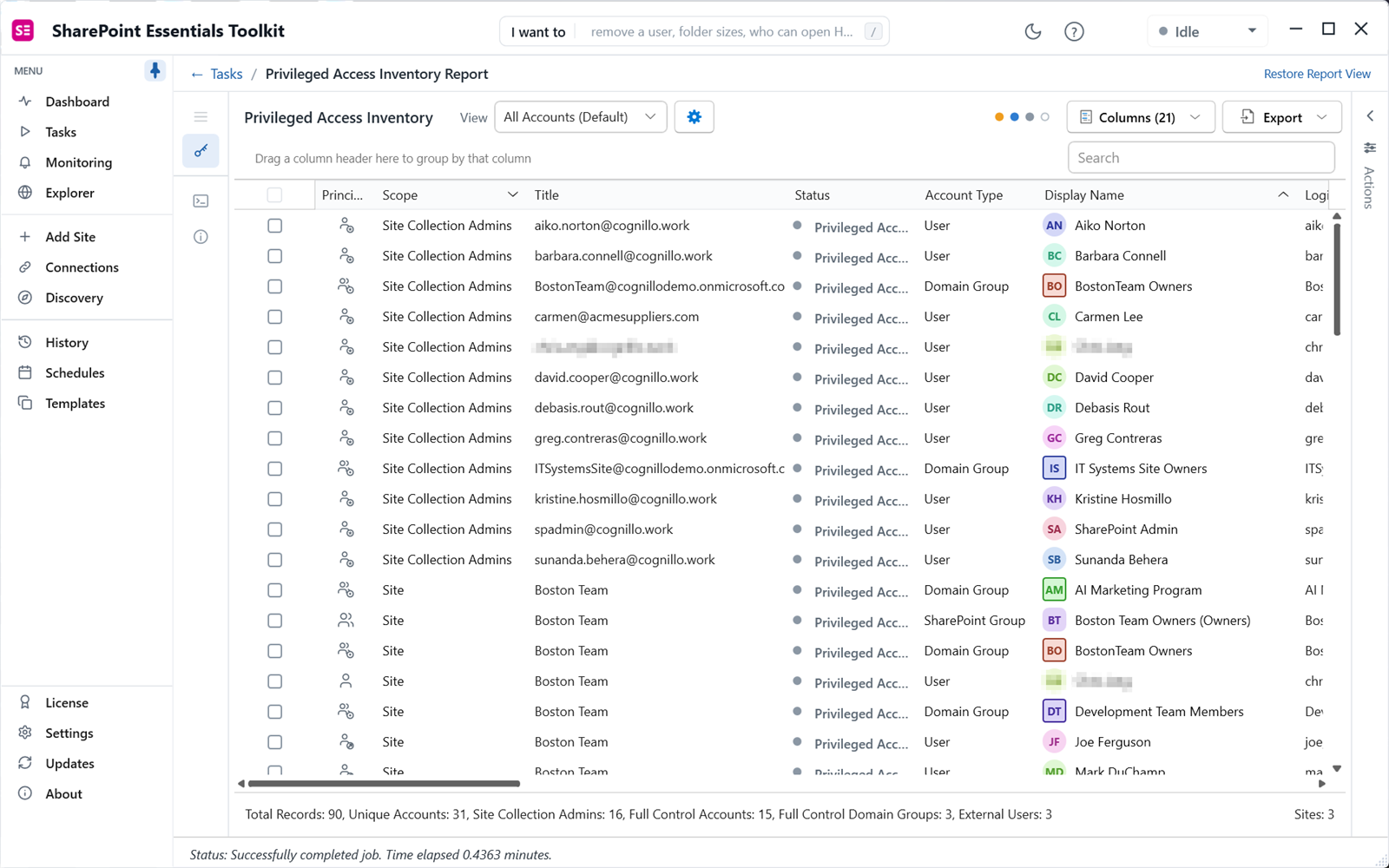
Two findings stood out. An external supplier contact (carmen@acmesuppliers.com) was a site collection administrator. And several domain groups held Full Control, including a marketing program group whose membership is managed outside SharePoint.
4. Export and assign
Export to Excel and group by site. Each site owner confirms their list; central IT confirms the admin rows.
What to look for
- External accounts with Full Control or admin rights. See the SharePoint external users report.
- Departed staff and disabled accounts. Remove them, then clean up the rest of their access.
- Large domain groups with Full Control. Everyone in the group can change permissions. Check membership with the nested groups report.
- Direct Full Control on lists and files. Move it to the Owners group or remove it.
- Sites with one admin, or ten. One is a continuity risk; ten is hard to account for.
How do you fix what you find?
Tick the rows and open the Actions panel. It proposes the change, such as removing an account from site collection administrators, and says that only that access changes. Every change is reviewed before it is applied. Community Edition can apply small fixes; changing admins in bulk across sites needs Enterprise Edition.
Full Control is one slice of access. For the rest, run the SharePoint permissions report; before rolling out Copilot, follow the oversharing review.
Frequently asked questions
What is the difference between a site owner and a site collection administrator?
A site owner is usually a member of the site's Owners group, which holds Full Control through permissions that can be broken or changed. A site collection administrator has access to everything in the site collection regardless of permissions, including content with unique permissions. Both can grant access to others, so both belong in a privileged access review.
How do I list all site collection administrators in SharePoint Online?
The SharePoint admin center shows admins one site at a time. PnP PowerShell's Get-PnPSiteCollectionAdmin does the same per site in a loop. The Who has Full Control report in SharePoint Essentials Toolkit lists site collection administrators and Full Control holders across every selected site in one grid you can export.
Does the report catch custom permission levels?
A copy of Full Control saved under another name, such as Site Owner, is recognized by the rights it grants. Levels that were trimmed further are not counted automatically, so you can name them in the options. The job log flags any level that grants Manage Permissions or Manage Web Site but was not counted.
Are domain groups expanded into their members?
No. In this report a Microsoft 365 group or security group is listed as the privileged principal, so you can see which groups hold Full Control. SharePoint group members are listed individually, with the group named as how access was granted. To see who is inside a domain group, use the permissions report with Include Domain Group Members on.
How many people should have Full Control?
As few as the work requires. A common practice is two or three named owners per site, plus a small central admin group, with nobody holding Full Control directly on lists or files. External accounts should not hold Full Control or admin rights without a documented reason and an end date.
Run this report free on up to 20 sites
SharePoint Essentials Toolkit Community Edition is free. List every admin and Full Control holder on up to 20 sites per Microsoft 365 tenant, with no item caps and no trial period. Get your free Community Edition license key.