SharePoint File Locked or Checked Out? How to Check In or Discard a Check-Out (One File or in Bulk)
Published:
Last updated: 2026-10-29
To unlock a checked-out SharePoint file, select it, open the ... menu, choose More, and select Check in or Discard check out. You need to be the person who checked it out, or have the Override Check-Out permission that site owners have. To find and release every checked-out file at once, use PnP PowerShell or the free SharePoint Essentials Toolkit, which lists them and checks them in or discards them in bulk.
Checked out or locked: which one is it?
Message | What it means | Fix |
|---|---|---|
"Checked out to [name]" | Someone checked the file out. Nobody else can save changes until it is checked in. | Check it in, or discard the check-out |
"Locked for editing by [name]" or "locked for shared use" | An Office app on someone's PC holds an editing lock, usually because it didn't close cleanly. | Have them close the file. Locks are released when the app lets go; check-in doesn't apply. |
File missing for everyone but one person | A file uploaded to a library that requires check-out, never checked in. Only the uploader can see it. | Take ownership in Library settings, then check it in |
Check-outs pile up in libraries with Require Check Out turned on, and whenever someone leaves the organization with files checked out.
Option 1: Check in or discard with built-in tools
One file
In the library, select the file.
Open ... > More (or the command bar).
Select Check in to keep the changes as a new version, or Discard check out to throw them away and keep the last checked-in version.
If the file is checked out to someone else, you need the Override Check-Out permission, which site owners have through Full Control. Microsoft explains the steps in Check out, check in, or discard changes to files in a library.
Files with no checked-in version
Open Library settings > More library settings.
Under Permissions and Management, select Manage files which have no checked in version.
Select the files and Take Ownership of Selection. You can then check them in so everyone can see them.
What to know:
Discarding a check-out on a file that has never been checked in deletes the file, because there is no earlier version to go back to.
To see who has what checked out, add the Checked Out To column to a library view. There's no view across libraries or sites.
If check-outs keep getting in the way, consider turning off Require Check Out in Versioning settings. Co-authoring and version history cover most of what it was used for.
Option 2: Find and release check-outs with PowerShell
This PnP PowerShell script lists every checked-out file on a site, including files that have never been checked in, and discards the check-outs when you set $WhatIf = $false. It needs PnP PowerShell 2.x and your own Entra ID app registration, signed in as a site owner.
# List checked-out files on a site and optionally discard the check-outs
$ClientId = "<your-app-id>"
$SiteUrl  = "https://contoso.sharepoint.com/sites/Projects"
$WhatIf   = $true    # set to $false to discard
Connect-PnPOnline -Url $SiteUrl -Interactive -ClientId $ClientId
$ctx = Get-PnPContext

foreach ($list in Get-PnPList | Where-Object { $_.BaseTemplate -eq 101 -and -not $_.Hidden }) {
    # Files with at least one checked-in version
    $items = Get-PnPListItem -List $list -PageSize 2000 -Fields "FileRef", "CheckoutUser" |
        Where-Object { $_.FieldValues.CheckoutUser }
    foreach ($item in $items) {
        $path = $item.FieldValues.FileRef
        "{0} | checked out to {1}" -f $path, $item.FieldValues.CheckoutUser.LookupValue
        if (-not $WhatIf) { Undo-PnPFileCheckedOut -Url $path }
    }

    # Files never checked in: only the uploader sees them in the library
    $never = $list.GetCheckedOutFiles()
    $ctx.Load($never)
    $ctx.ExecuteQuery()
    foreach ($file in $never) {
        "{0} | never checked in (user id {1})" -f $file.ServerRelativePath.DecodedUrl, $file.CheckedOutById
    }
}
To keep the changes instead, check the file in: Set-PnPFileCheckedIn -Url $path -CheckinType MajorCheckIn -Comment "Checked in by an administrator".
What to know:
The script leaves never-checked-in files alone. Take ownership of them with
$file.TakeOverCheckOut()or in Library settings, then decide whether to keep them.It runs one site at a time. Across many sites, loop over
Get-PnPTenantSiteand expect throttling.A discarded check-out can't be undone.
Option 3: Check in or discard in bulk with SharePoint Essentials Toolkit
We checked out four files on our test site, Architecture-Knowledge-Base, including one uploaded to a library that requires check-out and never checked in.
1. Find every checked-out file
In I want to, type "checked out" and pick Get checked out files. Pick sites and libraries and select Next. The summary shows what the job will do: nothing is changed until you act in the report.
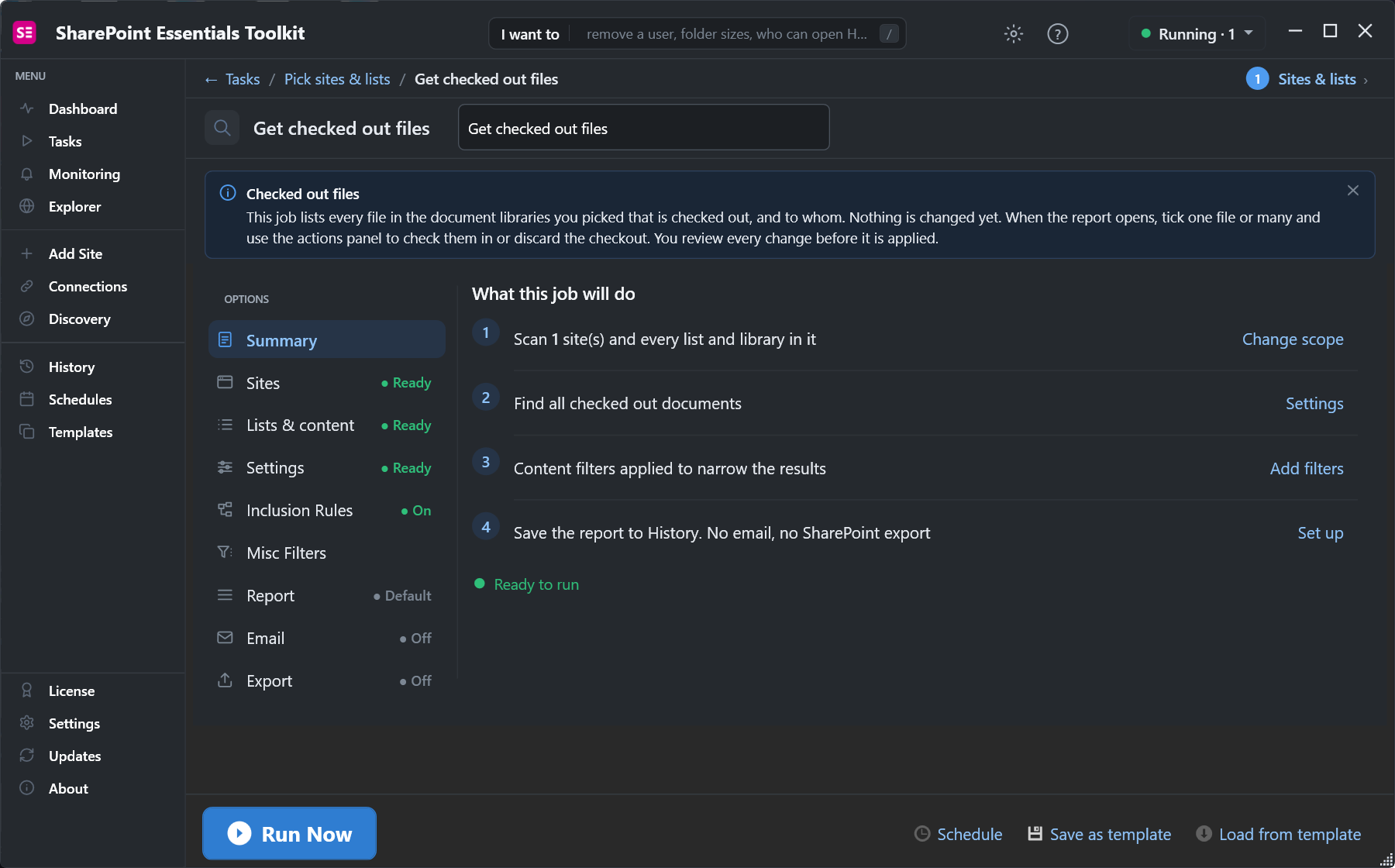
The task lists checked-out files; it doesn't change them.
On our site it found all four in about 30 seconds, including the draft only its uploader could see in the library. The Checked Out To column shows who has each one.
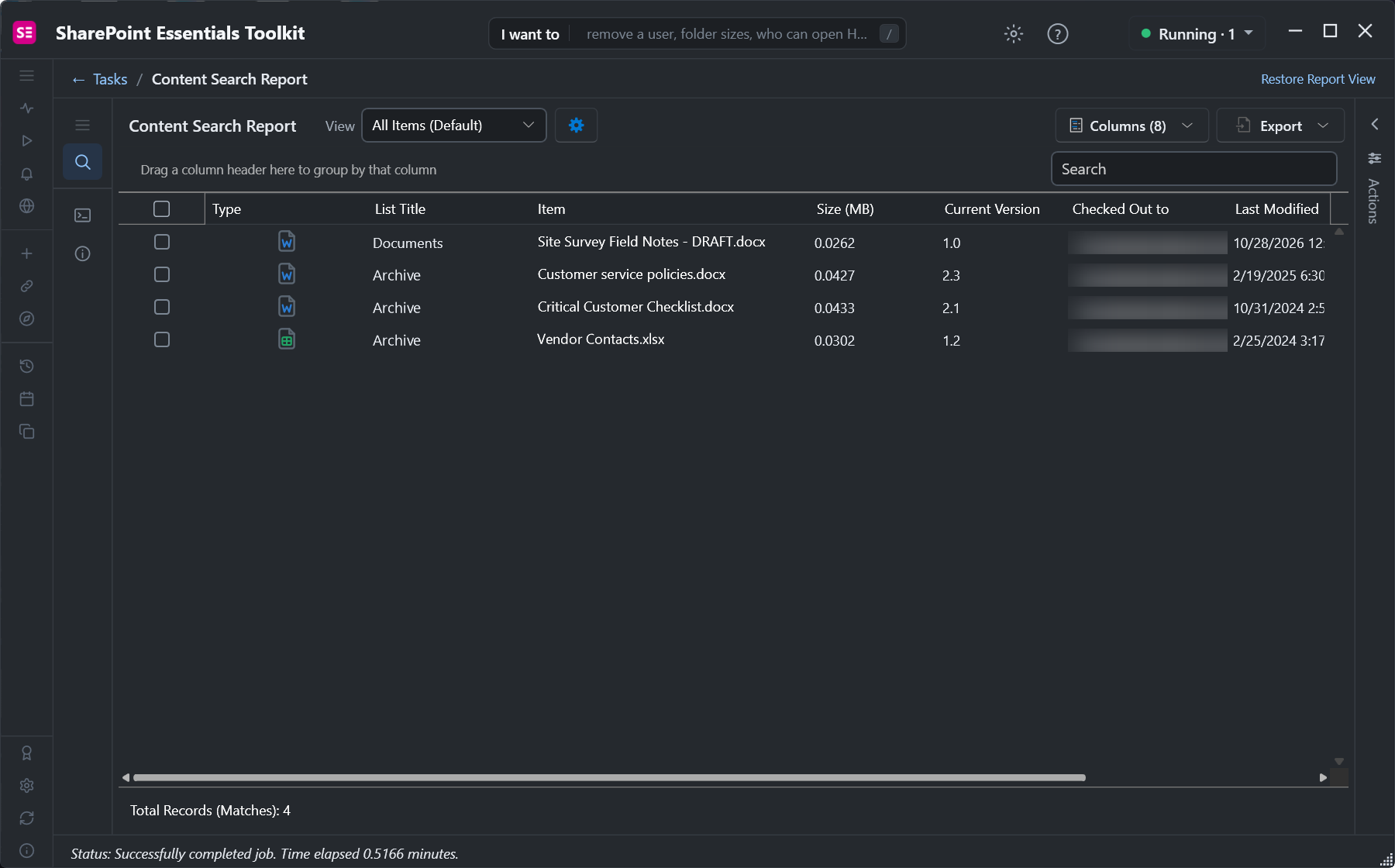
Four checked-out files in two libraries. The user is blurred here.
To clean up after a leaver, use Files checked out to them in the Leavers area instead. It asks for the person's name or email and finds only their check-outs.
2. Choose check in or discard
Tick the files and open Actions. Force check in keeps whatever was changed as the new version, with a comment you choose.
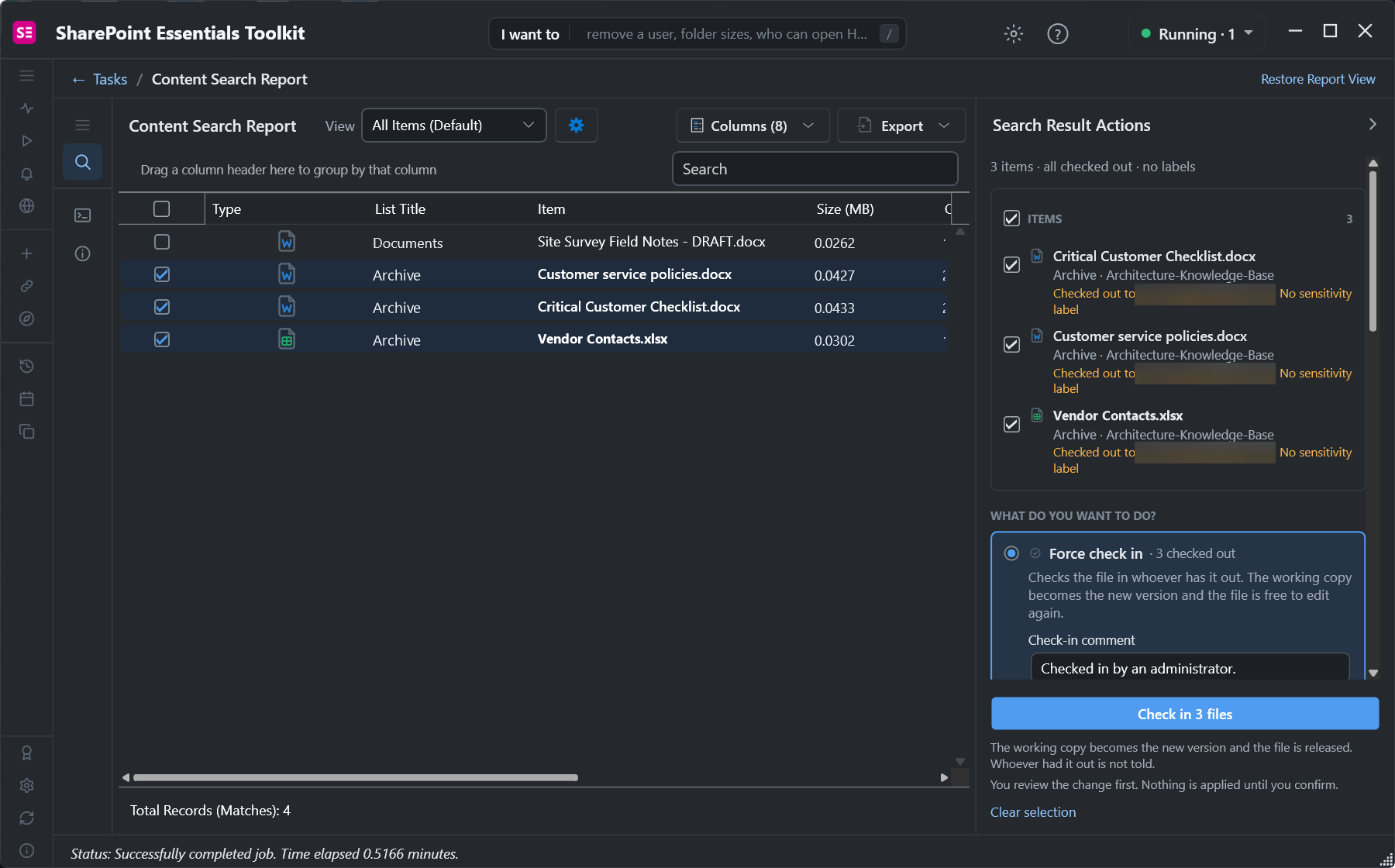
Force check in: the working copy becomes the new version.
Discard check out throws the changes away and leaves the last checked-in version. We used it for three files that had been checked out and never edited.
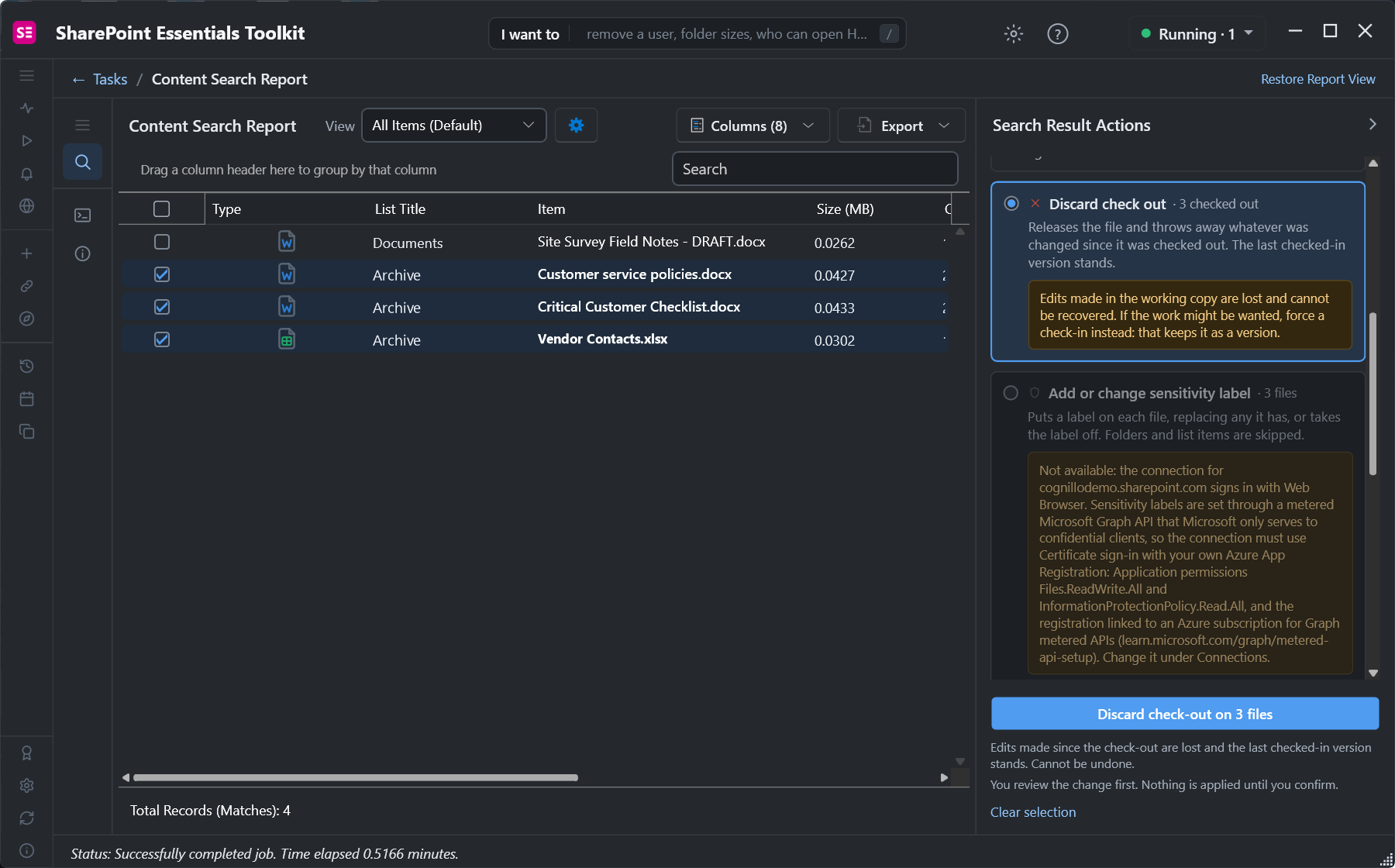
Both options need the Override Check-Out permission, which site owners have.
3. Review and apply
The review lists each file, who has it checked out, and a warning that the changes are thrown away for good.
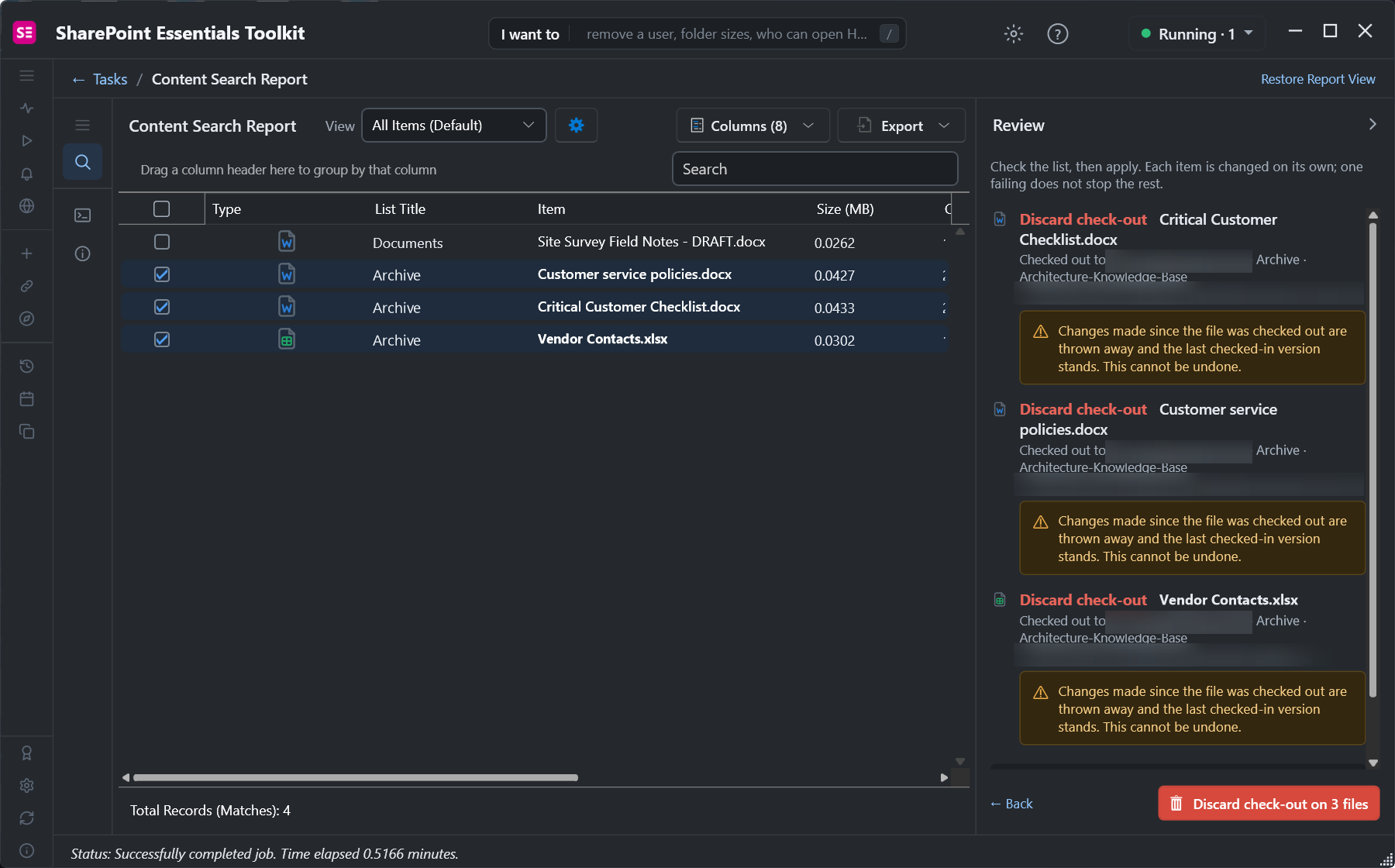
Nothing happens until you select Discard check-out on 3 files.
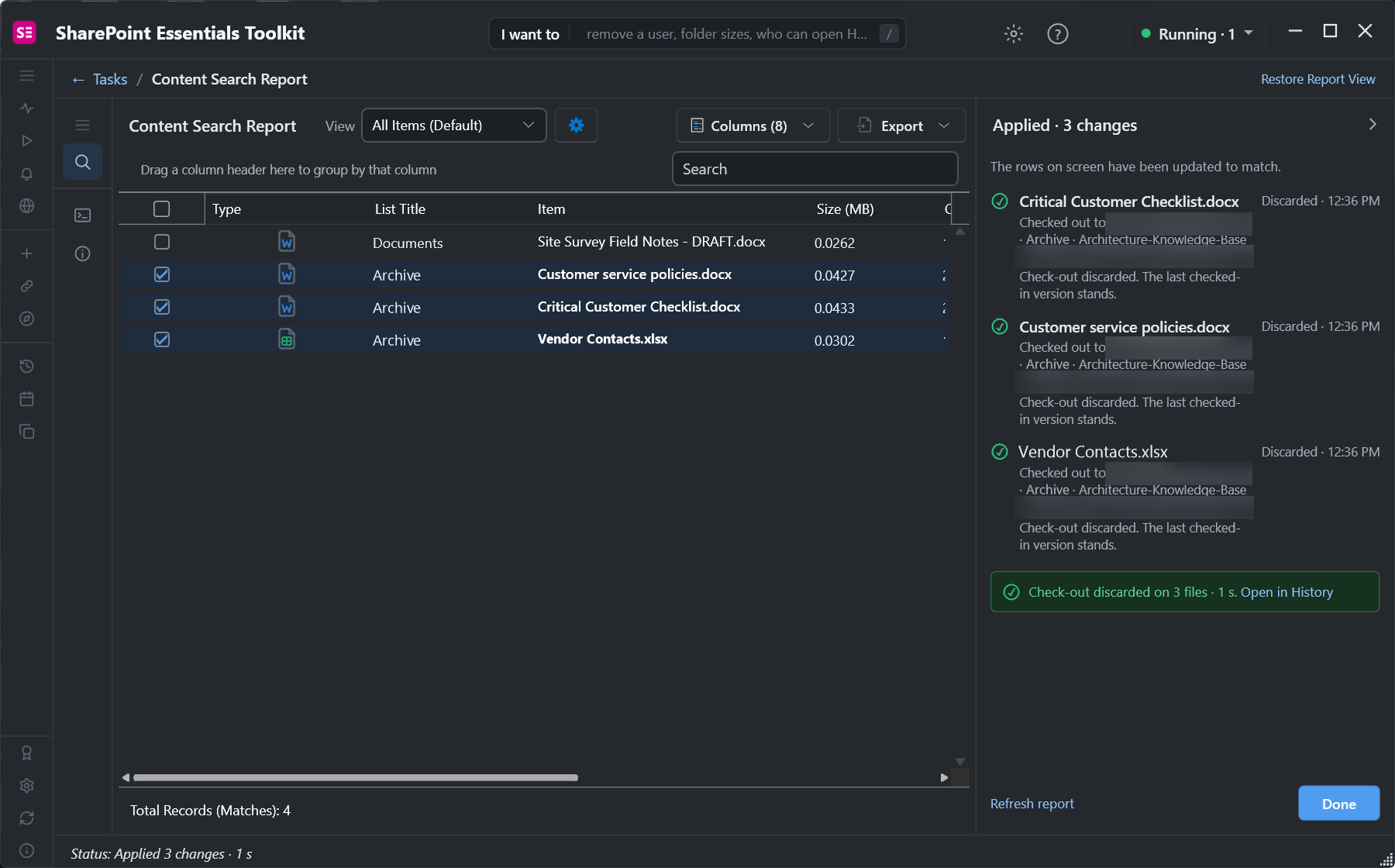
Three check-outs discarded in 1 second, logged in History.
Community Edition is free on up to 20 sites and applies up to 10 changes each time you select Apply. Paid editions remove the per-Apply cap.
Libraries with Require Check Out also sync read-only. See Sync button missing or can't sync this library.
Frequently asked questions
How do I discard a check-out on someone else's SharePoint file?
Select the file, open the ... menu, choose More, and select Discard check out. You need the Override Check-Out permission, which site owners have through Full Control. The changes the other person made since checking it out are lost.
What is the difference between check in and discard check out?
Check in saves the checked-out copy as a new version and releases the file. Discard check out throws away every change made since the file was checked out and leaves the last checked-in version. Neither can be undone, so check in when in doubt.
Why can only one person see a file in a SharePoint library?
The file was uploaded to a library that requires check-out and was never checked in. Until it is checked in, only the uploader can see it. A site owner can take ownership from Library settings, Manage files which have no checked in version, and then check it in.
Why does SharePoint say a file is locked for editing when nobody has it checked out?
An Office app holds an editing lock, usually on a PC where the file was not closed cleanly. Check-in does not apply. Ask the person to close the file or the app; the lock is released when the app lets go.
How do I find all checked-out files in SharePoint?
Add the Checked Out To column to each library view, run a PnP PowerShell script that reads CheckoutUser and GetCheckedOutFiles for every library, or run Get checked out files in SharePoint Essentials Toolkit. The toolkit lists them across every site you pick and checks them in or discards them in bulk.
Release checked-out files free on up to 20 sites
SharePoint Essentials Toolkit Community Edition is free. Find every checked-out file, then check them in or discard the check-outs in batches of up to 10, on up to 20 sites per Microsoft 365 tenant. Get your free Community Edition license key.
About the author. The Cognillo SharePoint Team builds and supports SharePoint Essentials Toolkit and has worked with SharePoint administrators on permissions audits, migrations and cleanup projects since 2012.