Sync Button Missing in a SharePoint Library, or "Can't Sync This Library": Causes and Fixes
Published:
Last updated: 2026-10-29
The Sync button disappears when the library, its site, or the whole tenant blocks offline sync. Check the library's Advanced settings for Offline Client Availability, the site's Search and offline availability setting, and the tenant's HideSyncButtonOnTeamSite setting. If the button is there but the library syncs read-only or not at all, the usual cause is required check-out, IRM, or your own permission level.
Where the Sync button is controlled
Level | Setting | Who can change it |
|---|---|---|
Library | Library settings > Advanced settings > Offline Client Availability | Site owners |
Site | Site settings > Search and offline availability > Offline Client Availability | Site owners |
Tenant |
| SharePoint administrators |
Tenant | SharePoint admin center > Settings > Sync: allow syncing only on PCs joined to specific domains, block file types | SharePoint administrators |
Two more things hide or disable it. Lists don't sync, only document libraries. And on a narrow window the command bar moves Sync under the ... menu.
The button is there, but the library won't sync properly
Require Check Out is on: the library syncs read-only. Microsoft lists this, along with column validation and restricted draft item security, in Restrictions and limitations in OneDrive and SharePoint.
Information Rights Management is on: the library needs a recent sync app build, and some older PCs can't sync it.
Your permission: Read lets you sync read-only. You need Contribute or higher to sync changes back.
Limited-access user permission lockdown mode (a site collection feature) can stop sync for people who only have access to part of the site.
Too many items: very large libraries can be synced, but past about 300,000 items across everything you sync, sync slows down badly. See OneDrive sync stuck on processing changes.
Option 1: Bring the Sync button back with built-in settings
In the library, select Settings (the gear) > Library settings > More library settings > Advanced settings.
Under Offline Client Availability, set Allow items from this document library to be downloaded to offline clients? to Yes, and select OK.
If that was already Yes, open Site settings > Search and offline availability and check Offline Client Availability for the site.
If both are Yes and no site shows Sync, ask a SharePoint administrator to check the tenant setting below.
While you are in Advanced settings, check Versioning settings > Require documents to be checked out before they can be edited?. If it is Yes and you want two-way sync, set it to No.
What to know:
The setting changes take effect straight away, but browsers can cache the page. Refresh before you check.
Add shortcut to My files works in the same libraries and is often the better choice: it follows the user to every PC they sign in to.
Option 2: Check and fix sync settings with PowerShell
For a site, this PnP PowerShell script reports the site-level setting and every library's offline, check-out and IRM settings. With $WhatIf = $false it turns offline availability back on for libraries that have it off. Install PnP PowerShell 2.x and register your own Entra ID app first.
# Report (and optionally re-enable) offline sync for every library on a site
$ClientId = "<your-app-id>"
$SiteUrl  = "https://contoso.sharepoint.com/sites/Projects"
$WhatIf   = $true    # set to $false to re-enable sync on excluded libraries
Connect-PnPOnline -Url $SiteUrl -Interactive -ClientId $ClientId

$web = Get-PnPWeb -Includes ExcludeFromOfflineClient
"Site excluded from offline clients: $($web.ExcludeFromOfflineClient)"

$libraries = Get-PnPList -Includes ExcludeFromOfflineClient, ForceCheckout, IrmEnabled |
    Where-Object { $_.BaseTemplate -eq 101 -and -not $_.Hidden }
$libraries | Select-Object Title, ItemCount, ExcludeFromOfflineClient, ForceCheckout, IrmEnabled | Format-Table -AutoSize

foreach ($list in $libraries | Where-Object ExcludeFromOfflineClient) {
    if ($WhatIf) { "Would re-enable sync on: $($list.Title)"; continue }
    $list.ExcludeFromOfflineClient = $false
    $list.Update()
    Invoke-PnPQuery
    "Re-enabled sync on: $($list.Title)"
}
For the tenant, use the SharePoint Online Management Shell:
Connect-SPOService -Url "https://contoso-admin.sharepoint.com"
Get-SPOTenant | Select-Object HideSyncButtonOnTeamSite
Get-SPOTenantSyncClientRestriction       # domain-joined only, blocked file types
# Set-SPOTenant -HideSyncButtonOnTeamSite $false   # show the Sync button again
What to know:
The PnP script covers one site. Loop it over
Get-PnPTenantSitefor more, and expect it to be slow on large tenants.Domain restrictions don't hide the button. People can select Sync, and the sync app then refuses on PCs that aren't joined to an allowed domain.
Option 3: Check every library at once with SharePoint Essentials Toolkit
The toolkit's list inventory reports each library's sync-related settings for every site you pick. We ran it on our test site, Architecture-Knowledge-Base, after excluding one library from offline clients and turning on Require Check Out in another.
Open Tasks > Inventory > Get inventory of sites & lists, pick sites and select Run Now.
Open List Inventory and, under Columns, show Excluded From Offline Client, Checkout Required, Items no checked in version, Draft Version Visibility and Information Rights Enabled.
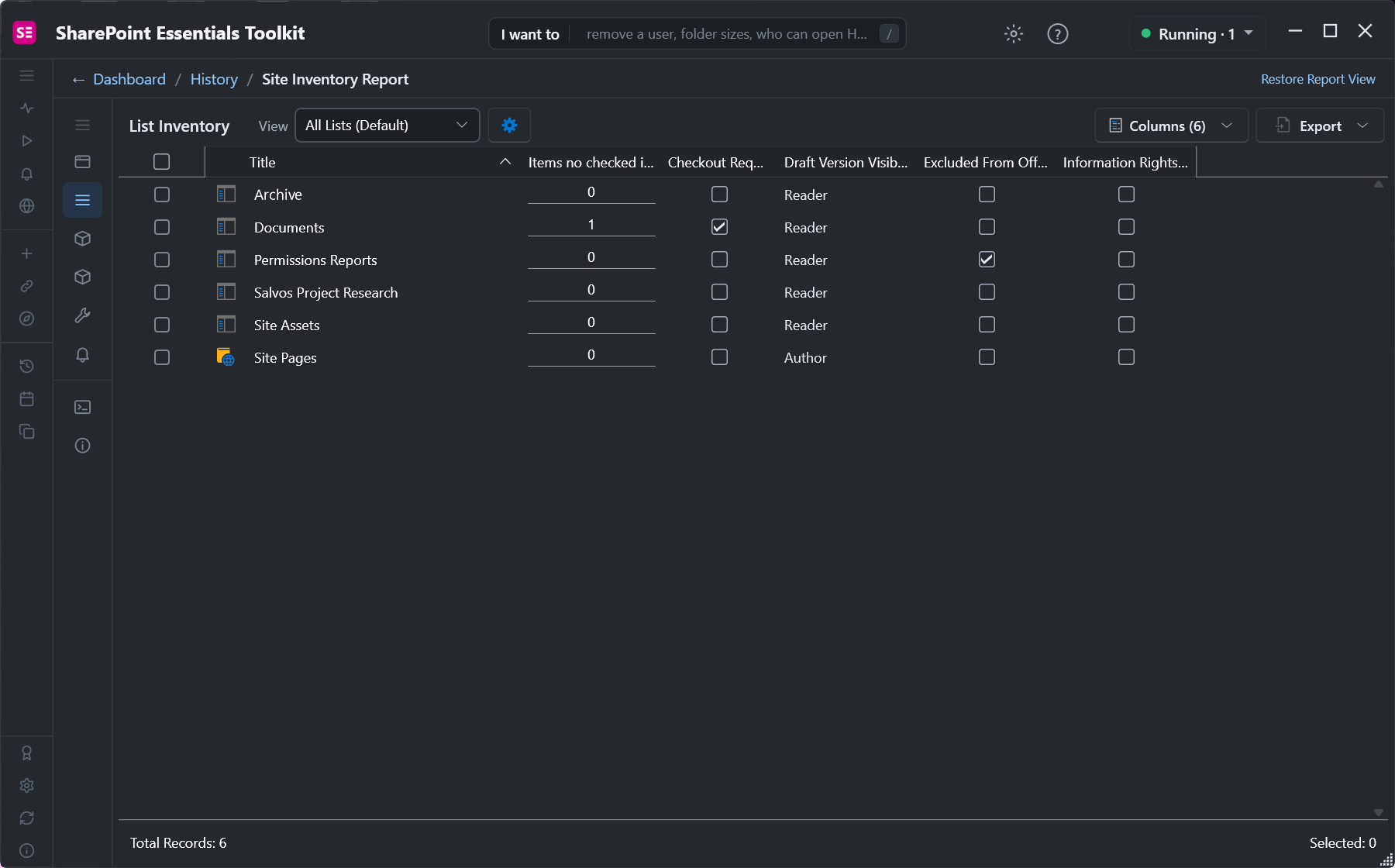
Filter or sort on Excluded From Offline Client to list every library with no Sync button across your sites, then Export the list for the site owners. The report only reads; change the setting in the library or with the script above.
The list inventory is free in Community Edition on up to 20 sites.
Frequently asked questions
Why is there no Sync button in my SharePoint library?
The library or its site has Offline Client Availability set to No, the tenant hides the Sync button with HideSyncButtonOnTeamSite, or you are in a list rather than a document library. On a narrow window the button can also be under the ... menu.
How do I turn the Sync button back on?
Open Library settings, Advanced settings, and set Allow items from this document library to be downloaded to offline clients to Yes. If it already is, check Site settings, Search and offline availability. If no site shows Sync, a SharePoint administrator needs to run Set-SPOTenant -HideSyncButtonOnTeamSite $false.
Why does my SharePoint library sync as read-only?
Usually because the library requires check-out, uses column validation, or restricts who can see drafts, or because you only have Read permission. Microsoft lists these in Restrictions and limitations in OneDrive and SharePoint. You need Contribute or higher and a library without those settings to sync changes back.
Should I use Sync or Add shortcut to My files?
Use one or the other for a given folder, not both. A shortcut appears in OneDrive on every device the person signs in to and syncs like any other folder, so it is usually the easier choice. Sync is set up separately on each PC.
How can I find every library that has sync turned off?
Read ExcludeFromOfflineClient for each library with PnP PowerShell, or run a list inventory in SharePoint Essentials Toolkit and filter on Excluded From Offline Client. The toolkit report covers every site you pick and is free on up to 20 sites.
Check library sync settings free on up to 20 sites
SharePoint Essentials Toolkit Community Edition is free. Report offline availability, check-out, IRM and item counts for every library on up to 20 sites per Microsoft 365 tenant. Get your free Community Edition license key.
About the author. The Cognillo SharePoint Team builds and supports SharePoint Essentials Toolkit and has worked with SharePoint administrators on permissions audits, migrations and cleanup projects since 2012.