OneDrive Sync Stuck on "Processing Changes" or "Sync Pending": How to Fix It
Published:
Last updated: 2026-10-29
OneDrive sync gets stuck on "Processing changes" or "Sync pending" when it is working through too many files, a file is open or locked, a path or name is invalid, or the sync app's local database is out of step. Pause and resume sync first, then check View sync problems, then reset OneDrive. If the same library keeps getting stuck, the cause is usually in SharePoint: too many items, long paths, large files or checked-out files.
Why does OneDrive sync get stuck?
What you see | Usual cause |
|---|---|
"Processing changes" for hours | Too many files in the synced libraries, or a large copy or move in progress |
"Processing 0 KB of x MB" | Microsoft says this means you are syncing too many files |
"Sync pending" on one file | The file is open, locked by an app, checked out to someone, or very large |
Red X or "Can't sync" on some files | Path too long, invalid characters, or a name SharePoint doesn't allow |
Library always read-only or always stuck | Required check-out, column validation, restricted draft visibility, or IRM on the library |
Microsoft recommends syncing no more than 300,000 items across all the libraries on one PC, including shortcuts added to My files. Past that, sync slows down and "Processing changes" can last for days. The limits are in Restrictions and limitations in OneDrive and SharePoint.
Option 1: Fix stuck sync with built-in tools
Pause and resume. Select the OneDrive cloud icon, then the gear, Pause syncing, 2 hours. Wait a minute and select Resume syncing. This clears many short stalls.
Close the file. If one file is pending, close it in every app, including Office apps open in the background, and wait for sync to retry.
View sync problems. Select the cloud icon, then View sync problems. Each entry names the file and the reason. Fix or rename it.
Sync less. In OneDrive settings, Account > Choose folders, clear folders you don't need offline. Stop syncing libraries you rarely use and use Add shortcut to My files only for the folders you work in.
Turn on Files On-Demand if it is off, so files download only when opened.
Reset OneDrive. Press Windows key + R and run
%localappdata%\Microsoft\OneDrive\onedrive.exe /reset. If OneDrive doesn't restart in a few minutes, run the same path without/reset. Reset keeps your files; it rebuilds the sync state and resyncs. Microsoft describes it in Reset OneDrive.
What to know:
After a reset, OneDrive rescans everything, so it can show "Processing changes" for a while before it settles.
The sync app can only tell you about one PC. If many users report the same library, look at the library.
Admins can see sync health across the organization in the OneDrive sync health dashboard in the Microsoft 365 Apps admin center.
Option 2: Check the PC and the libraries with PowerShell
First, find out how much one PC is syncing. This counts the files under each synced folder and flags paths that Office apps will struggle with:
# Count synced items per OneDrive/SharePoint folder on this PC (read-only)
# Each synced library and OneDrive account registers its local folder as a MountPoint
$roots = Get-ChildItem "HKCU:\Software\SyncEngines\Providers\OneDrive" -ErrorAction SilentlyContinue |
    ForEach-Object { (Get-ItemProperty $_.PSPath).MountPoint } |
    Where-Object { $_ -and (Test-Path -LiteralPath $_) } | Sort-Object -Unique

foreach ($root in $roots) {
    $items = Get-ChildItem -LiteralPath $root -Recurse -Force -ErrorAction SilentlyContinue
    $long  = @($items | Where-Object { $_.FullName.Length -gt 250 }).Count
    [pscustomobject]@{ Folder = $root; Items = $items.Count; PathsOver250 = $long }
}
If the total is well over 300,000, sync less. If many paths are long, see how to fix "path too long" sync errors.
Next, check the libraries people sync. This PnP PowerShell script lists each document library's item count and the settings that make sync slow or read-only. It changes nothing and needs PnP PowerShell 2.x with your own Entra ID app registration.
# Library settings that affect sync, for one site (read-only)
$ClientId = "<your-app-id>"
$SiteUrl  = "https://contoso.sharepoint.com/sites/Projects"
Connect-PnPOnline -Url $SiteUrl -Interactive -ClientId $ClientId

Get-PnPList -Includes ForceCheckout, ExcludeFromOfflineClient, IrmEnabled |
    Where-Object { $_.BaseTemplate -eq 101 -and -not $_.Hidden } |
    Select-Object Title, ItemCount,
        @{ n = 'TooManyToSync';    e = { $_.ItemCount -gt 300000 } },
        @{ n = 'CheckoutRequired'; e = { $_.ForceCheckout } },
        @{ n = 'ExcludedFromSync'; e = { $_.ExcludeFromOfflineClient } },
        @{ n = 'IRM';              e = { $_.IrmEnabled } } |
    Format-Table -AutoSize
What to know:
A library with Require Check Out syncs read-only. So does one with column validation, or with draft item security set so only some people can see drafts.
Files checked out to someone else can't be updated from sync until they are checked in. See how to discard a check-out.
Item counts don't show how deep or large the files are. Large files and long paths need a per-item scan.
Option 3: Find what is blocking sync with SharePoint Essentials Toolkit
When the same libraries keep getting stuck, the toolkit shows the cause from the SharePoint side for every library at once. We ran three reports on our test site, Architecture-Knowledge-Base.
Library settings that affect sync
Run Get inventory of sites & lists and open List Inventory. Show Checkout Required, Items no checked in version, Draft Version Visibility, Excluded From Offline Client and Information Rights Enabled.
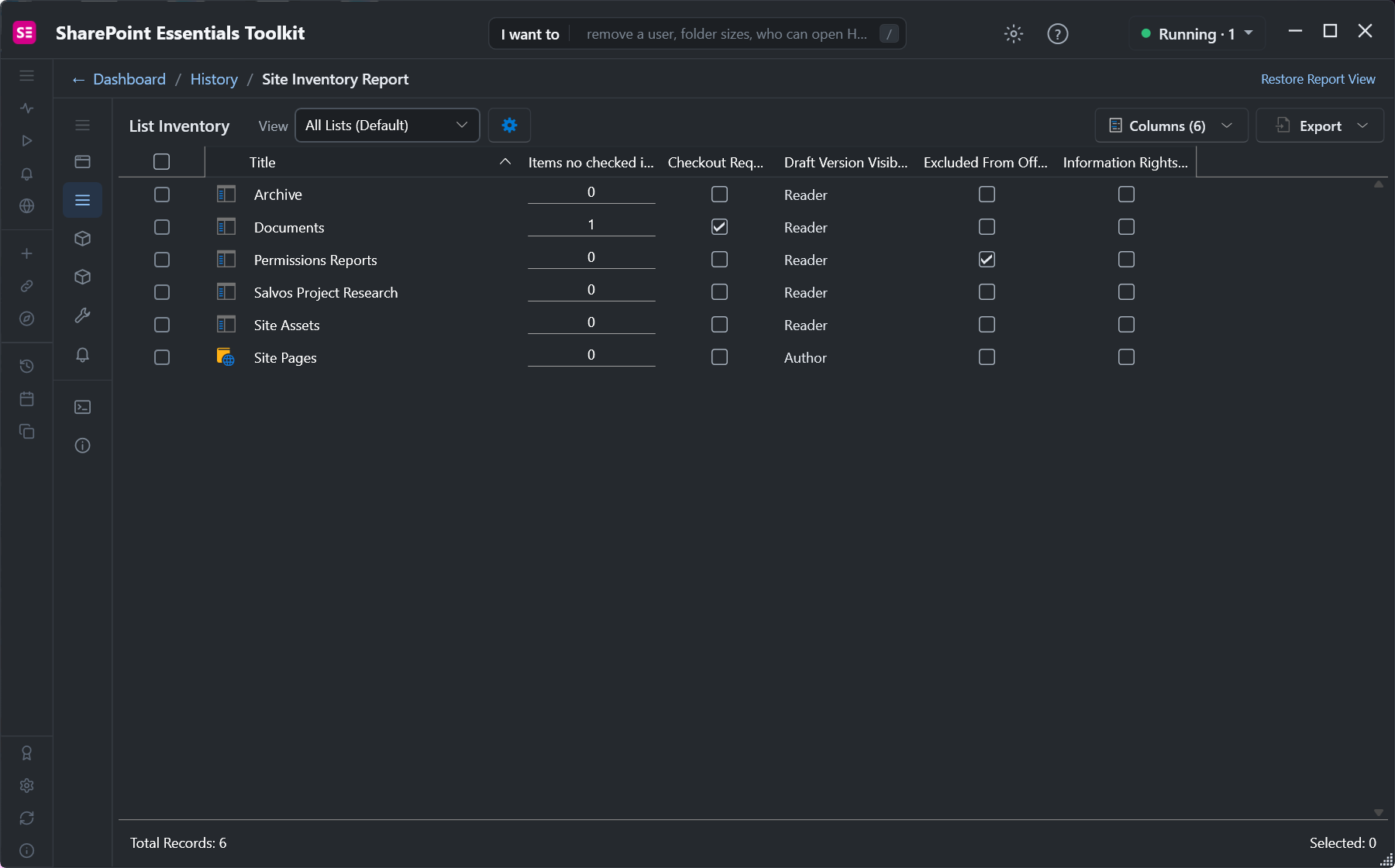
Documents requires check-out and holds one file with no checked-in version. Permissions Reports is excluded from offline clients, so it has no Sync button at all.
Long paths
Run Get inventory of items, files, folders, pages, switch to All Items, and sort by Item Url Path Length.
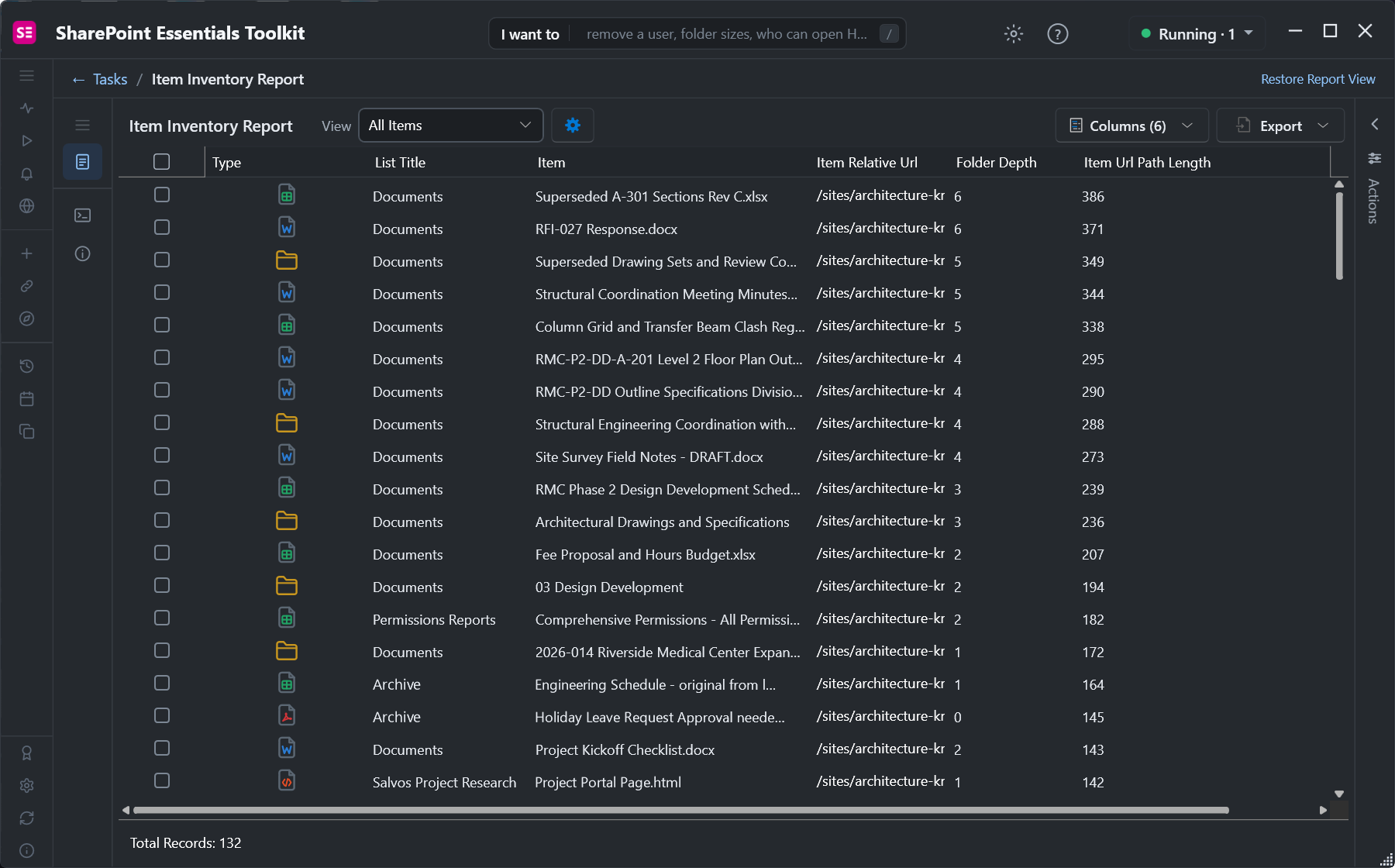
The longest paths sit six folders deep in one project folder.
Large files
In the Storage area, run Largest files and version history. Large media and scan files are slow to upload and download, and they hold "Processing changes" while they move.
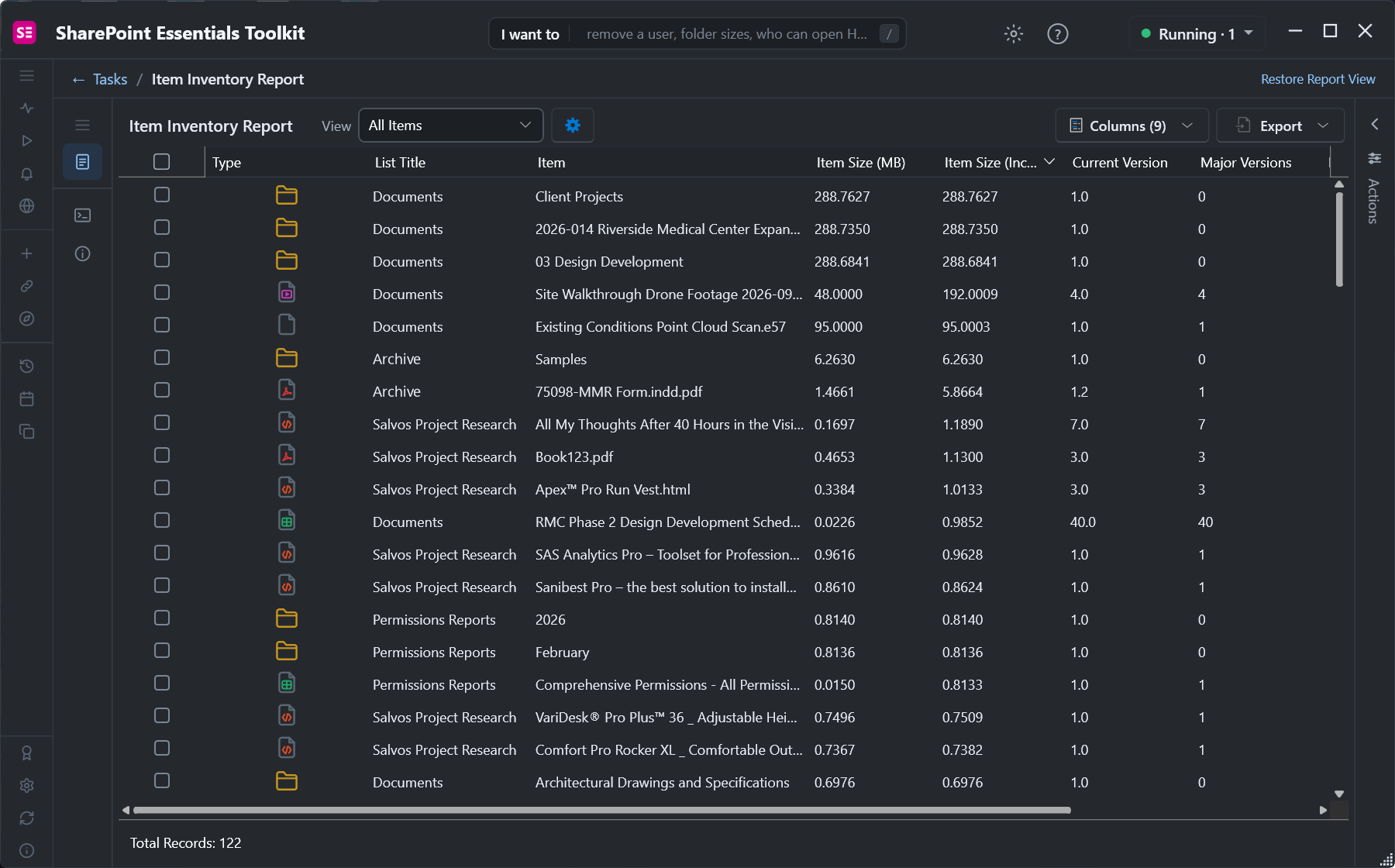
A 48 MB drone video with four versions (192 MB in all) and a 95 MB point cloud scan.
All three reports are free in Community Edition on up to 20 sites.
If the Sync button is missing rather than stuck, see Sync button missing in a SharePoint library.
Frequently asked questions
Why is OneDrive stuck on processing changes?
Usually because it is working through a very large number of files, a big copy or move, or files that are open or locked. Microsoft recommends syncing no more than 300,000 items on one PC. Pause and resume sync, check View sync problems, sync fewer folders, and reset OneDrive if it still does not move.
Does resetting OneDrive delete my files?
No. Running onedrive.exe /reset disconnects and rebuilds the sync connection, then resyncs. Files already on the PC and in the cloud stay. Libraries you synced from SharePoint may need to be synced again afterwards, and the first resync can take a while.
What does Processing 0 KB of x MB mean in OneDrive?
Microsoft says it means you are syncing too many files. Stop syncing some libraries or folders, use Files On-Demand, and keep the total across all synced libraries under about 300,000 items.
Why does one SharePoint library always sync read-only?
Libraries that require check-out, use column validation or restricted draft item security, or use Information Rights Management sync read-only or not at all. Check the library settings, or list them for every library with a list inventory report.
How can I see what is blocking sync across many libraries?
Use PnP PowerShell to read each library's item count and settings, or run the list inventory, item inventory and largest files reports in SharePoint Essentials Toolkit. They show item counts, check-out and offline settings, path lengths and file sizes for every library, free on up to 20 sites.
See what blocks sync, free on up to 20 sites
SharePoint Essentials Toolkit Community Edition is free. Report library sync settings, long paths and large files on up to 20 sites per Microsoft 365 tenant. Get your free Community Edition license key.
About the author. The Cognillo SharePoint Team builds and supports SharePoint Essentials Toolkit and has worked with SharePoint administrators on permissions audits, migrations and cleanup projects since 2012.