How Find & Replace Affects Version History (and How to Avoid Extra Drafts)
Published:
Last updated: 2026-10-22
Why SharePoint Find & Replace jobs can add an extra draft (minor) version when Preserve Author is on, and how to get a published major version instead on pages and documents.
This guide explains what happens to a file's or page's version history when Find & Replace Links (or Search & Replace for content) updates it. It also covers why you can sometimes see an extra draft (minor version) at the top of the history, and how to stop that from happening.
It adds detail to the main walkthrough, How to automatically fix links in SharePoint. Read that one first if you haven't run a Find & Replace job yet.
Short version:
Your links and content are always updated, and the update is published when the item was published before.
When Preserve Author is on and the library uses major and minor versions (publishing), you get one extra draft after the published version. That draft exists only to put the original author's name and date back on the item.
To get a published major version instead of that draft on pages, turn on Turn off minor versions on page libraries during find and replace. For document libraries, switch the library to major versions only while the job runs.
Version history is never deleted by either method.
Why an extra draft is created
What Preserve Author does
Every change saved in SharePoint is stamped with the account that saved it and the time it was saved. Without Preserve Author, every item the job updates ends up with your name (or the account running the job) in Modified By, and today's date in Modified.
Preserve Author (Last Modified information) writes the original Modified By, Modified, Created By and Created values back after the replacement. To keep a clear record of what was changed, it does this in two steps:
The change version. The links or content are replaced and saved under the account running the job. The comment shows how many replacements were made, for example
SharePoint Essentials Toolkit: Successfully replaced 3 links. This is your audit trail of who changed what.The author version. A second save writes the original author and date back onto the item. Its comment is
SharePoint Essentials Toolkit: Publish changes & Preserve Author.
Why the author version ends up as a draft
The job can't do both things in one step — publishing the item and stamping it with someone else's name — because of how SharePoint works.
When an item is published (checked in as a major version) or approved, SharePoint always records the account doing it. No one is allowed to publish or approve on behalf of a different person. So if the author version were published, SharePoint would put the account running the job back into Modified By, and the original author would be lost.
To keep the original author, the author version has to be saved as a minor version (draft) in any library where minor versions are turned on. That's where the extra draft comes from.
What it looks like in version history
Here's an example: a page at version 3.0, last edited by Jane Smith, with Preserve Author on and Version State left at Preserve Version Type (Default):
Version | Modified By | Comment | State |
|---|---|---|---|
4.1 | Jane Smith (original date) | SharePoint Essentials Toolkit: Publish changes & Preserve Author | Draft |
4.0 | Job account (today) | SharePoint Essentials Toolkit: Successfully replaced 3 links | Published |
3.0 | Jane Smith | Published |
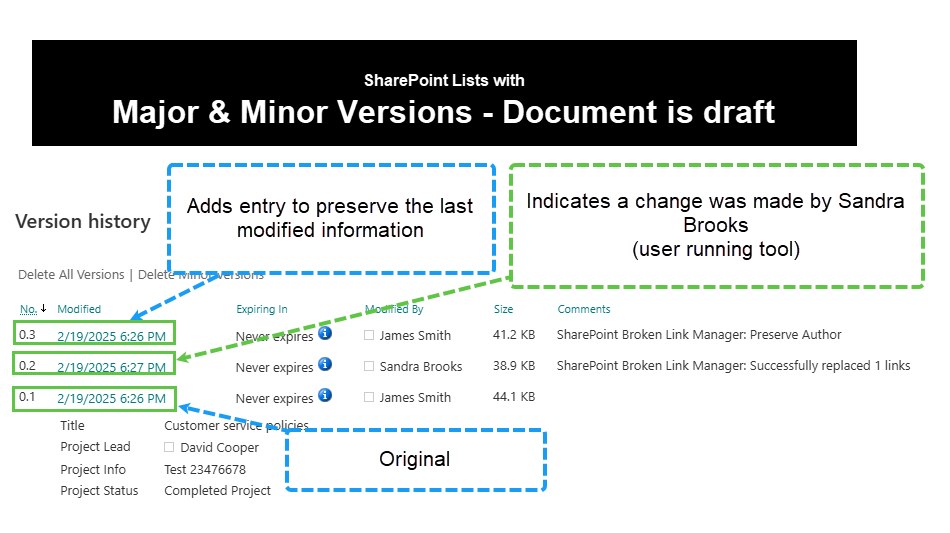
Version history with Preserve Author on in a major and minor versions library: the replacements are published in 4.0, and the author version 4.1 sits above it as a draft.
What this means in practice:
Visitors see the fixed links. Version 4.0 is published and has every replacement in it.
The draft has the same content as 4.0. The only differences are the author and date values.
Editors see a draft. People with edit rights open 4.1 and may see a "draft" or "saved but not published" notice on pages.
Publishing the draft later puts the publisher's name on the item. If someone publishes 4.1 by hand, SharePoint stamps that person as Modified By. This is the same SharePoint rule that made the draft necessary.
Note: If you don't need to keep the original author, turn Preserve Author off. Each item then gets exactly one new version with the replacements in it, published if it was published before, and no extra draft. The trade-off is that the job account shows as Modified By on every updated item.
Avoiding the extra draft on pages
Turn off minor versions on page libraries during find and replace
For SharePoint pages (the Site Pages library and other web page libraries), the toolkit can switch off minor versions for the length of the job. With minor versions off, the author version can't be saved as a draft, so SharePoint saves it as a major version instead.
To turn it on:
Open Settings → Jobs → Links.
Under Behaviour, turn on Turn off minor versions on page libraries during find and replace.
Run your Find & Replace job as usual.
Here's what the toolkit does while the job runs:
Before it processes a page library, the toolkit notes whether minor versions are on, then turns them off. Versioning itself stays on.
Pages are updated. The change version and the author version are both saved as major versions.
When the job finishes, minor versions are turned back on for every library where they were on before.
The same page, with this option on:
Version | Modified By | Comment | State |
|---|---|---|---|
5.0 | Jane Smith (original date) | SharePoint Essentials Toolkit: Publish changes & Preserve Author | Published |
4.0 | Job account (today) | SharePoint Essentials Toolkit: Successfully replaced 3 links | Published |
3.0 | Jane Smith | Published |
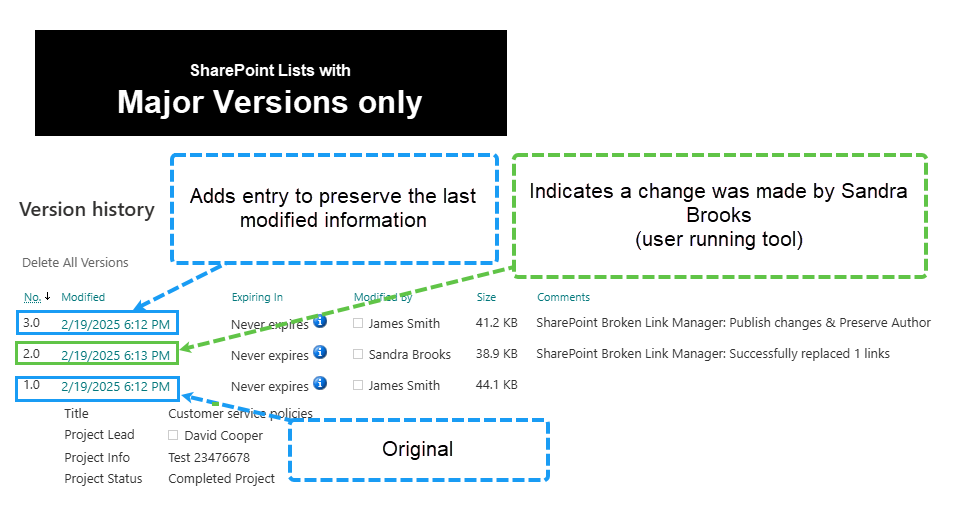
The same page with minor versions turned off during the job: both new versions are published major versions, and nothing is left in draft.
The page is published, it shows Jane Smith as the last person to modify it, and nothing is waiting in draft.
What is and isn't affected
Version history is kept. Turning off minor versions doesn't delete earlier versions. Existing minor versions (3.1, 3.2 and so on) stay in the history.
Pages with an unpublished draft are left as drafts. The option stops the job from creating new drafts. It doesn't publish drafts that authors were already working on.
Only page libraries are changed. Document libraries and lists keep their settings. To avoid drafts in those, see the next section.
The change is temporary. Minor versions are turned back on when the job finishes. If a job is stopped unexpectedly (for example, the computer shuts down partway through), check Library settings → Versioning settings on the affected page libraries and turn minor versions back on if needed.
Authors may notice during the job. While the job runs, anyone saving a page in that library gets a published version rather than a draft. On busy sites, run the job outside working hours.
Avoiding the extra draft on documents
The automatic option covers page libraries only. For document libraries that use major and minor versions, change the library's versioning setting by hand for the length of the job:
In SharePoint, open the document library and go to Settings → Library settings → Versioning settings.
Write down the current settings so you can put them back later.
Under Document Version History, choose Create major versions, then click OK.
Run the Find & Replace job.
Go back to Versioning settings and choose Create major and minor (draft) versions again, using the limits you wrote down.
This works the same way as the page option. With minor versions off, both the change version and the author version are saved as major versions, and earlier history is kept.
Important: Don't choose No versioning to get around drafts. It stops new versions being kept at all, so you lose the audit-trail version showing what the job changed. Switching to Create major versions is enough.
Content approval
If the library requires content approval, approving an item always records the person who approves it, for the same reason publishing does. Turning off minor versions doesn't change that. With approval on, a new major version can be left as Pending until someone approves it, and their name is recorded when they do.
If you need the original author to stay on items in a library with content approval, consider turning content approval off in Versioning settings for the length of the job, then turning it back on afterwards.
Which approach should I use?
Situation | Recommended setup |
|---|---|
You don't need to keep the original author | Turn Preserve Author off. One published version per item, no drafts. |
Pages, keep original author, no drafts | Preserve Author on, plus Turn off minor versions on page libraries during find and replace. |
Documents, keep original author, no drafts | Preserve Author on, and switch the library to Create major versions while the job runs. |
Keep original author, a trailing draft is fine | Preserve Author on, default settings. Published content has the fixes, and the draft has the original author. |
FAQ
Is my version history lost when minor versions are turned off?
No. Every earlier version, major and minor, stays in the history. Only new saves made while the setting is off are saved as major versions.
Why can't the toolkit publish the item and keep the original author in one step?
SharePoint doesn't allow anyone to publish or approve an item as a different person. Publishing always stamps the account doing it. So the original author can only be written back on a version that isn't published, or in a library that has no minor versions.
Do visitors ever see the old, broken links because of the draft?
No. The published version (4.0 in the example) has all the replacements. The draft only changes the author and date values.
Can I publish the extra draft afterwards?
Yes, but whoever publishes it is recorded as Modified By. If keeping the original author matters, leave the draft as it is, or use one of the methods above on your next run.
Why are two new versions created instead of one?
The first version records the change under the account that ran the job, so you always have an audit trail of what the toolkit changed and when. The second version puts the original author back. Without Preserve Author, only the first version is created.