How to Offboard a User in SharePoint
Published:
Last updated: 2026-11-02
Offboard a SharePoint user step by step: find everything they can access, reassign Created By and Modified By, hand access to a successor, then remove them.
To offboard a user in SharePoint, first list everything they can access, then hand over what their successor needs: put the successor's name on the files they own, point links that email them to the new person, and give the successor the same access. Then remove the leaver from every site, and once their account is deleted, clean up orphaned users. Deleting the account in Microsoft 365 doesn't do any of this for you. SharePoint Essentials Toolkit has a task for each step in its Leavers area.
Watch: Offboard a user in SharePoint
What deleting the account leaves behind
When someone leaves, IT blocks sign-in and deletes the account in the Microsoft 365 admin center. Their OneDrive goes to their manager for the retention period. But on SharePoint sites, nearly everything about them stays:
Left behind | Why it matters | Fix |
|---|---|---|
Group memberships, direct permissions and sharing links | Their successor doesn't get them, and the entries become orphaned users | Copy what the successor needs, then remove the leaver |
Created By and Modified By on files | Questions about a document go to someone who isn't there | Replace them with the successor |
Person or group columns (Owner, Assigned To, Reviewer) | Workflows, views and alerts keep pointing at the leaver | Replace them with the successor |
mailto links on pages, in navigation and in documents | Emails go to a mailbox nobody reads | Rewrite the links to the new address |
Files checked out to them | Nobody else can edit them | Check them in, or discard the checkout |
Option 1: Offboard a user with built-in tools
Each of these is a manual step per site, list or file.
Find and remove their access
On each site, open Settings (gear) > Site permissions > Advanced permissions settings > Check Permissions, and enter their name. It shows their permission level on the site and through which groups.
Open each group they're in and select Actions > Remove Users from Group.
Repeat Check Permissions on every list, folder and file with unique permissions, and select Remove User Permissions for any direct grant.
To remove them from the site completely, open
/_layouts/15/people.aspx?MembershipGroupId=0, tick them and select Actions > Delete Users from Site Collection.
Microsoft's checklist for the account itself, mailbox and OneDrive is Remove a former employee from Microsoft 365. For OneDrive retention, see OneDrive retention and deletion.
Reassign their files and fix their links
The browser can't change Created By or Modified By. Person or group columns can be edited one item at a time, or in a list's grid view. mailto links on pages have to be found and edited by hand, page by page.
What to know:
Check Permissions answers for one object at a time. There's no single list of everything one person can access across a site.
Unique permissions and sharing links are hidden until you open each list, folder or file.
Nothing copies a leaver's access to their successor. You rebuild it from your notes.
Option 2: Offboard a user with PowerShell
PnP PowerShell can remove a user from a site, and set Created By and Modified By without adding a version. Install PnP PowerShell 2.x or later and register your own Entra ID app. The script below reassigns one library, keeps each item's Modified date, and lists what it would change first.
# Put the successor's name on a leaver's files in one library $ClientId = "<your-app-id>" $SiteUrl = "https://contoso.sharepoint.com/sites/Projects" $Library = "Documents" $Leaver = "sam@contoso.com" $Successor = "alex@contoso.com" $WhatIf = $true # set to $false to change items Connect-PnPOnline -Url $SiteUrl -Interactive -ClientId $ClientId $items = Get-PnPListItem -List $Library -PageSize 500 -Fields "Author","Editor","Modified" foreach ($item in $items) { $values = @{} if ($item["Author"].Email -eq $Leaver) { $values["Author"] = $Successor } if ($item["Editor"].Email -eq $Leaver) { $values["Editor"] = $Successor } if (-not $values.Count) { continue } if ($WhatIf) { "Would update: $($item["FileRef"])"; continue } $values["Modified"] = $item["Modified"] Set-PnPListItem -List $Library -Identity $item.Id -Values $values -UpdateType UpdateOverwriteVersion | Out-Null "Updated: $($item["FileRef"])" } # Then remove the leaver from the site # Remove-PnPUser -Identity "i:0#.f|membership|$Leaver" -ForceWhat to know:
Other person or group columns need their own field names in
$values, and multi-person columns need the other people kept.Some libraries won't let a file be overwritten in place, for example when versioning or check-out rules apply, and the save adds a version or fails. Log each failure.
Copying the leaver's access to a successor means reading role assignments on every list, folder and file, which is slow on large sites and gets throttled.
Nothing records what was changed or removed. Export the permissions first.
Option 3: Offboard a user with SharePoint Essentials Toolkit
The toolkit's Leavers area has a task for each step. Each one shows a summary before it runs, and writes a report of every change. We offboarded two people on a test site, Architecture-Knowledge-Base, with 10,221 items: Sandra Brooks, whose work goes to David Cooper, and Barbara Connell, who has no successor.
1. Pick the site and open Leavers
Open Tasks, tick the sites the person worked on, and choose the Leavers area. You can also search for any task by what it does in I want to at the top of the app.
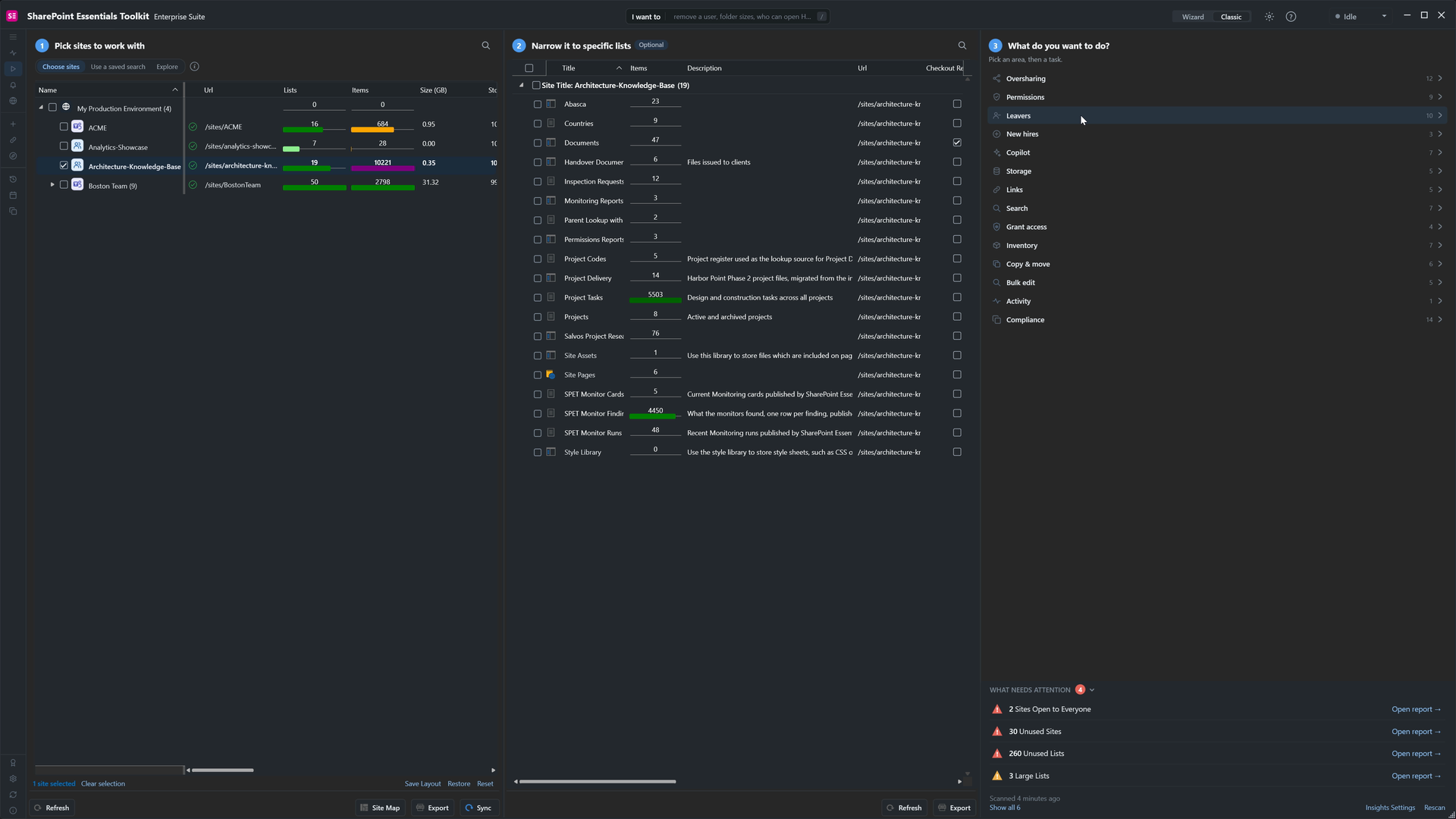
One site selected, and the Leavers area on the right.
2. Find everything they can access
Pick Everything one person can access, select Pick accounts, and choose the leaver. The summary says the job checks their direct grants, SharePoint group memberships, site collection administrator roles and sharing links, and changes nothing.
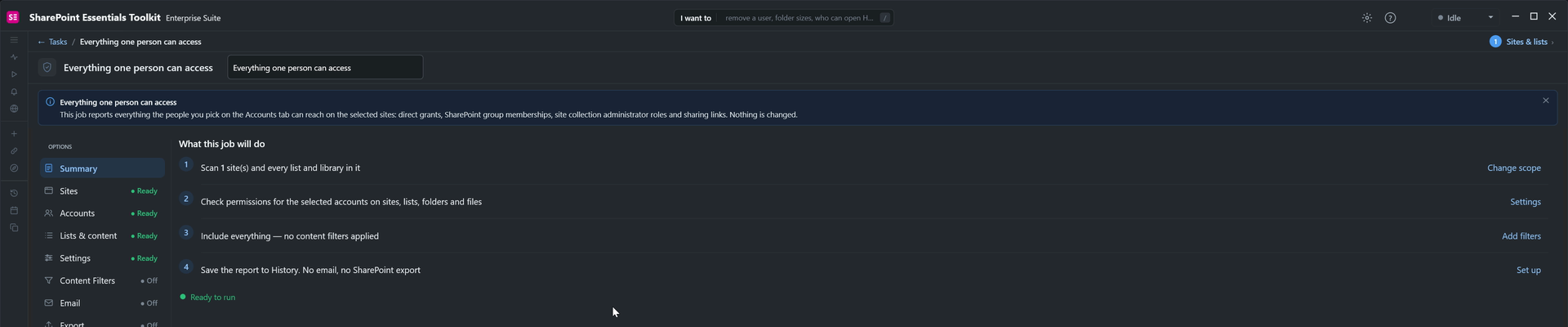
A report only. Nothing is changed.
All 10,221 items were checked in two minutes. Sandra could reach 25 places: the site, five lists and 19 files. Most came through the site's Members group, but she had been given Handover Documents and the capital budget tracker directly. Hovering over Granted Through on one file showed a specific-people sharing link made just for her.
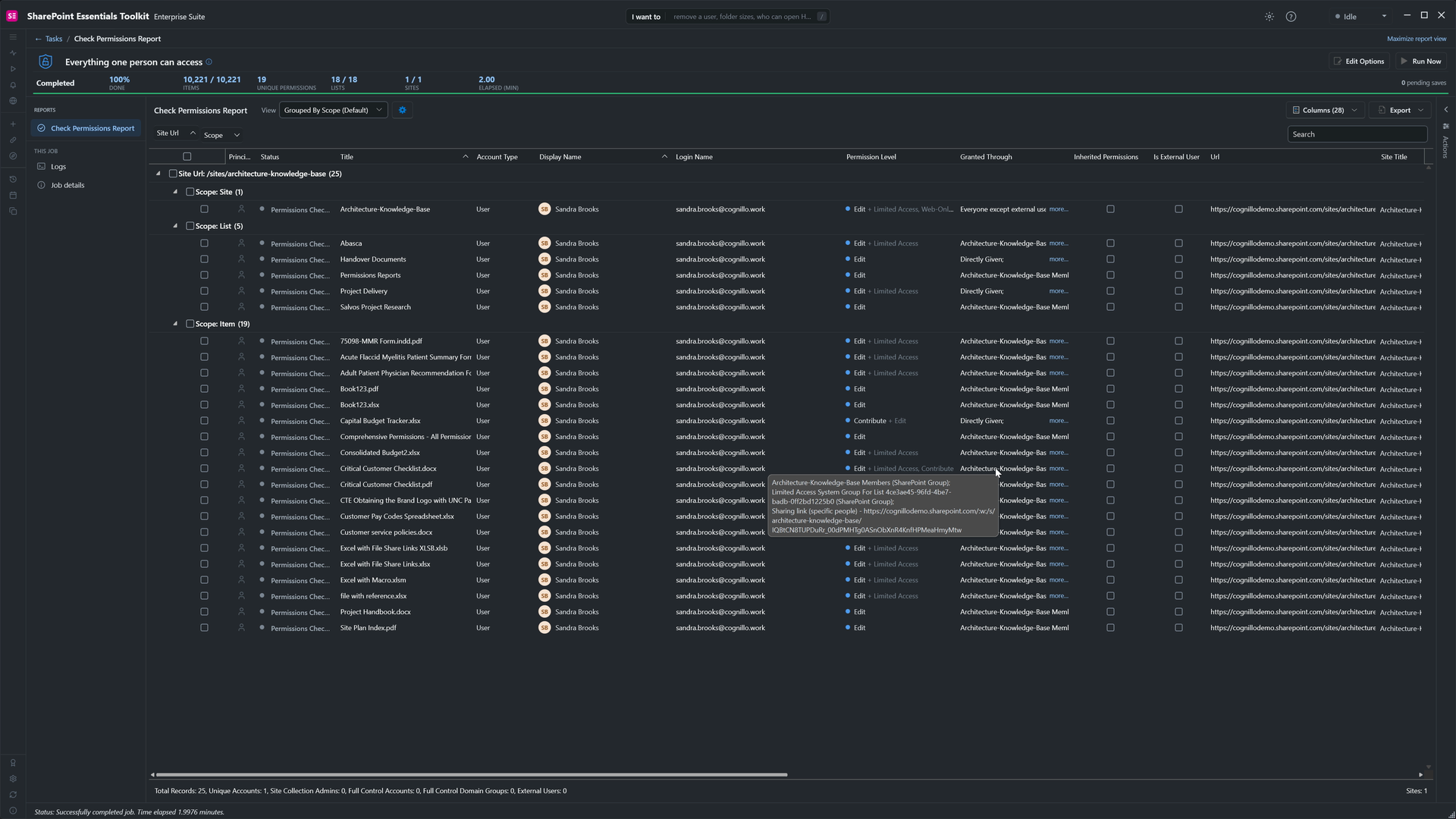
25 places, with how each one was granted.
Export this report before you change anything. It's the record of what the person had.
3. Put their successor's name on their items
Search for Replace them on items. Narrow it to the libraries that matter, here Abasca, then type the leaver's address and the successor's.
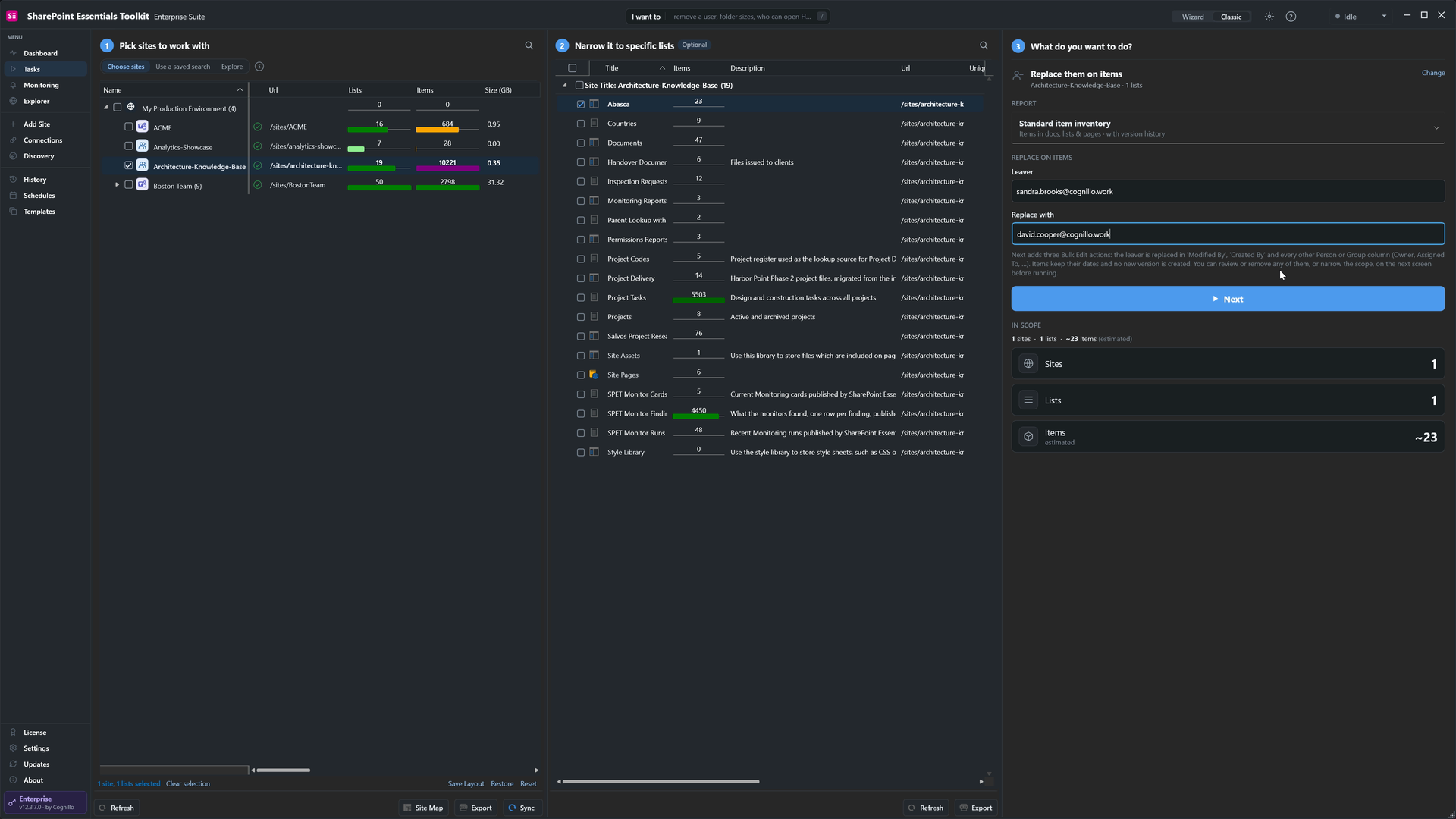
Leaver and successor, on one library.
The job adds three bulk edits: replace Modified By, replace Created By, and replace the user in every person or group column. Items are saved with their original Created and Modified dates and without a new version.
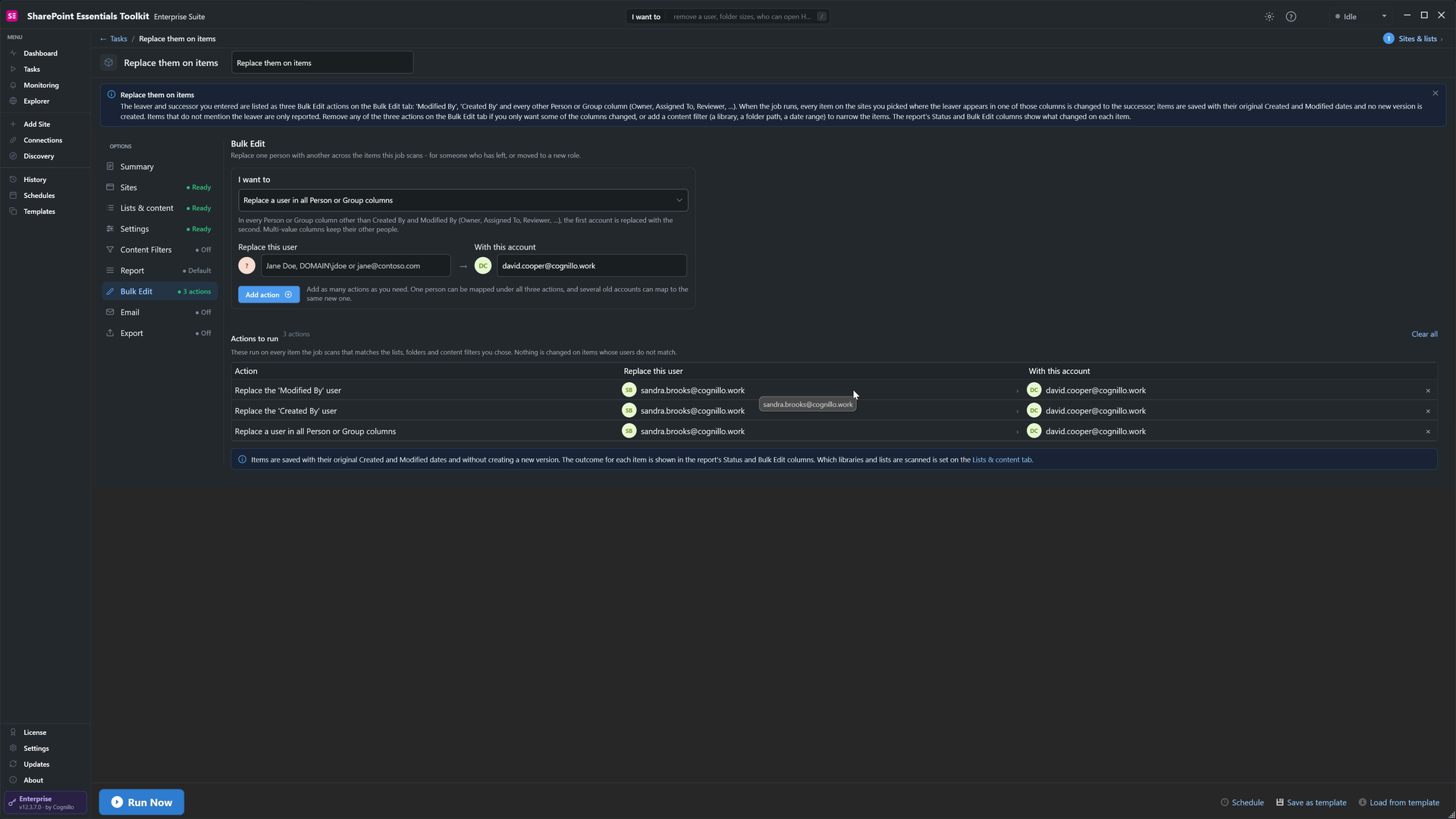
Three bulk edits, filled in from the two addresses.
It finished in 30 seconds. The Bulk Edit column says what happened to each of the 23 items. One file was left as it was, because SharePoint rejected the save for another user on it, and a few files in a library with minor versions were saved as a new draft instead of in place. The report gives the reason for each, so nothing changes silently.
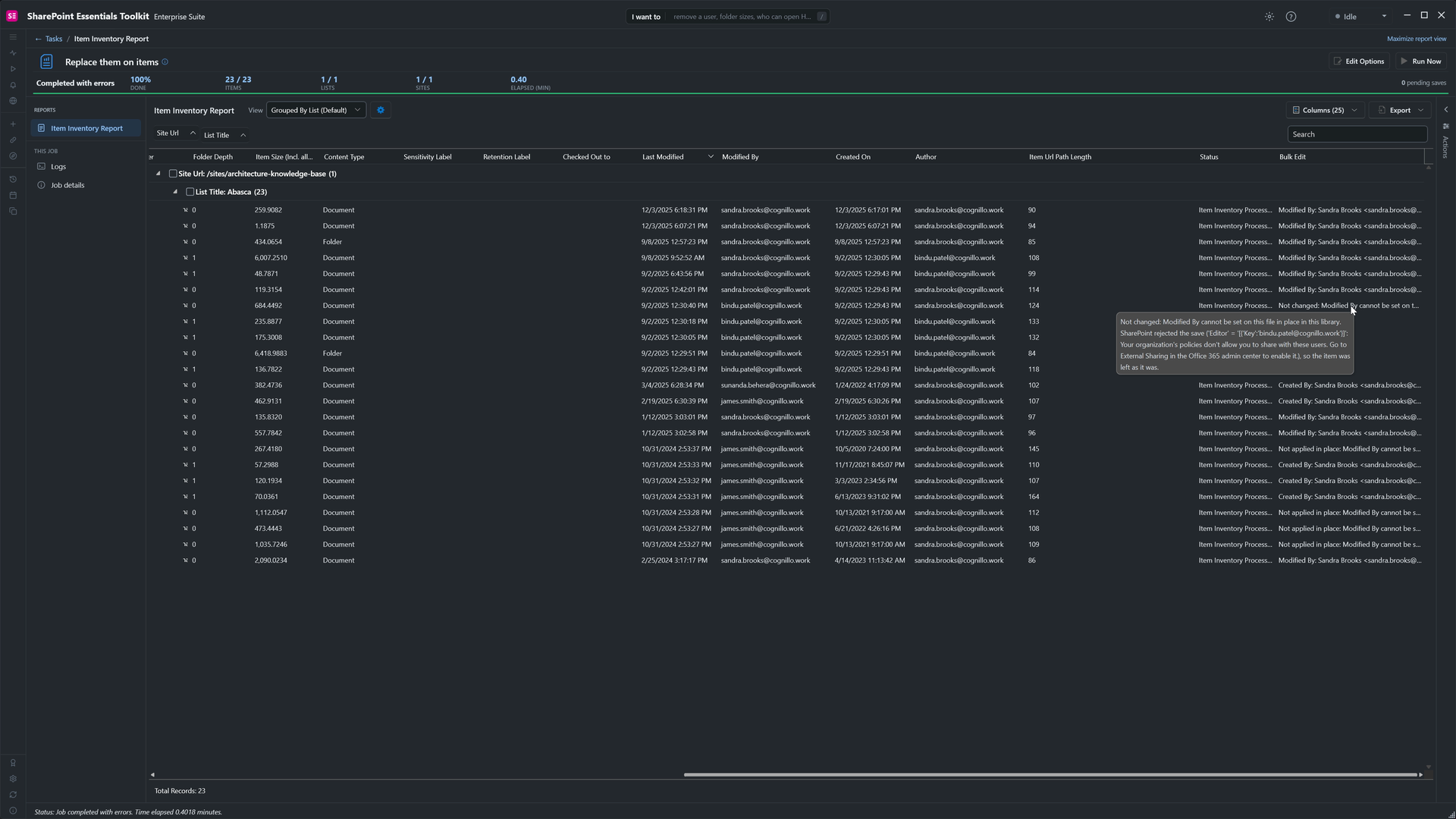
Every item, with what changed and why.
4. Fix links that email them
Search for email links and pick Email (mailto:) links to them. Enter their email address and the address to use instead. We narrowed it to Site Pages to keep it quick; the job also rewrites links in documents and in the site's navigation.
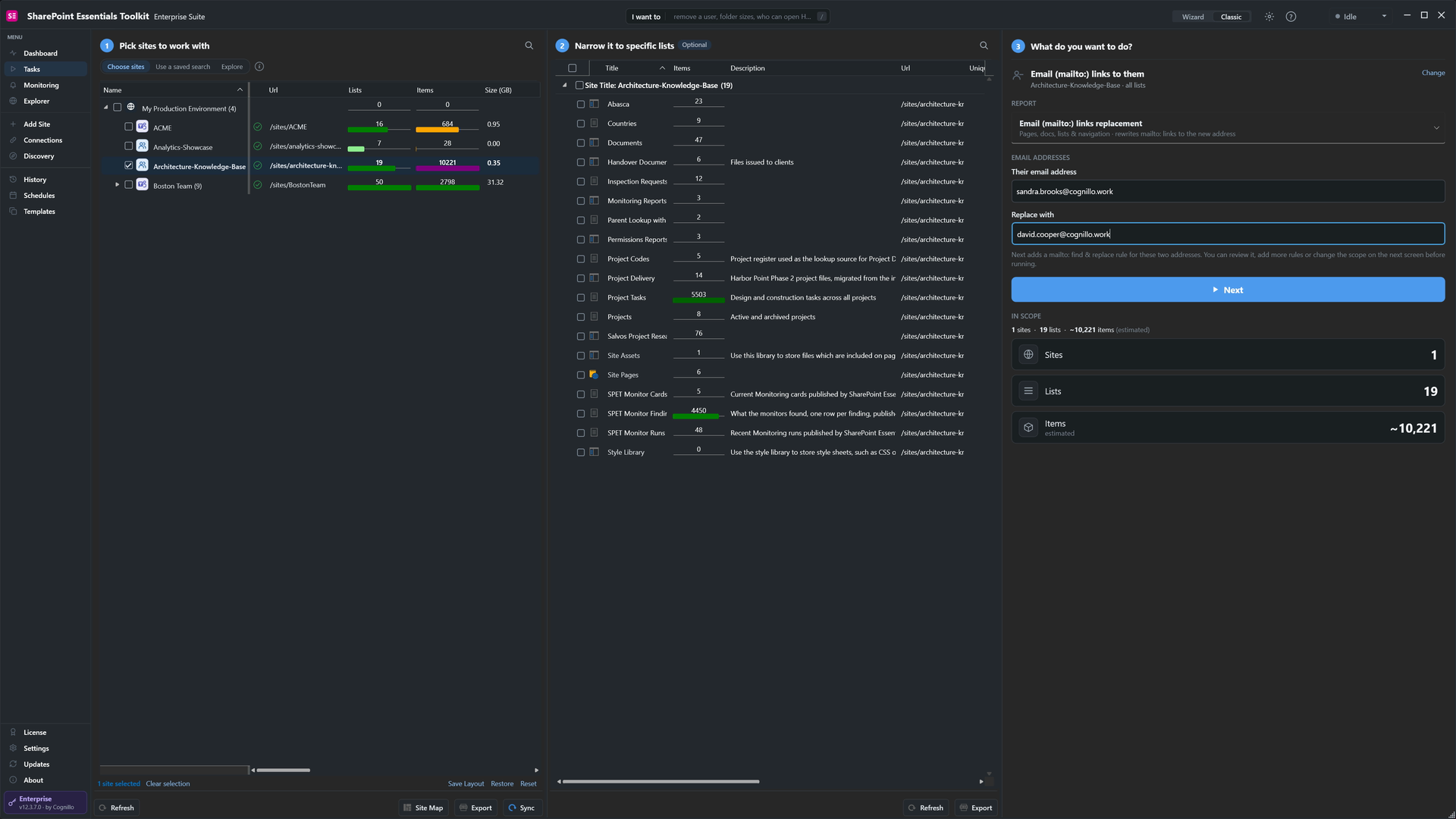
Old address and new address.
It found three links: one in the Quick Launch menu, and two on the Project Contacts page. All now email the successor. The visible link text still shows the old address, so update that wording on the page, or use the Content that mentions them task to find it.
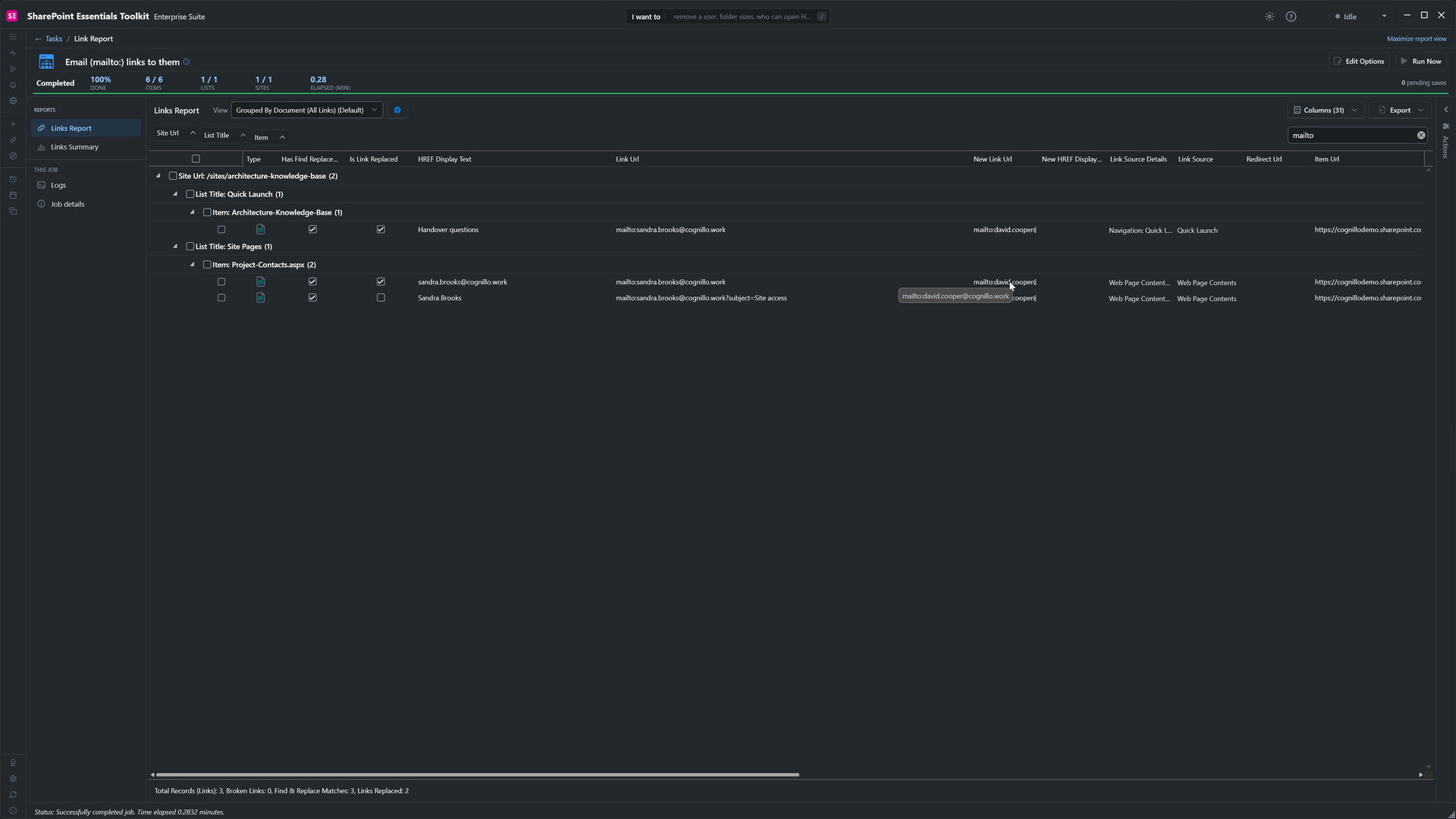
Navigation and page links, rewritten.
5. Hand their access to their successor
Search for Replace one user with another. Pick the leaver as the user to replace and the successor as the new user. The panel lists what is cloned and what isn't.
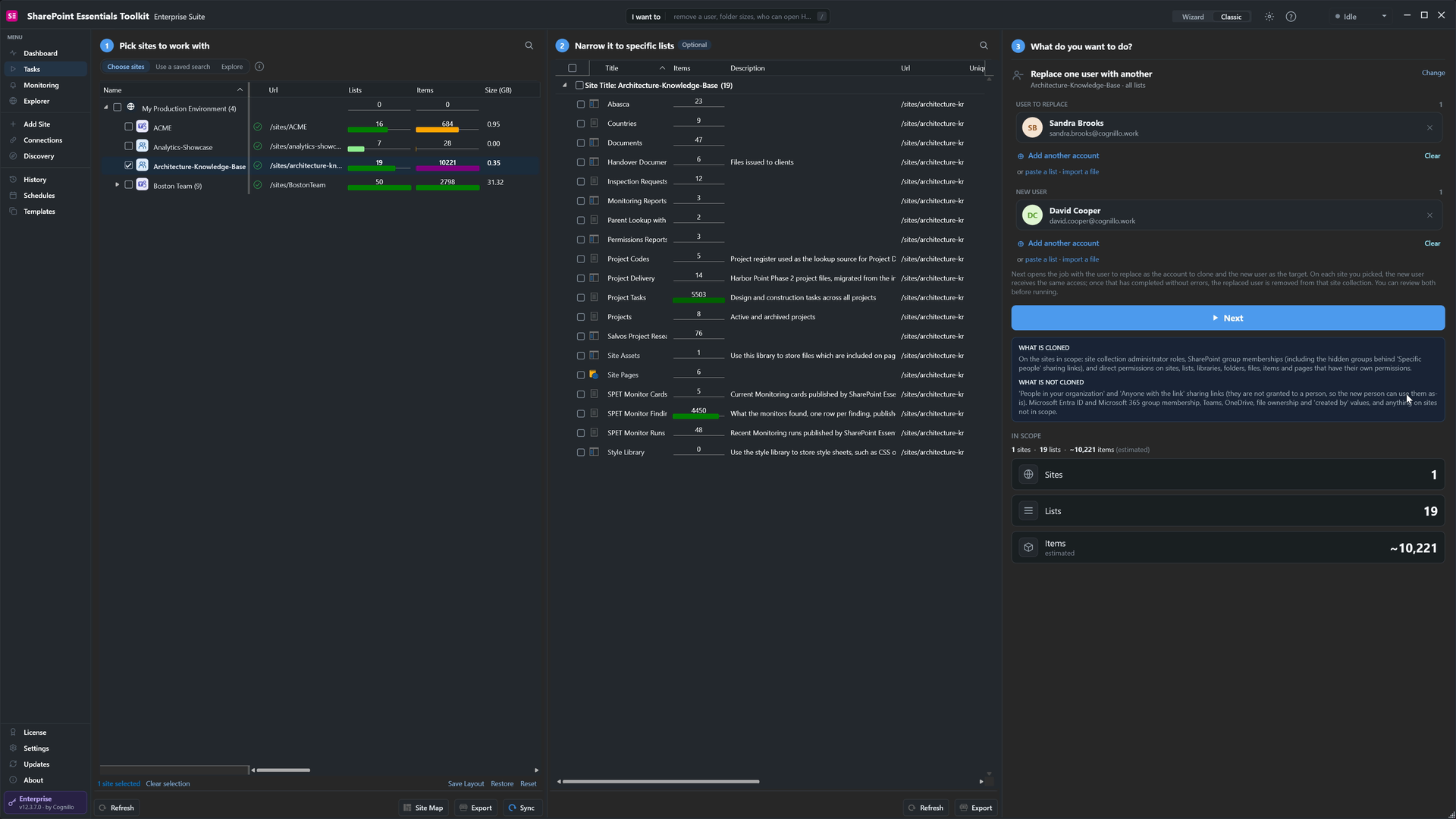
Leaver on top, successor below.
The Settings tab sets what is handed over: site collection administrators, site-level permissions, Microsoft 365 group membership, list and library permissions, and item, file, folder and page permissions. Remove the replaced user from each site once the clone succeeds is on, so the leaver is removed in the same run. Links for everyone in the organization, Anyone links, Entra ID groups, OneDrive and Teams aren't touched. Turn on Flag only to preview without changing anything.
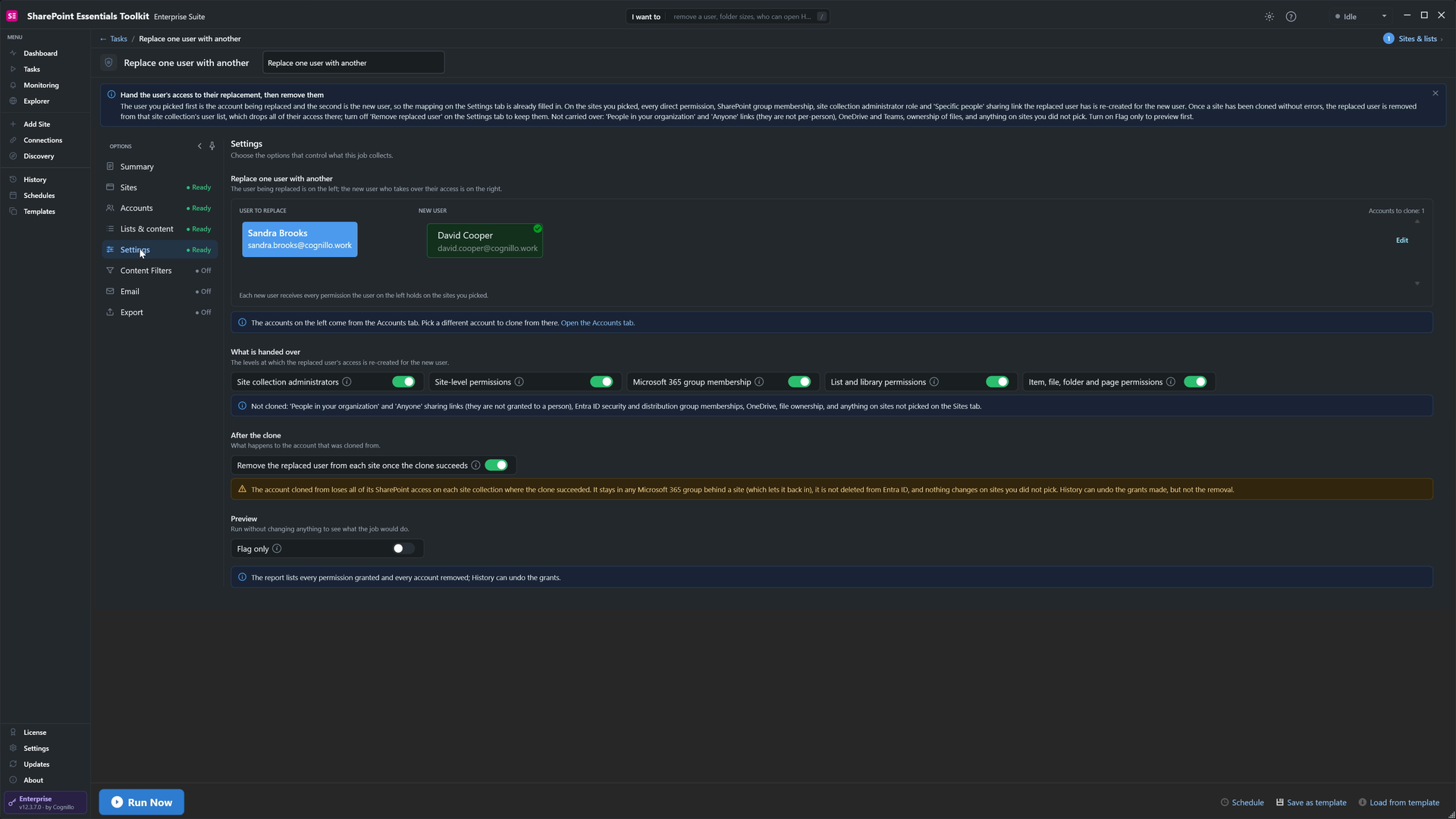
Choose what's handed over, and whether the leaver is removed.
It ran in two minutes and made 57 changes. David was added to the Members group, given the same direct access to Handover Documents and the budget tracker, and Sandra was removed from the site collection.
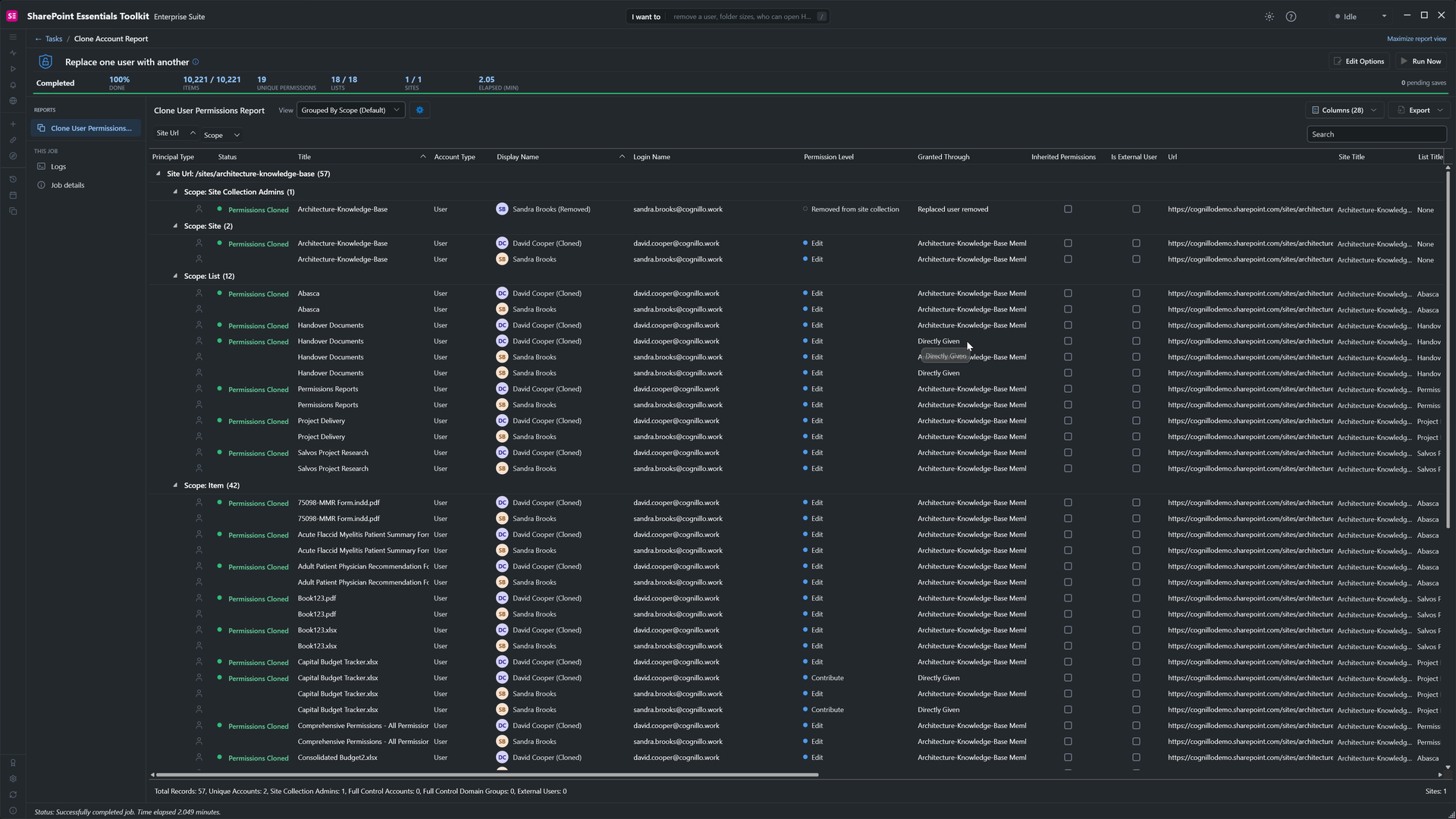
Each permission cloned, and the leaver removed.
6. Remove someone with no successor
For Barbara, who had no successor, search for Remove a person from everything, pick her account and run it. A confirmation names the person and the number of sites, and says the removal can't be put back by the toolkit. Access through Entra ID or Active Directory groups stays, so remove her from those groups separately.
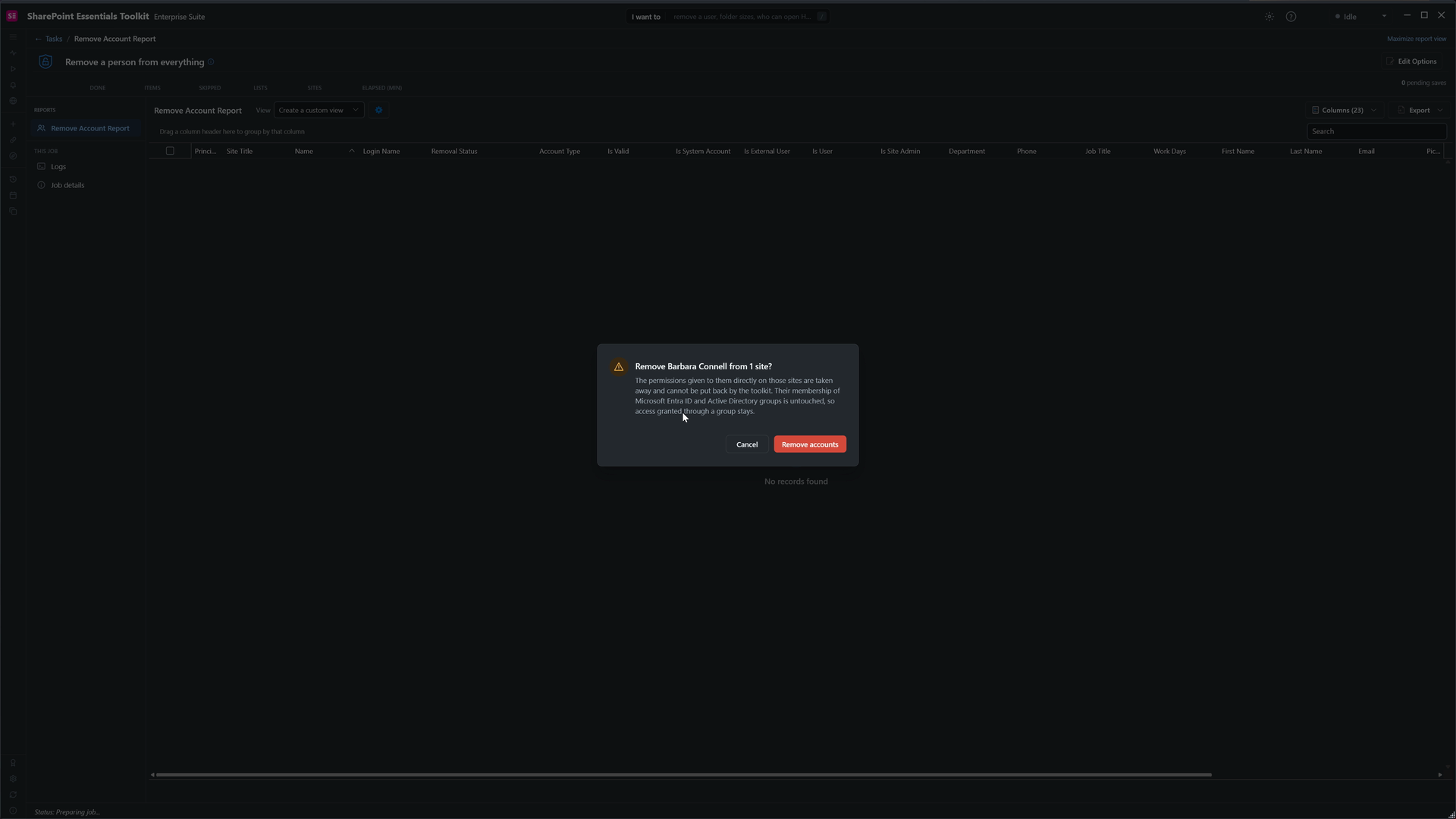
Nothing is removed until you confirm.

Found and removed.
7. Clean up orphaned users after the account is deleted
Once IT deletes the account in Entra ID, run Clean up orphaned users on the same sites. It finds accounts that no longer exist in your directory but are still in SharePoint permissions and groups, and removes them after you review and confirm. Our permissions cleanup guide shows a full run.
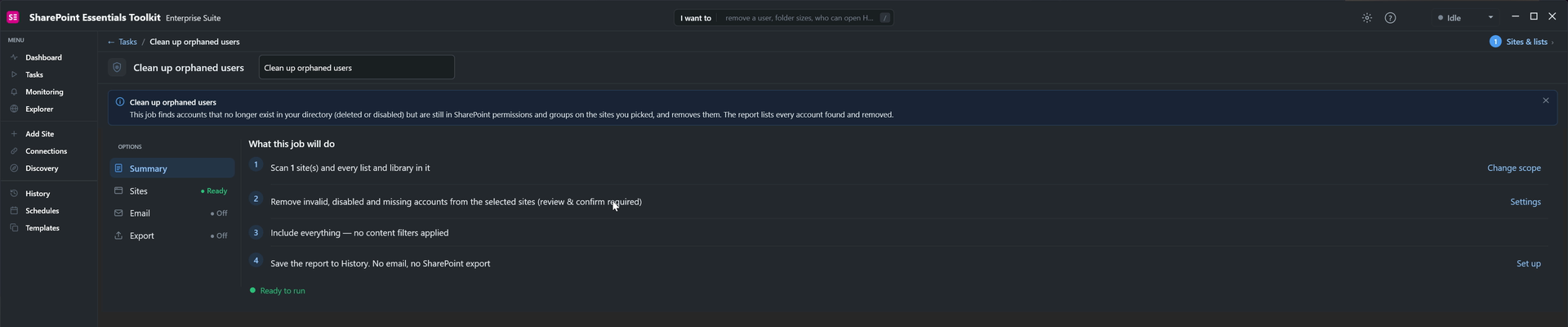
Review and confirm before anything is removed.
8. Keep the record in History
Every task you ran is kept in History with its full report, so you can show exactly how a person was offboarded and when. Save the steps as a template with Save as template, and the next offboarding is a matter of entering two names.
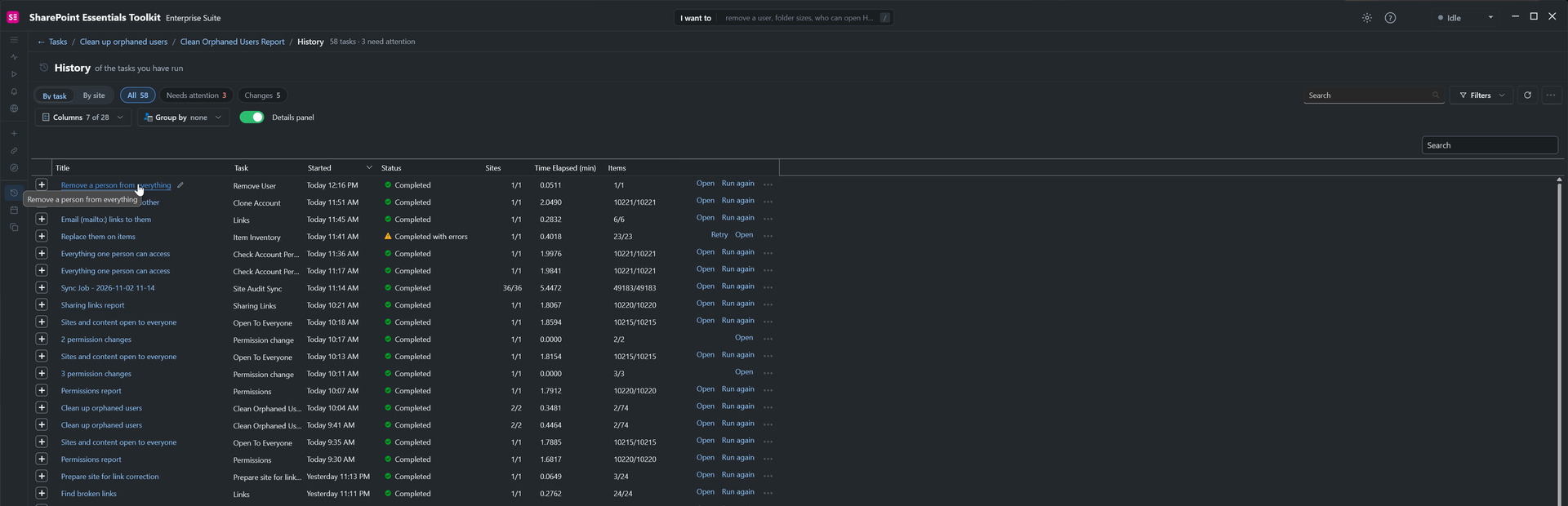
The offboarding, task by task.
Two more Leavers tasks cover the rest: Files checked out to them finds files nobody else can edit, and Content that mentions them finds their name or address in pages and documents.
Community Edition is free on up to 20 sites per Microsoft 365 tenant. Check which Leavers tasks your edition includes on the product page.
What order should you offboard a SharePoint user in?
Report their access while the account still exists, and export it.
Check in their files so nothing is locked.
Reassign their items: Created By, Modified By and person columns.
Rewrite links and mentions that point at them.
Hand over their access to the successor, or remove it if there isn't one.
Delete the account in Microsoft 365, then clean up orphaned users.
To check one person's access in detail, see How to check user permissions in SharePoint. For a full permissions review, see How to clean up user permissions in SharePoint.
Frequently asked questions
Does deleting a user in Microsoft 365 remove their SharePoint permissions?
No. Deleting or disabling the account stops them signing in, but their entries stay in each site's user list, SharePoint groups and direct permissions. These orphaned entries clutter permission reports, and their name stays on files as Created By and Modified By. Remove their SharePoint access before or soon after the account is deleted, then clean up orphaned users.
What happens to a user's files in SharePoint when they leave?
Files in SharePoint sites belong to the site, so they stay where they are when the account is deleted. Files in the person's OneDrive are kept for the OneDrive retention period, 30 days by default, and their manager is given access to move what's needed. Teams chat files are in OneDrive too.
Can I change Created By and Modified By in SharePoint?
Not in the browser. PowerShell can set the Author and Editor fields with Set-PnPListItem and -UpdateType UpdateOverwriteVersion, item by item. SharePoint Essentials Toolkit's Replace them on items task does it across whole libraries and every person or group column, and keeps the original dates and versions.
How do I give a new employee the same SharePoint access as someone who left?
Find everything the leaver could access, then add the new person to the same SharePoint groups and give them the same direct permissions. SharePoint has no copy button for this. SharePoint Essentials Toolkit's Replace one user with another task clones site collection admin roles, group memberships, direct permissions and specific-people sharing links to the new user, then removes the old one.
Should I remove SharePoint access before deleting the account?
Yes, if you can. While the account still exists, you can report on exactly what it can access and hand that access to a successor. Once it's deleted, its SharePoint entries can only be found as orphaned users, and the trail of what it had is harder to read.
Offboard SharePoint users free on up to 20 sites
SharePoint Essentials Toolkit Community Edition is free. Find what a leaver can access, hand it to their successor, reassign their files and remove them, on up to 20 sites per Microsoft 365 tenant, with no trial period. Get your free Community Edition license key.
About the author. The Cognillo SharePoint Team builds and supports SharePoint Essentials Toolkit and has worked with SharePoint administrators on permissions audits, migrations and cleanup projects since 2012.