How to Set Up Azure App Registration (2027)
Last updated: 2026-10-15
Two ways to set up Azure app registration for SharePoint Essentials Toolkit 2027: the recommended fully automated in-app wizard, or semi-automated shared-app and own-app setup.
Set up Microsoft Entra ID (Azure) app registration for SharePoint Essentials Toolkit 2027 (v12) using either of the two methods below.
1. Fully automated — in-app wizard (recommended): The easiest way to allow organization sign-in and optionally create the Microsoft 365 User Activity app and certificate connection. No Azure portal setup or copying IDs by hand is needed.
2. Semi-automated — existing setup options: Use the shared-app consent link or configure your own app registration, permissions, and certificate. Choose this method when you need your own SharePoint app, unattended certificate-based SharePoint jobs, or to maintain an existing registration.
Before you begin: Azure app registration is optional but recommended. The wizard requires a Global Administrator account; the semi-automated method requires an administrator with sufficient Microsoft Entra privileges to configure the app and grant tenant-wide consent. Toolkit data is stored and processed locally on the installed machine, not in Cognillo’s tenant.
1. Fully automated — using the in-app wizard (recommended)
The in-app Set up Azure app registration wizard handles the one-time Microsoft 365 tenant setup without opening the Azure portal or copying IDs by hand. You can continue with the basic setup if your sign-in already works and return to the wizard later.
Allow sign-in for your organization: Grant tenant-wide consent to Cognillo’s shared app so users can sign in with their Microsoft account without a “Need admin approval” prompt. Web Browser sign-in uses delegated permissions: the toolkit acts as the signed-in user and cannot exceed that user’s SharePoint access.
Set up User Activity: Optionally create a separate certificate-based app in your tenant with the Office 365 Management APIs → ActivityFeed.Read application permission, upload its certificate, grant admin consent, and save a ready-to-use connection for User Activity reports and Monitoring.
You need: A Global Administrator account for the tenant. The wizard itself does not require an activated license, so your administrator can run it on an unactivated installation without taking up a user license. Allow about five minutes.
Not a Global Administrator? Open the wizard anyway and select I’m not a Global Admin. See the hand-off instructions below.
1. Open the wizard
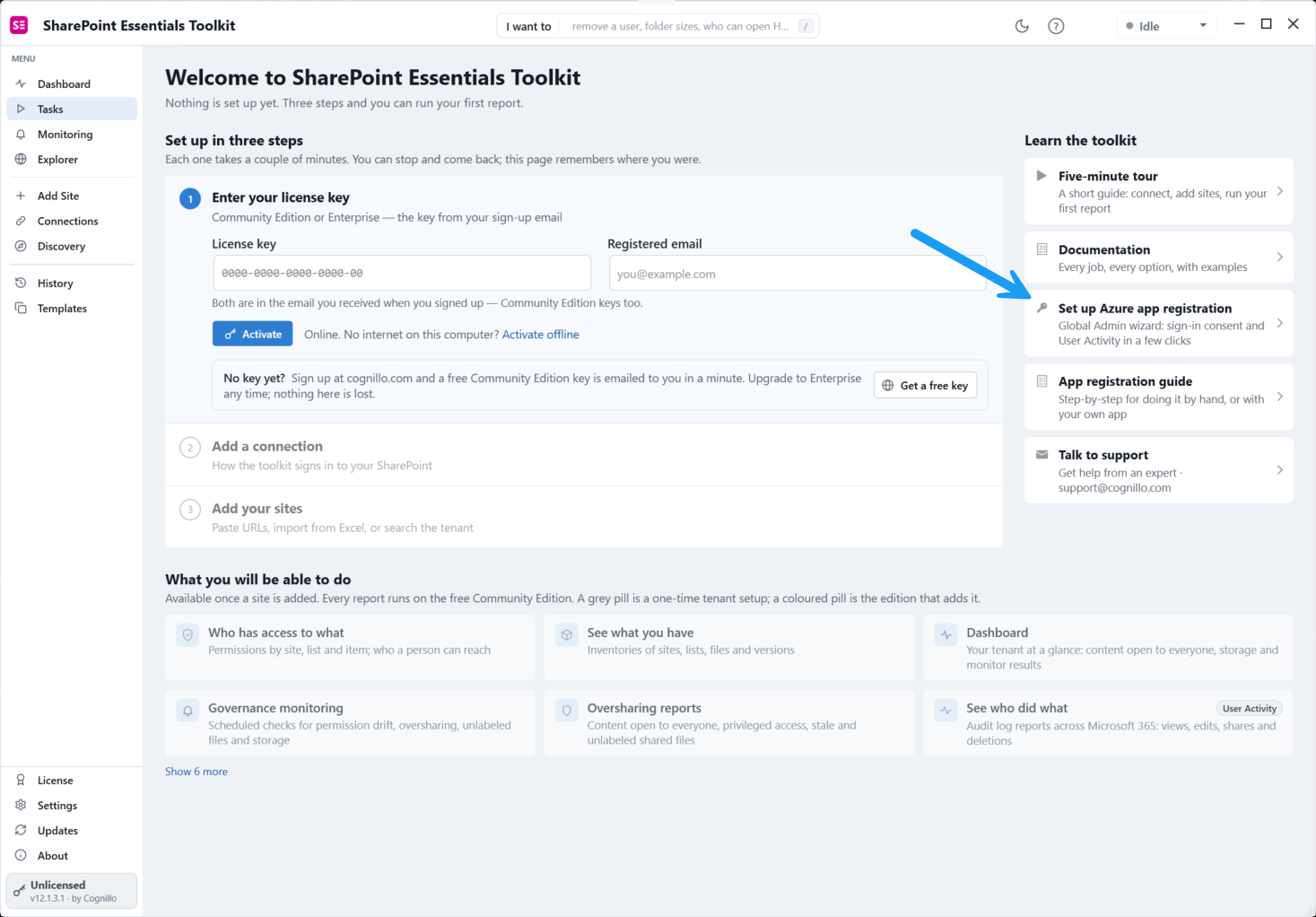
On Home, select the Set up Azure app registration card under Learn the toolkit. Alternatively, open Connections → New connection and select the Set up Azure app registration link.
2. Confirm you are the Global Administrator
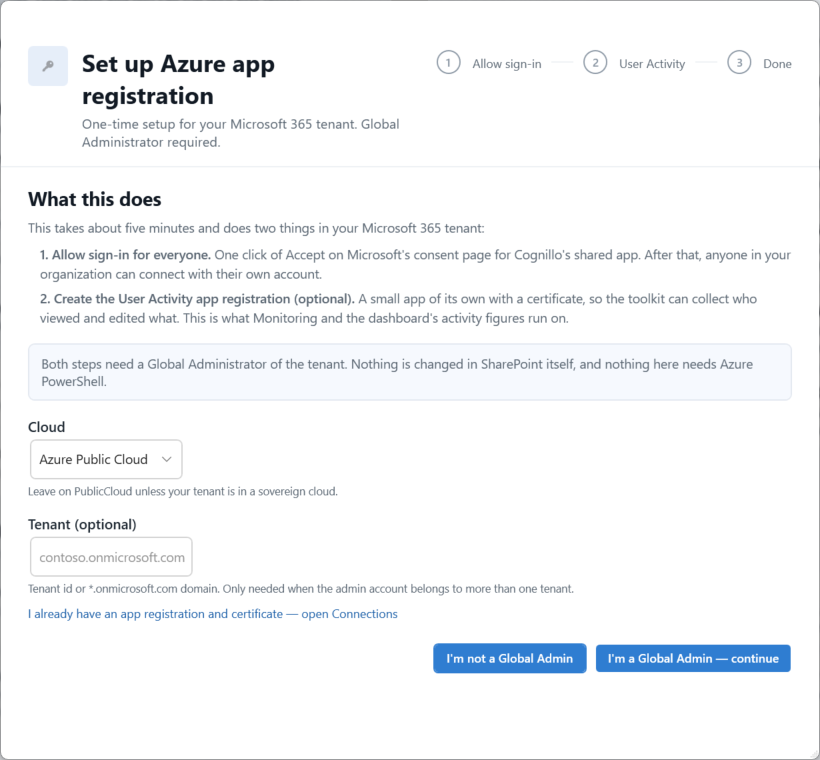
Review what the wizard will do and confirm the cloud and tenant information match your environment. Select I’m a Global Admin to continue.
3. Allow sign-in for your organization
Select Open the consent page. Your browser opens Microsoft’s consent page for Cognillo’s shared app.
Sign in as the tenant’s Global Administrator and review the requested permissions.
If Consent on behalf of your organization is shown, select it, then select Accept.
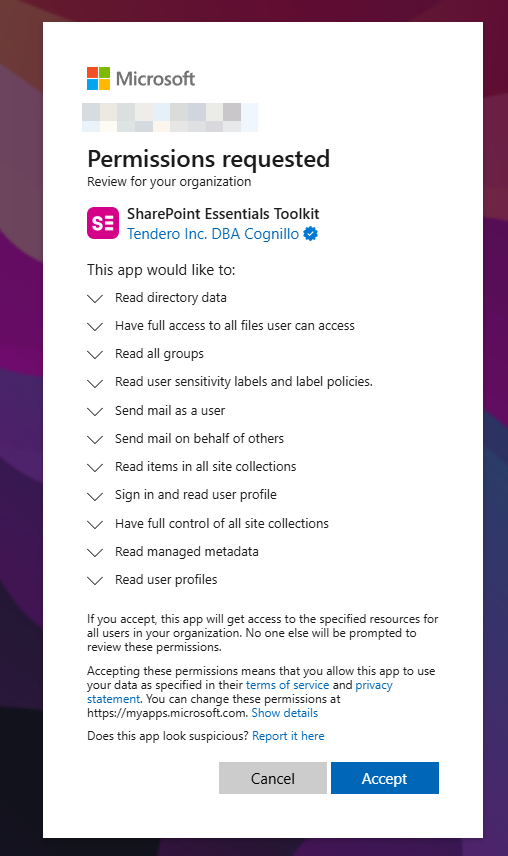
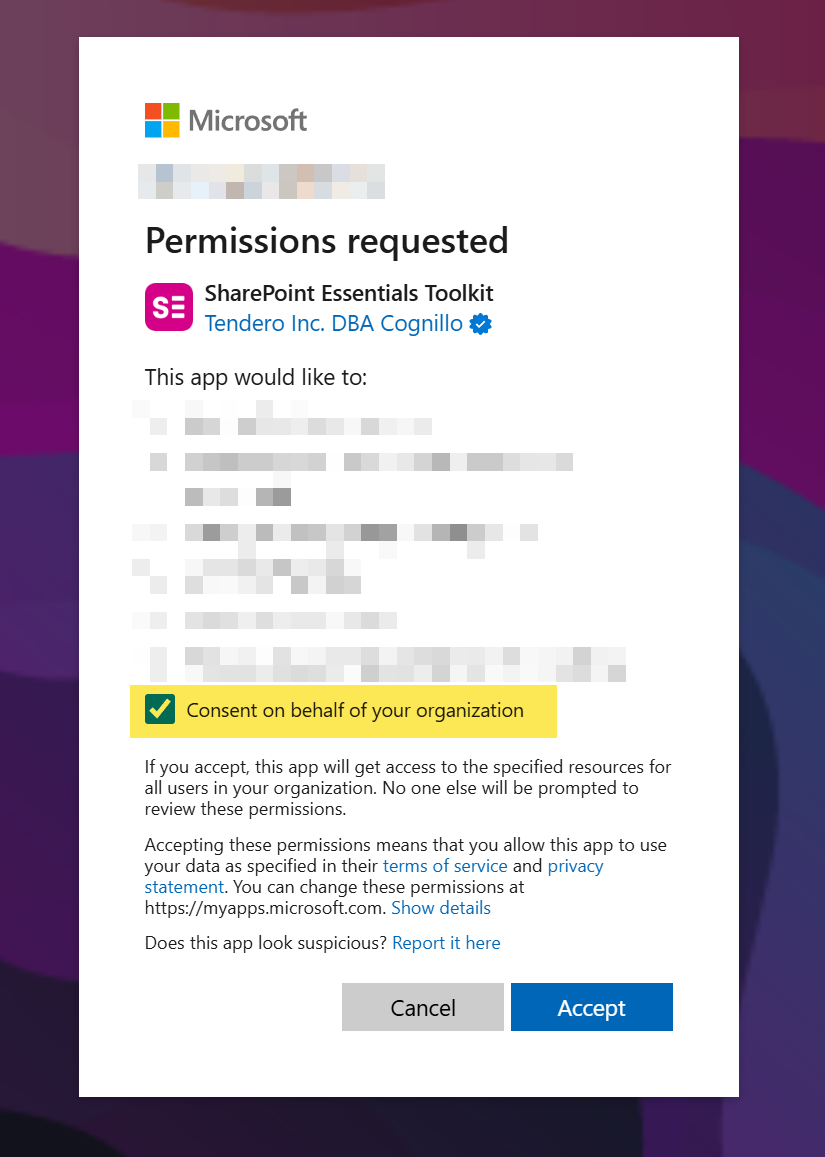
The browser lands on Cognillo’s confirmation page. Return to the toolkit and select I’ve accepted, continue. If the browser does not open, use the copy icon beside the link under the button and paste the link into a browser.
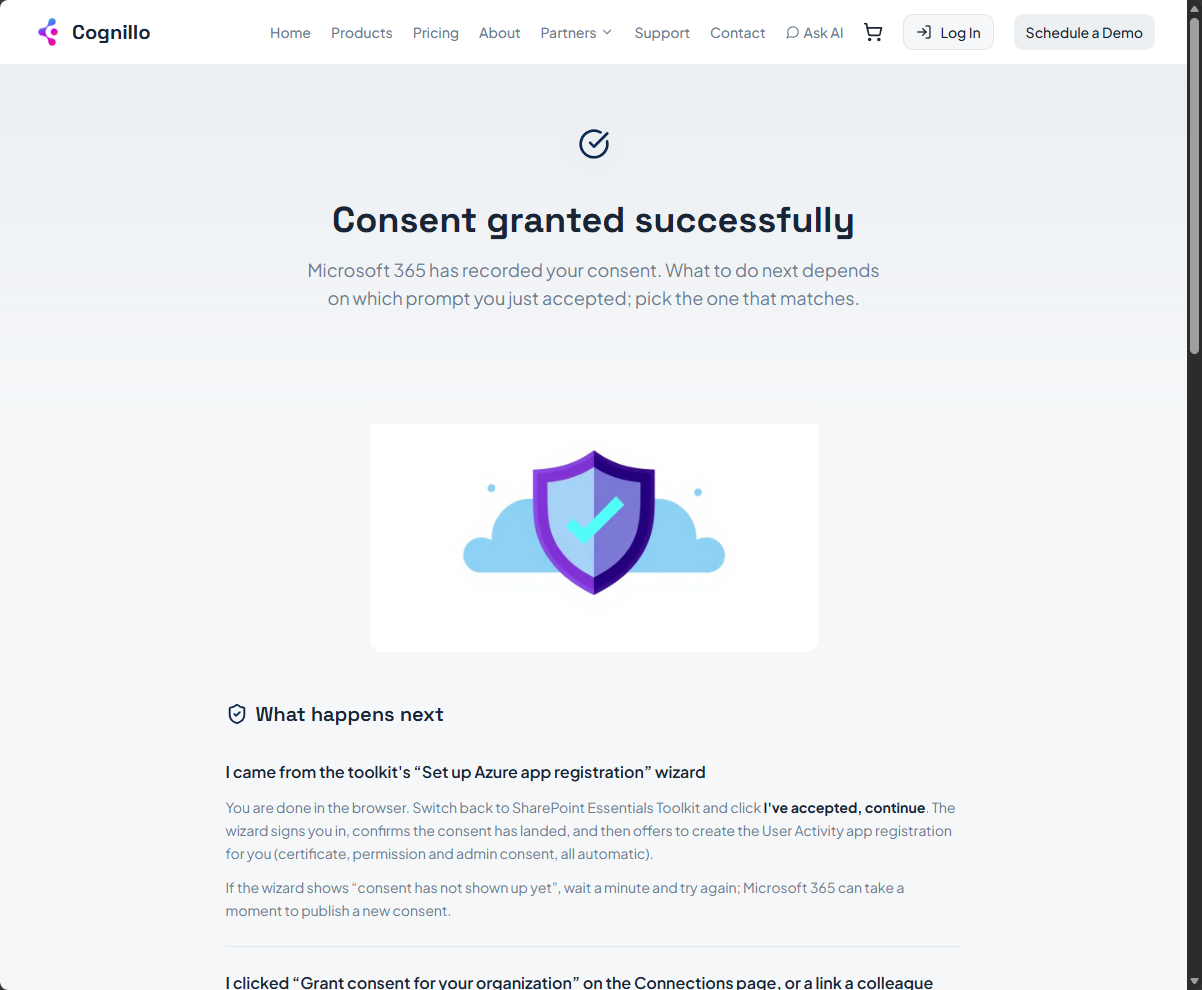
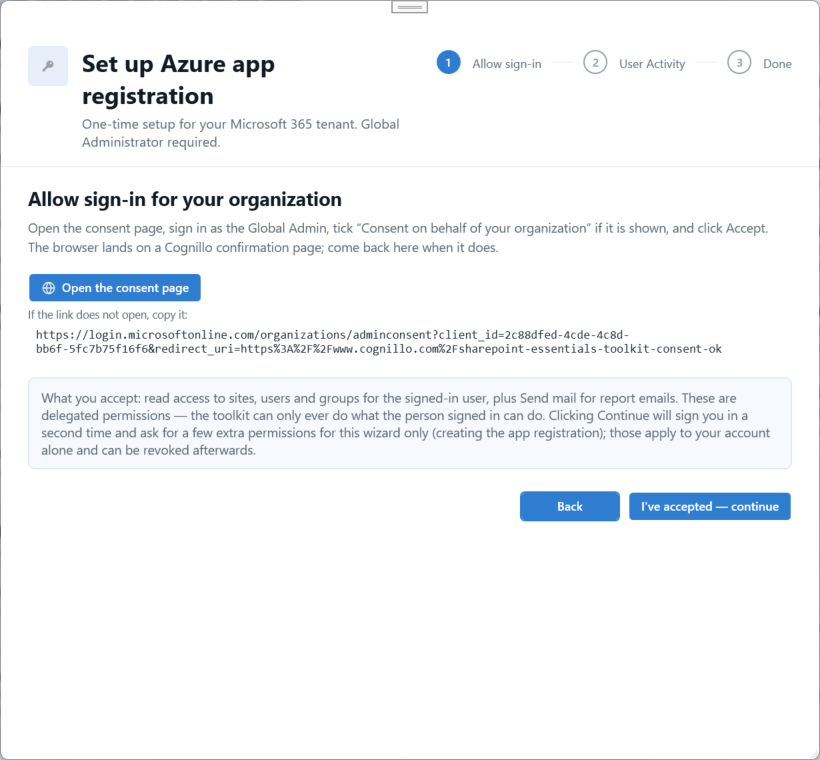
This first consent covers delegated access to SharePoint sites, users and groups as the signed-in user, plus sending mail for emailed reports. It does not create a customer-managed certificate for the shared app.
4. Sign in for the wizard itself
Select Continue to sign in. This second sign-in gives the wizard temporary Microsoft Graph permissions to create the User Activity app, grant consent, identify your tenant’s SharePoint root site, and verify the setup.
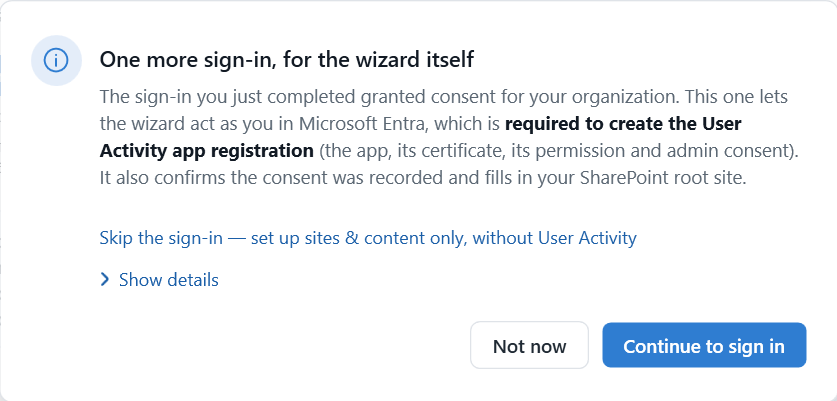
Do not select “Consent on behalf of your organization” on this second consent screen. These setup permissions apply to your administrator account only. If it is selected accidentally, the wizard removes its setup permissions from the tenant-wide grant when it closes.
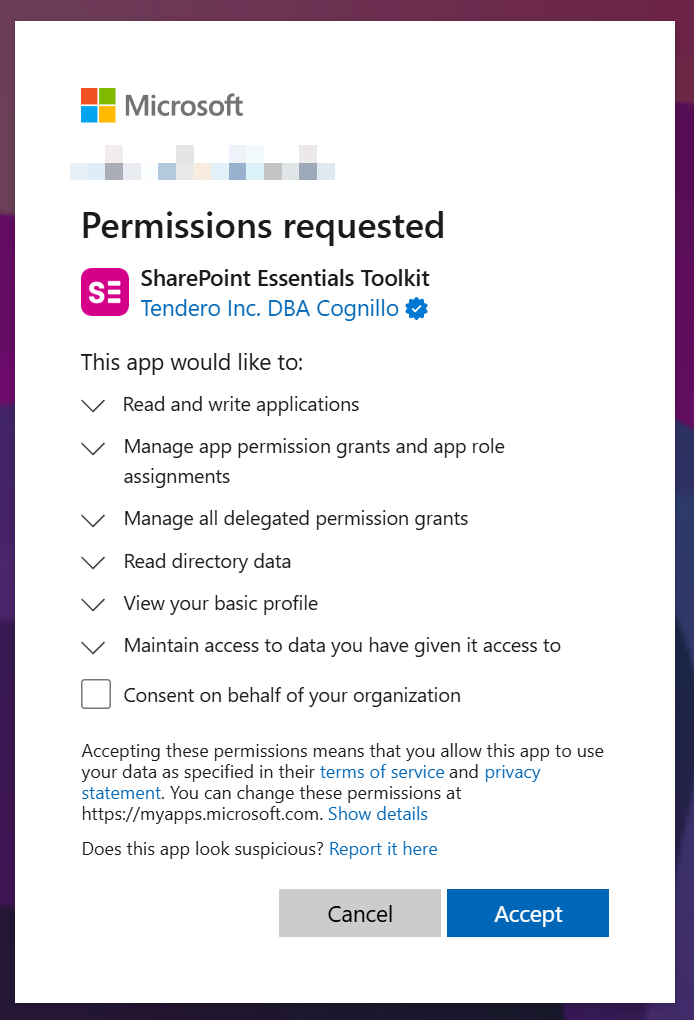
Sign in, accept, and return to the toolkit. Selecting Not now skips User Activity setup and consent verification; you must enter the tenant root site manually.
5. Create the User Activity app
Confirm the signed-in administrator and tenant ID.
Check SharePoint root site. Use the tenant root, such as
https://contoso.sharepoint.com, not a site path or the-adminaddress. Correct the suggested URL if needed.Under Names, keep the defaults or use your organization’s naming convention: SharePoint Essentials Toolkit - User Activity for the app, Microsoft 365 user activity for the activity connection, and SharePoint sites & content for a sites-and-content connection if one does not already exist.
Select Create the User Activity app. Leave the window open while the wizard registers the app, creates and uploads its certificate, adds ActivityFeed.Read, grants consent, saves the connections, and tests certificate sign-in. This usually takes under a minute.
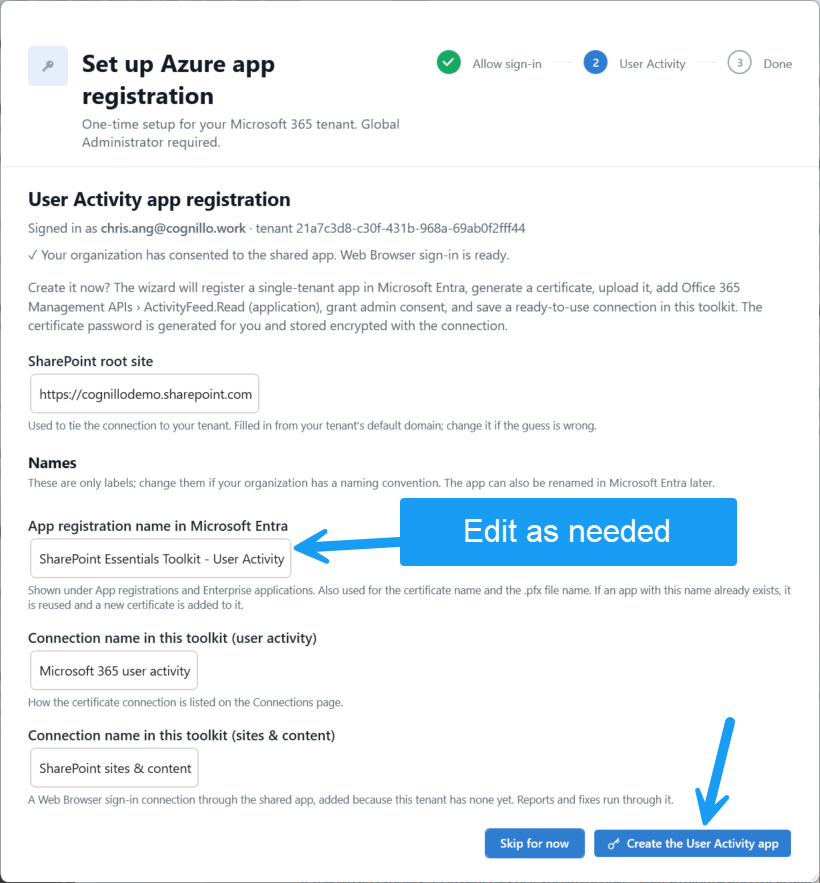
You can select Skip for now to finish with organization sign-in consent only, then run the wizard again later to add User Activity.
Already configured? The wizard asks before replacing an existing User Activity connection. The old connection is disabled, not deleted, and can be re-enabled under Connections. An app registration with the same name is reused and receives a new certificate alongside its existing certificates; nothing is removed.
6. Review the summary
The Setup complete page shows consent status, the saved connections, and—for the User Activity app—the app name, App (client) ID, certificate .pfx location, expiry date, and hidden certificate password.
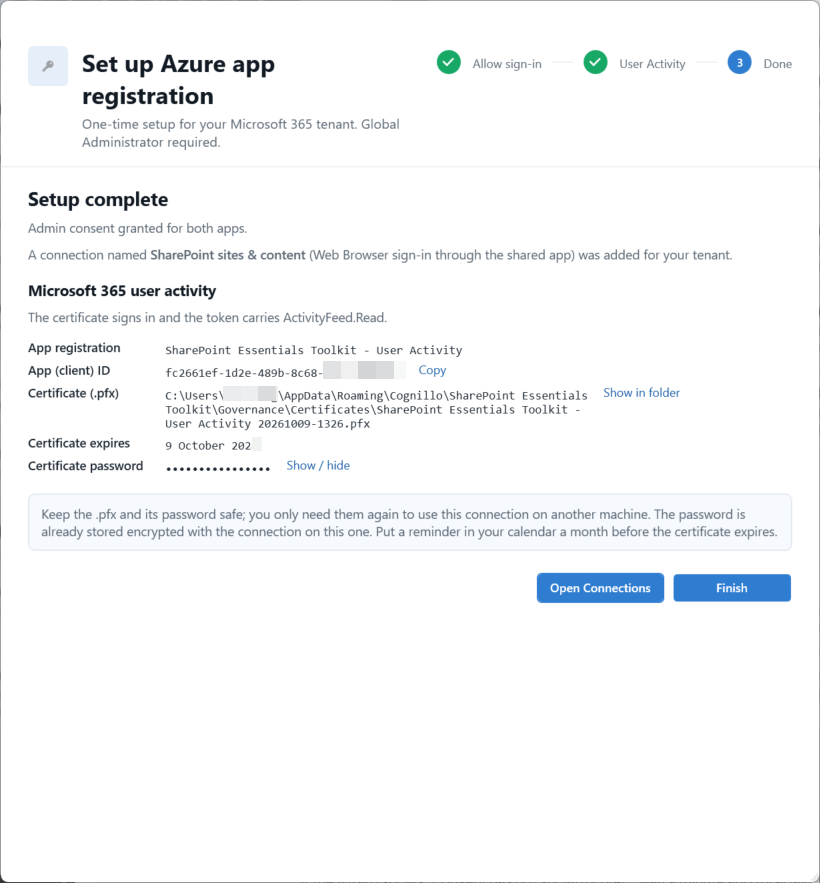
Select Open Connections to review the profiles, or Close. When you close, the toolkit offers to create the scheduled User Activity sync task and collect the first batch of activity.
SharePoint sites & content: A Web Browser connection through Cognillo’s shared app, used by default for reports and fixes.
Microsoft 365 user activity: A separate certificate connection used for audit-log collection, not the default sites-and-content connection.
Certificate files: The
.pfxand.cerfiles are saved in the toolkit’sGovernance\Certificatesfolder. The password is stored encrypted with the connection. Keep it securely only if you need to use the certificate on another machine.Renewal: The certificate is valid for two years. Run the wizard again before expiry to add a replacement; the old certificate remains valid until its expiry date.
Scheduled SharePoint jobs: The User Activity certificate is for activity collection. Unattended certificate sign-in for SharePoint sites & content requires your own app registration with the appropriate SharePoint permissions; it is not provided by the shared-app consent step.
If you are not the Global Administrator
Open the wizard and select I’m not a Global Admin.
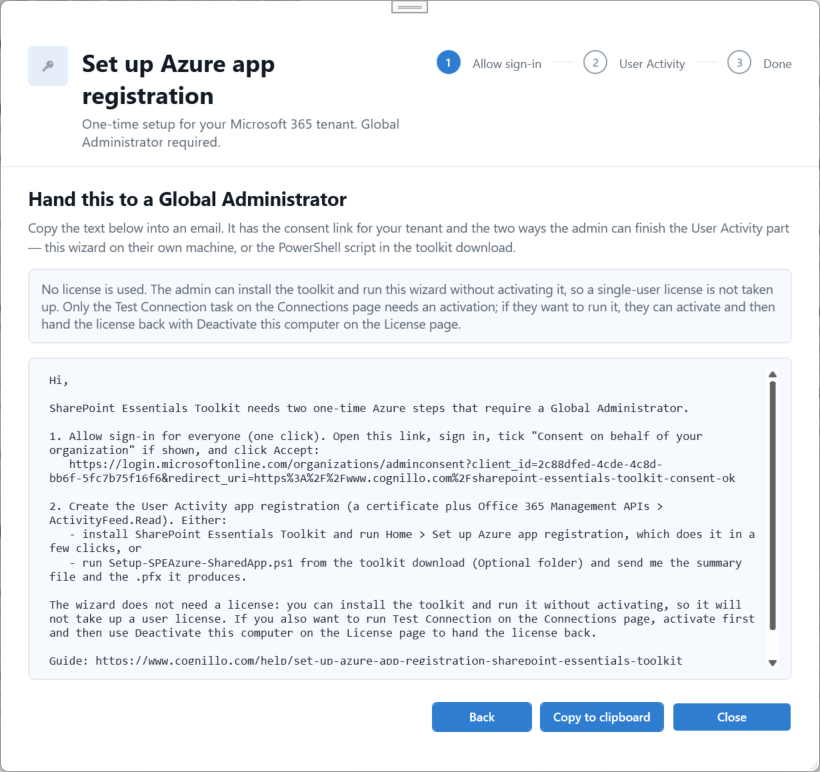
Select Copy to clipboard and send the generated email to your administrator. It includes your tenant’s consent link and the options for completing User Activity setup: run the wizard on their own machine or use
Setup-SPEAzure-SharedApp.ps1from the toolkit download.Once the administrator confirms consent, Web Browser sign-in is available to your organization’s users. If they created the User Activity app on another machine, ask them to securely provide the
.pfx, its password, and the App (client) ID so you can add a User Activity connection under Connections.
If setup needs attention
Organization consent has not appeared: Wait a minute, select Back, then I’ve accepted, continue again. Confirm you selected Accept in the browser.
Insufficient privileges: Sign in as a Global Administrator or use the hand-off option. If your tenant blocks app creation, ask your Global Administrator to use
Setup-SPEAzure-SharedApp.ps1from the toolkit download.Duplicate app names: Resolve duplicate registrations in Microsoft Entra, then run the wizard again.
Certificate token has no permissions yet: Admin consent may still be propagating. The connection is saved; allow a few minutes before retrying.
Logo or publisher links could not be set: This is cosmetic and does not affect the connection.
Certificate upload failed: Upload the
.cerfile fromGovernance\Certificatesunder the app’s Certificates & secrets in Microsoft Entra.
For manual setup and the full permissions guidance, see Set Up Azure App Registration for SharePoint Essentials Toolkit.
2. Semi-automated — shared-app consent or your own app registration
Use the existing options below if you are not using the wizard. For delegated browser sign-in, use Cognillo’s shared app or your own registration. For unattended SharePoint jobs using certificate authentication, configure your own SharePoint app and its application permissions; the wizard’s User Activity certificate is for activity collection, not unattended SharePoint reports and fixes.
The following permissions and connection instructions are retained from the 2027 Installation & Deployment Guide, updated October 1, 2026 (pages 43–81). The fully automated wizard instructions above are also available in the Quick Setup guide and come from the updated October 9, 2026 guide.
1. Choose your authentication and registration
Web Browser / Delegated: users only have access to sites and content they already have access to in SharePoint. The delegated Full Control permission is a maximum, not a grant of new SharePoint access.
Certificate / Application: runs with the app's assigned permissions rather than the signed-in user's permissions. Anyone with access to the private certificate and its password can use that access. Protect both and restrict distribution.
Governance & User Activity: requires an additional certificate-based user-activity connection, even when the normal SharePoint connection uses Web Browser sign-in.
Choose either Cognillo's shared multi-tenant app for delegated browser sign-in, or your own single-tenant app for more control and certificate authentication. The shared consent-link method does not support certificate authentication. You can use the same own-app registration and certificate for SharePoint and User Activity, or a separate registration/certificate for the activity service.
2. Option A — Cognillo's shared app
Ask a Global Tenant Admin to open the SharePoint Essentials Toolkit admin-consent link.
Sign in, review the requested permissions, select consent for the organization if prompted, and accept. This is a one-time process per tenant; renewed consent may be needed if requested permissions change.
In the toolkit, open Connections → New connection. Select SharePoint sites & content and Web Browser.
Enter the SharePoint tenant root URL, for example
https://contoso.sharepoint.com. Do not use the SharePoint admin URL such ashttps://contoso-admin.sharepoint.com.Expand Advanced, select the correct Cloud, enable Use an Azure app registration and Register automatically with Cognillo's shared app. The shared App (client) ID is
2c88dfed-4cde-4c8d-bb6f-5fc7b75f16f6. Verify your Tenant ID; it is filled from the root site when possible.Give the connection a name and select Test and save.
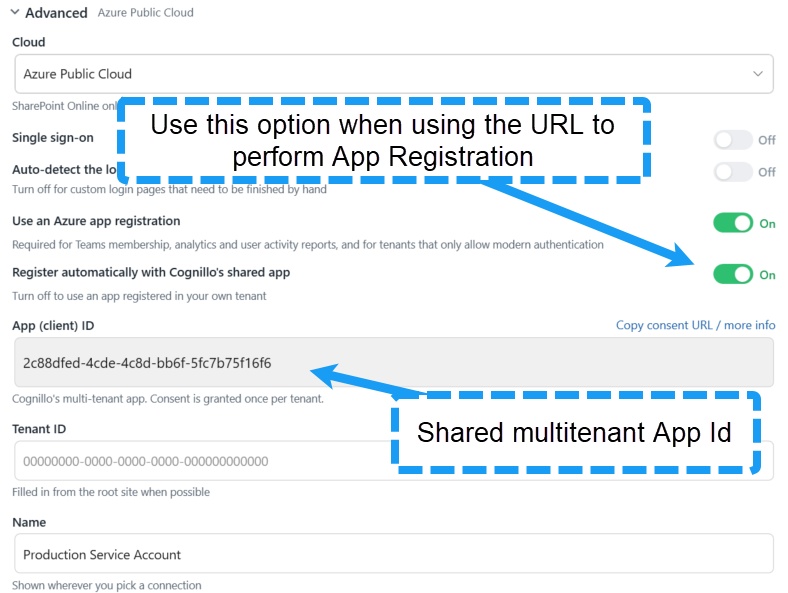
2027 shared-app connection settings (source guide, page 70).
3. Option B — create your own app
Sign in at portal.azure.com and open Microsoft Entra ID → App registrations → New registration.
Enter a name, such as SharePoint Essentials Toolkit, and choose Accounts in this organizational directory only for single-tenant use.
For browser authentication, select Public client/native (mobile & desktop) and add
http://localhostas the redirect URI, then register the app.Open Authentication. If necessary, select Add a platform → Mobile and desktop applications and add the custom redirect URI
http://localhost.Leave Allow public client flows set to No for the recommended browser setup. Set it to Yes only if deliberately supporting username/password authentication, which the source guide describes as the least-secure method and does not recommend.
Save any changes. From Overview, copy the Application (client) ID and Directory (tenant) ID. Do not substitute the Object ID.
Important localhost exception: use http://localhost, not HTTPS, for this desktop-app redirect. MSAL opens the system browser and receives the sign-in response on a dynamically assigned local port. This is not a web-app redirect or a public website URL. A certificate-only connection uses application authentication, not this browser flow.
4. Add API permissions and grant admin consent
Open the app registration's API permissions → Add a permission.
Select the correct API tile: Microsoft Graph, SharePoint, or Office 365 Management APIs.
Choose Delegated permissions for Web Browser sign-in, or Application permissions for Certificate sign-in. Add the exact permission names in the following tables for your connection and features.
Select Grant admin consent for [tenant] after adding or changing permissions.
Verify that the Status column shows Granted for [tenant] for the configured permissions.
The next two sections list the SharePoint connection permissions from the guide's permission matrix (pages 56–58). User Activity permissions are separate. Feature-specific permissions are identified so you do not confuse mail, label, or archive actions with standard sign-in.
5. Web Browser — delegated permissions
API tile | Delegated permission | Used for |
|---|---|---|
Microsoft Graph |
| User/group lookup for permission reports and directory search. |
Microsoft Graph |
| Site & Content Analytics; selected-file sensitivity-label and Microsoft 365 Archive actions. |
Microsoft Graph |
| Read Entra ID domain-group members for permission reports. |
Microsoft Graph |
| Site & Content Analytics features. |
Microsoft Graph |
| Core signed-in-user functionality. |
Microsoft Graph |
| Job-alert email sent as the signed-in user; needed when using this feature. |
Microsoft Graph |
| Job-alert email sent from a shared mailbox; needed when using this feature. |
Microsoft Graph |
| List sensitivity labels available to the signed-in user; needed for label features. |
SharePoint |
| Core functionality, limited to the signed-in user's existing SharePoint access. |
SharePoint |
| Core search functionality, listed in the permission matrix. |
SharePoint |
| Core managed-metadata functionality. |
SharePoint |
| Core SharePoint user-profile functionality. |
Label/archive alternative: the guide accepts delegated Microsoft Graph Sites.ReadWrite.All in place of Files.ReadWrite.All for these selected-file actions. Directory-search alternative: when maintaining permissions by hand, Microsoft Graph User.Read.All plus Group.Read.All also suffices for the directory people picker.
6. Certificate — application permissions
API tile | Application permission | Used for |
|---|---|---|
Microsoft Graph |
| User/group lookup for permission reports. |
Microsoft Graph |
| Site & Content Analytics reports. |
Microsoft Graph |
| Read Entra ID domain-group members. |
Microsoft Graph |
| Site & Content Analytics features. |
Microsoft Graph |
| Core user functionality; application equivalent of delegated User.Read. |
Microsoft Graph |
| Additional application permission specified for sensitivity-label actions and Send to Microsoft 365 Archive. |
Microsoft Graph |
| List available sensitivity labels for app-only label features. |
SharePoint |
| Core app-only SharePoint functionality. |
SharePoint |
| Core managed-metadata functionality. |
SharePoint |
| Core SharePoint user-profile functionality. |
Check the API tile as well as the name: Microsoft Graph and SharePoint have separate permissions. The correct SharePoint application spelling is Sites.FullControl.All (one “l” in Control); the source matrix contains a typo. Do not use delegated AllSites.FullControl for a certificate connection.
The summary screenshots on pages 59–60 do not include every permission in the feature matrix: for example, the delegated screenshot omits Sites.Search.All, and the certificate screenshot omits the additional Sites.ReadWrite.All requirement described for label/archive actions. Use the tables and feature notes above rather than treating those screenshots as a complete checklist.
7. Update an existing registration for 2027 features
You do not need a duplicate app registration. Add missing permissions to your existing registration and grant admin consent again.
The updated AzureAppRegistrationModernAuth.ps1 script can update an existing app in place. It adds delegated Microsoft Graph Mail.Send, Mail.Send.Shared, Files.ReadWrite.All, and InformationProtectionPolicy.Read. Directory search uses the Directory.Read.All and Group.Read.All permissions the script already granted.
The script configures delegated permissions only. For certificate connections, add application equivalents manually, including Sites.ReadWrite.All and InformationProtectionPolicy.Read.All for the new label/archive features. Use the script supplied with the application download, or ask Cognillo support for the current package.
These selected-item actions use Microsoft Graph and require Azure App Registration enabled on the connection.
Apply/remove sensitivity labels acts only on files you select in Content Search or Item Inventory. Removing a label is not tenant-wide label removal.
Applying/removing a sensitivity label is a metered Graph API. Link the app registration to an Azure subscription and enable Metered APIs and services in Microsoft Graph; otherwise the action fails with a payment-required error.
Send to Microsoft 365 Archive also requires Archive enabled in the SharePoint admin center and a pay-as-you-go billing policy connected in the Microsoft 365 admin center.
Without new consent, affected actions report permission errors on the selected items; the remainder of the toolkit continues working. Directory search falls back to the SharePoint people picker.
8. Connect the toolkit to your own registration
Open Connections → New connection, select SharePoint sites & content, and enter the SharePoint tenant root URL, not the admin-site URL.
Choose Web Browser for delegated authentication or Certificate for application authentication.
For browser sign-in, expand Advanced, choose the correct Cloud, and enable Use an Azure app registration.
Turn Register automatically with Cognillo's shared app Off for your own registration.
Enter your App (client) ID and Tenant ID. For Certificate sign-in, select the private-key
.pfxcertificate file and enter its password.Name the connection and use Test and save in the 2027 interface. Some text in the source guide calls this “Test Login”; the current screenshots show “Test and save”.
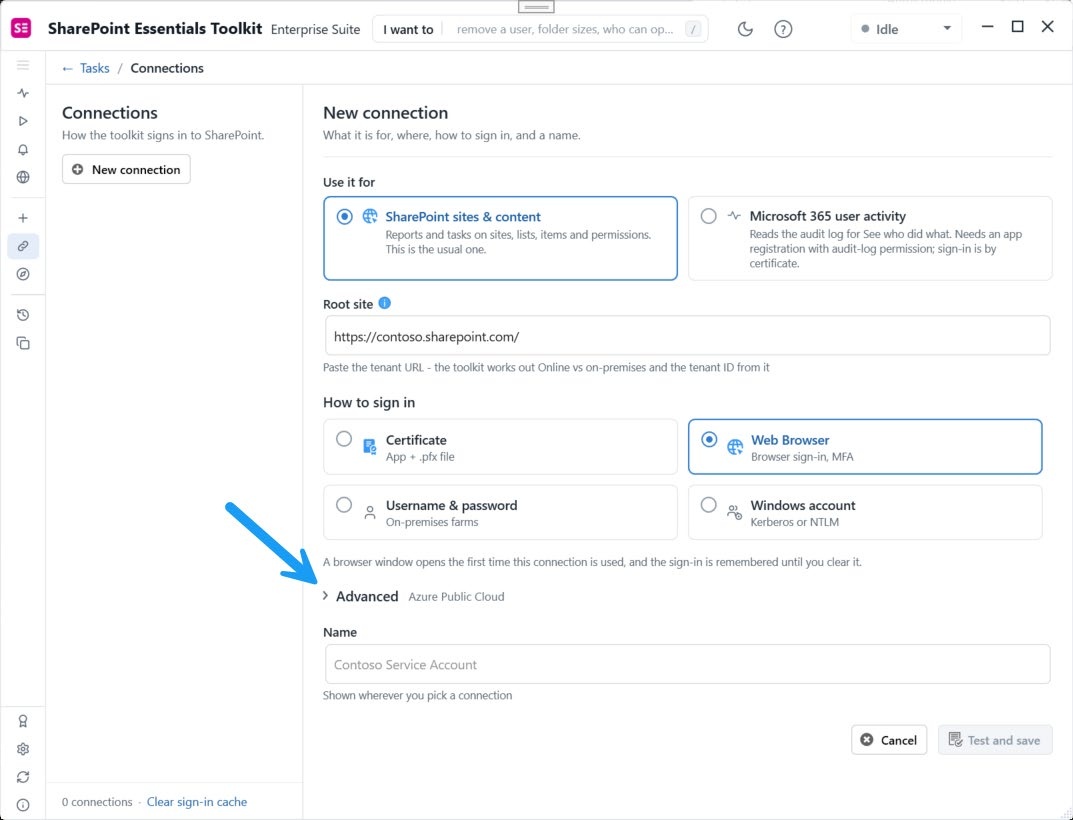
2027 browser connection and root-site settings (source guide, page 69).
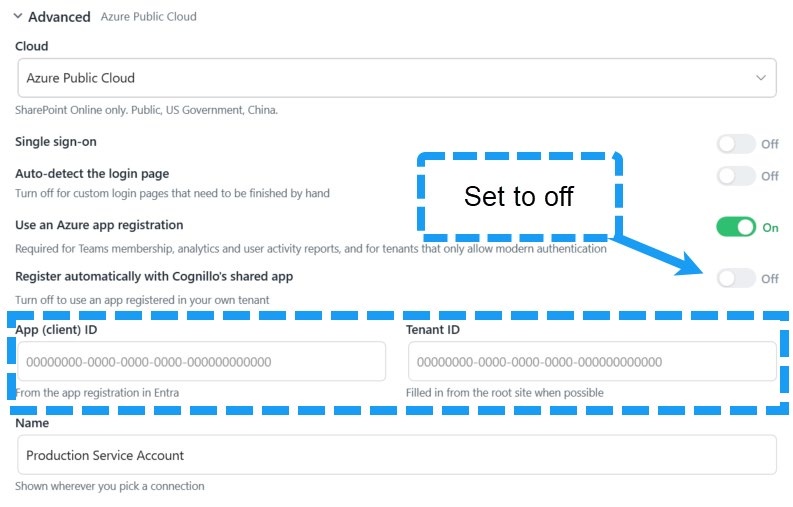
Own-app registration: disable the shared-app option and enter your IDs (source guide, page 72).
9. Configure a certificate
Obtain a certificate through your organization's certificate-management process. The guide provides a self-signed script suitable for testing, not recommended for production.
Open your app registration's Certificates & secrets → Certificates → Upload certificate. Upload the public certificate and verify it appears in the list.
Add the required Application permissions, not Delegated, and grant admin consent.
In the toolkit's certificate connection, select the corresponding .pfx file with private key and supply its password.
Certificate authentication can help scheduled jobs avoid interactive user prompts and user-token expiry issues. It does not restrict access to the user's personal SharePoint permissions: the app's assigned access applies. Follow your organization's certificate expiry, renewal, rotation, and revocation procedures. Never include private keys or passwords in support tickets.
10. Governance & Microsoft 365 user activity
Create an additional user-activity connection alongside your SharePoint sites/content connection. In the current 2027 interface, its “Use it for” option is named Microsoft 365 user activity; the guide also refers to it as “SharePoint User Activity Services”. It uses Certificate authentication, not Web Browser sign-in.
API tile | Permission type | Permission | Purpose |
|---|---|---|---|
Office 365 Management APIs | Application |
| Required for Governance & User Activity audit events, including content changes, downloads, sharing and permission changes. |
Microsoft Graph | Application |
| Optional for sign-in activity reports described as a future feature; not a prerequisite for standard User Activity. |
Microsoft Graph | Application |
| Optional for a future update/release; not required for standard User Activity. |
Use your own app registration and upload its public certificate. You may reuse the SharePoint registration or create a separate activity registration.
Add Office 365 Management APIs → Application permissions → ActivityFeed.Read, then grant admin consent.
In the toolkit, open Connections → New connection and select Microsoft 365 user activity.
Enter the SharePoint tenant URL, select the certificate
.pfxfile, enter its password, and enter the App (client) ID and Tenant ID.In Advanced, select the correct Cloud, name the connection, and select Test and save.
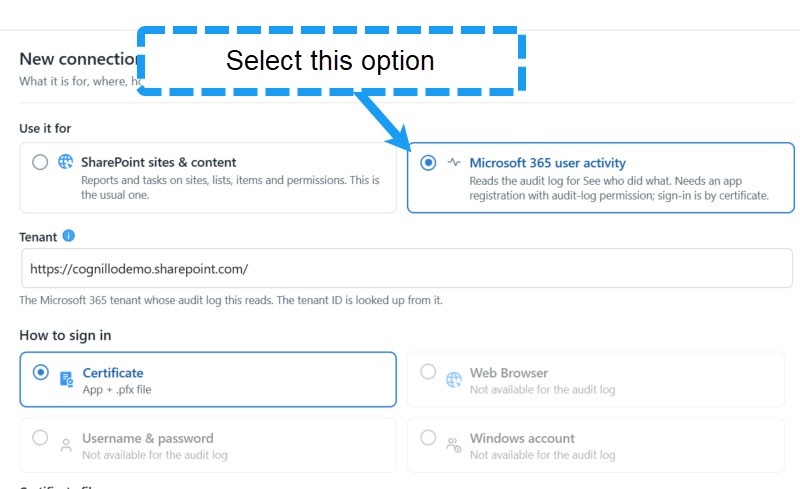
Select Microsoft 365 user activity for the additional connection (source guide, page 79).
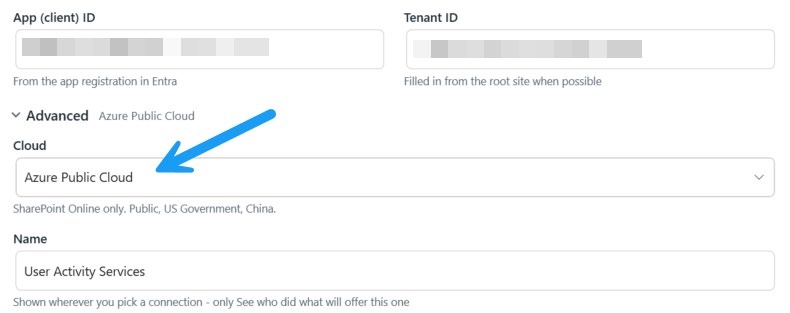
Check the cloud for your activity-service connection (source guide, page 81).
Supported environments: SharePoint Online public cloud, US Government L4, US Government L5 (DOD), and China operated by 21Vianet. SharePoint on-premises is not supported for these activity services.
Licensing and retention: the guide lists Microsoft Purview Audit (Standard) with up to 180 days of report activity, and Audit (Premium) with up to one year. Actual availability depends on your Microsoft 365 licensing, audit configuration, and retention policies. The toolkit filters activity results to sites where the user has at least Read access at site level.
11. Troubleshooting and source guide
Consent or access denied: check the correct API tile, Delegated versus Application type, exact permission spelling, and Granted status. Grant consent again after permission changes.
Browser sign-in redirect failure: confirm the Mobile and desktop platform uses
http://localhost, not HTTPS.Wrong tenant or cloud: verify the tenant root URL, Tenant ID, App (client) ID, and Cloud selection. Do not use the SharePoint admin URL or app Object ID.
User Activity unavailable: confirm the additional Microsoft 365 user activity connection has a certificate and application
ActivityFeed.Readconsent under Office 365 Management APIs.Label/archive payment error: verify the metered Graph subscription or Archive billing requirements; additional API consent alone is not sufficient.
View the supplied 2027 Installation & Deployment Guide (October 1, 2026). For help, create a support ticket with the permission name and error message, but no private keys or passwords.