What "Stale - link removed" Means in a Sharing Links Report
Published:
Last updated: 2026-11-12
Stale - link removed means a SharePoint sharing link was deleted, but the hidden group it created still grants access. Learn why and how to remove it.
When you run a Sharing Links or Permissions report in SharePoint Essentials Toolkit, some rows may be labeled Stale - link removed. The label means that someone still has access through a sharing link that no longer exists. SharePoint doesn't show this access anywhere, so the report flags it.
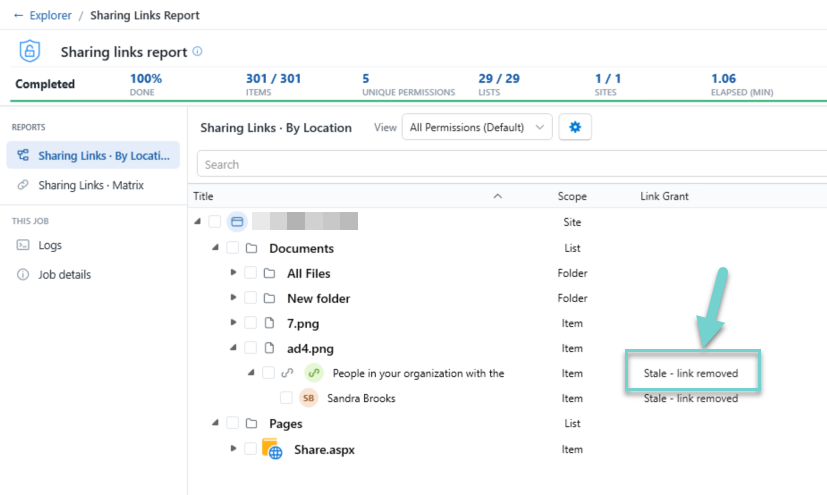
How sharing links grant access
Each time a sharing link is created in SharePoint or OneDrive, SharePoint also creates a hidden SharePoint group behind the scenes, with a name like:
SharingLinks.{item id}.OrganizationView.{link id}
The people the link was shared with, and in some cases people who opened it, are added to this group. The group is then given permission on the shared file or folder. The access comes from the group, not from the link.
How a grant becomes stale
Removing a sharing link should also remove the access its hidden group grants. That doesn't always happen:
The group's permission stays on the item. The link is deleted, but its hidden group still has permission on the file or folder.
Copies stay on items below a shared folder. If a file or subfolder inside a shared folder was later given its own permissions, SharePoint copies the parent's permissions onto it, including the hidden link group. When the link is removed, SharePoint cleans up the folder where the link was created but can leave the copies behind.
Either way, the people in the hidden group keep their access.
Why SharePoint doesn't show it
If you open Manage Access on the item, you'll see "A sharing link hasn't been created for this file yet." That's correct, because the link is gone. But Manage Access doesn't show hidden sharing-link groups, so nothing there tells you that someone still has access.
You can sometimes see it on the item's classic Advanced permissions page. It appears under "Users who have permission through a sharing link."
How the report detects it
For each hidden sharing-link group that has permission on an item, the report:
Reads which item the link was originally created on from the group's name.
Asks SharePoint for that item's current sharing links.
Compares what it finds with the group:
| What the report finds | Label |
|---|---|
| The link exists and is active | Active link, or Inherited copy |
| The link exists but has expired | Stale - link expired |
| The link no longer exists | Stale - link removed |
| The original item no longer exists | Stale - shared item gone |
| The link couldn't be checked | Not verified |
In the report, the people under a stale link are marked Orphaned access, so you can see at a glance who still has access that nothing in SharePoint accounts for.
What you should do
Treat these rows as access you can't otherwise see. Review who is listed under the stale link. In most cases nobody intended them to keep that access.
Removing the stale entry in SharePoint Essentials Toolkit deletes the leftover hidden group, which removes its permissions everywhere it was applied. After that, the item's access matches what its owners see in SharePoint.
Summary: "Stale - link removed" means the sharing link is gone, but the access it granted is still there. SharePoint doesn't show it, and SharePoint Essentials Toolkit finds it so you can remove it.
Related: Sharing Links Report. Need help? Submit a ticket.