SharePoint Governance: Practical Checks, Purview Audit Searches, and Reports
Last updated: 2026-10-19
A practical SharePoint governance guide with Microsoft Purview audit searches, CSV exports, current permissions reports, and owner-reviewed actions.
SharePoint governance connects site ownership, access rules, sharing, content lifecycle, and evidence of activity. Use Microsoft Purview Audit to investigate what happened, native SharePoint administration to apply policy, and SharePoint Essentials Toolkit reports to inspect current permissions and sharing links, while its Monitoring feature keeps watching for deletions, permission changes, and new sharing links. Combine these sources into an owner-reviewed action list rather than treating any single report as the complete answer.
This guide shows how to turn governance questions into useful searches and reports. Purview steps apply to SharePoint Online in Microsoft 365; they do not describe an on-premises SharePoint audit-log workflow. Examples below are investigation templates, not evidence from your organization.
What should a practical SharePoint governance plan contain?
A practical plan identifies who owns each site, which audiences may use it, how sharing is approved, how content is retained, and who reviews exceptions. Keep the plan short enough to use. Governance includes connected Microsoft 365 groups and Teams, not just isolated SharePoint settings, because membership and lifecycle decisions can affect several services together.
| Decision | Evidence | Accountable reviewer |
|---|---|---|
| Site purpose and ownership | Site inventory and owner confirmation | Business owner |
| Internal and external access | Permissions and sharing-link reports | Owner with IT/security |
| Suspicious or unexpected activity | Purview audit events | Authorized investigator |
| Retention and retirement | Applicable retention requirements and approved lifecycle decision | Records/compliance team and owner |
| Remediation completed | Approved action and fresh validation report | Responsible administrator |
Start with a small set of important sites. Record the business purpose, owner and backup contact, allowed audience, external-sharing requirements, sensitivity, review date, and retirement criteria. These are suggested governance fields, not mandatory Microsoft settings. Microsoft's SharePoint governance overview explains the broader responsibilities.
Which report answers which SharePoint governance question?
Use an audit search for historical events and a permissions report for current access. A record that someone created a sharing link last month does not prove the link still works today. Likewise, a permissions snapshot does not establish who changed access last week. Retention policy configuration is another separate source: it governs lifecycle, not a complete history of user actions.
| Question | Best starting point | What it does not prove |
|---|---|---|
| Who shared or deleted this file? | Microsoft Purview Audit for history; the SharePoint Essentials Toolkit Monitoring feature also tracks deletions, bulk deletions, and permission changes over time | Current effective access or malicious intent |
| Who can access these libraries now? | SharePoint permissions controls and the SharePoint Essentials Toolkit Permissions Report | Historical changes |
| Which links need review? | SharePoint Essentials Toolkit Sharing Links report | Who actually used every link |
| Which sites may be overshared? | SharePoint Data access governance reports where licensed; scoped SharePoint Essentials Toolkit access review | Business approval for every grant |
| May this site be deleted? | Owner, legal/records approval, and applicable retention or hold settings | Inactivity alone is not deletion authorization |
How do you prepare to search Microsoft Purview audit logs?
Confirm audit availability, investigator permissions, and the time period you need before starting. Purview Audit Reader or Audit Manager role groups contain the View-Only Audit Logs or Audit Logs permissions used for portal searches. Choose read-only access when it meets the task. Having SharePoint administrator access alone is not a substitute for the required audit permissions.
- Open Microsoft Purview and go to Solutions → Audit.
- If Audit is unavailable, ask your Microsoft 365 administrator to verify licensing, role assignments, and audit ingestion.
- Write down the investigation question, relevant site/file URL, actor if known, and start/end times.
- Convert incident times to UTC and include a sensible buffer before and after the event.
- Start with a narrow search, then broaden one filter at a time if necessary.
Audit is enabled by default for most eligible Microsoft 365 organizations, but verify your tenant rather than assuming coverage. An administrator can check ingestion in Exchange Online PowerShell with Get-AdminAuditLogConfig | Format-List UnifiedAuditLogIngestionEnabled. This is a configuration check, not a command that exports audit records. Microsoft notes that running it in Security & Compliance PowerShell can show a misleading False value. Microsoft: audit search prerequisites and steps.
How do you search SharePoint activity in Microsoft Purview?
Create a search with a descriptive name, UTC dates, and the relevant activities, actors, or workload filters. Let the background search finish, then inspect records before exporting. Avoid stacking too many filters in your first attempt. A blank result can mean the wrong actor, time window, workload, ingestion delay, retention boundary, or an activity that was not captured.
- In Audit → Search, enter a search name such as
Finance-sharing-review. - Set Start and End in UTC. Use smaller date ranges for large investigations.
- Choose the relevant SharePoint activities. Use the workload filter where appropriate; keep it broad if the change may involve Microsoft 365 groups, Teams, or directory activity.
- Filter Users when you know the actor. The person receiving access may be a target in the record rather than the actor.
- Use available file, folder, or site filters to narrow the scope. Check the field's supported matching behavior rather than assuming every URL substring is a wildcard.
- Start the search and wait for it to complete. The job continues if you close the browser.
- Open a matching record to inspect the operation, actor, time, object, and activity-specific details.
Portal labels and available activities can vary. Use Microsoft's audited activities reference to interpret the operation rather than guessing from a friendly label. If a site-specific search is empty, repeat a short search without the site filter and inspect the object paths that are actually recorded.
Which audit searches produce useful governance reports?
Build a separate report for each decision rather than exporting every activity at once. Sharing reviews need sharing-related events and target information; deletion investigations need file or folder deletion events; user reviews need a known actor and limited period. Treat the results as evidence to investigate, not an automatic risk score or a complete inventory of access.
| Report | Search recipe | Review output |
|---|---|---|
| Sharing activity | Recent UTC window; relevant sharing invitation, sharing/link creation, and access-change activities; site scope if supported | Time, actor, operation, object URL, target, link details where recorded |
| File changes and deletions | Incident window; relevant file modification, deletion, or recycle activities; known file or actor | Chronological event list for the object; verify actual file state separately |
| Known user's activity | Users filter for the actor; focused UTC window; relevant SharePoint activities | Actions performed by that identity, not every action affecting that identity |
| Access-change investigation | Relevant permission/sharing activities; expand beyond SharePoint if access changed through group membership | Event evidence plus a fresh current-access report |
Example: for an unexpectedly shared Finance document, search a short window for sharing-related activities. Inspect UserId for the actor and, when present, TargetUserOrGroupName and TargetUserOrGroupType for the recipient. Then inspect current SharePoint access and the SharePoint Essentials Toolkit sharing-link report to determine what remains exposed. Not every event has every field. Microsoft: interpreting sharing audit records.
How do you export Purview audit results and make a readable report?
Export completed search results to CSV, preserve the original, and transform a working copy into a readable table. AuditData is JSON inside a CSV field; it is not an ordinary set of spreadsheet columns. Parse it before summarizing actors, operations, targets, and URLs. Check export limits and counts so a successful download is not mistaken for a complete investigation.
- Open the completed audit search and select Export to download the results CSV.
- Store the original securely and note the search name, filters, UTC interval, export date, and reported result count.
- In Excel, use Data → Get Data → From File → From Text/CSV, then select Transform Data.
- Select the
AuditDatacolumn in Power Query and use Transform → Parse → JSON. Expand the resulting records into the fields you need. - Keep time, actor, operation, and object fields. Expand sharing targets where present; field names and availability vary by activity.
- Load a review table and build a PivotTable by operation and actor, or filter to the object being investigated.
- Add a separate decision column: expected, needs owner confirmation, or escalated. Preserve the raw event evidence alongside the summary.
Optional Power Query method: if JSON parsing is not available in the menu, add a custom column using try Json.Document([AuditData]) otherwise null, then expand it. Inspect parse failures rather than silently dropping them. Do not split AuditData on commas; commas also occur inside its JSON structure.
Microsoft documents export limits of 50,000 records for Audit Standard and 1,000,000 for Audit Premium per export. Split larger searches by non-overlapping intervals or other criteria and reconcile result counts. Preserve record identifiers to identify duplicates when combining exports. Counts of events are not automatically counts of distinct files or people. Microsoft: export audit records and parse AuditData.
How far back can you search, and why might events be missing?
Audit coverage depends on licensing, event type, retention policies, ingestion, and the dates involved. Audit Standard generally retains records for 180 days. Premium supports longer retention for eligible workloads and appropriately licensed users; do not promise a year of every event for every identity. Events may also take time to appear, so absence is not proof that nothing happened.
Check the tenant's actual configuration and applicable user licenses before an investigation. Premium can provide one-year retention for eligible Microsoft Entra, Exchange, SharePoint, and OneDrive records; longer options require additional licensing and policies. Buying a license later does not recreate already expired audit history. Audit retention is separate from SharePoint content retention: retaining a document does not automatically retain its audit events for the same period.
For empty results, verify UTC conversion, actor-versus-target identity, activity selection, and ingestion; widen the scope carefully and allow for processing delay. Sources: audit setup and licensing and Standard and Premium capabilities.
How does SharePoint Essentials Toolkit complement Purview?
SharePoint Essentials Toolkit helps review current permissions, sharing links, and site/list inventory across selected sites. Purview supplies historical audit evidence. Use both when resolving a governance finding: establish what changed, inspect who can access the content now, and verify the approved outcome. SharePoint Essentials Toolkit is not a substitute for Purview retention, legal holds, or Microsoft compliance policies.
For ongoing oversight between reviews, use the Toolkit's Monitoring feature. It watches selected sites and records who did what and when — including file deletions and bulk deletions, permission changes and who changed permissions, site administrator changes, downloads, external sharing, and new Anyone links. It can also monitor storage increases and flag content and sites left open to everyone, and each area has its own report for owner review. Monitoring answers “who shared or deleted this file?” without waiting for a new audit search, while Purview remains the deeper historical source.
- Select the review scope in SharePoint Essentials Toolkit.
- Run a Permissions Report to review permission levels, inheritance, and granted-through access.
- Run a Sharing Links report to review existing links and their available scope, creator, and expiration details.
- Turn on Monitoring for important sites so deletions, bulk deletions, permission changes, and new sharing links are tracked over time; each area has its own report.
- Export the results for the site owner. Keep current-state exports separate from the Purview event CSV.
- Match findings by object URL and account where possible; preserve timestamps because the reports describe different points in time.
- Approve remediation, apply only authorized changes, and run the same current-state reports again.
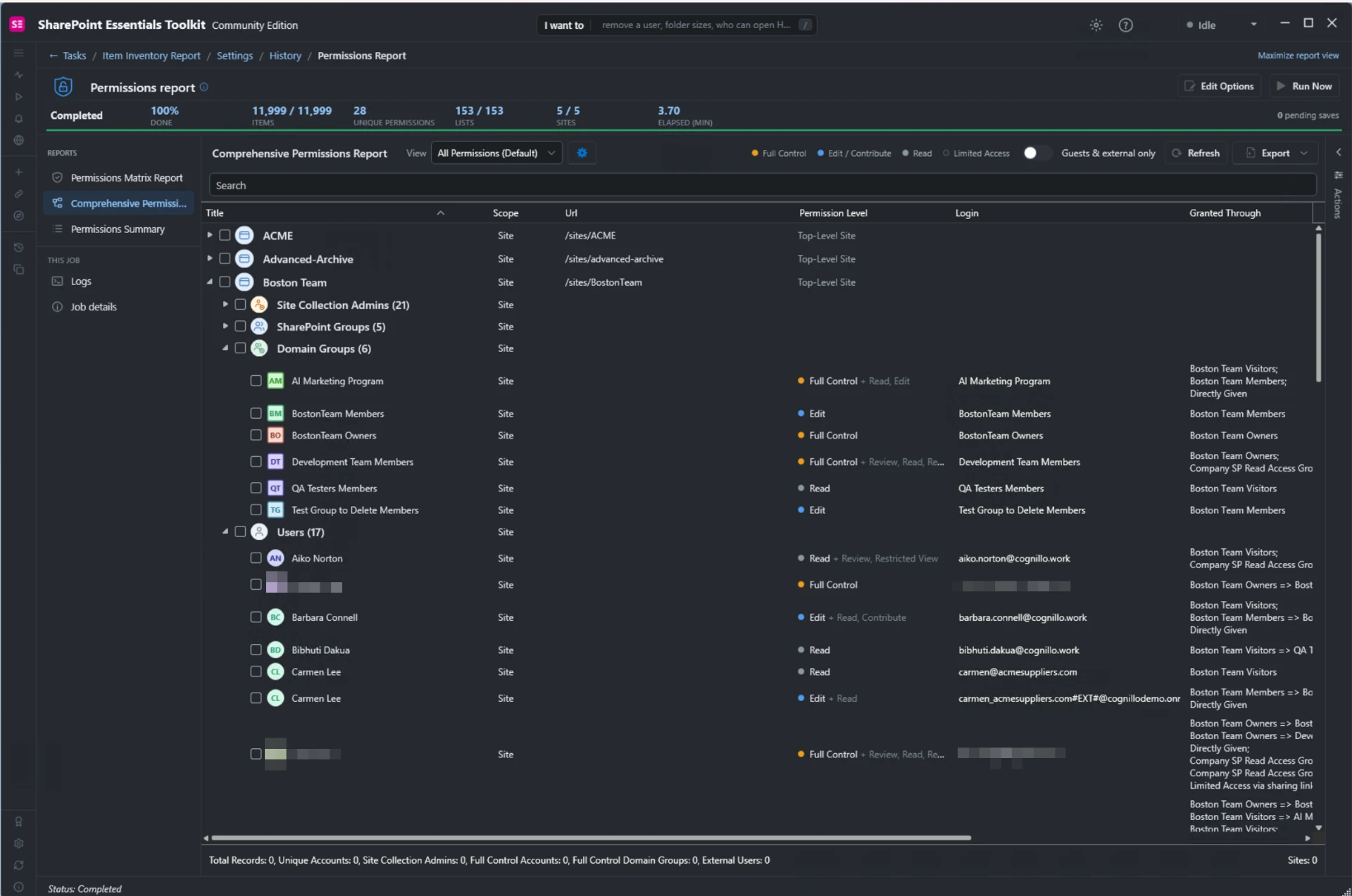
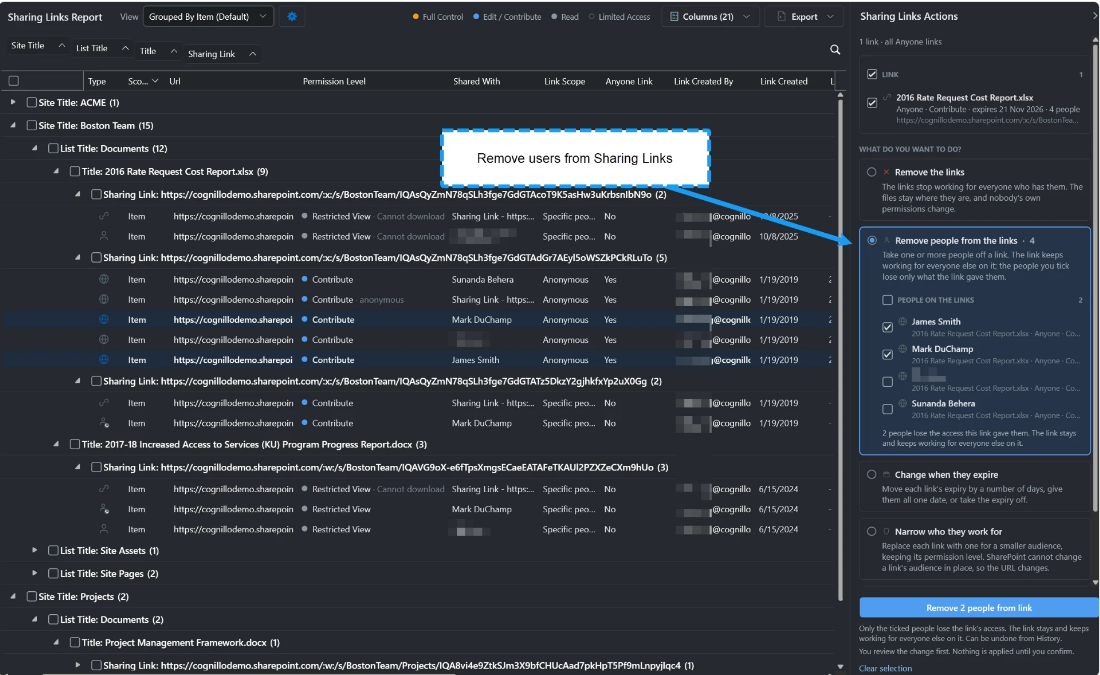
The Community Edition is free and never expires. Available read-only reports run at full depth without row, item, or user caps within its 20-site-collection allowance per tenant, shared across Community keys. Subsites share their collection count; the first report/task or qualifying Explorer change counts a collection permanently. Scheduled reports are included within that allowance; remediation capabilities have separate edition limits. See the product comparison.
What other native SharePoint governance reports are available?
Where your licensing permits, SharePoint's Data access governance reports can highlight potentially overshared or sensitive sites. They are accessed in the SharePoint admin center under Reports, not in Purview Audit. Available snapshots, activity reports, and remediation options depend on your SharePoint Advanced Management or other qualifying entitlements. Check the prerequisites before designing a process around them.
As a SharePoint administrator, open SharePoint admin center → Reports → Data access governance and review the reports offered to your tenant. Microsoft documents different access for E5-only reporting and SharePoint Advanced Management; do not assume E5 includes every snapshot or corrective control. Microsoft: Data access governance reports.
How do you turn governance findings into approved action?
Route each finding to an accountable owner with the evidence and a specific decision. Confirm legitimate external collaboration before restricting it; confirm retention and hold requirements before retiring content. After a change, validate current access and save the outcome. A recurring review is a process you schedule and own—not proof of compliance or a guarantee that every risk is detected.
- Sharing finding: confirm business purpose, restrict or revoke approved links, and check other access paths.
- Permission exception: compare against our permissions best-practices checklist once published, document the decision, and verify the user's intended access.
- Inactive site: ask the owner whether it is still required and involve records/legal teams before deletion.
- Suspicious activity: preserve audit evidence and escalate through your security process; a file-access event alone does not prove exfiltration.
Start with one governance question and one scoped report. For current-access reporting, follow our permissions reporting walkthrough or the free Community Edition guide. Keep the findings small enough that owners can actually resolve them.