SharePoint Permissions Best Practices: A Practical Audit and Cleanup Checklist
Last updated: 2026-10-19
A practical SharePoint permissions checklist: groups, permission levels, inheritance, sharing links, native checks, and free toolkit reports.
SharePoint permissions best practices start with predictable group-based access, appropriate permission levels, controlled sharing, and regular reviews. Establish who should have access, inspect how that access is granted, and document approved changes. Use native SharePoint controls for targeted checks and SharePoint Essentials Toolkit reports to review access across sites, lists, libraries, folders, and files.
This checklist is for administrators and site owners who need evidence they can act on—not just a list of security slogans. It focuses on current access; for historical investigations, see our SharePoint governance and Microsoft Purview audit reporting guide.
1. Which groups should you use to manage SharePoint permissions?
Use the associated Microsoft 365 group or Teams membership for group-connected team sites, and the SharePoint Owners, Members, and Visitors groups for communication sites. Avoid using individual grants as your default access model. Private and shared channel sites have distinct membership rules, so manage their membership through Teams rather than treating them like ordinary communication sites.
- Identify whether the site is a communication site, a group-connected team site, or a Teams channel site.
- Open the site's Settings → Site permissions to review the access model.
- For a group-connected site, review owners and members in the associated Microsoft 365 group or Teams team.
- For a communication site, review the SharePoint groups and their permission levels.
- Record direct assignments that need owner review before replacing them with approved group access.
Evidence to keep: site URL, group name, owner, intended audience, and exceptions. Do not assume joining a hub automatically grants access to every associated site. Microsoft: sharing and permissions in the modern experience.
2. How do you choose the right SharePoint permission level?
Match permissions to the work people actually do. Read is appropriate for readers; Contribute lets users work with documents and list items; Edit also permits managing lists. Full Control is for trusted people responsible for administering the site. Use default permission levels where practical, and document any custom levels so reviewers understand what they allow.
| Level | Typical purpose | Review question |
|---|---|---|
| Read | View content | Does this audience need to change anything? |
| Contribute | Add, edit, and delete items and documents | Is content editing enough without list administration? |
| Edit | Edit content and manage lists | Should these members be able to alter list structure? |
| Full Control | Administer the site | Is this person an accountable owner or administrator? |
Default settings and custom levels can differ between sites. Inspect the actual permissions rather than relying on a label alone. In advanced permissions, review Permission Levels before changing a group. Agree any change with the site owner and test a representative account. Microsoft: understanding permission levels.
3. How do you find direct grants and broken permission inheritance?
Start with a permissions report that identifies where access comes from and where content stops inheriting from its parent. Unique permissions are not inherently wrong: a confidential folder may need them. The problem is unexplained exceptions. Review direct assignments and unique scopes against an approved business reason before removing access or restoring inheritance.
- Select an in-scope site in SharePoint Essentials Toolkit and open Permissions → Permissions Report.
- Choose the report scope and options, including the relevant lists, libraries, folders, and items; run the report.
- Review permission levels, inheritance, and granted-through details.
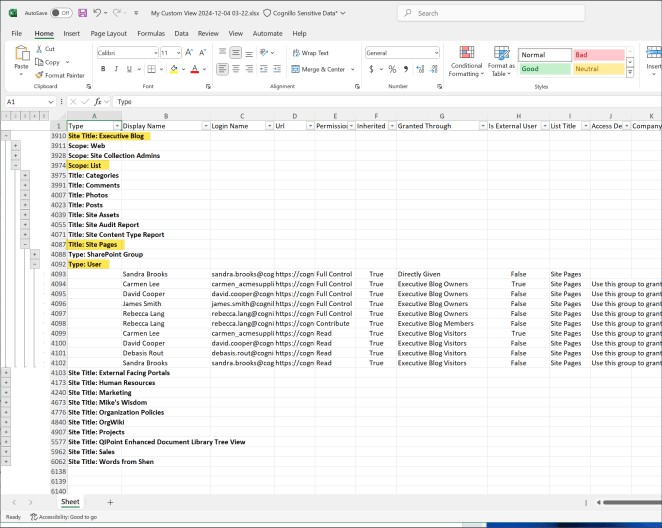
- Export the results and assign exceptions to the responsible site owner.
- For a single item, open its SharePoint Manage access panel to inspect links and direct access. Use advanced permission settings where available for inheritance details.
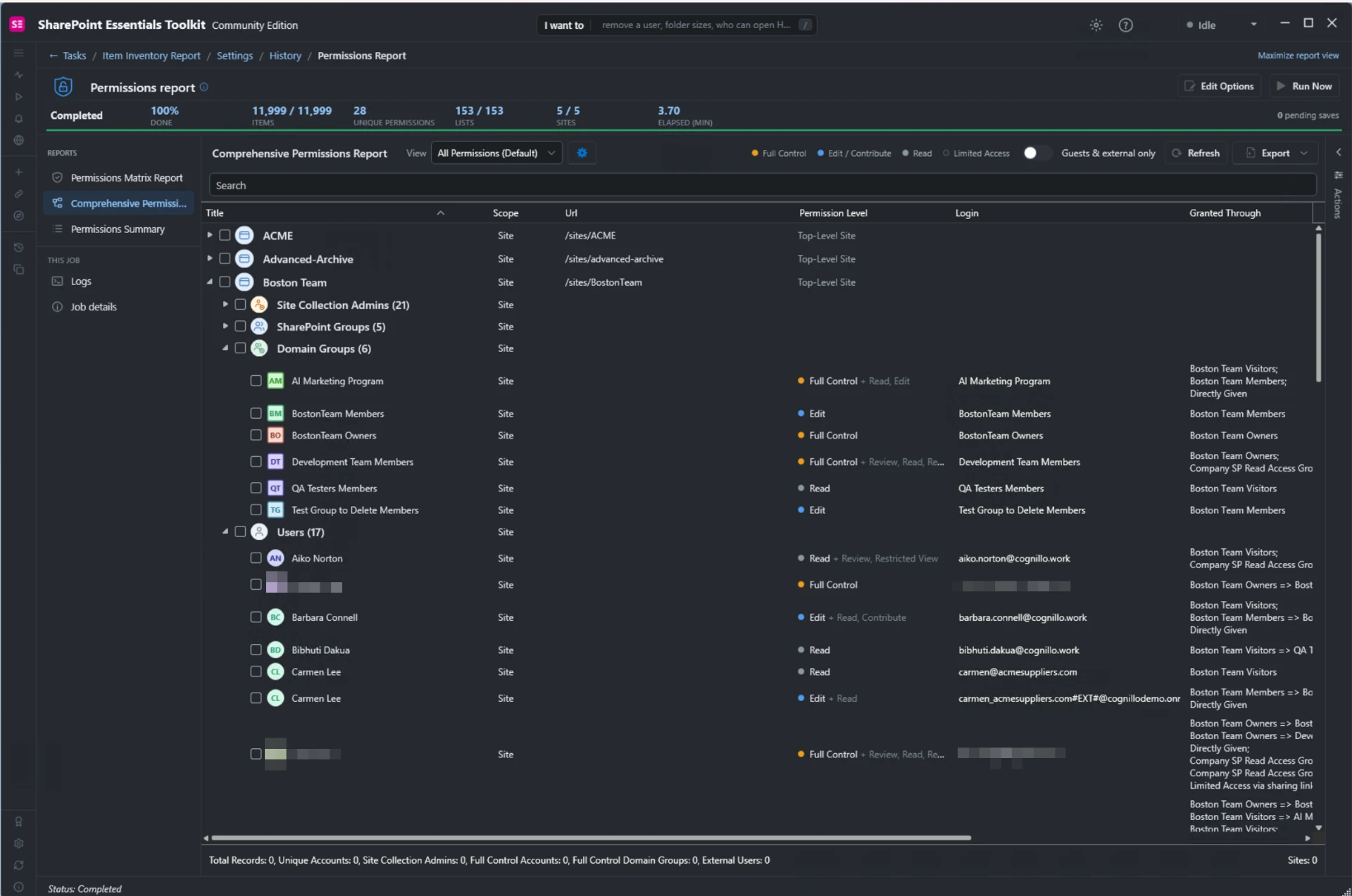
Important: restoring inheritance can remove legitimate unique grants and grant access to the parent's wider audience. Export the before-state, obtain approval, and verify the after-state. For a detailed walkthrough, read who can access what in SharePoint. For very large scopes, use our large-library permissions reporting guide.
4. Is Limited Access a permissions problem?
Limited Access is normally a supporting permission that lets a person reach a specific item without granting full access to the entire site or library. It can be created automatically when someone receives access to content below a parent scope. Do not treat every Limited Access entry as oversharing or remove it without checking the underlying item-level grant.
When you find it, trace the access to the specific folder, file, or item, confirm whether the grant is still needed, and correct the underlying sharing or permission assignment if appropriate. Review effective access again afterward. Microsoft's permission-level reference explains the purpose of Limited Access.
5. How should you review external sharing and sharing links?
Review both the site's sharing policy and the links that already exist. A policy determines what sharing is allowed; a link inventory shows the access paths reviewers need to evaluate. Check link scope, read or edit rights, creator, and expiration where available. An external grant or Anyone link needs context and approval, not an automatic assumption of misuse.
- As a SharePoint administrator, open SharePoint admin center → Active sites and select the site.
- Open Settings → More sharing settings and review the external sharing option and applicable domain restrictions.
- Check the related Microsoft Entra guest settings and Microsoft 365 group or Teams guest settings as applicable.
- Run the toolkit's Sharing Links report for the review scope.
- Send questionable links to the content owner with a keep, restrict, or remove decision.
The site setting cannot be more permissive than the organization setting. Site owners cannot change the administrator-level external sharing policy. Microsoft: change site external sharing settings.
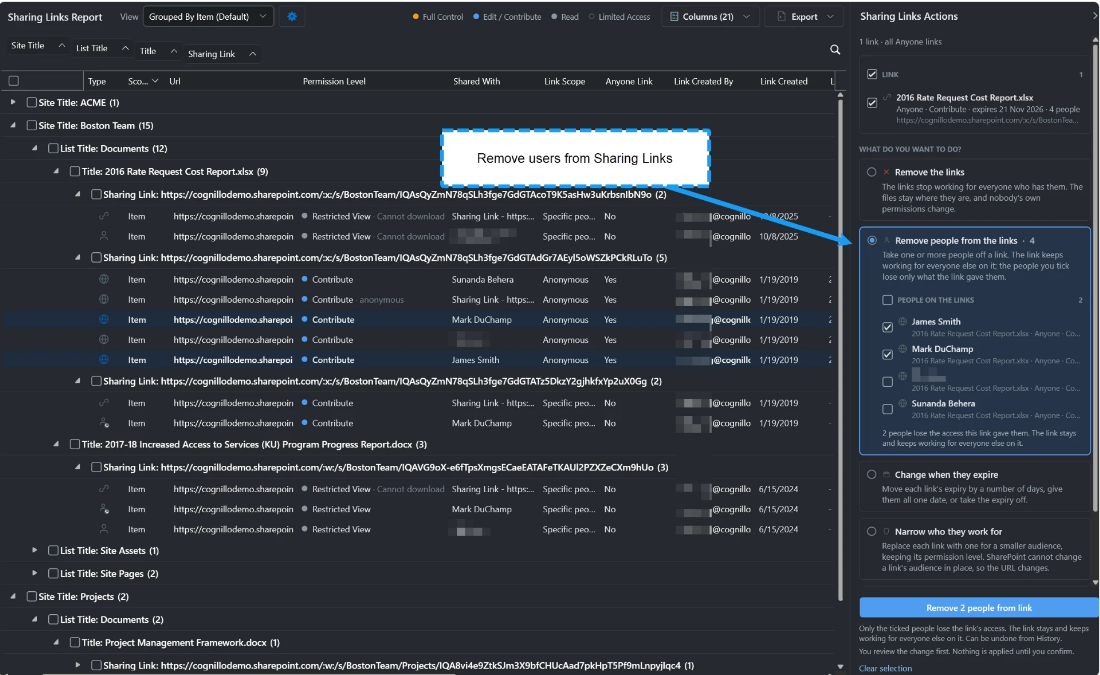
Prefer specific-person sharing where appropriate, use the least access needed, and remove expired business access after approval. Revoking one link may not remove direct access or access through another group or link; check all relevant paths.
6. How do you check a person's access without guessing?
Combine a targeted native check with a report of the relevant content. SharePoint's Check Permissions feature is useful for understanding a person's access at a selected scope, but a site-level result is not a complete inventory of every uniquely secured file. When investigating a user, review the places they can access and the routes through which access is granted.
- Open Settings → Site permissions → Advanced permissions settings, where available.
- Select Check Permissions and enter the person's account.
- Inspect the returned permissions and groups for that scope.
- For a particular document, review Manage access on the document as well.
- Use the toolkit report and export for broader evidence across the selected content.
Allow for membership changes and synchronization, and test with the user's own session rather than an administrator's session. Never ask a user to share their password.
7. What should a permissions review deliver?
A useful review ends with decisions, owners, and verified changes—not just a spreadsheet. Keep the original report, a list of exceptions, each owner's approval, and a fresh report after remediation. Store reports securely because they can expose account names, site paths, and sensitive access relationships. Choose a review schedule based on risk and actual business changes.
| Finding | Decision to record | Verification |
|---|---|---|
| Direct user grant | Keep with justification or replace with approved group access | User has intended access through the approved route |
| Unique folder permissions | Keep isolation or restore inheritance after approval | Parent and child access match the approved design |
| Broad sharing link | Keep, restrict, or revoke | Link state and other access paths checked |
| Unnecessary Full Control | Reduce rights with owner approval | Administration remains possible for accountable owners |
Can you perform SharePoint permissions reviews for free?
Yes. The SharePoint Essentials Toolkit Community Edition is free and never expires. Its available read-only reports run at full depth, without row, item, or user caps, within a 20-site-collection allowance per tenant. The tenant allowance is shared across Community keys; subsites share their collection's count. Reporting access does not imply unlimited remediation actions.
A collection counts permanently when its first report or task runs, or an Explorer change consumes it; discovery and connection testing do not count. Community also supports scheduled reports within the allowance. Read the edition comparison on the SharePoint Essentials Toolkit product page before planning changes: editing capabilities and limits differ by edition.
Next step: establish a small, reviewable baseline
Choose one important site, document its intended audience, run a permissions and sharing-link review, and resolve a manageable set of approved exceptions. Re-run the same scope to verify the result. Use our free permission reporting guide to get started, then expand the process with named owners and retained evidence.