SharePoint Permissions Reports for Large Libraries: 1 Million+ Files
Last updated: 2026-10-16
Audit permissions and sharing links in large SharePoint libraries and lists. Tested on million-plus-file libraries, with practical scan planning and export guidance.
A permissions report for a large SharePoint library needs to cover more than the library’s top-level access. You need to understand unique file and folder permissions, group membership, and sharing links—and export evidence that reviewers can actually use.
SharePoint Essentials Toolkit has been tested on libraries containing more than one million files and can handle permissions reporting at that scale. Cognillo’s reported average processing speed is 10,000 files per three minutes. Actual duration depends on the environment and report options; the steps below help you plan a scan, verify coverage, and produce useful permissions and sharing-link exports.
Permissions reporting at million-file scale
A million-file library is not a reason to stop at a site-level permissions summary. SharePoint Essentials Toolkit can report on large libraries and lists, including item-level access and sharing-link details. Cognillo has tested the toolkit on libraries with more than one million files. That capacity claim does not mean every million-file library completes in the same time or produces the same number of report rows.
- Capacity: tested on libraries with more than one million files.
- Reported average speed: 10,000 files per three minutes for permissions reporting.
- Free reporting: Community Edition is free, never expires, and runs available read-only reports at full depth within its 20-site-collection allowance.
The screenshots in this guide show existing demonstration reports and export layouts. They illustrate the workflow and available details; they are not screenshots of the million-file test.
1. Prepare the connection and define the review scope
Start with an account authorized to read the sites, libraries, and lists you intend to audit. A report cannot provide a complete access inventory for content the connection cannot read. Configure directory information and sharing-link details before the full run, then record exactly which libraries or lists are included.
- Install and activate SharePoint Essentials Toolkit. Follow the Quick Setup Guide if this is your first report.
- Connect to SharePoint. Confirm the connection can access the intended site and library.
- Configure your Azure app registration where required. Use the app-registration guide for the required configuration and consent. Some sharing-link fields, including creator and download restrictions, need this configuration; do not interpret unavailable fields as evidence that no links exist.
- Select the relevant sites and specific libraries or lists. Use Live Explorer where available to narrow the scope. The sharing-links guide notes that leaving the list selection empty includes all lists, so confirm scope rather than assuming only the currently visible library will run.
- Record the baseline. Note the site URL, library or list, approximate file or item count, selected options, and intended review date.
For a large SharePoint list, follow the same scope-and-verification approach using list items rather than files. The supplied speed average is expressed in files; treat it as a starting point, not a measured timing for every list configuration.
2. Configure and run the Permissions Report
Start a Permissions Report from the Tasks page or the available site report action. Give the job a descriptive name, check its scope, and review the job options before running it. Include item-level permissions and sharing-link information needed for the review; a top-level summary alone is not a file-level audit.
- Choose Permissions Report for the selected sites, libraries, or lists.
- Name the job clearly, for example “Finance library permissions baseline,” so its output can be matched to the review scope.
- Review the report options. Include the required file, folder, and list-item permission detail. Configure group membership expansion where authorized and relevant.
- Enable Show Sharing Link Details if you want sharing-link evidence in the report.
- Run a representative scoped report first. Check that the expected permission and link fields appear before committing to the full large-library run.
- Run the full report and review Job History. Check completion status and any errors or unscanned portions before calling the output complete.
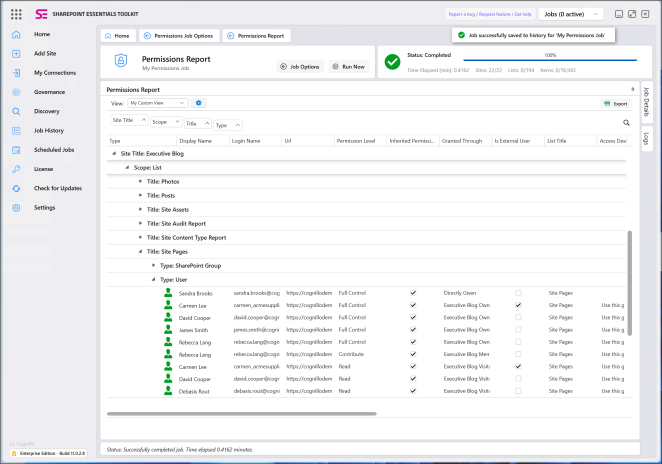
3. Review unique permissions without losing inherited access
Begin with an unfiltered baseline, then use focused views or presets to make a large report reviewable. The Unique permissions preset highlights exceptions to parent access; it does not replace a complete review of inherited permissions. A file that inherits access may be represented through its parent rather than repeated as a separate row.
- Unique permissions: identify files, folders, and list items that break inheritance, then compare them with their parent.
- External users: review guest access and whether the business owner still needs it.
- Sharing links: inspect links separately from direct user and group grants.
- Open-to-everyone access: review broadly accessible content against the intended audience.
- One-person checks: use the user-focused access view to investigate a specific person’s access routes across the selected scope.
Do not count report rows as though they were files. One item can produce several access entries, while inherited items may be represented through a parent. Preserve the selected scope and job outcome alongside the output so reviewers understand what was scanned and how the report represents access.
4. Create and export the Sharing Links report
Sharing links are a separate access route worth reviewing alongside the permissions baseline. After the Permissions Report completes with Show Sharing Link Details enabled, change the report View to Sharing Links. Review the actual link, access level, scope, creator, and expiration fields where available, then export the selected view for owner review.
- Switch View to Sharing Links. Keep the target item’s title and URL alongside the link details.
- Scroll across the report to inspect link scope, created date, creator, and expiration where populated.
- Use Access via Sharing Links when you need to review the people associated with shared links.
- Filter and sort for the review. Separate broad-access links, external sharing, and links without an expiration where relevant. Missing details may reflect configuration or access limitations.
- Choose Export and save the sharing-links view to the available spreadsheet or CSV format. Keep an unfiltered copy as well as any focused review export.
- Protect the output. Link URLs and access information are sensitive; distribute them only to authorized reviewers.
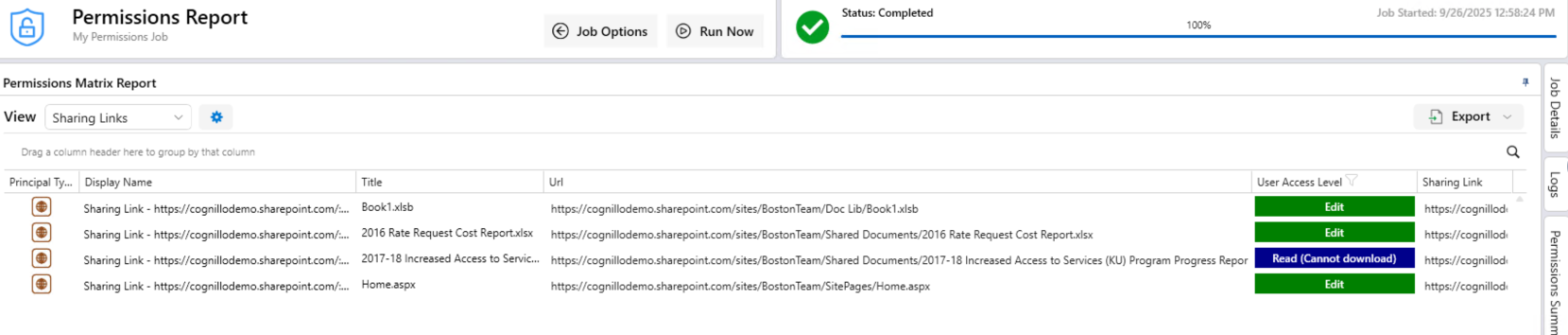

For the detailed option-by-option walkthrough, see How to Create a Sharing Links Report.
5. Export large-library permissions without hitting spreadsheet limits
Export the permissions baseline to Excel or CSV after checking the job outcome. SharePoint Essentials Toolkit supports Simple and Data-aware Excel formats. Community Edition does not impose report row, item, or user caps, but spreadsheet software still has its own limits—and a million files can generate more than a million permission rows.
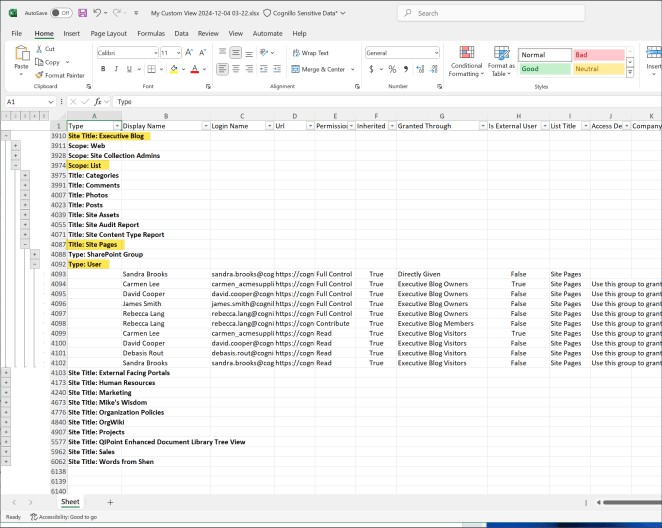
Excel supports 1,048,576 rows per worksheet, including the header. A file’s users, groups, and access routes can each add report entries. Do not assume an entire million-file audit will fit on one worksheet, or that opening a CSV in Excel removes Excel’s row limit.
- Separate review scopes when needed: create and export clearly documented library or list jobs rather than one undifferentiated workbook.
- Use focused review copies: export unique permissions or sharing links separately while retaining baseline evidence.
- For output beyond a worksheet’s capacity: use CSV with a data-analysis tool that supports the full dataset; confirm its row count rather than relying on a partial spreadsheet preview.
- Retain context: store the run date, selected scope, options, and any unresolved scan errors with each export.
Plan scan time using the 10,000-files-per-three-minutes average
Cognillo reports an average permissions-report processing speed of 10,000 files per three minutes. Use it to build an initial scan window, then measure a representative library in your own environment. The figures below are linear planning estimates derived from that average, not measured end-to-end results for each library size.
- 10,000 files: approximately 3 minutes.
- 50,000 files: approximately 15 minutes.
- 100,000 files: approximately 30 minutes.
- 500,000 files: approximately 150 minutes, or 2 hours 30 minutes.
- 1,000,000 files: approximately 300 minutes, or 5 hours.
The million-file estimate is not a claim that the million-plus-file test finished in five hours. More unique permissions, larger memberships per item, directory-group expansion, sharing-link detail, network conditions, and SharePoint throttling can increase duration. Allow additional time to check job outcomes, export results, and review exceptions.
Keep large-library audits repeatable
Once the baseline is reliable, save the job configuration and use scheduled reports or monitors for recurring reviews. Keep scope and options consistent so later results can be interpreted against the original baseline. Review important changes with the content owner before removing access, resetting inheritance, or changing sharing links.
Start with the highest-risk libraries, assign owners to unique-permission and sharing-link exceptions, and retain evidence of approved decisions. Reporting shows where access deserves attention; broad access is not automatically a mistake, and legitimate exceptions should not be removed without review.
Start with free, full-depth reporting
Community Edition is free and never expires. Available read-only reports run at full depth with no row, item, or user caps. The allowance is 20 site collections per tenant shared across Community keys, 20 per key, and at most 20 per job; subsites share their parent collection’s count. A library’s million-plus files do not create a separate Community file-count limit.
Reporting, export options, and scheduled reports are available within that site allowance. Making changes is subject to separate edition limits. Compare editions and download SharePoint Essentials Toolkit to build your first large-library permissions baseline.