SharePoint Sharing Link Not Working or "This Item Might Not Exist or Is No Longer Available"? Causes and Fixes
A SharePoint sharing link stops working when it has expired, was removed (directly or by resetting the file's permissions), the file was deleted or moved to another site, the recipient is signed in with a different account, or an admin turned off that link type. Open the file's Manage access panel to see whether the link still exists and when it expires. To find every expired or removed link across sites, use a sharing links report in PnP PowerShell or the free SharePoint Essentials Toolkit.
Published:
Last updated: 2026-10-29
What the error means
"This item might not exist or is no longer available. This item might have been deleted, expired, or you might not have permission to view it." SharePoint shows the same message for most failures, so work through the causes in order:
| Cause | How to tell | Fix |
|---|---|---|
| The link expired | Manage access shows the link with a past expiry date, or doesn't show it | Extend the expiry, or share again |
| The link was removed | The link is gone from Manage access. Selecting Stop sharing or resetting the file to inherited permissions removes every link on it. | Share again |
| The file was deleted | The file is in the site recycle bin | Restore it; the link works again if it hasn't expired |
| The file moved to another site | The file exists, but in a different site | Share again from the new location. Moves and renames within a site keep links working. |
| Wrong account | "This link was sent to someone else" or "doesn't work for you". Specific people links only work for the email address they were sent to. | Sign in with that address, or share with the account they use |
| Link type turned off | Anyone links fail for everybody after an admin restricted external sharing | See Anyone links disabled |
| Guest can't use an organization link | "People in your organization" links don't work for guests | Share with the guest as specific people |
Conditional access, unmanaged device policies and site-level restrictions such as restricted site access can also block a link that is otherwise fine. The person sees a sign-in or access message rather than "might not exist".
Option 1: Check and fix the link with built-in tools
- Select the file, then ... > Manage access.
- Open the Links tab (or the link list under Links giving access). Every working link is listed with who it works for and its expiry.
- Select a link to change its expiry, change its permission, or delete it. If the link isn't there, it was removed or has expired; share the file again.
Admins can see the tenant defaults, including the maximum days for Anyone links, under Policies > Sharing in the SharePoint admin center. There's no built-in view of every link and its expiry across a site; Manage access works one file at a time.
Option 2: Find expired and expiring links with PowerShell
This PnP PowerShell script lists every sharing link in a library with its scope, permission and expiry, and flags links that have expired or will expire within two weeks. It is read-only. It needs PnP PowerShell 2.x and your own Entra ID app registration with Graph Sites.Read.All or higher.
# List sharing links in a library, with expiry, and flag expired ones (read-only)
$ClientId = "<your-app-id>"
$SiteUrl  = "https://contoso.sharepoint.com/sites/Projects"
$Library  = "Documents"
$SoonDays = 14
Connect-PnPOnline -Url $SiteUrl -Interactive -ClientId $ClientId

$now = Get-Date
# Items with unique permissions are the only ones that can have links
$items = Get-PnPListItem -List $Library -PageSize 2000 -Fields "FileRef", "FSObjType" |
    Where-Object { $_.FieldValues.FSObjType -eq 0 -and (Get-PnPProperty -ClientObject $_ -Property HasUniqueRoleAssignments) }

$links = foreach ($item in $items) {
    $path = $item.FieldValues.FileRef
    foreach ($link in Get-PnPFileSharingLink -Identity $path) {
        $expires = $link.ExpirationDateTime
        [pscustomobject]@{
            File       = $path
            Scope      = $link.Link.Scope        # anonymous, organization, users
            Type       = $link.Link.Type         # view, edit, review, blocksDownload
            Expires    = $expires
            Status     = if (-not $expires) { "No expiry" }
                         elseif ($expires -lt $now) { "EXPIRED" }
                         elseif ($expires -lt $now.AddDays($SoonDays)) { "Expires soon" }
                         else { "OK" }
            Url        = $link.Link.WebUrl
        }
    }
}
$links | Sort-Object Status, Expires | Format-Table File, Scope, Type, Expires, Status -AutoSize
What to know:
- If a link someone reports isn't in the output, it was removed; share the file again.
- The script reads one library. Loop over
Get-PnPListand sites for more, and expect it to be slow: it makes one Graph call per shared file. - To extend a link, change it in Manage access, or use the toolkit below to extend many at once.
Option 3: Find and fix broken sharing links with SharePoint Essentials Toolkit
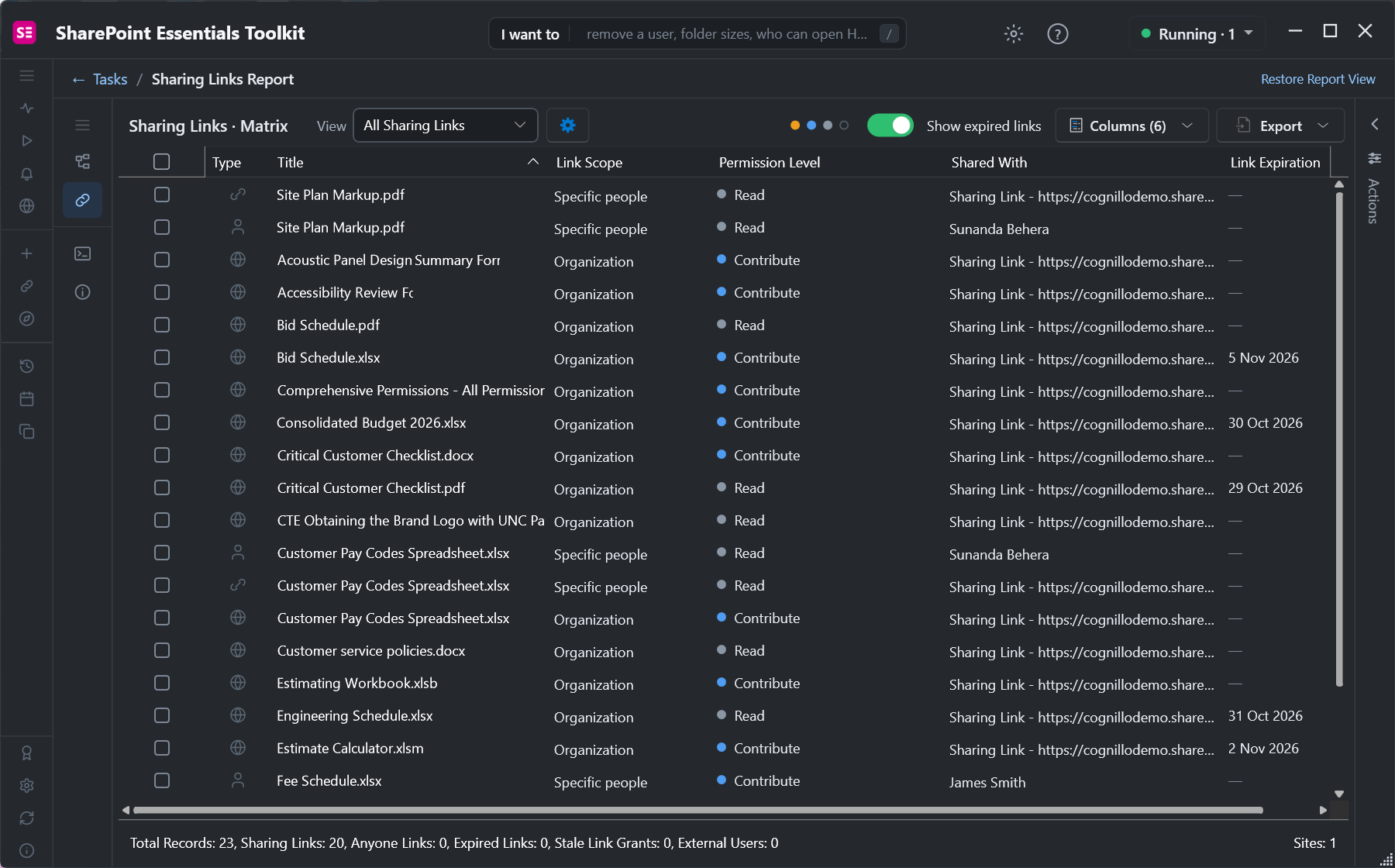
The Sharing links report lists every link across the sites you pick, with its scope, permission, who it was shared with and when it expires. Turn on Show expired links to include links that no longer work; the footer counts them.
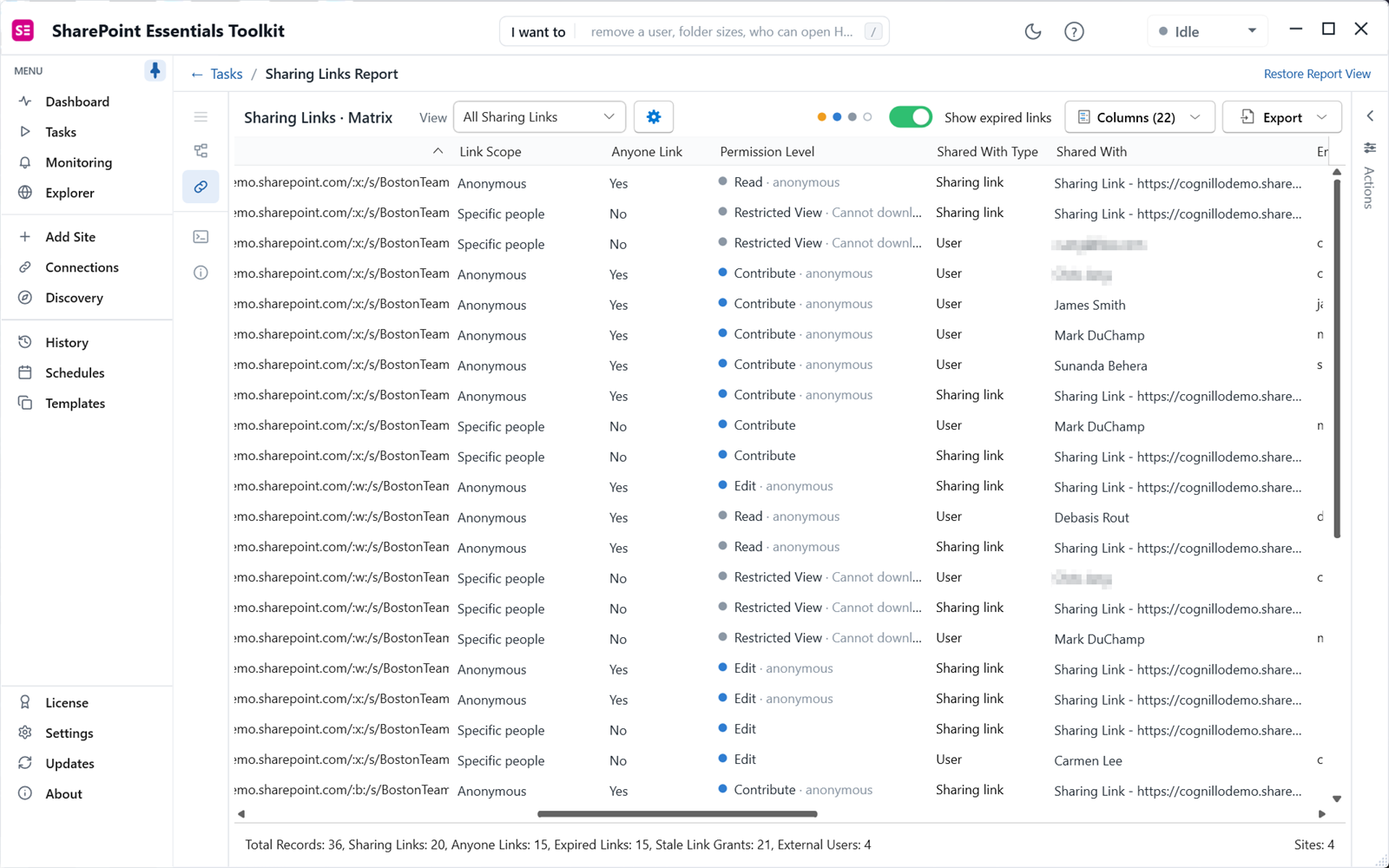
Add the Link Expiration column and sort by it to see which links run out next. When someone says a link stopped working, search the report for the file name: if the link is listed as expired, extend it; if it isn't listed at all, it was removed and the file needs sharing again.
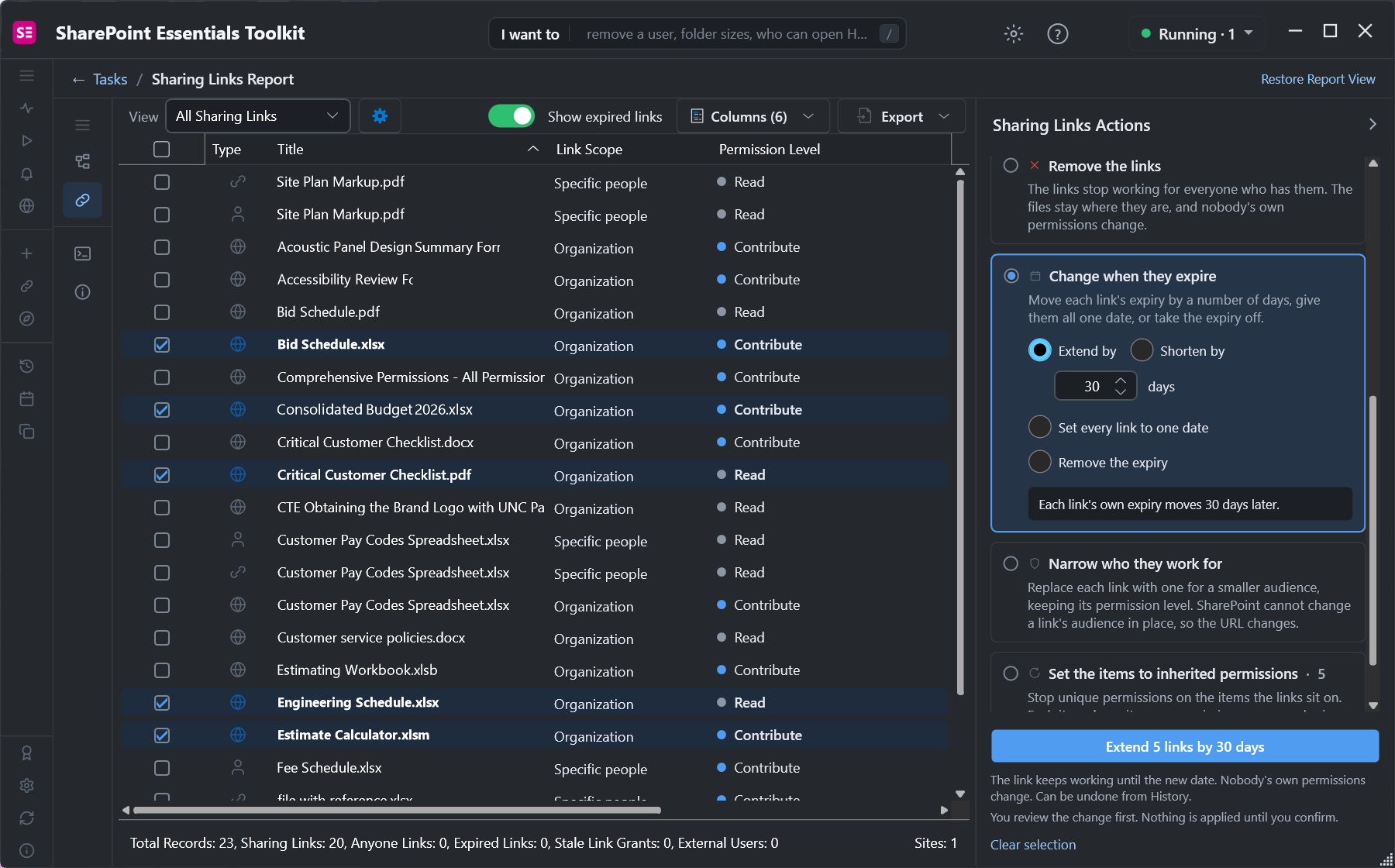
To keep links working, tick them and choose Change when they expire in the Actions panel. Extend each link by a number of days, give them all one date, or remove the expiry. The link URL stays the same, so people don't need a new one.
For links inside documents and pages that point to files that have moved, run Find broken links instead. See How to find broken links in SharePoint.
Frequently asked questions
Why does a SharePoint link say "This item might not exist or is no longer available"?
SharePoint shows it when the link has expired or been removed, the file was deleted or moved to another site, or you don't have access with the account you're signed in with. Open Manage access on the file to see whether the link still exists and when it expires.
Do SharePoint sharing links break when a file is moved or renamed?
Renaming a file or moving it within the same site keeps its sharing links working. Moving it to a different site creates a new file, so the old links stop working and the file has to be shared again.
Why does a specific people link say it was sent to someone else?
Specific people links only work for the email addresses they were shared with. The recipient is signed in with a different account, often a personal Microsoft account or another work account. They need to sign in with the address the link was sent to.
Can I extend a SharePoint sharing link after it expires?
You can change the expiry of a link that is still listed in Manage access, and the URL stays the same. Once SharePoint has removed an expired link, you have to share the file again. SharePoint Essentials Toolkit extends many links at once from its sharing links report.
Does resetting permissions remove sharing links?
Yes. Stop sharing, or resetting a file or folder to inherit permissions, deletes every sharing link on it. Anyone holding those links loses access.
Find expired and broken sharing links free
SharePoint Essentials Toolkit Community Edition is free. Report every sharing link with its scope and expiry, and extend, narrow or remove links in batches of up to 10, on up to 20 sites per Microsoft 365 tenant. Get your free Community Edition license key.